
1. Overview
In this codelab, you will build a Supply Chain Orchestrator agent. This application allows users to analyze inventory, track logistics, and manage supply chain risks using natural language.
We will leverage Google's Agent Development Kit (ADK) to build a multi-agent architecture that maintains context, remembers user preferences via Vertex AI Memory Bank, and interacts with a massive dataset stored in AlloyDB via the MCP Toolbox.
What you'll build
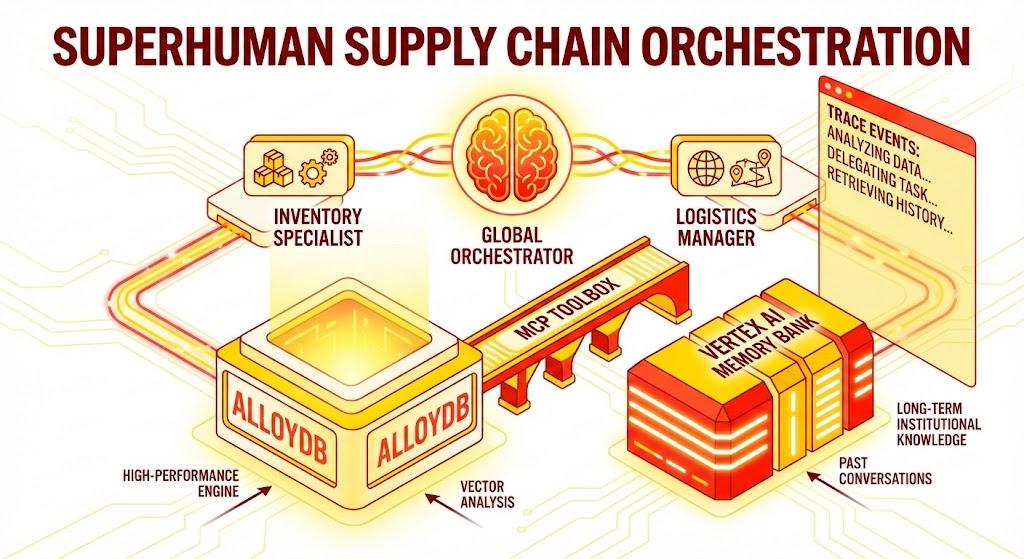
A Python Flask application consisting of:
Global Orchestrator Agent: The root agent that manages conversation flow and delegation.
Specialist Agents: An "InventorySpecialist" and "LogisticsManager" for domain-specific tasks.
Memory Integration: Short-term session memory and long-term memory using Vertex AI Memory Bank.
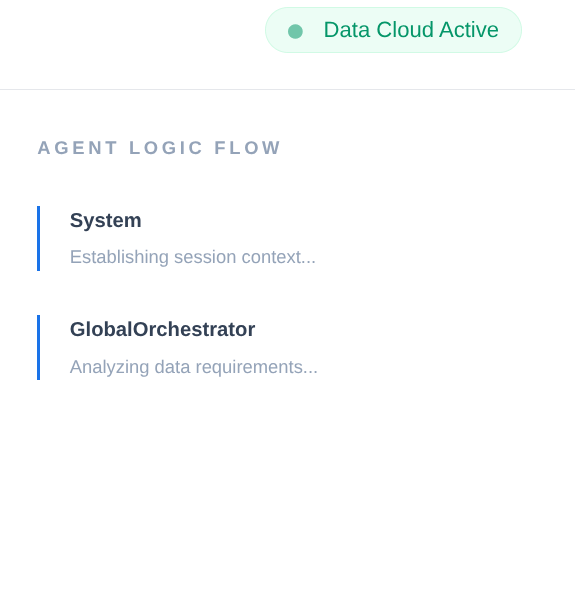
Narrative UI: A web interface that visualizes the agent's reasoning process (Trace Context).
What you'll learn
- How to use the Google ADK to create specialized agents and sub-agents.
- How to integrate Vertex AI Memory Bank for long-term agent memory.
- How to use MCP Toolbox to connect agents to AlloyDB data tools.
- How to implement ADK Callbacks to trace and visualize agent reasoning.
- How to deploy the solution using Cloud Run or run it locally.
The Architecture
The Tech Stack
- AlloyDB for PostgreSQL: Serves as the high-performance operational database holding 50,000+ supply chain records. It powers the vector search and retrieval.
- MCP Toolbox for Databases: Acts as the "Orchestration Maestro," exposing AlloyDB data as executable tools that the agents can call.
- Agent Development Kit (ADK): The framework used to define the agents, instructions, and tools.
- Vertex AI Memory Bank: Provides long-term memory, allowing the agent to recall user preferences and past interactions across sessions.
- Vertex AI Session Service: Manages short-term conversation context.
The Flow
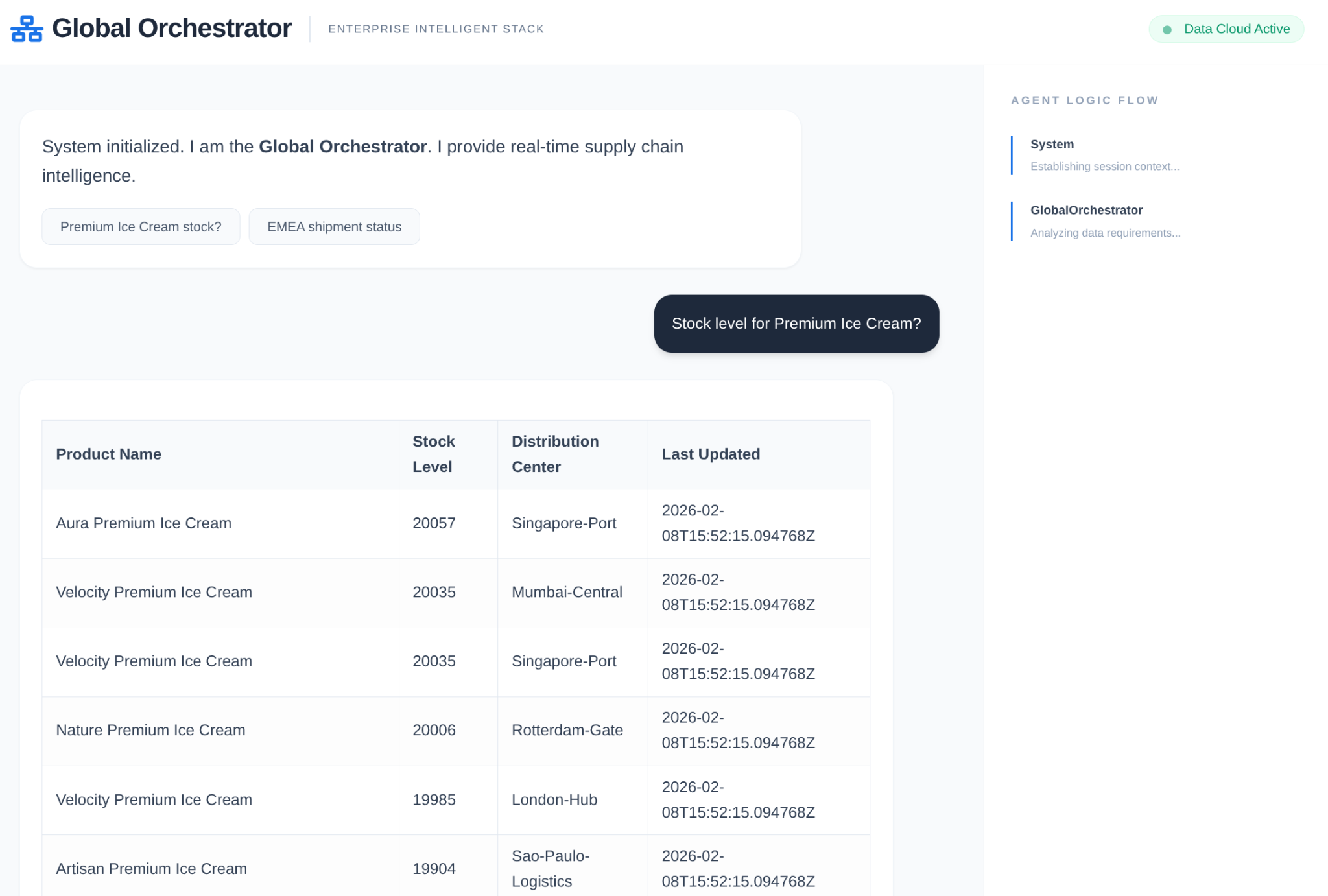
- User Query: The user asks a question (e.g., "Check stock for Premium Ice Cream").
- Memory Check: The Orchestrator checks the Memory Bank for relevant past information (e.g., "User is a regional manager for EMEA").
- Delegation: The Orchestrator delegates the task to the InventorySpecialist.
- Tool Execution: The Specialist uses tools provided by the MCP Toolbox to query AlloyDB.
- Response: The agent processes the data and returns a Markdown-formatted table.
- Memory Storage: Significant interactions are saved back to the Memory Bank.
Requirements
2. Before you begin
Create a project
- In the Google Cloud Console, on the project selector page, select or create a Google Cloud project.
- Make sure that billing is enabled for your Cloud project. Learn how to check if billing is enabled on a project.
- You'll use Cloud Shell, a command-line environment running in Google Cloud. Click Activate Cloud Shell at the top of the Google Cloud console.

- Once connected to Cloud Shell, you check that you're already authenticated and that the project is set to your project ID using the following command:
gcloud auth list
- Run the following command in Cloud Shell to confirm that the gcloud command knows about your project.
gcloud config list project
- If your project is not set, use the following command to set it:
gcloud config set project <YOUR_PROJECT_ID>
- Enable the required APIs: Follow the link and enable the APIs.
Alternatively you can use the gcloud command for this. Refer documentation for gcloud commands and usage.
Gotchas & Troubleshooting
The "Ghost Project" Syndrome | You ran |
The Billing Barricade | You enabled the project, but forgot the billing account. AlloyDB is a high-performance engine; it won't start if the "gas tank" (billing) is empty. |
API Propagation Lag | You clicked "Enable APIs," but the command line still says |
Quota Quags | If you're using a brand-new trial account, you might hit a regional quota for AlloyDB instances. If |
"Hidden" Service Agent | Sometimes the AlloyDB Service Agent isn't automatically granted the |
3. Database setup
At the heart of our application lies AlloyDB for PostgreSQL. We leveraged its powerful vector capabilities and integrated columnar engine to generate embeddings for 50,000+ SCM records. This enables near real-time vector analysis, allowing our agents to identify inventory anomalies or logistics risks across massive datasets in milliseconds.
In this lab we'll use AlloyDB as the database for the test data. It uses clusters to hold all of the resources, such as databases and logs. Each cluster has a primary instance that provides an access point to the data. Tables will hold the actual data.
Let's create an AlloyDB cluster, instance and table where the test dataset will be loaded.
- Click the button or Copy the link below to your browser where you have the Google Cloud Console user logged in.
Alternatively, you can go to Cloud Shell Terminal from your project where you have redeemed the billing account, and clone the github repo and navigate to the project using the commands below:
git clone https://github.com/AbiramiSukumaran/easy-alloydb-setup

cd easy-alloydb-setup
- Once this step is complete the repo will be cloned to your local cloud shell editor and you will be able to run the command below from with the project folder (important to make sure you are in the project directory):
sh run.sh
- Now use the UI (clicking the link in the terminal or clicking the "preview on web" link in the terminal.
- Enter your details for project id, cluster and instance names to get started.
- Go grab a coffee while the logs scroll & you can read about how it's doing this behind the scenes here.
Gotchas & Troubleshooting
The "Patience" Problem | Database clusters are heavy infrastructure. If you refresh the page or kill the Cloud Shell session because it "looks stuck," you might end up with a "ghost" instance that is partially provisioned and impossible to delete without manual intervention. |
Region Mismatch | If you enabled your APIs in |
Zombie Clusters | If you previously used the same name for a cluster and didn't delete it, the script might say the cluster name already exists. Cluster names must be unique within a project. |
Cloud Shell Timeout | If your coffee break takes 30 minutes, Cloud Shell might go to sleep and disconnect the |
4. Schema Provisioning
Once you have your AlloyDB cluster and instance running, head over to the AlloyDB Studio SQL editor to enable the AI extensions and provision the schema.
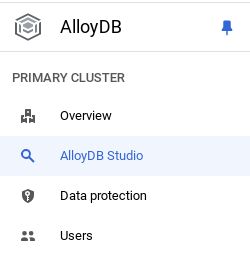
You may need to wait for your instance to finish being created. Once it is, sign into AlloyDB using the credentials you created when you created the cluster. Use the following data for authenticating to PostgreSQL:
- Username : "
postgres" - Database : "
postgres" - Password : "
alloydb" (or whatever you set at the time of creation)
Once you have authenticated successfully into AlloyDB Studio, SQL commands are entered in the Editor. You can add multiple Editor windows using the plus to the right of the last window.
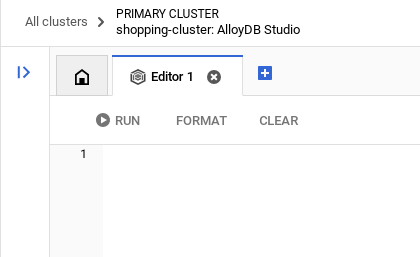
You'll enter commands for AlloyDB in editor windows, using the Run, Format, and Clear options as necessary.
Enable Extensions
For building this app, we will use the extensions pgvector and google_ml_integration. The pgvector extension allows you to store and search vector embeddings. The google_ml_integration extension provides functions you use to access Vertex AI prediction endpoints to get predictions in SQL. Enable these extensions by running the following DDLs:
CREATE EXTENSION IF NOT EXISTS google_ml_integration CASCADE;
CREATE EXTENSION IF NOT EXISTS vector;
Create a table
You can create a table using the DDL statement below in the AlloyDB Studio:
DROP TABLE IF EXISTS shipments;
DROP TABLE IF EXISTS products;

-- 1. Product Inventory Table

CREATE TABLE products (
id SERIAL PRIMARY KEY,
name VARCHAR(255) NOT NULL,
category VARCHAR(100),
stock_level INTEGER,
distribution_center VARCHAR(100),
region VARCHAR(50),
embedding vector(768),
last_updated TIMESTAMP DEFAULT CURRENT_TIMESTAMP
);

-- 2. Logistics & Shipments
CREATE TABLE shipments (
shipment_id SERIAL PRIMARY KEY,
product_id INTEGER REFERENCES products(id),
status VARCHAR(50), -- 'In Transit', 'Delayed', 'Delivered', 'Pending'
estimated_arrival TIMESTAMP,
route_efficiency_score DECIMAL(3, 2)
);
The embedding column will allow storage for the vector values of some of the text fields.
Data Ingestion
Run the below set of SQL statements to bulk insert 50000 records in products table:
-- We use a CROSS JOIN pattern with realistic naming segments to create meaningful variety
DO $$
DECLARE
brand_names TEXT[] := ARRAY['Artisan', 'Nature', 'Elite', 'Pure', 'Global', 'Eco', 'Velocity', 'Heritage', 'Aura', 'Summit'];
product_types TEXT[] := ARRAY['Ice Cream', 'Body Wash', 'Laundry Detergent', 'Shampoo', 'Mayonnaise', 'Deodorant', 'Tea', 'Soup', 'Face Cream', 'Soap'];
variants TEXT[] := ARRAY['Classic', 'Gold', 'Premium', 'Eco-Friendly', 'Organic', 'Night-Repair', 'Extra-Fresh', 'Zero-Sugar', 'Sensitive', 'Maximum-Strength'];
regions TEXT[] := ARRAY['EMEA', 'APAC', 'LATAM', 'NAMER'];
dcs TEXT[] := ARRAY['London-Hub', 'Mumbai-Central', 'Sao-Paulo-Logistics', 'Singapore-Port', 'Rotterdam-Gate', 'New-York-DC'];
BEGIN
INSERT INTO products (name, category, stock_level, distribution_center, region)
SELECT
b || ' ' || v || ' ' || t as name,
CASE
WHEN t IN ('Ice Cream', 'Mayonnaise', 'Tea', 'Soup') THEN 'Food & Refreshment'
WHEN t IN ('Body Wash', 'Shampoo', 'Deodorant', 'Face Cream', 'Soap') THEN 'Personal Care'
ELSE 'Home Care'
END as category,
floor(random() * 20000 + 100)::int as stock_level,
dcs[floor(random() * 6 + 1)] as distribution_center,
regions[floor(random() * 4 + 1)] as region
FROM
unnest(brand_names) b,
unnest(variants) v,
unnest(product_types) t,
generate_series(1, 50); -- 10 * 10 * 10 * 50 = 50,000 records
END $$;
Lets insert demo specific records to ensure predictable answers for executive style questions
-- These ensure you have predictable answers for specific "Executive" questions
INSERT INTO products (name, category, stock_level, distribution_center, region) VALUES
('Magnum Ultra Gold Limited Edition', 'Food & Refreshment', 45, 'Rotterdam-Gate', 'EMEA'),
('Dove Pro-Health Deep Moisture', 'Personal Care', 12000, 'Mumbai-Central', 'APAC'),
('Hellmanns Real Organic Mayonnaise', 'Food & Refreshment', 8000, 'London-Hub', 'EMEA');
Inserting shipments data
-- Shipments Generation (More shipments than products)
INSERT INTO shipments (product_id, status, estimated_arrival, route_efficiency_score)
SELECT
id,
CASE
WHEN random() > 0.8 THEN 'Delayed'
WHEN random() > 0.4 THEN 'In Transit'
ELSE 'Delivered'
END,
NOW() + (random() * 10 || ' days')::interval,
(random() * 0.5 + 0.5)::decimal(3,2)
FROM products
WHERE random() > 0.3; -- Create shipments for ~70% of products


-- Add duplicate shipments for some products to show complex logistics
INSERT INTO shipments (product_id, status, estimated_arrival, route_efficiency_score)
SELECT id, 'In Transit', NOW() + INTERVAL '12 days', 0.88
FROM products
LIMIT 5000;
Grant Permission
Run the below statement to grant execute on the "embedding" function:
GRANT EXECUTE ON FUNCTION embedding TO postgres;
Grant Vertex AI User ROLE to the AlloyDB service account
From Google Cloud IAM console, grant the AlloyDB service account (that looks like this: service-<<PROJECT_NUMBER>>@gcp-sa-alloydb.iam.gserviceaccount.com) access to the role "Vertex AI User". PROJECT_NUMBER will have your project number.
Alternatively you can run the below command from the Cloud Shell Terminal:
PROJECT_ID=$(gcloud config get-value project)


gcloud projects add-iam-policy-binding $PROJECT_ID \
  --member="serviceAccount:service-$(gcloud projects describe $PROJECT_ID --format="value(projectNumber)")@gcp-sa-alloydb.iam.gserviceaccount.com" \
--role="roles/aiplatform.user"
Generate Embeddings
Next, let's generate vector embeddings for specific meaningful text fields:
WITH
 rows_to_update AS (
 SELECT
   id
 FROM
   products
 WHERE
   embedding IS NULL
 LIMIT
   5000 )
UPDATE
 products
SET
 embedding = ai.embedding('text-embedding-005', name || ' ' || category || ' ' || distribution_center || ' ' || region)::vector
FROM
 rows_to_update
WHERE
 products.id = rows_to_update.id
 AND embedding IS null;
In this statement above we have set the limit as 5000 so make sure to run it repeatedly until there is no row in the table with the column embedding as NULL.
Gotchas & Troubleshooting
The "Password Amnesia" Loop | If you used the "One Click" setup and can't remember your password, go to the Instance basic information page in the console and click "Edit" to reset the |
The "Extension Not Found" Error | If |
The IAM Propagation Gap | You ran the |
Vector Dimension Mismatch | The |
Project ID Typo | In the |
5. Tools & Toolbox Setup
MCP Toolbox for Databases is an open source MCP server for databases. It enables you to develop tools easier, faster, and more securely by handling the complexities such as connection pooling, authentication, and more. Toolbox helps you build Gen AI tools that let your agents access data in your database.
We use the Model Context Protocol (MCP) Toolbox for Databases as the "conductor." It acts as a standardized middleware between our agents and AlloyDB. By defining a tools.yaml configuration, the toolbox automatically exposes complex database operations as clean, executable tools like search_products_by_context or check_inventory_levels. This eliminates the need for manual connection pooling or boilerplate SQL within the agent logic.
Installing the Toolbox server
From your Cloud Shell Terminal, create a folder for saving your new tools yaml file and the toolbox binary:
mkdir scm-agent-toolbox

cd scm-agent-toolbox
From within that new folder, run the following set of commands:
# see releases page for other versions
export VERSION=0.27.0
curl -L -o toolbox https://storage.googleapis.com/genai-toolbox/v$VERSION/linux/amd64/toolbox
chmod +x toolbox
Next create the tools.yaml file inside that new folder by navigating into the Cloud Shell Editor and copy the contents of this repo file into the tools.yaml file.
sources:
    supply_chain_db:
        kind: "alloydb-postgres"
        project: "YOUR_PROJECT_ID"
        region: "us-central1"
        cluster: "YOUR_CLUSTER"
        instance: "YOUR_INSTANCE"
        database: "postgres"
        user: "postgres"
        password: "YOUR_PASSWORD"

tools:
  search_products_by_context:
    kind: postgres-sql
    source: supply_chain_db
    description: Find products in the inventory using natural language search and vector embeddings.
    parameters:
      - name: search_text
        type: string
        description: Description of the product or category the user is looking for.
    statement: |
     SELECT name, category, stock_level, distribution_center, region
      FROM products
      ORDER BY embedding <=> ai.embedding('text-embedding-005', $1)::vector
      LIMIT 5;

  check_inventory_levels:
    kind: postgres-sql
    source: supply_chain_db
    description: Get precise stock levels for a specific product name.
    parameters:
      - name: product_name
        type: string
        description: The exact or partial name of the product.
    statement: |
     SELECT name, stock_level, distribution_center, last_updated
      FROM products
      WHERE name ILIKE '%' || $1 || '%'
      ORDER BY stock_level DESC;

  track_shipment_status:
    kind: postgres-sql
    source: supply_chain_db
    description: Retrieve real-time logistics and shipping status for a specific region or product.
    parameters:
      - name: region
        type: string
        description: The geographical region to filter shipments (e.g., EMEA, APAC).
    statement: |
     SELECT p.name, s.status, s.estimated_arrival, s.route_efficiency_score
      FROM shipments s
      JOIN products p ON s.product_id = p.id
      WHERE p.region = $1
      ORDER BY s.estimated_arrival ASC;

  analyze_supply_chain_risk:
    kind: postgres-sql
    source: supply_chain_db
    description: Rerank and filter shipments based on risk profiles and efficiency scores using Google ML reranker.
    parameters:
      - name: risk_context
        type: string
        description: The business context for risk analysis (e.g., 'heatwave impact' or 'port strike').
    statement: |
     WITH initial_ranking AS (
      SELECT s.shipment_id, p.name, s.status, p.distribution_center,
      ROW_NUMBER() OVER () AS ref_number
      FROM shipments s
      JOIN products p ON s.product_id = p.id
      WHERE s.status != 'Delivered'
      LIMIT 10
      ),
      reranked_results AS (
      SELECT index, score FROM
      ai.rank(
      model_id => 'semantic-ranker-default-003',
      search_string => $1,
      documents => (SELECT ARRAY_AGG(name || ' at ' || distribution_center ORDER BY ref_number) FROM initial_ranking)
      )
      )
      SELECT i.name, i.status, i.distribution_center, r.score
      FROM initial_ranking i, reranked_results r
      WHERE i.ref_number = r.index
      ORDER BY r.score DESC;

toolsets:
   supply_chain_toolset:
     - search_products_by_context
     - check_inventory_levels
     - track_shipment_status
     - analyze_supply_chain_risk
Now test the tools.yaml file in the local server:
./toolbox --tools-file "tools.yaml"
You can alternatively test it in the UI
./toolbox --ui
Perfect!! Once you're sure this all works, go ahead and deploy it in Cloud Run as follows.
Cloud Run Deployment
- Set the PROJECT_ID environment variable:
export PROJECT_ID="my-project-id"
- Initialize gcloud CLI:
gcloud init
gcloud config set project $PROJECT_ID
- You must have the following APIs enabled:
gcloud services enable run.googleapis.com \
                       cloudbuild.googleapis.com \
                       artifactregistry.googleapis.com \
                       iam.googleapis.com \
                       secretmanager.googleapis.com
- Create a backend service account if you don't already have one:
gcloud iam service-accounts create toolbox-identity
- Grant permissions to use secret manager:
gcloud projects add-iam-policy-binding $PROJECT_ID \
    --member serviceAccount:toolbox-identity@$PROJECT_ID.iam.gserviceaccount.com \
    --role roles/secretmanager.secretAccessor
- Grant additional permissions to the service account that are specific to our AlloyDB source (roles/alloydb.client and roles/serviceusage.serviceUsageConsumer)
gcloud projects add-iam-policy-binding $PROJECT_ID \
    --member serviceAccount:toolbox-identity@$PROJECT_ID.iam.gserviceaccount.com \
    --role roles/alloydb.client


gcloud projects add-iam-policy-binding $PROJECT_ID \
    --member serviceAccount:toolbox-identity@$PROJECT_ID.iam.gserviceaccount.com \
    --role serviceusage.serviceUsageConsumer
- Upload tools.yaml as a secret:
gcloud secrets create tools-scm-agent --data-file=tools.yaml
- If you already have a secret and want to update the secret version, execute the following:
gcloud secrets versions add tools-scm-agent --data-file=tools.yaml
- Set an environment variable to the container image that you want to use for cloud run:
export IMAGE=us-central1-docker.pkg.dev/database-toolbox/toolbox/toolbox:latest
- Deploy Toolbox to Cloud Run using the following command:
If you have enabled public access in your AlloyDB instance (not recommended), follow the command below for deployment to Cloud Run:
gcloud run deploy toolbox-scm-agent \
    --image $IMAGE \
    --service-account toolbox-identity \
    --region us-central1 \
    --set-secrets "/app/tools.yaml=tools-scm-agent:latest" \
    --args="--tools-file=/app/tools.yaml","--address=0.0.0.0","--port=8080" \
    --allow-unauthenticated
If you are using a VPC network, use the command below:
gcloud run deploy toolbox-scm-agent \
    --image $IMAGE \
    --service-account toolbox-identity \
    --region us-central1 \
    --set-secrets "/app/tools.yaml=tools-scm-agent:latest" \
    --args="--tools-file=/app/tools.yaml","--address=0.0.0.0","--port=8080" \
    # TODO(dev): update the following to match your VPC details
    --network <<YOUR_NETWORK_NAME>> \
    --subnet <<YOUR_SUBNET_NAME>> \
    --allow-unauthenticated
6. Agent Setup
Using the Agent Development Kit (ADK), we've moved away from monolithic prompts toward a specialized, multi-agent architecture:
- InventorySpecialist: Focused on product stock and warehouse metrics.
- LogisticsManager: Expert in global shipping routes and risk analysis.
- GlobalOrchestrator: The "brain" that uses reasoning to delegate tasks and synthesize findings.
Clone this repo into your project and let's walk through it.
To clone this, from your Cloud Shell Terminal (in the root directory or from wherever you want to create this project), run the following command:
git clone https://github.com/AbiramiSukumaran/scm-memory-agent
- This should create the project and you can verify that in the Cloud Shell Editor.
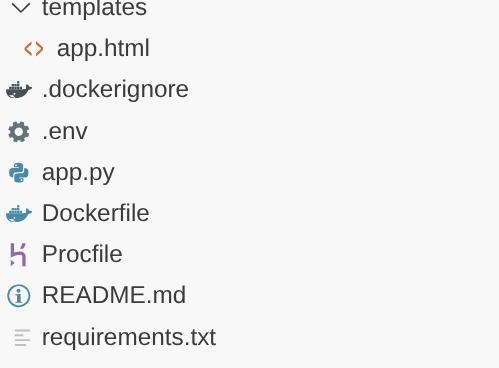
- Make sure to update the .env file with the values for your project and instance.
Code Walkthrough
A quick look at the Orchestrator Agent
Go to app.py and you should be able to see the following snippet:
orchestrator = adk.Agent(
    name="GlobalOrchestrator",
    model="gemini-2.5-flash",
    description="Global Supply Chain Orchestrator root agent.",
    instruction="""
    You are the Global Supply Chain Brain. You are responsible for products, inventory and logistics.
    You also have access to the memory tool, remember to include all the information that the tool can provide you with about the user before you respond.
    1. Understand intent and delegate to specialists. As the Global Orchestrator, you have access to the full conversation history with the user.
    When you transfer a query to a specialist agent, sub agent or tool, share the important facts and information from your memory to them so they can operate with the full context.
    2. Ensure the final response is professional and uses Markdown tables for data.
    3. If a specialist provides a long list, ensure only the top 10 items are shown initially.
    4. Conclude with a brief, high-level executive summary of what the data implies.
    """,
    tools=[adk.tools.preload_memory_tool.PreloadMemoryTool()],
    sub_agents=[inventory_agent, logistics_agent],

    #after_agent_callback=auto_save_session_to_memory_callback,
)
This snippet is the definition for the root that is the orchestrator agent that receives the conversation or the request from the user and routes to the corresponding sub agent or user the corresponding tools based on the task.
- Let's look at the inventory agent
inventory_agent = adk.Agent(
    name="InventorySpecialist",
    model="gemini-2.5-flash",
    description="Specialist in product stock and warehouse data.",
    instruction="""
    Analyze inventory levels.
    1. Use 'search_products_by_context' or 'check_inventory_levels'.
    2. ALWAYS format results as a clean Markdown table.
    3. If there are many results, display only the TOP 10 most relevant ones.
    4. At the end, state: 'There are additional records available. Would you like to see more?'
    """,
    tools=tools
)
This particular sub agent is specialized in inventory activities like searching products contextually and also checking inventory levels.
- Then there is the logistics sub agent:
logistics_agent = adk.Agent(
    name="LogisticsManager",
    model="gemini-2.5-flash",
    description="Expert in global shipping routes and logistics tracking.",
    instruction="""
    Check shipment statuses.
    1. Use 'track_shipment_status' or 'analyze_supply_chain_risk'.
    2. ALWAYS format results as a clean Markdown table.
    3. Limit initial output to the top 10 shipments.
    4. Ask if the user needs the full manifest if more results exist.
    """,
    tools=tools
)
This particular sub-agent is specialized in logistics activities like tracking shipments and analysing risks in the supply chain.
- All the 3 agents we discussed so far use tools and tools are referenced through our Toolbox server that we have already deployed in the previous section. Refer to the snippet below:
from toolbox_core import ToolboxSyncClient

TOOLBOX_SERVER = os.environ["TOOLBOX_SERVER"]
TOOLBOX_TOOLSET = os.environ["TOOLBOX_TOOLSET"]

# --- ADK TOOLBOX CONFIGURATION ---
toolbox = ToolboxSyncClient(TOOLBOX_SERVER)
tools = toolbox.load_toolset(TOOLBOX_TOOLSET)
This particular sub-agent is specialized in logistics activities like tracking shipments and analysing risks in the supply chain.
7. Agent Engine
In the initial run, create the Agent Engine
import vertexai

GOOGLE_CLOUD_PROJECT = os.environ["GOOGLE_CLOUD_PROJECT"]
GOOGLE_CLOUD_LOCATION = os.environ["GOOGLE_CLOUD_LOCATION"]

client = vertexai.Client(
  project=GOOGLE_CLOUD_PROJECT,
  location=GOOGLE_CLOUD_LOCATION
)

agent_engine = client.agent_engines.create()
- For the next run, update the Agent Engine with Memory Bank configuration:
agent_engine = client.agent_engines.update(
    name=APP_NAME,
    config={
        "context_spec": {
            "memory_bank_config": {
                "generation_config": {
                    "model": f"projects/{PROJECT_ID}/locations/{GOOGLE_CLOUD_LOCATION}/publishers/google/models/gemini-2.5-flash"
                }
            }
        }
    })
8. Context, Run & Memory
Context management is split into two distinct layers to ensure the agent feels like a continuous partner rather than a stateless bot:
Short-Term Memory (Sessions): Managed via VertexAiSessionService, this tracks the immediate event history (user messages, tool responses) within a single interaction.
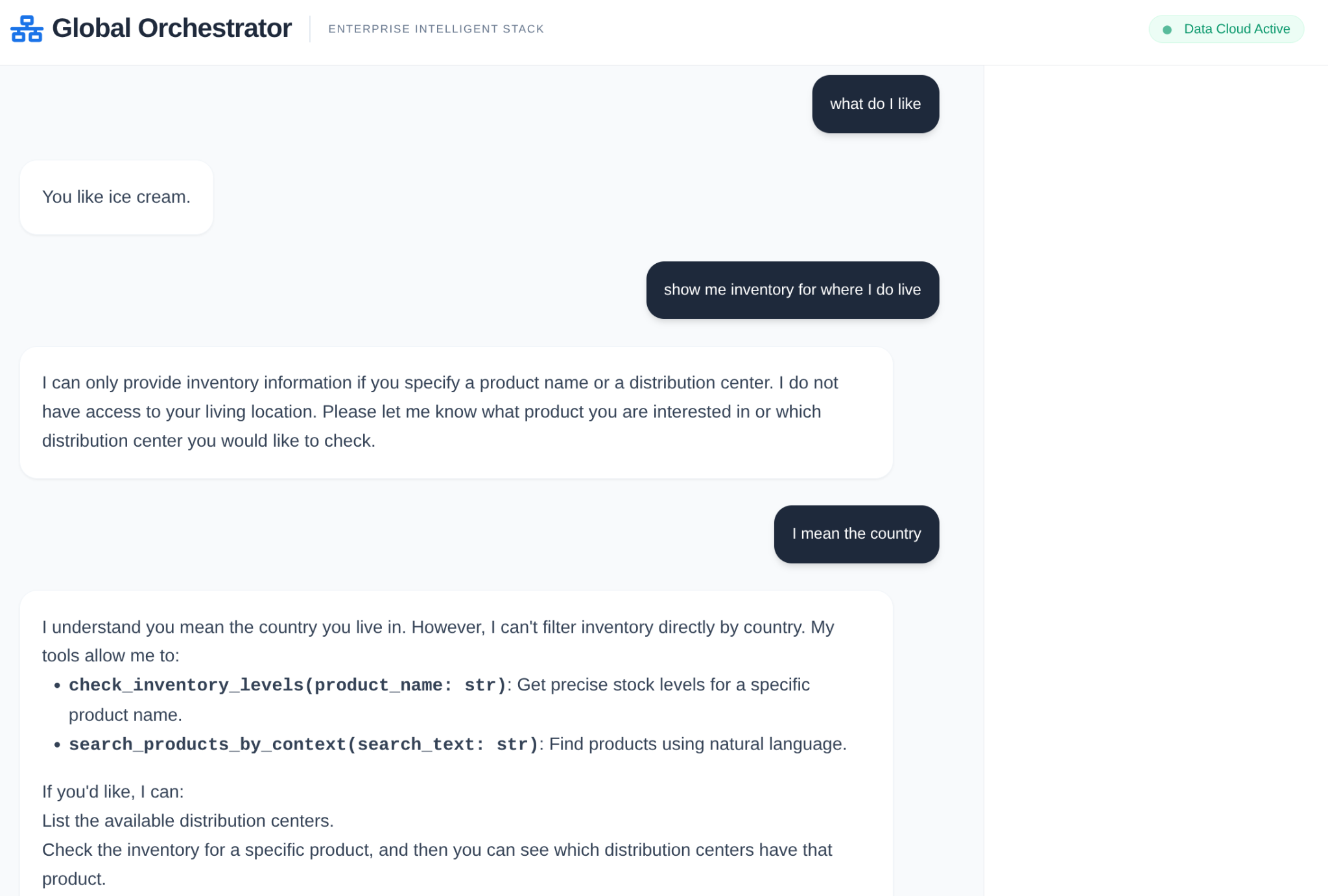
Long-Term Memory (Memory Bank): Powered by the Vertex AI Memory Bank via adk.memorybankservice. This layer extracts "meaningful" information—like a user's preference for specific shipping carriers or recurring warehouse delays—and persists them across sessions.
Initialize session for session memory within the scope of the conversation
This is the part of the snippet that creates the session for the current app for the current user.
from google.adk.sessions import VertexAiSessionService

...

session_service = VertexAiSessionService(
    project=PROJECT_ID,
    location=GOOGLE_CLOUD_LOCATION,
)

...

# Initialize the session *outside* of the route handler to avoid repeated creation
session = None
session_lock = threading.Lock()

async def initialize_session():
    global session
    try:
        session = await session_service.create_session(app_name=APP_NAME, user_id=USER_ID)
        print(f"Session {session.id} created successfully.")  # Add a log
    except Exception as e:
        print(f"Error creating session: {e}")
        session = None  # Ensure session is None in case of error

# Create the session on app startup
asyncio.run(initialize_session())
Initialize Vertex AI Memory Bank for long term memory
This is the part of the snippet that instantiates the Vertex AI Memory Bank Service object for the agent engine.
from google.adk.memory import InMemoryMemoryService
from google.adk.memory import VertexAiMemoryBankService

...

try:
    memory_bank_service = adk.memory.VertexAiMemoryBankService(
        agent_engine_id=AGENT_ENGINE_ID,
        project=PROJECT_ID,
        location=GOOGLE_CLOUD_LOCATION,
    )
    #in_memory_service = InMemoryMemoryService()
    print("Memory Bank Service initialized successfully.")
except Exception as e:
    print(f"Error initializing Memory Bank Service: {e}")
    memory_bank_service = None

runner = adk.Runner(
    agent=orchestrator,
    app_name=APP_NAME,
    session_service=session_service,
    memory_service=memory_bank_service,
)

...
What is configured?
In this part of the snippet we are configuring the Vertex AI Memory Bank Service for long term memory, it contextually stores the session for the specific app for the specific user as a memory within the Vertex AI memory bank.
What is run as part of the agent execution?
   async def run_and_collect():
        final_text = ""
        try:
            async for event in runner.run_async(
                new_message=content,
                user_id=user_id,
                session_id=session_id
            ):
                if hasattr(event, 'author') and event.author:
                    if not any(log['agent'] == event.author for log in execution_logs):
                        execution_logs.append({
                            "agent": event.author,
                            "action": "Analyzing data requirements...",
                            "type": "orchestration_event"
                        })
                if hasattr(event, 'text') and event.text:
                    final_text = event.text
                elif hasattr(event, 'content') and hasattr(event.content, 'parts'):
                    for part in event.content.parts:
                        if hasattr(part, 'text') and part.text:
                            final_text = part.text
        except Exception as e:
            print(f"Error during runner.run_async: {e}")
            raise  # Re-raise the exception to signal failure
        finally:
            gc.collect()
            return final_text
It processes the user's input content into the new_message object with the user id and the session id in scope. Then the agent takes over and the agent response is processed and returned.
What is stored in the long term memory?
The session detail in the scope of the app and the user is extracted in the session variable.
This session is then added as the memory for the current user for the current app of the Vertex AI Memory Bank object using the "add_session_to_memory" method.
session = asyncio.run(session_service.get_session(app_name=APP_NAME, user_id=USER_ID, session_id=session.id))

if memory_bank_service and session:  # Check memory service AND session
                try:
                    #asyncio.run(in_memory_service.add_session_to_memory(session))
                    asyncio.run(memory_bank_service.add_session_to_memory(session))
                    '''
                    client.agent_engines.memories.generate(
                        scope={"app_name": APP_NAME, "user_id": USER_ID},
                        name=APP_NAME,
                        direct_contents_source={
                            "events": [
                                {"content": content}
                            ]
                        },
                        config={"wait_for_completion": True},
                    )
                    '''

                    print("Successfully added session to memory.******")
                    print(session.id)

                except Exception as e:
                    print(f"Error adding session to memory: {e}")
Memory Retrieval
We need to retrieve the stored long term memory using the app name and the user name as the scope (since that is the scope we stored the memories for) in order to be able to pass it as part of the context to the orchestrator and other agents as applicable.
    results = client.agent_engines.memories.retrieve(
    name=APP_NAME,
    scope={"app_name": APP_NAME, "user_id": USER_ID}
    )
    # RetrieveMemories returns a pager. You can use `list` to retrieve all pages' memories.
    list(results)
    print(list(results))
How is the retrieved memory loaded as part of the context?
We use the following attribute in the definition of the Orchestrator agent that allows the root agent to preload the context from the memory bank. This is in addition to the tools we access from the toolbox server for the sub agents.
tools=[adk.tools.preload_memory_tool.PreloadMemoryTool()],
Callback Context
In an enterprise supply chain, you cannot have a "black box." We use ADK's CallbackContext to create a Narrative Engine. By hooking into the agent's execution, we capture every thought process and tool call, streaming them to a UI sidebar.
- Trace Event: "GlobalOrchestrator is analyzing data requirements..."
- Trace Event: "Delegating to InventorySpecialist for stock levels..."
- Trace Event: "Retrieving historical supplier delay patterns from Memory Bank..."
This audit trail is invaluable for debugging and ensures that human operators can trust the agent's autonomous decisions.
from google.adk.agents.callback_context import CallbackContext

...

# --- ADK CALLBACKS (Narrative Engine) ---
execution_logs = []

async def trace_callback(context: CallbackContext):
    """
    Captures agent and tool invocation flow for the UI narrative.
    """
    agent_name = context.agent.name
    event = {
        "agent": agent_name,
        "action": "Processing request steps...",
        "type": "orchestration_event"
    }
    execution_logs.append(event)
    return None

...
That is it!!! We have successfully cloned the project and walked through the details of the agent, memory and context.
You can test it by navigating to the project folder of the cloned repo and executing the following commands:
>> pip install -r requirements.txt

>> python app.py
This should start your agent locally and you should be able to test it.
9. Let's deploy it to Cloud Run
- Deploy it on Cloud Run by running the following command from the Cloud Shell Terminal where the project is cloned and make sure you are inside the project's root folder.
Run this in your Cloud Shell terminal:
gcloud run deploy supply-chain-agent --source . --platform managed --region us-central1 --allow-unauthenticated --set-env-vars GOOGLE_CLOUD_PROJECT=<<YOUR_PROJECT>>,GOOGLE_CLOUD_LOCATION=us-central1,GOOGLE_GENAI_USE_VERTEXAI=TRUE,REASONING_ENGINE_APP_NAME=<<YOUR_APP_ENGINE_URL>>,TOOLBOX_SERVER=<<YOUR_TOOLBOX_SERVER>>,TOOLBOX_TOOLSET=supply_chain_toolset,AGENT_ENGINE_ID=<<YOUR_AGENT_ENGINE_ID>>
Replace the values for placeholders <<YOUR_PROJECT>>, <<YOUR_APP_ENGINE_URL>>, <<YOUR_TOOLBOX_SERVER>> and <<YOUR_AGENT_ENGINE_ID>>
Once the command finishes, it will spit out a Service URL. Copy it.
- Grant the AlloyDB Client role to the Cloud Run service account.This allows your serverless application to securely tunnel into the database.
Run this in your Cloud Shell terminal:
# 1. Get your Project ID and Project Number
PROJECT_ID=$(gcloud config get-value project)
PROJECT_NUMBER=$(gcloud projects describe $PROJECT_ID --format="value(projectNumber)")

# 2. Grant the AlloyDB Client role
gcloud projects add-iam-policy-binding $PROJECT_ID \
--member="serviceAccount:$PROJECT_NUMBER-compute@developer.gserviceaccount.com" \
--role="roles/alloydb.client"
Now use the service URL (Cloud Run endpoint you copied earlier) and test the app.
Note: If you encounter a service issue, and it cites memory as the reason, try increasing the allocated memory limit to 1 GiB to test it.
10. Clean up
Once this lab is done, do not forget to delete alloyDB cluster and instance.
It should clean up the cluster along with its instance(s).
11. Congratulations
By combining the speed of AlloyDB, the orchestration efficiency of MCP Toolbox, and the "institutional memory" of Vertex AI Memory Bank, we've built a supply chain system that evolves. It doesn't just answer questions; it remembers that your warehouse in Singapore always struggles with monsoon-related delays and proactively suggests rerouting shipments before you even ask.