
1. Introduction
In this codelab, you build and deploy the gCurrenC calculator web application on Google Cloud, then secure it from unwanted access. Using Google Antigravity, the Google Cloud Developer plugin, and the Developer Knowledge (DK) MCP server, you design and implement a security architecture that controls who can access the application and protects it from unauthorized use.
Throughout this lab, you connect Google Antigravity to the DK MCP server, which grounds Antigravity in official, real-time Google Cloud documentation. Instead of relying on static training data or outdated model weights, Antigravity dynamically retrieves current architectural patterns, latest gcloud CLI syntax, and security parameters, which reduces hallucinations and grounds responses in up-to-date knowledge.
What you'll build
- Private compute workload: Two Compute Engine virtual machines (VMs) running the gCurrenC calculator web app inside a custom Virtual Private Cloud (VPC) network with no public IP addresses.
- Secured ingress pipeline: A global external Application Load Balancer with a dedicated proxy-only subnet that routes internet traffic through Google Front Ends (GFEs) to your private VMs without exposing them to the public internet.
- Secured egress pipeline: A Cloud Router and Cloud NAT gateway paired with project-level Cloud Next Generation Firewall (Cloud NGFW) Enterprise and Certificate Authority Service (CAS) to perform on-the-fly TLS inspection and Intrusion Prevention Service (IPS) scanning on outbound HTTPS currency exchange API traffic.
What you'll learn
- Install the
google-cloud-developerplugin using the Antigravity CLI and configure the DK MCP server in Antigravity. - Deploy and test an isolated private web application on Compute Engine using Identity-Aware Proxy (IAP) TCP forwarding.
- Use grounded multi-turn prompting in Antigravity to design a project-level ingress and egress security architecture.
- Generate, self-audit, and run a
bashdeployment script for global external Application Load Balancing, Cloud NAT, CAS, and Cloud NGFW Enterprise.
2. Before you begin
Prerequisites
Before starting this codelab, make sure that you have the following:
- A Google Account and Google Chrome browser.
- A new Google Cloud project with billing enabled. Note down your Project ID (
PROJECT_ID), as you use it throughout this codelab to enable APIs, create your API key, and deploy Google Cloud resources. - Identity and Access Management (IAM) permissions in your Google Cloud project to create API keys, Compute Engine resources, VPC networks, CAS pools, IAP tunnel, and Cloud NGFW endpoints.
- Authenticate with the
gcloudCLI, set your active Google Cloud project, and enable the required APIs:- In your terminal or Cloud Shell, check that you are already authenticated:
gcloud auth listgcloud auth login - Verify that the
gcloudCLI is configured to use your project:gcloud config list projectPROJECT_IDwith your Google Cloud project ID:export PROJECT_ID=PROJECT_ID gcloud config set project PROJECT_ID - Enable the required APIs in your Google Cloud project:
gcloud services enable \
   compute.googleapis.com \
   iap.googleapis.com \
   networksecurity.googleapis.com \
   privateca.googleapis.com \
   developerknowledge.googleapis.com \
   apikeys.googleapis.com
- In your terminal or Cloud Shell, check that you are already authenticated:
- Install Antigravity 2.0 on your local system from the Google Antigravity download page.
Install Google Cloud Developer plugin using Antigravity CLI
To install the Google Cloud Developer plugin using Antigravity CLI, do the following:
- To install the Antigravity CLI on your local workstation, do the following:
- Open your local terminal.
- Run the installer script:
curl -fsSL https://antigravity.google/cli/install.sh | bash - Close and reopen your terminal session so that the Antigravity CLI binary
agyis available in your systemPATH.
- In your local terminal, run the following command to install the
google-cloud-developerplugin:agy plugin install https://github.com/google/skills/plugins/cloud/google-cloud-developerCloning plugin from https://github.com/google/skills.git... [ok] google-cloud-developer ✔ skills : 5 processed - agents : skipped (not found) - commands : skipped (not found) ✔ mcpServers : 1 processed - hooks : skipped (not found)
3. Set up Antigravity and the DK MCP server
In this section, you configure the DK MCP server in Antigravity using a restricted Google Cloud API key.
- Open Antigravity, type
/goaland press Enter to activate goal mode, then paste the following prompt to create a restricted API key and configure the DK MCP server. ReplacePROJECT_IDwith your Google Cloud project ID from the Before you begin section. For more information, see google-cloud-developer plugin.Set up Antigravity to use the Developer Knowledge MCP server on my local machine. Run the necessary terminal commands to complete the following: 1. Create a restricted API key named 'DKP-MCP-Key' that can only target the Developer Knowledge API. Use the PROJECT_ID to create the API key. 2. Retrieve the actual key string of the newly created API key. 3. Create or safely update my ~/.gemini/config/mcp_config.json file (preserve any existing MCP servers) with the correct JSON structure to connect the developer-knowledge server using that API key in the headers. You MUST use the following JSON structure for the new server: "developer-knowledge": { "serverUrl": "https://developerknowledge.googleapis.com/mcp", "headers": { "x-goog-api-key": "<INSERT_RETRIEVED_API_KEY_HERE>" } } When you are done, confirm that the setup is complete. - To verify that the DK MCP server is active, enter the following prompt in the Antigravity chat window:
Which MCP servers are available?developer-knowledgeand its available tools (search_documents,answer_query, andget_documents):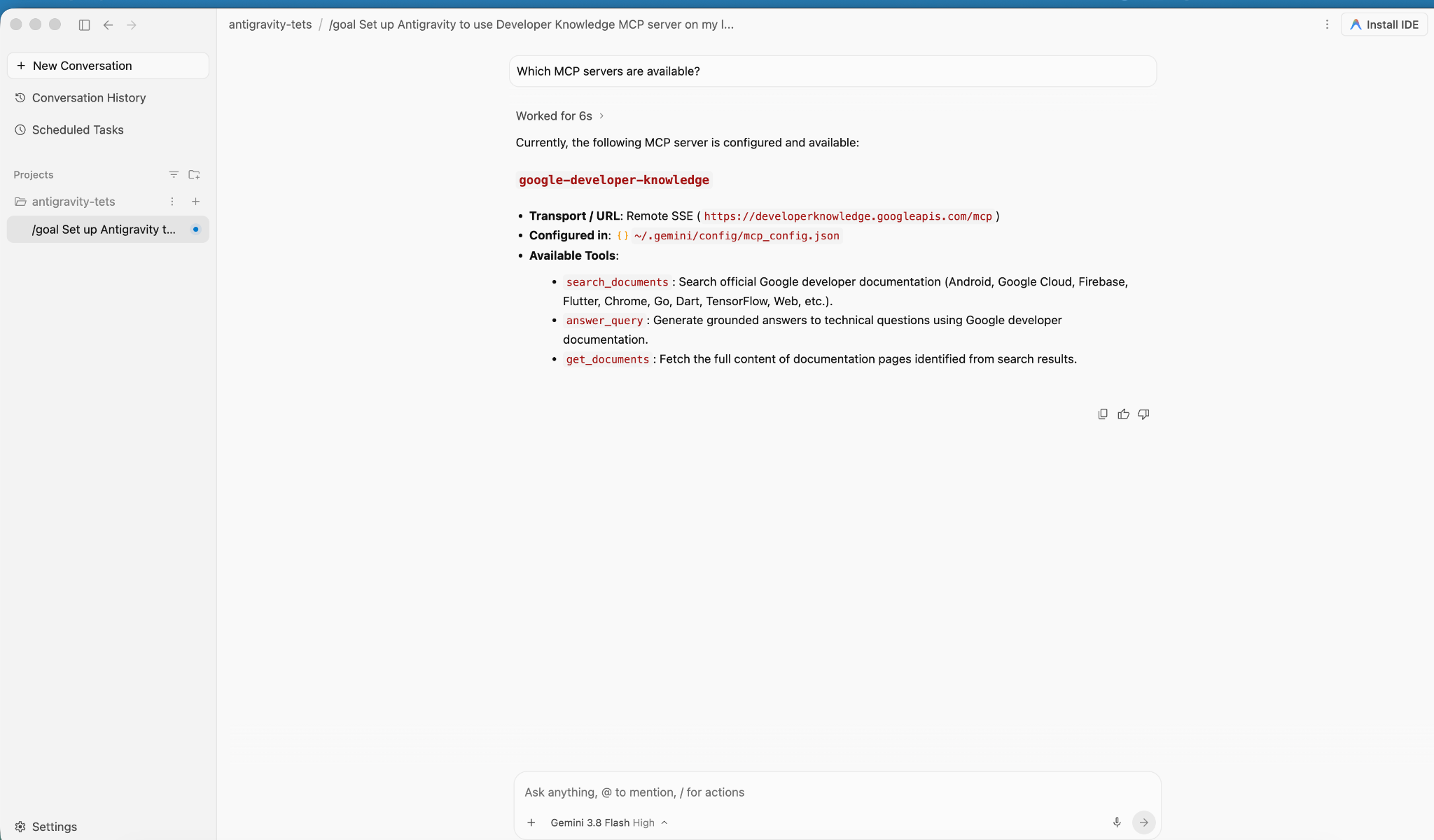
4. Create and deploy the application
In this section, you deploy the gCurrenC calculator application on two private Compute Engine VMs inside a custom VPC network.
The application provides:
- A live currency converter supporting
USD,EUR,GBP,JPY,CAD,INR, andAUDusing Python's built-inhttp.serverstandard library on port8080with a/healthzhealth check endpoint. - A Security verification console to run real-time outbound API connectivity and encrypted threat-prevention probes.
- An ingress firewall rule permitting Google's IAP range to reach ports
22and8080for administrative testing without exposing public IP addresses.
Deploy the application
- In the Antigravity chat window, enter
/goaland then run the following prompt:You are a Cloud developer. Deploy the "gCurrenC calculator" app onto two (2) Compute Engine VMs with no external IP addresses (`--no-address`) inside a dedicated custom VPC network and private subnet. CRITICAL INSTRUCTIONS ON OUTPUT: - The VMs are strictly private with no external IP addresses and the local IAP tunnel has NOT been started yet. Any web URL is completely unreachable and will fail with a connection error. - In your final response, simply confirm that the private VMs and Managed Instance Group are deployed, and state that the user should establish the IAP tunnel. Do not output, format, or suggest any web preview link or URL (such as http://localhost:8080 or internal IP addresses) in your final response. Run this script in the terminal: ```bash #!/usr/bin/env bash set -euxo pipefail # Disable any interactive confirmation prompts so execution never hangs export CLOUDSDK_CORE_DISABLE_PROMPTS=1 # --- User Configuration --- PROJECT_ID="[PROJECT_ID]" REGION="us-central1" ZONE="us-central1-a" NETWORK="gcurrenc-vpc" SUBNET="gcurrenc-app-subnet" SUBNET_RANGE="10.10.1.0/24" # -------------------------- echo "==> [1/5] Configuring project, default region/zone, and enabling APIs..." gcloud config set project "${PROJECT_ID}" gcloud config set compute/region "${REGION}" gcloud config set compute/zone "${ZONE}" gcloud services enable compute.googleapis.com echo "==> [2/5] Creating custom VPC network and private workload subnet..." gcloud compute networks create "${NETWORK}" \ --subnet-mode=custom \ --description="Dedicated VPC for currency exchange app demo" 2>/dev/null || true gcloud compute networks subnets create "${SUBNET}" \ --network="${NETWORK}" \ --region="${REGION}" \ --range="${SUBNET_RANGE}" \ --enable-private-ip-google-access \ --description="Private subnet hosting backend compute instances" 2>/dev/null || true echo "==> [3/5] Generating standalone Python standard-library startup script..." cat << 'STARTUP_EOF' > /tmp/private_app_startup.sh #!/bin/bash set -euxo pipefail mkdir -p /opt/gcurrenc-app # Pure Python standard-library application (zero pip/apt dependencies needed at boot) cat << 'APPEOF' > /opt/gcurrenc-app/app.py import os import sys import json import socket import urllib.request import urllib.parse import ssl from http.server import BaseHTTPRequestHandler, ThreadingHTTPServer SUPPORTED_CURRENCIES = ["USD", "EUR", "GBP", "JPY", "CAD", "INR", "AUD"] class CurrencyAppHandler(BaseHTTPRequestHandler): def address_string(self): return str(self.client_address[0]) def do_GET(self): parsed = urllib.parse.urlparse(self.path) path = parsed.path params = urllib.parse.parse_qs(parsed.query) if path == "/favicon.ico": self.send_response(204) self.end_headers() return if path == "/healthz": self.send_response(200) self.send_header("Content-Type", "text/plain") self.end_headers() self.wfile.write(b"OK") return if path == "/api/security-test": mode = params.get("mode", ["safe"])[0] target = "https://secure.eicar.org/eicar.com.txt" if mode == "threat" else "https://api.frankfurter.dev/v1/latest?from=USD&to=EUR" try: req = urllib.request.Request(target, headers={"User-Agent": "SecureCurrencyApp/1.0"}) ctx = ssl.create_default_context() with urllib.request.urlopen(req, timeout=5, context=ctx) as resp: data = {"verdict": "PERMITTED", "target": target, "http_status": resp.status} code = 200 except Exception as e: data = {"verdict": "BLOCKED_OR_FAILED", "target": target, "error": str(e)} code = 502 self.send_response(code) self.send_header("Content-Type", "application/json") self.end_headers() self.wfile.write(json.dumps(data, indent=2).encode("utf-8")) return self.render_page() def do_POST(self): parsed = urllib.parse.urlparse(self.path) if parsed.path == "/generate": content_length = int(self.headers.get("Content-Length", 0)) post_body = self.rfile.read(content_length).decode("utf-8") form = urllib.parse.parse_qs(post_body) base_curr = form.get("base_curr", ["USD"])[0] target_curr = form.get("target_curr", ["EUR"])[0] try: amount = float(form.get("amount", ["2500.00"])[0]) except ValueError: amount = 2500.00 rate_str = "Unavailable" total_str = "Rate lookup pending outbound internet activation" try: if base_curr == target_curr: rate = 1.0 else: url = f"https://api.frankfurter.dev/v1/latest?from={base_curr}&to={target_curr}" req = urllib.request.Request(url, headers={"User-Agent": "SecureCurrencyApp/1.0"}) with urllib.request.urlopen(req, timeout=4) as resp: res_json = json.loads(resp.read().decode("utf-8")) rate = res_json["rates"][target_curr] rate_str = str(rate) total_str = f"{round(amount * rate, 2):,.2f} {target_curr}" except Exception as e: total_str = f"Outbound connection unavailable {str(e)}" self.render_page(base_curr, target_curr, amount, rate_str, total_str) return self.send_response(404) self.end_headers() def render_page(self, base_curr="USD", target_curr="EUR", amount=2500.00, fx_rate="1.00", total_str=""): hostname = socket.gethostname() curr_options_base = "".join([f'<option value="{c}" {"selected" if c == base_curr else ""}>{c}</option>' for c in SUPPORTED_CURRENCIES]) curr_options_target = "".join([f'<option value="{c}" {"selected" if c == target_curr else ""}>{c}</option>' for c in SUPPORTED_CURRENCIES]) result_block = "" if total_str: if fx_rate == "Unavailable": rate_line = "<p style='margin: 6px 0;'>Exchange Rate: <span style='color: #d93025; font-weight: bold;'>⚠️ Offline-Outbound internet blocked</span></p>" else: rate_line = f"<p style='margin: 6px 0; font-size: 14px; color: #137333;'>🟢 Exchange Rate: <strong>1 {base_curr} = {fx_rate} {target_curr}</strong> (Secured via Cloud NAT & Cloud NGFW)</p>" result_block = f""" <div style="margin-top: 22px; background: #e6f4ea; border: 1px solid #c6e1c6; border-left: 5px solid #34a853; padding: 18px 20px; border-radius: 8px;"> <h4 style="margin: 0 0 6px 0; text-transform: uppercase; font-size: 12px; color: #137333; letter-spacing: 0.5px;">Conversion Result</h4> <div style="font-size: 24px; font-weight: 700; color: #202124; margin-bottom: 6px;"> {amount:,.2f} {base_curr} = <span style="color: #1a73e8;">{total_str}</span> </div> {rate_line} </div> """ html = ("""<!DOCTYPE html> <html lang="en"> <head> <meta charset="UTF-8"> <meta name="viewport" content="width=device-width, initial-scale=1.0"> <title>gCurrenC calculator</title> <style> body { font-family: -apple-system, BlinkMacSystemFont, "Segoe UI", Roboto, "Helvetica Neue", Arial, sans-serif; background: #f8f9fa; margin: 30px 15px; color: #202124; display: flex; justify-content: center; } .container { width: 100%; max-width: 860px; } .card { background: white; padding: 24px 28px; border-radius: 12px; box-shadow: 0 1px 3px rgba(60,64,67,0.12), 0 4px 8px rgba(60,64,67,0.06); border: 1px solid #dadce0; margin-bottom: 20px; } .header { display: flex; justify-content: space-between; align-items: center; border-bottom: 1px solid #e8eaed; padding-bottom: 14px; margin-bottom: 20px; } .header h2 { margin: 0 0 4px 0; font-size: 20px; font-weight: 600; } .header p { margin: 0; font-size: 13px; color: #5f6368; } .badge { background: #e8f0fe; color: #1a73e8; padding: 6px 12px; border-radius: 16px; font-weight: 600; font-size: 12px; border: 1px solid #d2e3fc; display: flex; align-items: center; gap: 6px; } .badge::before { content: ""; width: 8px; height: 8px; border-radius: 50%; background-color: #34a853; } .form-row { display: flex; gap: 14px; align-items: flex-end; flex-wrap: wrap; } .form-group { display: flex; flex-direction: column; gap: 6px; } .form-group label { font-size: 12px; font-weight: 600; color: #5f6368; text-transform: uppercase; letter-spacing: 0.5px; } input, select { padding: 10px 14px; border: 1px solid #dadce0; border-radius: 6px; font-size: 14px; color: #202124; background-color: #fff; box-sizing: border-box; transition: border-color 0.15s, box-shadow 0.15s; } input:focus, select:focus { outline: none; border-color: #1a73e8; box-shadow: 0 0 0 3px rgba(26, 115, 232, 0.15); } button { padding: 11px 20px; background: #1a73e8; color: white; border: none; border-radius: 6px; font-size: 14px; font-weight: 500; cursor: pointer; transition: background 0.15s, box-shadow 0.15s; } button:hover { background: #1557b0; box-shadow: 0 1px 2px rgba(60,64,67,0.3); } .danger-btn { background: #d93025; } .danger-btn:hover { background: #b31412; } pre { background: #202124; color: #8ab4f8; padding: 14px; border-radius: 6px; overflow-x: auto; font-family: "SF Mono", "Fira Code", Consolas, monospace; font-size: 13px; line-height: 1.5; margin: 0; } /* Collapsible Security Console */ details.security-drawer { background: white; border-radius: 12px; box-shadow: 0 1px 3px rgba(60,64,67,0.12); border: 1px solid #dadce0; overflow: hidden; margin-bottom: 24px; } details.security-drawer summary { padding: 16px 20px; font-size: 14px; font-weight: 600; cursor: pointer; list-style: none; display: flex; justify-content: space-between; align-items: center; user-select: none; background: #fafafa; transition: background 0.15s; } details.security-drawer summary::-webkit-details-marker { display: none; } details.security-drawer summary:hover { background: #f1f3f4; } details.security-drawer[open] summary { border-bottom: 1px solid #dadce0; background: #ffffff; } .expand-toggle { font-size: 13px; font-weight: 500; } details.security-drawer summary .expand-toggle::before { content: "▶ Click to Expand"; color: #1a73e8; } details.security-drawer[open] summary .expand-toggle::before { content: "▼ Click to Collapse"; color: #5f6368; } .drawer-body { padding: 20px; background: #ffffff; } .drawer-body p { margin-top: 0; font-size: 13px; color: #5f6368; } .probe-buttons { display: flex; gap: 10px; margin-bottom: 14px; } </style> </head> <body> <div class="container"> <div class="card"> <div class="header"> <div> <h2>💱 gCurrenC calculator</h2> </div> <div class="badge">Serving host: {hostname}</div> </div> <form method="POST" action="/generate"> <div class="form-row"> <div class="form-group" style="flex: 1.5; min-width: 140px;"> <label>Amount</label> <input type="number" step="0.01" name="amount" value="{amount}" required> </div> <div class="form-group" style="flex: 1; min-width: 100px;"> <label>From</label> <select name="base_curr">{curr_options_base}</select> </div> <div class="form-group" style="flex: 1; min-width: 100px;"> <label>To (Target)</label> <select name="target_curr">{curr_options_target}</select> </div> <div class="form-group"> <button type="submit">Convert currency ➔</button> </div> </div> </form> {result_block} </div> <!-- Collapsible Security Verification Console --> <details class="security-drawer"> <summary> <span>🛡️ Security verification console</span> <span class="expand-toggle"></span> </summary> <div class="drawer-body"> <p>Test outbound HTTPS traffic and threat prevention capabilities in real time:</p> <div class="probe-buttons"> <button type="button" onclick="runProbe('safe')">Test Outbound API Connection</button> <button type="button" class="danger-btn" onclick="runProbe('threat')">Simulate Encrypted Threat (EICAR)</button> </div> <pre id="output">Waiting for command...</pre> </div> </details> </div> <script> function runProbe(mode) { const el = document.getElementById('output'); el.innerText = 'Executing outbound request...'; fetch('/api/security-test?mode=' + mode) .then(res => res.json()) .then(data => el.innerText = JSON.stringify(data, null, 2)) .catch(err => el.innerText = 'Connection dropped / reset by Firewall: ' + err); } </script> </body> </html>""" .replace("{hostname}", str(hostname)) .replace("{amount}", str(amount)) .replace("{curr_options_base}", curr_options_base) .replace("{curr_options_target}", curr_options_target) .replace("{result_block}", result_block) ) self.send_response(200) self.send_header("Content-Type", "text/html; charset=utf-8") self.end_headers() self.wfile.write(html.encode("utf-8")) def run(): server_address = ('0.0.0.0', 8080) httpd = ThreadingHTTPServer(server_address, CurrencyAppHandler) httpd.serve_forever() if __name__ == '__main__': run() APPEOF # Register and start systemd unit cat << 'SERVICEEOF' > /etc/systemd/system/gcurrenc-app.service [Unit] Description=Currency exchange calculator web application After=network.target [Service] Type=simple User=root WorkingDirectory=/opt/gcurrenc-app ExecStart=/usr/bin/python3 /opt/gcurrenc-app/app.py Restart=always [Install] WantedBy=multi-user.target SERVICEEOF systemctl daemon-reload systemctl enable gcurrenc-app systemctl start gcurrenc-app STARTUP_EOF echo "==> [4/5] Creating Firewall, Regional Instance Template, and 2-VM MIG..." gcloud compute firewall-rules create allow-iap-admin \ --network="${NETWORK}" \ --allow=tcp:22,tcp:8080 \ --source-ranges=35.235.240.0/20 \ --target-tags=gcurrenc-app-vm \ --description="Allow IAP SSH and port 8080 access to private VMs" \ --quiet 2>/dev/null || true # Explicitly pass both --region and --instance-template-region to avoid prompt gcloud compute instance-templates create gcurrenc-app-template \ --instance-template-region="${REGION}" \ --region="${REGION}" \ --network="${NETWORK}" \ --subnet="${SUBNET}" \ --machine-type=e2-medium \ --no-address \ --tags=gcurrenc-app-vm \ --metadata-from-file=startup-script=/tmp/private_app_startup.sh \ --quiet gcloud compute instance-groups managed create gcurrenc-app-mig \ --base-instance-name=gcurrenc-vm \ --template="projects/${PROJECT_ID}/regions/${REGION}/instanceTemplates/gcurrenc-app-template" \ --size=2 \ --zone="${ZONE}" \ --quiet gcloud compute instance-groups managed set-named-ports gcurrenc-app-mig \ --named-ports=http-port:8080 \ --zone="${ZONE}" \ --quiet echo "==> [5/5] Verifying private VM deployment and internal status..." sleep 30 gcloud compute instances list \ --filter="name ~ '^gcurrenc-vm-'" \ --zones="${ZONE}" \ --format="table(name,zone.basename():label=ZONE,networkInterfaces[0].networkIP:label=INTERNAL_IP,status)" FIRST_VM=$(gcloud compute instances list \ --filter="name ~ '^gcurrenc-vm-'" \ --zones="${ZONE}" \ --format="value(name)" \ --limit=1) echo "Testing healthz on ${FIRST_VM} via IAP tunnel..." gcloud compute ssh "${FIRST_VM}" \ --zone="${ZONE}" \ --tunnel-through-iap \ --quiet \ --command="curl -fsS http://localhost:8080/healthz" echo "" echo "==========================================================================" echo "PREREQUISITE COMPLETE: 2 private VMs deployed with no external IPs." echo "VPC: ${NETWORK} | Subnet: ${SUBNET} (${SUBNET_RANGE})" echo "Instance Group: gcurrenc-app-mig (Zone: ${ZONE}, Port: 8080)" echo "" echo "The VMs are private and the IAP tunnel is not active. Set up the background IAP tunnel first to access the deployed app." echo "" echo "==========================================================================" ```
Verify VM instance creation
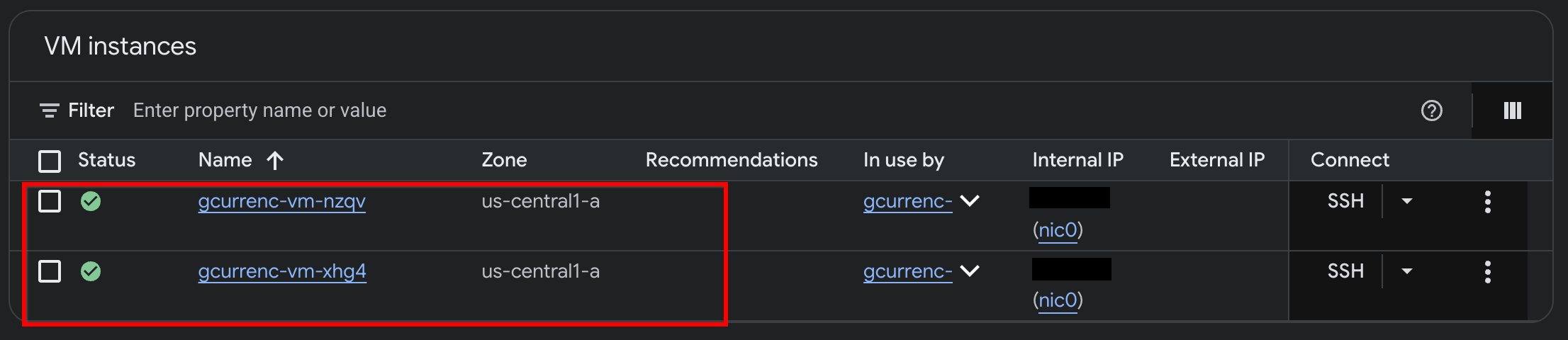
After Antigravity finishes deploying the application on the two private Compute Engine VMs, verify the instances in the Google Cloud console:
- In the Google Cloud console, go to VM instances.
- Verify that the two VM instances are running with internal IP addresses and no external IP addresses:
5. Test the application
Because the private VMs have no external IP addresses (--no-address) and no Cloud NAT gateway, they have no route to the internet and cannot reach external currency exchange APIs. Before you configure secure outbound access, test the application over a local IAP tunnel to verify that there is no internet access.
- In
/goalmode, run the following prompt in the Antigravity chat window:Automate the IAP tunnel configuration and health verification for the web app, then output the live test URL. Run a terminal script that performs the following steps non-interactively: 1. Firewall Check: - Identify the active network ('gcurrenc-vpc' if it exists, otherwise 'default'). - Idempotently ensure an ingress firewall rule exists permitting 'tcp:22,tcp:8080' from the Google IAP range '35.235.240.0/20' targeting 'gcurrenc-app-vm'. 2. VM Health Verification: - Find the first running instance matching '^gcurrenc-vm-' in zone 'us-central1-a'. - Via 'gcloud compute ssh --tunnel-through-iap', verify that the 'gcurrenc-app' systemd service is active. If not active, restart it. 3. Background IAP Tunnel: - Free up local port 8080 if an old tunnel or process is lingering (e.g., using 'lsof -ti:8080 | xargs kill -9' or 'fuser -k 8080/tcp'). - Launch 'gcloud compute start-iap-tunnel <VM_NAME> 8080 --local-host-port=localhost:8080 --zone=us-central1-a' in the background using nohup, redirecting output to '/tmp/iap_tunnel.log'. - Wait up to 10 seconds for the tunnel to establish, checking with 'curl -fsS http://localhost:8080/healthz'. 4. Output Web Preview URL: - Detect whether the environment is Google Cloud Shell (check if $CLOUD_SHELL is true) or a local workstation. - If Cloud Shell, print instructions and the direct web preview link. - If local machine, provide the clickable 'http://localhost:8080' URL. - After the tunnel starts, open
http://localhost:8080/in your web browser: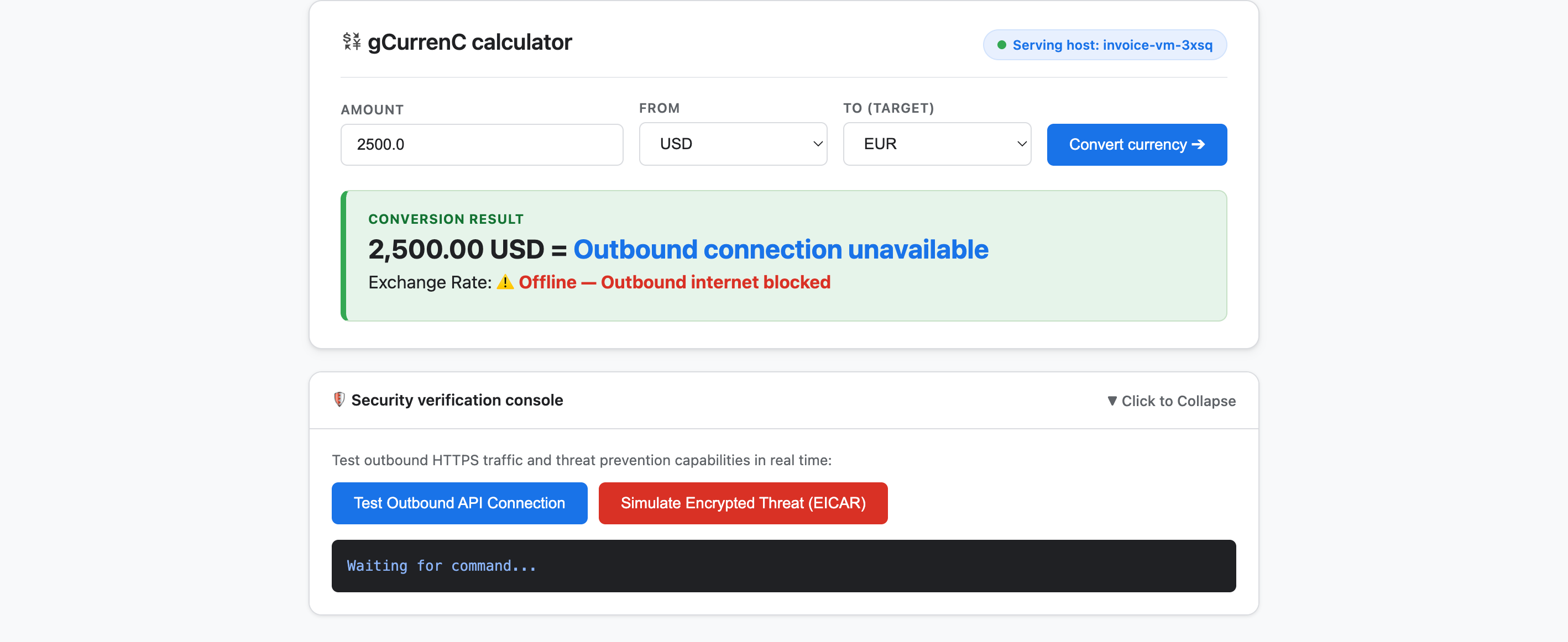
- Test the application:
- Click Convert currency. The conversion result displays
Offline - Outbound internet blockedandOutbound connection unavailable. This result is expected because the private VMs cannot connect to the internet to fetch the latest exchange rates. - Expand Security verification console and click Test outbound API connection. The output displays
verdict: BLOCKED_OR_FAILED(https://api.frankfurter.dev/v1/latest. This result is expected because the private VMs cannot connect to the internet and fetch exchange rates fromhttps://api.frankfurter.dev/v1/latest. - Click Simulate encrypted threat (EICAR). The output also displays
verdict: BLOCKED_OR_FAILEDforhttps://secure.eicar.org/eicar.com.txt. This result is also expected because the private VMs have no internet connectivity.
- Click Convert currency. The conversion result displays
Stop the local IAP tunnel
Before designing and deploying the security architecture, terminate the local IAP tunnel to free port 8080:
- In
/goalmode, run the following prompt:Free up local port 8080 and terminate any running Google Cloud IAP tunnels (e.g., kill processes matching 'start-iap-tunnel' or listening on port 8080).8080is free.
6. Secure the application
In the previous sections, you created private Compute Engine VMs with no public IP addresses and verified two core networking and security challenges:
- Inbound access (ingress): Internet users cannot reach the private VM instances directly, and exposing the web application requires proxying traffic through a global external Application Load Balancer and a dedicated proxy-only subnet without exposing VMs to the public internet.
- Outbound access (egress): The private VMs have no route to the internet to query live HTTPS currency exchange APIs, and enabling outbound access requires inspecting encrypted traffic for malware and data exfiltration without breaking SSL/TLS trust.
In this section, you guide Antigravity through a streamlined workflow grounded in official Google Cloud documentation (@retrieving-developer-knowledge) to design, self-audit, and deploy a project-level ingress and egress security architecture for your application.
Design the unified security architecture
- In
/goalmode, run the following prompt to generate an end-to-end architecture diagram and explanation covering both inbound and outbound traffic flows:You are a Google Cloud Network and Security Architect. We need to design an end-to-end security architecture for our "gCurrenC calculator" app running on private Compute Engine VMs with no external IP addresses inside 'gcurrenc-vpc'. We are operating in a standalone Google Cloud project without an Organization resource, so all security resources must be scoped at the project level. Use the @retrieving-developer-knowledge skill to consult official Google Cloud documentation and suggest an architecture diagram and explanation covering both flows: 1. Ingress Flow: - How internet users securely reach the private VMs via a global external Application Load Balancer. - Why Envoy-based external Application Load Balancers require a dedicated proxy-only subnet, and how Google Front Ends (GFEs) proxy traffic to private backends without exposing VMs to the public internet. 2. Egress Flow: - How private VMs reach the internet via Cloud NAT to query live currency exchange APIs, such as frankfurter.dev. - How Cloud NGFW Enterprise provides Layer 7 deep packet inspection and intrusion prevention (IPS) for outbound encrypted HTTPS traffic. - How TLS inspection backed by Certificate Authority Service (CAS) decrypts outbound HTTPS sessions on the fly, and what Root CA trust configuration the private VMs require. Provide a clear diagram and explain how these components connect together.
Generate the architectural resource outline
- Enter the following prompt to structure the design into a categorized project-level resource outline before generating the deployment script:
Act as a Lead Network Security Architect. Using the @retrieving-developer-knowledge skill, provide an architectural outline of all the Google Cloud resources required to secure the "gCurrenC calculator" app.

Our starting state:
- The custom VPC ('gcurrenc-vpc'), workload subnet ('gcurrenc-app-subnet'), and 2-instance MIG ('gcurrenc-app-mig', port 8080) are already deployed.
- All newly added security components must be project-level resources (no organization resources).

Structure your resource outline into three distinct categories, indicating which resources are new additions:
1. Core VPC Infrastructure: proxy-only subnet ('gcurrenc-proxy-subnet', 10.10.2.0/24), Cloud Router, and Cloud NAT gateway.
2. Inbound security (ingress): global external ALB components (forwarding rule on port 443, target HTTPS proxy, SSL certificate, URL map, backend service attached to 'gcurrenc-app-mig' on port 8080, and HTTP health check on '/healthz') and ingress firewall rules.
3. Outbound security (egress): CAS DevOps CA pool and root CA, project-level Cloud NGFW Enterprise components (Threat Prevention profile, Security Profile Group, Firewall Endpoint in zone us-central1-a, and Endpoint Association attaching the TLS policy), and global network firewall policy egress rules.

For each resource, briefly state its role in the security boundary and how it connects to adjacent components.
Generate and self-audit the deployment script
- In
/goalmode, run the following prompt to generate a complete, non-interactivebashdeployment script and automatically self-audit it against the compliance requirements in the same turn:Act as a Principal Infrastructure Engineer. Using the @retrieving-developer-knowledge skill, generate a complete, non-interactive Bash script to deploy this entire security architecture for our "gCurrenC calculator" app, and self-audit the script before outputting it. Requirements: - Discover the project ID, region, and zone dynamically from the existing 'gcurrenc-app-subnet' and 'gcurrenc-app-mig'. - Keep all resources scoped strictly to the project level (no Organization resource). - Deploy the proxy-only subnet, global external Application Load Balancer, Cloud Router, and Cloud NAT. Don't use Cloud Armor. - Deploy project-level Cloud NGFW Enterprise with CAS TLS inspection ('--tls-inspect' on the firewall policy egress rule and 'gcloud beta' for the project-level firewall endpoint association) and an explicit DENY override for malware and antivirus threats. - Distribute the root CA to the private VMs over IAP SSH with connection timeouts so the guest OS trust store is updated. - Print the final Load Balancer URL ('https://${LB_IP}') at the end. Wrap the script in 'set -euxo pipefail' and output only the single executable bash script block.bashscript, self-audits every command against the compliance constraints, and outputs the single executable script block wrapped inset -euxo pipefail.
Run the security deployment script
- In
/goalmode, paste the generatedbashscript from the previous prompt into the Antigravity chat window in the following format to run the deployment and output the live application URL (https://<LB_IP>):Run this script. <PASTED-SCRIPT>
7. Verify the secured application
When the deployment script finishes, Antigravity outputs the external HTTPS URL of the global external Application Load Balancer (https://<LB_IP>).
- Open
https://<LB_IP>in your web browser and bypass the browser's self-signed certificate warning to load the gCurrenC calculator interface: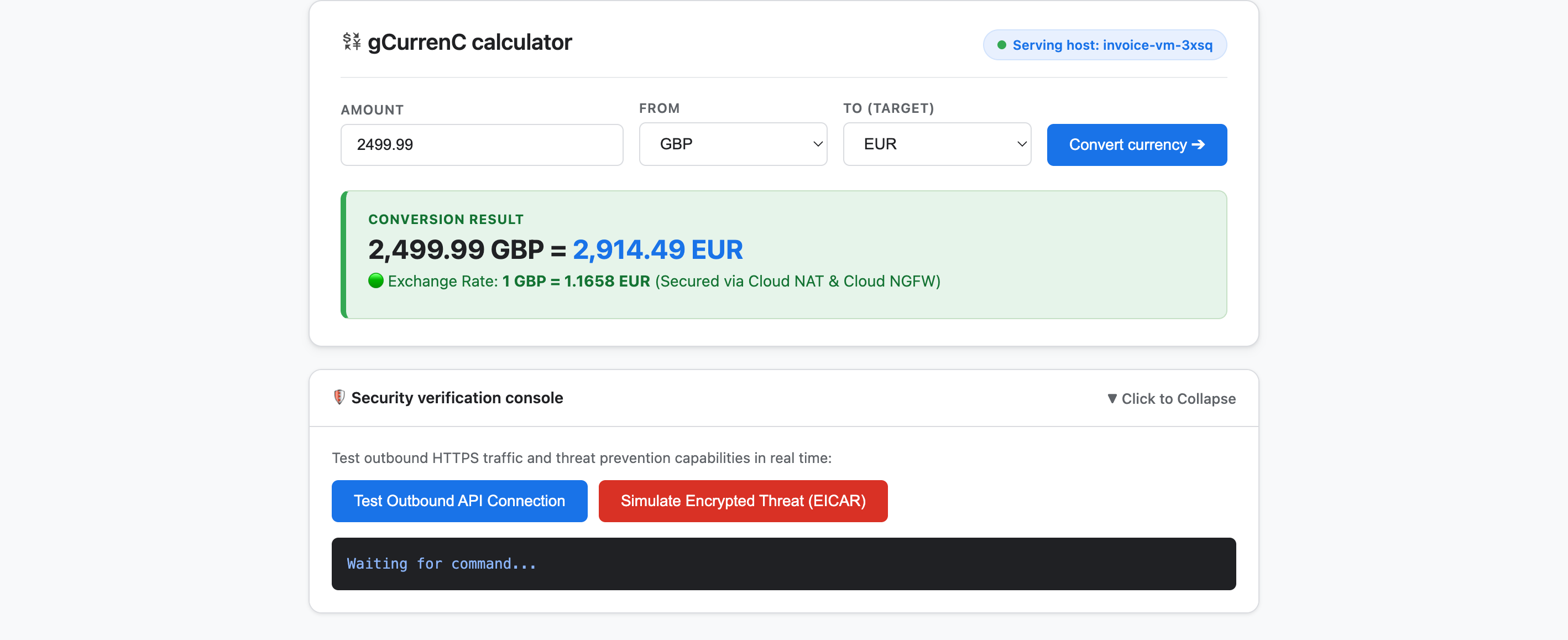
- Test the application to verify both outbound connectivity and threat prevention:
- Click Convert currency. The application displays the live converted exchange rate immediately. This confirms that the ingress load balancing routes smoothly through Google Front Ends (GFEs) and the proxy-only subnet, while Cloud NAT fetches live exchange rates from
api.frankfurter.dev. - Expand Security verification console and click Test outbound API connection. The application displays
verdict: PERMITTED(HTTP 200). This confirms that the Cloud NAT routing works, and the VM operating system trusts the private CAS Root CA for decrypted HTTPS sessions. - Click Simulate encrypted threat (EICAR). The application displays
verdict: PERMITTED. This confirms that the Cloud NGFW Enterprise decrypts the outbound HTTPS request using TLS inspection backed by CAS and inspects the EICAR test signature with its Intrusion Prevention Service (IPS).
- Click Convert currency. The application displays the live converted exchange rate immediately. This confirms that the ingress load balancing routes smoothly through Google Front Ends (GFEs) and the proxy-only subnet, while Cloud NAT fetches live exchange rates from
8. Clean up
To avoid incurring ongoing charges to your Google Cloud account for the resources created in this codelab, you can either delete only the codelab resources or delete your Google Cloud project.
- If you want to keep your Google Cloud project and remove only the resources created during this codelab, run the following prompt in
/goalmode in the Antigravity chat window:Remove all resources created in this session, including the gcurrenc app and its resources. Don't delete the project. - If you created a dedicated Google Cloud project for this codelab and want to delete the entire project, run the following prompt in
/goalmode in the Antigravity chat window:Clean up the demo environment by deleting the Google Cloud project. Run the following command in the terminal: gcloud projects delete "$(gcloud config get-value project 2>/dev/null)" --quiet
9. Congratulations
Congratulations! You deployed and secured the gCurrenC calculator web application on Google Cloud using the Google Cloud Developer plugin (DK MCP server) in Google Antigravity.
What's next
Explore the official Google Cloud documentation to learn more about the services used in this codelab: