
1. Before you begin
Learn to implement Sign in with Google on Android using Credential Manager.
Prerequisites
- Basic understanding of Kotlin for Android development.
- Basic understanding of Jetpack Compose (learn more).
What you'll learn
- Create a Google Cloud project and OAuth clients.
- Implement the Bottom Sheet sign-in flow.
- Implement the explicit Button sign-in flow.
What you need
- Android Studio installed.
- A computer meeting Android Studio and Emulator system requirements.
- Java Development Kit (JDK) installed.
2. Create an Android Studio project
To get started, create a new project in Android Studio:
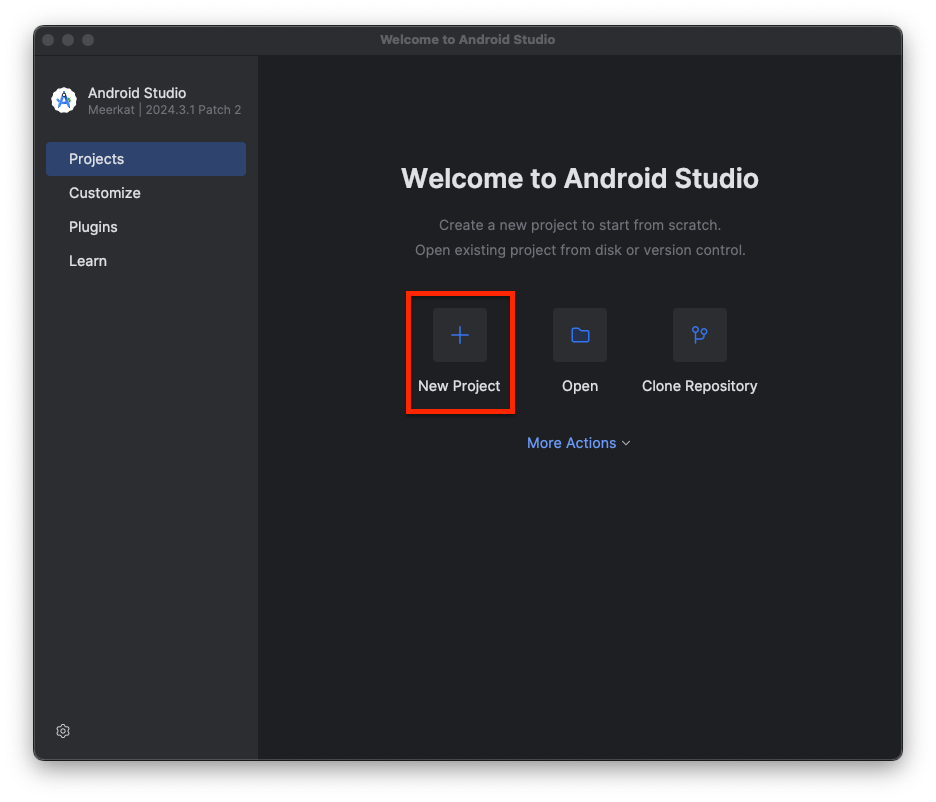
- Open Android Studio and click New Project.
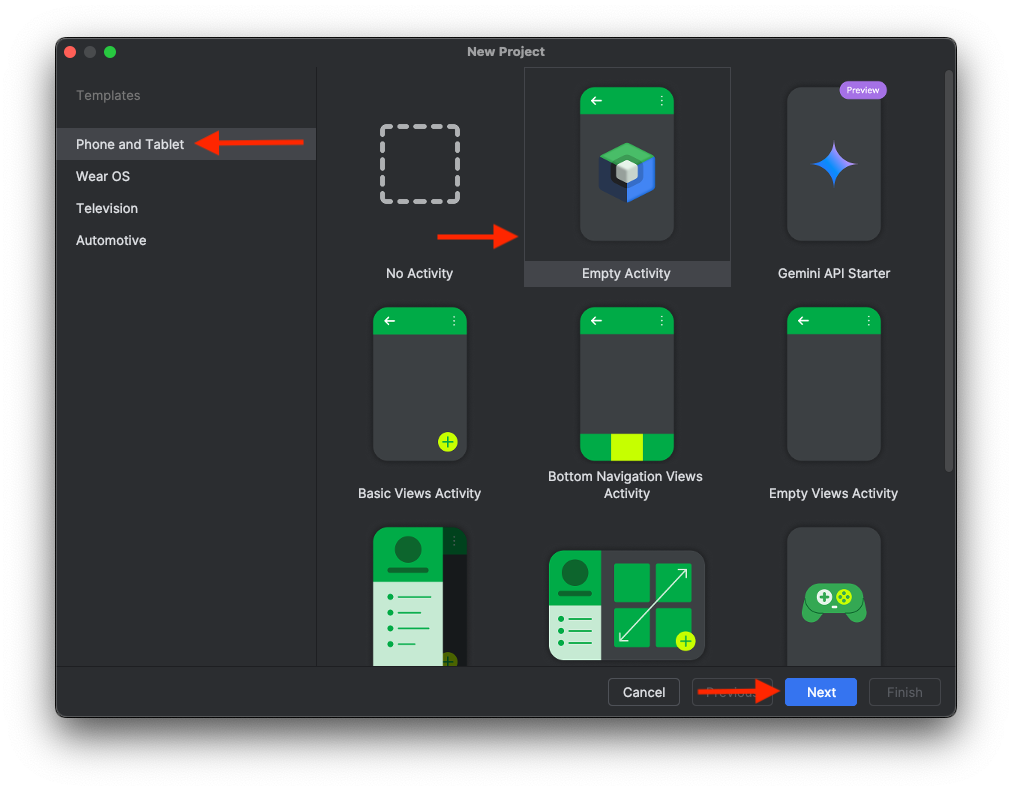
- Select Phone and Tablet > Empty Activity, then click Next.
- Configure the project settings:
- Name: Choose a project name.
- Package name: Use the default or choose your own.
- Minimum SDK: Select the most recent stable version or > Android 14.
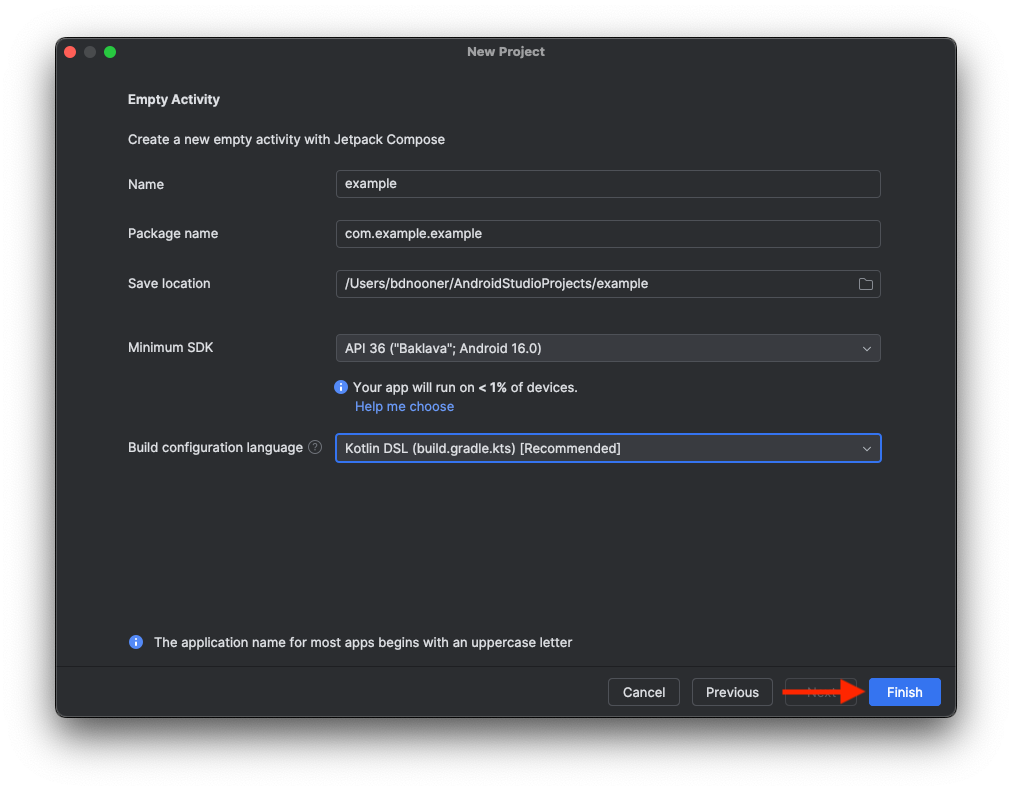
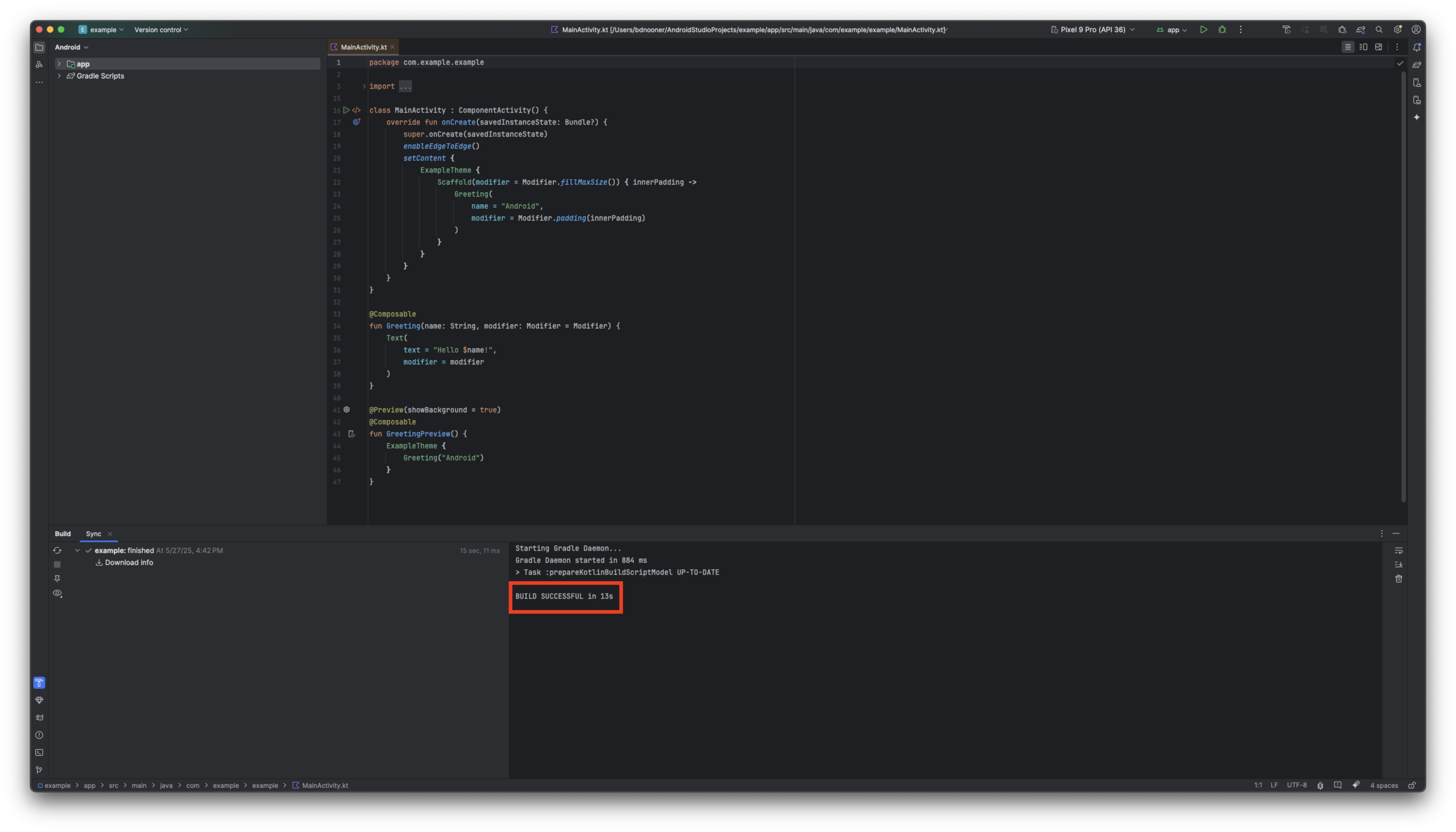
- Click Finish and wait for the initial project build to complete.
3. Set up your Google Cloud project
Create a Google Cloud project
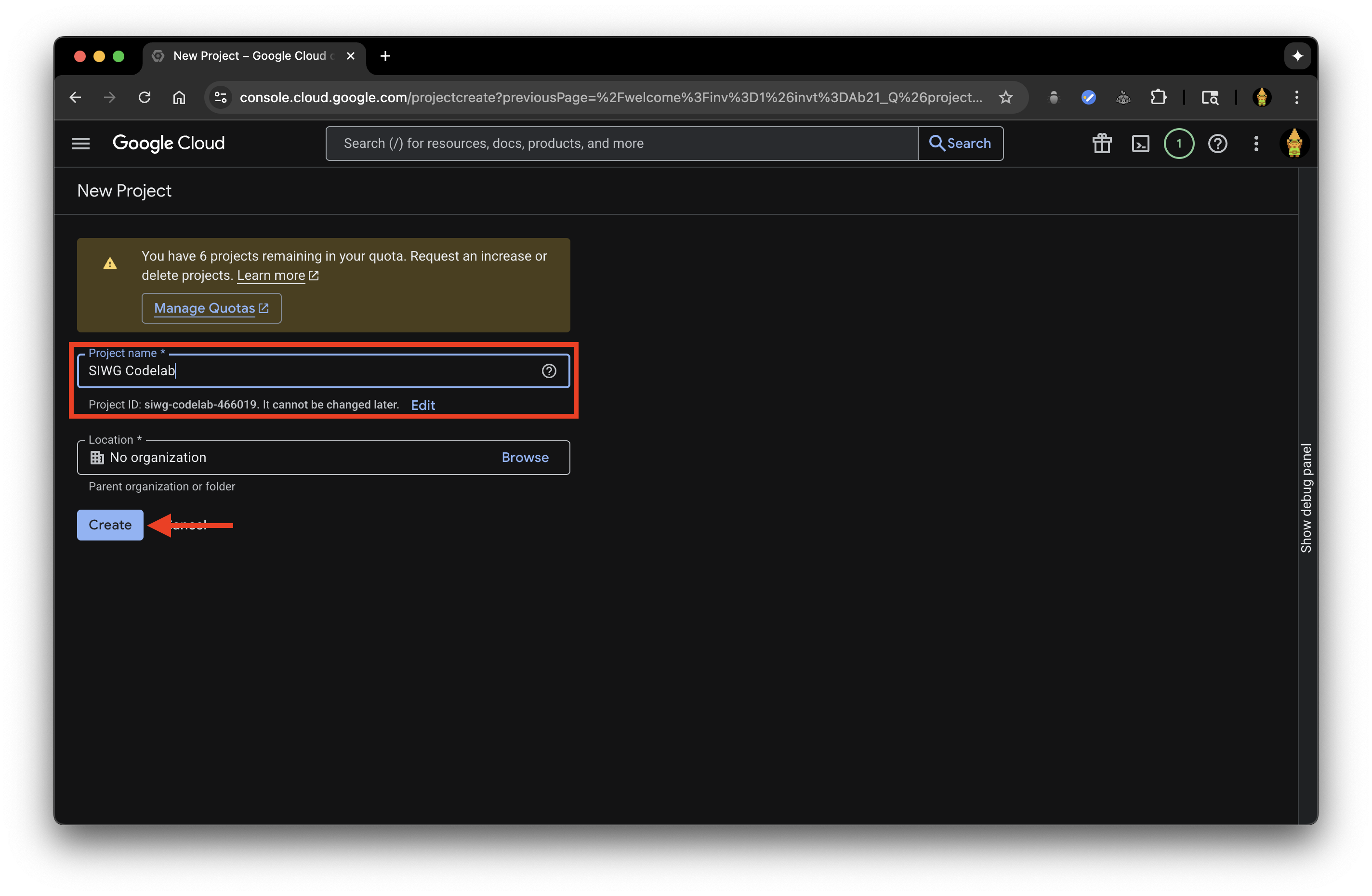
- Go to the Google Cloud Console and select or create a project.
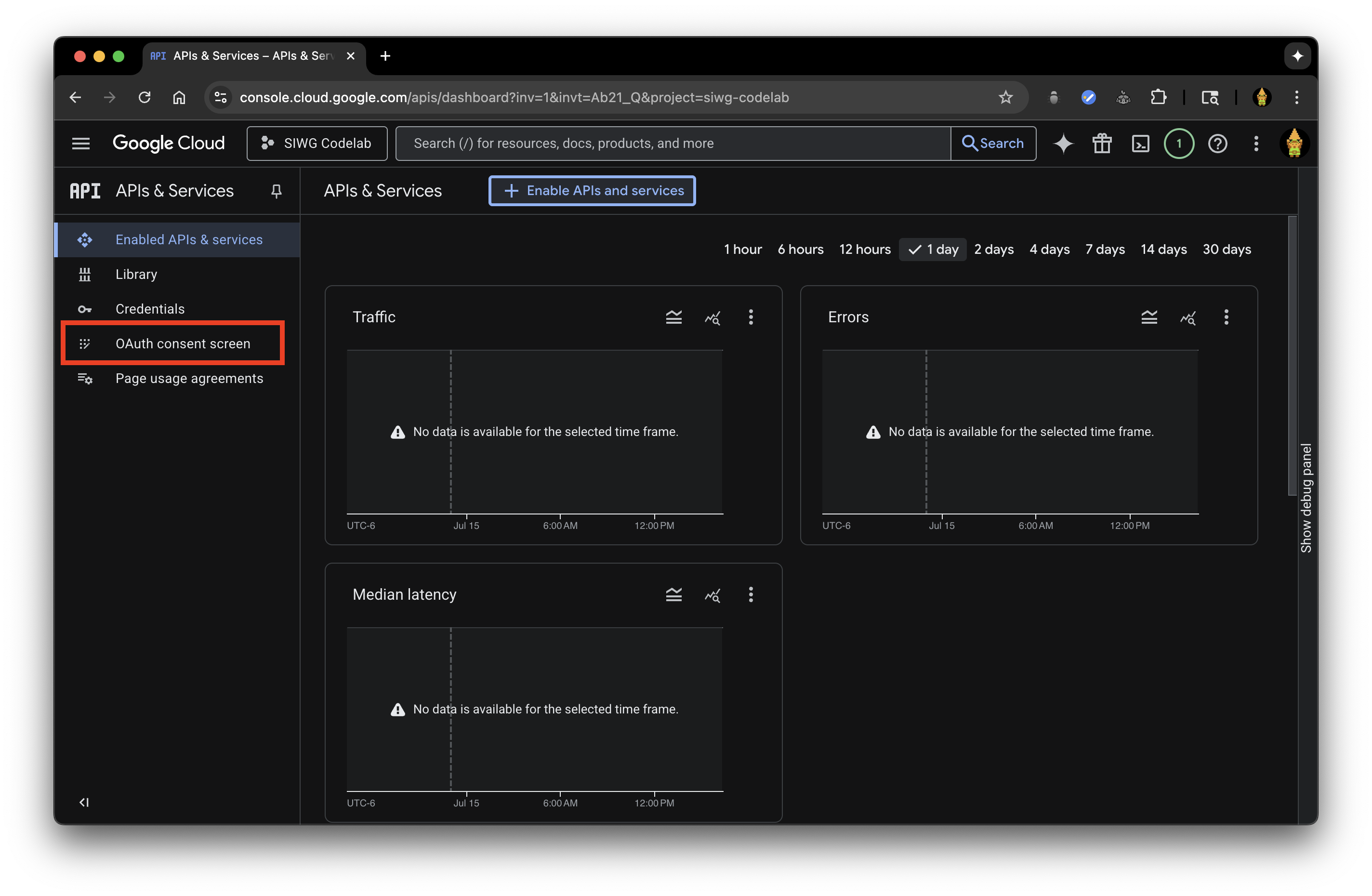
- Navigate to APIs & Services > OAuth consent screen.
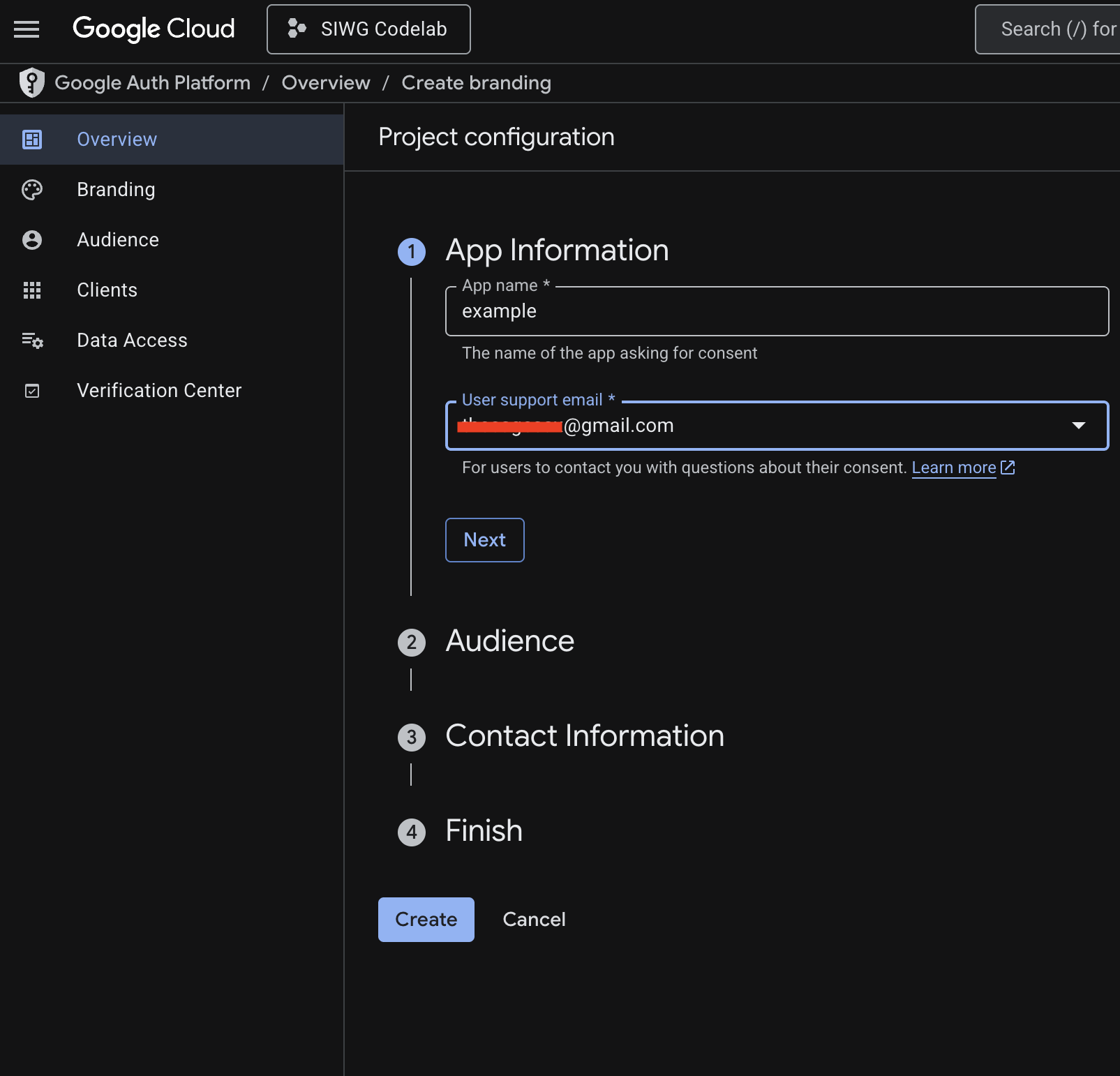
- Click Get started and fill in the required fields:
- App Name: Use your Android app's name.
- User Support Email: Select your Google Account.
- Audience: Select External.
- Contact Info: Enter your email address.
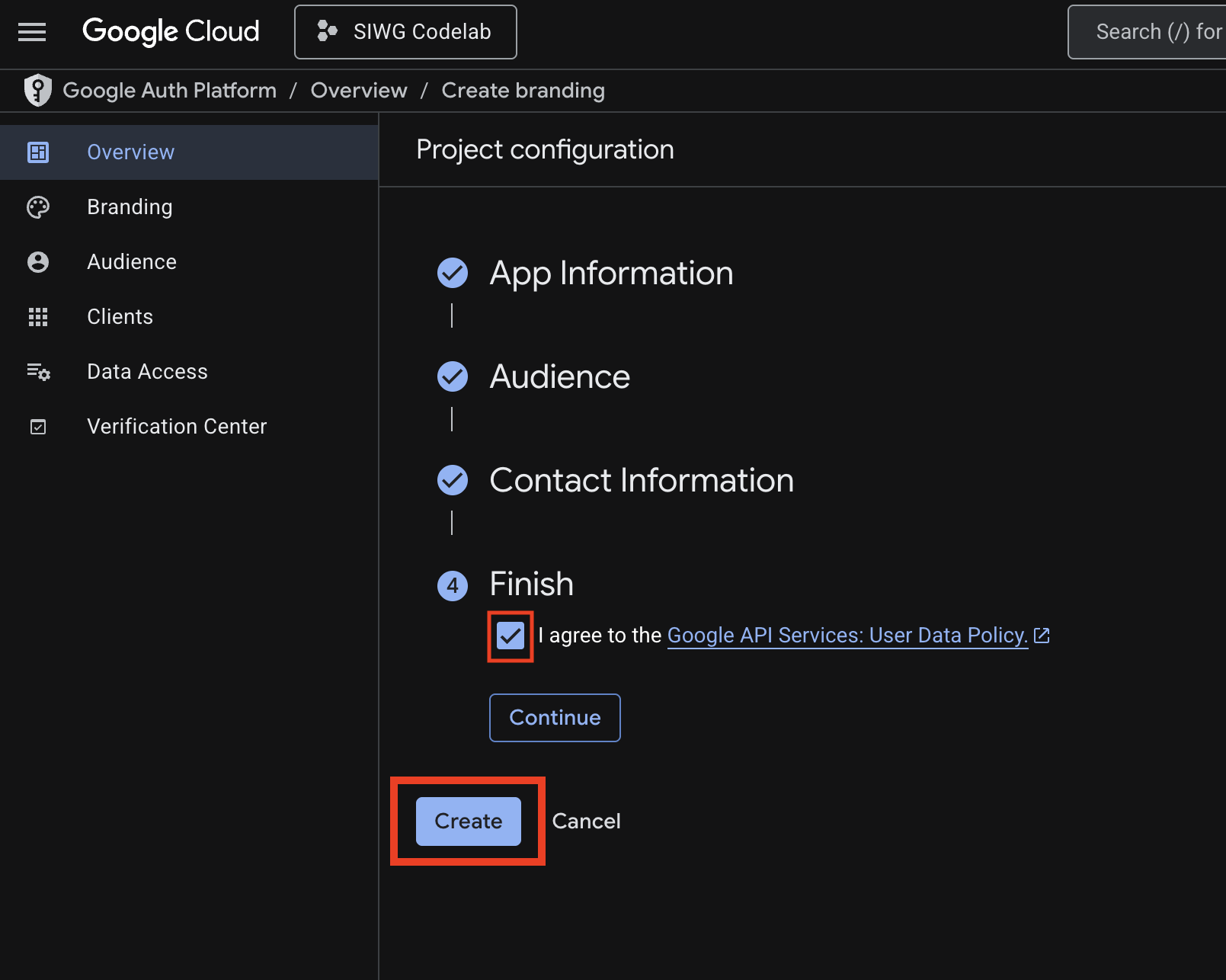
- Review the Google API Services: User Data Policy and click Create.
Set up OAuth clients
You need to create both a Web client and an Android client in the Google Cloud Console to obtain the client IDs for authentication.
- Android client: Secures requests by verifying your app's package name and SHA-1 signature.
- Web client: Acts as the backend client for the Google Sign-in service.
Create Android OAuth 2.0 client
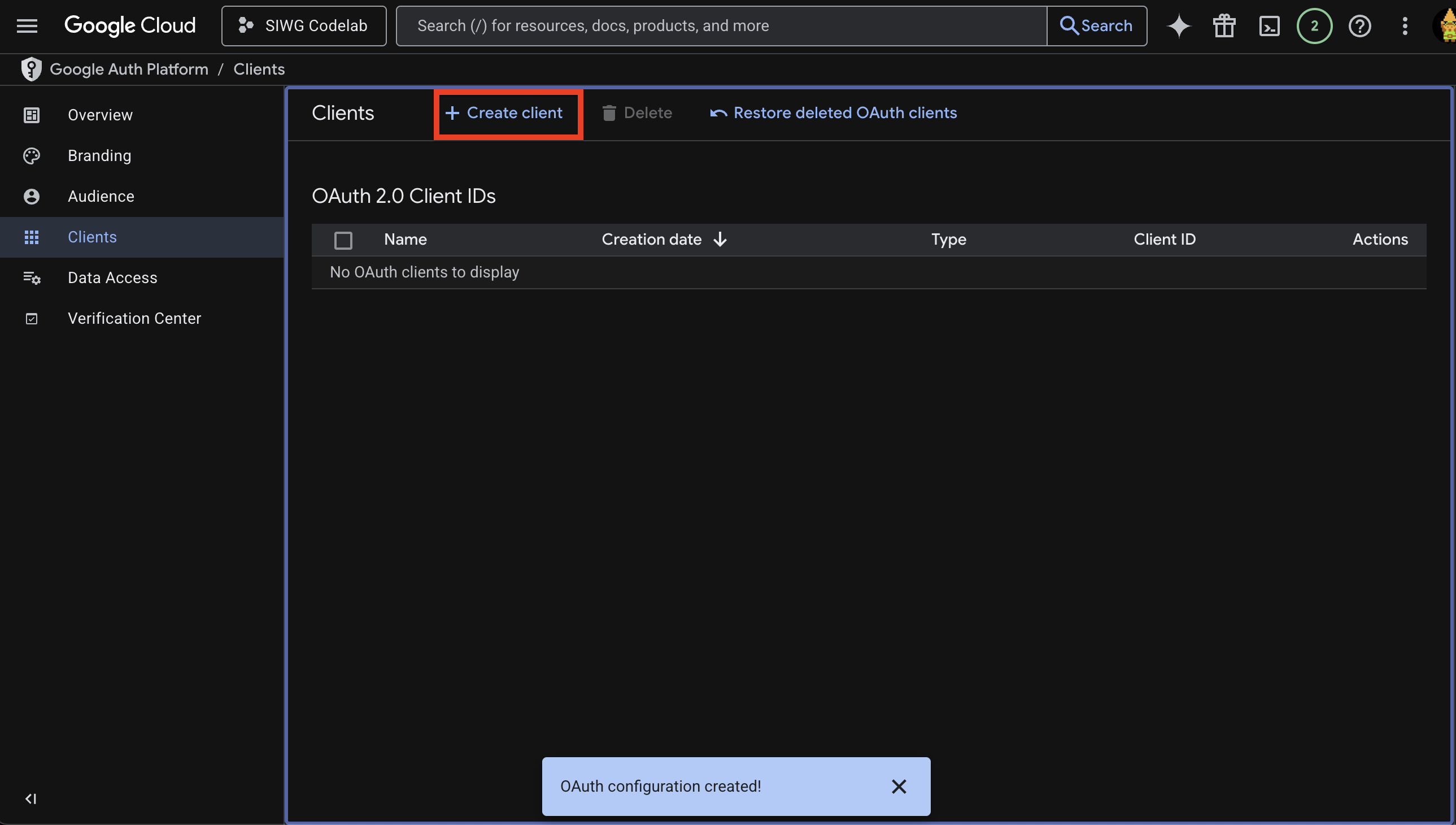
- On the Clients page, click Create Client and select Android as the Application type.
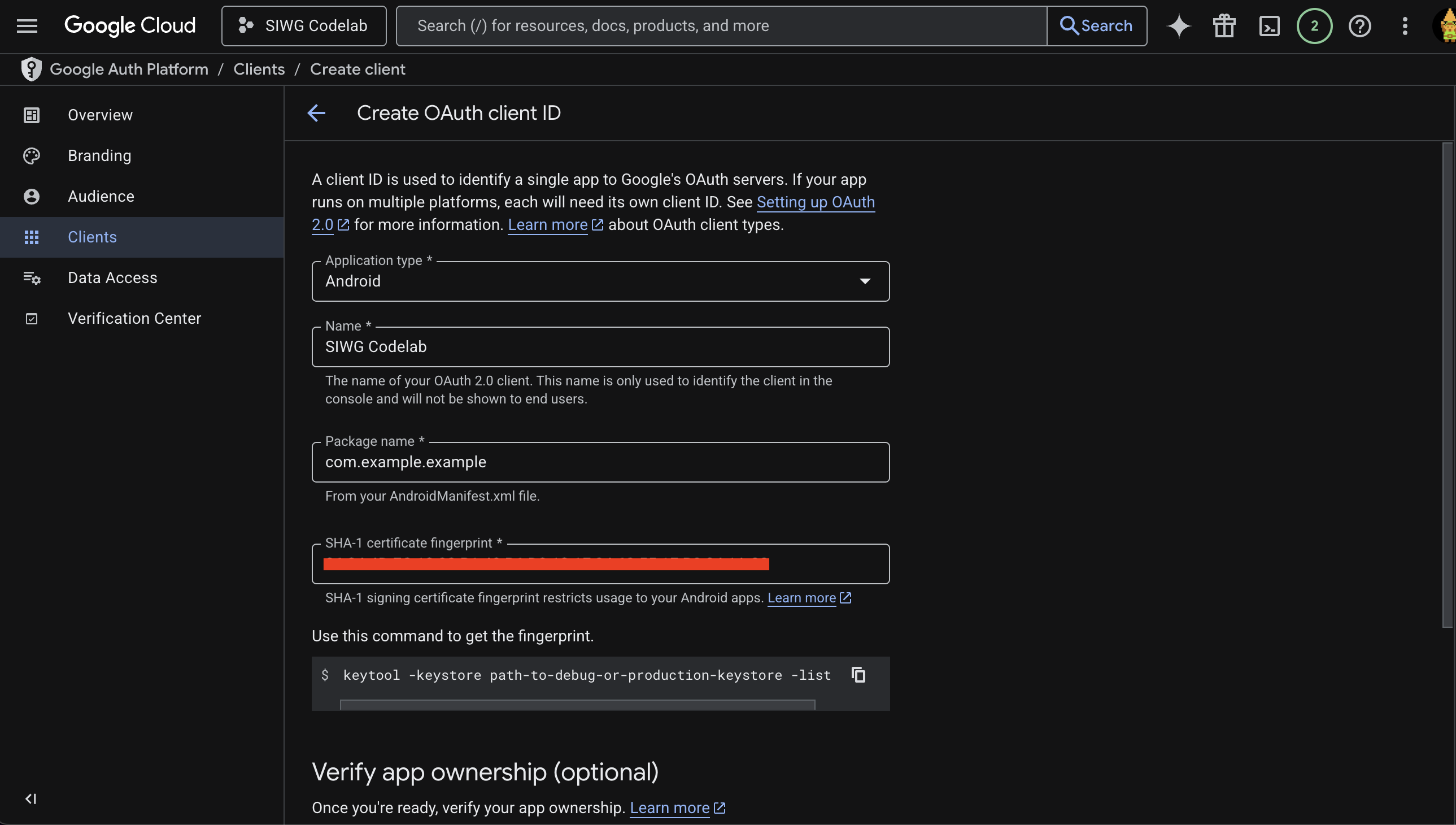
- Enter your app's package name (matching line 1 of your
MainActivity.kt). - Generate your SHA-1 signature. Open the Android Studio terminal and run:macOS/Linux:
keytool -list -v -keystore ~/.android/debug.keystore -alias androiddebugkey -storepass android -keypass android
keytool -list -v -keystore "C:\Users\USERNAME\.android\debug.keystore" -alias androiddebugkey -storepass android -keypass android
- Copy the SHA-1 fingerprint from the command output, paste it into the SHA-1 fingerprint field in the console, and click Create.
Create Web OAuth 2.0 client
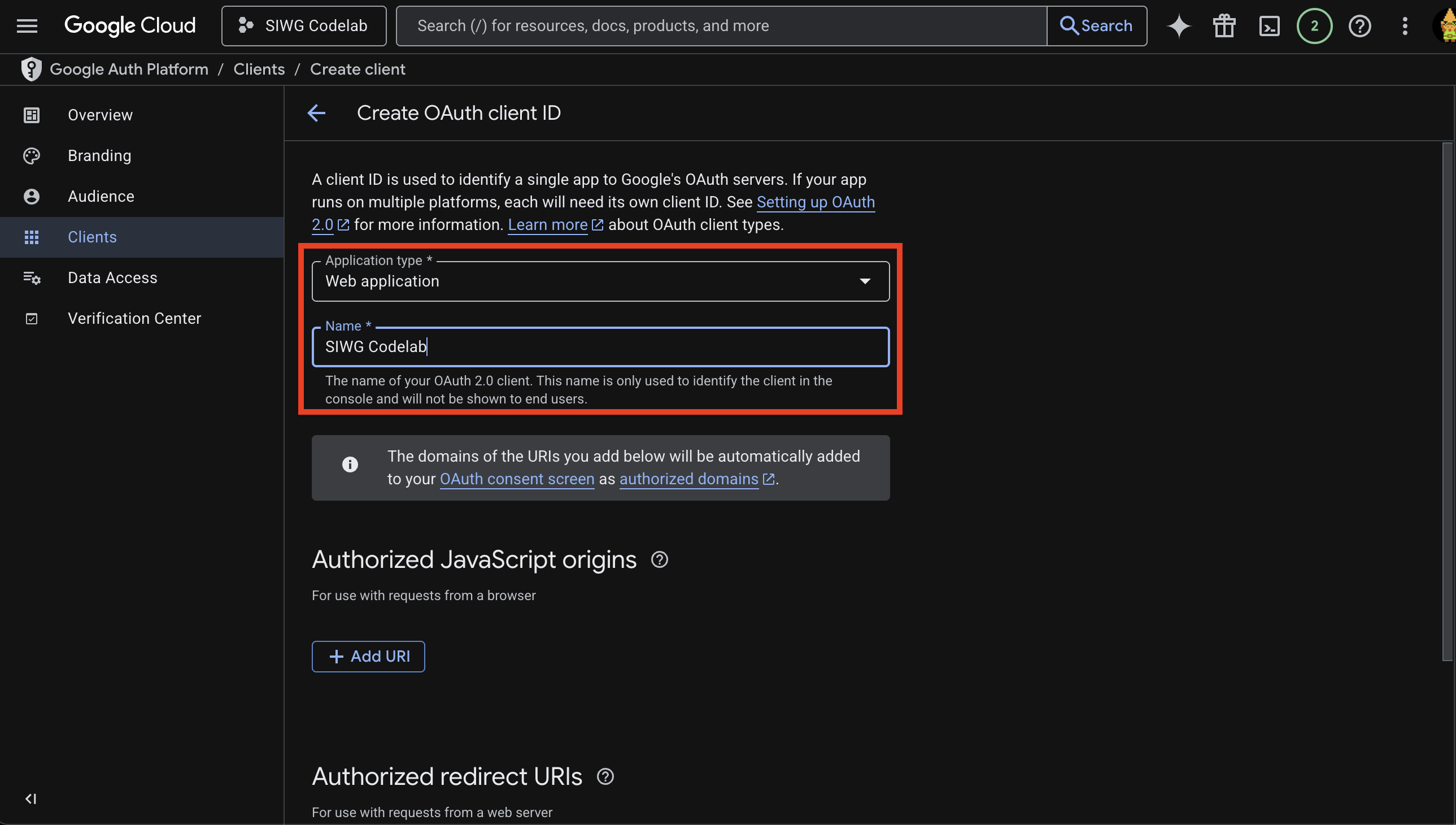
- Click Create Client again and select Web Application as the Application type.
- Name your web client, leave the URL/Origins fields blank, and click Create.
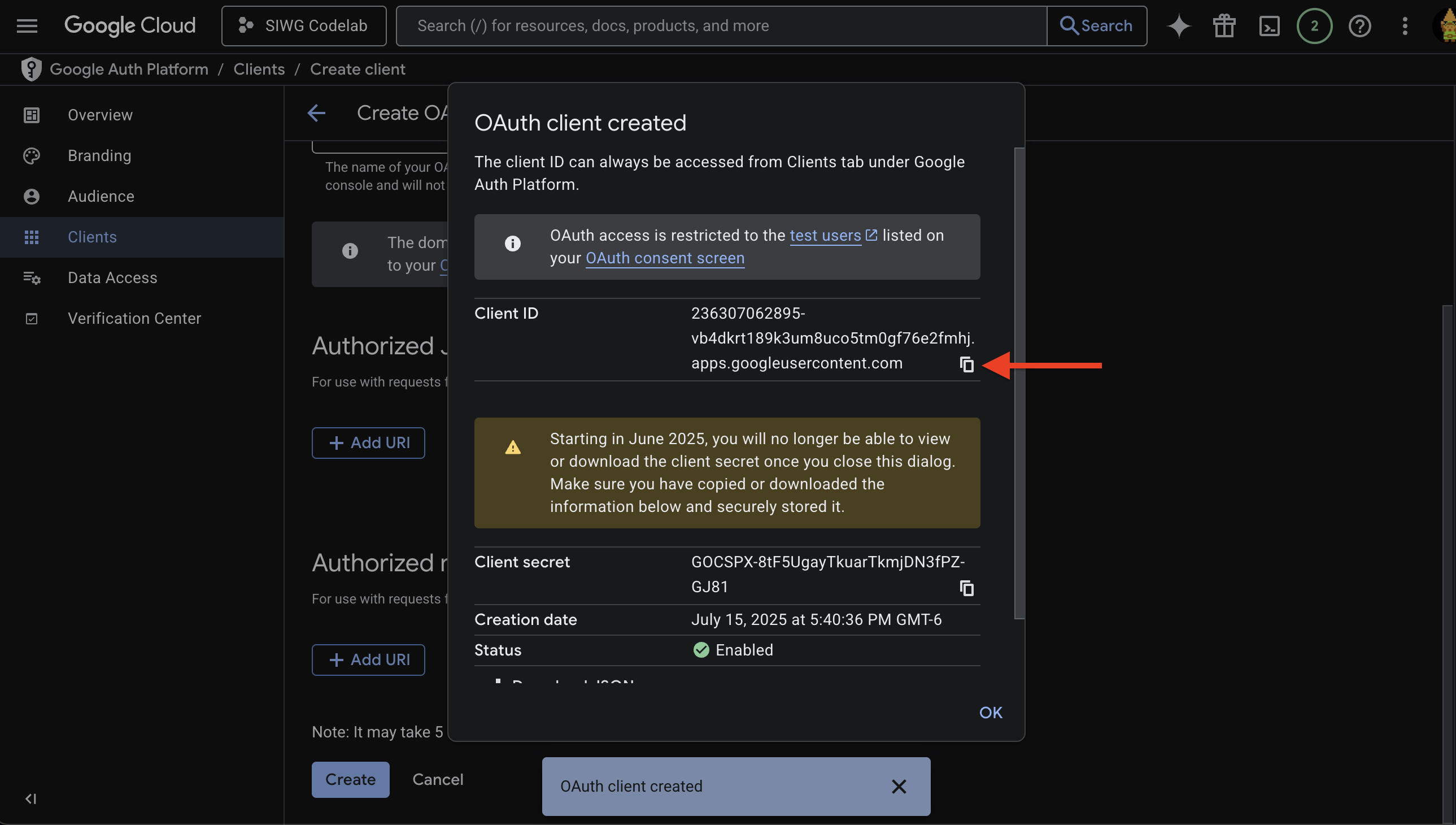
- Copy the generated Client ID from the confirmation dialog. You will use this in your Kotlin code.
4. Set up an Android Virtual Device
To test the app, you can use a physical Android device or an Android Virtual Device (AVD).
Create and run the AVD
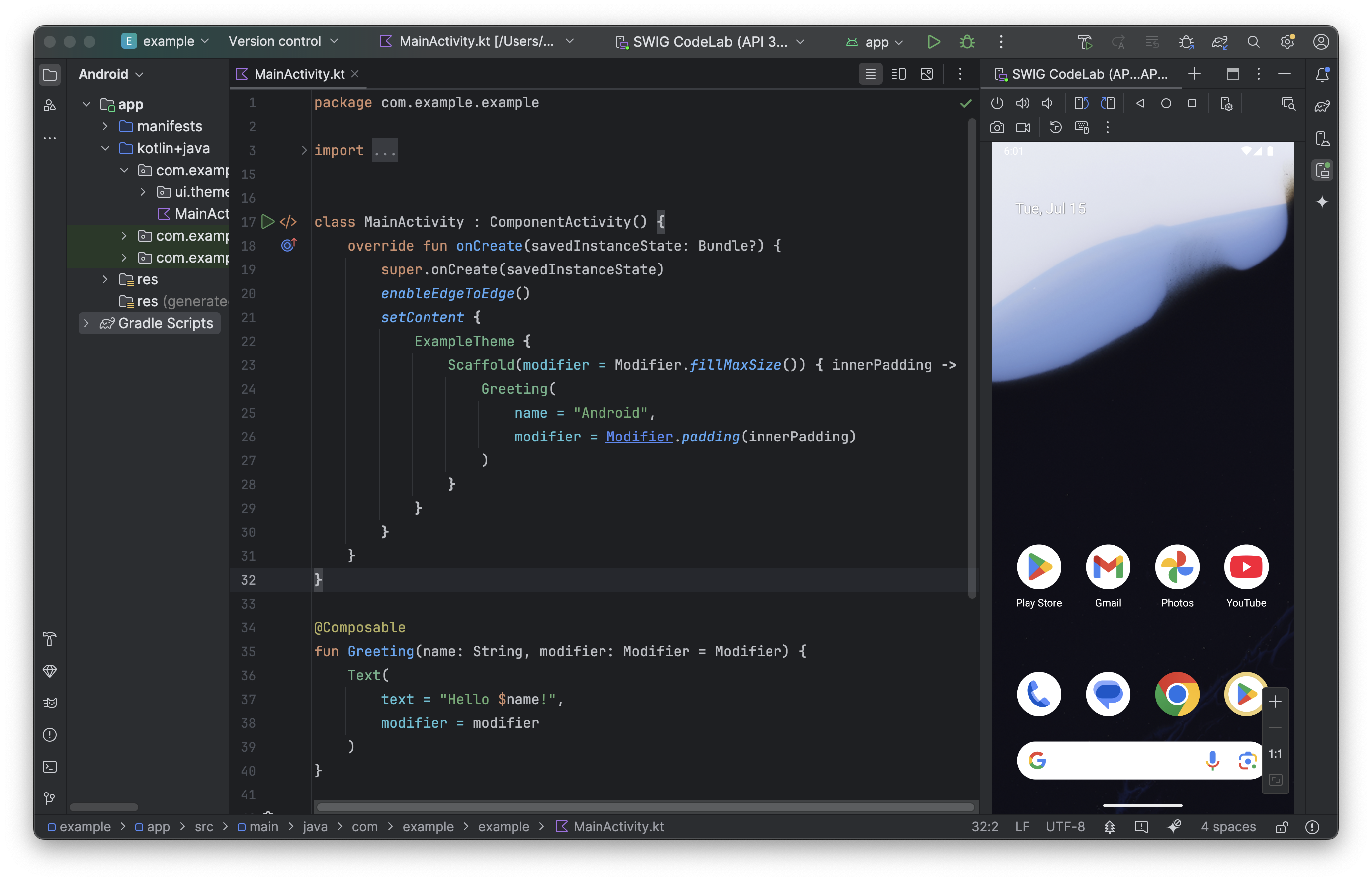
- In Android Studio, open the Device Manager, click Create Virtual Device (or the + icon), and select Medium Phone.
- Select the most recent stable version as the system image and click Finish.
- Launch the emulator by clicking the Play/Run icon next to the device.
Sign in to a Google Account on the device
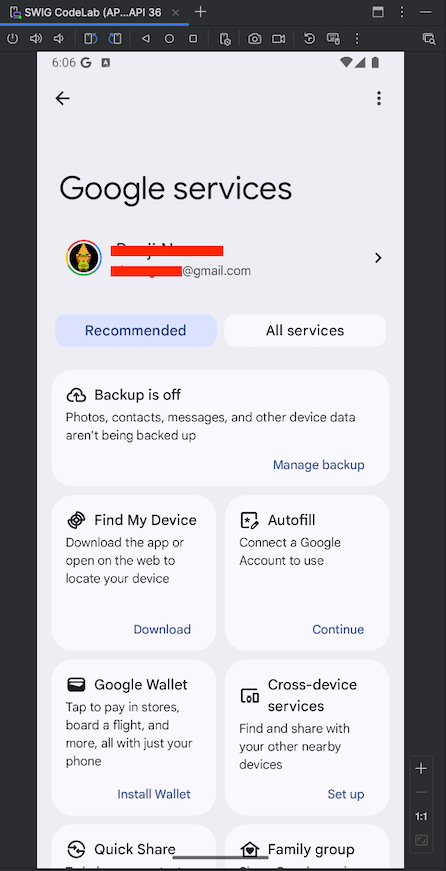
- On the emulator, open the Settings app and go to Google.
- Click Sign in to your Google Account and follow the prompts.
5. Add dependencies
Add the libraries required for authentication and Google ID integration to your project:
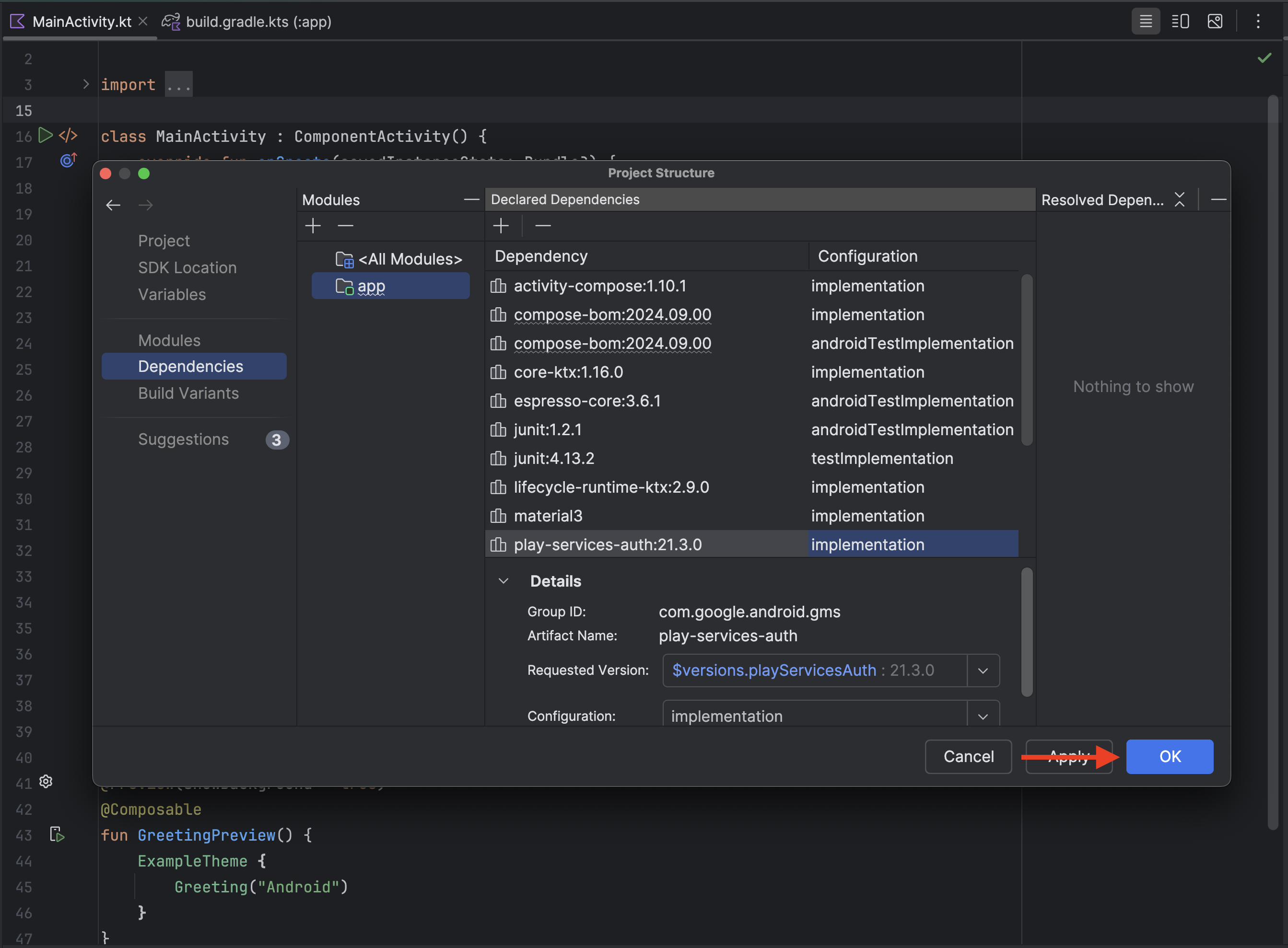
- Go to File > Project Structure > Dependencies > app.
- Click + > Library Dependency, search for
com.google.android.libraries.identity.googleid:googleid, and select the latest version (e.g.,1.1.1). - Click + > Library Dependency again, search for
play-services-auth, and select the library with Group IDcom.google.android.gms. - Click OK to apply the changes and sync your project.
6. Implement the Bottom Sheet flow
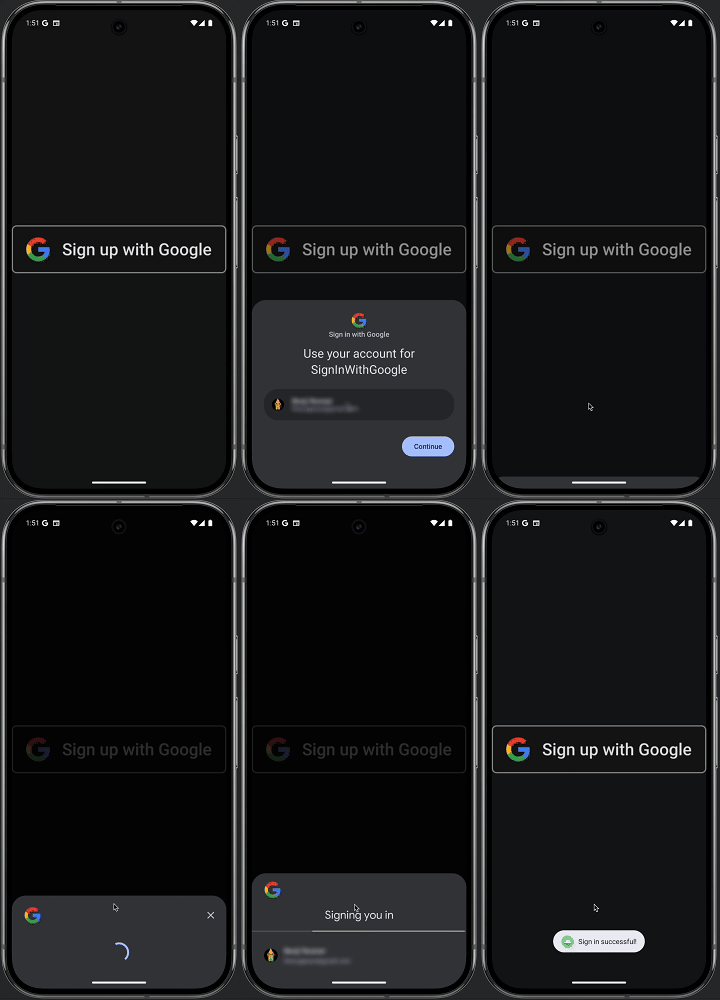
The Bottom Sheet flow leverages the Credential Manager API to provide a streamlined way for users to sign in to your app using their Google accounts on Android. Designed for speed and convenience, especially for returning users, this flow should be triggered on app launch.
Build the sign-in request
- To get started, open
MainActivity.ktand remove the defaultGreeting()andGreetingPreview()functions. - Add the following import statements after the existing ones starting on line 3:
import android.content.Context import android.os.Build import android.util.Log import android.widget.Toast import androidx.annotation.RequiresApi import androidx.compose.foundation.Image import androidx.compose.foundation.clickable import androidx.compose.foundation.layout.Arrangement import androidx.compose.foundation.layout.Column import androidx.compose.material3.MaterialTheme import androidx.compose.material3.Surface import androidx.compose.runtime.Composable import androidx.compose.runtime.LaunchedEffect import androidx.compose.runtime.rememberCoroutineScope import androidx.compose.ui.Alignment import androidx.compose.ui.Modifier import androidx.compose.ui.platform.LocalContext import androidx.compose.ui.res.painterResource import androidx.credentials.CredentialManager import androidx.credentials.CustomCredential import androidx.credentials.GetCredentialRequest import androidx.credentials.exceptions.GetCredentialCancellationException import androidx.credentials.exceptions.GetCredentialCustomException import androidx.credentials.exceptions.GetCredentialException import androidx.credentials.exceptions.NoCredentialException import com.google.android.libraries.identity.googleid.GetGoogleIdOption import com.google.android.libraries.identity.googleid.GetSignInWithGoogleOption import com.google.android.libraries.identity.googleid.GoogleIdTokenCredential import com.google.android.libraries.identity.googleid.GoogleIdTokenParsingException import java.security.SecureRandom import java.util.Base64 import kotlinx.coroutines.delay import kotlinx.coroutines.launch const val TAG = "MainActivity" - Add this Composable function below the
MainActivityclass in yourMainActivity.ktfile:@RequiresApi(Build.VERSION_CODES.UPSIDE_DOWN_CAKE) @Composable fun BottomSheet(webClientId: String) { val context = LocalContext.current // LaunchedEffect is used to run a suspend function when the composable is first launched. LaunchedEffect(Unit) { // Create a Google ID option with filtering by authorized accounts enabled. val googleIdOption: GetGoogleIdOption = GetGoogleIdOption.Builder() .setFilterByAuthorizedAccounts(true) .setServerClientId(webClientId) .setNonce(generateSecureRandomNonce()) .build() // Create a credential request with the Google ID option. val request: GetCredentialRequest = GetCredentialRequest.Builder() .addCredentialOption(googleIdOption) .build() // Attempt to sign in with the created request using an authorized account val e = signIn(request, context) // If the sign-in fails with NoCredentialException, there are no authorized accounts. // In this case, we attempt to sign in again with filtering disabled. if (e is NoCredentialException) { val googleIdOptionFalse: GetGoogleIdOption = GetGoogleIdOption.Builder() .setFilterByAuthorizedAccounts(false) .setServerClientId(webClientId) .setNonce(generateSecureRandomNonce()) .build() val requestFalse: GetCredentialRequest = GetCredentialRequest.Builder() .addCredentialOption(googleIdOptionFalse) .build() //We will build out this function in a moment signIn(requestFalse, context) } } } //This function is used to generate a secure nonce to pass in with our request fun generateSecureRandomNonce(byteLength: Int = 32): String { val randomBytes = ByteArray(byteLength) SecureRandom.getInstanceStrong().nextBytes(randomBytes) return Base64.getUrlEncoder().withoutPadding().encodeToString(randomBytes) }
Code Breakdown
LaunchedEffect(Unit): Triggers the sign-in flow immediately when the Composable is first displayed.GetGoogleIdOption.Builder(): Configures the Google ID token request.setFilterByAuthorizedAccounts(true): First attempts a silent sign-in by filtering for accounts the user has already authorized for this app, minimizing friction for returning users.setNonce(...): Passes a secure random nonce generated for each request bygenerateSecureRandomNonce()to prevent replay attacks.
signIn(request, context): Executes the request. If it fails with aNoCredentialException(meaning no previously authorized account exists), the flow falls back tosetFilterByAuthorizedAccounts(false)to let the user select from any Google account signed in on the device.
Make the sign-in request
With the sign-in request built, you can use the Credential Manager to complete the sign-in process. Create a function called signIn that executes the request and handles common exceptions that might occur.
Add this function below the BottomSheet function in your MainActivity.kt file:
@RequiresApi(Build.VERSION_CODES.UPSIDE_DOWN_CAKE)
suspend fun signIn(request: GetCredentialRequest, context: Context): Exception? {
    val credentialManager = CredentialManager.create(context)
    val failureMessage = "Sign in failed!"
    //using delay() here helps prevent NoCredentialException when the BottomSheet Flow is triggered
    //on the initial running of our app
    delay(250)
    return try {
        // The getCredential is called to request a credential from Credential Manager.
        val result = credentialManager.getCredential(
            request = request,
            context = context,
        )
        Log.i(TAG, result.toString())

        val credential = result.credential
        if (credential is CustomCredential &&
            credential.type == GoogleIdTokenCredential.TYPE_GOOGLE_ID_TOKEN_CREDENTIAL) {
            val googleIdTokenCredential = GoogleIdTokenCredential.createFrom(credential.data)
            Log.i(TAG, "Signed in as: ${googleIdTokenCredential.id}")
        }

        Toast.makeText(context, "Sign in successful!", Toast.LENGTH_SHORT).show()
        Log.i(TAG, "(☞゚ヮ゚)☞  Sign in Successful!  ☜(゚ヮ゚☜)")
        null
    } catch (e: GoogleIdTokenParsingException) {
        Toast.makeText(context, failureMessage, Toast.LENGTH_SHORT).show()
        Log.e(TAG, failureMessage + ": Issue with parsing received GoogleIdToken", e)
        e
    } catch (e: NoCredentialException) {
        Toast.makeText(context, failureMessage, Toast.LENGTH_SHORT).show()
        Log.e(TAG, failureMessage + ": No credentials found", e)
        e
    } catch (e: GetCredentialCancellationException) {
        Toast.makeText(context, "Sign-in cancelled", Toast.LENGTH_SHORT).show()
        Log.e(TAG, failureMessage + ": Sign-in was cancelled", e)
        e
    } catch (e: GetCredentialCustomException) {
        Toast.makeText(context, failureMessage, Toast.LENGTH_SHORT).show()
        Log.e(TAG, failureMessage + ": Issue with custom credential request", e)
        e
    } catch (e: GetCredentialException) {
        Toast.makeText(context, failureMessage, Toast.LENGTH_SHORT).show()
        Log.e(TAG, failureMessage + ": Failure getting credentials", e)
        e
    }
}
Code Breakdown
credentialManager.getCredential(...): Calls the Credential Manager API to display the system account selector bottom sheet or dialog.delay(250): Pauses briefly to prevent a race condition when the Bottom Sheet is triggered immediately at app startup before the Credential Manager service has finished initializing.- Exception Handling: Catches and logs common credential errors (e.g., cancellation, missing credentials, or token parsing issues) and provides user feedback using toasts.
Trigger the Bottom Sheet flow
Update your MainActivity class to call BottomSheet() on startup. Replace YOUR_CLIENT_ID_HERE with your Web application client ID:
class MainActivity : ComponentActivity() {
    @RequiresApi(Build.VERSION_CODES.UPSIDE_DOWN_CAKE)
    override fun onCreate(savedInstanceState: Bundle?) {
        super.onCreate(savedInstanceState)

        //replace with your own web client ID from Google Cloud Console
        val webClientId = "YOUR_CLIENT_ID_HERE"

        setContent {
            //ExampleTheme - this is derived from the name of the project not any added library
            //e.g. if this project was named "Testing" it would be generated as TestingTheme
            ExampleTheme {
                Surface(
                    modifier = Modifier.fillMaxSize(), color = MaterialTheme.colorScheme.background,
                ) {
                    //This will trigger on launch
                    BottomSheet(webClientId)
                }
            }
        }
    }
}
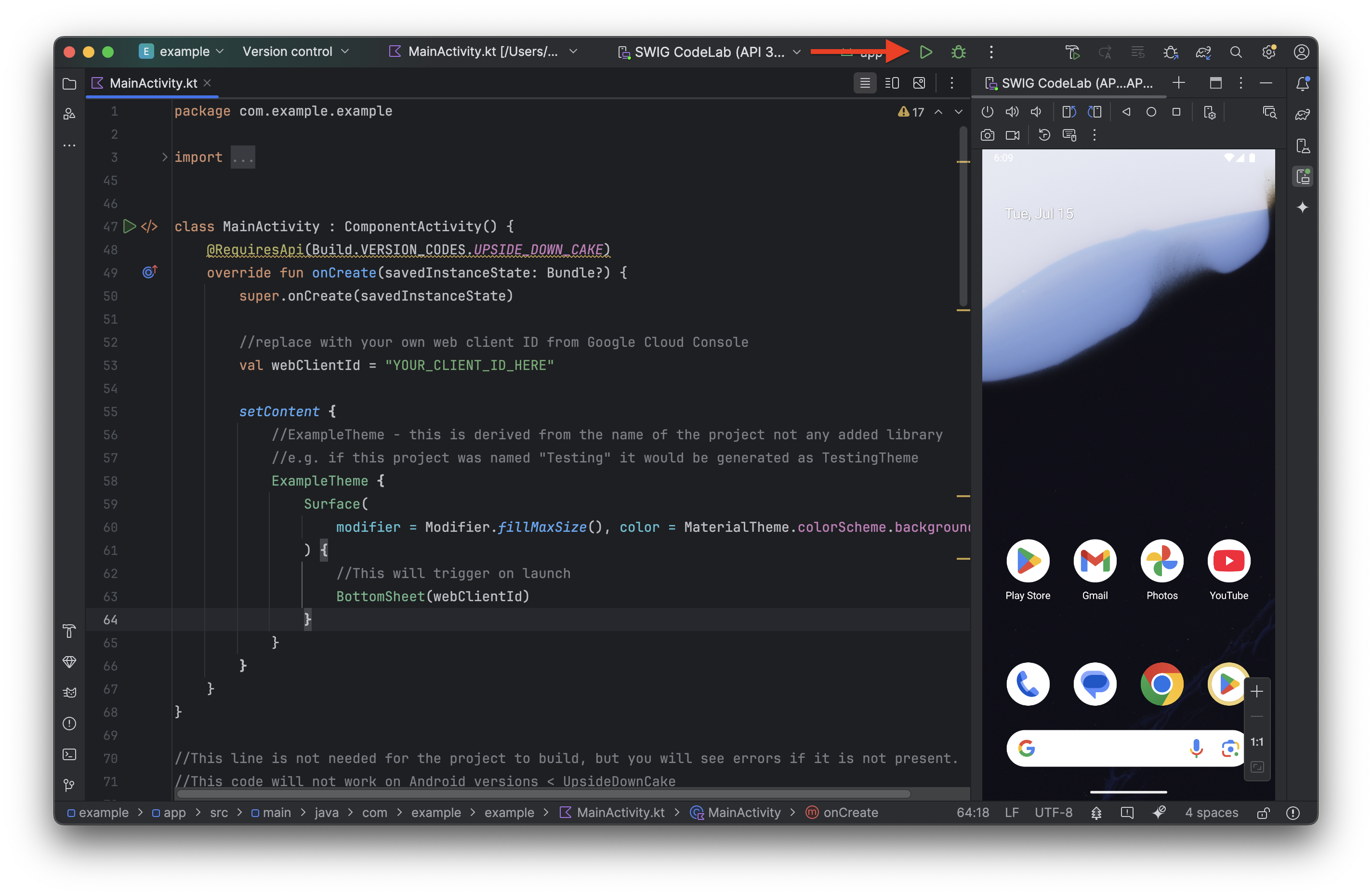
Save your project (File > Save) and run the application:
- Press the run button:
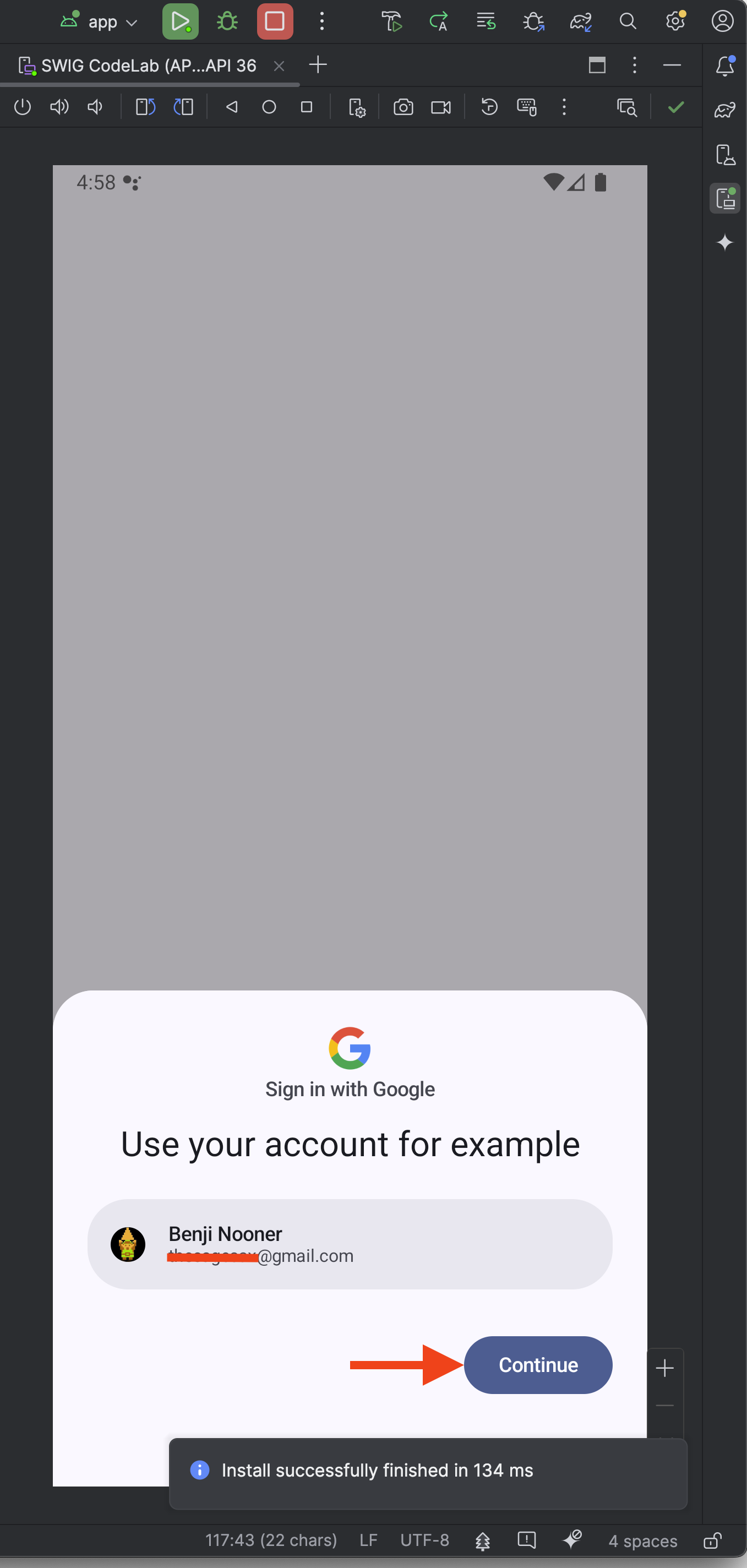
- When the app launches on the emulator, the sign-in Bottom Sheet should appear. Click Continue to test the flow.
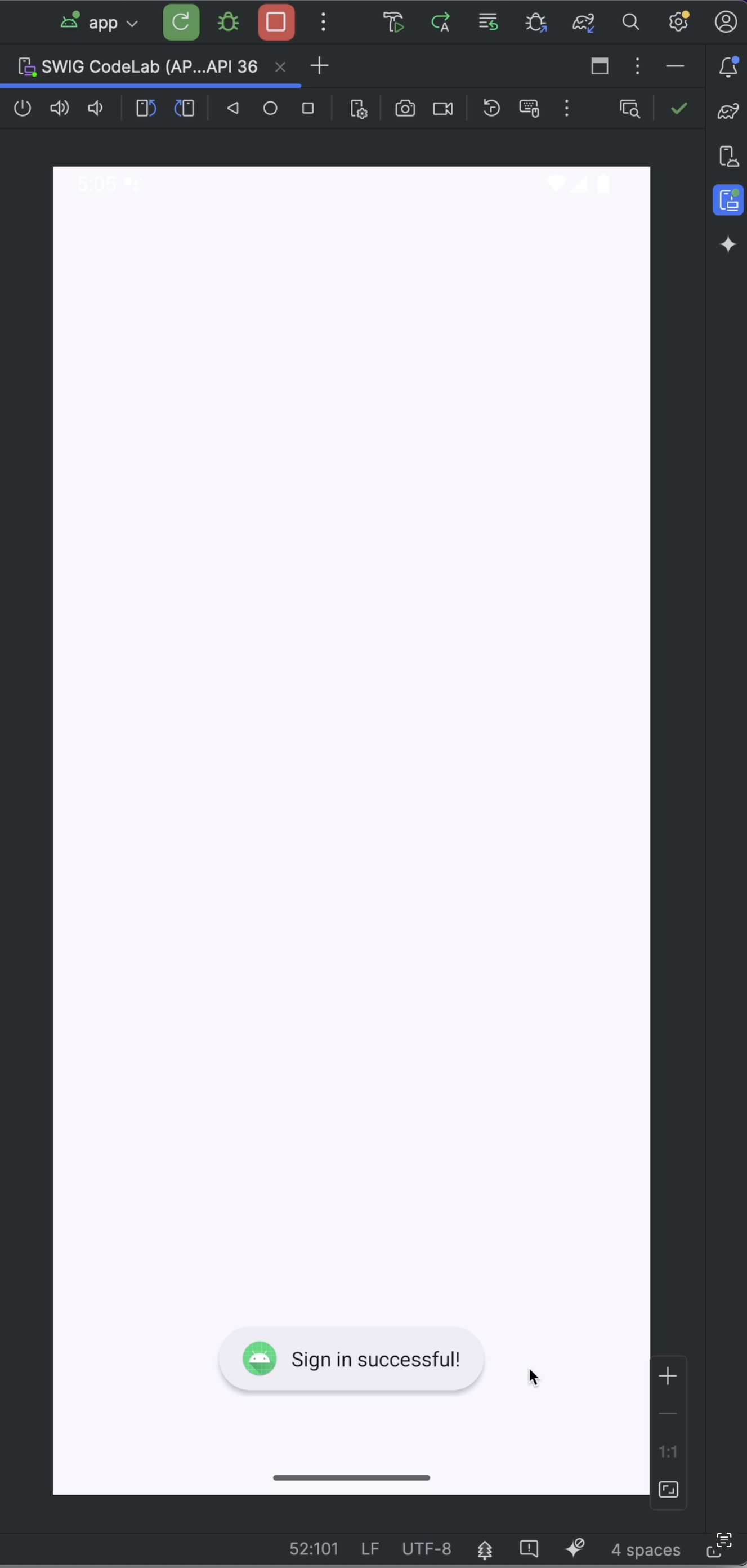
- A toast notification should appear, confirming that the sign-in was successful.
7. Implement the Button flow
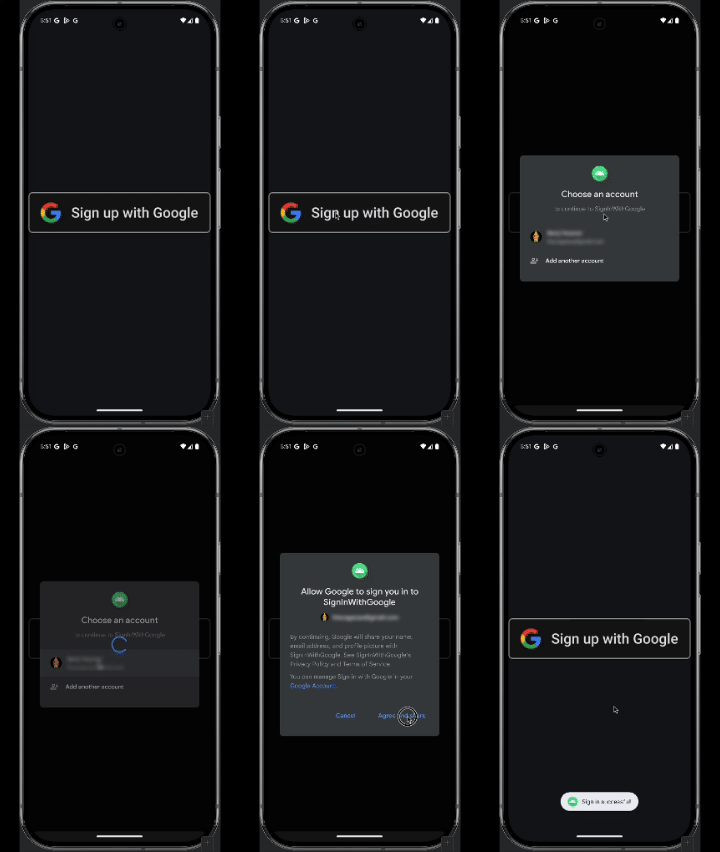
The Button flow provides an explicit option for users to sign in or sign up. Using standard branding ensures a consistent experience. Use pre-approved assets that conform to the Sign in with Google Branding Guidelines.
Add the brand icon
- Download the brand assets here and extract the ZIP.
- Copy
signin-assets/Android/png@2x/neutral/android_neutral_sq_SI@2x.png. - In Android Studio, paste the file into your res > drawable folder, rename it to
siwg_button.png, and click OK.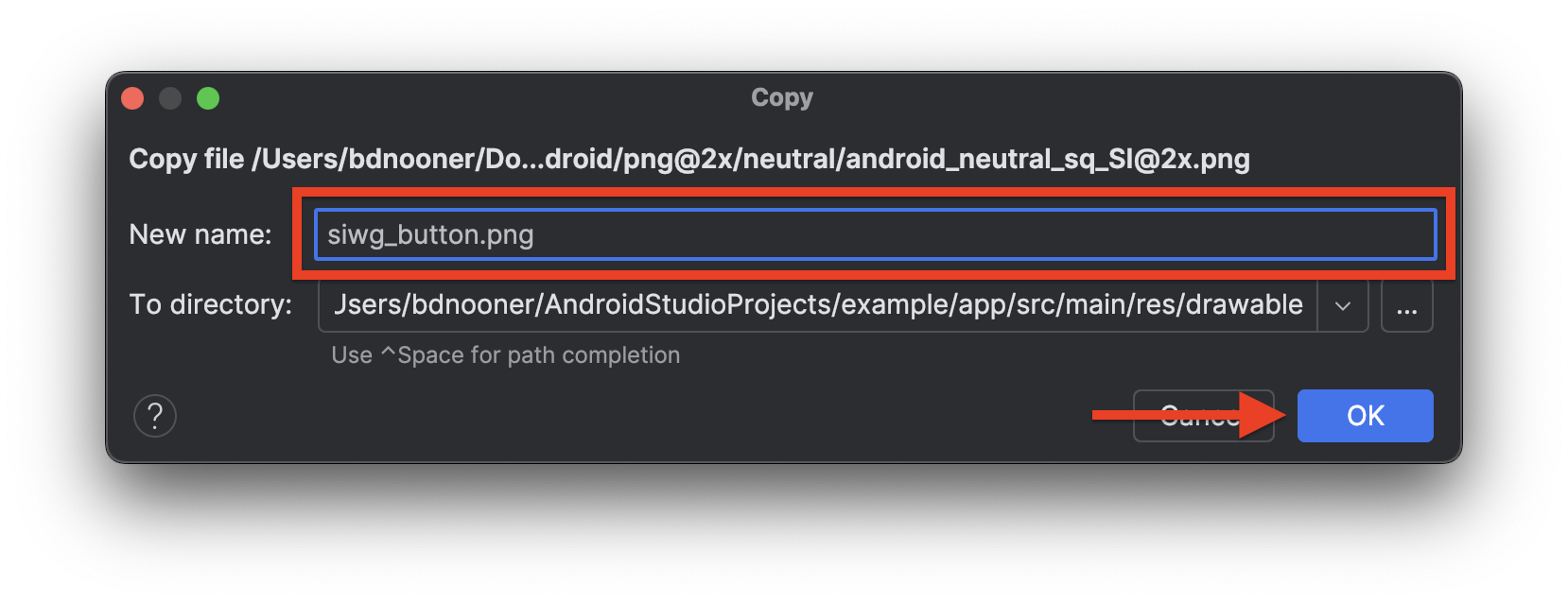
Button flow code
This flow reuses the same signIn helper function but passes a GetSignInWithGoogleOption instead of GetGoogleIdOption. Unlike the Bottom Sheet flow, the explicit button flow does not pre-filter or automatically prompt for stored credentials or passkeys. Paste this Composable function below the BottomSheet function:
@RequiresApi(Build.VERSION_CODES.UPSIDE_DOWN_CAKE)
@Composable
fun ButtonUI(webClientId: String) {
    val context = LocalContext.current
    val coroutineScope = rememberCoroutineScope()

    val onClick: () -> Unit = {
        val signInWithGoogleOption: GetSignInWithGoogleOption = GetSignInWithGoogleOption
            .Builder(serverClientId = webClientId)
            .setNonce(generateSecureRandomNonce())
            .build()

        val request: GetCredentialRequest = GetCredentialRequest.Builder()
            .addCredentialOption(signInWithGoogleOption)
            .build()

        coroutineScope.launch {
            signIn(request, context)
        }
    }
    Image(
        painter = painterResource(id = R.drawable.siwg_button),
        contentDescription = "",
        modifier = Modifier
            .fillMaxSize()
            .clickable(enabled = true, onClick = onClick)
    )
}
Code Breakdown
GetSignInWithGoogleOption: Unlike the Bottom Sheet flow, the explicit button flow uses this option to prompt users to select their Google Account without automatic filtering.coroutineScope.launch: Launches a coroutine to execute the suspendsignInfunction asynchronously when the button is clicked.Image: Displays the brandedsiwg_buttondrawable and attaches a click listener to trigger the flow.
Add the Button to the UI layout
Update your MainActivity layout to display both the automatic BottomSheet and the explicit ButtonUI aligned vertically:
class MainActivity : ComponentActivity() {
    @RequiresApi(Build.VERSION_CODES.UPSIDE_DOWN_CAKE)
    override fun onCreate(savedInstanceState: Bundle?) {
        super.onCreate(savedInstanceState)

        //replace with your own web client ID from Google Cloud Console
        val webClientId = "YOUR_CLIENT_ID_HERE"

        setContent {
            //ExampleTheme - this is derived from the name of the project not any added library
            //e.g. if this project was named "Testing" it would be generated as TestingTheme
            ExampleTheme {
                Surface(
                    modifier = Modifier.fillMaxSize(), color = MaterialTheme.colorScheme.background,
                ) {
                    Column(
                        verticalArrangement = Arrangement.Center,
                        horizontalAlignment = Alignment.CenterHorizontally

                    ) {
                        //This will trigger on launch
                        BottomSheet(webClientId)

                        //This requires the user to press the button
                        ButtonUI(webClientId)
                    }
                }
            }
        }
    }
}
Test the Button flow
- Run the application.
- Dismiss the initial Bottom Sheet by clicking outside of the sheet area.
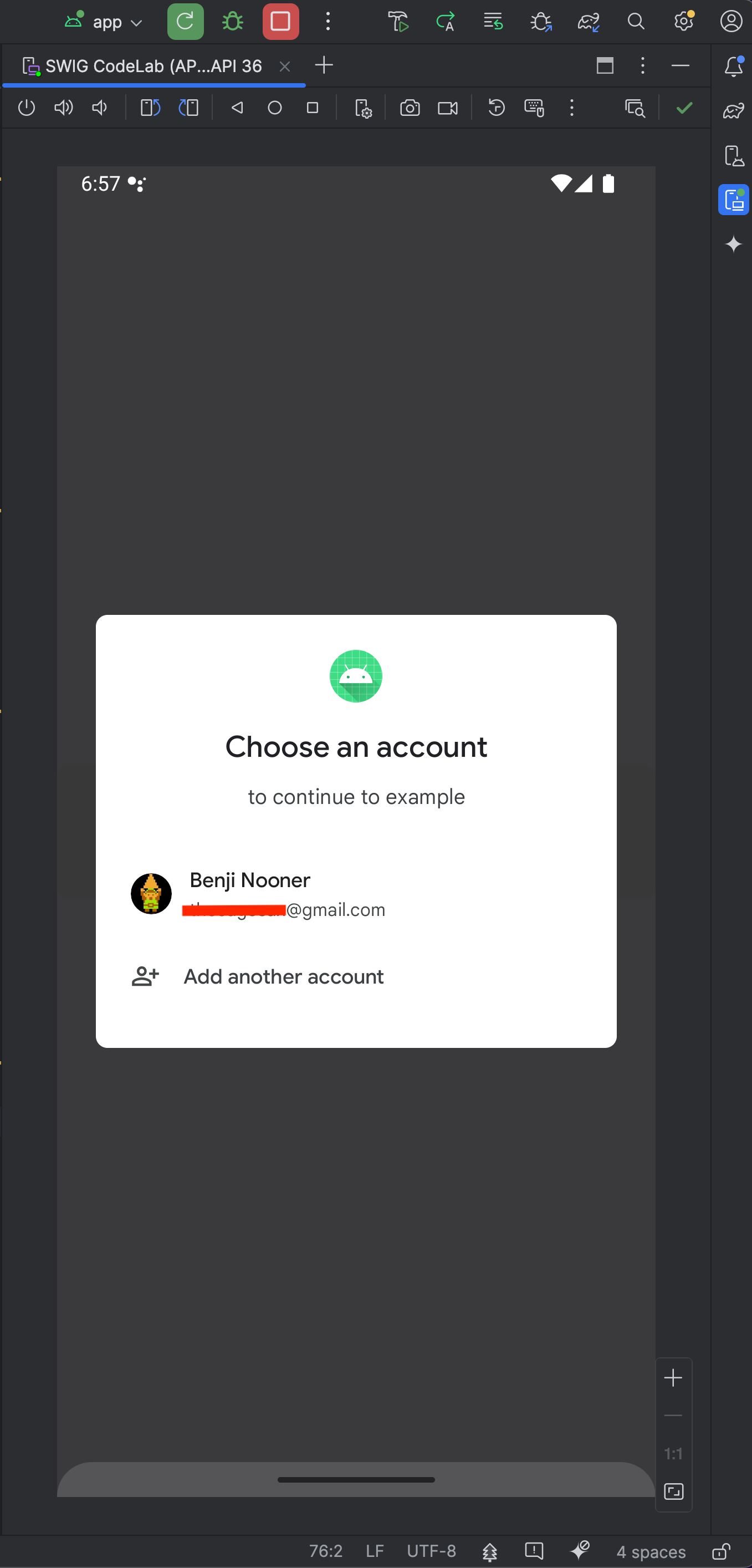
- Click the Sign in with Google button to launch the sign-in dialog, and select your account.
- Verify the outcome: check Logcat to confirm the printout of your username/email address.
8. Conclusion
Congratulations! You have successfully implemented Sign in with Google using Android Credential Manager.
Additional resources
- Android Credential Manager Documentation
- Credential Manager Troubleshooting Guide
- Credential Manager FAQ
- StackOverflow support
Full MainActivity.kt code
Here is the full code for MainActivity.kt for reference:
package com.example.example

import android.os.Bundle
import androidx.activity.ComponentActivity
import androidx.activity.compose.setContent
import androidx.compose.foundation.layout.fillMaxSize
import androidx.compose.runtime.Composable
import androidx.compose.ui.Modifier
import com.example.example.ui.theme.ExampleTheme
import android.content.ContentValues.TAG
import android.content.Context
import android.util.Log
import android.widget.Toast
import androidx.credentials.exceptions.GetCredentialException
import androidx.compose.foundation.clickable
import androidx.compose.foundation.Image
import androidx.compose.foundation.layout.Arrangement
import androidx.compose.foundation.layout.Column
import androidx.compose.material3.MaterialTheme
import androidx.compose.material3.Surface
import androidx.compose.runtime.rememberCoroutineScope
import androidx.compose.ui.Alignment
import androidx.compose.ui.platform.LocalContext
import androidx.compose.ui.res.painterResource
import androidx.credentials.CredentialManager
import androidx.credentials.exceptions.GetCredentialCancellationException
import androidx.credentials.exceptions.GetCredentialCustomException
import androidx.credentials.exceptions.NoCredentialException
import androidx.credentials.GetCredentialRequest
import com.google.android.libraries.identity.googleid.GetGoogleIdOption
import com.google.android.libraries.identity.googleid.GetSignInWithGoogleOption
import com.google.android.libraries.identity.googleid.GoogleIdTokenParsingException
import java.security.SecureRandom
import java.util.Base64
import kotlinx.coroutines.CoroutineScope
import androidx.compose.runtime.LaunchedEffect
import kotlinx.coroutines.delay
import kotlinx.coroutines.launch

class MainActivity : ComponentActivity() {
    @RequiresApi(Build.VERSION_CODES.UPSIDE_DOWN_CAKE)
    override fun onCreate(savedInstanceState: Bundle?) {
        super.onCreate(savedInstanceState)

        //replace with your own web client ID from Google Cloud Console
        val webClientId = "YOUR_CLIENT_ID_HERE"

        setContent {
            //ExampleTheme - this is derived from the name of the project not any added library
            //e.g. if this project was named "Testing" it would be generated as TestingTheme
            ExampleTheme {
                Surface(
                    modifier = Modifier.fillMaxSize(), color = MaterialTheme.colorScheme.background,
                ) {
                    Column(
                        verticalArrangement = Arrangement.Center,
                        horizontalAlignment = Alignment.CenterHorizontally

                    ) {
                        //This will trigger on launch
                        BottomSheet(webClientId)

                        //This requires the user to press the button
                        ButtonUI(webClientId)
                    }
                }
            }
        }
    }
}

@RequiresApi(Build.VERSION_CODES.UPSIDE_DOWN_CAKE)
@Composable
fun BottomSheet(webClientId: String) {
    val context = LocalContext.current

    // LaunchedEffect is used to run a suspend function when the composable is first launched.
    LaunchedEffect(Unit) {
        // Create a Google ID option with filtering by authorized accounts enabled.
        val googleIdOption: GetGoogleIdOption = GetGoogleIdOption.Builder()
            .setFilterByAuthorizedAccounts(true)
            .setServerClientId(webClientId)
            .setNonce(generateSecureRandomNonce())
            .build()

        // Create a credential request with the Google ID option.
        val request: GetCredentialRequest = GetCredentialRequest.Builder()
            .addCredentialOption(googleIdOption)
            .build()

        // Attempt to sign in with the created request using an authorized account
        val e = signIn(request, context)
        // If the sign-in fails with NoCredentialException,  there are no authorized accounts.
        // In this case, we attempt to sign in again with filtering disabled.
        if (e is NoCredentialException) {
            val googleIdOptionFalse: GetGoogleIdOption = GetGoogleIdOption.Builder()
                .setFilterByAuthorizedAccounts(false)
                .setServerClientId(webClientId)
                .setNonce(generateSecureRandomNonce())
                .build()

            val requestFalse: GetCredentialRequest = GetCredentialRequest.Builder()
                .addCredentialOption(googleIdOptionFalse)
                .build()

            signIn(requestFalse, context)
        }
    }
}

@RequiresApi(Build.VERSION_CODES.UPSIDE_DOWN_CAKE)
@Composable
fun ButtonUI(webClientId: String) {
    val context = LocalContext.current
    val coroutineScope = rememberCoroutineScope()

    val onClick: () -> Unit = {
        val signInWithGoogleOption: GetSignInWithGoogleOption = GetSignInWithGoogleOption
            .Builder(serverClientId = webClientId)
            .setNonce(generateSecureRandomNonce())
            .build()

        val request: GetCredentialRequest = GetCredentialRequest.Builder()
            .addCredentialOption(signInWithGoogleOption)
            .build()

        coroutineScope.launch {
            signIn(request, context)
        }
    }
    Image(
        painter = painterResource(id = R.drawable.siwg_button),
        contentDescription = "",
        modifier = Modifier
            .fillMaxSize()
            .clickable(onClick = onClick)
    )
}

fun generateSecureRandomNonce(byteLength: Int = 32): String {
    val randomBytes = ByteArray(byteLength)
    SecureRandom.getInstanceStrong().nextBytes(randomBytes)
    return Base64.getUrlEncoder().withoutPadding().encodeToString(randomBytes)
}

@RequiresApi(Build.VERSION_CODES.UPSIDE_DOWN_CAKE)
suspend fun signIn(request: GetCredentialRequest, context: Context): Exception? {
    val credentialManager = CredentialManager.create(context)
    val failureMessage = "Sign in failed!"
    //using delay() here helps prevent NoCredentialException when the BottomSheet Flow is triggered
    //on the initial running of our app
    delay(250)
    return try {
        // The getCredential is called to request a credential from Credential Manager.
        val result = credentialManager.getCredential(
            request = request,
            context = context,
        )
        Log.i(TAG, result.toString())

        val credential = result.credential
        if (credential is CustomCredential &&
            credential.type == GoogleIdTokenCredential.TYPE_GOOGLE_ID_TOKEN_CREDENTIAL) {
            val googleIdTokenCredential = GoogleIdTokenCredential.createFrom(credential.data)
            Log.i(TAG, "Signed in as: ${googleIdTokenCredential.id}")
        }

        Toast.makeText(context, "Sign in successful!", Toast.LENGTH_SHORT).show()
        Log.i(TAG, "(☞゚ヮ゚)☞  Sign in Successful!  ☜(゚ヮ゚☜)")
        null
    } catch (e: GoogleIdTokenParsingException) {
        Toast.makeText(context, failureMessage, Toast.LENGTH_SHORT).show()
        Log.e(TAG, failureMessage + ": Issue with parsing received GoogleIdToken", e)
        e
    } catch (e: NoCredentialException) {
        Toast.makeText(context, failureMessage, Toast.LENGTH_SHORT).show()
        Log.e(TAG, failureMessage + ": No credentials found", e)
        e
    } catch (e: GetCredentialCancellationException) {
        Toast.makeText(context, "Sign-in cancelled", Toast.LENGTH_SHORT).show()
        Log.e(TAG, failureMessage + ": Sign-in was cancelled", e)
        e
    } catch (e: GetCredentialCustomException) {
        Toast.makeText(context, failureMessage, Toast.LENGTH_SHORT).show()
        Log.e(TAG, failureMessage + ": Issue with custom credential request", e)
        e
    } catch (e: GetCredentialException) {
        Toast.makeText(context, failureMessage, Toast.LENGTH_SHORT).show()
        Log.e(TAG, failureMessage + ": Failure getting credentials", e)
        e
    }
}