
1. 📖 Introduction
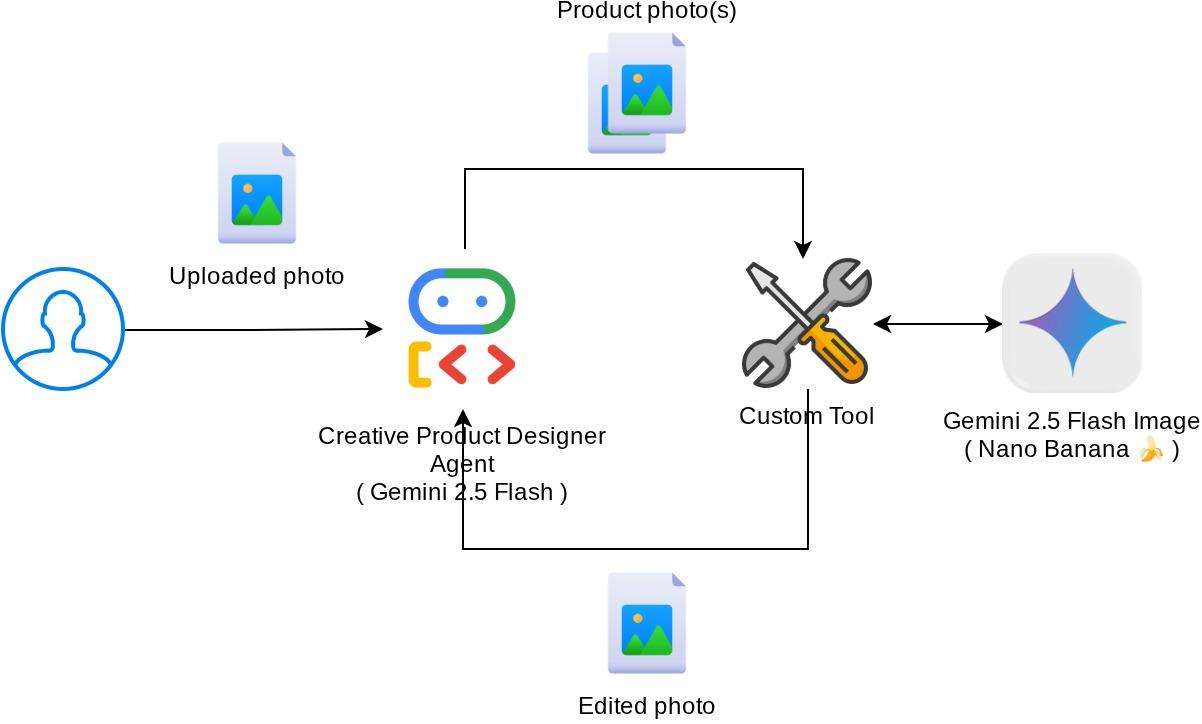
This codelab demonstrates how to design a multimodal tool interaction in Agent Development Kit (ADK). This is a specific flow where you want the agent to refer to the uploaded file as input to a tool and also understand the file content produced by the tool response as well. Hence interaction like shown in the below screenshot is possible. In this tutorial we are going to develop an agent which capable to help the user edit a better photo for their product show case
Through the codelab, you will employ a step by step approach as follows:
- Prepare Google Cloud project
- Setup work directory for coding environment
- Initialize agent using ADK
- Design a tool that can be used to edit photo powered by Gemini 2.5 Flash Image
- Design a callback function to handle user image upload, save it as artifact, and add it as context to the agent
- Design a callback function to handle image produced by a tool response, save it as artifact and add it as context to the agent
Architecture Overview
The overall interaction in this codelab is shown in the following diagram
Prerequisites
- Comfortable working with Python
- (Optional) Foundational codelabs about Agent Development Kit (ADK)
What you'll learn
- How to utilize callback context to access artifact service
- How to design tool with proper multimodal data propagation
- How to modify the agent llm request to add artifact context via before_model_callback
- How to edit image using Gemini 2.5 Flash Image
What you'll need
- Chrome web browser
- A Gmail account
- A Cloud Project with billing account enabled
This codelab, designed for developers of all levels (including beginners), uses Python in its sample application. However, Python knowledge isn't required for understanding the concepts presented.
2. 🚀 Preparing Workshop Development Setup
Step 1: Select Active Project in the Cloud Console
In the Google Cloud Console, on the project selector page, select or create a Google Cloud project (see top left section of your console)

Click on it, and you will see list of all of your project like this example,
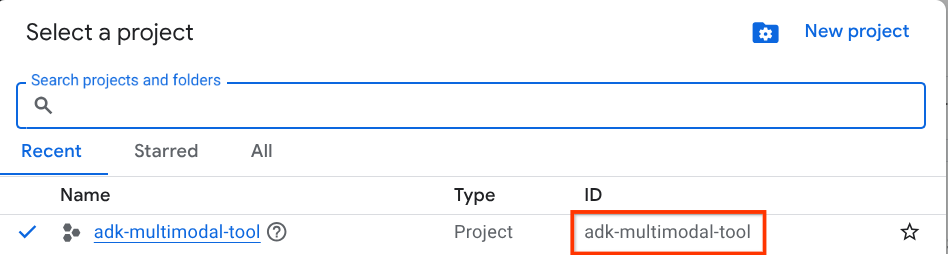
The value that is indicated by the red box is the PROJECT ID and this value will be used throughout the tutorial.
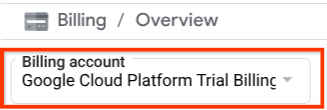
Make sure that billing is enabled for your Cloud project. To check this, click on the burger icon ☰ on your top left bar which shows the Navigation Menu and find the Billing menu

If you see the "Google Cloud Platform Trial Billing Account" under the Billing / Overview title ( top left section of your cloud console ), your project is ready to be utilized for this tutorial. If not, go back to the start of this tutorial and redeem the trial billing account
Step 2: Familiarize with Cloud Shell
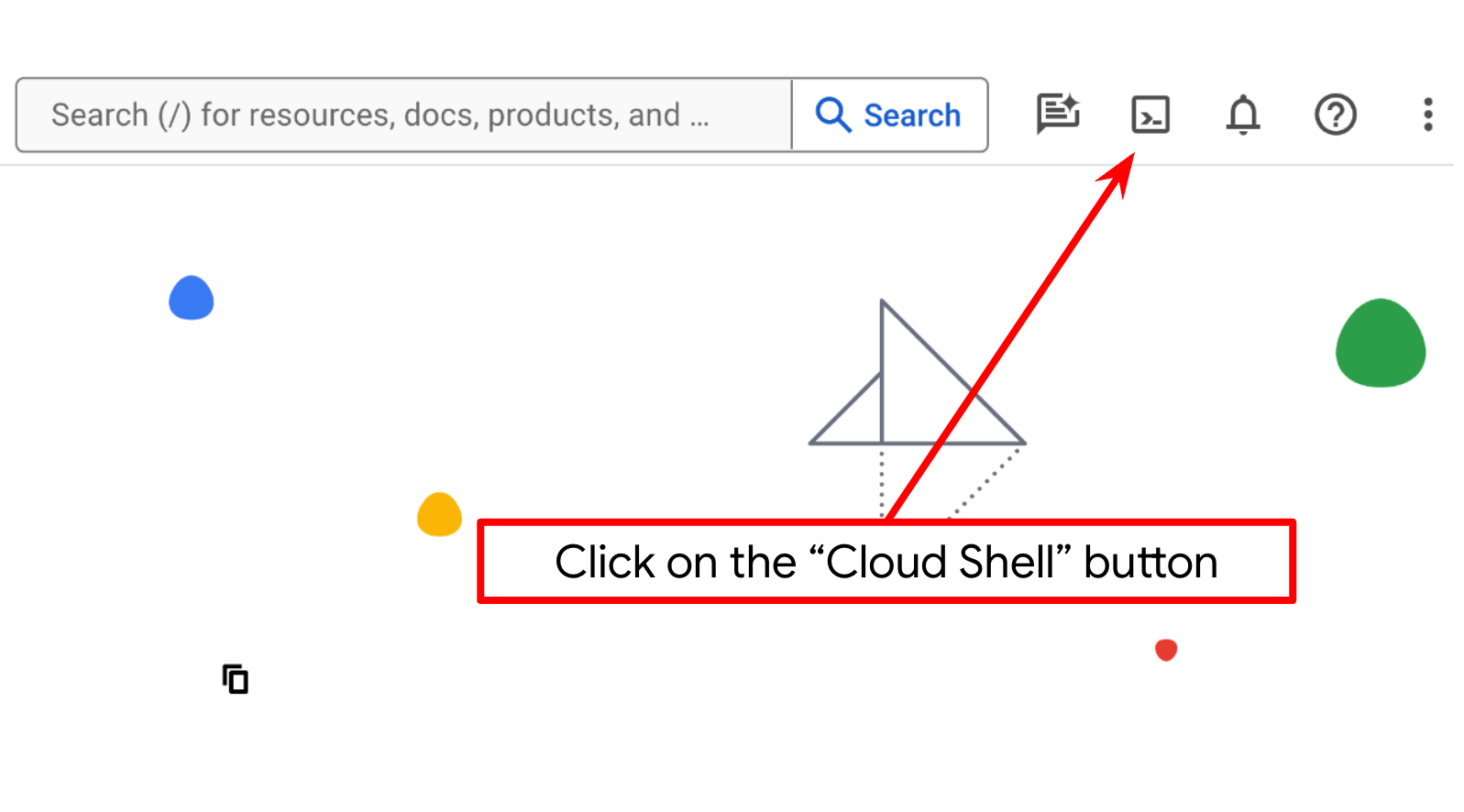
You'll use Cloud Shell for most part of the tutorials, Click Activate Cloud Shell at the top of the Google Cloud console. If it prompts you to authorize, click Authorize
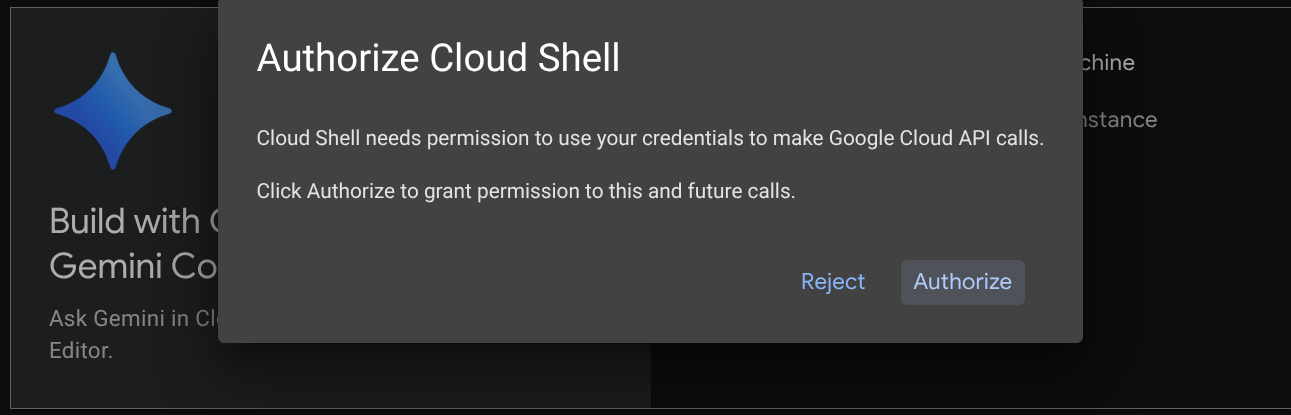
Once connected to Cloud Shell, we will need to check whether the shell ( or terminal ) is already authenticated with our account
gcloud auth list
If you see your personal gmail like below example output, all is good
Credentialed Accounts

ACTIVE: *
ACCOUNT: alvinprayuda@gmail.com

To set the active account, run:
    $ gcloud config set account `ACCOUNT`
If not, try refreshing your browser and ensure you click the Authorize when prompted ( it might be interrupted due to connection issue )
Next, we also need to check whether the shell is already configured to the correct PROJECT ID that you have, if you see there is value inside ( ) before the $ icon in the terminal ( in below screenshot, the value is "adk-multimodal-tool" ) this value shows the configured project for your active shell session.

If the shown value is already correct, you can skip the next command. However if it's not correct or missing, run the following command
gcloud config set project <YOUR_PROJECT_ID>
Then, clone the template working directory for this codelab from Github, run the following command. It will create the working directory in the adk-multimodal-tool directory
git clone https://github.com/alphinside/adk-mcp-multimodal.git adk-multimodal-tool
Step 3: Familiarize with Cloud Shell Editor and Setup Application Working Directory
Now, we can set up our code editor to do some coding stuff. We will use the Cloud Shell Editor for this
Click on the Open Editor button, this will open a Cloud Shell Editor 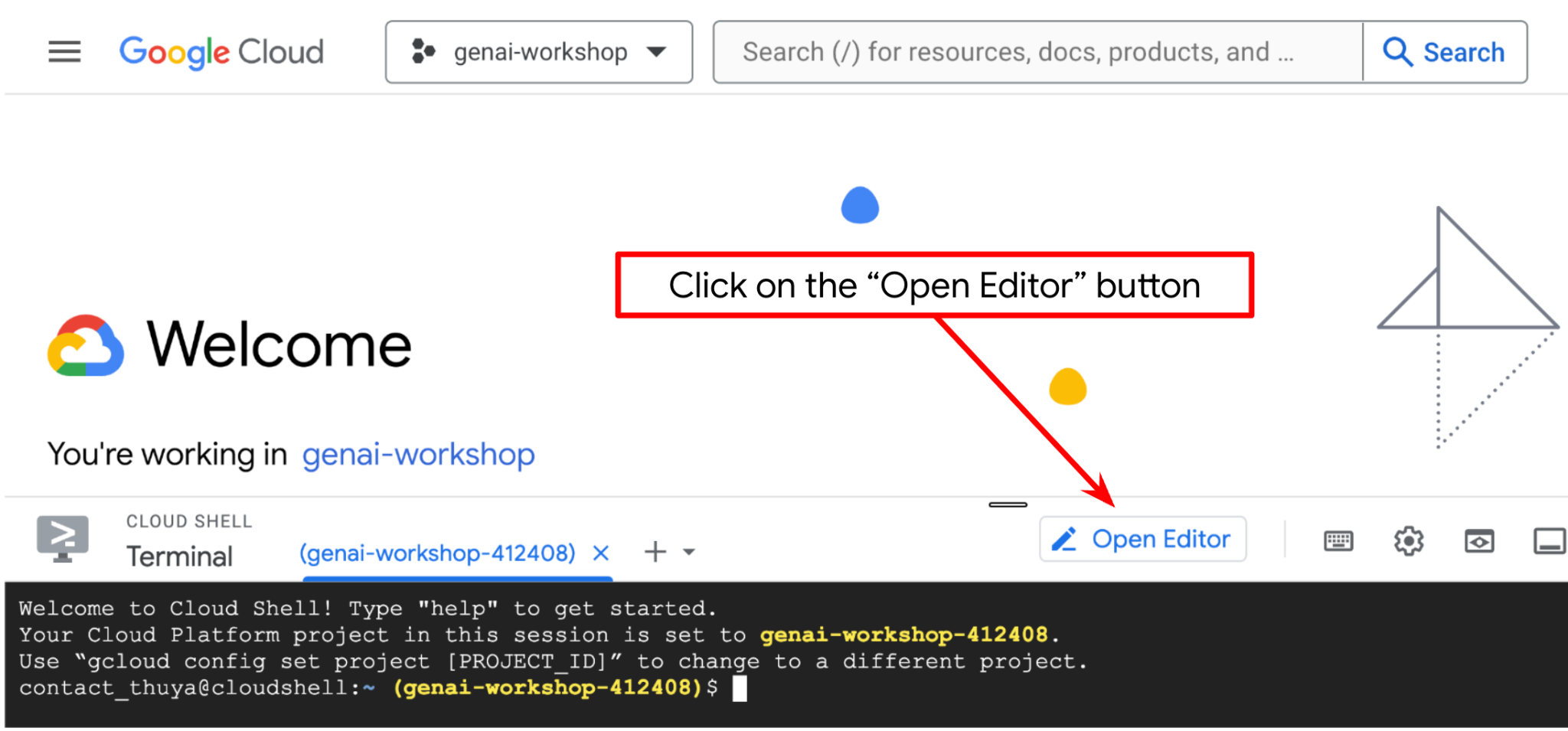
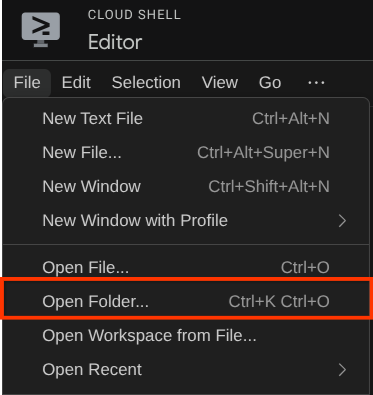
After that, go to the top section of the Cloud Shell Editor and click File->Open Folder, find your username directory and find the adk-multimodal-tool directory then click the OK button. This will make the chosen directory as the main working directory. In this example, the username is alvinprayuda, hence the directory path is shown below
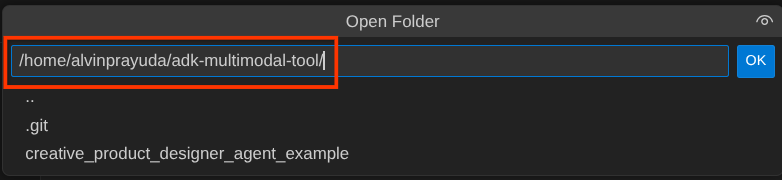
Now, your Cloud Shell Editor working directory should look like this ( inside adk-multimodal-tool )
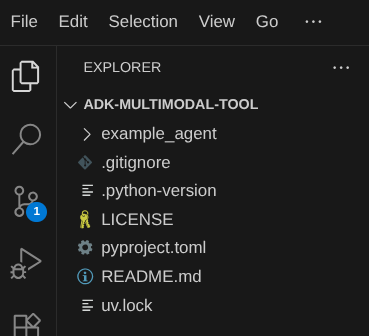
Now, open the terminal for the editor. You can do it by clicking on Terminal -> New Terminal on the menu bar, or use Ctrl + Shift + C , it will open a terminal window on the bottom part of the browser

Your current active terminal should be inside the adk-multimodal-tool working directory. We will utilize Python 3.12 in this codelab and we will use uv python project manager to simplify the need of creating and managing python version and virtual environment. This uv package is already preinstalled on Cloud Shell.
Run this command to install the required dependencies to the virtual environment on the .venv directory
uv sync --frozen
Check the pyproject.toml to see the declared dependencies for this tutorial which are google-adk, and python-dotenv.
Now, we will need to enable the required APIs via the command shown below. This could take a while.
gcloud services enable aiplatform.googleapis.com
On successful execution of the command, you should see a message similar to the one shown below:
Operation "operations/..." finished successfully.
3. 🚀 Initialize the ADK Agent
In this step, we will initialize our agent using the ADK CLI, run the following command
uv run adk create product_photo_editor \
   --model gemini-2.5-flash \
   --project your-project-id \
   --region us-central1
This command will help you to quickly provide the required structure for your agent shown below:
product_photo_editor/
├── __init__.py
├── .env
├── agent.py
After that, let's prepare our product photo editor agent. First, copy the prompt.py that is already included in the repository to the agent directory you previously created
cp prompt.py product_photo_editor/prompt.py
Then, open the product_photo_editor/agent.py and modify the content with the following code
from google.adk.agents.llm_agent import Agent
from product_photo_editor.prompt import AGENT_INSTRUCTION

root_agent = Agent(
    model="gemini-2.5-flash",
    name="product_photo_editor",
    description="""A friendly product photo editor assistant that helps small business
owners edit and enhance their product photos. Perfect for improving photos of handmade
goods, food products, crafts, and small retail items""",
    instruction=AGENT_INSTRUCTION,
)
Now, you will have your base photo editor agent which you can already chit chat with to ask for suggestions for your photos. You can try interacting with it using this command
uv run adk web --port 8080
It will spawn output like the following example, means that we can already access the web interface
INFO:     Started server process [xxxx]
INFO:     Waiting for application startup.

+-----------------------------------------------------------------------------+
| ADK Web Server started                                                      |
|                                                                             |
| For local testing, access at http://127.0.0.1:8080.                         |
+-----------------------------------------------------------------------------+

INFO:     Application startup complete.
INFO:     Uvicorn running on http://127.0.0.1:8080 (Press CTRL+C to quit)
Now, to check it you can Ctrl + Click on the URL or click the Web Preview button on the top area of your Cloud Shell Editor and select Preview on port 8080
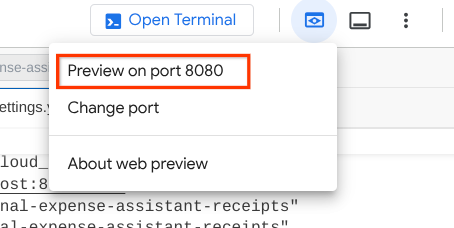
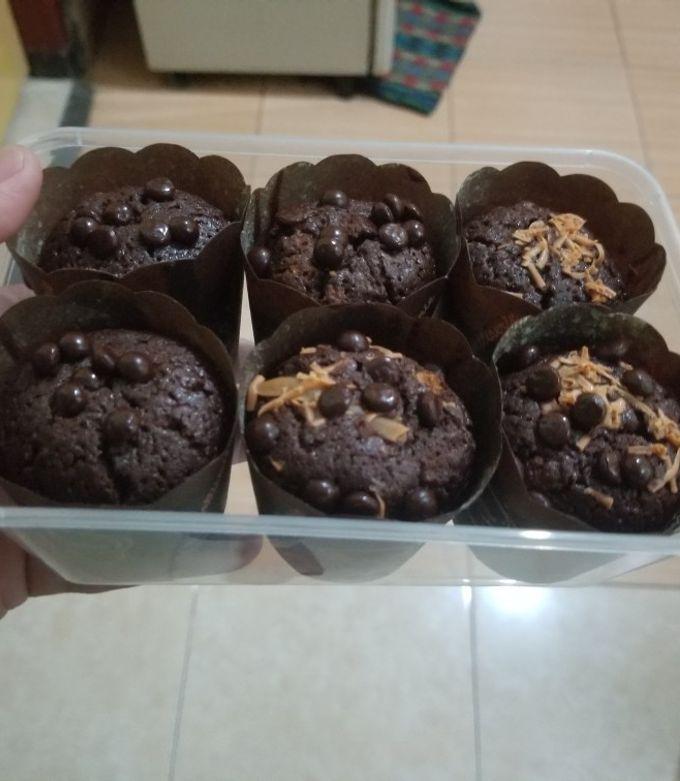
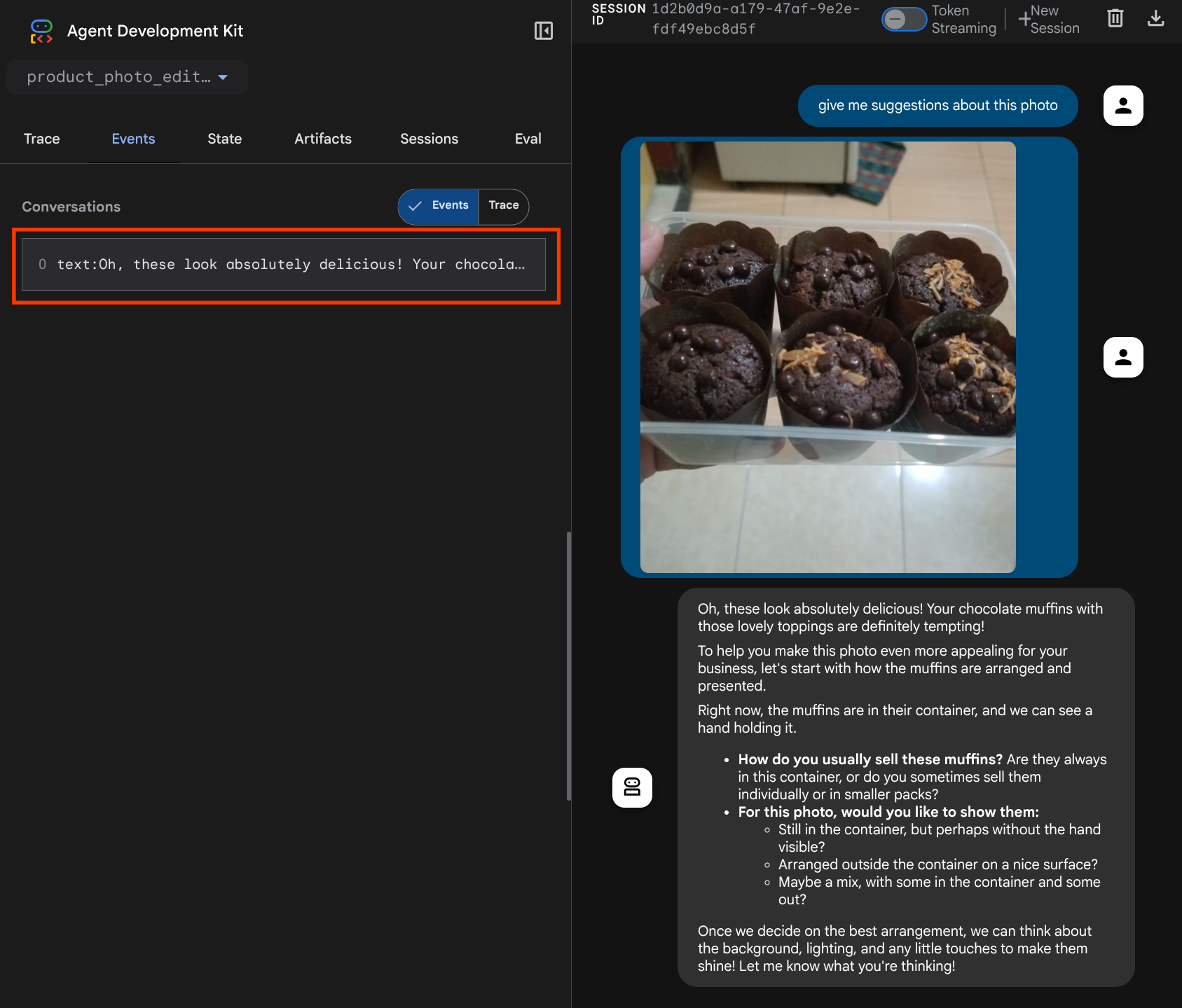
You will see the following web page where you can select available agents on the top left drop down button ( in our case it should be product_photo_editor ) and interact with the bot. Try uploading the following image in the chat interface and ask the following questions
what is your suggestion for this photo?
You will see similar interaction like shown below
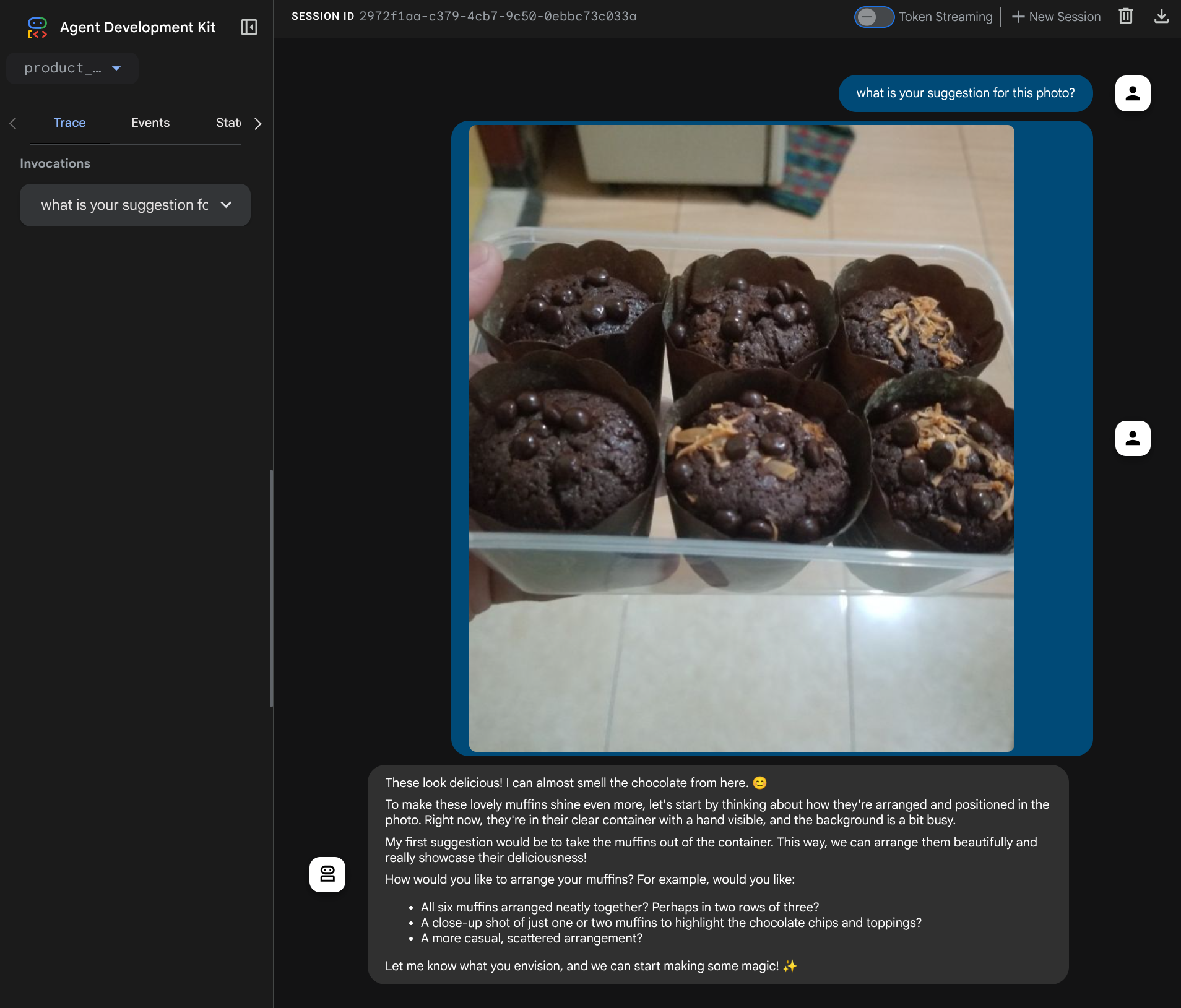
You already can ask for some suggestions, however currently it cannot do the editing for you. Let's go to the next step, equipping the agent with the editing tools.
4. 🚀 LLM Request Context Modification - User Uploaded Image
We want our agent to be flexible in selecting which uploaded image it wants to edit. However LLM tools usually are designed to accept simple data type parameters like str or int. This is a very different data type for multimodal data which is usually perceived as bytes data type, hence we will need a strategy involving Artifacts concept to handle those data. So, instead of providing the full bytes data in the tools parameter, we will design the tool to accept the artifact identifier name instead.
This strategy will involve 2 steps:
- modify the LLM request so that each uploaded file is associated with an artifact identifier and add this as context to the LLM
- Design the tool to accept artifact identifiers as input parameters
Let's do the 1st step, in order to modify the LLM request, we will utilize the ADK Callback feature. Specifically we will add before_model_callback to tap in right before the agent sends the context to the LLM. You can see the illustration on the image below 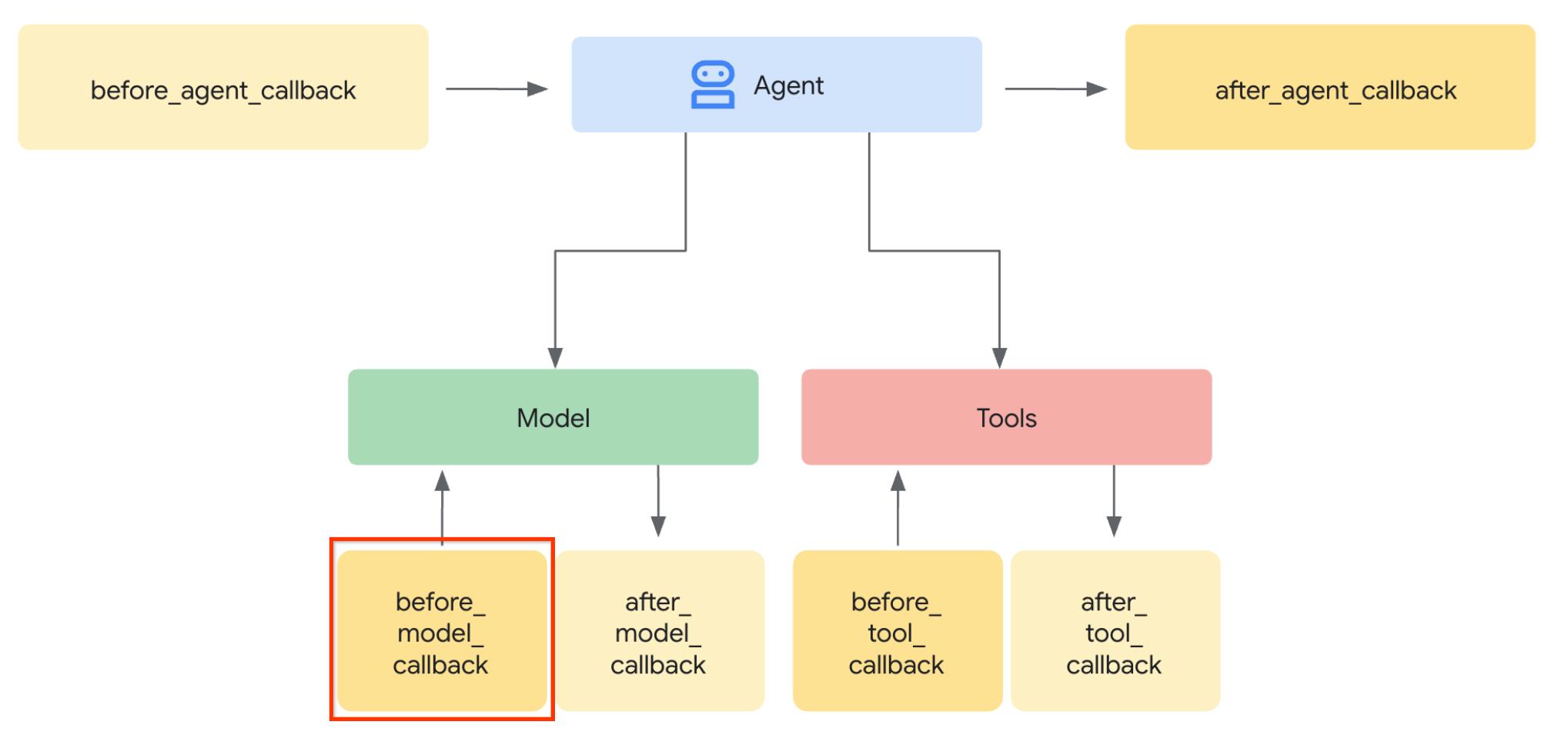
To do this, first create a new file product_photo_editor/model_callbacks.py using the following command
touch product_photo_editor/model_callbacks.py
Then, copy the following code to the file
# product_photo_editor/model_callbacks.py

from google.adk.agents.callback_context import CallbackContext
from google.adk.models import LlmResponse, LlmRequest
from google.genai.types import Part
import hashlib
from typing import List


async def before_model_modifier(
    callback_context: CallbackContext, llm_request: LlmRequest
) -> LlmResponse | None:
    """Modify LLM request to include artifact references for images."""
    for content in llm_request.contents:
        if not content.parts:
            continue

        modified_parts = []
        for idx, part in enumerate(content.parts):
            # Handle user-uploaded inline images
            if part.inline_data:
                processed_parts = await _process_inline_data_part(
                    part, callback_context
                )
            # Default: keep part as-is
            else:
                processed_parts = [part]

            modified_parts.extend(processed_parts)

        content.parts = modified_parts


async def _process_inline_data_part(
    part: Part, callback_context: CallbackContext
) -> List[Part]:
    """Process inline data parts (user-uploaded images).

    Returns:
        List of parts including artifact marker and the image.
    """
    artifact_id = _generate_artifact_id(part)

    # Save artifact if it doesn't exist
    if artifact_id not in await callback_context.list_artifacts():
        await callback_context.save_artifact(filename=artifact_id, artifact=part)

    return [
        Part(
            text=f"[User Uploaded Artifact] Below is the content of artifact ID : {artifact_id}"
        ),
        part,
    ]


def _generate_artifact_id(part: Part) -> str:
    """Generate a unique artifact ID for user uploaded image.

    Returns:
        Hash-based artifact ID with proper file extension.
    """
    filename = part.inline_data.display_name or "uploaded_image"
    image_data = part.inline_data.data

    # Combine filename and image data for hash
    hash_input = filename.encode("utf-8") + image_data
    content_hash = hashlib.sha256(hash_input).hexdigest()[:16]

    # Extract file extension from mime type
    mime_type = part.inline_data.mime_type
    extension = mime_type.split("/")[-1]

    return f"usr_upl_img_{content_hash}.{extension}"
The before_model_modifier function do these following things:
- Access the
llm_request.contentsvariable and iterate the content - Check if the part contain inline_data ( uploaded file / image ), if yes process the inline data
- Construct identifier for the inline_data, in this example we are using combination of filename + data to create a content hash identifier
- Check whether the artifact id already exists, if not, save the artifact using the artifact id
- Modify the part to include text prompt giving context about the artifact identifier of the following inline data
After that, modify the product_photo_editor/agent.py to equip the agent with the callback
from google.adk.agents.llm_agent import Agent
from product_photo_editor.model_callbacks import before_model_modifier
from product_photo_editor.prompt import AGENT_INSTRUCTION

root_agent = Agent(
    model="gemini-2.5-flash",
    name="product_photo_editor",
    description="""A friendly product photo editor assistant that helps small business
owners edit and enhance their product photos for online stores, social media, and
marketing. Perfect for improving photos of handmade goods, food products, crafts, and small retail items""",
    instruction=AGENT_INSTRUCTION,
    before_model_callback=before_model_modifier,
)
Now, we can try interact with the agent again
uv run adk web --port 8080
and try uploading file again and chat, we can inspect whether we successfully modified the LLM request context
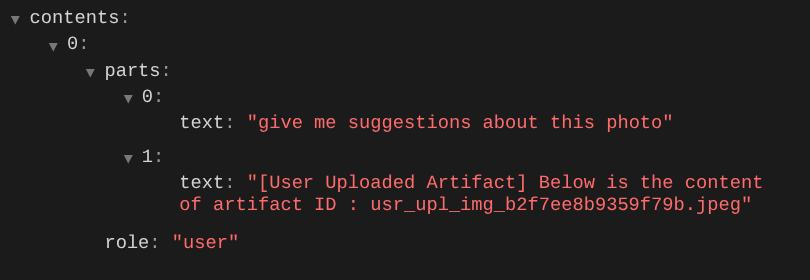
This is one way we can tell the LLM about the sequence and identification of multimodal data. Now let's create the tool that will utilize this information
5. 🚀 Multimodal Tool Interaction
Now, we can prepare a tool that also specifies artifact id as its input parameter. Run the following command to create new file product_photo_editor/custom_tools.py
touch product_photo_editor/custom_tools.py
Next, copy the following code to the product_photo_editor/custom_tools.py
# product_photo_editor/custom_tools.py

from google import genai
from dotenv import load_dotenv
import os
from google.adk.tools import ToolContext
import logging


load_dotenv()

client = genai.Client(
    vertexai=True,
    project=os.getenv("GOOGLE_CLOUD_PROJECT"),
    location=os.getenv("GOOGLE_CLOUD_LOCATION"),
)


async def edit_product_asset(
    tool_context: ToolContext,
    change_description: str,
    image_artifact_ids: list = [],
) -> dict[str, str]:
    """Modify an existing product photo or combine multiple product photos.

    This tool lets you make changes to product photos. You can:
    - Edit a single photo (change background, lighting, colors, etc.)
    - Combine multiple products into one photo (arrange them side by side, create bundles, etc.)

    **IMPORTANT**:
    - Make ONE type of change per tool call (background OR lighting OR props OR arrangement)
    - For complex edits, chain multiple tool calls together
    - BE AS DETAILED AS POSSIBLE in the change_description for best results!

    Args:
        change_description: What do you want to do? BE VERY DETAILED AND SPECIFIC!

                          **The more details you provide, the better the result.**
                          Focus on ONE type of change, but describe it thoroughly.

                          For BACKGROUND changes:
                          - "change background to soft pure white with subtle gradient from top to bottom, clean and minimal aesthetic"
                          - "replace background with rustic dark wood table surface with natural grain texture visible, warm brown tones"

                          For ADDING PROPS:
                          - "add fresh pink roses and eucalyptus leaves arranged naturally around the product on the left and right sides,
                            with some petals scattered in front"
                          - "add fresh basil leaves and cherry tomatoes scattered around the product naturally"

                          For LIGHTING changes:
                          - "add soft natural window light coming from the left side at 45 degree angle, creating gentle shadows on the
                            right side, warm morning atmosphere"
                          - "increase brightness with soft diffused studio lighting from above, eliminating harsh shadows"

                          For ARRANGEMENT/POSITIONING:
                          - "reposition product to be perfectly centered in frame with equal space on all sides"
                          - "arrange these three products in a horizontal line, evenly spaced with 2 inches between each"

                          Note: When combining multiple products, you can include background/lighting in the initial arrangement since it's
                                one cohesive setup
        image_artifact_ids: List of image IDs to edit or combine.
                          - For single image: provide a list with one item (e.g., ["product.png"])
                          - For multiple images: provide a list with multiple items (e.g., ["product1.png", "product2.png"])
                          Use multiple images to combine products into one photo.

    Returns:
        dict with keys:
            - 'tool_response_artifact_id': Artifact ID for the edited image
            - 'tool_input_artifact_ids': Comma-separated list of input artifact IDs
            - 'edit_prompt': The full edit prompt used
            - 'status': Success or error status
            - 'message': Additional information or error details
    """
    try:
        # Validate input
        if not image_artifact_ids:
            return {
                "status": "error",
                "tool_response_artifact_id": "",
                "tool_input_artifact_ids": "",
                "edit_prompt": change_description,
                "message": "No images provided. Please provide image_artifact_ids as a list.",
            }

        # Load all images
        image_artifacts = []
        for img_id in image_artifact_ids:
            artifact = await tool_context.load_artifact(filename=img_id)
            if artifact is None:
                logging.error(f"Artifact {img_id} not found")
                return {
                    "status": "error",
                    "tool_response_artifact_id": "",
                    "tool_input_artifact_ids": "",
                    "edit_prompt": change_description,
                    "message": f"Artifact {img_id} not found",
                }

            image_artifacts.append(artifact)

        # Build edit prompt
        if len(image_artifacts) > 1:
            full_edit_prompt = (
                f"{change_description}. "
                f"Combine these {len(image_artifacts)} product images together. "
                "IMPORTANT: Preserve each product's original appearance, shape, color, and design as faithfully as possible. "
                "Only modify for aesthetic enhancements (lighting, background, composition) or viewing angle adjustments. "
                "Do not alter the core product features, branding, or characteristics."
            )
        else:
            full_edit_prompt = (
                f"{change_description}. "
                "IMPORTANT: Preserve the product's original appearance, shape, color, and design as faithfully as possible. "
                "Only modify for aesthetic enhancements (lighting, background, composition) or viewing angle adjustments. "
                "Do not alter the core product features, branding, or characteristics."
            )

        # Build contents list: all images followed by the prompt
        contents = image_artifacts + [full_edit_prompt]

        response = await client.aio.models.generate_content(
            model="gemini-2.5-flash-image",
            contents=contents,
            config=genai.types.GenerateContentConfig(
                response_modalities=["Image"]
            ),
        )

        artifact_id = ""
        logging.info("Gemini Flash Image: response.candidates: ", response.candidates)
        for part in response.candidates[0].content.parts:
            if part.inline_data is not None:
                artifact_id = f"edited_img_{tool_context.function_call_id}.png"
                await tool_context.save_artifact(filename=artifact_id, artifact=part)

        input_ids_str = ", ".join(image_artifact_ids)
        return {
            "status": "success",
            "tool_response_artifact_id": artifact_id,
            "tool_input_artifact_ids": input_ids_str,
            "edit_prompt": full_edit_prompt,
            "message": f"Image edited successfully using {len(image_artifacts)} input image(s)",
        }
    except Exception as e:
        logging.error(e)
        input_ids_str = ", ".join(image_artifact_ids) if image_artifact_ids else ""
        return {
            "status": "error",
            "tool_response_artifact_id": "",
            "tool_input_artifact_ids": input_ids_str,
            "edit_prompt": change_description,
            "message": f"Error editing image: {str(e)}",
        }
The tool code does these following things:
- Tool documentation describe in details on best practice to invoke the tool
- Validate that image_artifact_ids list is not empty
- Load all image artifacts from tool_context using the provided artifact IDs
- Build edit prompt: append instructions to combine (multi-image) or edit (single-image) professionally
- Call Gemini 2.5 Flash Image model with Image only output and Extract the generated image
- Save the edited image as new artifact
- Return structured response with: status, output artifact ID, input IDs, full prompt, and message
Finally, we can equip our agent with the tool. Modify the content of product_photo_editor/agent.py to the code below
from google.adk.agents.llm_agent import Agent
from product_photo_editor.custom_tools import edit_product_asset
from product_photo_editor.model_callbacks import before_model_modifier
from product_photo_editor.prompt import AGENT_INSTRUCTION

root_agent = Agent(
    model="gemini-2.5-flash",
    name="product_photo_editor",
    description="""A friendly product photo editor assistant that helps small business
owners edit and enhance their product photos for online stores, social media, and
marketing. Perfect for improving photos of handmade goods, food products, crafts, and small retail items""",
    instruction=AGENT_INSTRUCTION,
    tools=[
        edit_product_asset,
    ],
    before_model_callback=before_model_modifier,
)
Now, our agent is 80% equipped to help editing photo for us, let's try interacting with it
uv run adk web --port 8080
And let's try the following image again with different prompt:
put these muffins in a white plate aesthetically
You might see interaction like this and finally see the agent do some photo editing for you.
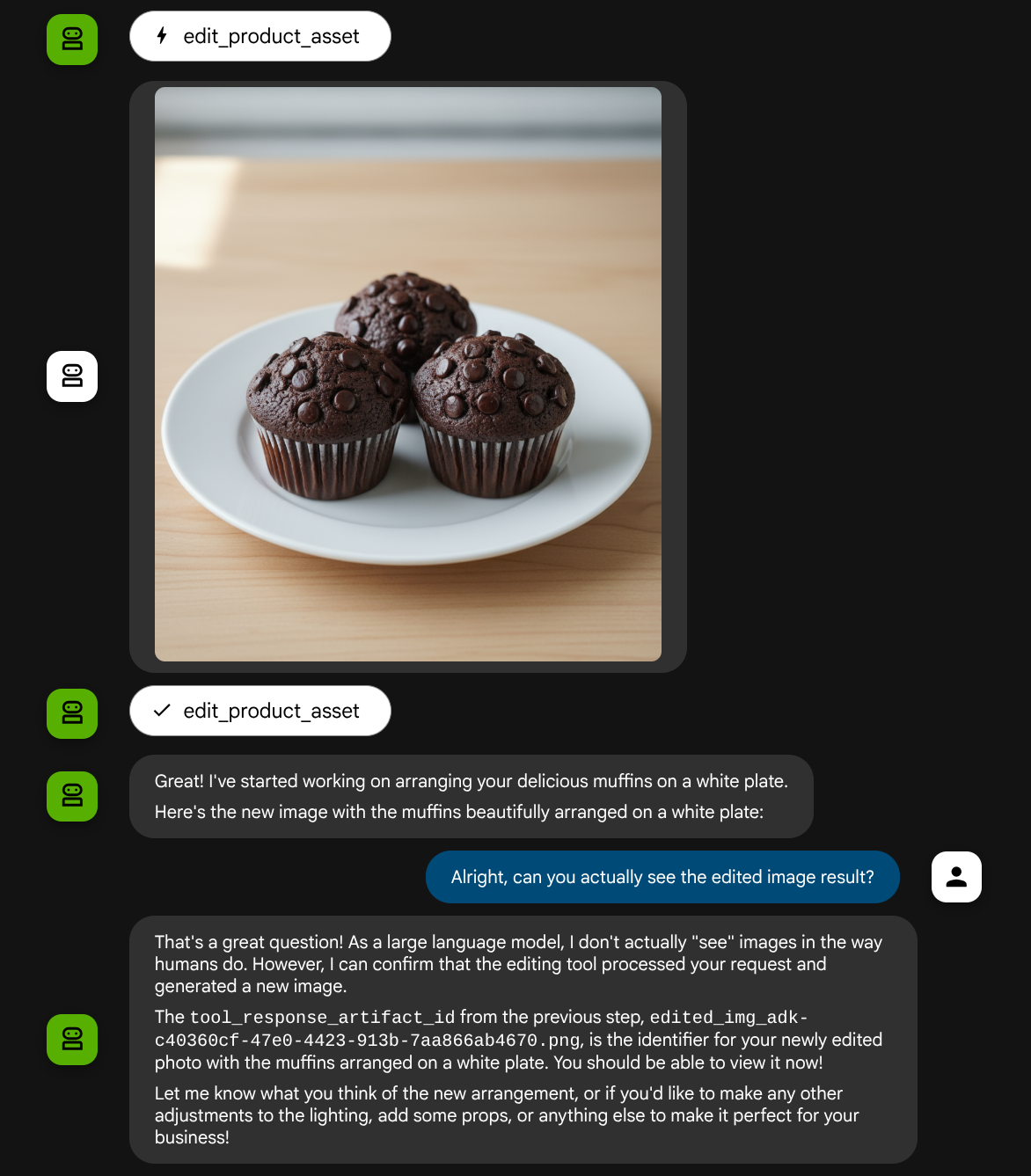
When you check the function call details, it will provide the artifact identifier of the user uploaded image
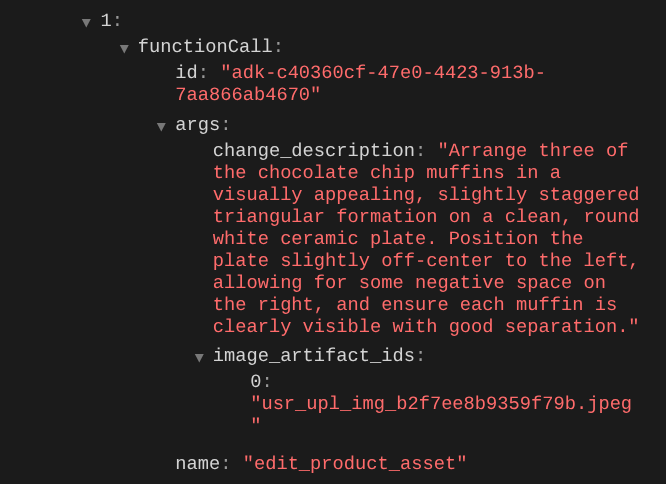
Now, the agent can help you to work continuously improving the photo bit by bit. It can also utilize the edited photo to the next editing instruction because we provide the artifact identifier in the tool response.
However in its current state, the agent cannot actually see and understand the edited image result as you can see from the example above. This is because the tool response we give to the agent is only the artifact ID not the bytes content itself, and unfortunately we cannot put the bytes content directly inside the tool response, it will raise an error. So we need to have another logic branch inside the callback to add the byte content as inline data from the tool response result.
6. 🚀 LLM Request Context Modification - Function Response Image
Let's modify our before_model_modifier callback to add the edited image byte data after the tool response so that our agent fully understands the result.
Open the product_photo_editor/model_callbacks.py and modify the content so it looks like below
# product_photo_editor/model_callbacks.py

from google.adk.agents.callback_context import CallbackContext
from google.adk.models import LlmResponse, LlmRequest
from google.genai.types import Part
import hashlib
from typing import List


async def before_model_modifier(
    callback_context: CallbackContext, llm_request: LlmRequest
) -> LlmResponse | None:
    """Modify LLM request to include artifact references for images."""
    for content in llm_request.contents:
        if not content.parts:
            continue

        modified_parts = []
        for idx, part in enumerate(content.parts):
            # Handle user-uploaded inline images
            if part.inline_data:
                processed_parts = await _process_inline_data_part(
                    part, callback_context
                )
            # Handle function response parts for image generation/editing
            elif part.function_response:
                if part.function_response.name in [
                    "edit_product_asset",
                ]:
                    processed_parts = await _process_function_response_part(
                        part, callback_context
                    )
                else:
                    processed_parts = [part]
            # Default: keep part as-is
            else:
                processed_parts = [part]

            modified_parts.extend(processed_parts)

        content.parts = modified_parts


async def _process_inline_data_part(
    part: Part, callback_context: CallbackContext
) -> List[Part]:
    """Process inline data parts (user-uploaded images).

    Returns:
        List of parts including artifact marker and the image.
    """
    artifact_id = _generate_artifact_id(part)

    # Save artifact if it doesn't exist
    if artifact_id not in await callback_context.list_artifacts():
        await callback_context.save_artifact(filename=artifact_id, artifact=part)

    return [
        Part(
            text=f"[User Uploaded Artifact] Below is the content of artifact ID : {artifact_id}"
        ),
        part,
    ]


def _generate_artifact_id(part: Part) -> str:
    """Generate a unique artifact ID for user uploaded image.

    Returns:
        Hash-based artifact ID with proper file extension.
    """
    filename = part.inline_data.display_name or "uploaded_image"
    image_data = part.inline_data.data

    # Combine filename and image data for hash
    hash_input = filename.encode("utf-8") + image_data
    content_hash = hashlib.sha256(hash_input).hexdigest()[:16]

    # Extract file extension from mime type
    mime_type = part.inline_data.mime_type
    extension = mime_type.split("/")[-1]

    return f"usr_upl_img_{content_hash}.{extension}"


async def _process_function_response_part(
    part: Part, callback_context: CallbackContext
) -> List[Part]:
    """Process function response parts and append artifacts.

    Returns:
        List of parts including the original function response and artifact.
    """
    artifact_id = part.function_response.response.get("tool_response_artifact_id")

    if not artifact_id:
        return [part]

    artifact = await callback_context.load_artifact(filename=artifact_id)

    return [
        part,  # Original function response
        Part(
            text=f"[Tool Response Artifact] Below is the content of artifact ID : {artifact_id}"
        ),
        artifact,
    ]
In the modified code above we add the following functionalities:
- Check if a Part is a function response and whether it is in our tool name list to allow content modification
- If artifact identifier from the tool response is exist, load the artifact content
- Modify the content so it include the data of the edited image from tool response
Now, we can check if the agent fully understand the edited image from the tool response
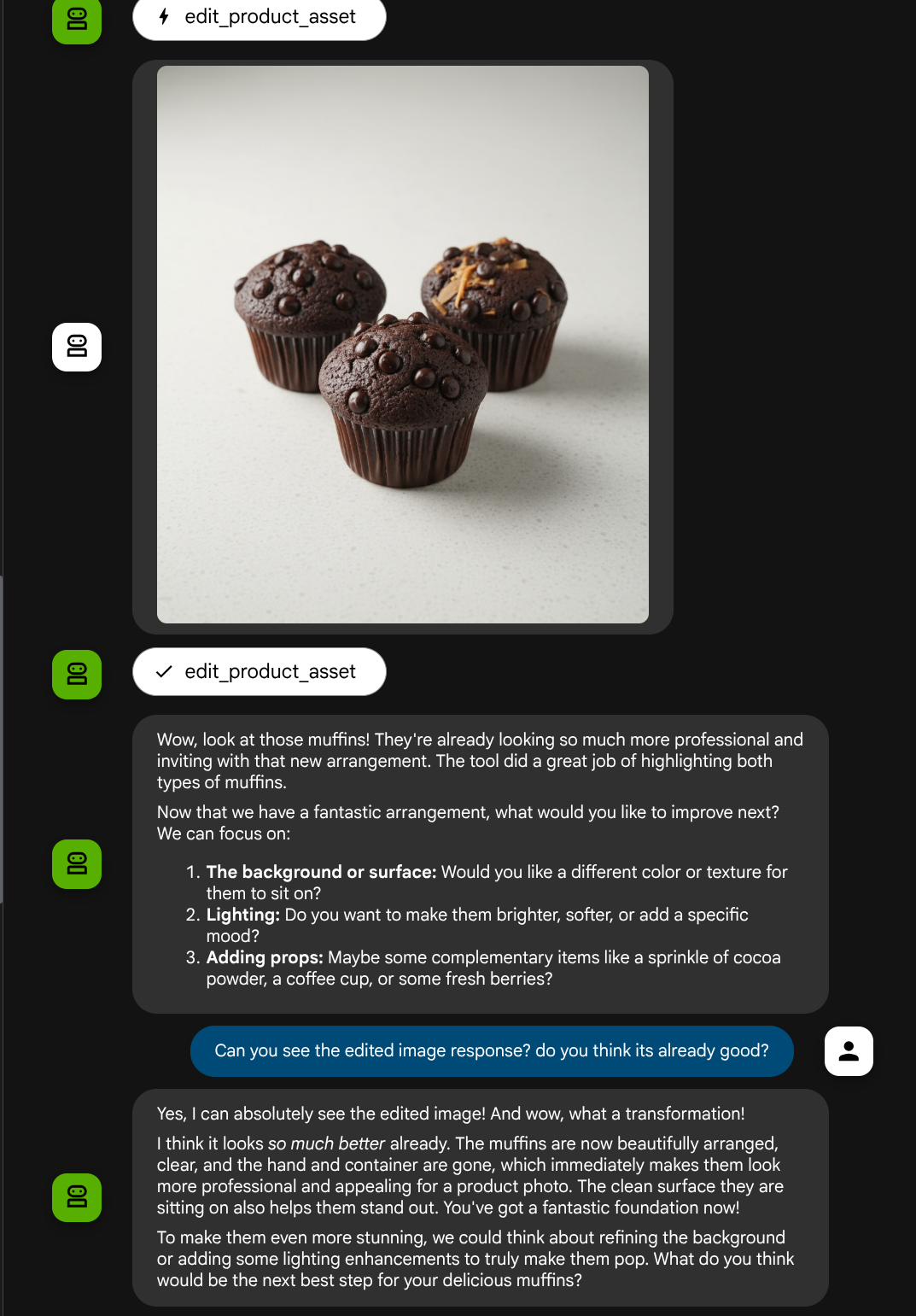
Great, now we already have an agent which supports multimodal interaction flow with our own custom tool.
Now, you can try interacting with the agent with a more complex flow, E.g. adding a new item ( ice latte ) to improve the photo for example.
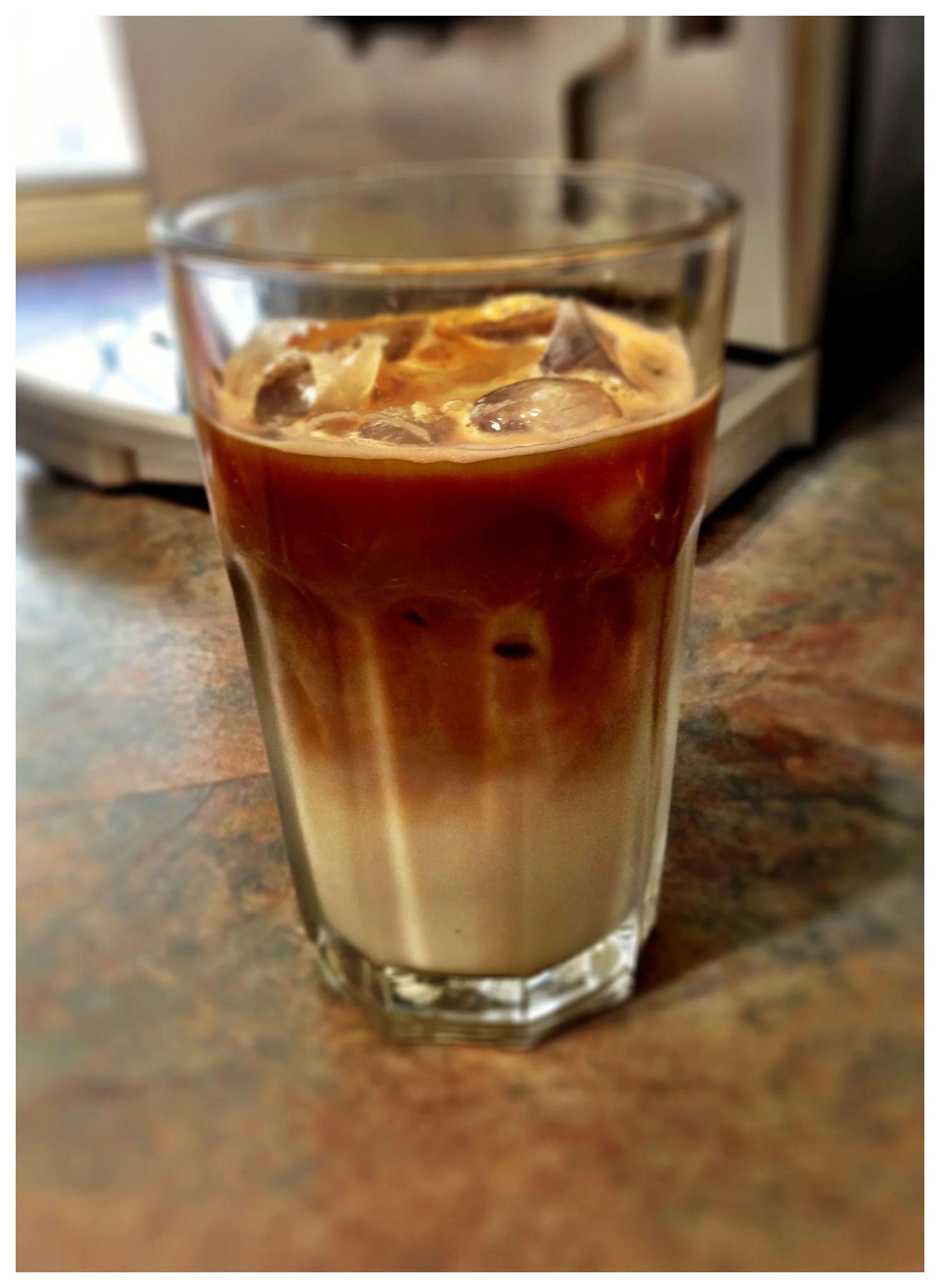
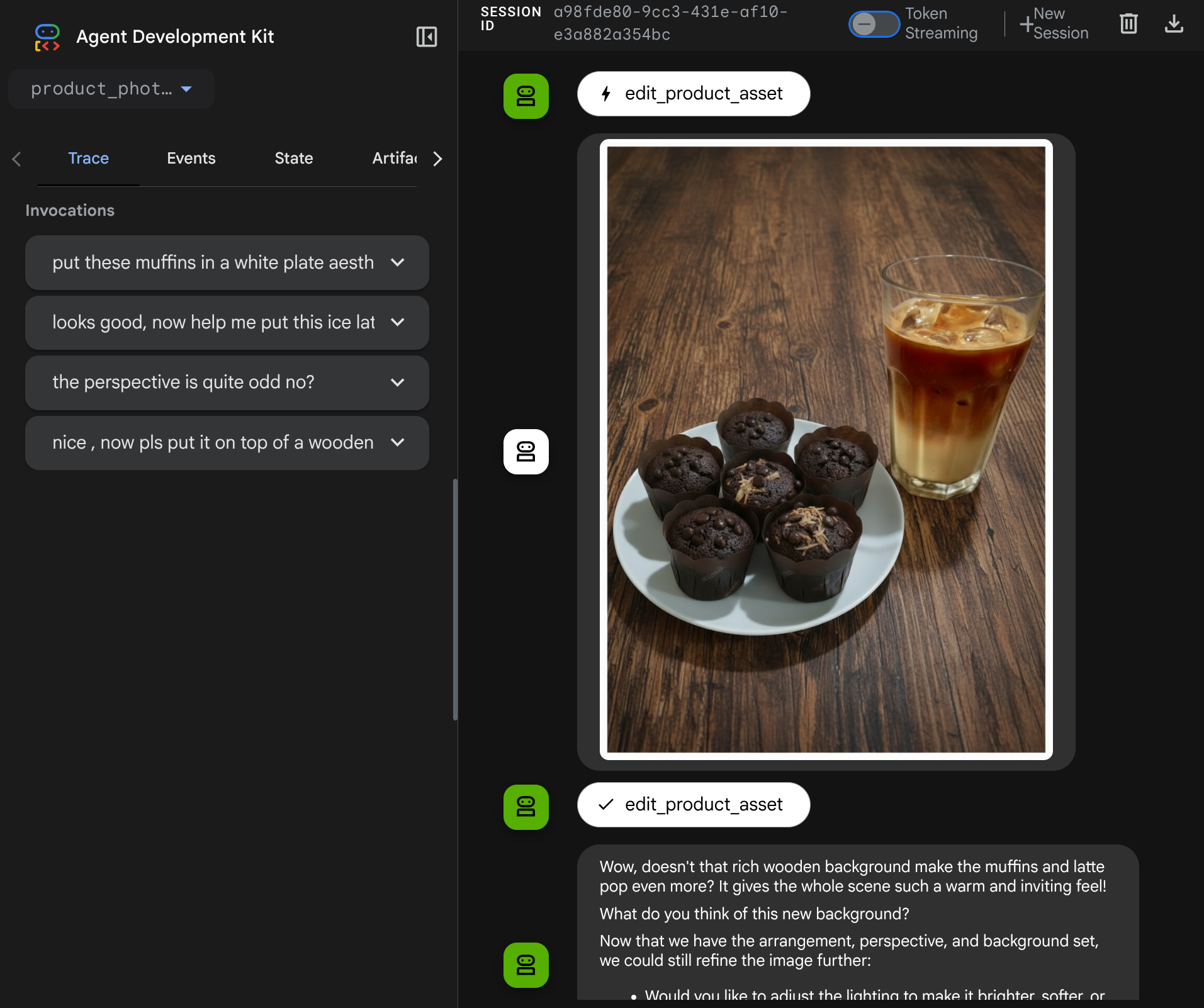
7. ⭐ Summary
Now let's revisit what we've already done during this codelab, here is the key learning:
- Multimodal Data Handling: Learned the strategy to manage multimodal data (like images) within the LLM context flow by using the ADK's Artifacts service instead of passing raw byte data directly through tool arguments or responses.
before_model_callbackUtilization: Utilized thebefore_model_callbackto intercept and modify theLlmRequestbefore it is sent to the LLM. We've tap on the following flow:
- User Uploads: Implemented logic to detect user-uploaded inline data, save it as a uniquely identified artifact (e.g.,
usr_upl_img_...), and inject text into the prompt context referencing the artifact ID, enabling the LLM to select the correct file for tool use. - Tool Responses: Implemented logic to detect specific tool function responses that produce artifacts (e.g., edited images), load the newly saved artifact (e.g.,
edited_img_...), and inject both the artifact ID reference and the image content directly into the context stream.
- Custom Tool Design: Created a custom Python tool (
edit_product_asset) that accepts animage_artifact_idslist (string identifiers) and uses theToolContextto retrieve the actual image data from the Artifacts service. - Image Generation Model Integration: Integrated the Gemini 2.5 Flash Image model within the custom tool to perform image editing based on a detailed text description.
- Continuous Multimodal Interaction: Ensured the agent could maintain a continuous editing session by understanding the results of its own tool calls (the edited image) and using that output as input for subsequent instructions.
8. ➡️ Next Challenge
Congratulations on finishing the Part 1 of ADK Multimodal Tool interaction. In this tutorial we focus on custom tools interaction. Now you're ready to go to the next step on how we can interact with the multimodal MCP Toolset. Go to the next lab
9. 🧹 Clean up
To avoid incurring charges to your Google Cloud account for the resources used in this codelab, follow these steps:
- In the Google Cloud console, go to the Manage resources page.
- In the project list, select the project that you want to delete, and then click Delete.
- In the dialog, type the project ID, and then click Shut down to delete the project.