

1. 📖 מבוא
בשיעור Codelab הזה נדגים איך לעצב אינטראקציה עם כלי מולטי-מודאלי בערכה לפיתוח סוכנים (ADK). זהו תהליך ספציפי שבו רוצים שהסוכן יתייחס לקובץ שהועלה כקלט לכלי, וגם יבין את תוכן הקובץ שנוצר על ידי התשובה של הכלי. לכן אפשר לבצע אינטראקציה כמו שרואים בצילום המסך שלמטה. במדריך הזה נפתח סוכן שיכול לעזור למשתמש לערוך תמונה טובה יותר להצגת המוצר שלו
במהלך ה-codelab, תשתמשו בגישה שלב אחר שלב באופן הבא:
- הכנת פרויקט Google Cloud
- הגדרת ספרייה של עבודה לסביבת קידוד
- אתחול הסוכן באמצעות ADK
- עיצוב כלי לעריכת תמונות שמבוסס על Gemini 2.5 Flash Image
- עיצוב פונקציית קריאה חוזרת (callback) לטיפול בהעלאת תמונות על ידי המשתמש, שמירת התמונה כארטיפקט והוספתה כהקשר לסוכן
- עיצוב פונקציית קריאה חוזרת (callback) לטיפול בתמונה שנוצרה על ידי תשובת כלי, שמירתה כארטיפקט והוספתה כהקשר לסוכן
סקירה כללית של הארכיטקטורה
האינטראקציה הכוללת ב-codelab הזה מוצגת בתרשים הבא
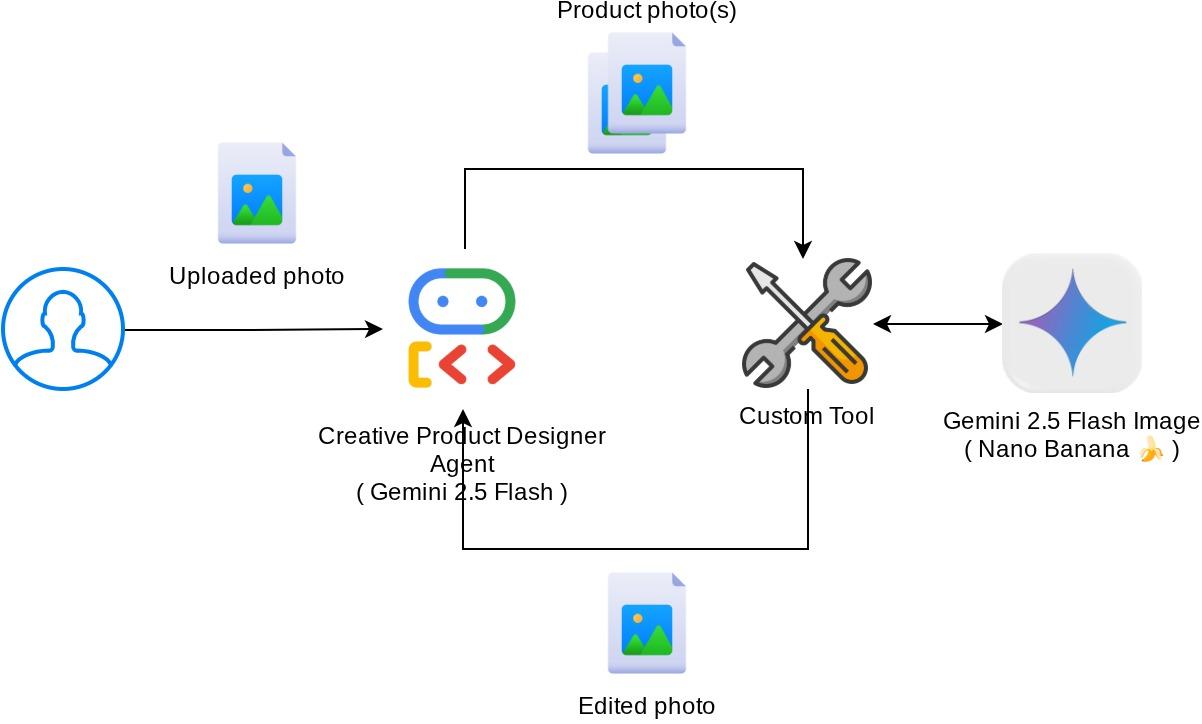
דרישות מוקדמות
- ניסיון בעבודה עם Python
- (אופציונלי) שיעורי Codelab בסיסיים בנושא הערכה לפיתוח סוכנים (ADK)
מה תלמדו
- איך משתמשים בהקשר של בקשה להחזרת שיחה כדי לגשת לשירות ארטיפקטים
- איך לעצב כלי עם הפצה נכונה של נתונים מולטי-מודאליים
- איך משנים את הבקשה ל-LLM של הסוכן כדי להוסיף הקשר של ארטיפקט באמצעות before_model_callback
- איך עורכים תמונה באמצעות Gemini 2.5 Flash Image
מה תצטרכו
- דפדפן האינטרנט Chrome
- חשבון Gmail
- פרויקט ב-Cloud שמופעל בו חשבון לחיוב
ב-Codelab הזה, שמיועד למפתחים בכל הרמות (כולל מתחילים), נעשה שימוש ב-Python באפליקציה לדוגמה. עם זאת, לא נדרש ידע ב-Python כדי להבין את המושגים שמוצגים.
2. 🚀 הכנה להגדרת סביבת פיתוח לסדנה
שלב 1: בוחרים פרויקט פעיל ב-Cloud Console
במסוף Google Cloud, בדף לבחירת הפרויקט, בוחרים או יוצרים פרויקט ב-Google Cloud (ראו את הקטע הימני העליון במסוף).

לוחצים עליו ורואים רשימה של כל הפרויקטים, כמו בדוגמה הזו:
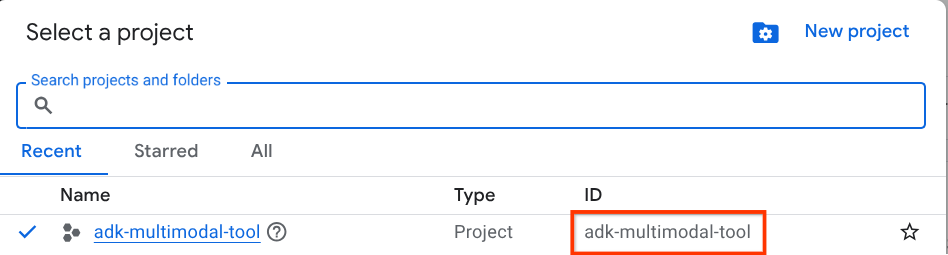
הערך שמסומן בתיבה האדומה הוא מזהה הפרויקט, והוא ישמש לאורך כל המדריך.
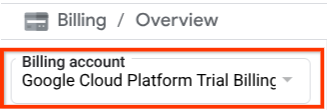
הקפידו לוודא שהחיוב מופעל בפרויקט שלכם ב-Cloud. כדי לבדוק את זה, לוחצים על סמל ההמבורגר ☰ בסרגל הימני העליון כדי להציג את תפריט הניווט, ומחפשים את תפריט החיוב.

אם הכותרת Billing / Overview ( בפינה הימנית העליונה של מסוף Cloud) מופיעה עם הכיתוב Google Cloud Platform Trial Billing Account, הפרויקט שלכם מוכן לשימוש במדריך הזה. אם לא, צריך לחזור לתחילת המדריך הזה ולממש את חשבון החיוב לניסיון.
שלב 2: היכרות עם Cloud Shell
ברוב חלקי המדריכים תשתמשו ב-Cloud Shell. לוחצים על 'הפעלת Cloud Shell' בחלק העליון של מסוף Google Cloud. אם מוצגת בקשה לאישור, לוחצים על אישור.
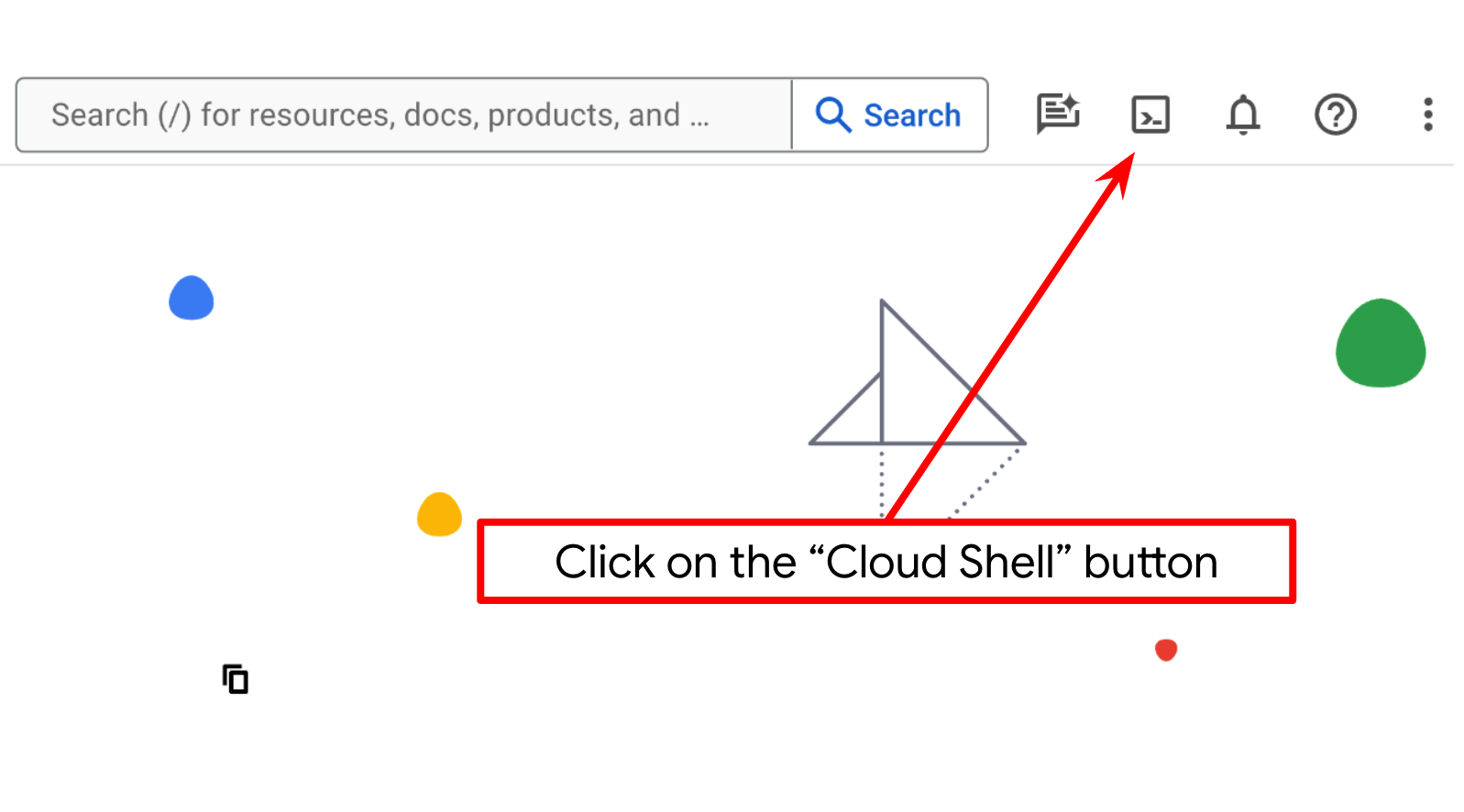
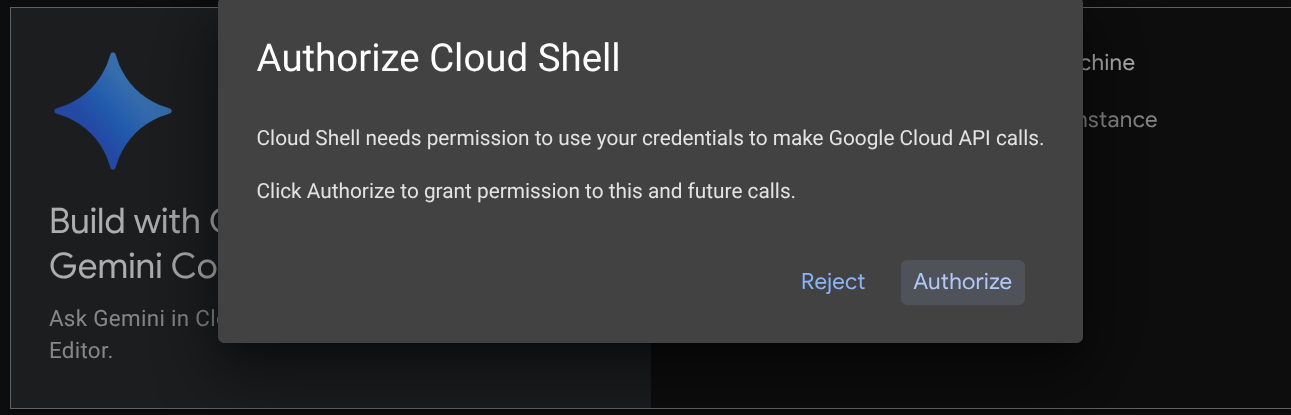
אחרי שמתחברים ל-Cloud Shell, צריך לבדוק אם המעטפת ( או הטרמינל) כבר מאומתת בחשבון שלנו.
gcloud auth list
אם אתם רואים את כתובת Gmail האישית שלכם כמו בדוגמה שלמטה, הכול תקין
Credentialed Accounts

ACTIVE: *
ACCOUNT: alvinprayuda@gmail.com

To set the active account, run:
    $ gcloud config set account `ACCOUNT`
אם לא, נסו לרענן את הדפדפן ולוודא שלחצתם על אישור כשתתבקשו לעשות זאת ( יכול להיות שהתהליך יופסק בגלל בעיית חיבור).
בשלב הבא, צריך גם לבדוק אם המעטפת כבר מוגדרת למזהה הפרויקט הנכון שיש לכם. אם מופיע ערך בתוך ( ) לפני הסמל $ במסוף ( בצילום המסך שלמטה, הערך הוא "adk-multimodal-tool"), הערך הזה מציין את הפרויקט שהוגדר עבור סשן המעטפת הפעיל.

אם הערך שמוצג כבר נכון, אפשר לדלג על הפקודה הבאה. אבל אם הוא לא נכון או חסר, מריצים את הפקודה הבאה
gcloud config set project <YOUR_PROJECT_ID>
לאחר מכן, משכפלים את ספריית העבודה של התבנית בשביל ה-codelab הזה מ-GitHub, ומריצים את הפקודה הבאה. ספריית העבודה תיצור בספרייה adk-multimodal-tool
git clone https://github.com/alphinside/adk-mcp-multimodal.git adk-multimodal-tool
שלב 3: היכרות עם Cloud Shell Editor והגדרת ספריית עבודה של האפליקציה
עכשיו אפשר להגדיר את עורך הקוד כדי לבצע פעולות שקשורות לקוד. נשתמש ב-Cloud Shell Editor לצורך זה
לוחצים על הלחצן Open Editor כדי לפתוח את Cloud Shell Editor 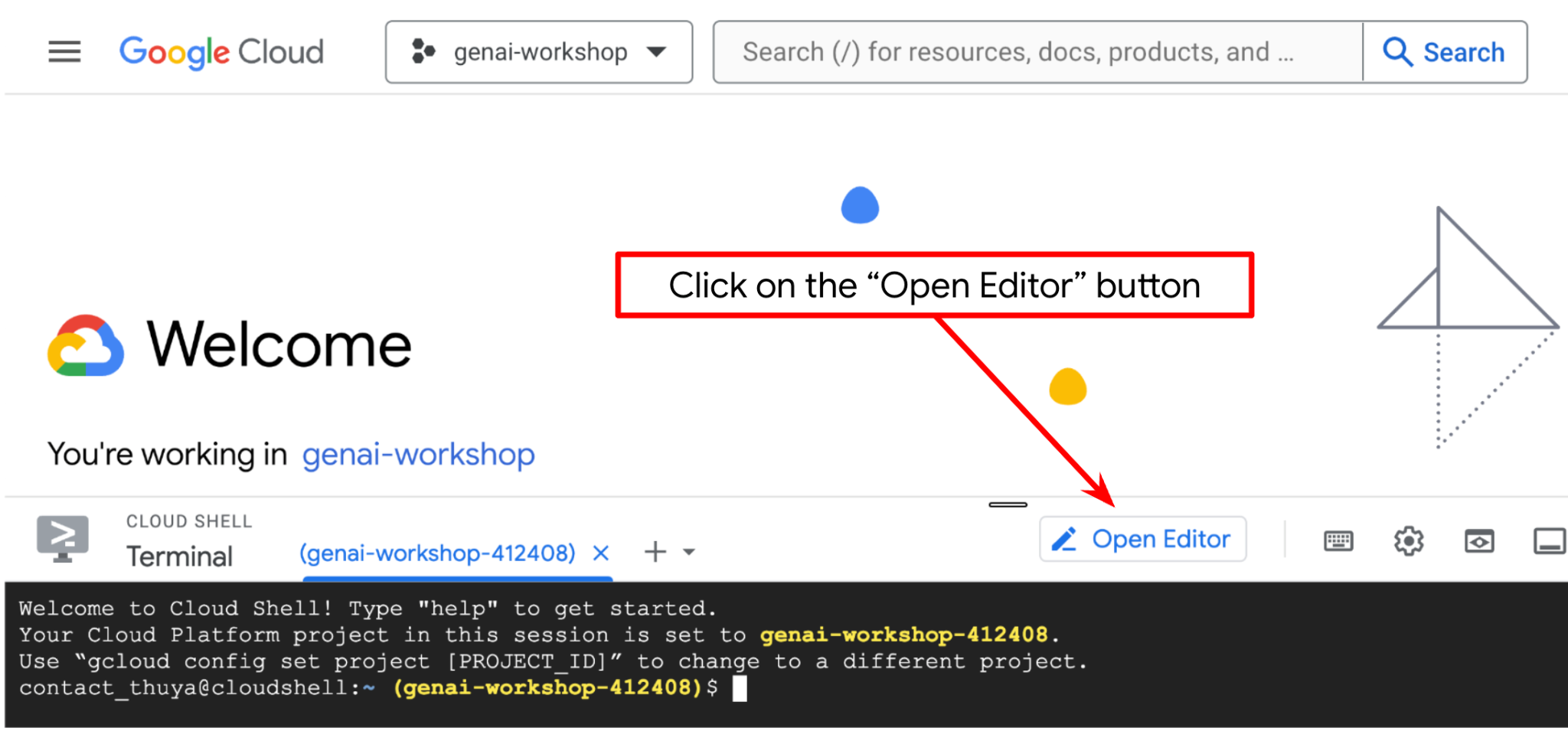 .
.
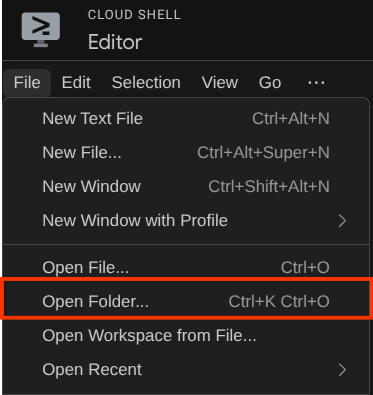
אחרי זה, עוברים לחלק העליון של Cloud Shell Editor ולוחצים על File->Open Folder (קובץ > פתיחת תיקייה), מאתרים את ספריית שם המשתמש ואת הספרייה adk-multimodal-tool ואז לוחצים על הלחצן OK. הספרייה שנבחרה תוגדר כספריית העבודה הראשית. בדוגמה הזו, שם המשתמש הוא alvinprayuda, ולכן נתיב הספרייה מוצג למטה
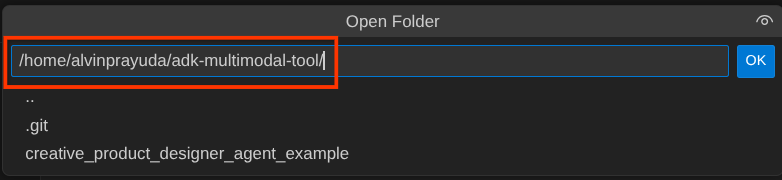
עכשיו, ספריית העבודה שלכם ב-Cloud Shell Editor אמורה להיראות כך ( בתוך adk-multimodal-tool)
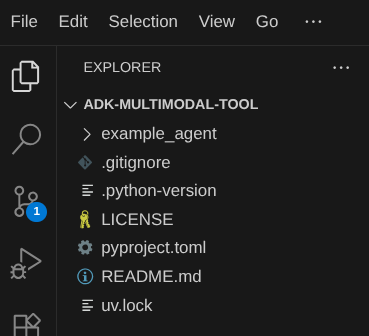
עכשיו פותחים את הטרמינל של כלי העריכה. כדי לעשות את זה, לוחצים על Terminal -> New Terminal בסרגל התפריטים , או משתמשים בקיצור הדרך Ctrl + Shift + C. חלון טרמינל ייפתח בחלק התחתון של הדפדפן.

הטרמינל הפעיל הנוכחי צריך להיות בתוך ספריית העבודה adk-multimodal-tool. בשיעור Codelab הזה נשתמש ב-Python 3.12 וב-uv python project manager כדי לפשט את הצורך ליצור ולנהל גרסת Python וסביבה וירטואלית. החבילה uv כבר מותקנת מראש ב-Cloud Shell.
מריצים את הפקודה הזו כדי להתקין את התלות הנדרשת בסביבה הווירטואלית בספרייה .venv
uv sync --frozen
בודקים את הקובץ pyproject.toml כדי לראות את התלויות שהוגדרו במדריך הזה, שהן google-adk, and python-dotenv.
עכשיו צריך להפעיל את ממשקי ה-API הנדרשים באמצעות הפקודה שמוצגת למטה. הפעולה עשויה להימשך זמן מה.
gcloud services enable aiplatform.googleapis.com
אם הפקודה תפעל בהצלחה, תוצג הודעה דומה לזו שמופיעה בהמשך:
Operation "operations/..." finished successfully.
3. 🚀 אתחול הסוכן של ADK
בשלב הזה, נאחל את הסוכן באמצעות ADK CLI, נריץ את הפקודה הבאה
uv run adk create product_photo_editor \
   --model gemini-2.5-flash \
   --project your-project-id \
   --region us-central1
הפקודה הזו תעזור לכם לספק במהירות את המבנה הנדרש לסוכן, שמוצג בהמשך:
product_photo_editor/
├── __init__.py
├── .env
├── agent.py
אחרי זה, נכין את הסוכן שלנו, הכלי לעריכת תמונות מוצרים. קודם מעתיקים את prompt.py שכבר כלול במאגר אל ספריית הסוכן שיצרתם קודם.
cp prompt.py product_photo_editor/prompt.py
לאחר מכן, פותחים את הקובץ product_photo_editor/agent.py ומשנים את התוכן באמצעות הקוד הבא
from google.adk.agents.llm_agent import Agent
from product_photo_editor.prompt import AGENT_INSTRUCTION

root_agent = Agent(
    model="gemini-2.5-flash",
    name="product_photo_editor",
    description="""A friendly product photo editor assistant that helps small business
owners edit and enhance their product photos. Perfect for improving photos of handmade
goods, food products, crafts, and small retail items""",
    instruction=AGENT_INSTRUCTION,
)
מעכשיו, יש לכם סוכן בסיסי לעריכת תמונות שאפשר לשוחח איתו כדי לקבל הצעות לעריכת התמונות. אפשר לנסות לקיים איתו אינטראקציה באמצעות הפקודה הזו
uv run adk web --port 8080
יוצג פלט כמו בדוגמה הבאה, כלומר כבר יש לנו גישה לממשק האינטרנט
INFO:     Started server process [xxxx]
INFO:     Waiting for application startup.

+-----------------------------------------------------------------------------+
| ADK Web Server started                                                      |
|                                                                             |
| For local testing, access at http://127.0.0.1:8080.                         |
+-----------------------------------------------------------------------------+

INFO:     Application startup complete.
INFO:     Uvicorn running on http://127.0.0.1:8080 (Press CTRL+C to quit)
כדי לבדוק את הקישור, אפשר ללחוץ על Ctrl + Click על כתובת ה-URL או ללחוץ על הלחצן Web Preview (תצוגה מקדימה של אתר) בחלק העליון של Cloud Shell Editor ולבחור באפשרות Preview on port 8080 (תצוגה מקדימה ביציאה 8080).
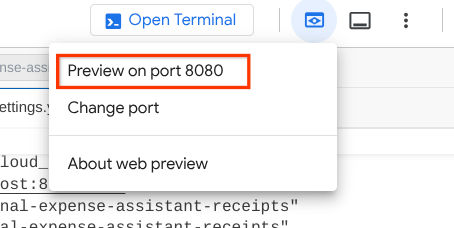
יוצג לכם דף אינטרנט שבו תוכלו לבחור סוכנים זמינים באמצעות הלחצן הנפתח בפינה הימנית העליונה ( במקרה שלנו, האפשרות שצריך לבחור היא product_photo_editor) ולנהל אינטראקציה עם הבוט. נסו להעלות את התמונה הבאה בממשק הצ'אט ולשאול את השאלות הבאות
what is your suggestion for this photo?

תוכלו לראות אינטראקציות דומות כמו בדוגמה שלמטה
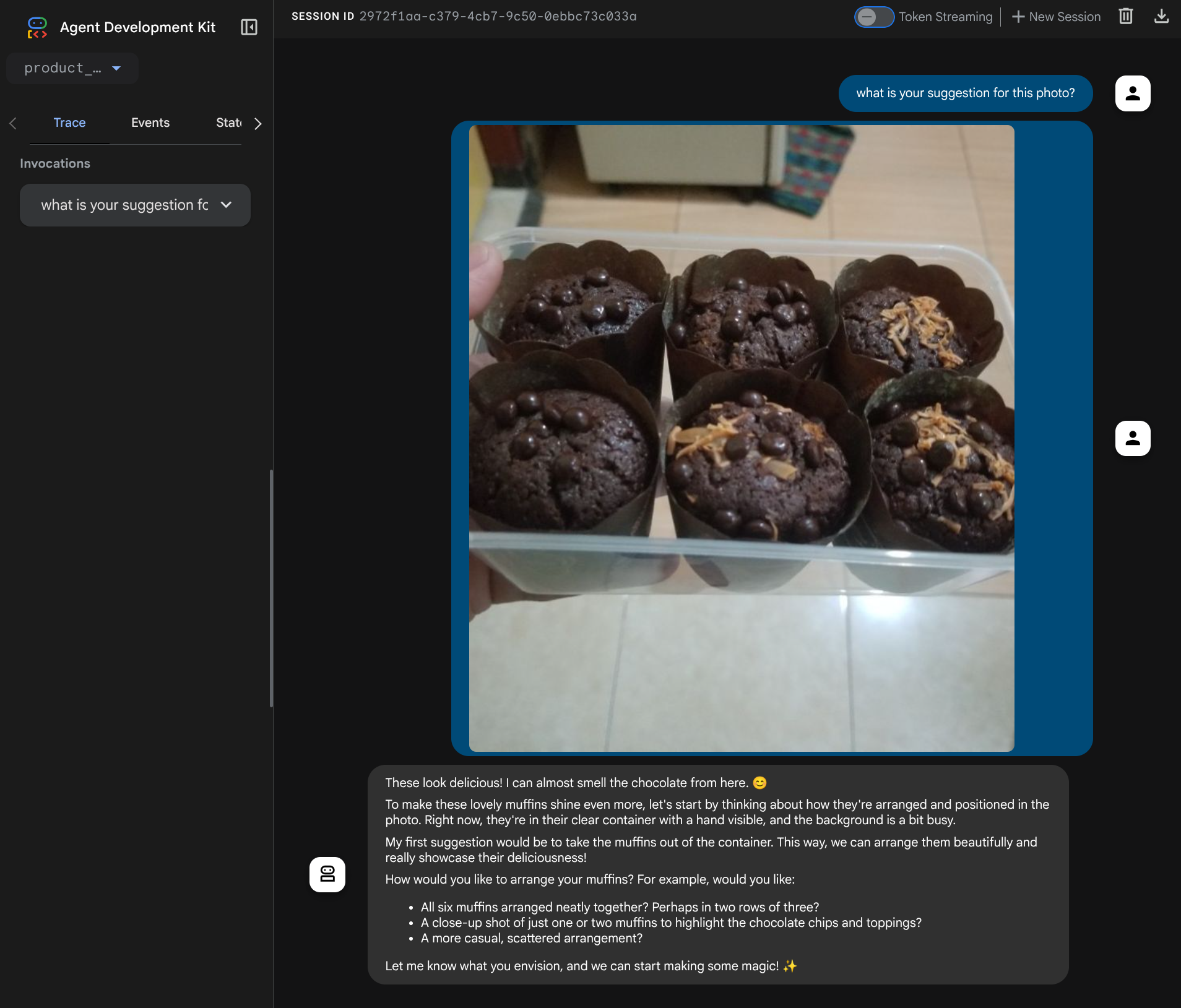
כבר עכשיו אפשר לבקש הצעות, אבל בשלב הזה אי אפשר לבקש מהמודל לערוך את התמונה. בואו נעבור לשלב הבא, שבו נצייד את הסוכן בכלי העריכה.
4. 🚀 שינוי הקשר של בקשה למודל שפה גדול (LLM) – תמונה שהועלתה על ידי משתמש
אנחנו רוצים שהסוכן שלנו יוכל לבחור באופן גמיש איזו תמונה מבין התמונות שהועלו הוא רוצה לערוך. עם זאת, כלים של LLM מתוכננים בדרך כלל לקבל פרמטרים פשוטים של סוגי נתונים כמו str או int. זהו סוג נתונים שונה מאוד מנתונים מולטימודליים, שבדרך כלל נתפסים כסוג הנתונים bytes. לכן, נצטרך אסטרטגיה שכוללת את המושג Artifacts כדי לטפל בנתונים האלה. לכן, במקום לספק את נתוני הבייטים המלאים בפרמטר של הכלי, נתכנן את הכלי כך שיקבל את שם מזהה הארטיפקט.
האסטרטגיה הזו כוללת 2 שלבים:
- לשנות את הבקשה ל-LLM כך שכל קובץ שהועלה ישויך למזהה ארטיפקט ולהוסיף את זה כהקשר ל-LLM
- תכנון הכלי כך שיקבל מזהי ארטיפקטים כפרמטרים של קלט
בשלב הראשון, כדי לשנות את הבקשה ל-LLM, נשתמש בתכונה Callback של ADK. ספציפית, נוסיף את before_model_callback כדי להפעיל את הפונקציה ממש לפני שהסוכן שולח את ההקשר ל-LLM. המחשה מופיעה בתמונה שלמטה 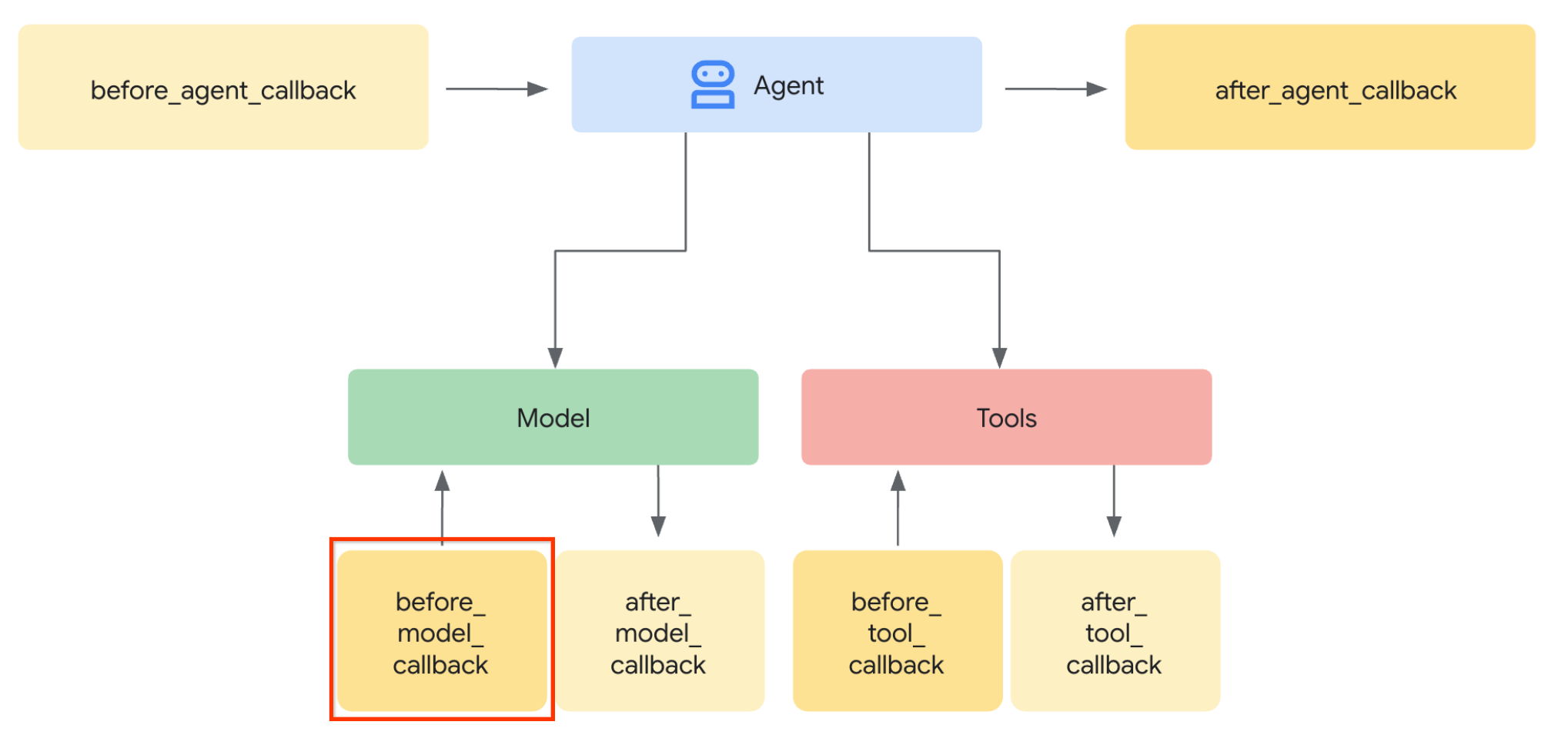
כדי לעשות את זה, קודם יוצרים קובץ חדש product_photo_editor/model_callbacks.py באמצעות הפקודה הבאה
touch product_photo_editor/model_callbacks.py
לאחר מכן, מעתיקים את הקוד הבא לקובץ
# product_photo_editor/model_callbacks.py

from google.adk.agents.callback_context import CallbackContext
from google.adk.models import LlmResponse, LlmRequest
from google.genai.types import Part
import hashlib
from typing import List


async def before_model_modifier(
    callback_context: CallbackContext, llm_request: LlmRequest
) -> LlmResponse | None:
    """Modify LLM request to include artifact references for images."""
    for content in llm_request.contents:
        if not content.parts:
            continue

        modified_parts = []
        for idx, part in enumerate(content.parts):
            # Handle user-uploaded inline images
            if part.inline_data:
                processed_parts = await _process_inline_data_part(
                    part, callback_context
                )
            # Default: keep part as-is
            else:
                processed_parts = [part]

            modified_parts.extend(processed_parts)

        content.parts = modified_parts


async def _process_inline_data_part(
    part: Part, callback_context: CallbackContext
) -> List[Part]:
    """Process inline data parts (user-uploaded images).

    Returns:
        List of parts including artifact marker and the image.
    """
    artifact_id = _generate_artifact_id(part)

    # Save artifact if it doesn't exist
    if artifact_id not in await callback_context.list_artifacts():
        await callback_context.save_artifact(filename=artifact_id, artifact=part)

    return [
        Part(
            text=f"[User Uploaded Artifact] Below is the content of artifact ID : {artifact_id}"
        ),
        part,
    ]


def _generate_artifact_id(part: Part) -> str:
    """Generate a unique artifact ID for user uploaded image.

    Returns:
        Hash-based artifact ID with proper file extension.
    """
    filename = part.inline_data.display_name or "uploaded_image"
    image_data = part.inline_data.data

    # Combine filename and image data for hash
    hash_input = filename.encode("utf-8") + image_data
    content_hash = hashlib.sha256(hash_input).hexdigest()[:16]

    # Extract file extension from mime type
    mime_type = part.inline_data.mime_type
    extension = mime_type.split("/")[-1]

    return f"usr_upl_img_{content_hash}.{extension}"
הפונקציה before_model_modifier מבצעת את הפעולות הבאות:
- גישה למשתנה
llm_request.contentsוחזרה על התוכן - בודקים אם הרכיב part מכיל inline_data ( קובץ או תמונה שהועלו). אם כן, מעבדים את הנתונים המוכללים.
- בונים מזהה ל-inline_data. בדוגמה הזו אנחנו משתמשים בשילוב של שם הקובץ + הנתונים כדי ליצור מזהה גיבוב תוכן
- בודקים אם מזהה הארטיפקט כבר קיים. אם לא, שומרים את הארטיפקט באמצעות מזהה הארטיפקט.
- משנים את החלק כך שיכלול פרומפט טקסטואלי שנותן הקשר לגבי מזהה הארטיפקט של הנתונים הבאים בתוך שורה
אחרי זה, משנים את product_photo_editor/agent.py כדי להוסיף לסוכן את פונקציית הקריאה החוזרת
from google.adk.agents.llm_agent import Agent
from product_photo_editor.model_callbacks import before_model_modifier
from product_photo_editor.prompt import AGENT_INSTRUCTION

root_agent = Agent(
    model="gemini-2.5-flash",
    name="product_photo_editor",
    description="""A friendly product photo editor assistant that helps small business
owners edit and enhance their product photos for online stores, social media, and
marketing. Perfect for improving photos of handmade goods, food products, crafts, and small retail items""",
    instruction=AGENT_INSTRUCTION,
    before_model_callback=before_model_modifier,
)
עכשיו אפשר לנסות שוב לתקשר עם הנציג
uv run adk web --port 8080
ולנסות להעלות את הקובץ שוב ולנהל שיחה, נוכל לבדוק אם שינינו בהצלחה את הקשר של בקשת ה-LLM
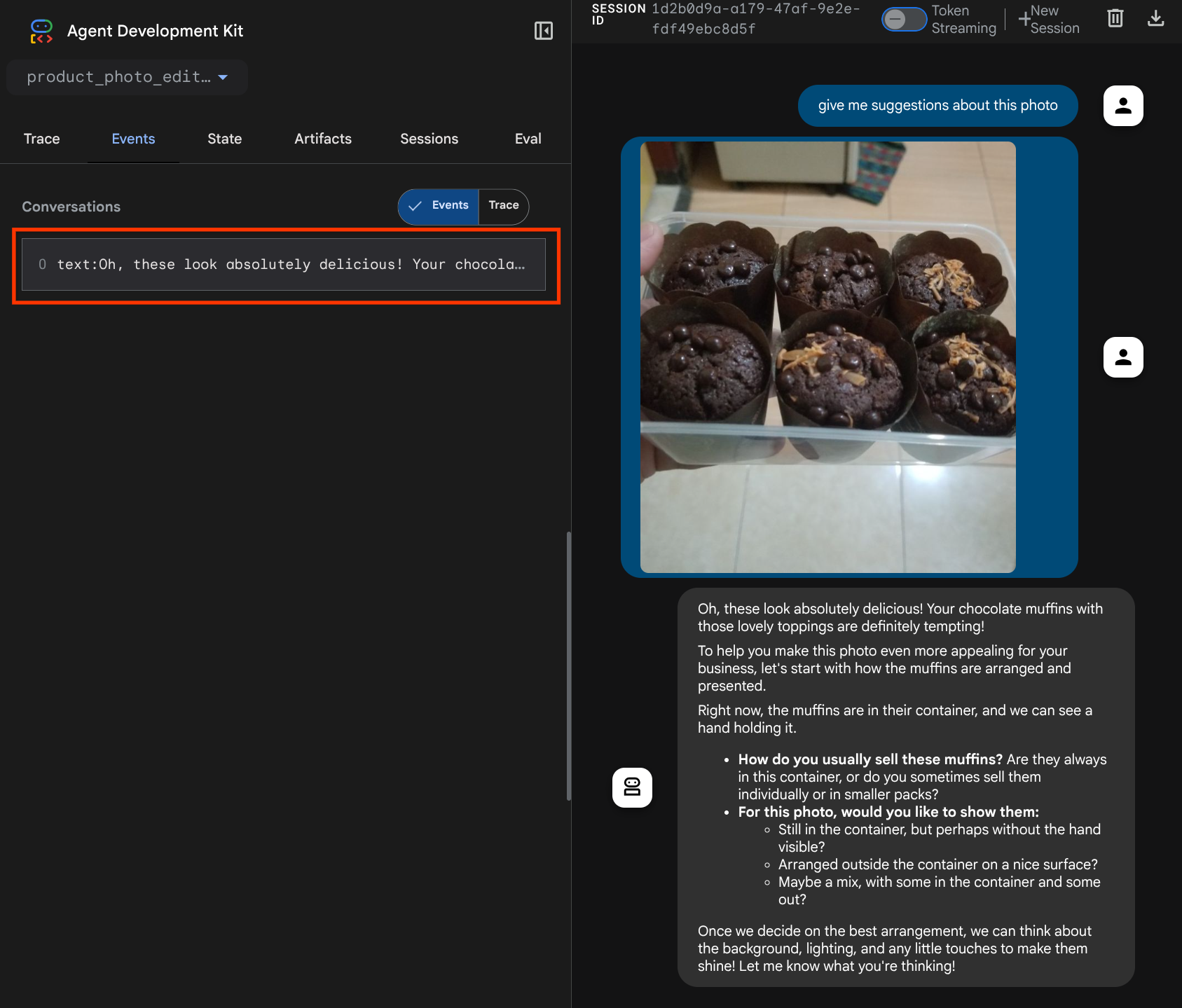
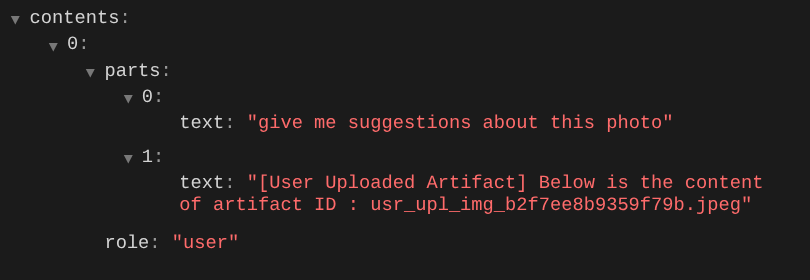
זו אחת הדרכים שבהן אנחנו יכולים לספר ל-LLM על הרצף ועל הזיהוי של נתונים מולטי-מודאליים. עכשיו ניצור את הכלי שישתמש במידע הזה
5. 🚀 אינטראקציה עם כלים מולטי-מודאליים
עכשיו אפשר להכין כלי שמציין גם את מזהה הארטפקט כפרמטר קלט. מריצים את הפקודה הבאה כדי ליצור קובץ חדש product_photo_editor/custom_tools.py
touch product_photo_editor/custom_tools.py
לאחר מכן, מעתיקים את הקוד הבא אל product_photo_editor/custom_tools.py
# product_photo_editor/custom_tools.py

from google import genai
from dotenv import load_dotenv
import os
from google.adk.tools import ToolContext
import logging


load_dotenv()

client = genai.Client(
    vertexai=True,
    project=os.getenv("GOOGLE_CLOUD_PROJECT"),
    location=os.getenv("GOOGLE_CLOUD_LOCATION"),
)


async def edit_product_asset(
    tool_context: ToolContext,
    change_description: str,
    image_artifact_ids: list = [],
) -> dict[str, str]:
    """Modify an existing product photo or combine multiple product photos.

    This tool lets you make changes to product photos. You can:
    - Edit a single photo (change background, lighting, colors, etc.)
    - Combine multiple products into one photo (arrange them side by side, create bundles, etc.)

    **IMPORTANT**:
    - Make ONE type of change per tool call (background OR lighting OR props OR arrangement)
    - For complex edits, chain multiple tool calls together
    - BE AS DETAILED AS POSSIBLE in the change_description for best results!

    Args:
        change_description: What do you want to do? BE VERY DETAILED AND SPECIFIC!

                          **The more details you provide, the better the result.**
                          Focus on ONE type of change, but describe it thoroughly.

                          For BACKGROUND changes:
                          - "change background to soft pure white with subtle gradient from top to bottom, clean and minimal aesthetic"
                          - "replace background with rustic dark wood table surface with natural grain texture visible, warm brown tones"

                          For ADDING PROPS:
                          - "add fresh pink roses and eucalyptus leaves arranged naturally around the product on the left and right sides,
                            with some petals scattered in front"
                          - "add fresh basil leaves and cherry tomatoes scattered around the product naturally"

                          For LIGHTING changes:
                          - "add soft natural window light coming from the left side at 45 degree angle, creating gentle shadows on the
                            right side, warm morning atmosphere"
                          - "increase brightness with soft diffused studio lighting from above, eliminating harsh shadows"

                          For ARRANGEMENT/POSITIONING:
                          - "reposition product to be perfectly centered in frame with equal space on all sides"
                          - "arrange these three products in a horizontal line, evenly spaced with 2 inches between each"

                          Note: When combining multiple products, you can include background/lighting in the initial arrangement since it's
                                one cohesive setup
        image_artifact_ids: List of image IDs to edit or combine.
                          - For single image: provide a list with one item (e.g., ["product.png"])
                          - For multiple images: provide a list with multiple items (e.g., ["product1.png", "product2.png"])
                          Use multiple images to combine products into one photo.

    Returns:
        dict with keys:
            - 'tool_response_artifact_id': Artifact ID for the edited image
            - 'tool_input_artifact_ids': Comma-separated list of input artifact IDs
            - 'edit_prompt': The full edit prompt used
            - 'status': Success or error status
            - 'message': Additional information or error details
    """
    try:
        # Validate input
        if not image_artifact_ids:
            return {
                "status": "error",
                "tool_response_artifact_id": "",
                "tool_input_artifact_ids": "",
                "edit_prompt": change_description,
                "message": "No images provided. Please provide image_artifact_ids as a list.",
            }

        # Load all images
        image_artifacts = []
        for img_id in image_artifact_ids:
            artifact = await tool_context.load_artifact(filename=img_id)
            if artifact is None:
                logging.error(f"Artifact {img_id} not found")
                return {
                    "status": "error",
                    "tool_response_artifact_id": "",
                    "tool_input_artifact_ids": "",
                    "edit_prompt": change_description,
                    "message": f"Artifact {img_id} not found",
                }

            image_artifacts.append(artifact)

        # Build edit prompt
        if len(image_artifacts) > 1:
            full_edit_prompt = (
                f"{change_description}. "
                f"Combine these {len(image_artifacts)} product images together. "
                "IMPORTANT: Preserve each product's original appearance, shape, color, and design as faithfully as possible. "
                "Only modify for aesthetic enhancements (lighting, background, composition) or viewing angle adjustments. "
                "Do not alter the core product features, branding, or characteristics."
            )
        else:
            full_edit_prompt = (
                f"{change_description}. "
                "IMPORTANT: Preserve the product's original appearance, shape, color, and design as faithfully as possible. "
                "Only modify for aesthetic enhancements (lighting, background, composition) or viewing angle adjustments. "
                "Do not alter the core product features, branding, or characteristics."
            )

        # Build contents list: all images followed by the prompt
        contents = image_artifacts + [full_edit_prompt]

        response = await client.aio.models.generate_content(
            model="gemini-2.5-flash-image",
            contents=contents,
            config=genai.types.GenerateContentConfig(
                response_modalities=["Image"]
            ),
        )

        artifact_id = ""
        logging.info("Gemini Flash Image: response.candidates: ", response.candidates)
        for part in response.candidates[0].content.parts:
            if part.inline_data is not None:
                artifact_id = f"edited_img_{tool_context.function_call_id}.png"
                await tool_context.save_artifact(filename=artifact_id, artifact=part)

        input_ids_str = ", ".join(image_artifact_ids)
        return {
            "status": "success",
            "tool_response_artifact_id": artifact_id,
            "tool_input_artifact_ids": input_ids_str,
            "edit_prompt": full_edit_prompt,
            "message": f"Image edited successfully using {len(image_artifacts)} input image(s)",
        }
    except Exception as e:
        logging.error(e)
        input_ids_str = ", ".join(image_artifact_ids) if image_artifact_ids else ""
        return {
            "status": "error",
            "tool_response_artifact_id": "",
            "tool_input_artifact_ids": input_ids_str,
            "edit_prompt": change_description,
            "message": f"Error editing image: {str(e)}",
        }
קוד הכלי מבצע את הפעולות הבאות:
- במסמכי התיעוד של הכלי יש תיאור מפורט של השיטות המומלצות להפעלת הכלי
- מוודאים שהרשימה image_artifact_ids לא ריקה
- טעינה של כל פריטי המידע שנוצרו בתהליך הפיתוח של התמונות מ-tool_context באמצעות מזהי הפריטים שסופקו
- יצירת פרומפט לעריכה: הוספת הוראות לשילוב (כמה תמונות) או לעריכה (תמונה אחת) בצורה מקצועית
- קוראים למודל התמונות Gemini 2.5 Flash עם פלט של תמונה בלבד ומחלצים את התמונה שנוצרה
- שמירת התמונה הערוכה כארטיפקט חדש
- החזרת תגובה מובנית עם: סטטוס, מזהה של פריט פלט, מזהי קלט, הנחיה מלאה והודעה
לבסוף, אנחנו יכולים לצייד את הסוכן בכלי. משנים את התוכן של product_photo_editor/agent.py לקוד שבהמשך
from google.adk.agents.llm_agent import Agent
from product_photo_editor.custom_tools import edit_product_asset
from product_photo_editor.model_callbacks import before_model_modifier
from product_photo_editor.prompt import AGENT_INSTRUCTION

root_agent = Agent(
    model="gemini-2.5-flash",
    name="product_photo_editor",
    description="""A friendly product photo editor assistant that helps small business
owners edit and enhance their product photos for online stores, social media, and
marketing. Perfect for improving photos of handmade goods, food products, crafts, and small retail items""",
    instruction=AGENT_INSTRUCTION,
    tools=[
        edit_product_asset,
    ],
    before_model_callback=before_model_modifier,
)
עכשיו, הסוכן שלנו מוכן ב-80% לעזור לנו לערוך תמונה. ננסה ליצור איתו אינטראקציה
uv run adk web --port 8080
בוא ננסה שוב את התמונה הבאה עם הנחיה אחרת:
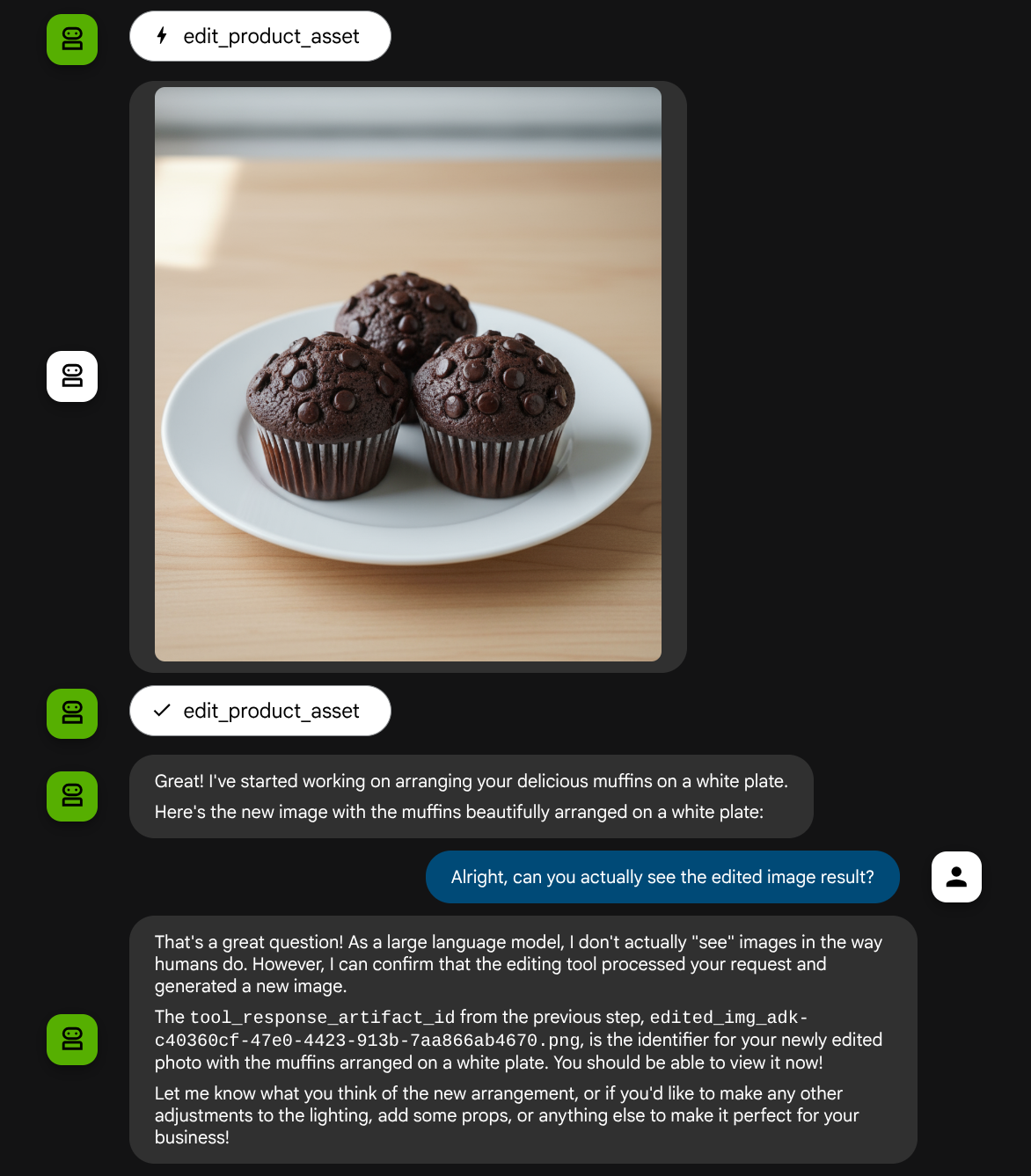
put these muffins in a white plate aesthetically
יכול להיות שתראו אינטראקציה כזו, ובסופה הסוכן יערוך עבורכם תמונה.
כשבודקים את פרטי הקריאה לפונקציה, מופיע מזהה הארטיפקט של התמונה שהמשתמש העלה
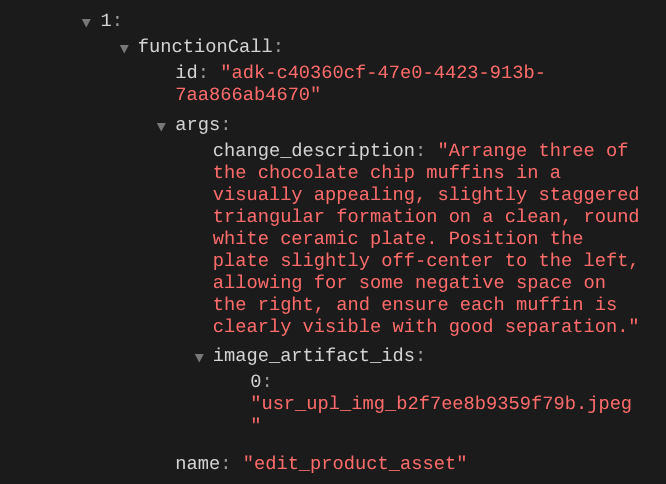
עכשיו, הסוכן יכול לעזור לכם לשפר את התמונה בהדרגה. הכלי יכול גם להשתמש בתמונה הערוכה בהוראת העריכה הבאה, כי אנחנו מספקים את מזהה הארטיפקט בתשובת הכלי.
עם זאת, במצבו הנוכחי, הסוכן לא יכול לראות ולהבין את תוצאת התמונה הערוכה, כפי שאפשר לראות בדוגמה שלמעלה. הסיבה לכך היא שהתשובה של הכלי שאנחנו נותנים לסוכן היא רק מזהה הארטיפקט ולא תוכן הבייטים עצמו, ולצערנו אנחנו לא יכולים להכניס את תוכן הבייטים ישירות לתשובה של הכלי, כי זה יוביל לשגיאה. לכן צריך להוסיף עוד ענף לוגיקה בתוך הקריאה החוזרת כדי להוסיף את תוכן הבייטים כנתונים מוטבעים מתוצאת התגובה של הכלי.
6. 🚀 שינוי הקשר של בקשת LLM – תמונה בתשובת פונקציה
נשנה את הקריאה החוזרת (callback) before_model_modifier כדי להוסיף את נתוני הבייטים של התמונה הערוכה אחרי התשובה של הכלי, כדי שהסוכן יבין את התוצאה באופן מלא.
פותחים את הקובץ product_photo_editor/model_callbacks.py ומשנים את התוכן כך שייראה כמו בדוגמה הבאה
# product_photo_editor/model_callbacks.py

from google.adk.agents.callback_context import CallbackContext
from google.adk.models import LlmResponse, LlmRequest
from google.genai.types import Part
import hashlib
from typing import List


async def before_model_modifier(
    callback_context: CallbackContext, llm_request: LlmRequest
) -> LlmResponse | None:
    """Modify LLM request to include artifact references for images."""
    for content in llm_request.contents:
        if not content.parts:
            continue

        modified_parts = []
        for idx, part in enumerate(content.parts):
            # Handle user-uploaded inline images
            if part.inline_data:
                processed_parts = await _process_inline_data_part(
                    part, callback_context
                )
            # Handle function response parts for image generation/editing
            elif part.function_response:
                if part.function_response.name in [
                    "edit_product_asset",
                ]:
                    processed_parts = await _process_function_response_part(
                        part, callback_context
                    )
                else:
                    processed_parts = [part]
            # Default: keep part as-is
            else:
                processed_parts = [part]

            modified_parts.extend(processed_parts)

        content.parts = modified_parts


async def _process_inline_data_part(
    part: Part, callback_context: CallbackContext
) -> List[Part]:
    """Process inline data parts (user-uploaded images).

    Returns:
        List of parts including artifact marker and the image.
    """
    artifact_id = _generate_artifact_id(part)

    # Save artifact if it doesn't exist
    if artifact_id not in await callback_context.list_artifacts():
        await callback_context.save_artifact(filename=artifact_id, artifact=part)

    return [
        Part(
            text=f"[User Uploaded Artifact] Below is the content of artifact ID : {artifact_id}"
        ),
        part,
    ]


def _generate_artifact_id(part: Part) -> str:
    """Generate a unique artifact ID for user uploaded image.

    Returns:
        Hash-based artifact ID with proper file extension.
    """
    filename = part.inline_data.display_name or "uploaded_image"
    image_data = part.inline_data.data

    # Combine filename and image data for hash
    hash_input = filename.encode("utf-8") + image_data
    content_hash = hashlib.sha256(hash_input).hexdigest()[:16]

    # Extract file extension from mime type
    mime_type = part.inline_data.mime_type
    extension = mime_type.split("/")[-1]

    return f"usr_upl_img_{content_hash}.{extension}"


async def _process_function_response_part(
    part: Part, callback_context: CallbackContext
) -> List[Part]:
    """Process function response parts and append artifacts.

    Returns:
        List of parts including the original function response and artifact.
    """
    artifact_id = part.function_response.response.get("tool_response_artifact_id")

    if not artifact_id:
        return [part]

    artifact = await callback_context.load_artifact(filename=artifact_id)

    return [
        part,  # Original function response
        Part(
            text=f"[Tool Response Artifact] Below is the content of artifact ID : {artifact_id}"
        ),
        artifact,
    ]
בקוד ששינינו למעלה, הוספנו את הפונקציות הבאות:
- בודקים אם החלק הוא תגובה של פונקציה, ואם הוא מופיע ברשימת שמות הכלים שלנו כדי לאפשר שינוי של התוכן
- אם מזהה הארטיפקט קיים בתגובה של הכלי, טוענים את תוכן הארטיפקט
- לשנות את התוכן כך שיכלול את הנתונים של התמונה הערוכה מתוך התשובה של הכלי
עכשיו אפשר לבדוק אם הסוכן הבין את התמונה הערוכה מהתשובה של הכלי
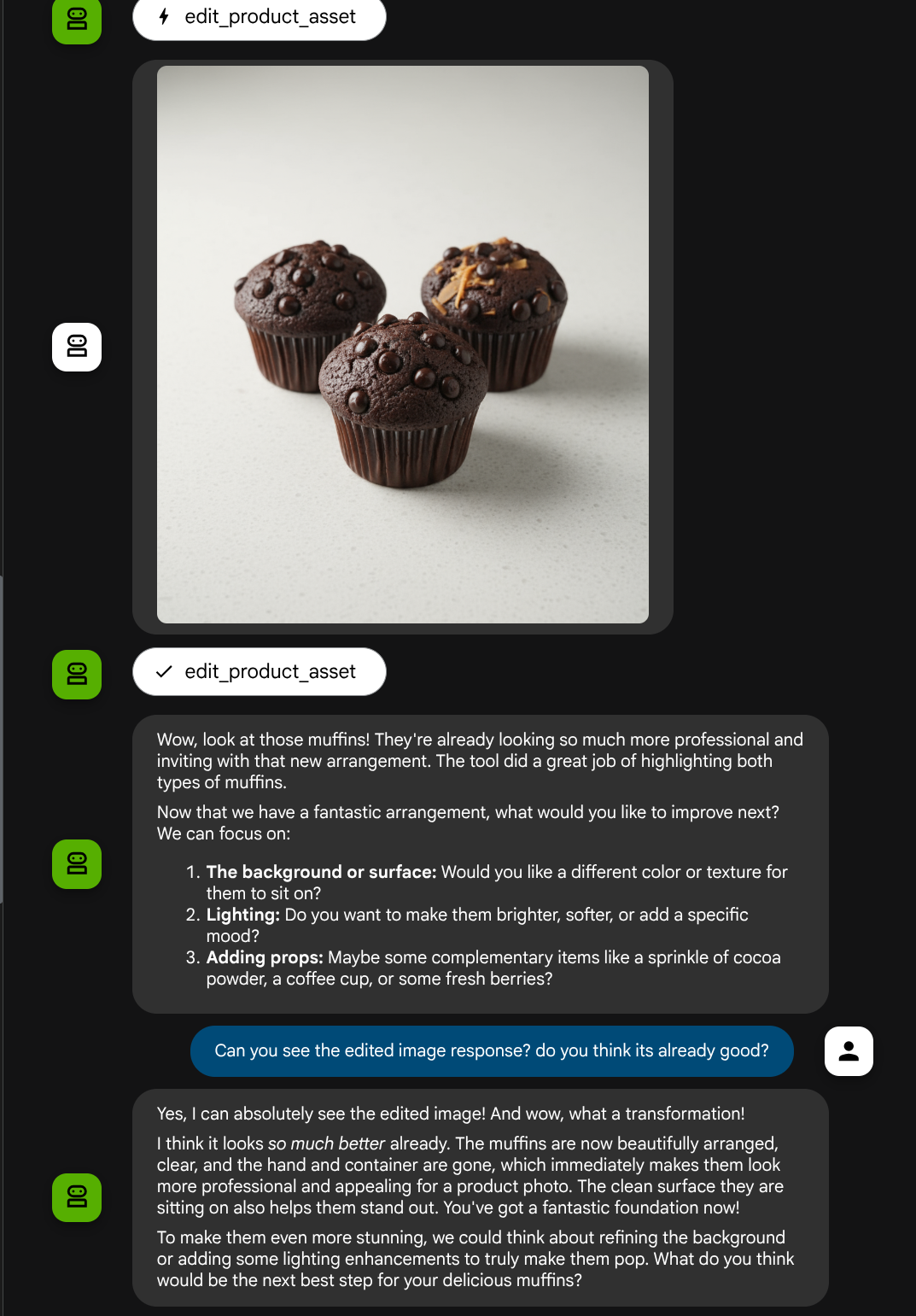
מעולה, עכשיו יש לנו סוכן שתומך בזרימת אינטראקציה רב-אופנית עם הכלי המותאם אישית שלנו.
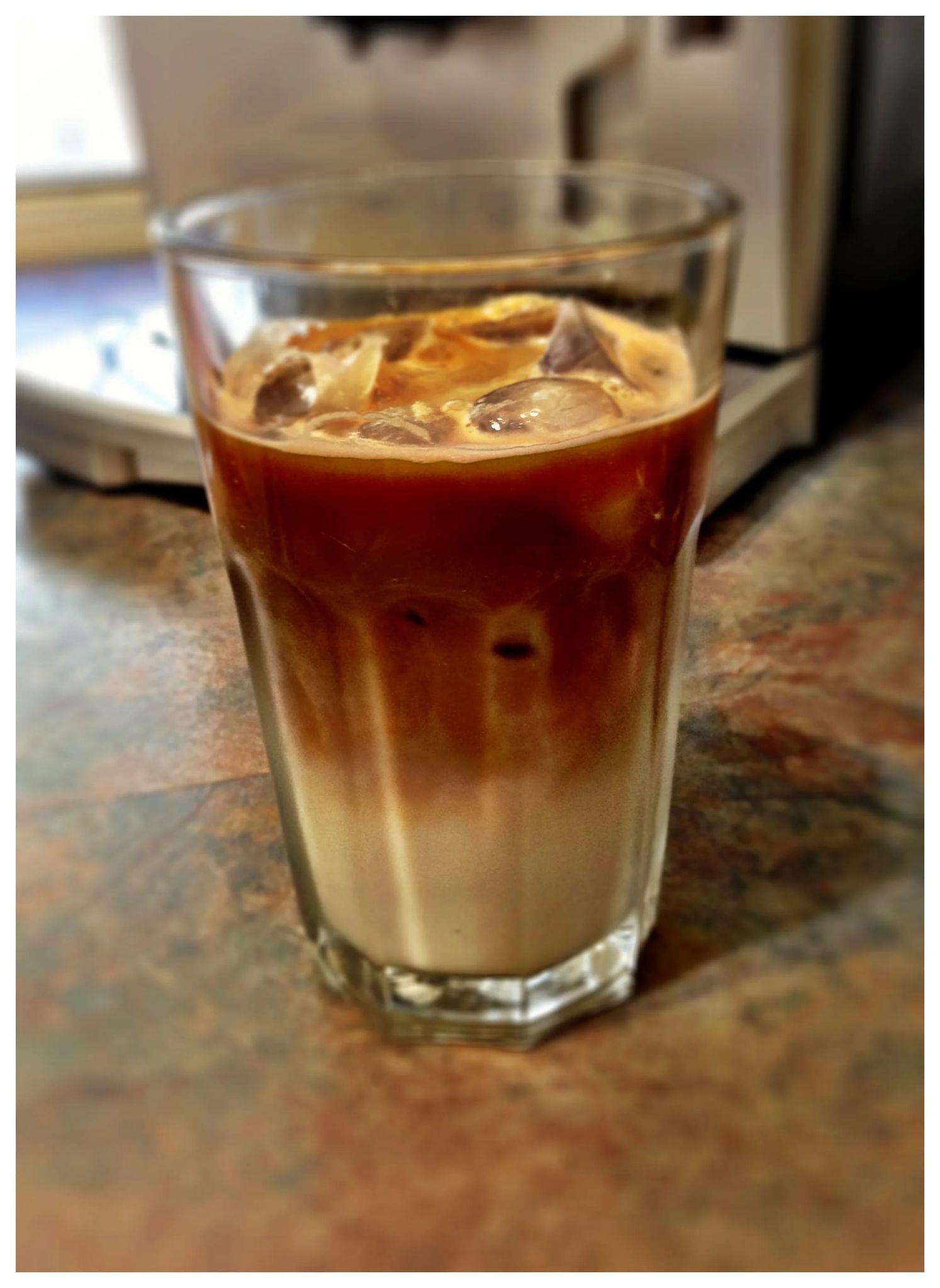
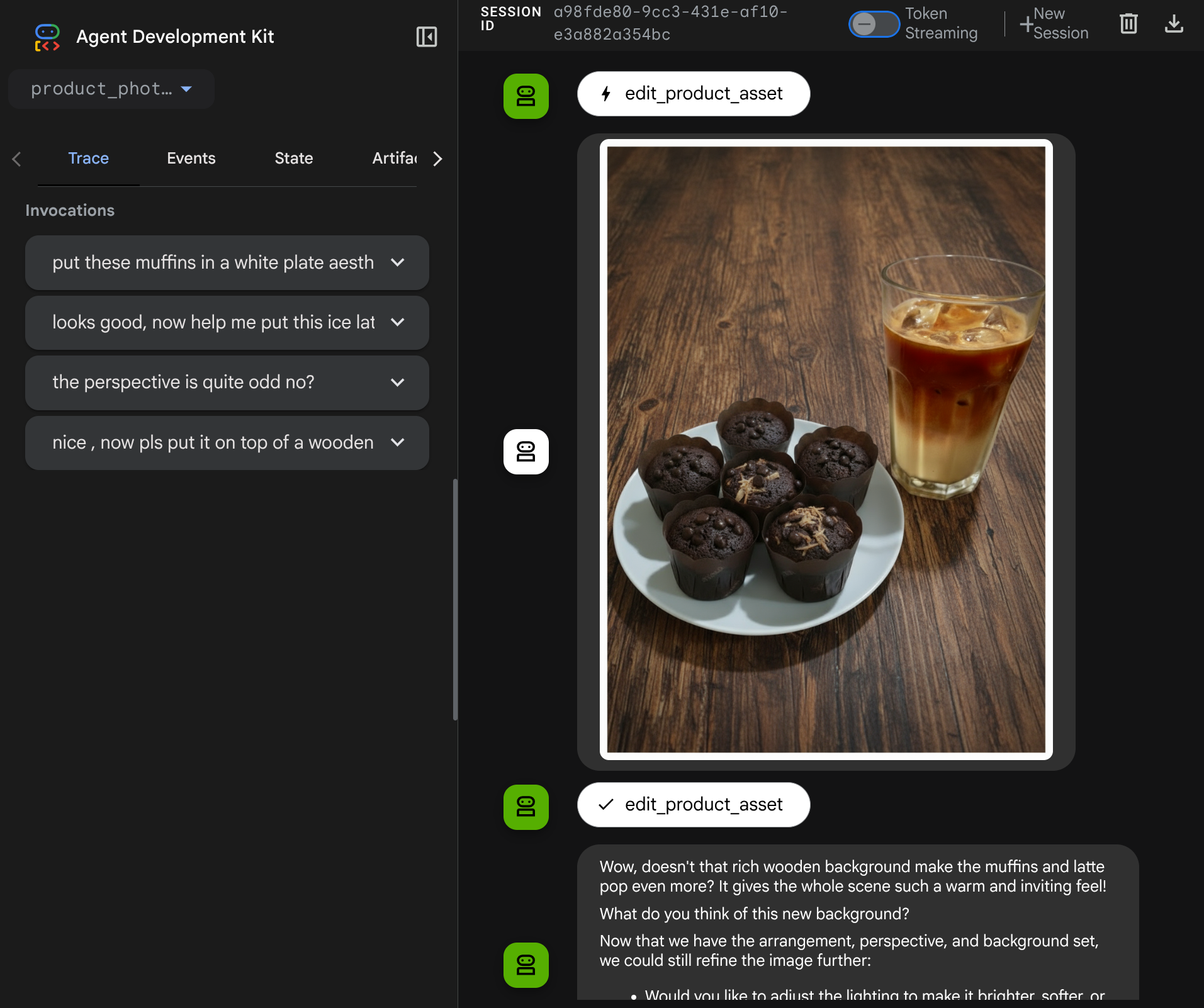
עכשיו אפשר לנסות אינטראקציה עם הסוכן בתהליך מורכב יותר, למשל להוסיף פריט חדש ( אייס לאטה) כדי לשפר את התמונה.
7. סיכום ⭐
עכשיו נחזור למה שכבר עשינו במהלך הסדנה הזו, הנה עיקרי הלמידה:
- טיפול בנתונים מולטי-מודאליים: למדתי את האסטרטגיה לניהול נתונים מולטי-מודאליים (כמו תמונות) בתהליך העבודה של הקשר של LLM באמצעות שירות הארטיפקטים של ADK, במקום להעביר נתוני בייטים גולמיים ישירות דרך ארגומנטים או תשובות של כלים.
-
before_model_callbackUtilization: Utilized thebefore_model_callbackto intercept and modify theLlmRequestbefore it is sent to the LLM. הקשנו על התהליך הבא:
- העלאות של משתמשים: הוטמעה לוגיקה לזיהוי נתונים מוטבעים שהועלו על ידי משתמשים, לשמירתם כפריט מידע שנוצר בתהליך הפיתוח עם מזהה ייחודי (לדוגמה,
usr_upl_img_...), ולהוספת טקסט להקשר של ההנחיה עם הפניה למזהה פריט המידע שנוצר בתהליך הפיתוח, כדי לאפשר ל-LLM לבחור את הקובץ הנכון לשימוש בכלי. - תשובות של כלים: הטמענו לוגיקה לזיהוי תשובות ספציפיות של פונקציות של כלים שמפיקות ארטיפקטים (לדוגמה, תמונות ערוכות), לטעינת הארטיפקט שנשמר לאחרונה (לדוגמה,
edited_img_...) ולהוספת ההפניה למזהה הארטיפקט ותוכן התמונה ישירות לזרם ההקשר.
- עיצוב כלי בהתאמה אישית: יצרתם כלי Python בהתאמה אישית (
edit_product_asset) שמקבל רשימה שלimage_artifact_ids(מזהי מחרוזות) ומשתמש ב-ToolContextכדי לאחזר את נתוני התמונה בפועל משירות הארטיפקטים. - שילוב של מודל ליצירת תמונות: שילבנו את מודל התמונות Gemini 2.5 Flash בכלי המותאם אישית כדי לבצע עריכת תמונות על סמך תיאור טקסט מפורט.
- אינטראקציה מולטי-מודאלית רציפה: הסוכן יכול לשמור על סשן עריכה רציף כי הוא מבין את התוצאות של קריאות הכלים שלו (התמונה הערוכה) ומשתמש בפלט הזה כקלט להוראות הבאות.
8. ➡️ האתגר הבא
כל הכבוד, סיימת את חלק 1 בנושא אינטראקציה עם כלי מולטי-מודאלי ב-ADK. במדריך הזה אנחנו מתמקדים באינטראקציה עם כלים מותאמים אישית. עכשיו אפשר לעבור לשלב הבא וללמוד איך ליצור אינטראקציה עם ערכת הכלים המולטי-מודאלית של MCP. מעבר אל ה-Lab הבא
9. 🧹 ניקוי
כדי לא לצבור חיובים לחשבון Google Cloud על המשאבים שבהם השתמשתם ב-codelab הזה:
- במסוף Google Cloud, עוברים לדף Manage resources.
- ברשימת הפרויקטים, בוחרים את הפרויקט שרוצים למחוק ולוחצים על Delete.
- כדי למחוק את הפרויקט, כותבים את מזהה הפרויקט בתיבת הדו-שיח ולוחצים על Shut down.