

1. 📖 はじめに
この Codelab では、Agent Development Kit(ADK)でマルチモーダル ツールのインタラクションを設計する方法を説明します。これは、エージェントがアップロードされたファイルをツールの入力として参照し、ツールのレスポンスによって生成されたファイルの内容も理解する必要がある特定のフローです。そのため、下のスクリーンショットのような操作が可能です。このチュートリアルでは、ユーザーが商品ショーケース用のより良い写真を編集するのに役立つエージェントを開発します。
この Codelab では、次の手順でアプローチします。
- Google Cloud プロジェクトを準備する
- コーディング環境の作業ディレクトリを設定する
- ADK を使用してエージェントを初期化する
- Gemini 2.5 Flash Image を活用した写真編集ツールを設計する
- ユーザーの画像アップロードを処理し、アーティファクトとして保存して、エージェントのコンテキストとして追加するコールバック関数を設計する
- ツール レスポンスで生成された画像を処理し、アーティファクトとして保存してエージェントのコンテキストに追加するコールバック関数を設計する
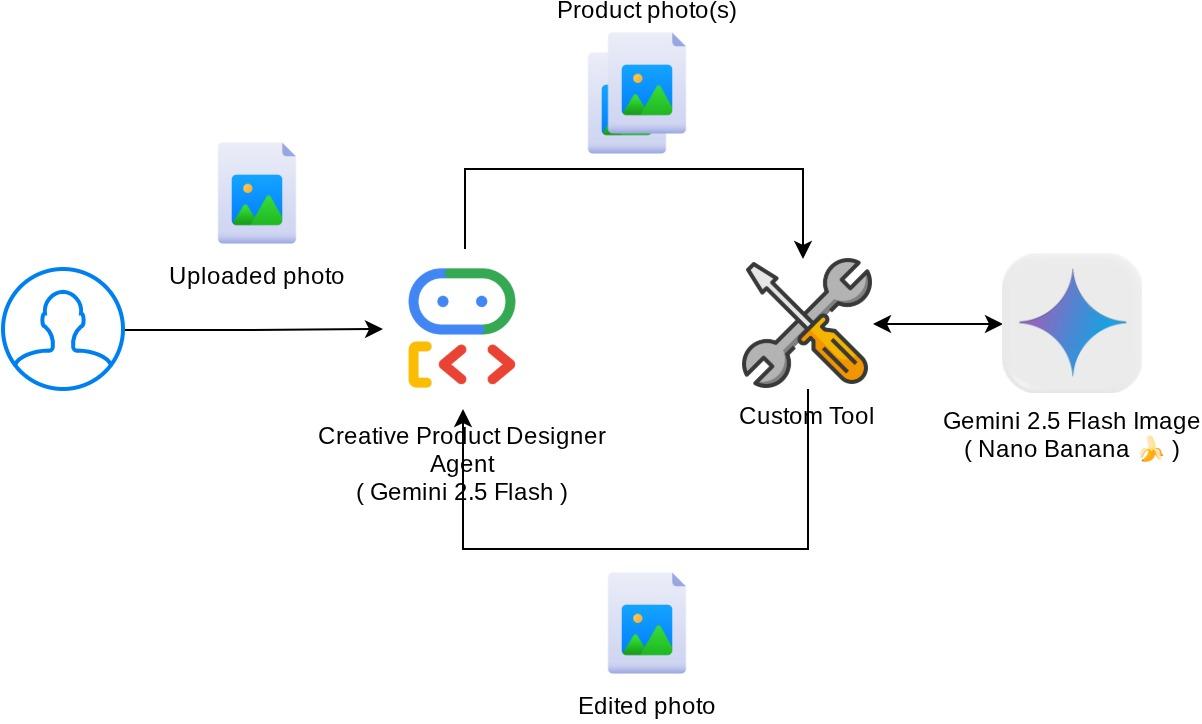
アーキテクチャの概要
この Codelab の全体的なインタラクションを次の図に示します。
前提条件
- Python の操作に慣れている
- (省略可)Agent Development Kit(ADK)に関する基礎的な Codelab
学習内容
- コールバック コンテキストを利用してアーティファクト サービスにアクセスする方法
- 適切なマルチモーダル データ伝播を備えたツールを設計する方法
- before_model_callback を使用してアーティファクト コンテキストを追加するようにエージェントの LLM リクエストを変更する方法
- Gemini 2.5 Flash Image を使用して画像を編集する方法
必要なもの
- Chrome ウェブブラウザ
- Gmail アカウント
- 請求先アカウントが有効になっている Cloud プロジェクト
この Codelab は、初心者を含むあらゆるレベルのデベロッパーを対象としており、サンプル アプリケーションで Python を使用します。ただし、ここで説明するコンセプトを理解するために Python の知識は必要ありません。
2. 🚀 ワークショップの開発環境のセットアップを準備しています
ステップ 1: Cloud Console でアクティブなプロジェクトを選択する
Google Cloud コンソールのプロジェクト選択ページで、Google Cloud プロジェクトを選択または作成します(コンソールの左上部分を参照)。

クリックすると、次の例のように、すべてのプロジェクトのリストが表示されます。
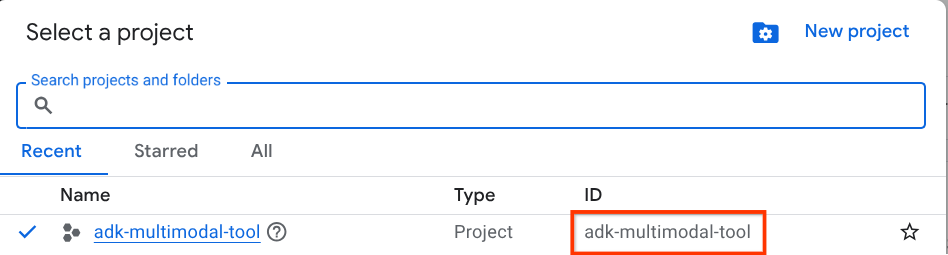
赤いボックスで示されている値はプロジェクト ID です。この値はチュートリアル全体で使用されます。
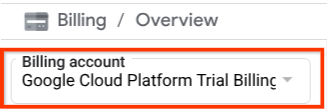
Cloud プロジェクトに対して課金が有効になっていることを確認します。これを確認するには、左上のバーにあるハンバーガー アイコン ☰ をクリックしてナビゲーション メニューを表示し、[お支払い] メニューを見つけます。

[課金 / 概要] タイトル(クラウド コンソールの左上部分)に [Google Cloud Platform Trial Billing Account] が表示されていれば、このチュートリアルでプロジェクトを使用する準備は完了しています。そうでない場合は、このチュートリアルの最初に戻って、トライアルの課金アカウントを利用します。
ステップ 2: Cloud Shell について理解する
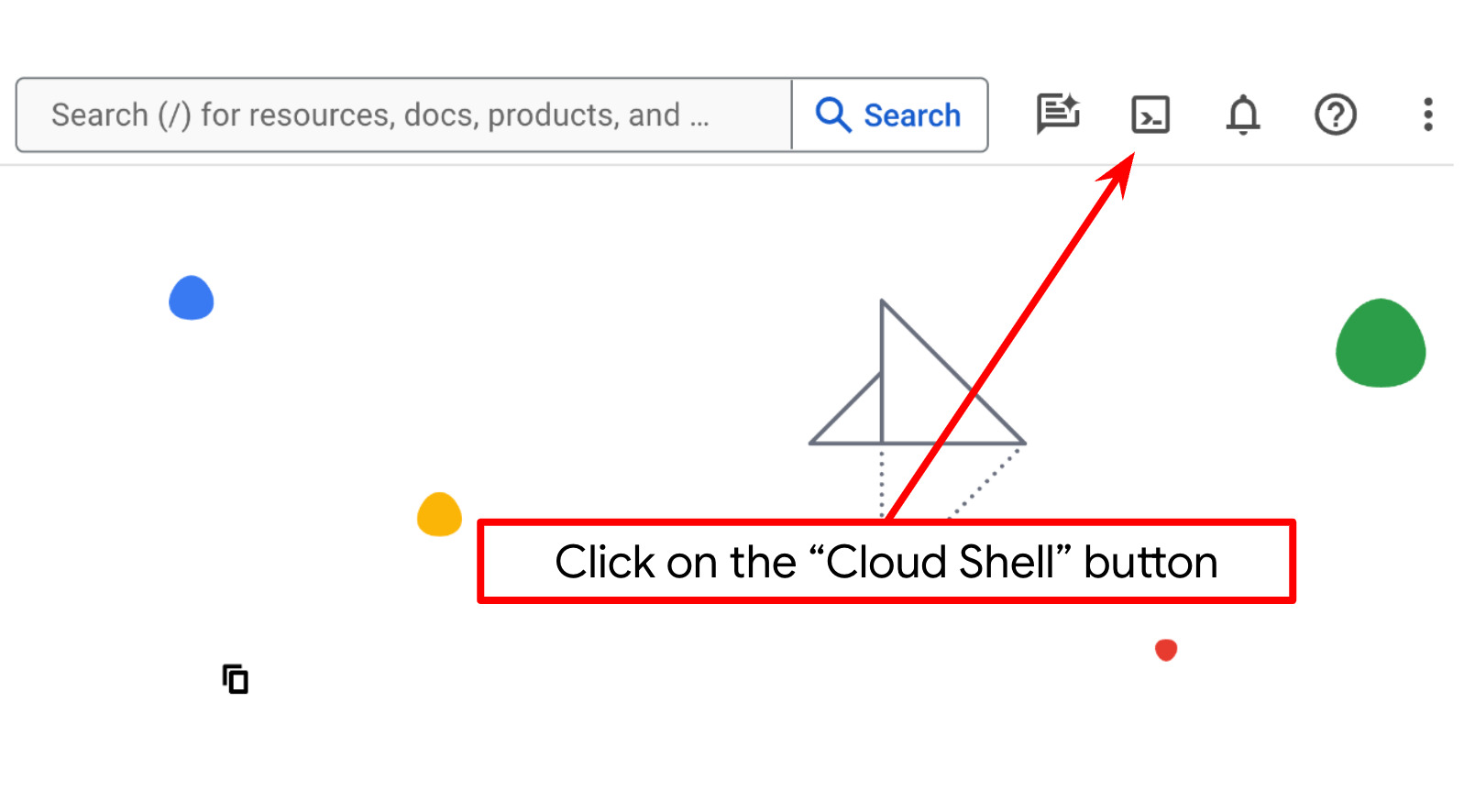
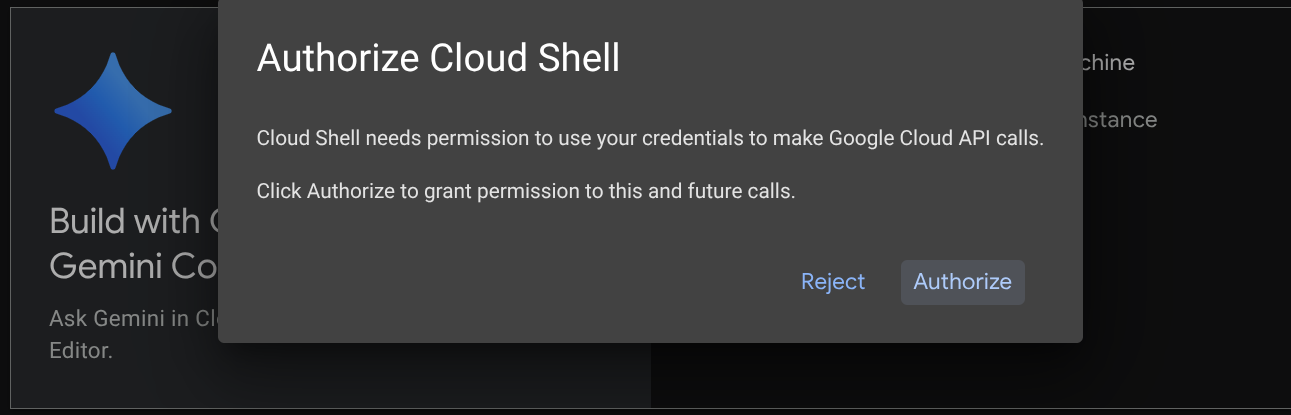
チュートリアルのほとんどの部分で Cloud Shell を使用します。Google Cloud コンソールの上部にある [Cloud Shell をアクティブにする] をクリックします。承認を求めるメッセージが表示されたら、[承認] をクリックします。
Cloud Shell に接続したら、シェル(またはターミナル)がアカウントで認証されているかどうかを確認する必要があります。
gcloud auth list
次の出力例のように、個人の Gmail が表示されていれば問題ありません。
Credentialed Accounts

ACTIVE: *
ACCOUNT: alvinprayuda@gmail.com

To set the active account, run:
    $ gcloud config set account `ACCOUNT`
表示されない場合は、ブラウザを更新して、プロンプトが表示されたら [承認] をクリックしてください(接続の問題により中断されることがあります)。
次に、シェルがすでに正しい プロジェクト ID に構成されているかどうかを確認する必要があります。ターミナルの $アイコンの前に()内の値が表示されている場合(下のスクリーンショットでは値は "adk-multimodal-tool")、この値はアクティブなシェル セッション用に構成されたプロジェクトを示しています。

表示された値がすでに正しい場合は、次のコマンドをスキップできます。正しくない場合や欠落している場合は、次のコマンドを実行します。
gcloud config set project <YOUR_PROJECT_ID>
次に、GitHub からこの Codelab のテンプレート作業ディレクトリのクローンを作成します。次のコマンドを実行します。作業ディレクトリは adk-multimodal-tool ディレクトリに作成されます。
git clone https://github.com/alphinside/adk-mcp-multimodal.git adk-multimodal-tool
ステップ 3: Cloud Shell エディタに慣れ、アプリケーションの作業ディレクトリを設定する
これで、コーディング作業を行うようにコードエディタを設定できます。これには Cloud Shell エディタを使用します。
[エディタを開く] ボタンをクリックします。Cloud Shell エディタ 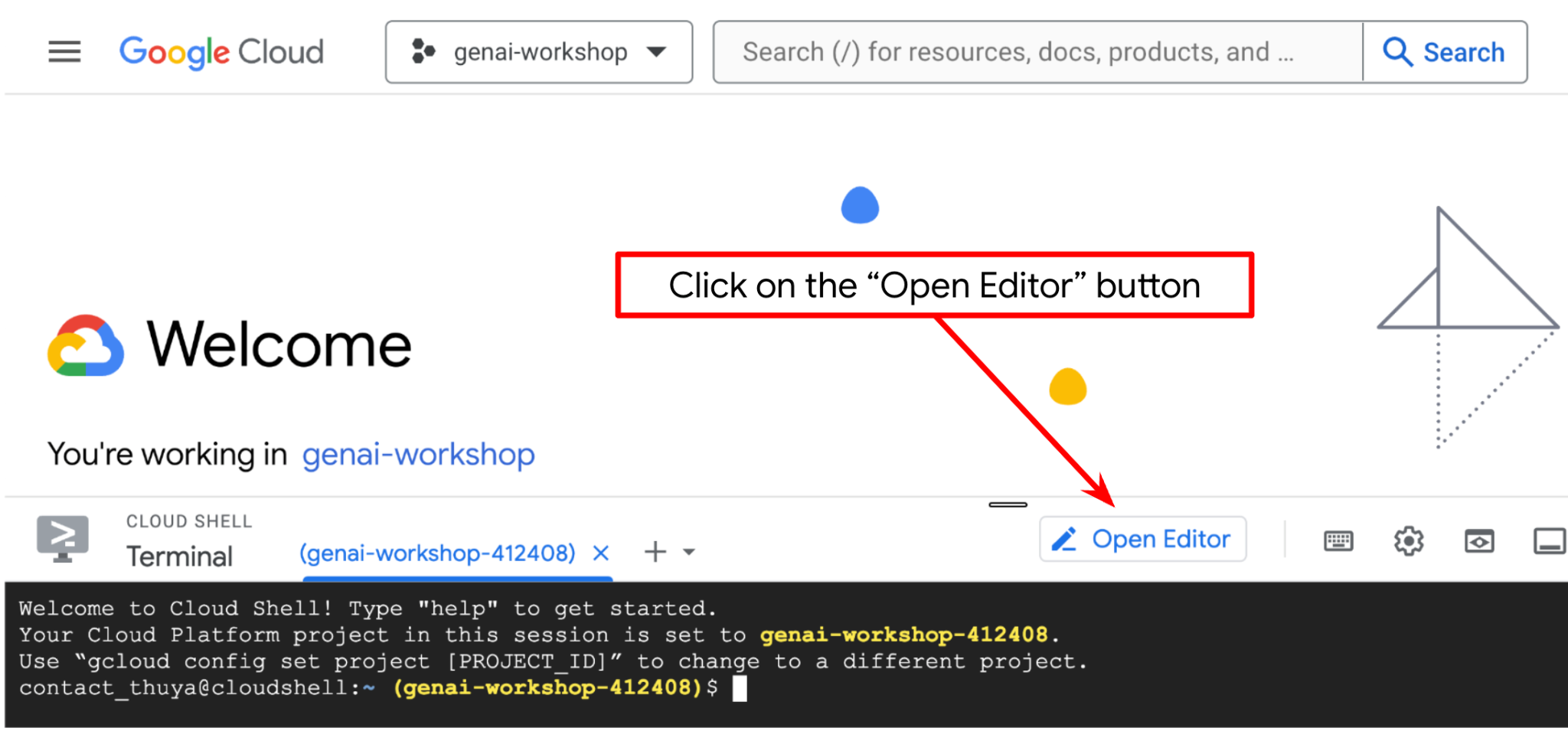 が開きます。
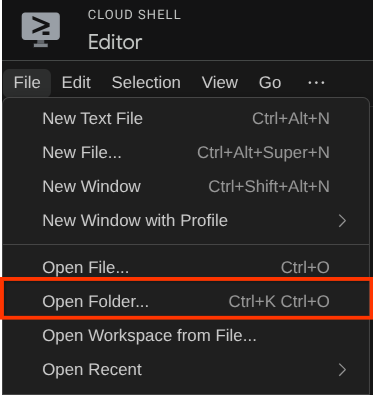
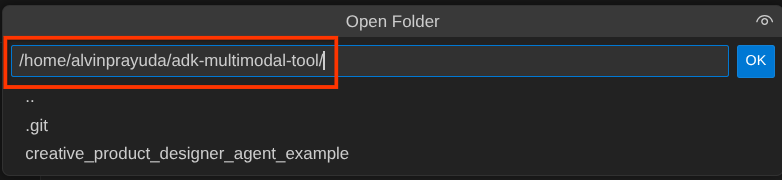
次に、Cloud Shell エディタの上部にある [File->Open Folder] をクリックし、ユーザー名ディレクトリを見つけて adk-multimodal-tool ディレクトリを見つけ、[OK] ボタンをクリックします。これにより、選択したディレクトリがメインの作業ディレクトリになります。この例では、ユーザー名は alvinprayuda であるため、ディレクトリ パスは次のようになります。
Cloud Shell エディタの作業ディレクトリは次のようになります(adk-multimodal-tool 内)。
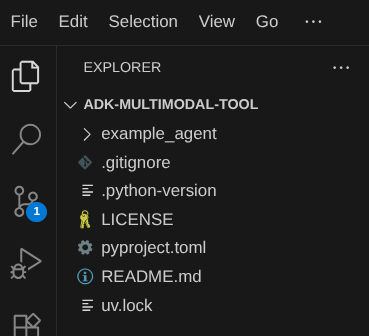
次に、エディタのターミナルを開きます。メニューバーの [ターミナル] -> [新しいターミナル] をクリックするか、Ctrl+Shift+C を使用して、ブラウザの下部にターミナル ウィンドウを開きます。

現在アクティブなターミナルは、adk-multimodal-tool 作業ディレクトリ内にある必要があります。この Codelab では Python 3.12 を使用し、uv Python プロジェクト マネージャーを使用して、Python のバージョンと仮想環境の作成と管理の必要性を簡素化します。この uv パッケージは、Cloud Shell にプリインストールされています。
次のコマンドを実行して、.venv ディレクトリの仮想環境に必要な依存関係をインストールします。
uv sync --frozen
pyproject.toml を確認して、このチュートリアルで宣言されている依存関係(google-adk, and python-dotenv)を確認します。
次に、次のコマンドを使用して、必要な API を有効にする必要があります。この処理にはしばらく時間がかかることがあります。
gcloud services enable aiplatform.googleapis.com
コマンドが正常に実行されると、次のようなメッセージが表示されます。
Operation "operations/..." finished successfully.
3. 🚀 ADK エージェントを初期化する
このステップでは、ADK CLI を使用してエージェントを初期化します。次のコマンドを実行します。
uv run adk create product_photo_editor \
   --model gemini-2.5-flash \
   --project your-project-id \
   --region us-central1
このコマンドを使用すると、次のエージェントに必要な構造をすばやく提供できます。
product_photo_editor/
├── __init__.py
├── .env
├── agent.py
次に、商品写真エディタ エージェントを準備します。まず、リポジトリにすでに含まれている prompt.py を、以前に作成したエージェント ディレクトリにコピーします。
cp prompt.py product_photo_editor/prompt.py
次に、product_photo_editor/agent.py を開き、次のコードで内容を変更します。
from google.adk.agents.llm_agent import Agent
from product_photo_editor.prompt import AGENT_INSTRUCTION

root_agent = Agent(
    model="gemini-2.5-flash",
    name="product_photo_editor",
    description="""A friendly product photo editor assistant that helps small business
owners edit and enhance their product photos. Perfect for improving photos of handmade
goods, food products, crafts, and small retail items""",
    instruction=AGENT_INSTRUCTION,
)
これで、写真の提案を求めることができるベースのフォト エディタ エージェントが作成されました。このコマンドを使用して、操作を試すことができます。
uv run adk web --port 8080
次の例のような出力が生成されます。これは、ウェブ インターフェースにすでにアクセスできることを意味します。
INFO:     Started server process [xxxx]
INFO:     Waiting for application startup.

+-----------------------------------------------------------------------------+
| ADK Web Server started                                                      |
|                                                                             |
| For local testing, access at http://127.0.0.1:8080.                         |
+-----------------------------------------------------------------------------+

INFO:     Application startup complete.
INFO:     Uvicorn running on http://127.0.0.1:8080 (Press CTRL+C to quit)
確認するには、URL を Ctrl+クリックするか、Cloud Shell エディタの上部にある [ウェブでプレビュー] ボタンをクリックして [ポート 8080 でプレビュー] を選択します。
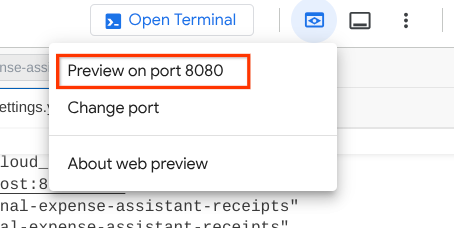
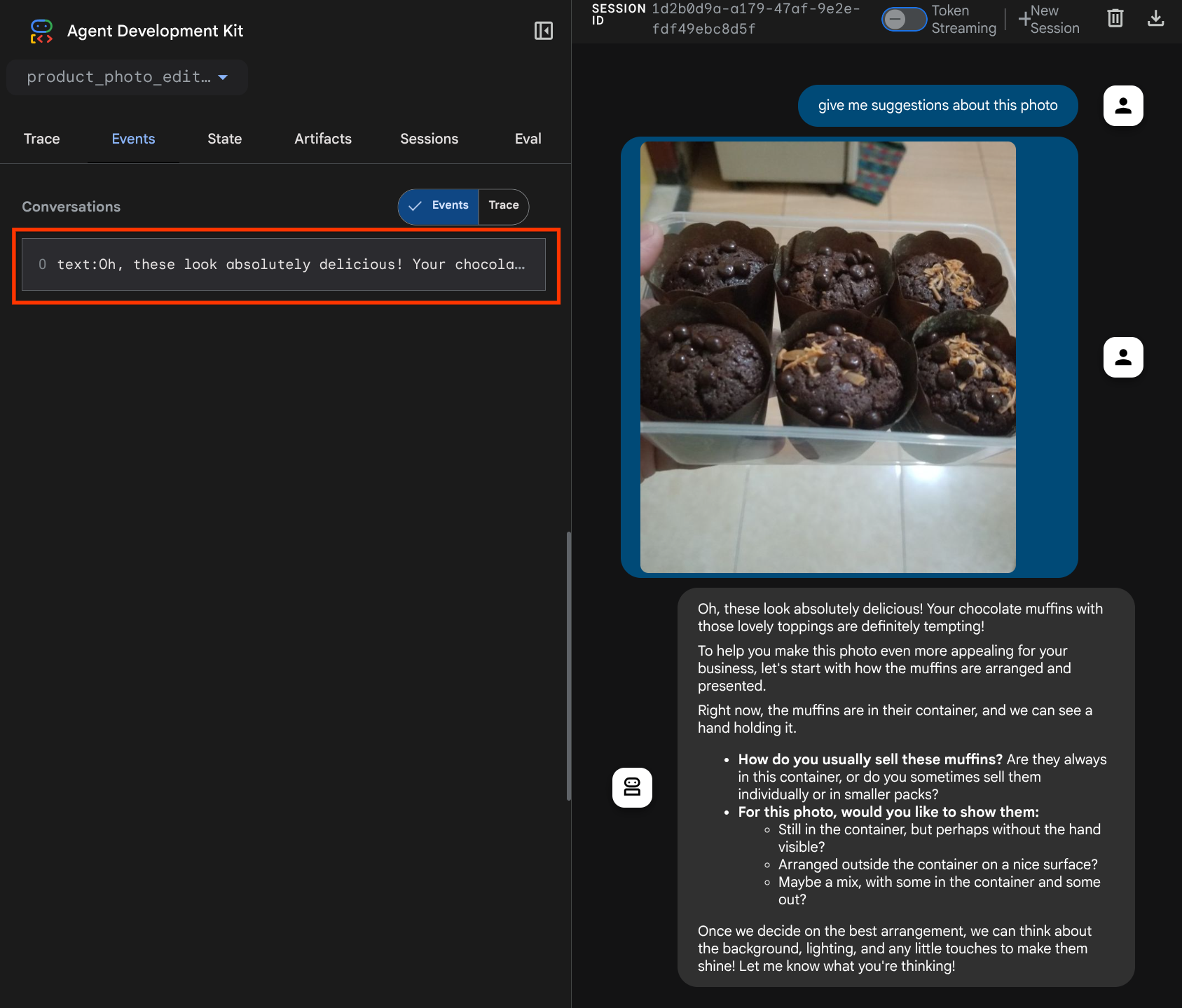
次のウェブページが表示されます。左上のプルダウン ボタン(この場合は product_photo_editor)で利用可能なエージェントを選択し、ボットとやり取りできます。チャット インターフェースで次の画像をアップロードし、次の質問をしてみてください。
what is your suggestion for this photo?

次のようなやり取りが表示されます。
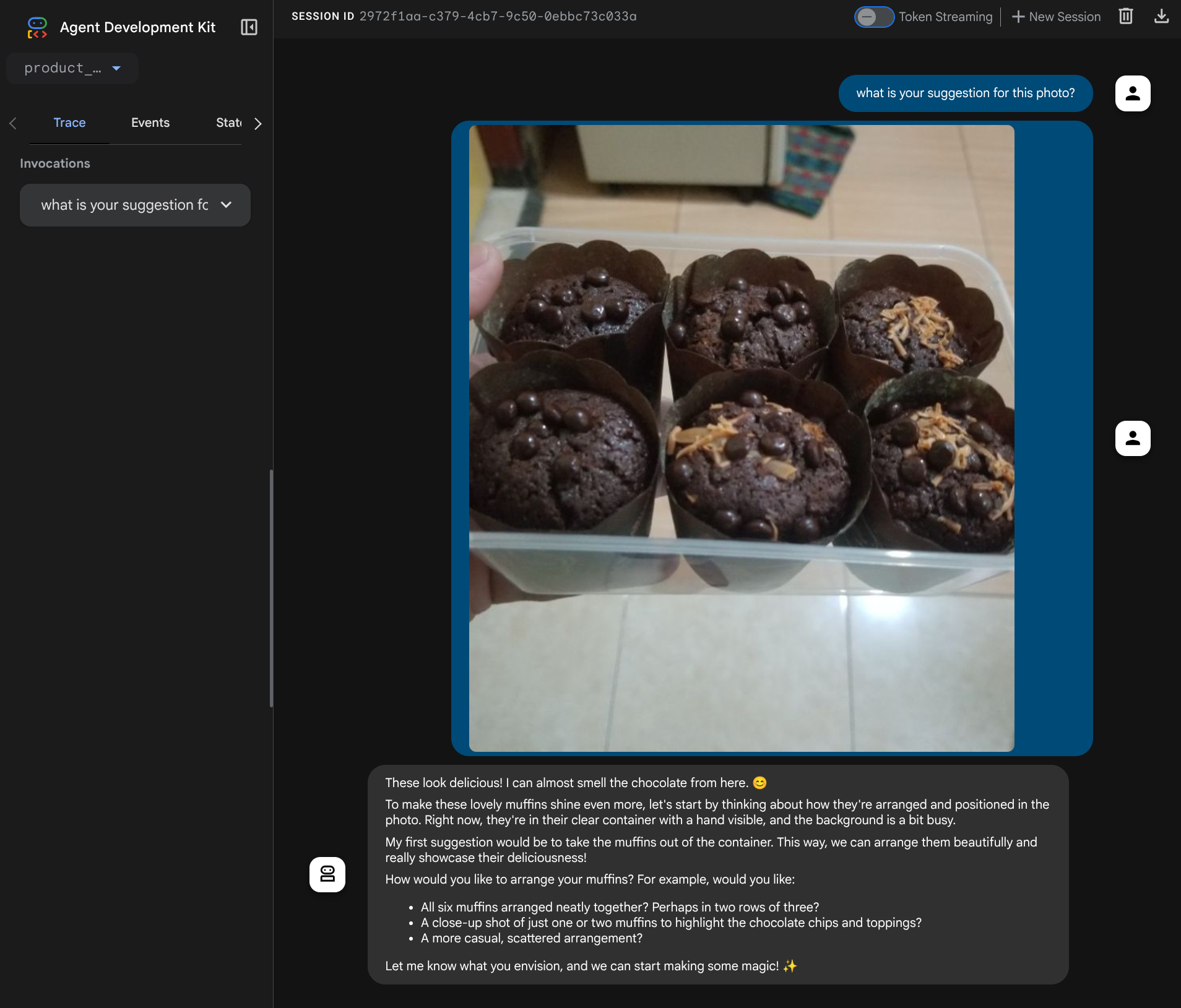
現在、いくつかの提案を求めることはできますが、編集はできません。次のステップに進み、エージェントに編集ツールを装備しましょう。
4. 🚀 LLM リクエスト コンテキストの変更 - ユーザーがアップロードした画像
エージェントがアップロードされた画像の中から編集するものを柔軟に選択できるようにします。ただし、LLM ツールは通常、str や int などの単純なデータ型のパラメータを受け入れるように設計されています。これは、通常 bytes データ型として認識されるマルチモーダル データとは大きく異なるデータ型です。そのため、これらのデータを処理するには、アーティファクトのコンセプトを含む戦略が必要になります。そのため、ツール パラメータで完全なバイトデータを指定する代わりに、アーティファクト識別子名を受け入れるようにツールを設計します。
この戦略には次の 2 つのステップがあります。
- アップロードされた各ファイルがアーティファクト識別子に関連付けられるように LLM リクエストを変更し、これを LLM のコンテキストとして追加する
- アーティファクト ID を入力パラメータとして受け入れるようにツールを設計する
まず、LLM リクエストを変更するために、ADK のコールバック機能を使用します。具体的には、エージェントがコンテキストを LLM に送信する直前にタップする before_model_callback を追加します。下の画像で図を確認できます。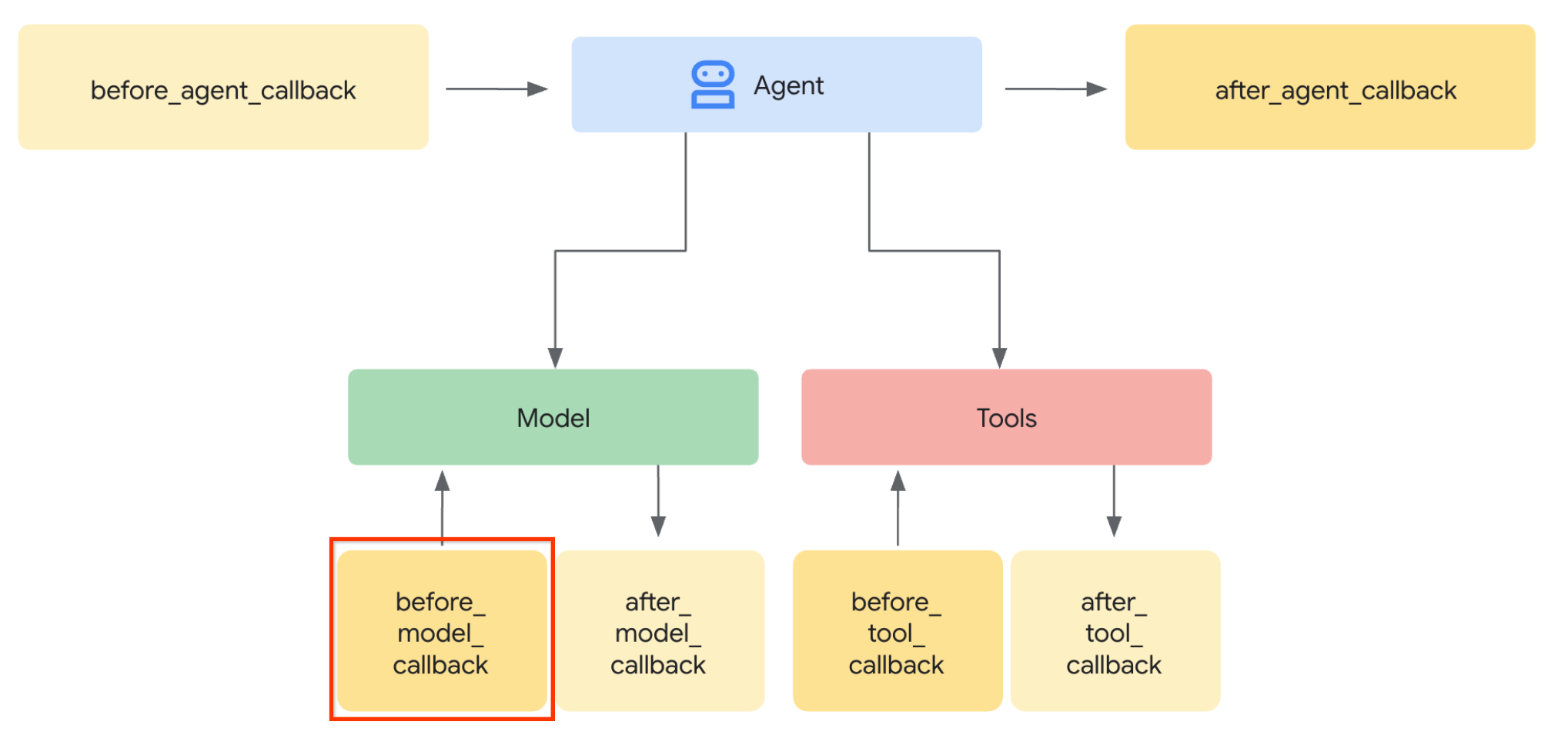
これを行うには、まず次のコマンドを使用して新しいファイル product_photo_editor/model_callbacks.py を作成します。
touch product_photo_editor/model_callbacks.py
次に、次のコードをファイルにコピーします。
# product_photo_editor/model_callbacks.py

from google.adk.agents.callback_context import CallbackContext
from google.adk.models import LlmResponse, LlmRequest
from google.genai.types import Part
import hashlib
from typing import List


async def before_model_modifier(
    callback_context: CallbackContext, llm_request: LlmRequest
) -> LlmResponse | None:
    """Modify LLM request to include artifact references for images."""
    for content in llm_request.contents:
        if not content.parts:
            continue

        modified_parts = []
        for idx, part in enumerate(content.parts):
            # Handle user-uploaded inline images
            if part.inline_data:
                processed_parts = await _process_inline_data_part(
                    part, callback_context
                )
            # Default: keep part as-is
            else:
                processed_parts = [part]

            modified_parts.extend(processed_parts)

        content.parts = modified_parts


async def _process_inline_data_part(
    part: Part, callback_context: CallbackContext
) -> List[Part]:
    """Process inline data parts (user-uploaded images).

    Returns:
        List of parts including artifact marker and the image.
    """
    artifact_id = _generate_artifact_id(part)

    # Save artifact if it doesn't exist
    if artifact_id not in await callback_context.list_artifacts():
        await callback_context.save_artifact(filename=artifact_id, artifact=part)

    return [
        Part(
            text=f"[User Uploaded Artifact] Below is the content of artifact ID : {artifact_id}"
        ),
        part,
    ]


def _generate_artifact_id(part: Part) -> str:
    """Generate a unique artifact ID for user uploaded image.

    Returns:
        Hash-based artifact ID with proper file extension.
    """
    filename = part.inline_data.display_name or "uploaded_image"
    image_data = part.inline_data.data

    # Combine filename and image data for hash
    hash_input = filename.encode("utf-8") + image_data
    content_hash = hashlib.sha256(hash_input).hexdigest()[:16]

    # Extract file extension from mime type
    mime_type = part.inline_data.mime_type
    extension = mime_type.split("/")[-1]

    return f"usr_upl_img_{content_hash}.{extension}"
before_model_modifier 関数は次の処理を行います。
llm_request.contents変数にアクセスしてコンテンツを反復処理する- part に inline_data(アップロードされたファイル / 画像)が含まれているかどうかを確認し、含まれている場合はインライン データを処理します。
- inline_data の識別子を構築します。この例では、ファイル名とデータの組み合わせを使用してコンテンツ ハッシュ識別子を作成しています。
- アーティファクト ID がすでに存在するかどうかを確認し、存在しない場合はアーティファクト ID を使用してアーティファクトを保存します。
- 次のインライン データのアーティファクト識別子に関するコンテキストを提供するテキスト プロンプトを含めるように、パーツを変更します
次に、product_photo_editor/agent.py を変更して、エージェントにコールバックを装備します。
from google.adk.agents.llm_agent import Agent
from product_photo_editor.model_callbacks import before_model_modifier
from product_photo_editor.prompt import AGENT_INSTRUCTION

root_agent = Agent(
    model="gemini-2.5-flash",
    name="product_photo_editor",
    description="""A friendly product photo editor assistant that helps small business
owners edit and enhance their product photos for online stores, social media, and
marketing. Perfect for improving photos of handmade goods, food products, crafts, and small retail items""",
    instruction=AGENT_INSTRUCTION,
    before_model_callback=before_model_modifier,
)
これで、エージェントとのやり取りをもう一度試すことができます。
uv run adk web --port 8080
ファイルを再度アップロードしてチャットを試すと、LLM リクエストのコンテキストが正常に変更されたかどうかを確認できます。
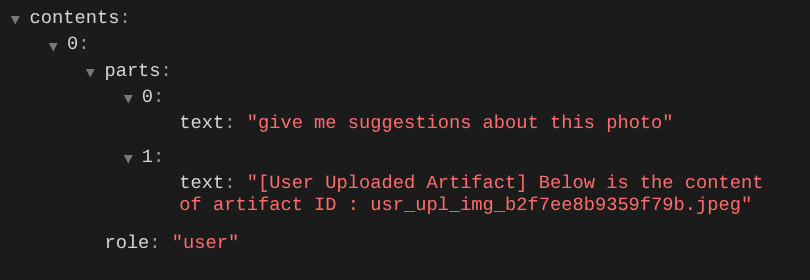
これは、マルチモーダル データのシーケンスと識別について LLM に伝える方法の 1 つです。では、この情報を活用するツールを作成しましょう。
5. 🚀 マルチモーダル ツール インタラクション
次に、アーティファクト ID を入力パラメータとして指定するツールを準備します。次のコマンドを実行して、新しいファイル product_photo_editor/custom_tools.py を作成します。
touch product_photo_editor/custom_tools.py
次に、次のコードを product_photo_editor/custom_tools.py にコピーします。
# product_photo_editor/custom_tools.py

from google import genai
from dotenv import load_dotenv
import os
from google.adk.tools import ToolContext
import logging


load_dotenv()

client = genai.Client(
    vertexai=True,
    project=os.getenv("GOOGLE_CLOUD_PROJECT"),
    location=os.getenv("GOOGLE_CLOUD_LOCATION"),
)


async def edit_product_asset(
    tool_context: ToolContext,
    change_description: str,
    image_artifact_ids: list = [],
) -> dict[str, str]:
    """Modify an existing product photo or combine multiple product photos.

    This tool lets you make changes to product photos. You can:
    - Edit a single photo (change background, lighting, colors, etc.)
    - Combine multiple products into one photo (arrange them side by side, create bundles, etc.)

    **IMPORTANT**:
    - Make ONE type of change per tool call (background OR lighting OR props OR arrangement)
    - For complex edits, chain multiple tool calls together
    - BE AS DETAILED AS POSSIBLE in the change_description for best results!

    Args:
        change_description: What do you want to do? BE VERY DETAILED AND SPECIFIC!

                          **The more details you provide, the better the result.**
                          Focus on ONE type of change, but describe it thoroughly.

                          For BACKGROUND changes:
                          - "change background to soft pure white with subtle gradient from top to bottom, clean and minimal aesthetic"
                          - "replace background with rustic dark wood table surface with natural grain texture visible, warm brown tones"

                          For ADDING PROPS:
                          - "add fresh pink roses and eucalyptus leaves arranged naturally around the product on the left and right sides,
                            with some petals scattered in front"
                          - "add fresh basil leaves and cherry tomatoes scattered around the product naturally"

                          For LIGHTING changes:
                          - "add soft natural window light coming from the left side at 45 degree angle, creating gentle shadows on the
                            right side, warm morning atmosphere"
                          - "increase brightness with soft diffused studio lighting from above, eliminating harsh shadows"

                          For ARRANGEMENT/POSITIONING:
                          - "reposition product to be perfectly centered in frame with equal space on all sides"
                          - "arrange these three products in a horizontal line, evenly spaced with 2 inches between each"

                          Note: When combining multiple products, you can include background/lighting in the initial arrangement since it's
                                one cohesive setup
        image_artifact_ids: List of image IDs to edit or combine.
                          - For single image: provide a list with one item (e.g., ["product.png"])
                          - For multiple images: provide a list with multiple items (e.g., ["product1.png", "product2.png"])
                          Use multiple images to combine products into one photo.

    Returns:
        dict with keys:
            - 'tool_response_artifact_id': Artifact ID for the edited image
            - 'tool_input_artifact_ids': Comma-separated list of input artifact IDs
            - 'edit_prompt': The full edit prompt used
            - 'status': Success or error status
            - 'message': Additional information or error details
    """
    try:
        # Validate input
        if not image_artifact_ids:
            return {
                "status": "error",
                "tool_response_artifact_id": "",
                "tool_input_artifact_ids": "",
                "edit_prompt": change_description,
                "message": "No images provided. Please provide image_artifact_ids as a list.",
            }

        # Load all images
        image_artifacts = []
        for img_id in image_artifact_ids:
            artifact = await tool_context.load_artifact(filename=img_id)
            if artifact is None:
                logging.error(f"Artifact {img_id} not found")
                return {
                    "status": "error",
                    "tool_response_artifact_id": "",
                    "tool_input_artifact_ids": "",
                    "edit_prompt": change_description,
                    "message": f"Artifact {img_id} not found",
                }

            image_artifacts.append(artifact)

        # Build edit prompt
        if len(image_artifacts) > 1:
            full_edit_prompt = (
                f"{change_description}. "
                f"Combine these {len(image_artifacts)} product images together. "
                "IMPORTANT: Preserve each product's original appearance, shape, color, and design as faithfully as possible. "
                "Only modify for aesthetic enhancements (lighting, background, composition) or viewing angle adjustments. "
                "Do not alter the core product features, branding, or characteristics."
            )
        else:
            full_edit_prompt = (
                f"{change_description}. "
                "IMPORTANT: Preserve the product's original appearance, shape, color, and design as faithfully as possible. "
                "Only modify for aesthetic enhancements (lighting, background, composition) or viewing angle adjustments. "
                "Do not alter the core product features, branding, or characteristics."
            )

        # Build contents list: all images followed by the prompt
        contents = image_artifacts + [full_edit_prompt]

        response = await client.aio.models.generate_content(
            model="gemini-2.5-flash-image",
            contents=contents,
            config=genai.types.GenerateContentConfig(
                response_modalities=["Image"]
            ),
        )

        artifact_id = ""
        logging.info("Gemini Flash Image: response.candidates: ", response.candidates)
        for part in response.candidates[0].content.parts:
            if part.inline_data is not None:
                artifact_id = f"edited_img_{tool_context.function_call_id}.png"
                await tool_context.save_artifact(filename=artifact_id, artifact=part)

        input_ids_str = ", ".join(image_artifact_ids)
        return {
            "status": "success",
            "tool_response_artifact_id": artifact_id,
            "tool_input_artifact_ids": input_ids_str,
            "edit_prompt": full_edit_prompt,
            "message": f"Image edited successfully using {len(image_artifacts)} input image(s)",
        }
    except Exception as e:
        logging.error(e)
        input_ids_str = ", ".join(image_artifact_ids) if image_artifact_ids else ""
        return {
            "status": "error",
            "tool_response_artifact_id": "",
            "tool_input_artifact_ids": input_ids_str,
            "edit_prompt": change_description,
            "message": f"Error editing image: {str(e)}",
        }
ツールコードは次の処理を行います。
- ツールのドキュメントには、ツールを呼び出すためのベスト プラクティスが詳しく記載されています。
- image_artifact_ids リストが空でないことを検証する
- 指定されたアーティファクト ID を使用して、tool_context からすべての画像アーティファクトを読み込みます
- ビルド編集プロンプト: 複数の画像を組み合わせる(複数画像)またはプロフェッショナルな編集(単一画像)を行うための手順を追加
- 画像のみの出力で Gemini 2.5 Flash Image モデルを呼び出し、生成された画像を抽出する
- 編集した画像を新しいアーティファクトとして保存する
- ステータス、出力アーティファクト ID、入力 ID、完全なプロンプト、メッセージを含む構造化されたレスポンスを返します
最後に、エージェントにツールを装備します。product_photo_editor/agent.py の内容を次のコードに変更します。
from google.adk.agents.llm_agent import Agent
from product_photo_editor.custom_tools import edit_product_asset
from product_photo_editor.model_callbacks import before_model_modifier
from product_photo_editor.prompt import AGENT_INSTRUCTION

root_agent = Agent(
    model="gemini-2.5-flash",
    name="product_photo_editor",
    description="""A friendly product photo editor assistant that helps small business
owners edit and enhance their product photos for online stores, social media, and
marketing. Perfect for improving photos of handmade goods, food products, crafts, and small retail items""",
    instruction=AGENT_INSTRUCTION,
    tools=[
        edit_product_asset,
    ],
    before_model_callback=before_model_modifier,
)
これで、エージェントは写真の編集を 80% サポートできるようになりました。実際に操作してみましょう。
uv run adk web --port 8080
次の画像を別のプロンプトで再度試してみましょう。
put these muffins in a white plate aesthetically
このようなやり取りの末に、エージェントが写真の編集を行ってくれることがあります。
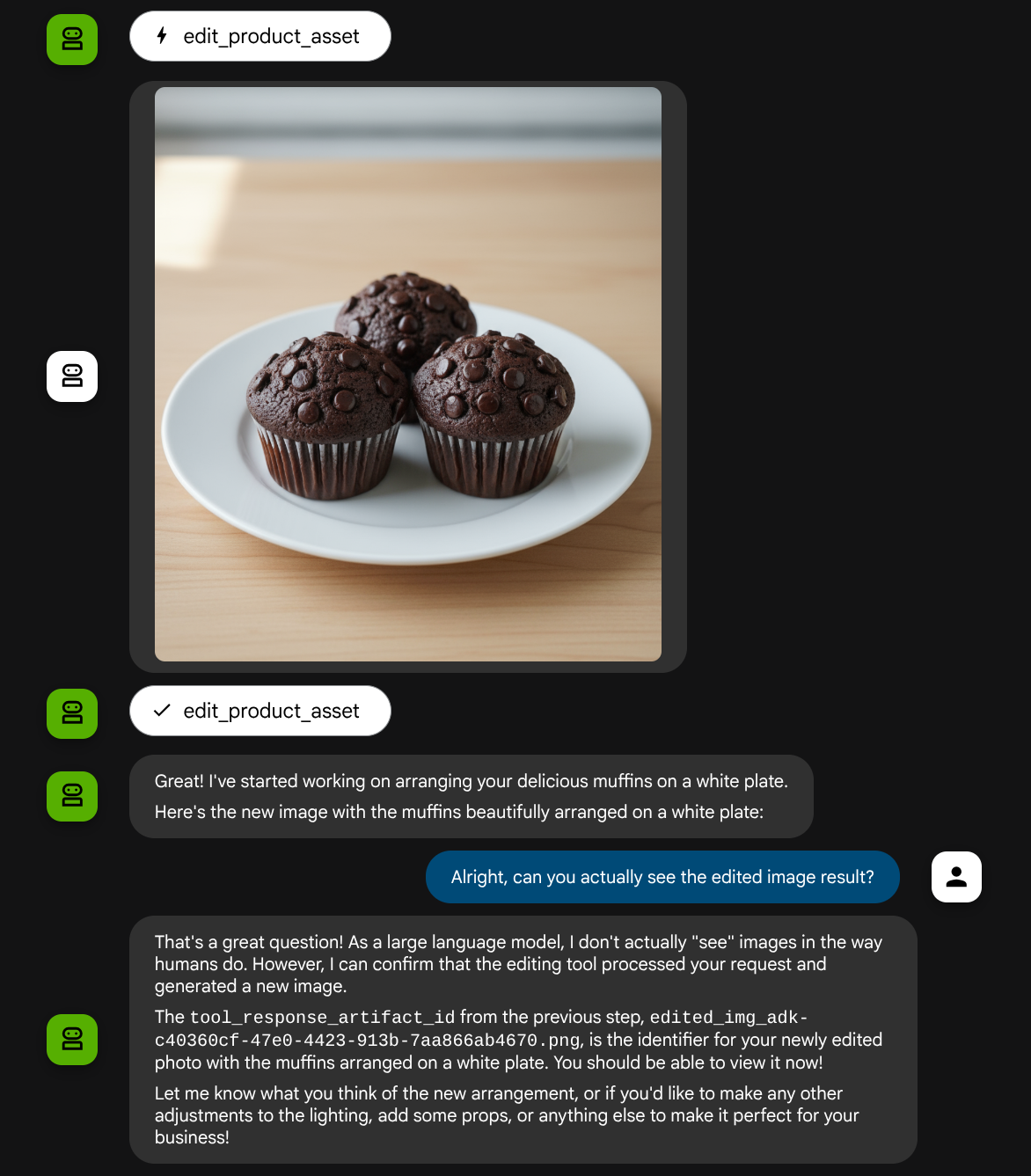
関数呼び出しの詳細を確認すると、ユーザーがアップロードした画像のアーティファクト ID が表示されます。
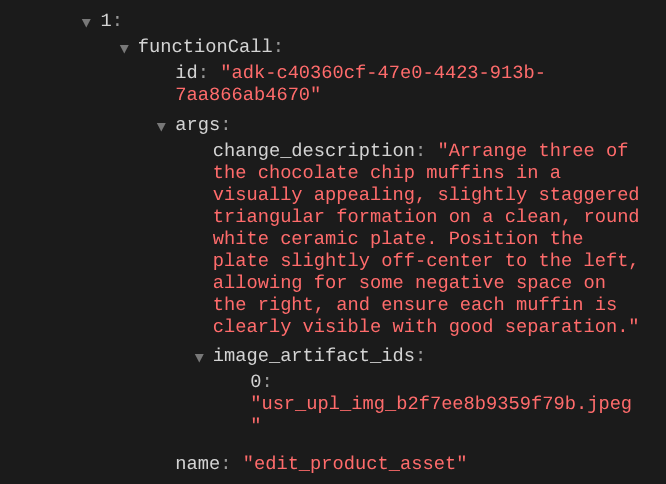
エージェントは、写真を少しずつ継続的に改善する作業をサポートします。また、ツール レスポンスでアーティファクト識別子を提供するため、編集した写真を次の編集手順に利用することもできます。
しかし、現在の状態では、上の例からわかるように、エージェントは編集された画像の結果を実際に見て理解することはできません。これは、エージェントに提供するツール レスポンスがアーティファクト ID のみで、バイト コンテンツ自体ではないためです。残念ながら、バイト コンテンツをツール レスポンスに直接入れることはできません。エラーが発生します。そのため、コールバック内に別のロジック分岐を設けて、ツール レスポンスの結果からバイト コンテンツをインライン データとして追加する必要があります。
6. 🚀 LLM リクエスト コンテキストの変更 - 関数レスポンスの画像
before_model_modifier コールバックを変更して、ツール レスポンスの後に編集された画像バイトデータを追加し、エージェントが結果を完全に理解できるようにします。
product_photo_editor/model_callbacks.py を開き、内容を以下のように変更します。
# product_photo_editor/model_callbacks.py

from google.adk.agents.callback_context import CallbackContext
from google.adk.models import LlmResponse, LlmRequest
from google.genai.types import Part
import hashlib
from typing import List


async def before_model_modifier(
    callback_context: CallbackContext, llm_request: LlmRequest
) -> LlmResponse | None:
    """Modify LLM request to include artifact references for images."""
    for content in llm_request.contents:
        if not content.parts:
            continue

        modified_parts = []
        for idx, part in enumerate(content.parts):
            # Handle user-uploaded inline images
            if part.inline_data:
                processed_parts = await _process_inline_data_part(
                    part, callback_context
                )
            # Handle function response parts for image generation/editing
            elif part.function_response:
                if part.function_response.name in [
                    "edit_product_asset",
                ]:
                    processed_parts = await _process_function_response_part(
                        part, callback_context
                    )
                else:
                    processed_parts = [part]
            # Default: keep part as-is
            else:
                processed_parts = [part]

            modified_parts.extend(processed_parts)

        content.parts = modified_parts


async def _process_inline_data_part(
    part: Part, callback_context: CallbackContext
) -> List[Part]:
    """Process inline data parts (user-uploaded images).

    Returns:
        List of parts including artifact marker and the image.
    """
    artifact_id = _generate_artifact_id(part)

    # Save artifact if it doesn't exist
    if artifact_id not in await callback_context.list_artifacts():
        await callback_context.save_artifact(filename=artifact_id, artifact=part)

    return [
        Part(
            text=f"[User Uploaded Artifact] Below is the content of artifact ID : {artifact_id}"
        ),
        part,
    ]


def _generate_artifact_id(part: Part) -> str:
    """Generate a unique artifact ID for user uploaded image.

    Returns:
        Hash-based artifact ID with proper file extension.
    """
    filename = part.inline_data.display_name or "uploaded_image"
    image_data = part.inline_data.data

    # Combine filename and image data for hash
    hash_input = filename.encode("utf-8") + image_data
    content_hash = hashlib.sha256(hash_input).hexdigest()[:16]

    # Extract file extension from mime type
    mime_type = part.inline_data.mime_type
    extension = mime_type.split("/")[-1]

    return f"usr_upl_img_{content_hash}.{extension}"


async def _process_function_response_part(
    part: Part, callback_context: CallbackContext
) -> List[Part]:
    """Process function response parts and append artifacts.

    Returns:
        List of parts including the original function response and artifact.
    """
    artifact_id = part.function_response.response.get("tool_response_artifact_id")

    if not artifact_id:
        return [part]

    artifact = await callback_context.load_artifact(filename=artifact_id)

    return [
        part,  # Original function response
        Part(
            text=f"[Tool Response Artifact] Below is the content of artifact ID : {artifact_id}"
        ),
        artifact,
    ]
上記の変更されたコードでは、次の機能を追加しています。
- Part が関数レスポンスであるかどうか、コンテンツの変更を許可するためにツール名リストに含まれているかどうかを確認する
- ツールのレスポンスからアーティファクト識別子が存在する場合は、アーティファクト コンテンツを読み込む
- ツール レスポンスから編集された画像のデータを含めるようにコンテンツを変更する
これで、ツールからのレスポンスから、エージェントが編集された画像を完全に理解しているかどうかを確認できます。
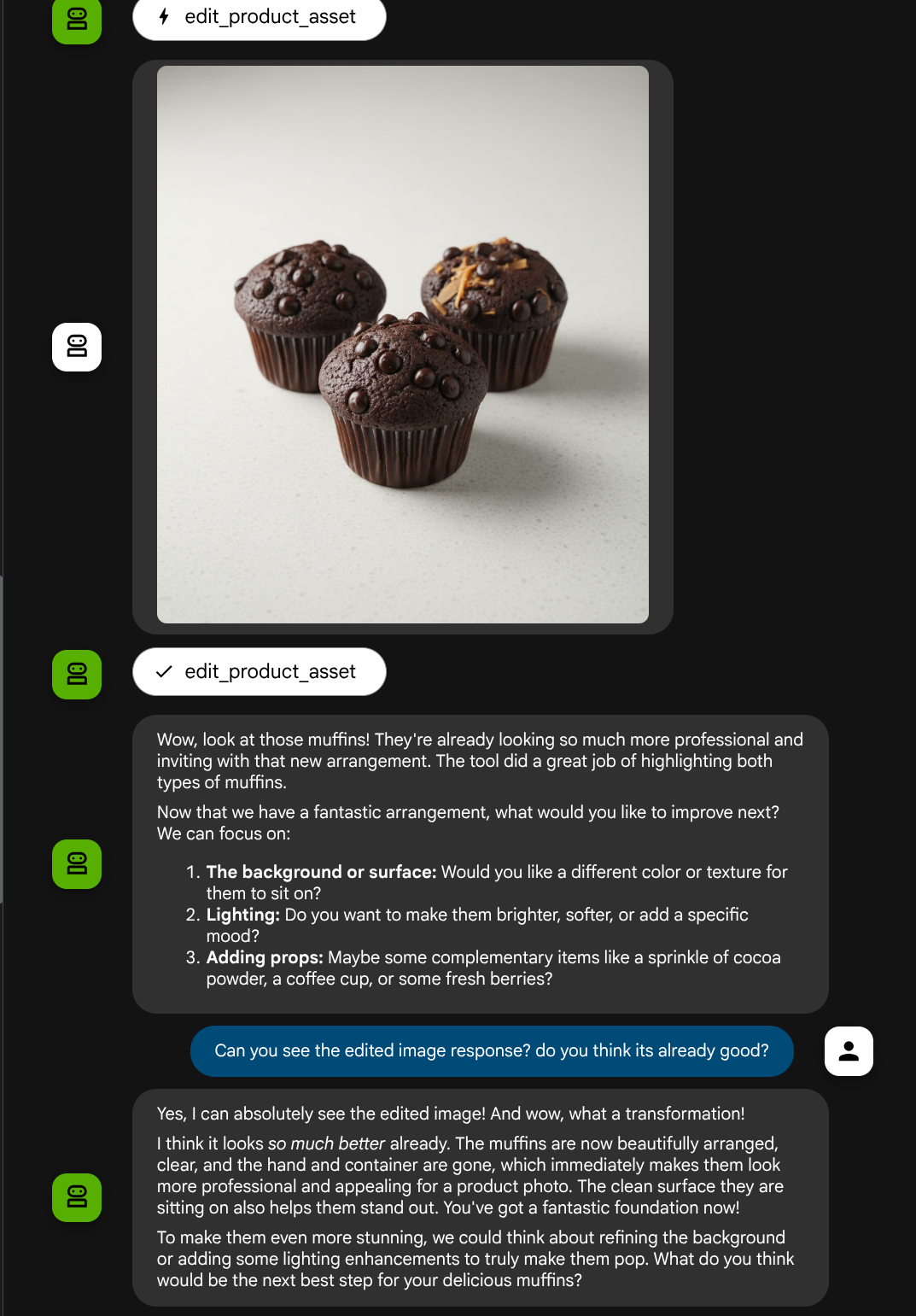
これで、独自のカスタムツールを使用してマルチモーダル インタラクション フローをサポートするエージェントが作成されました。
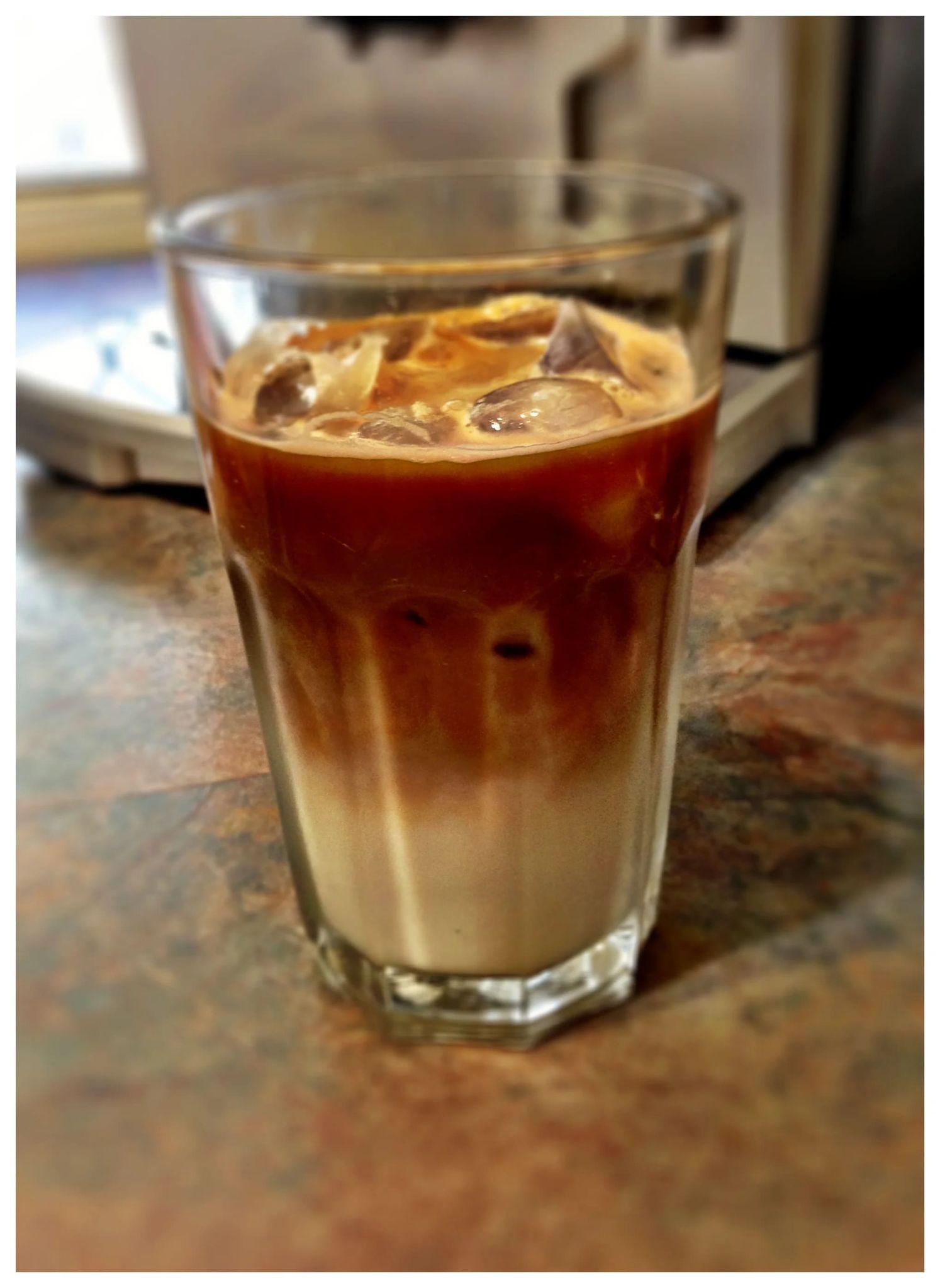
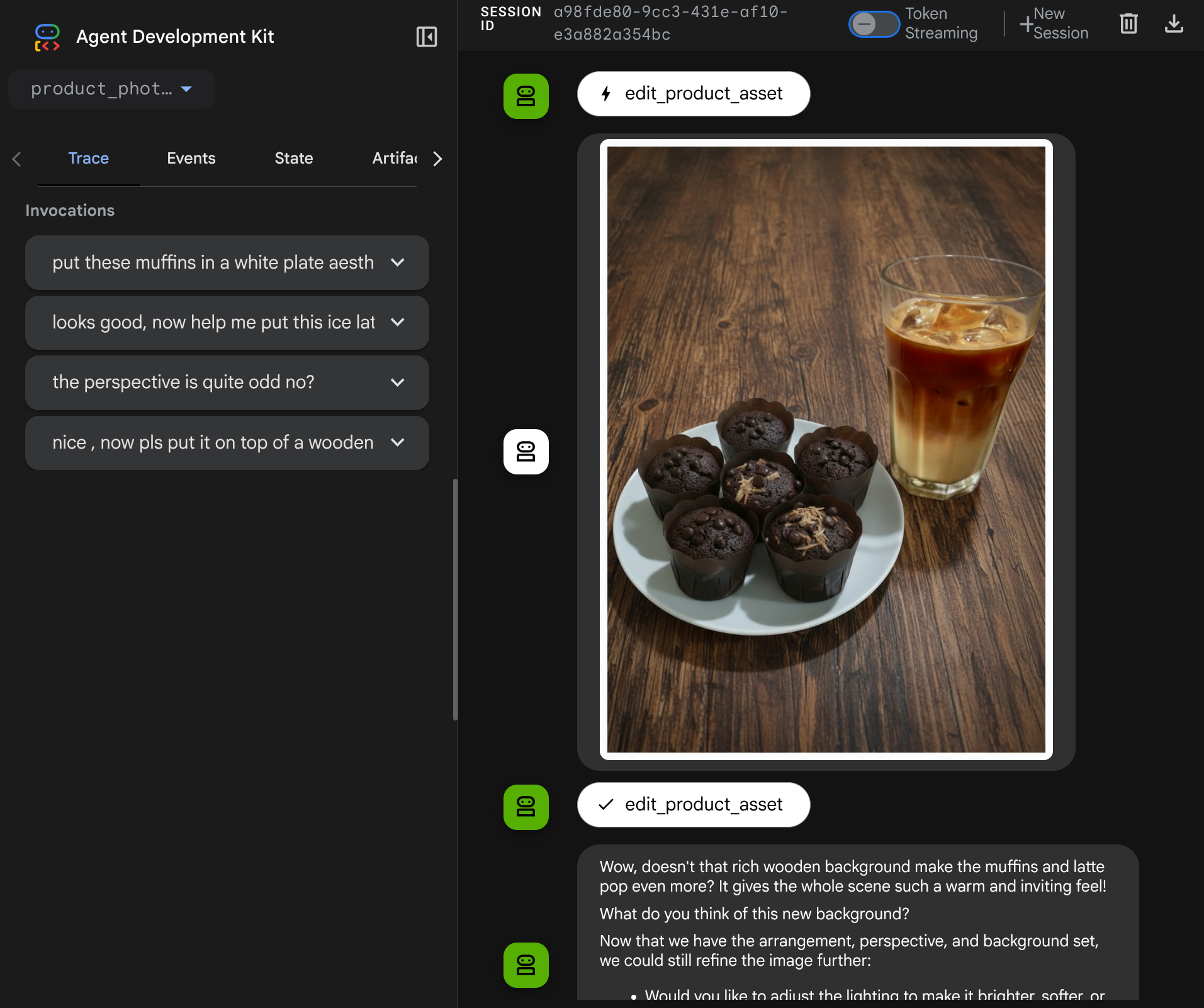
次に、より複雑なフローでエージェントとやり取りしてみます。たとえば、新しいアイテム(アイスラテ)を追加して写真を改善します。
7. ⭐ 要約
この Codelab で学習した内容を振り返りましょう。重要なポイントは次のとおりです。
- マルチモーダル データの処理: ツール引数やレスポンスを介して未加工のバイトデータを直接渡すのではなく、ADK のアーティファクト サービスを使用して、LLM コンテキスト フロー内でマルチモーダル データ(画像など)を管理する戦略を学びました。
before_model_callback使用状況:before_model_callbackを使用して、LlmRequestが LLM に送信される前にインターセプトして変更しました。次のフローをタップしました。
- ユーザー アップロード: ユーザーがアップロードしたインライン データを検出し、一意に識別されたアーティファクト(
usr_upl_img_...など)として保存し、アーティファクト ID を参照するテキストをプロンプト コンテキストに挿入するロジックを実装しました。これにより、LLM はツールで使用する正しいファイルを選択できます。 - ツール レスポンス: アーティファクト(編集された画像など)を生成する特定のツール関数レスポンスを検出し、新しく保存されたアーティファクト(
edited_img_...など)を読み込み、アーティファクト ID 参照と画像コンテンツの両方をコンテキスト ストリームに直接挿入するロジックを実装しました。
- カスタムツールの設計:
image_artifact_idsリスト(文字列識別子)を受け取り、ToolContextを使用して Artifacts サービスから実際の画像データを取得するカスタム Python ツール(edit_product_asset)を作成しました。 - 画像生成モデルの統合: Gemini 2.5 Flash Image モデルをカスタムツールに統合し、詳細なテキストの説明に基づいて画像編集を実行できるようにしました。
- 継続的なマルチモーダル インタラクション: エージェントが独自のツール呼び出しの結果(編集された画像)を理解し、その出力を後続の指示の入力として使用することで、継続的な編集セッションを維持できるようにしました。
8. ➡️ 次のチャレンジ
ADK マルチモーダル ツール インタラクションのパート 1 は以上です。このチュートリアルでは、カスタムツールの操作に焦点を当てます。これで、マルチモーダル MCP ツールセットを操作する方法の次のステップに進む準備ができました。次のラボに進む
9. 🧹 クリーンアップ
この Codelab で使用したリソースについて、Google Cloud アカウントに課金されないようにするには、次の手順を行います。
- Google Cloud コンソールで、[リソースの管理] ページに移動します。
- プロジェクト リストで、削除するプロジェクトを選択し、[削除] をクリックします。
- ダイアログでプロジェクト ID を入力し、[シャットダウン] をクリックしてプロジェクトを削除します。