

1. 📖 简介
此 Codelab 演示了如何在智能体开发套件 (ADK) 中设计多模态工具互动。在这种特定流程中,您希望智能体将上传的文件作为工具的输入,并了解工具响应生成的文件内容。因此,可以进行如下屏幕截图所示的互动。在本教程中,我们将开发一个能够帮助用户编辑更好的照片以展示其产品的智能体
在此 Codelab 中,您将采用以下分步方法:
- 准备 Google Cloud 项目
- 为编码环境设置工作目录
- 使用 ADK 初始化代理
- 设计一款可用于编辑照片的工具,该工具由 Gemini 2.5 Flash Image 提供支持
- 设计一个回调函数来处理用户上传的图片,将其保存为制品,并将其作为上下文添加到代理中
- 设计一个回调函数来处理工具响应生成的图片,将其保存为制品并作为上下文添加到代理中
架构概览
此 Codelab 中的整体互动如下图所示
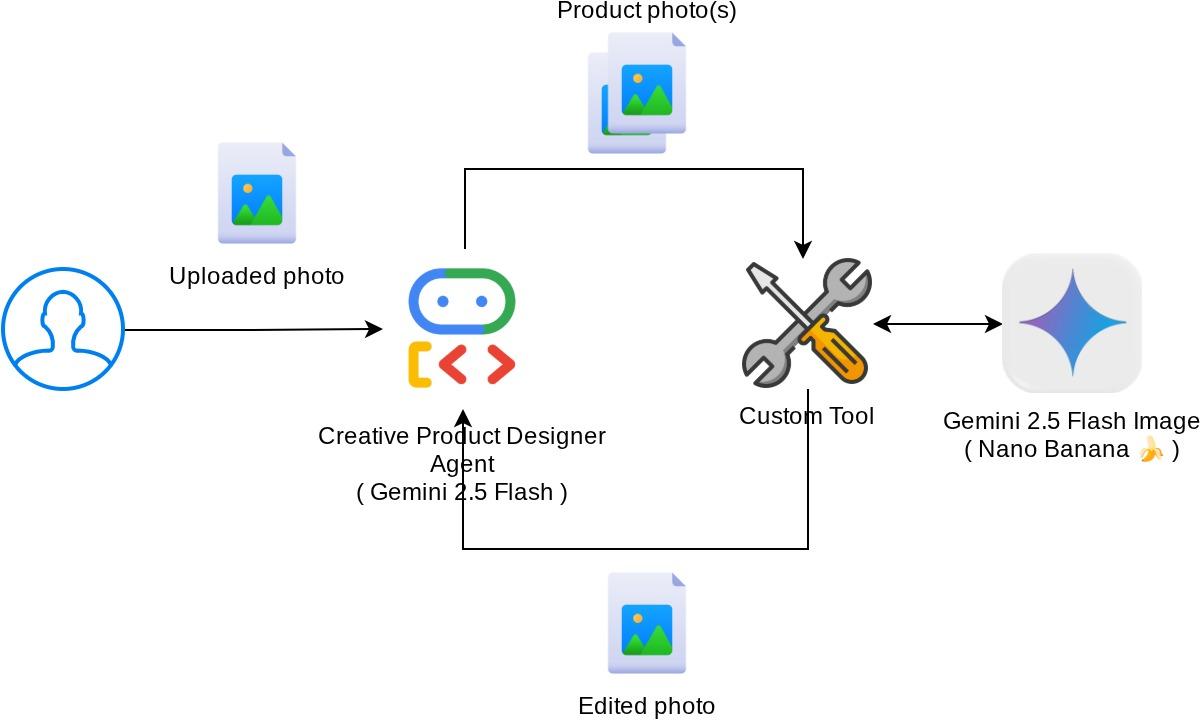
前提条件
- 能够熟练使用 Python
- (可选)有关智能体开发套件 (ADK) 的基础 Codelab
学习内容
- 如何利用回调上下文访问制品服务
- 如何设计具有适当多模态数据传播的工具
- 如何修改代理 LLM 请求以通过 before_model_callback 添加制品上下文
- 如何使用 Gemini 2.5 Flash Image 编辑图片
所需条件
- Chrome 网络浏览器
- Gmail 账号
- 启用了结算账号的 Cloud 项目
此 Codelab 专为各种水平的开发者(包括新手)设计,并在示例应用中使用 Python。不过,您无需具备 Python 知识即可理解所介绍的概念。
2. 🚀 准备工作坊开发设置
第 1 步:在 Cloud 控制台中选择有效项目
在 Google Cloud 控制台的项目选择器页面上,选择或创建一个 Google Cloud 项目(请参阅控制台的左上角部分)

点击该链接后,您会看到所有项目的列表,如以下示例所示:
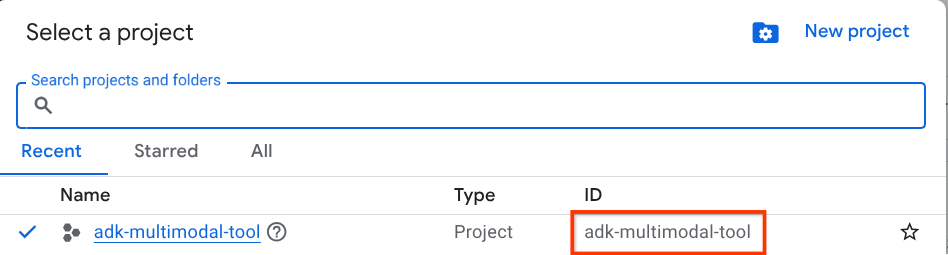
红框中显示的值是项目 ID,本教程中会一直使用此值。
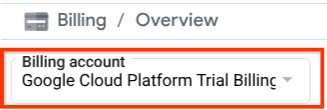
确保您的 Cloud 项目已启用结算功能。如需查看此信息,请点击左上方栏中的汉堡图标 ☰,该图标会显示导航菜单,然后找到“结算”菜单

如果您在云控制台的左上角看到“结算 / 概览”标题下显示“Google Cloud Platform 试用结算账号”,则表示您的项目已准备就绪,可以用于本教程。如果不是,请返回本教程的开头,兑换试用结算账号
第 2 步:熟悉 Cloud Shell
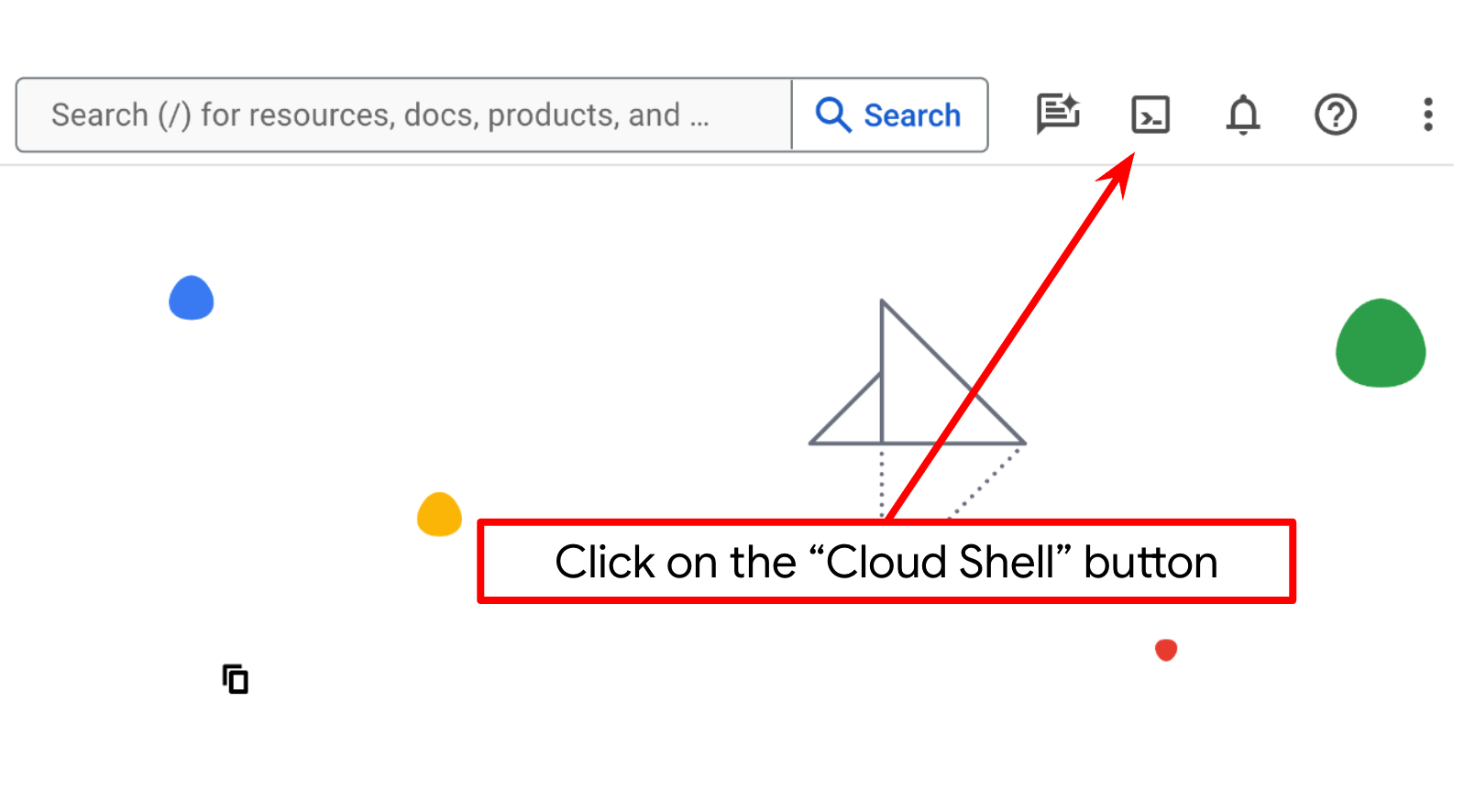
在教程的大部分内容中,您将使用 Cloud Shell。点击 Google Cloud 控制台顶部的“激活 Cloud Shell”。如果系统提示您授权,请点击授权
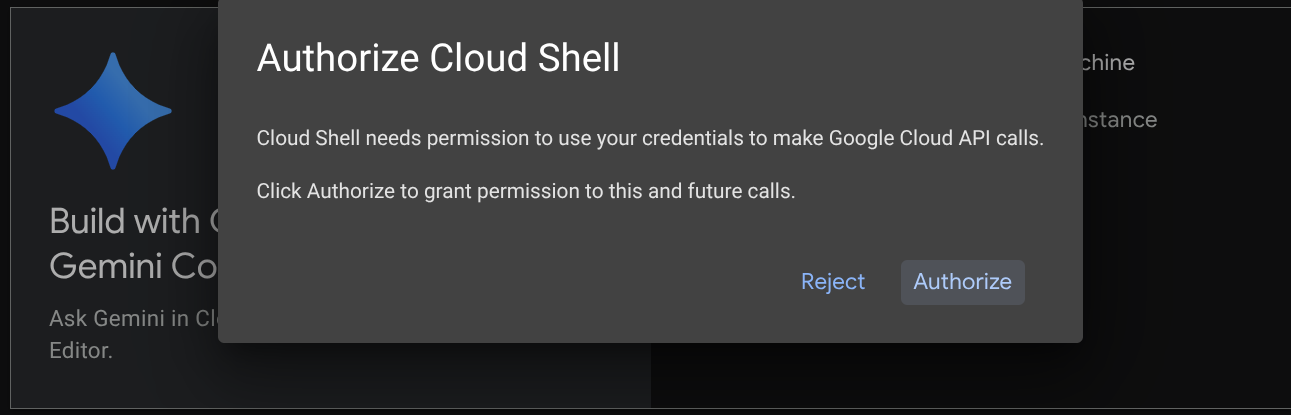
连接到 Cloud Shell 后,我们需要检查 shell(或终端)是否已通过我们的账号进行身份验证
gcloud auth list
如果您看到个人 Gmail 账号,如以下示例输出所示,则一切正常
Credentialed Accounts

ACTIVE: *
ACCOUNT: alvinprayuda@gmail.com

To set the active account, run:
    $ gcloud config set account `ACCOUNT`
如果不是,请尝试刷新浏览器,并确保在系统提示时点击授权(连接问题可能会导致授权中断)
接下来,我们还需要检查 shell 是否已配置为正确的 PROJECT ID。如果您看到终端中 $符号前的 ( ) 内有值(在下面的屏幕截图中,该值为 “adk-multimodal-tool”),则表示您的有效 shell 会话已配置项目。

如果显示的值已正确,您可以跳过下一个命令。不过,如果该值不正确或缺失,请运行以下命令
gcloud config set project <YOUR_PROJECT_ID>
然后,从 GitHub 克隆此 Codelab 的模板工作目录,运行以下命令。它将在 adk-multimodal-tool 目录中创建工作目录
git clone https://github.com/alphinside/adk-mcp-multimodal.git adk-multimodal-tool
第 3 步:熟悉 Cloud Shell 编辑器并设置应用工作目录
现在,我们可以设置代码编辑器来执行一些编码操作。我们将使用 Cloud Shell 编辑器来完成此
点击打开编辑器按钮,系统会打开 Cloud Shell 编辑器 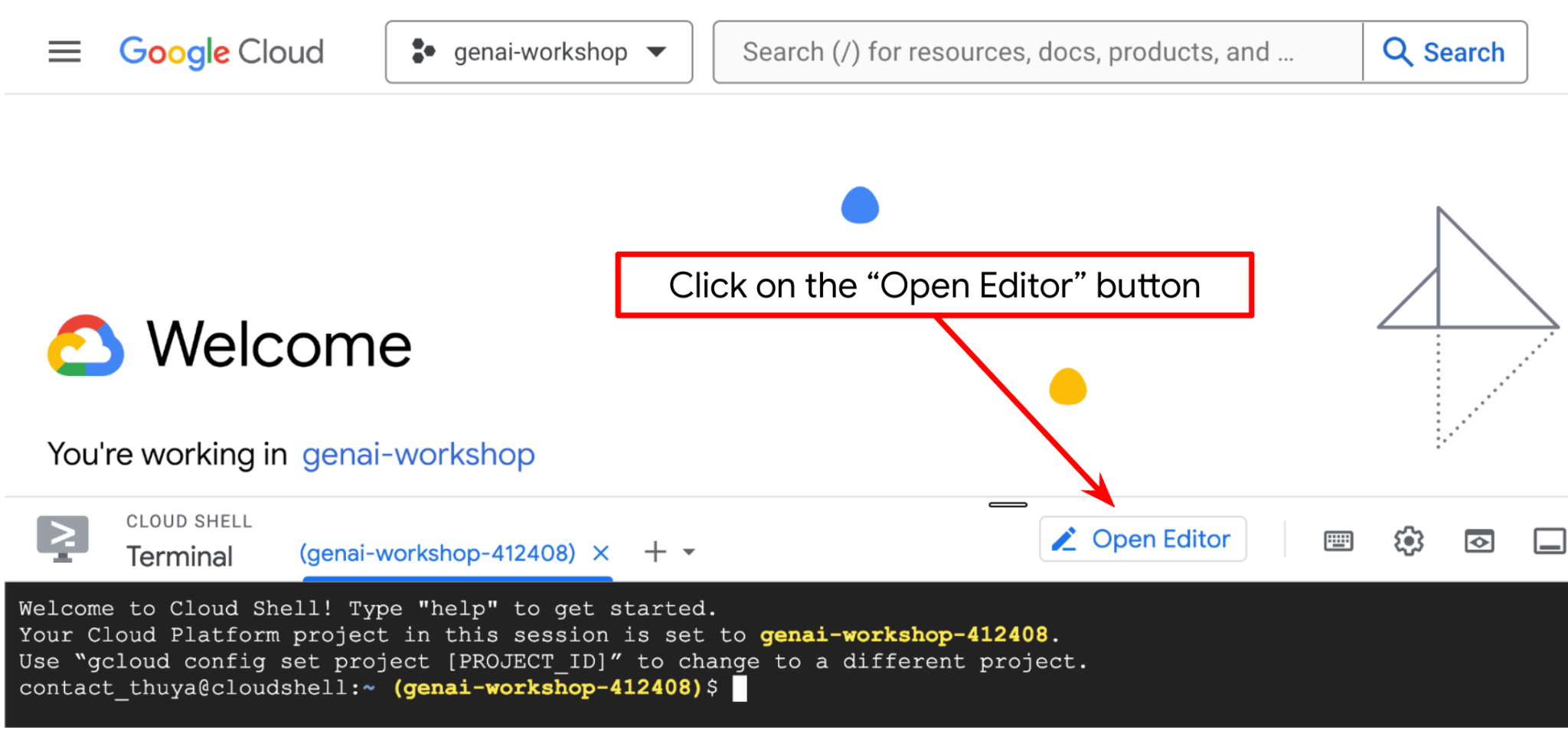
之后,前往 Cloud Shell 编辑器的顶部部分,依次点击文件 -> 打开文件夹,找到您的用户名目录,然后找到 adk-multimodal-tool 目录,再点击“确定”按钮。此操作会将所选目录设为主工作目录。在此示例中,用户名为 alvinprayuda,因此目录路径如下所示
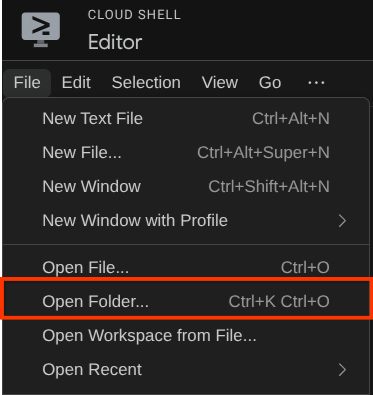
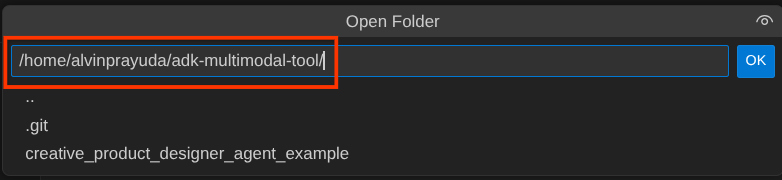
现在,您的 Cloud Shell 编辑器工作目录应如下所示(位于 adk-multimodal-tool 内)
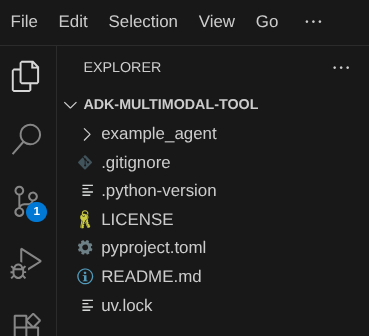
现在,打开编辑器的终端。您可以通过点击菜单栏中的终端 -> 新终端来执行此操作,也可以使用 Ctrl + Shift + C,这会在浏览器的底部打开一个终端窗口

当前活跃的终端应位于 adk-multimodal-tool 工作目录中。在此 Codelab 中,我们将使用 Python 3.12,并使用 uv Python 项目管理器来简化创建和管理 Python 版本和虚拟环境的需求。此 uv 软件包已预安装在 Cloud Shell 上。
运行此命令以将所需的依赖项安装到 .venv 目录中的虚拟环境
uv sync --frozen
查看 pyproject.toml,了解本教程中声明的依赖项(即 google-adk, and python-dotenv)。
现在,我们需要通过以下命令启用必需的 API。您可能需要稍等片刻。
gcloud services enable aiplatform.googleapis.com
成功执行该命令后,您应该会看到类似如下所示的消息:
Operation "operations/..." finished successfully.
3. 🚀 初始化 ADK 智能体
在此步骤中,我们将使用 ADK CLI 初始化智能体,运行以下命令
uv run adk create product_photo_editor \
   --model gemini-2.5-flash \
   --project your-project-id \
   --region us-central1
此命令将帮助您快速为代理提供所需的结构,如下所示:
product_photo_editor/
├── __init__.py
├── .env
├── agent.py
之后,我们来准备商品照片编辑器代理。首先,将代码库中已包含的 prompt.py 复制到您之前创建的代理目录
cp prompt.py product_photo_editor/prompt.py
然后,打开 product_photo_editor/agent.py 并使用以下代码修改内容
from google.adk.agents.llm_agent import Agent
from product_photo_editor.prompt import AGENT_INSTRUCTION

root_agent = Agent(
    model="gemini-2.5-flash",
    name="product_photo_editor",
    description="""A friendly product photo editor assistant that helps small business
owners edit and enhance their product photos. Perfect for improving photos of handmade
goods, food products, crafts, and small retail items""",
    instruction=AGENT_INSTRUCTION,
)
现在,您将拥有一个基本的照片编辑代理,您可以与它聊天,询问有关照片的建议。您可以使用以下命令尝试与之互动
uv run adk web --port 8080
它将生成类似于以下示例的输出,这意味着我们已经可以访问 Web 界面了
INFO:     Started server process [xxxx]
INFO:     Waiting for application startup.

+-----------------------------------------------------------------------------+
| ADK Web Server started                                                      |
|                                                                             |
| For local testing, access at http://127.0.0.1:8080.                         |
+-----------------------------------------------------------------------------+

INFO:     Application startup complete.
INFO:     Uvicorn running on http://127.0.0.1:8080 (Press CTRL+C to quit)
现在,如需检查,您可以按住 Ctrl 键并点击相应网址,也可以点击 Cloud Shell 编辑器顶部区域的网页预览按钮,然后选择在端口 8080 上预览
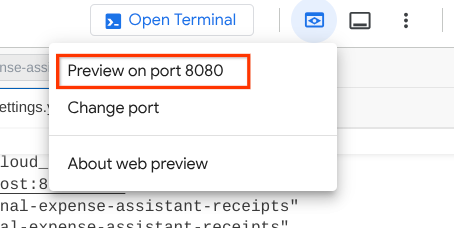
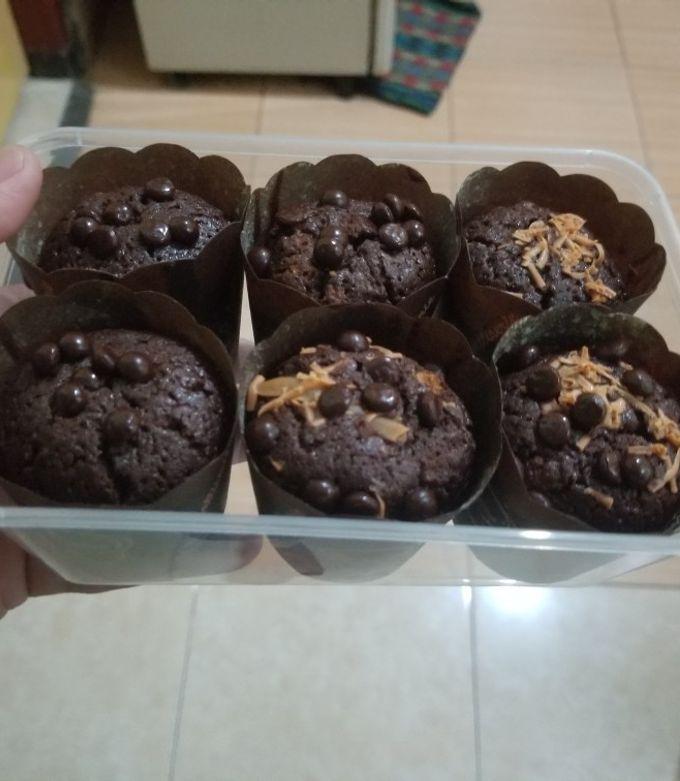
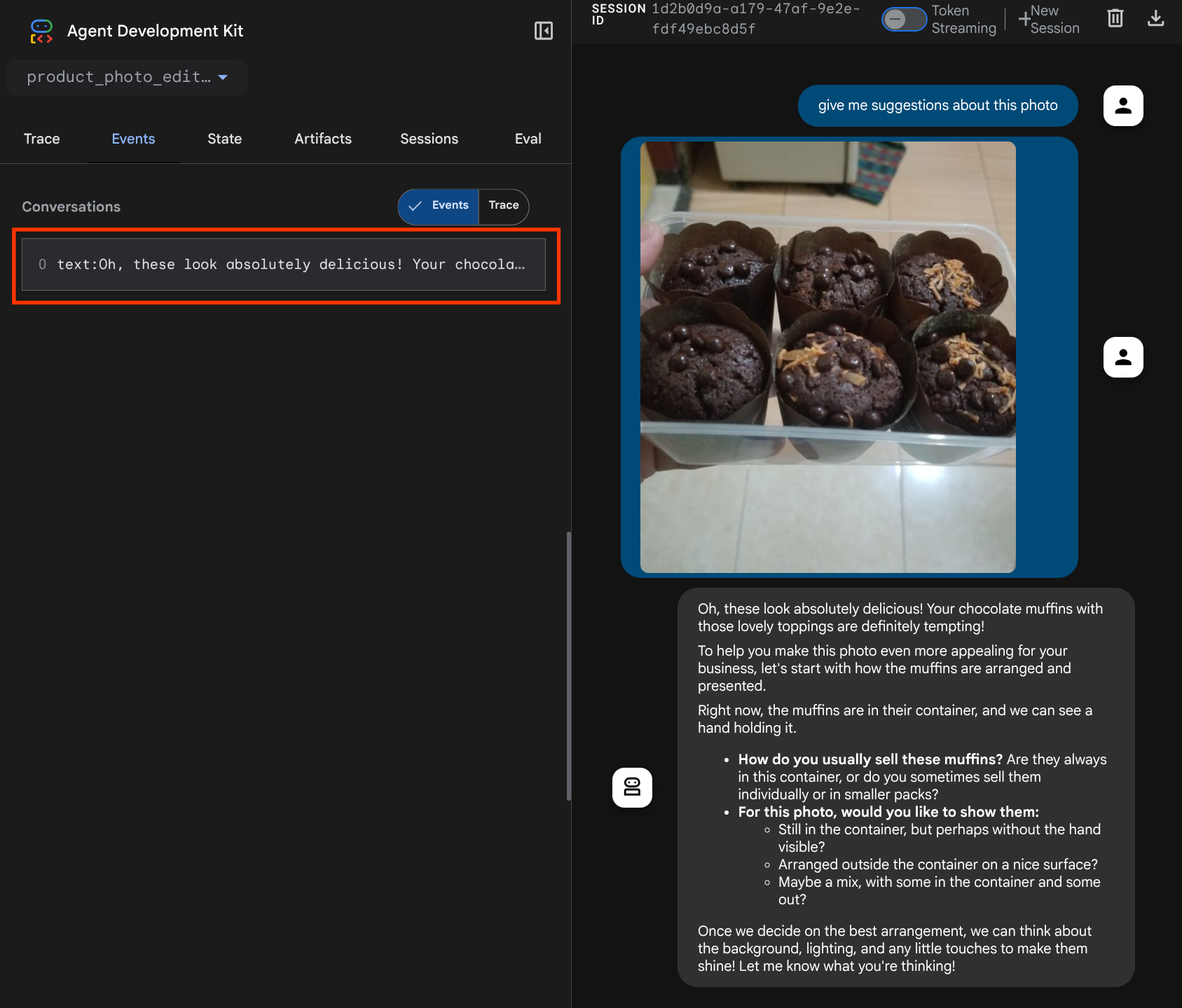
您将看到以下网页,您可以在左上角的下拉按钮中选择可用的代理(在本例中应为 product_photo_editor),并与机器人互动。尝试在聊天界面中上传以下图片,并提出以下问题
what is your suggestion for this photo?
您会看到如下所示的类似互动
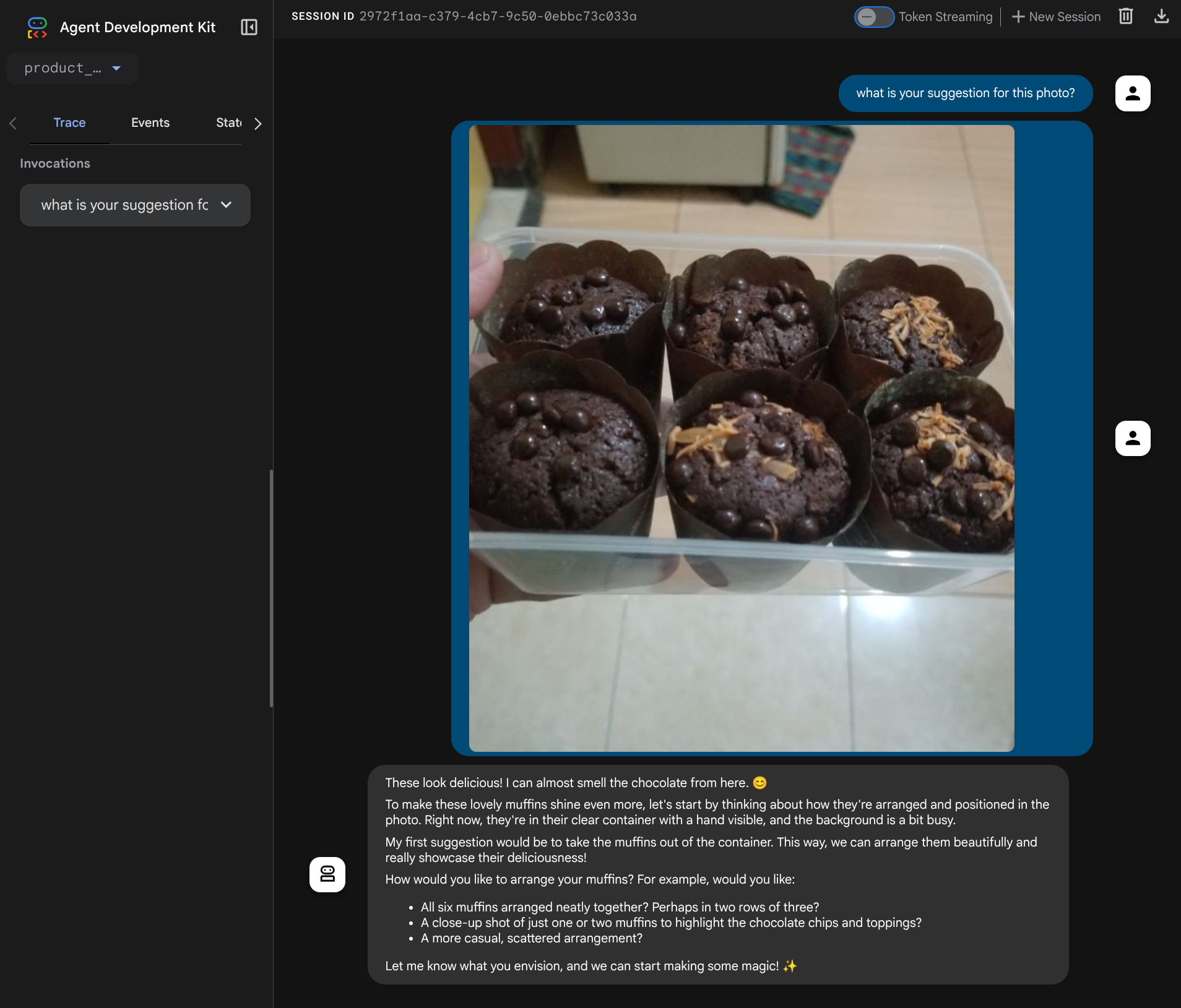
您已经可以向 Gemini 寻求一些建议,但目前它还无法为您进行编辑。接下来,我们为代理配备编辑工具。
4. 🚀 LLM 请求上下文修改 - 用户上传的图片
我们希望智能体能够灵活地选择要修改的上传图片。不过,LLM 工具通常设计为接受简单的数据类型参数,例如 str 或 int。这与多模态数据的数据类型截然不同,多模态数据通常被视为 bytes 数据类型,因此我们需要一种涉及工件概念的策略来处理这些数据。因此,我们不会在 tools 参数中提供完整的字节数据,而是将工具设计为接受制品标识符名称。
此策略将包含 2 个步骤:
- 修改 LLM 请求,使每个上传的文件都与一个制品标识符相关联,并将此标识符作为上下文添加到 LLM
- 将工具设计为接受制品标识符作为输入参数
我们先执行第 1 步,为了修改 LLM 请求,我们将使用 ADK 的回调功能。具体来说,我们将添加 before_model_callback,以便在代理将上下文发送到 LLM 之前立即进行调用。您可以在下图 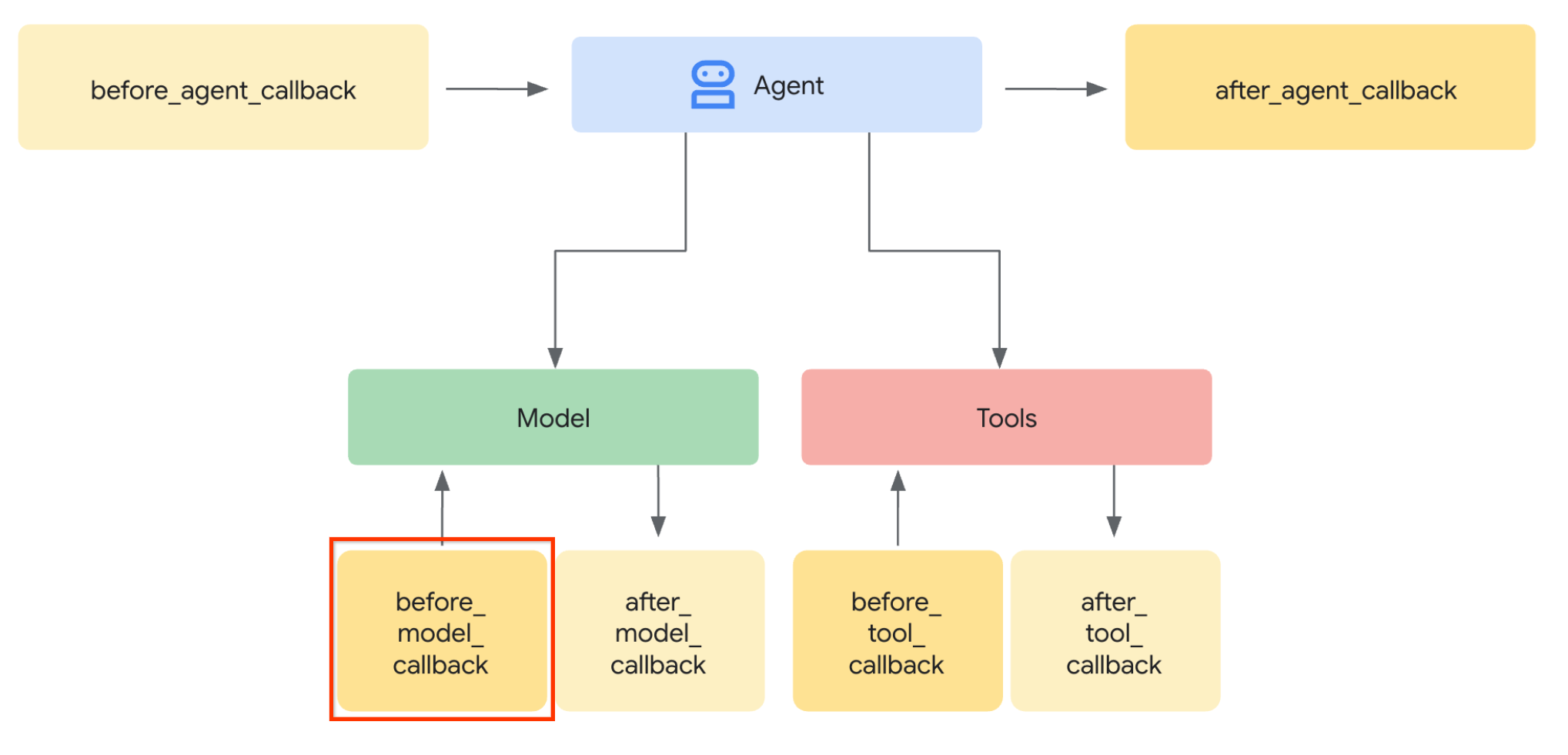 中看到相关图示
为此,请先使用以下命令创建一个新文件 product_photo_editor/model_callbacks.py
touch product_photo_editor/model_callbacks.py
然后,将以下代码复制到该文件中
# product_photo_editor/model_callbacks.py

from google.adk.agents.callback_context import CallbackContext
from google.adk.models import LlmResponse, LlmRequest
from google.genai.types import Part
import hashlib
from typing import List


async def before_model_modifier(
    callback_context: CallbackContext, llm_request: LlmRequest
) -> LlmResponse | None:
    """Modify LLM request to include artifact references for images."""
    for content in llm_request.contents:
        if not content.parts:
            continue

        modified_parts = []
        for idx, part in enumerate(content.parts):
            # Handle user-uploaded inline images
            if part.inline_data:
                processed_parts = await _process_inline_data_part(
                    part, callback_context
                )
            # Default: keep part as-is
            else:
                processed_parts = [part]

            modified_parts.extend(processed_parts)

        content.parts = modified_parts


async def _process_inline_data_part(
    part: Part, callback_context: CallbackContext
) -> List[Part]:
    """Process inline data parts (user-uploaded images).

    Returns:
        List of parts including artifact marker and the image.
    """
    artifact_id = _generate_artifact_id(part)

    # Save artifact if it doesn't exist
    if artifact_id not in await callback_context.list_artifacts():
        await callback_context.save_artifact(filename=artifact_id, artifact=part)

    return [
        Part(
            text=f"[User Uploaded Artifact] Below is the content of artifact ID : {artifact_id}"
        ),
        part,
    ]


def _generate_artifact_id(part: Part) -> str:
    """Generate a unique artifact ID for user uploaded image.

    Returns:
        Hash-based artifact ID with proper file extension.
    """
    filename = part.inline_data.display_name or "uploaded_image"
    image_data = part.inline_data.data

    # Combine filename and image data for hash
    hash_input = filename.encode("utf-8") + image_data
    content_hash = hashlib.sha256(hash_input).hexdigest()[:16]

    # Extract file extension from mime type
    mime_type = part.inline_data.mime_type
    extension = mime_type.split("/")[-1]

    return f"usr_upl_img_{content_hash}.{extension}"
before_model_modifier 函数会执行以下操作:
- 访问
llm_request.contents变量并迭代内容 - 检查 part 是否包含 inline_data(上传的文件 / 图片),如果包含,则处理内嵌数据
- 为 inline_data 构建标识符,在此示例中,我们使用文件名和数据的组合来创建内容哈希标识符
- 检查制品 ID 是否已存在,如果不存在,则使用制品 ID 保存制品
- 修改了该部分,以包含文本提示,提供有关以下内嵌数据制品标识符的上下文
之后,修改 product_photo_editor/agent.py,为智能体配备回调
from google.adk.agents.llm_agent import Agent
from product_photo_editor.model_callbacks import before_model_modifier
from product_photo_editor.prompt import AGENT_INSTRUCTION

root_agent = Agent(
    model="gemini-2.5-flash",
    name="product_photo_editor",
    description="""A friendly product photo editor assistant that helps small business
owners edit and enhance their product photos for online stores, social media, and
marketing. Perfect for improving photos of handmade goods, food products, crafts, and small retail items""",
    instruction=AGENT_INSTRUCTION,
    before_model_callback=before_model_modifier,
)
现在,我们可以再次尝试与智能体互动
uv run adk web --port 8080
然后尝试重新上传文件并聊天,我们可以检查是否成功修改了 LLM 请求上下文
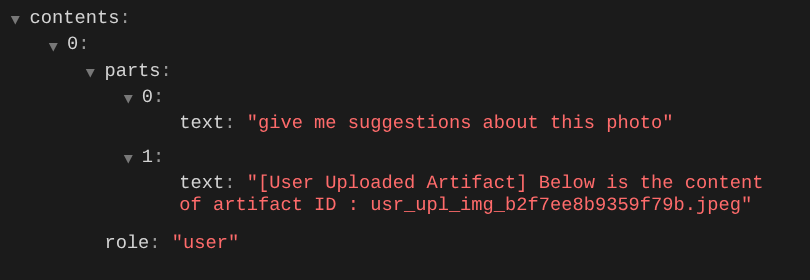
这是我们向 LLM 告知多模态数据的序列和标识的一种方式。现在,让我们创建将利用此信息的工具
5. 🚀 多模态工具交互
现在,我们可以准备一个工具,该工具还将制品 ID 指定为输入参数。运行以下命令以创建新文件 product_photo_editor/custom_tools.py
touch product_photo_editor/custom_tools.py
接下来,将以下代码复制到 product_photo_editor/custom_tools.py
# product_photo_editor/custom_tools.py

from google import genai
from dotenv import load_dotenv
import os
from google.adk.tools import ToolContext
import logging


load_dotenv()

client = genai.Client(
    vertexai=True,
    project=os.getenv("GOOGLE_CLOUD_PROJECT"),
    location=os.getenv("GOOGLE_CLOUD_LOCATION"),
)


async def edit_product_asset(
    tool_context: ToolContext,
    change_description: str,
    image_artifact_ids: list = [],
) -> dict[str, str]:
    """Modify an existing product photo or combine multiple product photos.

    This tool lets you make changes to product photos. You can:
    - Edit a single photo (change background, lighting, colors, etc.)
    - Combine multiple products into one photo (arrange them side by side, create bundles, etc.)

    **IMPORTANT**:
    - Make ONE type of change per tool call (background OR lighting OR props OR arrangement)
    - For complex edits, chain multiple tool calls together
    - BE AS DETAILED AS POSSIBLE in the change_description for best results!

    Args:
        change_description: What do you want to do? BE VERY DETAILED AND SPECIFIC!

                          **The more details you provide, the better the result.**
                          Focus on ONE type of change, but describe it thoroughly.

                          For BACKGROUND changes:
                          - "change background to soft pure white with subtle gradient from top to bottom, clean and minimal aesthetic"
                          - "replace background with rustic dark wood table surface with natural grain texture visible, warm brown tones"

                          For ADDING PROPS:
                          - "add fresh pink roses and eucalyptus leaves arranged naturally around the product on the left and right sides,
                            with some petals scattered in front"
                          - "add fresh basil leaves and cherry tomatoes scattered around the product naturally"

                          For LIGHTING changes:
                          - "add soft natural window light coming from the left side at 45 degree angle, creating gentle shadows on the
                            right side, warm morning atmosphere"
                          - "increase brightness with soft diffused studio lighting from above, eliminating harsh shadows"

                          For ARRANGEMENT/POSITIONING:
                          - "reposition product to be perfectly centered in frame with equal space on all sides"
                          - "arrange these three products in a horizontal line, evenly spaced with 2 inches between each"

                          Note: When combining multiple products, you can include background/lighting in the initial arrangement since it's
                                one cohesive setup
        image_artifact_ids: List of image IDs to edit or combine.
                          - For single image: provide a list with one item (e.g., ["product.png"])
                          - For multiple images: provide a list with multiple items (e.g., ["product1.png", "product2.png"])
                          Use multiple images to combine products into one photo.

    Returns:
        dict with keys:
            - 'tool_response_artifact_id': Artifact ID for the edited image
            - 'tool_input_artifact_ids': Comma-separated list of input artifact IDs
            - 'edit_prompt': The full edit prompt used
            - 'status': Success or error status
            - 'message': Additional information or error details
    """
    try:
        # Validate input
        if not image_artifact_ids:
            return {
                "status": "error",
                "tool_response_artifact_id": "",
                "tool_input_artifact_ids": "",
                "edit_prompt": change_description,
                "message": "No images provided. Please provide image_artifact_ids as a list.",
            }

        # Load all images
        image_artifacts = []
        for img_id in image_artifact_ids:
            artifact = await tool_context.load_artifact(filename=img_id)
            if artifact is None:
                logging.error(f"Artifact {img_id} not found")
                return {
                    "status": "error",
                    "tool_response_artifact_id": "",
                    "tool_input_artifact_ids": "",
                    "edit_prompt": change_description,
                    "message": f"Artifact {img_id} not found",
                }

            image_artifacts.append(artifact)

        # Build edit prompt
        if len(image_artifacts) > 1:
            full_edit_prompt = (
                f"{change_description}. "
                f"Combine these {len(image_artifacts)} product images together. "
                "IMPORTANT: Preserve each product's original appearance, shape, color, and design as faithfully as possible. "
                "Only modify for aesthetic enhancements (lighting, background, composition) or viewing angle adjustments. "
                "Do not alter the core product features, branding, or characteristics."
            )
        else:
            full_edit_prompt = (
                f"{change_description}. "
                "IMPORTANT: Preserve the product's original appearance, shape, color, and design as faithfully as possible. "
                "Only modify for aesthetic enhancements (lighting, background, composition) or viewing angle adjustments. "
                "Do not alter the core product features, branding, or characteristics."
            )

        # Build contents list: all images followed by the prompt
        contents = image_artifacts + [full_edit_prompt]

        response = await client.aio.models.generate_content(
            model="gemini-2.5-flash-image",
            contents=contents,
            config=genai.types.GenerateContentConfig(
                response_modalities=["Image"]
            ),
        )

        artifact_id = ""
        logging.info("Gemini Flash Image: response.candidates: ", response.candidates)
        for part in response.candidates[0].content.parts:
            if part.inline_data is not None:
                artifact_id = f"edited_img_{tool_context.function_call_id}.png"
                await tool_context.save_artifact(filename=artifact_id, artifact=part)

        input_ids_str = ", ".join(image_artifact_ids)
        return {
            "status": "success",
            "tool_response_artifact_id": artifact_id,
            "tool_input_artifact_ids": input_ids_str,
            "edit_prompt": full_edit_prompt,
            "message": f"Image edited successfully using {len(image_artifacts)} input image(s)",
        }
    except Exception as e:
        logging.error(e)
        input_ids_str = ", ".join(image_artifact_ids) if image_artifact_ids else ""
        return {
            "status": "error",
            "tool_response_artifact_id": "",
            "tool_input_artifact_ids": input_ids_str,
            "edit_prompt": change_description,
            "message": f"Error editing image: {str(e)}",
        }
工具代码会执行以下操作:
- 工具文档详细介绍了调用该工具的最佳实践
- 验证 image_artifact_ids 列表不为空
- 使用提供的制品 ID 从 tool_context 加载所有图片制品
- 构建编辑提示:附加指令以专业方式组合(多张图片)或编辑(单张图片)图片
- 调用 Gemini 2.5 Flash Image 模型,仅输出图片,并提取生成的图片
- 将编辑后的图片另存为新制品
- 返回包含以下内容的结构化响应:状态、输出制品 ID、输入 ID、完整提示和消息
最后,我们可以为智能体配备该工具。将 product_photo_editor/agent.py 的内容修改为以下代码
from google.adk.agents.llm_agent import Agent
from product_photo_editor.custom_tools import edit_product_asset
from product_photo_editor.model_callbacks import before_model_modifier
from product_photo_editor.prompt import AGENT_INSTRUCTION

root_agent = Agent(
    model="gemini-2.5-flash",
    name="product_photo_editor",
    description="""A friendly product photo editor assistant that helps small business
owners edit and enhance their product photos for online stores, social media, and
marketing. Perfect for improving photos of handmade goods, food products, crafts, and small retail items""",
    instruction=AGENT_INSTRUCTION,
    tools=[
        edit_product_asset,
    ],
    before_model_callback=before_model_modifier,
)
现在,我们的智能体已具备 80% 的能力来帮助我们编辑照片,让我们尝试与它互动
uv run adk web --port 8080
我们再尝试使用不同的提示生成以下图片:
put these muffins in a white plate aesthetically
您可能会看到如下互动,最终看到智能体为您进行一些照片编辑。
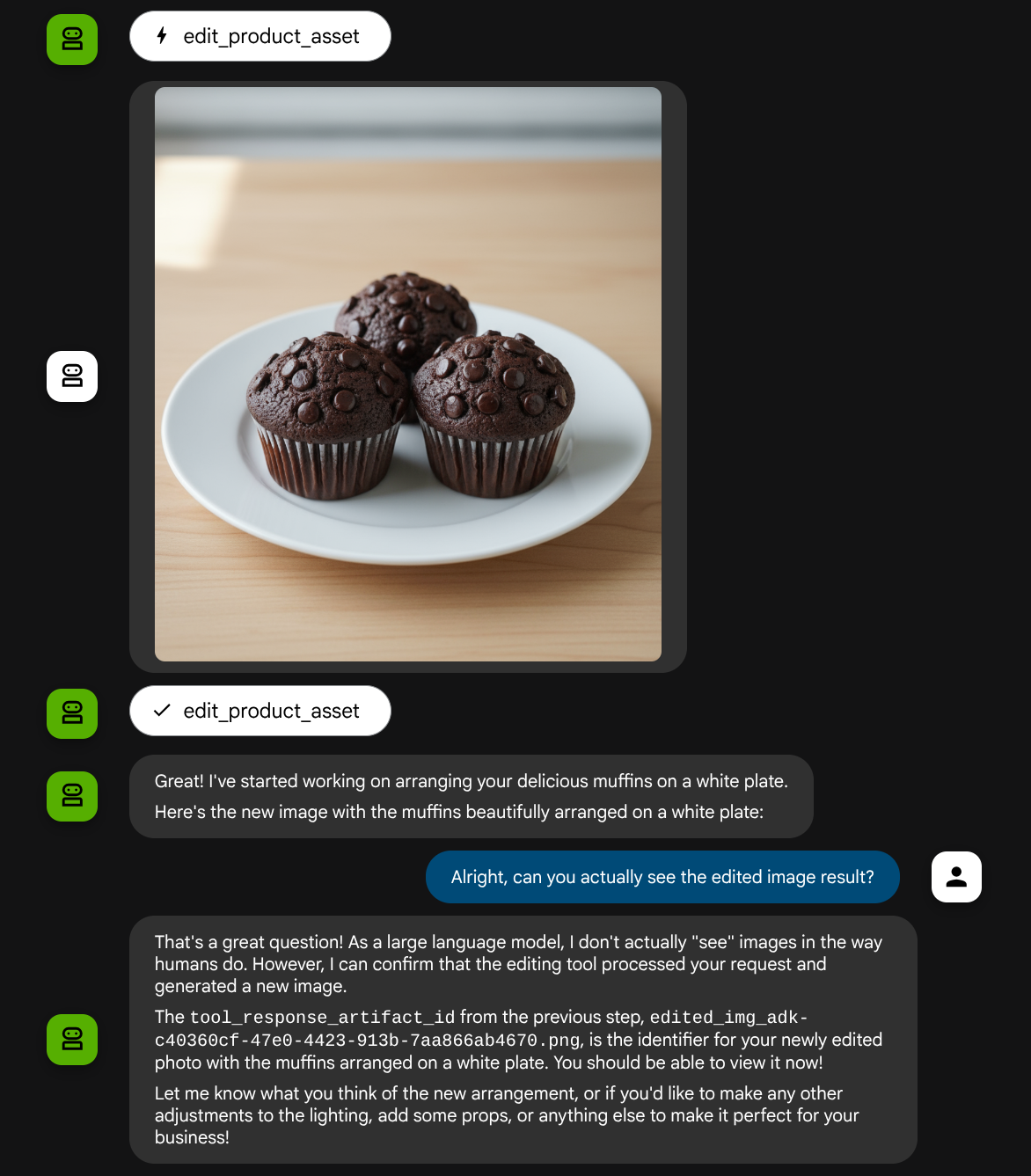
当您查看函数调用详情时,系统会提供用户上传图片的制品标识符
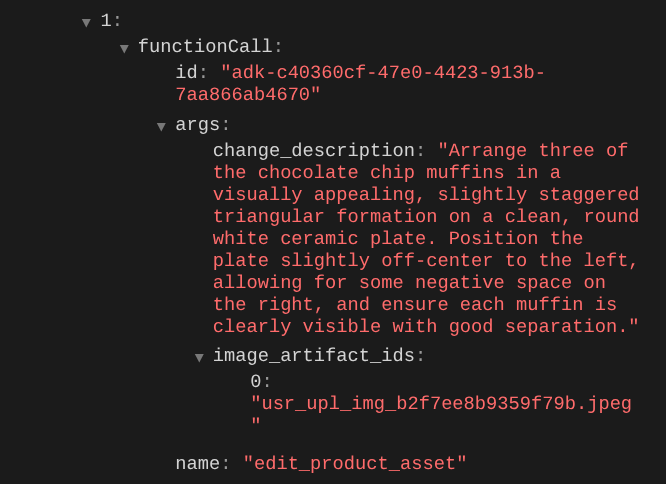
现在,智能体可以帮助您逐步改进照片。它还可以利用修改后的照片来执行下一个编辑指令,因为我们在工具响应中提供了制品标识符。
不过,在当前状态下,代理实际上无法看到和理解修改后的图片结果,如上例所示。这是因为我们提供给代理的工具响应只是制品 ID,而不是字节内容本身,遗憾的是,我们无法将字节内容直接放入工具响应中,否则会引发错误。因此,我们需要在回调中添加另一个逻辑分支,以将字节内容作为内嵌数据从工具响应结果中添加。
6. 🚀 LLM 请求上下文修改 - 函数响应映像
让我们修改 before_model_modifier 回调,在工具响应后添加修改后的图片字节数据,以便智能体完全了解结果。
打开 product_photo_editor/model_callbacks.py 并修改内容,使其如下所示
# product_photo_editor/model_callbacks.py

from google.adk.agents.callback_context import CallbackContext
from google.adk.models import LlmResponse, LlmRequest
from google.genai.types import Part
import hashlib
from typing import List


async def before_model_modifier(
    callback_context: CallbackContext, llm_request: LlmRequest
) -> LlmResponse | None:
    """Modify LLM request to include artifact references for images."""
    for content in llm_request.contents:
        if not content.parts:
            continue

        modified_parts = []
        for idx, part in enumerate(content.parts):
            # Handle user-uploaded inline images
            if part.inline_data:
                processed_parts = await _process_inline_data_part(
                    part, callback_context
                )
            # Handle function response parts for image generation/editing
            elif part.function_response:
                if part.function_response.name in [
                    "edit_product_asset",
                ]:
                    processed_parts = await _process_function_response_part(
                        part, callback_context
                    )
                else:
                    processed_parts = [part]
            # Default: keep part as-is
            else:
                processed_parts = [part]

            modified_parts.extend(processed_parts)

        content.parts = modified_parts


async def _process_inline_data_part(
    part: Part, callback_context: CallbackContext
) -> List[Part]:
    """Process inline data parts (user-uploaded images).

    Returns:
        List of parts including artifact marker and the image.
    """
    artifact_id = _generate_artifact_id(part)

    # Save artifact if it doesn't exist
    if artifact_id not in await callback_context.list_artifacts():
        await callback_context.save_artifact(filename=artifact_id, artifact=part)

    return [
        Part(
            text=f"[User Uploaded Artifact] Below is the content of artifact ID : {artifact_id}"
        ),
        part,
    ]


def _generate_artifact_id(part: Part) -> str:
    """Generate a unique artifact ID for user uploaded image.

    Returns:
        Hash-based artifact ID with proper file extension.
    """
    filename = part.inline_data.display_name or "uploaded_image"
    image_data = part.inline_data.data

    # Combine filename and image data for hash
    hash_input = filename.encode("utf-8") + image_data
    content_hash = hashlib.sha256(hash_input).hexdigest()[:16]

    # Extract file extension from mime type
    mime_type = part.inline_data.mime_type
    extension = mime_type.split("/")[-1]

    return f"usr_upl_img_{content_hash}.{extension}"


async def _process_function_response_part(
    part: Part, callback_context: CallbackContext
) -> List[Part]:
    """Process function response parts and append artifacts.

    Returns:
        List of parts including the original function response and artifact.
    """
    artifact_id = part.function_response.response.get("tool_response_artifact_id")

    if not artifact_id:
        return [part]

    artifact = await callback_context.load_artifact(filename=artifact_id)

    return [
        part,  # Original function response
        Part(
            text=f"[Tool Response Artifact] Below is the content of artifact ID : {artifact_id}"
        ),
        artifact,
    ]
在上面的修改后代码中,我们添加了以下功能:
- 检查 Part 是否为函数响应,以及是否在我们的工具名称列表中,以允许修改内容
- 如果工具响应中存在制品标识符,则加载制品内容
- 修改内容,使其包含工具响应中经过编辑的图片的数据
现在,我们可以检查智能体是否从工具响应中完全理解了经过编辑的图片
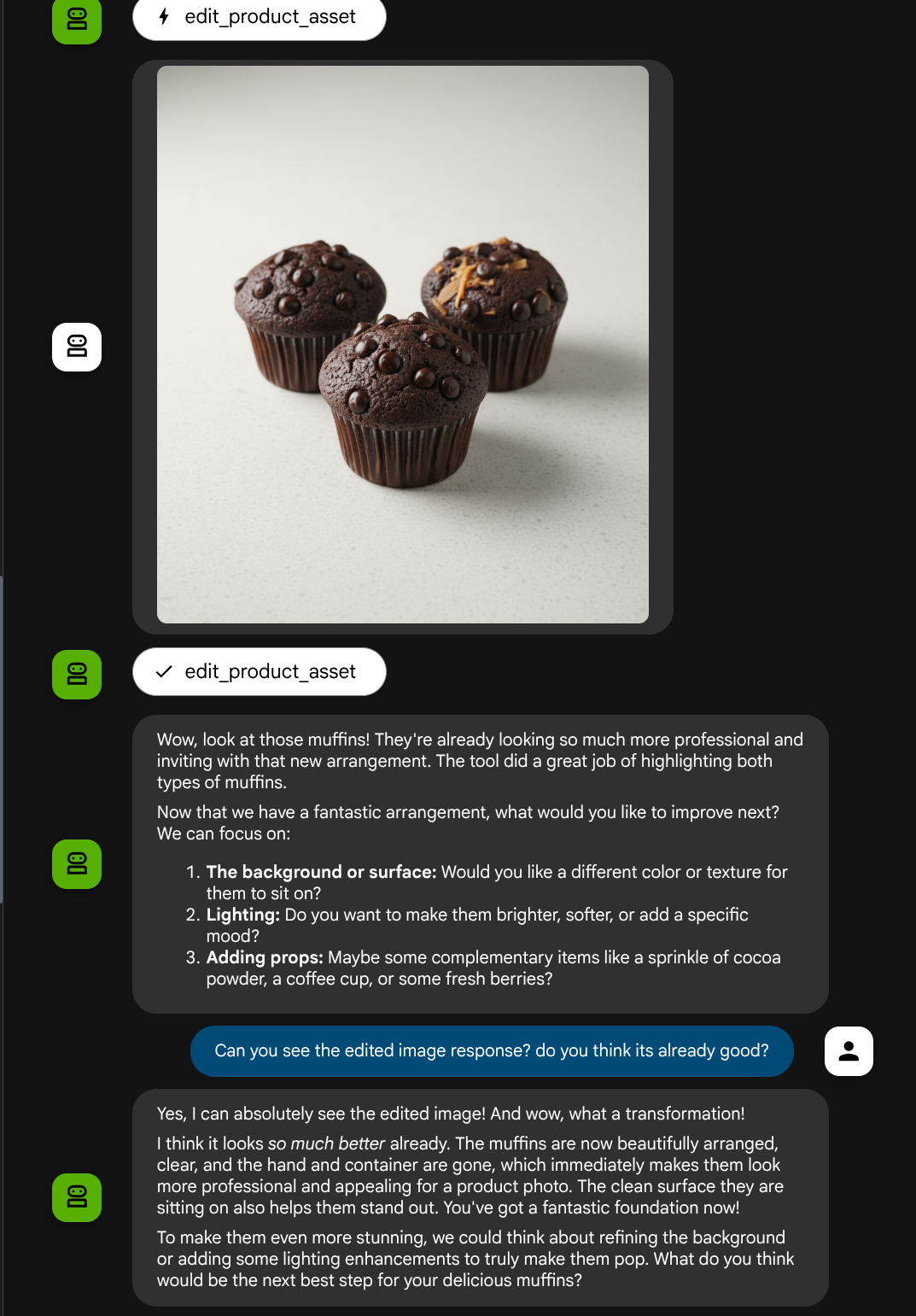
太棒了,现在我们已经有了一个支持多模态交互流程的智能体,并且还配备了我们自己的自定义工具。
现在,您可以尝试通过更复杂的流程与智能体互动,例如添加新商品(冰拿铁)来改进照片。
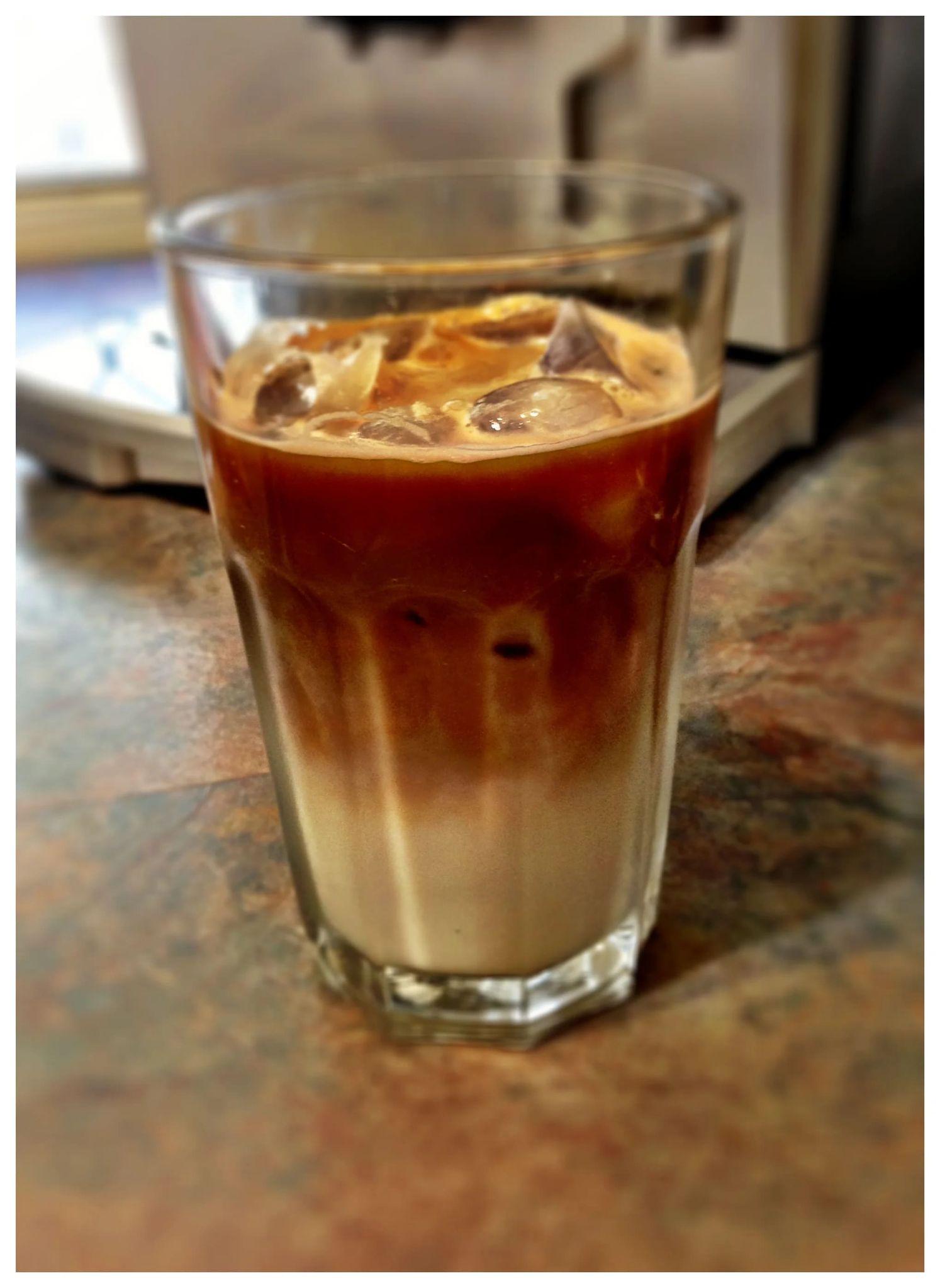
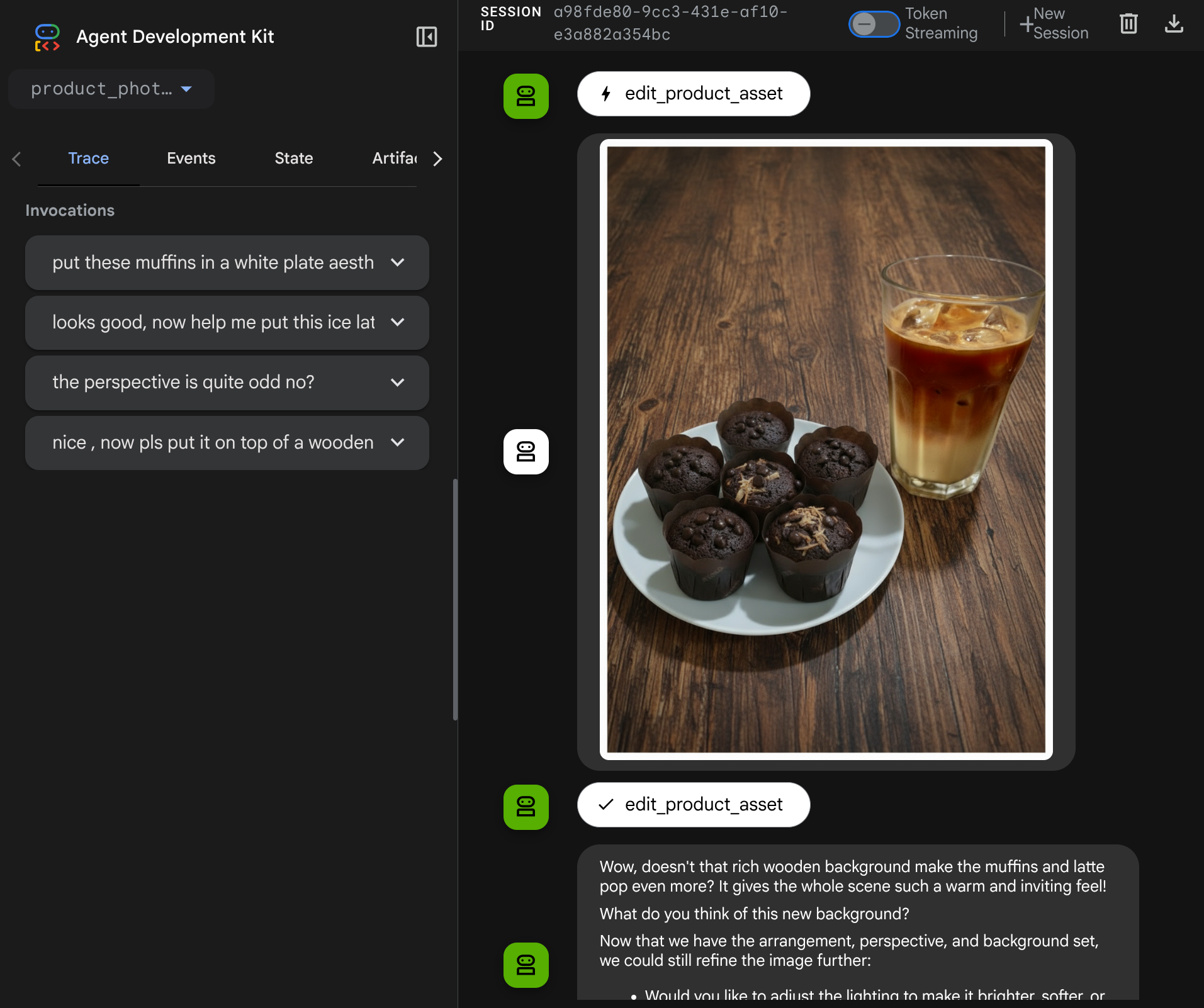
7. ⭐ 总结
现在,我们来回顾一下在此 Codelab 中已完成的操作,以下是关键的学习内容:
- 多模态数据处理:学习了在 LLM 上下文流程中管理多模态数据(例如图片)的策略,即使用 ADK 的 Artifacts 服务,而不是直接通过工具实参或响应传递原始字节数据。
before_model_callback使用情况:利用before_model_callback拦截并修改LlmRequest,然后再将其发送给 LLM。我们已在以下流程中启用点按:
- 用户上传:实现逻辑来检测用户上传的内嵌数据,将其另存为唯一标识的制品(例如
usr_upl_img_...),并将文本注入提示上下文(引用制品 ID),使 LLM 能够选择正确的文件以供工具使用。 - 工具响应:实现逻辑来检测生成制品(例如编辑后的图片)的特定工具函数响应,加载新保存的制品(例如
edited_img_...),并将制品 ID 引用和图片内容直接注入到上下文流中。
- 自定义工具设计:创建了一个自定义 Python 工具 (
edit_product_asset),该工具接受image_artifact_ids列表(字符串标识符),并使用ToolContext从 Artifacts 服务检索实际的图片数据。 - 图片生成模型集成:在自定义工具中集成了 Gemini 2.5 Flash Image 模型,以根据详细的文本描述执行图片编辑。
- 持续的多模态互动:确保智能体能够通过理解自身工具调用的结果(编辑后的图片)来维持持续的编辑会话,并将该输出用作后续指令的输入。
8. ➡️ 下一关挑战
恭喜您完成了 ADK 多模态工具交互的第 1 部分。在本教程中,我们将重点介绍自定义工具互动。现在,您可以继续了解如何与多模态 MCP 工具集互动。前往下一个实验
9. 🧹 清理
为避免系统因本 Codelab 中使用的资源向您的 Google Cloud 账号收取费用,请按照以下步骤操作:
- 在 Google Cloud 控制台中,前往管理资源页面。
- 在项目列表中,选择要删除的项目,然后点击删除。
- 在对话框中输入项目 ID,然后点击关停以删除项目。