

1. บทนำ
ภาพรวม
ใน Lab นี้ คุณจะได้สร้างและติดตั้งใช้งานเซิร์ฟเวอร์ Model Context Protocol (MCP) เซิร์ฟเวอร์ MCP มีประโยชน์ในการให้สิทธิ์ LLM เข้าถึงเครื่องมือและบริการภายนอก คุณจะกำหนดค่าให้เป็นบริการที่ปลอดภัยและพร้อมใช้งานจริงใน Cloud Run ซึ่งเข้าถึงได้จากไคลเอ็นต์หลายราย จากนั้นคุณจะเชื่อมต่อกับเซิร์ฟเวอร์ MCP ระยะไกลจาก Antigravity CLI
สิ่งที่คุณจะได้ทำ
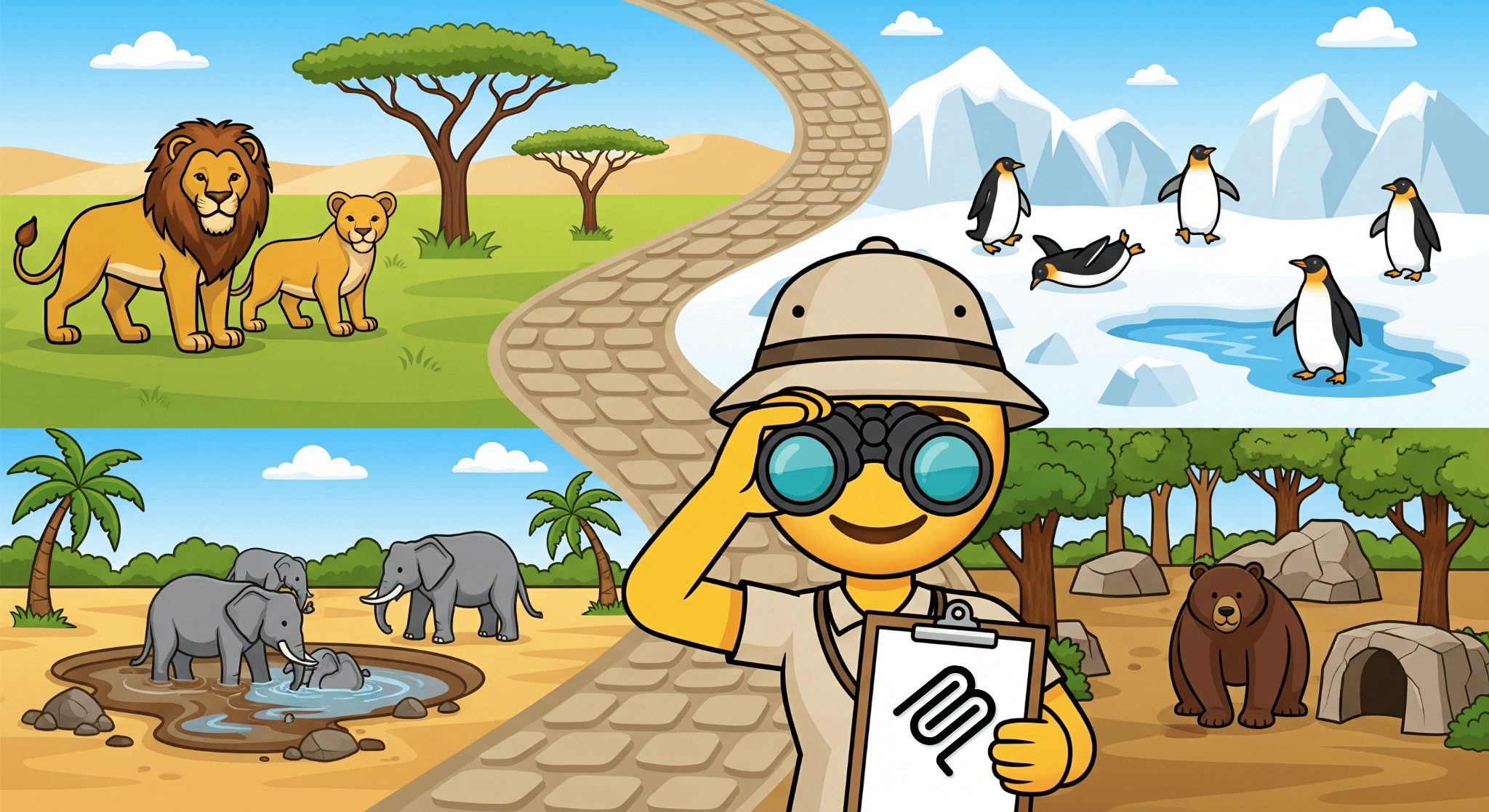
เราจะใช้ FastMCP เพื่อสร้าง เซิร์ฟเวอร์ MCP ของสวนสัตว์ ซึ่งมีเครื่องมือ 2 รายการ ได้แก่ get_animals_by_species และ get_animal_details FastMCP เป็นวิธีที่รวดเร็วและเป็นแบบ Pythonic ในการสร้างเซิร์ฟเวอร์และไคลเอ็นต์ MCP
สิ่งที่คุณจะได้เรียนรู้
- ติดตั้งใช้งานเซิร์ฟเวอร์ MCP ใน Cloud Run
- รักษาความปลอดภัยของปลายทางเซิร์ฟเวอร์โดยกำหนดให้มีการตรวจสอบสิทธิ์สำหรับคำขอทั้งหมด เพื่อให้เฉพาะไคลเอ็นต์และ Agent ที่ได้รับอนุญาตเท่านั้นที่สื่อสารกับเซิร์ฟเวอร์ได้
- เชื่อมต่อกับปลายทางเซิร์ฟเวอร์ MCP ที่ปลอดภัยจาก Antigravity CLI
2. การตั้งค่าโปรเจ็กต์
- หากยังไม่มีบัญชี Google คุณต้องสร้างบัญชี Google
- ใช้บัญชีส่วนตัวแทนบัญชีงานหรือบัญชีโรงเรียน บัญชีงานและบัญชีโรงเรียนอาจมีข้อจำกัดที่ป้องกันไม่ให้คุณเปิดใช้ API ที่จำเป็นสำหรับ Lab นี้
- ลงชื่อเข้าใช้ คอนโซล Google Cloud
- สร้างโปรเจ็กต์ใหม่ หรือเลือกใช้โปรเจ็กต์ที่มีอยู่
- หากเห็นข้อผิดพลาดเกี่ยวกับโควต้าโปรเจ็กต์ ให้ใช้โปรเจ็กต์ที่มีอยู่ซ้ำหรือลบโปรเจ็กต์ที่มีอยู่ออกเพื่อสร้างโปรเจ็กต์ใหม่
3. เปิด Cloud Shell Editor
- คลิกลิงก์นี้เพื่อไปยัง Cloud Shell Editor โดยตรง
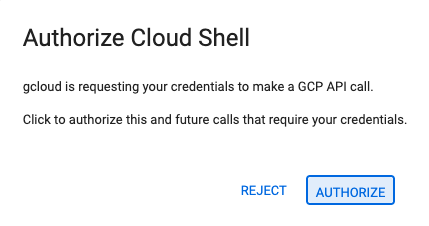
- หากระบบแจ้งให้ให้สิทธิ์ในวันนี้ ให้คลิก ให้สิทธิ์ เพื่อดำเนินการต่อ
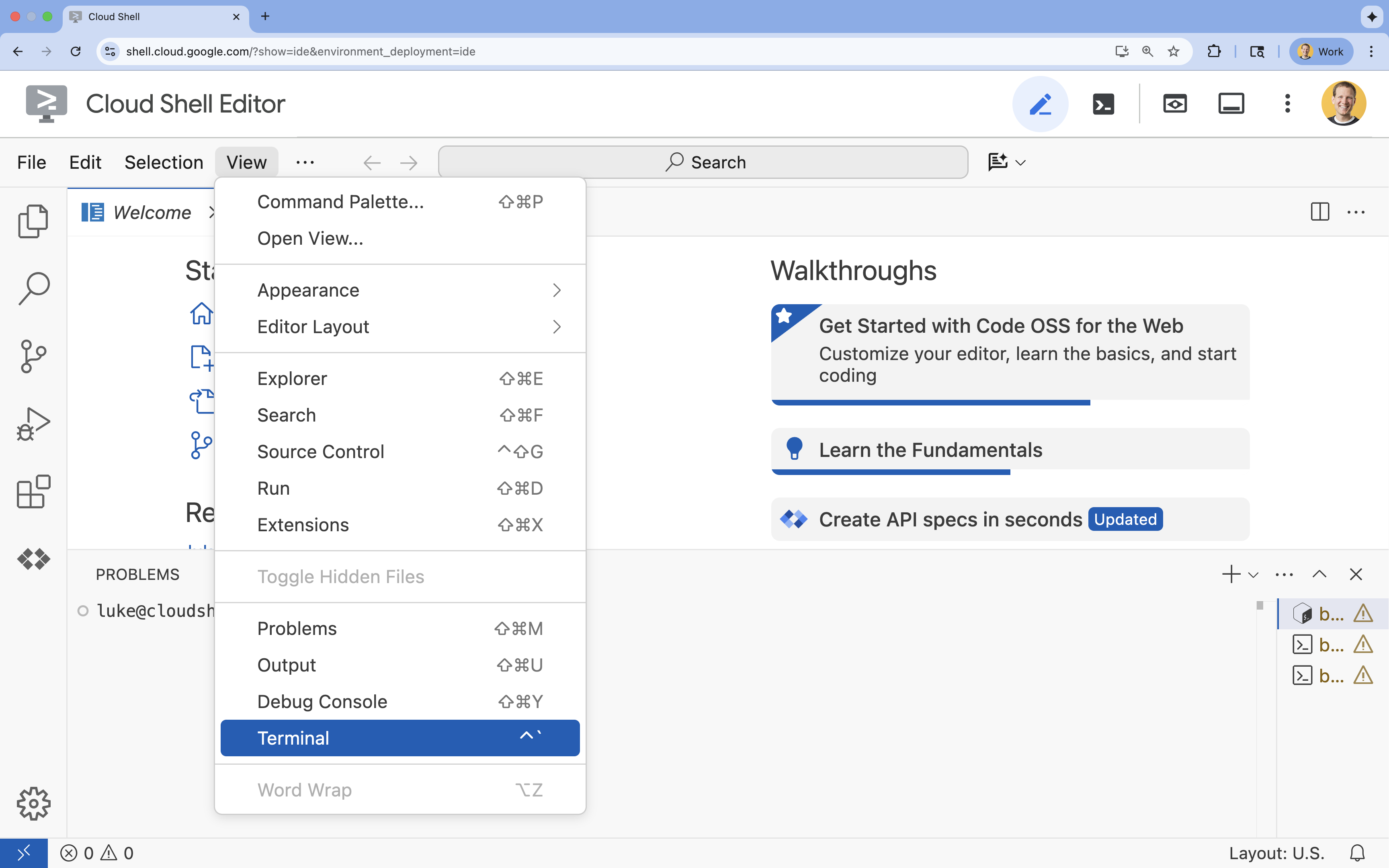
- หากเทอร์มินัลไม่ปรากฏที่ด้านล่างของหน้าจอ ให้เปิดโดยทำดังนี้
- คลิกมุมมอง
- คลิก Terminal
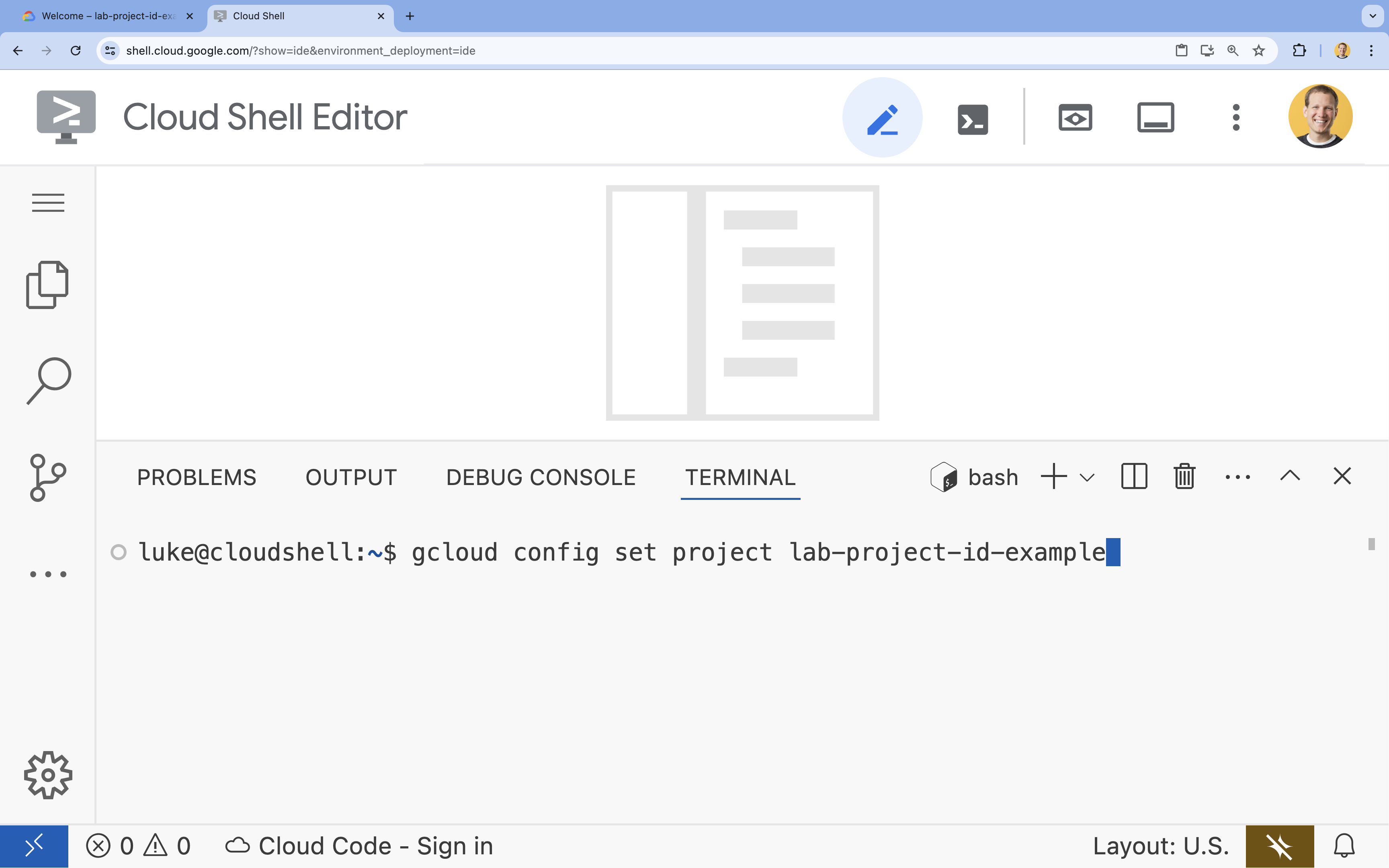
- ในเทอร์มินัล ให้ตั้งค่าโปรเจ็กต์ด้วยคำสั่งนี้
- รูปแบบ:
gcloud config set project [PROJECT_ID] - ตัวอย่าง
gcloud config set project lab-project-id-example - หากจำรหัสโปรเจ็กต์ไม่ได้ ให้ทำดังนี้
- คุณสามารถแสดงรายการรหัสโปรเจ็กต์ทั้งหมดได้ด้วยคำสั่งต่อไปนี้
gcloud projects list | awk '/PROJECT_ID/{print $2}'
- คุณสามารถแสดงรายการรหัสโปรเจ็กต์ทั้งหมดได้ด้วยคำสั่งต่อไปนี้
- รูปแบบ:
- คุณควรเห็นข้อความต่อไปนี้
Updated property [core/project].
WARNINGและระบบถามว่าDo you want to continue (Y/n)?แสดงว่าคุณป้อนรหัสโปรเจ็กต์ไม่ถูกต้อง ให้กดnแล้วกดEnterจากนั้นลองเรียกใช้คำสั่งgcloud config set projectอีกครั้ง
4. เปิดใช้ API
เปิดใช้ API ในเทอร์มินัลโดยใช้คำสั่งต่อไปนี้
gcloud services enable \
  run.googleapis.com \
  artifactregistry.googleapis.com \
  cloudbuild.googleapis.com
หากระบบแจ้งให้ให้สิทธิ์ ให้คลิกให้สิทธิ์ เพื่อดำเนินการต่อ
คำสั่งนี้อาจใช้เวลา 2-3 นาทีจึงจะเสร็จสมบูรณ์ แต่ในที่สุดควรแสดงข้อความว่าสำเร็จคล้ายกับข้อความต่อไปนี้
Operation "operations/acf.p2-73d90d00-47ee-447a-b600" finished successfully.
5. เตรียมโปรเจ็กต์ Python
- สร้างโฟลเดอร์ชื่อ
mcp-on-cloudrunเพื่อจัดเก็บซอร์สโค้ดสำหรับการติดตั้งใช้งานmkdir mcp-on-cloudrun && cd mcp-on-cloudrun - สร้างโปรเจ็กต์ Python ด้วยเครื่องมือ
uvเพื่อสร้างไฟล์pyproject.tomluv init --description "Example of deploying an MCP server on Cloud Run" --bare --python 3.13uv initจะสร้างไฟล์pyproject.tomlสำหรับโปรเจ็กต์ของคุณ หากต้องการดูเนื้อหาของไฟล์ ให้เรียกใช้คำสั่งต่อไปนี้cat pyproject.toml[project] name = "mcp-on-cloudrun" version = "0.1.0" description = "Example of deploying an MCP server on Cloud Run" requires-python = ">=3.13" dependencies = []
6. สร้างเซิร์ฟเวอร์ MCP ของสวนสัตว์
หากต้องการให้บริบทที่มีประโยชน์สำหรับการปรับปรุงการใช้ LLM กับ MCP ให้ตั้งค่าเซิร์ฟเวอร์ MCP ของสวนสัตว์ด้วย FastMCP ซึ่งเป็นเฟรมเวิร์กมาตรฐานสำหรับการทำงานกับ Model Context Protocol FastMCP เป็นวิธีที่รวดเร็วในการสร้างเซิร์ฟเวอร์และไคลเอ็นต์ MCP ด้วย Python เซิร์ฟเวอร์ MCP นี้ให้ข้อมูลเกี่ยวกับสัตว์ในสวนสัตว์สมมติ เราจะจัดเก็บข้อมูลไว้ในหน่วยความจำเพื่อให้ง่าย สำหรับเซิร์ฟเวอร์ MCP ที่พร้อมใช้งานจริง คุณอาจต้องการให้ข้อมูลจากแหล่งที่มาต่างๆ เช่น ฐานข้อมูลหรือ API
- เรียกใช้คำสั่งต่อไปนี้เพื่อเพิ่ม FastMCP เป็นการขึ้นต่อกันในไฟล์
pyproject.tomluv add fastmcp==2.12.4 --no-syncuv.lockลงในโปรเจ็กต์ - สร้างและเปิดไฟล์
server.pyใหม่สำหรับซอร์สโค้ดเซิร์ฟเวอร์ MCPcloudshell edit ~/mcp-on-cloudrun/server.pycloudshell editจะเปิดไฟล์server.pyในเครื่องมือแก้ไขเหนือเทอร์มินัล - เพิ่มซอร์สโค้ดเซิร์ฟเวอร์ MCP ของสวนสัตว์ต่อไปนี้ในไฟล์
server.pyimport asyncio import logging import os from typing import List, Dict, Any from fastmcp import FastMCP logger = logging.getLogger(__name__) logging.basicConfig(format="[%(levelname)s]: %(message)s", level=logging.INFO) mcp = FastMCP("Zoo Animal MCP Server 🦁🐧🐻") # Dictionary of animals at the zoo ZOO_ANIMALS = [ { "species": "lion", "name": "Leo", "age": 7, "enclosure": "The Big Cat Plains", "trail": "Savannah Heights" }, { "species": "lion", "name": "Nala", "age": 6, "enclosure": "The Big Cat Plains", "trail": "Savannah Heights" }, { "species": "lion", "name": "Simba", "age": 3, "enclosure": "The Big Cat Plains", "trail": "Savannah Heights" }, { "species": "lion", "name": "King", "age": 8, "enclosure": "The Big Cat Plains", "trail": "Savannah Heights" }, { "species": "penguin", "name": "Waddles", "age": 2, "enclosure": "The Arctic Exhibit", "trail": "Polar Path" }, { "species": "penguin", "name": "Pip", "age": 4, "enclosure": "The Arctic Exhibit", "trail": "Polar Path" }, { "species": "penguin", "name": "Skipper", "age": 5, "enclosure": "The Arctic Exhibit", "trail": "Polar Path" }, { "species": "penguin", "name": "Chilly", "age": 3, "enclosure": "The Arctic Exhibit", "trail": "Polar Path" }, { "species": "penguin", "name": "Pingu", "age": 6, "enclosure": "The Arctic Exhibit", "trail": "Polar Path" }, { "species": "penguin", "name": "Noot", "age": 1, "enclosure": "The Arctic Exhibit", "trail": "Polar Path" }, { "species": "elephant", "name": "Ellie", "age": 15, "enclosure": "The Pachyderm Sanctuary", "trail": "Savannah Heights" }, { "species": "elephant", "name": "Peanut", "age": 12, "enclosure": "The Pachyderm Sanctuary", "trail": "Savannah Heights" }, { "species": "elephant", "name": "Dumbo", "age": 5, "enclosure": "The Pachyderm Sanctuary", "trail": "Savannah Heights" }, { "species": "elephant", "name": "Trunkers", "age": 10, "enclosure": "The Pachyderm Sanctuary", "trail": "Savannah Heights" }, { "species": "bear", "name": "Smokey", "age": 10, "enclosure": "The Grizzly Gulch", "trail": "Polar Path" }, { "species": "bear", "name": "Grizzly", "age": 8, "enclosure": "The Grizzly Gulch", "trail": "Polar Path" }, { "species": "bear", "name": "Barnaby", "age": 6, "enclosure": "The Grizzly Gulch", "trail": "Polar Path" }, { "species": "bear", "name": "Bruin", "age": 12, "enclosure": "The Grizzly Gulch", "trail": "Polar Path" }, { "species": "giraffe", "name": "Gerald", "age": 4, "enclosure": "The Tall Grass Plains", "trail": "Savannah Heights" }, { "species": "giraffe", "name": "Longneck", "age": 5, "enclosure": "The Tall Grass Plains", "trail": "Savannah Heights" }, { "species": "giraffe", "name": "Patches", "age": 3, "enclosure": "The Tall Grass Plains", "trail": "Savannah Heights" }, { "species": "giraffe", "name": "Stretch", "age": 6, "enclosure": "The Tall Grass Plains", "trail": "Savannah Heights" }, { "species": "antelope", "name": "Speedy", "age": 2, "enclosure": "The Tall Grass Plains", "trail": "Savannah Heights" }, { "species": "antelope", "name": "Dash", "age": 3, "enclosure": "The Tall Grass Plains", "trail": "Savannah Heights" }, { "species": "antelope", "name": "Gazelle", "age": 4, "enclosure": "The Tall Grass Plains", "trail": "Savannah Heights" }, { "species": "antelope", "name": "Swift", "age": 5, "enclosure": "The Tall Grass Plains", "trail": "Savannah Heights" }, { "species": "polar bear", "name": "Snowflake", "age": 7, "enclosure": "The Arctic Exhibit", "trail": "Polar Path" }, { "species": "polar bear", "name": "Blizzard", "age": 5, "enclosure": "The Arctic Exhibit", "trail": "Polar Path" }, { "species": "polar bear", "name": "Iceberg", "age": 9, "enclosure": "The Arctic Exhibit", "trail": "Polar Path" }, { "species": "walrus", "name": "Wally", "age": 10, "enclosure": "The Walrus Cove", "trail": "Polar Path" }, { "species": "walrus", "name": "Tusker", "age": 12, "enclosure": "The Walrus Cove", "trail": "Polar Path" }, { "species": "walrus", "name": "Moby", "age": 8, "enclosure": "The Walrus Cove", "trail": "Polar Path" }, { "species": "walrus", "name": "Flippers", "age": 9, "enclosure": "The Walrus Cove", "trail": "Polar Path" } ] @mcp.tool() def get_animals_by_species(species: str) -> List[Dict[str, Any]]: """ Retrieves all animals of a specific species from the zoo. Can also be used to collect the base data for aggregate queries of animals of a specific species - like counting the number of penguins or finding the oldest lion. Args: species: The species of the animal (e.g., 'lion', 'penguin'). Returns: A list of dictionaries, where each dictionary represents an animal and contains details like name, age, enclosure, and trail. """ logger.info(f">>> 🛠️ Tool: 'get_animals_by_species' called for '{species}'") return [animal for animal in ZOO_ANIMALS if animal["species"].lower() == species.lower()] @mcp.tool() def get_animal_details(name: str) -> Dict[str, Any]: """ Retrieves the details of a specific animal by its name. Args: name: The name of the animal. Returns: A dictionary with the animal's details (species, name, age, enclosure, trail) or an empty dictionary if the animal is not found. """ logger.info(f">>> 🛠️ Tool: 'get_animal_details' called for '{name}'") for animal in ZOO_ANIMALS: if animal["name"].lower() == name.lower(): return animal return {} if __name__ == "__main__": port = int(os.getenv("PORT", 8080)) logger.info(f"🚀 MCP server started on port {port}") asyncio.run( mcp.run_async( transport="http", host="0.0.0.0", port=port, ) )
โค้ดของคุณเสร็จสมบูรณ์แล้ว ตอนนี้ได้เวลาติดตั้งใช้งานเซิร์ฟเวอร์ MCP ใน Cloud Run แล้ว
7. กำลังทำให้ใช้งานได้กับ Cloud Run
ตอนนี้ให้ติดตั้งใช้งานเซิร์ฟเวอร์ MCP ใน Cloud Run โดยตรงจากซอร์สโค้ด
- สร้างและเปิด
Dockerfileใหม่สำหรับการติดตั้งใช้งานใน Cloud Runcloudshell edit ~/mcp-on-cloudrun/Dockerfile - ใส่โค้ดต่อไปนี้ใน Dockerfile เพื่อใช้เครื่องมือ
uvในการเรียกใช้ไฟล์server.py# Use the official Python image FROM python:3.13-slim # Install uv COPY --from=ghcr.io/astral-sh/uv:latest /uv /uvx /bin/ # Install the project into /app COPY . /app WORKDIR /app # Allow statements and log messages to immediately appear in the logs ENV PYTHONUNBUFFERED=1 # Install dependencies RUN uv sync EXPOSE $PORT # Run the FastMCP server CMD ["uv", "run", "server.py"] - สร้างบัญชีบริการชื่อ
mcp-server-sagcloud iam service-accounts create mcp-server-sa --display-name="MCP Server Service Account" - เรียกใช้คำสั่ง
gcloudเพื่อติดตั้งใช้งานแอปพลิเคชันใน Cloud Runcd ~/mcp-on-cloudrun gcloud run deploy zoo-mcp-server \ --service-account=mcp-server-sa@$GOOGLE_CLOUD_PROJECT.iam.gserviceaccount.com \ --no-allow-unauthenticated \ --region=us-west1 \ --source=. \ --labels=dev-tutorial=codelab-mcp--no-allow-unauthenticatedเพื่อกำหนดให้มีการตรวจสอบสิทธิ์ ซึ่งมีความสำคัญด้วยเหตุผลด้านความปลอดภัย หากไม่กำหนดให้มีการตรวจสอบสิทธิ์ ทุกคนจะเรียกเซิร์ฟเวอร์ MCP ของคุณได้และอาจทำให้ระบบเสียหาย - ยืนยันการสร้างที่เก็บ Artifact Registry ใหม่ เนื่องจากเป็นการติดตั้งใช้งานใน Cloud Run จากซอร์สโค้ดเป็นครั้งแรก คุณจึงจะเห็นข้อความต่อไปนี้
Deploying from source requires an Artifact Registry Docker repository to store built containers. A repository named
[cloud-run-source-deploy] in region [us-west1] will be created.

Do you want to continue (Y/n)?
Yแล้วกดEnterเพื่อสร้างที่เก็บ Artifact Registry สำหรับการติดตั้งใช้งาน ซึ่งจำเป็นสำหรับการจัดเก็บคอนเทนเนอร์ Docker ของเซิร์ฟเวอร์ MCP สำหรับบริการ Cloud Run - หลังจากผ่านไป 2-3 นาที คุณจะเห็นข้อความต่อไปนี้
Service [zoo-mcp-server] revision [zoo-mcp-server-12345-abc] has been deployed and is serving 100 percent of traffic.
คุณได้ติดตั้งใช้งานเซิร์ฟเวอร์ MCP แล้ว ตอนนี้คุณสามารถใช้เซิร์ฟเวอร์ดังกล่าวได้
8. เพิ่มเซิร์ฟเวอร์ MCP ระยะไกลลงใน Antigravity CLI
เมื่อติดตั้งใช้งานเซิร์ฟเวอร์ MCP ระยะไกลเรียบร้อยแล้ว คุณจะเชื่อมต่อกับเซิร์ฟเวอร์ดังกล่าวได้โดยใช้แอปพลิเคชันต่างๆ เช่น Google Code Assist หรือ Antigravity CLI ในส่วนนี้ เราจะสร้างการเชื่อมต่อกับเซิร์ฟเวอร์ MCP ระยะไกลใหม่โดยใช้ Antigravity CLI
- ให้สิทธิ์บัญชีผู้ใช้ในการเรียกเซิร์ฟเวอร์ MCP ระยะไกล
gcloud projects add-iam-policy-binding $GOOGLE_CLOUD_PROJECT \ --member=user:$(gcloud config get-value account) \ --role='roles/run.invoker' - บันทึกข้อมูลเข้าสู่ระบบ Google Cloud และหมายเลขโปรเจ็กต์ในตัวแปรสภาพแวดล้อมเพื่อใช้ในไฟล์การตั้งค่า Antigravity
export PROJECT_NUMBER=$(gcloud projects describe $GOOGLE_CLOUD_PROJECT --format="value(projectNumber)") export ID_TOKEN=$(gcloud auth print-identity-token) - สร้างโฟลเดอร์
.gemini/antigravity-cliหากยังไม่ได้สร้างmkdir -p ~/.gemini/antigravity-cli - เขียนเซิร์ฟเวอร์ MCP ระยะไกลลงในไฟล์การกำหนดค่า MCP ของ Antigravity CLI
cat > ~/.gemini/antigravity-cli/mcp_config.json << EOF { "mcpServers": { "zoo-remote": { "serverUrl": "https://zoo-mcp-server-${PROJECT_NUMBER}.us-west1.run.app/mcp", "headers": { "Authorization": "Bearer ${ID_TOKEN}" } } } } EOF - เริ่ม Antigravity CLI โดยใช้คำสั่งต่อไปนี้
agy
- ตรวจสอบสิทธิ์ด้วย Antigravity CLI: ระบบกำหนดให้มีการตรวจสอบสิทธิ์ในระหว่างการเริ่มต้นครั้งแรก เลือก OAuth (กด
Enter)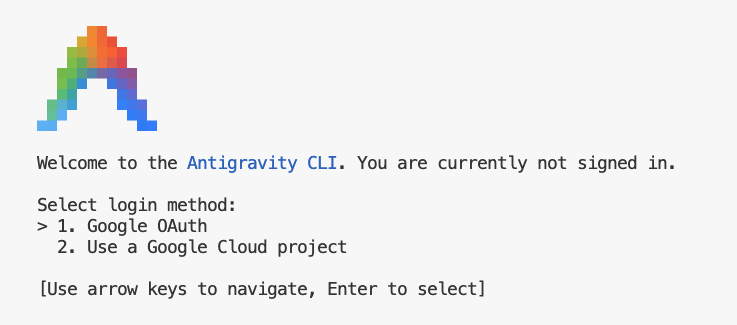
- คลิกลิงก์ (หากคลิกไม่ได้ ให้ไฮไลต์ URL ใน Cloud Shell เพื่อคัดลอก จากนั้นวางลงในเบราว์เซอร์)
- ลงชื่อเข้าใช้บัญชี Google
- คัดลอกโค้ด
- วางโค้ดลงในเทอร์มินัล Cloud Shell Editor
- กด
Enter.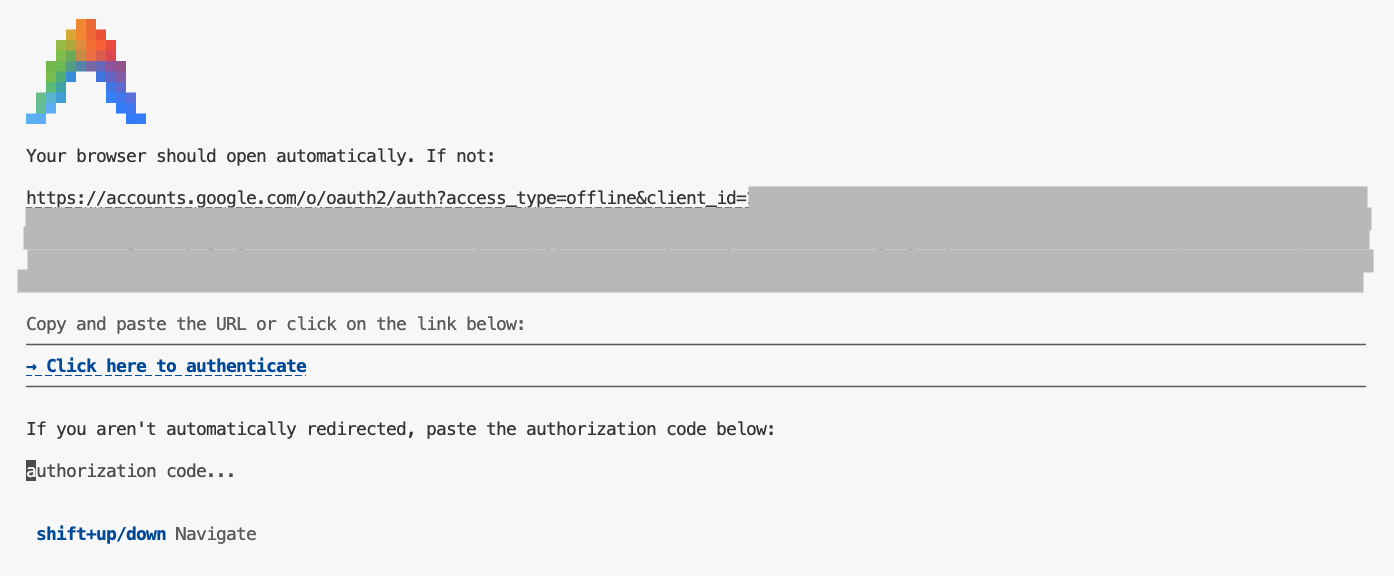
- กด
Enterเพื่อยอมรับการตั้งค่าเริ่มต้นบางอย่าง - ให้ Antigravity CLI แสดงรายการเครื่องมือ MCP ที่พร้อมใช้งานภายในบริบทของเครื่องมือ
/mcpESCเพื่อกลับไปยังช่องพรอมต์ - ขอให้ Antigravity CLI ค้นหาสิ่งต่างๆ ในสวนสัตว์
Where can I find penguins?zoo-remoteและจะถามว่าคุณต้องการอนุญาตให้ดำเนินการ MCP หรือไม่ - ใช้ลูกศรลง แล้วกด
Enterเพื่อเลือกYes, always allow all tools from server "zoo-remote"
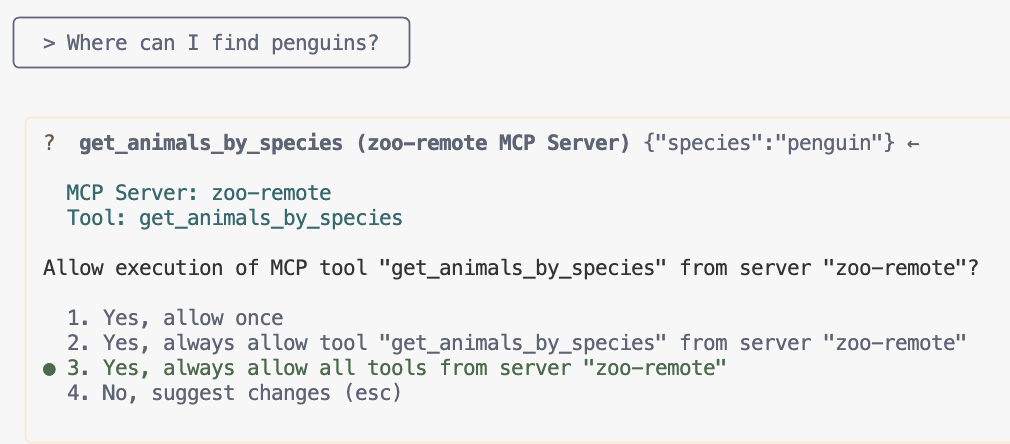
เอาต์พุตควรแสดงคำตอบที่ถูกต้องและกล่องแสดงว่ามีการใช้เซิร์ฟเวอร์ MCP
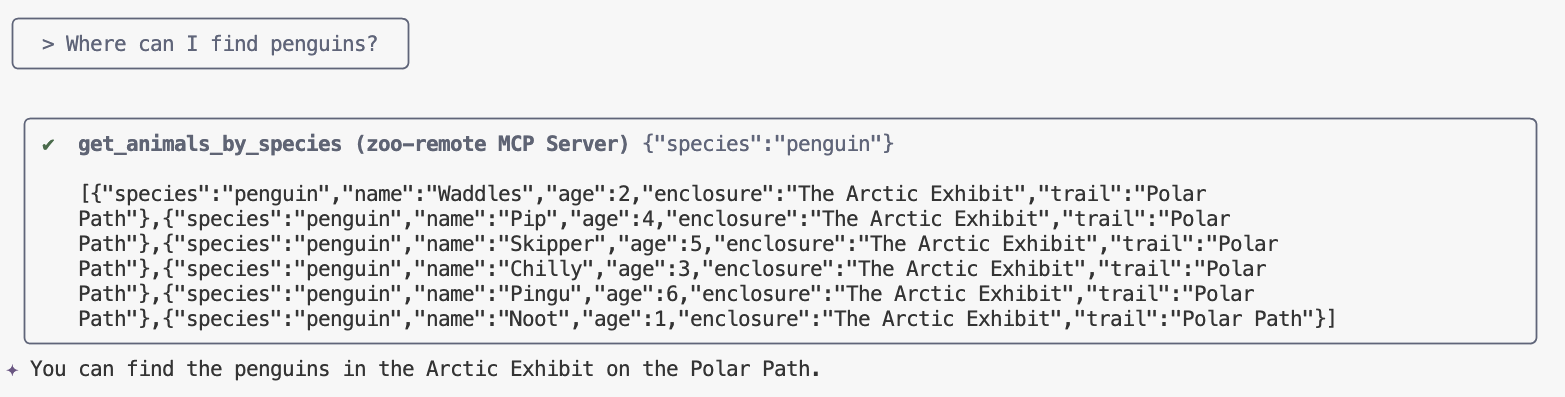
คุณทำสำเร็จแล้ว คุณได้ติดตั้งใช้งานเซิร์ฟเวอร์ MCP ระยะไกลใน Cloud Run และทดสอบโดยใช้ Antigravity CLI เรียบร้อยแล้ว
เมื่อพร้อมที่จะสิ้นสุดเซสชัน ให้พิมพ์ /exit แล้วกด Enter เพื่อออกจาก Antigravity CLI
การแก้ไขข้อบกพร่อง
หากเห็นข้อผิดพลาดต่อไปนี้
🔍 Attempting OAuth discovery for 'zoo-remote'...
❌ 'zoo-remote' requires authentication but no OAuth configuration found
Error connecting to MCP server 'zoo-remote': MCP server 'zoo-remote' requires authentication. Please configure OAuth or check server settings.
แสดงว่าโทเค็นรหัสหมดเวลาและต้องตั้งค่า ID_TOKEN อีกครั้ง
- พิมพ์
/exitแล้วกดEnterเพื่อออกจาก Antigravity CLI - ตั้งค่าโปรเจ็กต์ในเทอร์มินัล
gcloud config set project [PROJECT_ID] - เรียกใช้คำสั่งข้อมูลเข้าสู่ระบบ Google Cloud อีกครั้งเพื่อรับ
ID_TOKENใหม่เนื่องจากโทเค็นเดิมอาจหมดอายุแล้ว และเขียนไฟล์การกำหนดค่าใหม่โดยใช้คำสั่งต่อไปนี้export PROJECT_NUMBER=$(gcloud projects describe $GOOGLE_CLOUD_PROJECT --format="value(projectNumber)") export ID_TOKEN=$(gcloud auth print-identity-token) cat > ~/.gemini/antigravity-cli/mcp_config.json << EOF
{ "mcpServers": { "zoo-remote": { "serverUrl": "https://zoo-mcp-server-${PROJECT_NUMBER}.us-west1.run.app/mcp", "headers": { "Authorization": "Bearer ${ID_TOKEN}" } } } } EOF ```
9. (ไม่บังคับ) ยืนยันการเรียกเครื่องมือในบันทึกของเซิร์ฟเวอร์
หากต้องการยืนยันว่ามีการเรียกเซิร์ฟเวอร์ MCP ของ Cloud Run ให้ตรวจสอบบันทึกของบริการ
gcloud run services logs read zoo-mcp-server --region us-west1 --limit=5
คุณควรเห็นบันทึกเอาต์พุตที่ยืนยันว่ามีการเรียกเครื่องมือ 🛠️
2025-08-05 19:50:31 INFO: 169.254.169.126:39444 - "POST /mcp HTTP/1.1" 200 OK 2025-08-05 19:50:31 [INFO]: Processing request of type CallToolRequest 2025-08-05 19:50:31 [INFO]: >>> 🛠️ Tool: 'get_animals_by_species' called for 'penguin'
10. (ไม่บังคับ) เพิ่มข้อความแจ้ง MCP ลงในเซิร์ฟเวอร์
ข้อความแจ้ง MCP สามารถเร่งเวิร์กโฟลว์สำหรับข้อความแจ้งที่คุณเรียกใช้บ่อยๆ ได้โดยการสร้างคำย่อสำหรับข้อความแจ้งที่ยาวขึ้น
Antigravity CLI จะแปลงข้อความแจ้ง MCP เป็น คำสั่ง Slash ที่กำหนดเอง โดยอัตโนมัติเพื่อให้คุณเรียกใช้ข้อความแจ้ง MCP ได้โดยพิมพ์ /prompt_name โดยที่ prompt_name คือชื่อของข้อความแจ้ง MCP
สร้างข้อความแจ้ง MCP เพื่อให้คุณค้นหาสัตว์ในสวนสัตว์ได้อย่างรวดเร็วโดยพิมพ์ /find animal ลงใน Antigravity CLI
- เพิ่มโค้ดนี้ลงในไฟล์
server.pyเหนือการป้องกันหลัก (if __name__ == "__main__":)@mcp.prompt() def find(animal: str) -> str: """ Find which exhibit and trail a specific animal might be located. """ return ( f"Please find the exhibit and trail information for {animal} in the zoo. " f"Respond with '[animal] can be found in the [exhibit] on the [trail].'" f"Example: Penguins can be found in The Arctic Exhibit on the Polar Path." ) - ติดตั้งใช้งานแอปพลิเคชันใน Cloud Run อีกครั้ง
gcloud run deploy zoo-mcp-server \ --region=us-west1 \ --source=. \ --labels=dev-tutorial=codelab-mcp - รีเฟรช ID_TOKEN และสร้างไฟล์การกำหนดค่าใหม่โดยใช้คำสั่งต่อไปนี้
export ID_TOKEN=$(gcloud auth print-identity-token) export PROJECT_NUMBER=$(gcloud projects describe $GOOGLE_CLOUD_PROJECT --format="value(projectNumber)") cat > ~/.gemini/antigravity-cli/mcp_config.json << EOF
{ "mcpServers": { "zoo-remote": { "serverUrl": "https://zoo-mcp-server-${PROJECT_NUMBER}.us-west1.run.app/mcp", "headers": { "Authorization": "Bearer ${ID_TOKEN}" } } } } EOF ```
- หลังจากติดตั้งใช้งานแอปพลิเคชันเวอร์ชันใหม่แล้ว ให้เริ่ม Antigravity CLI
agy - ใช้คำสั่งที่กำหนดเองใหม่ที่คุณสร้างขึ้นในข้อความแจ้งโดยใช้คำสั่งต่อไปนี้
/find lions
คุณควรเห็นว่า Antigravity CLI เรียกเครื่องมือ get_animals_by_species และจัดรูปแบบการตอบสนองตามที่ข้อความแจ้ง MCP สั่ง
╭───────────────────────────╮
│ > /find lions │
╰───────────────────────────╯
╭───────────────────────────────────────────────────────────────────────────────────────────────────╮
│ ✔ get_animals_by_species (zoo-remote MCP Server) get_animals_by_species (zoo-remote MCP Server) │
│ │
│ [{"species":"lion","name":"Leo","age":7,"enclosure":"The Big Cat │
│ Plains","trail":"Savannah │
│ Heights"},{"species":"lion","name":"Nala","age":6,"enclosure":"The Big Cat │
│ Plains","trail":"Savannah │
│ Heights"},{"species":"lion","name":"Simba","age":3,"enclosure":"The Big Cat │
│ Plains","trail":"Savannah │
│ Heights"},{"species":"lion","name":"King","age":8,"enclosure":"The Big Cat │
│ Plains","trail":"Savannah Heights"}] │
╰───────────────────────────────────────────────────────────────────────────────────────────────────╯
✦ Lions can be found in The Big Cat Plains on the Savannah Heights.
11. (ไม่บังคับ) ใช้ Gemini Flash Lite เพื่อให้ได้คำตอบเร็วขึ้น
Antigravity CLI ช่วยให้คุณเลือกโมเดลและความพยายามที่ใช้ได้
เนื่องจากคำขอที่เกี่ยวข้องกับการค้นหาสัตว์ในสวนสัตว์ไม่จำเป็นต้องมีการคิดหรือการให้เหตุผล ให้ลองเร่งความเร็วโดยใช้โมเดลที่เร็วขึ้น
ในส่วนก่อนหน้า คุณได้สร้างข้อความแจ้ง MCP เพื่อให้คุณค้นหาสัตว์ในสวนสัตว์ได้อย่างรวดเร็วโดยพิมพ์ /find animal ลงใน Antigravity CLI
- หลังจากติดตั้งใช้งานแอปพลิเคชันเวอร์ชันใหม่แล้ว ให้เริ่ม Antigravity CLI
agy --model=gemini-3.6-flash --effort=low - ใช้คำสั่งที่กำหนดเองใหม่ที่คุณสร้างขึ้นในข้อความแจ้งโดยใช้คำสั่งต่อไปนี้
/find lions
คุณควรเห็นว่า Antigravity CLI ยังคงเรียกเครื่องมือ get_animals_by_species และจัดรูปแบบการตอบสนองตามที่ข้อความแจ้ง MCP สั่ง แต่คำตอบควรปรากฏเร็วขึ้นมาก
╭───────────────────────────╮
│ > /find lions │
╰───────────────────────────╯
╭───────────────────────────────────────────────────────────────────────────────────────────────────╮
│ ✔ get_animals_by_species (zoo-remote MCP Server) get_animals_by_species (zoo-remote MCP Server) │
│ │
│ [{"species":"lion","name":"Leo","age":7,"enclosure":"The Big Cat │
│ Plains","trail":"Savannah │
│ Heights"},{"species":"lion","name":"Nala","age":6,"enclosure":"The Big Cat │
│ Plains","trail":"Savannah │
│ Heights"},{"species":"lion","name":"Simba","age":3,"enclosure":"The Big Cat │
│ Plains","trail":"Savannah │
│ Heights"},{"species":"lion","name":"King","age":8,"enclosure":"The Big Cat │
│ Plains","trail":"Savannah Heights"}] │
╰───────────────────────────────────────────────────────────────────────────────────────────────────╯
✦ Lions can be found in The Big Cat Plains on the Savannah Heights.
การแก้ไขข้อบกพร่อง
หากเห็นข้อผิดพลาดต่อไปนี้
✕ Unknown command: /find lions
ลองเรียกใช้ /mcp และหากแสดง zoo-remote - Disconnected คุณอาจต้องติดตั้งใช้งานอีกครั้งหรือเรียกใช้คำสั่งต่อไปนี้อีกครั้ง
gcloud projects add-iam-policy-binding $GOOGLE_CLOUD_PROJECT \
--member=user:$(gcloud config get-value account) \
--role='roles/run.invoker'
export PROJECT_NUMBER=$(gcloud projects describe $GOOGLE_CLOUD_PROJECT --format="value(projectNumber)")
export ID_TOKEN=$(gcloud auth print-identity-token)

cat > ~/.gemini/antigravity-cli/mcp_config.json << EOF
{
"mcpServers": {
"zoo-remote": {
"serverUrl": "https://zoo-mcp-server-${PROJECT_NUMBER}.us-west1.run.app/mcp",
"headers": {
"Authorization": "Bearer ${ID_TOKEN}"
}
}
}
}
EOF
12. บทสรุป
ยินดีด้วย คุณได้ติดตั้งใช้งานและเชื่อมต่อกับเซิร์ฟเวอร์ MCP ระยะไกลที่ปลอดภัยเรียบร้อยแล้ว
ไปยัง Lab ถัดไป
Lab นี้เป็น Lab แรกในชุด 3 ตอน ใน Lab ที่ 2 คุณจะได้ใช้เซิร์ฟเวอร์ MCP ที่สร้างขึ้นกับ ADK Agent
ใช้เซิร์ฟเวอร์ MCP ใน Cloud Run กับ ADK Agent
(ไม่บังคับ) ล้างข้อมูล
หากไม่ต้องการทำ Lab ถัดไปและต้องการล้างข้อมูลที่สร้างขึ้น คุณสามารถลบโปรเจ็กต์ที่อยู่ในระบบคลาวด์ เพื่อหลีกเลี่ยงค่าใช้จ่ายเพิ่มเติม
แม้ว่า Cloud Run จะไม่คิดค่าบริการเมื่อไม่ได้ใช้บริการ แต่คุณอาจยังคงถูกเรียกเก็บเงินสำหรับการจัดเก็บอิมเมจคอนเทนเนอร์ใน Artifact Registry การลบโปรเจ็กต์ที่อยู่ในระบบคลาวด์จะหยุดการเรียกเก็บเงินสำหรับทรัพยากรทั้งหมดที่ใช้ภายในโปรเจ็กต์นั้น
หากต้องการ ให้ลบโปรเจ็กต์โดยทำดังนี้
gcloud projects delete $GOOGLE_CLOUD_PROJECT
นอกจากนี้ คุณอาจต้องการลบทรัพยากรที่ไม่จำเป็นออกจากดิสก์ Cloud Shell โดยทำดังนี้
- ลบไดเรกทอรีโปรเจ็กต์ Codelab โดยใช้คำสั่งต่อไปนี้
rm -rf ~/mcp-on-cloudrun - คำเตือน! การดำเนินการถัดไปนี้ไม่สามารถยกเลิกได้ หากต้องการลบทุกอย่างใน Cloud Shell เพื่อเพิ่มพื้นที่ว่าง คุณสามารถลบไดเรกทอรีหน้าแรกทั้งหมดได้ โปรดตรวจสอบว่าได้บันทึกทุกอย่างที่ต้องการเก็บไว้ที่อื่นแล้ว
sudo rm -rf $HOME