

1. نظرة عامة
ما هي خدمة Document AI؟
Document AI هو حلّ لفهم المستندات يستند إلى البيانات غير المنظَّمة (مثل المستندات والرسائل الإلكترونية والفواتير والنماذج وما إلى ذلك) ويسهّل فهم البيانات وتحليلها واستخدامها. توفّر واجهة برمجة التطبيقات بنية من خلال تصنيف المحتوى واستخراج الكيانات والبحث المتقدّم وغير ذلك.
في هذا التمرين العملي، ستتعلّم كيفية تنفيذ عملية التعرّف الضوئي على الحروف باستخدام Document AI API مع لغة Python.
سنستخدم ملف PDF للرواية الكلاسيكية "ويني الدبدوب" من تأليف أ.أ. ميلن، والتي أصبحت مؤخرًا جزءًا من الملكية العامة في الولايات المتحدة. تمت عملية فحص هذا الملف وتحويله إلى تنسيق رقمي بواسطة كتب Google.
ما ستتعلمه
- كيفية تفعيل Document AI API
- كيفية مصادقة طلبات البيانات من واجهة برمجة التطبيقات
- كيفية تثبيت مكتبة برامج Python
- كيفية استخدام واجهات برمجة التطبيقات للمعالجة على الإنترنت والمعالجة المجمّعة
- كيفية تحليل النص من ملف PDF
المتطلبات
- مشروع Google Cloud
- متصفّح، مثل Chrome أو Firefox
- الإلمام باستخدام Python (الإصدار 3.9 أو الإصدارات الأحدث)
استطلاع الرأي
كيف ستستخدم هذا البرنامج التعليمي؟
كيف تقيّم تجربتك مع Python؟
ما هو تقييمك لتجربة استخدام خدمات Google Cloud؟
2. الإعداد والمتطلبات
إعداد البيئة بالسرعة التي تناسبك
- سجِّل الدخول إلى Cloud Console وأنشِئ مشروعًا جديدًا أو أعِد استخدام مشروع حالي. (إذا لم يكن لديك حساب على Gmail أو Google Workspace، عليك إنشاء حساب).



تذكَّر رقم تعريف المشروع، وهو اسم فريد في جميع مشاريع Google Cloud. (تم استخدام رقم تعريف المشروع أعلاه من قبل، ولن يكون متاحًا لك، نأسف لذلك). يجب تقديم هذا المعرّف لاحقًا كـ PROJECT_ID.
- بعد ذلك، عليك تفعيل الفوترة في Cloud Console من أجل استخدام موارد Google Cloud.
احرص على اتّباع أي تعليمات في قسم "التنظيف". ينصحك القسم بكيفية إيقاف الموارد حتى لا تتكبّد تكاليف فوترة بعد هذا البرنامج التعليمي. يمكن لمستخدمي Google Cloud الجدد الاستفادة من برنامج الفترة التجريبية المجانية بقيمة 300 دولار أمريكي.
بدء Cloud Shell
مع أنّ Google Cloud يتيح لك تشغيل Google Cloud عن بُعد من الكمبيوتر المحمول، يستخدم برنامج التدريب العملي هذا Google Cloud Shell، وهي بيئة سطر أوامر تعمل في السحابة الإلكترونية.
تفعيل Cloud Shell
- من Cloud Console، انقر على تفعيل Cloud Shell


إذا لم يسبق لك بدء Cloud Shell، ستظهر لك شاشة وسيطة (الجزء السفلي غير المرئي من الصفحة) توضّح ماهيته. في هذه الحالة، انقر على متابعة (ولن تظهر لك مرة أخرى). في ما يلي الشكل الذي ستظهر به هذه الشاشة لمرة واحدة:
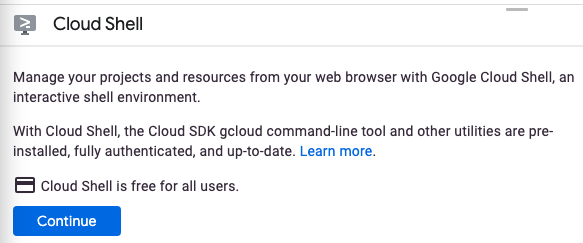
لن يستغرق توفير Cloud Shell والاتصال به سوى بضع لحظات.

توفّر لك Cloud Shell إمكانية الوصول إلى جهاز افتراضي مستضاف على السحابة الإلكترونية من خلال سطر الأوامر. يتضمّن الجهاز الافتراضي جميع أدوات التطوير التي تحتاج إليها. توفّر هذه الخدمة دليلًا رئيسيًا دائمًا بسعة 5 غيغابايت وتعمل في Google Cloud، ما يؤدي إلى تحسين أداء الشبكة والمصادقة بشكل كبير. يمكن إنجاز معظم عملك في هذا الدرس العملي، إن لم يكن كله، باستخدام متصفّح فقط.
بعد الاتصال بـ Cloud Shell، من المفترض أن يظهر لك أنّه تم إثبات هويتك وأنّ المشروع تم ضبطه مسبقًا على رقم تعريف مشروعك.
- نفِّذ الأمر التالي في Cloud Shell للتأكّد من إكمال عملية المصادقة:
gcloud auth list
ناتج الأمر
 Credentialed Accounts
ACTIVE  ACCOUNT
*      <my_account>@<my_domain.com>

To set the active account, run:
    $ gcloud config set account `ACCOUNT`
gcloud config list project
ناتج الأمر
[core]
project = <PROJECT_ID>
إذا لم يكن كذلك، يمكنك تعيينه من خلال هذا الأمر:
gcloud config set project <PROJECT_ID>
ناتج الأمر
Updated property [core/project].
3- تفعيل واجهة برمجة التطبيقات Document AI API
قبل البدء في استخدام Document AI، يجب تفعيل واجهة برمجة التطبيقات. يمكنك إجراء ذلك باستخدام gcloud واجهة سطر الأوامر أو Cloud Console.
استخدام واجهة سطر الأوامر (CLI) الخاصة بـ gcloud
- إذا كنت لا تستخدم Cloud Shell، اتّبِع الخطوات الواردة في تثبيت واجهة سطر الأوامر
gcloudعلى جهازك المحلي. - يمكن تفعيل واجهات برمجة التطبيقات باستخدام أوامر
gcloudالتالية.
gcloud services enable documentai.googleapis.com storage.googleapis.com
ينبغي أن تظهر لك على النحو التالي:
Operation "operations/..." finished successfully.
استخدام Cloud Console
افتح Cloud Console في المتصفّح.
- باستخدام شريط البحث في أعلى وحدة التحكّم، ابحث عن "Document AI API"، ثم انقر على تفعيل لاستخدام واجهة برمجة التطبيقات في مشروعك على Google Cloud.

- كرِّر الخطوة السابقة لواجهة برمجة التطبيقات Google Cloud Storage API.
يمكنك الآن استخدام Document AI.
4. إنشاء معالج واختباره
عليك أولاً إنشاء مثيل لمعالج "التعرّف البصري على الحروف في المستندات" الذي سيجري عملية الاستخراج. يمكن إكمال هذه العملية باستخدام Cloud Console أو Processor Management API.
Cloud Console
- في وحدة التحكّم، انتقِل إلى نظرة عامة على منصة Document AI

- انقر على استكشاف أدوات المعالجة واختَر التعرّف الضوئي على الحروف في المستندات
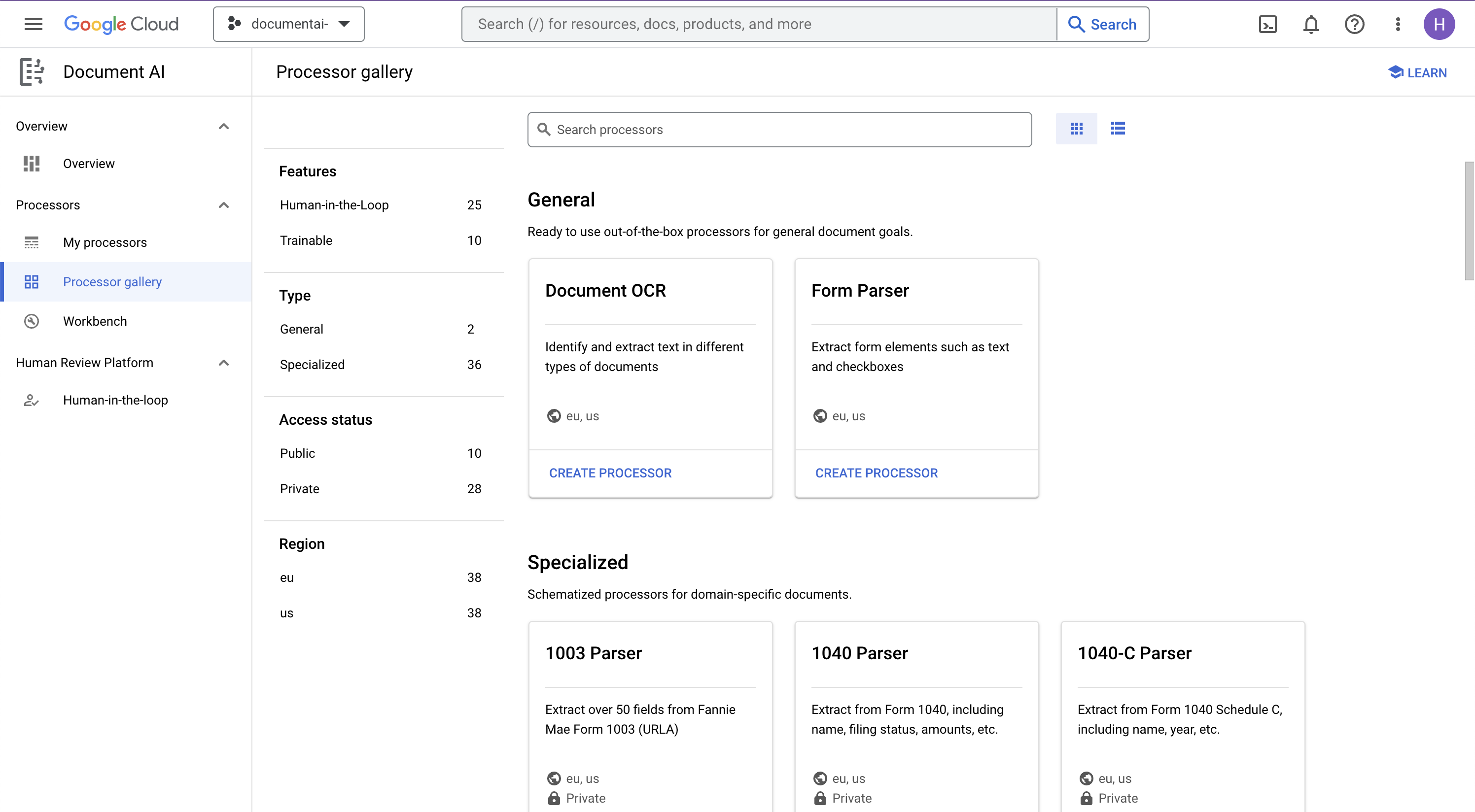
- أدخِل الاسم
codelab-ocr(أو أي اسم آخر يمكنك تذكّره) واختَر المنطقة الأقرب من القائمة. - انقر على إنشاء لإنشاء المعالج.
- انسخ رقم تعريف المعالج. يجب استخدام هذا المعرّف في الرمز البرمجي لاحقًا.

يمكنك تجربة المعالج في وحدة التحكّم من خلال تحميل مستند. انقر على تحميل مستند اختباري واختَر مستندًا لتحليله.
يمكنك تنزيل ملف PDF أدناه، والذي يحتوي على الصفحات الثلاث الأولى من روايتنا.
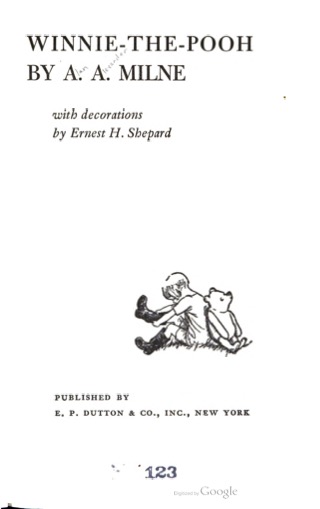
يجب أن تبدو مخرجاتك على هذا النحو: 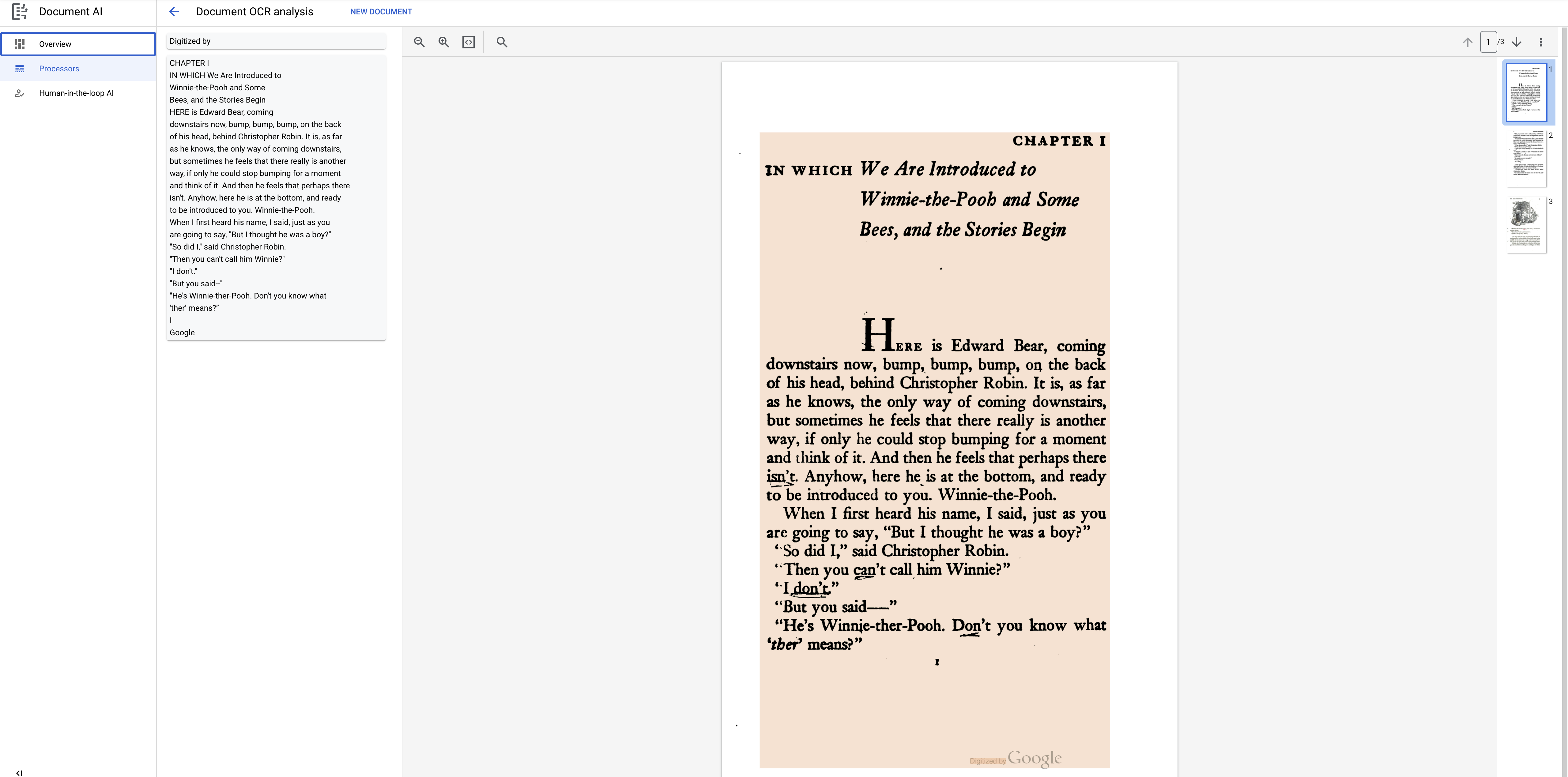
مكتبة برامج Python
اتّبِع هذا الدرس التطبيقي حول الترميز لمعرفة كيفية إدارة معالِجات Document AI باستخدام مكتبة برامج Python:
5- مصادقة طلبات البيانات من واجهة برمجة التطبيقات
لإرسال طلبات إلى Document AI API، يجب استخدام حساب خدمة. حساب الخدمة هو حساب يخص مشروعك، وتستخدمه مكتبة برامج Python لتقديم طلبات إلى واجهة برمجة التطبيقات. وكما هو الحال مع أي حساب مستخدم آخر، يتم تمثيل حساب الخدمة بعنوان بريد إلكتروني. في هذا القسم، ستستخدم Cloud SDK لإنشاء حساب خدمة، ثم ستنشئ بيانات الاعتماد اللازمة للمصادقة كحساب خدمة.
أولاً، افتح Cloud Shell واضبط متغيّر بيئة باستخدام PROJECT_ID الذي ستستخدمه طوال هذا الدرس التطبيقي حول الترميز:
export GOOGLE_CLOUD_PROJECT=$(gcloud config get-value core/project)
بعد ذلك، أنشئ حساب خدمة جديدًا للوصول إلى Document AI API باستخدام:
gcloud iam service-accounts create my-docai-sa \
  --display-name "my-docai-service-account"
بعد ذلك، امنح حساب الخدمة أذونات الوصول إلى Document AI وCloud Storage في مشروعك.
gcloud projects add-iam-policy-binding ${GOOGLE_CLOUD_PROJECT} \
    --member="serviceAccount:my-docai-sa@${GOOGLE_CLOUD_PROJECT}.iam.gserviceaccount.com" \
    --role="roles/documentai.admin"

gcloud projects add-iam-policy-binding ${GOOGLE_CLOUD_PROJECT} \
    --member="serviceAccount:my-docai-sa@${GOOGLE_CLOUD_PROJECT}.iam.gserviceaccount.com" \
    --role="roles/storage.admin"

gcloud projects add-iam-policy-binding ${GOOGLE_CLOUD_PROJECT} \
    --member="serviceAccount:my-docai-sa@${GOOGLE_CLOUD_PROJECT}.iam.gserviceaccount.com" \
    --role="roles/serviceusage.serviceUsageConsumer"
بعد ذلك، أنشئ بيانات اعتماد يستخدمها رمز Python لتسجيل الدخول بصفتك حساب الخدمة الجديد. أنشئ بيانات الاعتماد هذه واحفظها كملف JSON ~/key.json باستخدام الأمر التالي:
gcloud iam service-accounts keys create ~/key.json \
  --iam-account  my-docai-sa@${GOOGLE_CLOUD_PROJECT}.iam.gserviceaccount.com
أخيرًا، اضبط متغيّر البيئة GOOGLE_APPLICATION_CREDENTIALS الذي تستخدمه المكتبة للعثور على بيانات الاعتماد. لمزيد من المعلومات حول هذا النوع من المصادقة، يُرجى الاطّلاع على الدليل. يجب ضبط متغيّر البيئة على المسار الكامل لملف JSON لبيانات الاعتماد الذي أنشأته، وذلك باستخدام:
export GOOGLE_APPLICATION_CREDENTIALS="/path/to/key.json"
6. تثبيت مكتبة البرامج
ثبِّت مكتبات برامج Python الخاصة بخدمات Document AI وCloud Storage وDocument AI Toolbox:
pip3 install --upgrade google-cloud-documentai
pip3 install --upgrade google-cloud-storage
pip3 install --upgrade google-cloud-documentai-toolbox
ينبغي أن تظهر لك على النحو التالي:
...
Installing collected packages: google-cloud-documentai
Successfully installed google-cloud-documentai-2.15.0
.
.
Installing collected packages: google-cloud-storage
Successfully installed google-cloud-storage-2.9.0
.
.
Installing collected packages: google-cloud-documentai-toolbox
Successfully installed google-cloud-documentai-toolbox-0.6.0a0
أنت الآن جاهز لاستخدام Document AI API.
7. تنزيل نموذج ملف PDF
لدينا مستند نموذجي يحتوي على الصفحات الثلاث الأولى من الرواية.
يمكنك تنزيل ملف PDF باستخدام الرابط التالي. بعد ذلك، حمِّله إلى مثيل Cloud Shell.
يمكنك أيضًا تنزيله من حزمة Google Cloud Storage العامة باستخدام gsutil.
gsutil cp gs://cloud-samples-data/documentai/codelabs/ocr/Winnie_the_Pooh_3_Pages.pdf .
8. تقديم طلب معالجة على الإنترنت
في هذه الخطوة، ستعالج الصفحات الثلاث الأولى من الرواية باستخدام واجهة برمجة التطبيقات للمعالجة على الإنترنت (المتزامنة). هذه الطريقة هي الأنسب للمستندات الأصغر حجمًا والمخزَّنة على الجهاز. اطّلِع على قائمة المعالِجات الكاملة لمعرفة الحد الأقصى لعدد الصفحات وحجم الملف لكل نوع من أنواع المعالِجات.
استخدِم محرِّر Cloud Shell أو محرِّر نصوص على جهازك المحلي لإنشاء ملف باسم online_processing.py واستخدِم الرمز أدناه.
استبدِل YOUR_PROJECT_ID وYOUR_PROJECT_LOCATION وYOUR_PROCESSOR_ID وFILE_PATH بالقيم المناسبة لبيئتك.
online_processing.py
from google.api_core.client_options import ClientOptions
from google.cloud import documentai


PROJECT_ID = "YOUR_PROJECT_ID"
LOCATION = "YOUR_PROJECT_LOCATION"  # Format is 'us' or 'eu'
PROCESSOR_ID = "YOUR_PROCESSOR_ID"  # Create processor in Cloud Console

# The local file in your current working directory
FILE_PATH = "Winnie_the_Pooh_3_Pages.pdf"
# Refer to https://cloud.google.com/document-ai/docs/file-types
# for supported file types
MIME_TYPE = "application/pdf"

# Instantiates a client
docai_client = documentai.DocumentProcessorServiceClient(
    client_options=ClientOptions(api_endpoint=f"{LOCATION}-documentai.googleapis.com")
)

# The full resource name of the processor, e.g.:
# projects/project-id/locations/location/processor/processor-id
# You must create new processors in the Cloud Console first
RESOURCE_NAME = docai_client.processor_path(PROJECT_ID, LOCATION, PROCESSOR_ID)

# Read the file into memory
with open(FILE_PATH, "rb") as image:
    image_content = image.read()

# Load Binary Data into Document AI RawDocument Object
raw_document = documentai.RawDocument(content=image_content, mime_type=MIME_TYPE)

# Configure the process request
request = documentai.ProcessRequest(name=RESOURCE_NAME, raw_document=raw_document)

# Use the Document AI client to process the sample form
result = docai_client.process_document(request=request)

document_object = result.document
print("Document processing complete.")
print(f"Text: {document_object.text}")
نفِّذ الرمز، وسيتم استخراج النص وطباعته في وحدة التحكّم.
من المفترض أن يظهر لك الناتج التالي في حال استخدام مستندنا النموذجي:
Document processing complete.
Text: CHAPTER I
IN WHICH We Are Introduced to
Winnie-the-Pooh and Some
Bees, and the Stories Begin
Here is Edward Bear, coming
downstairs now, bump, bump, bump, on the back
of his head, behind Christopher Robin. It is, as far
as he knows, the only way of coming downstairs,
but sometimes he feels that there really is another
way, if only he could stop bumping for a moment
and think of it. And then he feels that perhaps there
isn't. Anyhow, here he is at the bottom, and ready
to be introduced to you. Winnie-the-Pooh.
When I first heard his name, I said, just as you
are going to say, "But I thought he was a boy?"
"So did I," said Christopher Robin.
"Then you can't call him Winnie?"
"I don't."
"But you said "

...

Digitized by
Google
9- تقديم طلب معالجة مجمّعة
لنفترض الآن أنّك تريد قراءة النص من الرواية بأكملها.
- تفرض "المعالجة على الإنترنت" حدودًا على عدد الصفحات وحجم الملف الذي يمكن إرساله، كما تسمح بملف مستند واحد فقط لكل طلب بيانات من واجهة برمجة التطبيقات.
- تتيح "المعالجة المجمّعة" معالجة ملفات أكبر أو متعددة بطريقة غير متزامنة.
في هذه الخطوة، سنعالج رواية "ويني الدبدوب" بالكامل باستخدام واجهة برمجة التطبيقات "المعالجة المجمّعة" في Document AI، وسنرسل النص إلى حزمة Google Cloud Storage.
تستخدم المعالجة المجمّعة العمليات الطويلة الأمد لإدارة الطلبات بطريقة غير متزامنة، لذا علينا تقديم الطلب واسترداد الناتج بطريقة مختلفة عن المعالجة على الإنترنت. ومع ذلك، سيكون الناتج بتنسيق عنصر Document نفسه سواء كنت تستخدم المعالجة على الإنترنت أو المعالجة المجمّعة.
توضّح هذه الخطوة كيفية تقديم مستندات معيّنة لخدمة Document AI من أجل معالجتها. ستوضّح خطوة لاحقة كيفية معالجة دليل كامل للمستندات.
تحميل ملف PDF إلى Cloud Storage
تقبل الطريقة batch_process_documents() حاليًا الملفات من Google Cloud Storage. يمكنك الرجوع إلى documentai_v1.types.BatchProcessRequest للحصول على مزيد من المعلومات حول بنية العنصر.
في هذا المثال، يمكنك قراءة الملف مباشرةً من حزمة العيّنات.
يمكنك أيضًا نسخ الملف إلى الحزمة الخاصة بك باستخدام gsutil...
gsutil cp gs://cloud-samples-data/documentai/codelabs/ocr/Winnie_the_Pooh.pdf gs://YOUR_BUCKET_NAME/
...أو يمكنك تنزيل نموذج ملف الرواية من الرابط أدناه وتحميله إلى الحزمة الخاصة بك.
ستحتاج أيضًا إلى حزمة GCS لتخزين نتائج واجهة برمجة التطبيقات.
يمكنك اتّباع مستندات Cloud Storage للتعرّف على كيفية إنشاء حِزم تخزين.
استخدام طريقة batch_process_documents()
أنشئ ملفًا باسم batch_processing.py واستخدِم الرمز البرمجي أدناه.
استبدِل YOUR_PROJECT_ID وYOUR_PROCESSOR_LOCATION وYOUR_PROCESSOR_ID وYOUR_INPUT_URI وYOUR_OUTPUT_URI بالقيم المناسبة لبيئتك.
تأكَّد من أنّ YOUR_INPUT_URI يشير مباشرةً إلى ملف PDF، على سبيل المثال: gs://cloud-samples-data/documentai/codelabs/ocr/Winnie_the_Pooh.pdf.
batch_processing.py
"""
Makes a Batch Processing Request to Document AI
"""

import re

from google.api_core.client_options import ClientOptions
from google.api_core.exceptions import InternalServerError
from google.api_core.exceptions import RetryError
from google.cloud import documentai
from google.cloud import storage

# TODO(developer): Fill these variables before running the sample.
project_id = "YOUR_PROJECT_ID"
location = "YOUR_PROCESSOR_LOCATION"  # Format is "us" or "eu"
processor_id = "YOUR_PROCESSOR_ID"  # Create processor before running sample
gcs_output_uri = "YOUR_OUTPUT_URI"  # Must end with a trailing slash `/`. Format: gs://bucket/directory/subdirectory/
processor_version_id = (
    "YOUR_PROCESSOR_VERSION_ID"  # Optional. Example: pretrained-ocr-v1.0-2020-09-23
)

# TODO(developer): If `gcs_input_uri` is a single file, `mime_type` must be specified.
gcs_input_uri = "YOUR_INPUT_URI"  # Format: `gs://bucket/directory/file.pdf` or `gs://bucket/directory/`
input_mime_type = "application/pdf"
field_mask = "text,entities,pages.pageNumber"  # Optional. The fields to return in the Document object.


def batch_process_documents(
    project_id: str,
    location: str,
    processor_id: str,
    gcs_input_uri: str,
    gcs_output_uri: str,
    processor_version_id: str = None,
    input_mime_type: str = None,
    field_mask: str = None,
    timeout: int = 400,
):
    # You must set the api_endpoint if you use a location other than "us".
    opts = ClientOptions(api_endpoint=f"{location}-documentai.googleapis.com")

    client = documentai.DocumentProcessorServiceClient(client_options=opts)

    if not gcs_input_uri.endswith("/") and "." in gcs_input_uri:
        # Specify specific GCS URIs to process individual documents
        gcs_document = documentai.GcsDocument(
            gcs_uri=gcs_input_uri, mime_type=input_mime_type
        )
        # Load GCS Input URI into a List of document files
        gcs_documents = documentai.GcsDocuments(documents=[gcs_document])
        input_config = documentai.BatchDocumentsInputConfig(gcs_documents=gcs_documents)
    else:
        # Specify a GCS URI Prefix to process an entire directory
        gcs_prefix = documentai.GcsPrefix(gcs_uri_prefix=gcs_input_uri)
        input_config = documentai.BatchDocumentsInputConfig(gcs_prefix=gcs_prefix)

    # Cloud Storage URI for the Output Directory
    gcs_output_config = documentai.DocumentOutputConfig.GcsOutputConfig(
        gcs_uri=gcs_output_uri, field_mask=field_mask
    )

    # Where to write results
    output_config = documentai.DocumentOutputConfig(gcs_output_config=gcs_output_config)

    if processor_version_id:
        # The full resource name of the processor version, e.g.:
        # projects/{project_id}/locations/{location}/processors/{processor_id}/processorVersions/{processor_version_id}
        name = client.processor_version_path(
            project_id, location, processor_id, processor_version_id
        )
    else:
        # The full resource name of the processor, e.g.:
        # projects/{project_id}/locations/{location}/processors/{processor_id}
        name = client.processor_path(project_id, location, processor_id)

    request = documentai.BatchProcessRequest(
        name=name,
        input_documents=input_config,
        document_output_config=output_config,
    )

    # BatchProcess returns a Long Running Operation (LRO)
    operation = client.batch_process_documents(request)

    # Continually polls the operation until it is complete.
    # This could take some time for larger files
    # Format: projects/{project_id}/locations/{location}/operations/{operation_id}
    try:
        print(f"Waiting for operation {operation.operation.name} to complete...")
        operation.result(timeout=timeout)
    # Catch exception when operation doesn"t finish before timeout
    except (RetryError, InternalServerError) as e:
        print(e.message)

    # NOTE: Can also use callbacks for asynchronous processing
    #
    # def my_callback(future):
    #   result = future.result()
    #
    # operation.add_done_callback(my_callback)

    # Once the operation is complete,
    # get output document information from operation metadata
    metadata = documentai.BatchProcessMetadata(operation.metadata)

    if metadata.state != documentai.BatchProcessMetadata.State.SUCCEEDED:
        raise ValueError(f"Batch Process Failed: {metadata.state_message}")

    storage_client = storage.Client()

    print("Output files:")
    # One process per Input Document
    for process in list(metadata.individual_process_statuses):
        # output_gcs_destination format: gs://BUCKET/PREFIX/OPERATION_NUMBER/INPUT_FILE_NUMBER/
        # The Cloud Storage API requires the bucket name and URI prefix separately
        matches = re.match(r"gs://(.*?)/(.*)", process.output_gcs_destination)
        if not matches:
            print(
                "Could not parse output GCS destination:",
                process.output_gcs_destination,
            )
            continue

        output_bucket, output_prefix = matches.groups()

        # Get List of Document Objects from the Output Bucket
        output_blobs = storage_client.list_blobs(output_bucket, prefix=output_prefix)

        # Document AI may output multiple JSON files per source file
        for blob in output_blobs:
            # Document AI should only output JSON files to GCS
            if blob.content_type != "application/json":
                print(
                    f"Skipping non-supported file: {blob.name} - Mimetype: {blob.content_type}"
                )
                continue

            # Download JSON File as bytes object and convert to Document Object
            print(f"Fetching {blob.name}")
            document = documentai.Document.from_json(
                blob.download_as_bytes(), ignore_unknown_fields=True
            )

            # For a full list of Document object attributes, please reference this page:
            # https://cloud.google.com/python/docs/reference/documentai/latest/google.cloud.documentai_v1.types.Document

            # Read the text recognition output from the processor
            print("The document contains the following text:")
            print(document.text)


if __name__ == "__main__":
    batch_process_documents(
        project_id=project_id,
        location=location,
        processor_id=processor_id,
        gcs_input_uri=gcs_input_uri,
        gcs_output_uri=gcs_output_uri,
        input_mime_type=input_mime_type,
        field_mask=field_mask,
    )
نفِّذ الرمز، وسيظهر لك نص الرواية الكامل الذي تم استخراجه وطباعته في وحدة التحكّم.
قد يستغرق إكمال هذه العملية بعض الوقت لأنّ حجم الملف أكبر بكثير من المثال السابق. (يا له من أمر مزعج...)
ومع ذلك، باستخدام Batch Processing API، ستتلقّى رقم تعريف عملية يمكن استخدامه للحصول على الناتج من Google Cloud Storage بعد اكتمال المهمة.
يجب أن تبدو مخرجاتك على النحو التالي:
Waiting for operation projects/PROJECT_NUMBER/locations/LOCATION/operations/OPERATION_NUMBER to complete...
Document processing complete.
Fetching docai-output/OPERATION_NUMBER/0/Winnie_the_Pooh-0.json
Fetching docai-output/OPERATION_NUMBER/0/Winnie_the_Pooh-1.json
Fetching docai-output/OPERATION_NUMBER/0/Winnie_the_Pooh-10.json
Fetching docai-output/OPERATION_NUMBER/0/Winnie_the_Pooh-11.json
Fetching docai-output/OPERATION_NUMBER/0/Winnie_the_Pooh-12.json
Fetching docai-output/OPERATION_NUMBER/0/Winnie_the_Pooh-13.json
Fetching docai-output/OPERATION_NUMBER/0/Winnie_the_Pooh-14.json
Fetching docai-output/OPERATION_NUMBER/0/Winnie_the_Pooh-15.json
Fetching docai-output/OPERATION_NUMBER/0/Winnie_the_Pooh-16.json
Fetching docai-output/OPERATION_NUMBER/0/Winnie_the_Pooh-17.json
Fetching docai-output/OPERATION_NUMBER/0/Winnie_the_Pooh-18.json
Fetching docai-output/OPERATION_NUMBER/0/Winnie_the_Pooh-2.json
Fetching docai-output/OPERATION_NUMBER/0/Winnie_the_Pooh-3.json
Fetching docai-output/OPERATION_NUMBER/0/Winnie_the_Pooh-4.json
Fetching docai-output/OPERATION_NUMBER/0/Winnie_the_Pooh-5.json
Fetching docai-output/OPERATION_NUMBER/0/Winnie_the_Pooh-6.json
Fetching docai-output/OPERATION_NUMBER/0/Winnie_the_Pooh-7.json
Fetching docai-output/OPERATION_NUMBER/0/Winnie_the_Pooh-8.json
Fetching docai-output/OPERATION_NUMBER/0/Winnie_the_Pooh-9.json

This is a reproduction of a library book that was digitized
by Google as part of an ongoing effort to preserve the
information in books and make it universally accessible.
TM
Google books
https://books.google.com

.....

He nodded and went
out ... and in a moment
I heard Winnie-the-Pooh
-bump, bump, bump-go-ing up the stairs behind
him.
Digitized by
Google
10. تقديم طلب معالجة مجمّعة لدليل
في بعض الأحيان، قد تحتاج إلى معالجة دليل كامل للمستندات، بدون إدراج كل مستند على حدة. تتيح طريقة batch_process_documents() إدخال قائمة بمستندات معيّنة أو مسار دليل.
ستوضّح هذه الخطوة كيفية معالجة دليل كامل لملفات المستندات. يعمل معظم الرمز البرمجي بالطريقة نفسها كما في الخطوة السابقة، والفرق الوحيد هو معرّف الموارد المنتظم (URI) في "خدمة التخزين السحابي من Google" (GCS) الذي يتم إرساله مع BatchProcessRequest.
لدينا دليل في حزمة العيّنات يحتوي على صفحات متعددة من الرواية في ملفات منفصلة.
gs://cloud-samples-data/documentai/codelabs/ocr/multi-document/
يمكنك قراءة الملفات مباشرةً أو نسخها إلى حزمة Cloud Storage الخاصة بك.
أعِد تشغيل الرمز من الخطوة السابقة، واستبدِل YOUR_INPUT_URI بدليل في Cloud Storage.
نفِّذ الرمز، وسيظهر لك النص المستخرَج من جميع ملفات المستندات في دليل Cloud Storage.
يجب أن تبدو مخرجاتك على النحو التالي:
Waiting for operation projects/PROJECT_NUMBER/locations/LOCATION/operations/OPERATION_NUMBER to complete...
Document processing complete.
Fetching docai-output/OPERATION_NUMBER/0/Winnie_the_Pooh_Page_0-0.json
Fetching docai-output/OPERATION_NUMBER/1/Winnie_the_Pooh_Page_1-0.json
Fetching docai-output/OPERATION_NUMBER/2/Winnie_the_Pooh_Page_10-0.json
Fetching docai-output/OPERATION_NUMBER/3/Winnie_the_Pooh_Page_12-0.json
Fetching docai-output/OPERATION_NUMBER/4/Winnie_the_Pooh_Page_16-0.json
Fetching docai-output/OPERATION_NUMBER/5/Winnie_the_Pooh_Page_7-0.json

Introduction
(I₂
F YOU happen to have read another
book about Christopher Robin, you may remember
th
CHAPTER I
IN WHICH We Are Introduced to
Winnie-the-Pooh and Some
Bees, and the Stories Begin
HERE is
10
WINNIE-THE-POOH
"I wonder if you've got such a thing as a balloon
about you?"
"A balloon?"
"Yes,
12
WINNIE-THE-POOH
and you took your gun with you, just in case, as
you always did, and Winnie-the-P
16
WINNIE-THE-POOH
this song, and one bee sat down on the nose of the
cloud for a moment, and then g
WE ARE INTRODUCED
7
"Oh, help!" said Pooh, as he dropped ten feet on
the branch below him.
"If only
11. التعامل مع ردود المعالجة المجمّعة باستخدام Document AI Toolbox
تتطلّب المعالجة على دفعات عددًا كبيرًا من الخطوات لإكمالها بسبب الدمج مع Cloud Storage. قد يتم أيضًا تقسيم مخرجات Document إلى عدة ملفات .json استنادًا إلى حجم المستند المصدر.
تم إنشاء حزمة تطوير البرامج Document AI Toolbox Python SDK لتسهيل عمليات ما بعد المعالجة والمهام الشائعة الأخرى باستخدام Document AI. تهدف هذه المكتبة إلى أن تكون مكمّلة لمكتبة برامج Document AI، وليس بديلاً عنها. يمكنك الانتقال إلى المستندات المرجعية للاطّلاع على المواصفات الكاملة.
توضّح هذه الخطوة كيفية تقديم طلب معالجة على دفعات واسترداد الناتج باستخدام Document AI Toolbox.
batch_processing_toolbox.py
"""
Makes a Batch Processing Request to Document AI using Document AI Toolbox
"""

from google.api_core.client_options import ClientOptions
from google.cloud import documentai
from google.cloud import documentai_toolbox

# TODO(developer): Fill these variables before running the sample.
project_id = "YOUR_PROJECT_ID"
location = "YOUR_PROCESSOR_LOCATION"  # Format is "us" or "eu"
processor_id = "YOUR_PROCESSOR_ID"  # Create processor before running sample
gcs_output_uri = "YOUR_OUTPUT_URI"  # Must end with a trailing slash `/`. Format: gs://bucket/directory/subdirectory/
processor_version_id = (
    "YOUR_PROCESSOR_VERSION_ID"  # Optional. Example: pretrained-ocr-v1.0-2020-09-23
)

# TODO(developer): If `gcs_input_uri` is a single file, `mime_type` must be specified.
gcs_input_uri = "YOUR_INPUT_URI"  # Format: `gs://bucket/directory/file.pdf`` or `gs://bucket/directory/``
input_mime_type = "application/pdf"
field_mask = "text,entities,pages.pageNumber"  # Optional. The fields to return in the Document object.


def batch_process_toolbox(
    project_id: str,
    location: str,
    processor_id: str,
    gcs_input_uri: str,
    gcs_output_uri: str,
    processor_version_id: str = None,
    input_mime_type: str = None,
    field_mask: str = None,
):
    # You must set the api_endpoint if you use a location other than "us".
    opts = ClientOptions(api_endpoint=f"{location}-documentai.googleapis.com")

    client = documentai.DocumentProcessorServiceClient(client_options=opts)

    if not gcs_input_uri.endswith("/") and "." in gcs_input_uri:
        # Specify specific GCS URIs to process individual documents
        gcs_document = documentai.GcsDocument(
            gcs_uri=gcs_input_uri, mime_type=input_mime_type
        )
        # Load GCS Input URI into a List of document files
        gcs_documents = documentai.GcsDocuments(documents=[gcs_document])
        input_config = documentai.BatchDocumentsInputConfig(gcs_documents=gcs_documents)
    else:
        # Specify a GCS URI Prefix to process an entire directory
        gcs_prefix = documentai.GcsPrefix(gcs_uri_prefix=gcs_input_uri)
        input_config = documentai.BatchDocumentsInputConfig(gcs_prefix=gcs_prefix)

    # Cloud Storage URI for the Output Directory
    gcs_output_config = documentai.DocumentOutputConfig.GcsOutputConfig(
        gcs_uri=gcs_output_uri, field_mask=field_mask
    )

    # Where to write results
    output_config = documentai.DocumentOutputConfig(gcs_output_config=gcs_output_config)

    if processor_version_id:
        # The full resource name of the processor version, e.g.:
        # projects/{project_id}/locations/{location}/processors/{processor_id}/processorVersions/{processor_version_id}
        name = client.processor_version_path(
            project_id, location, processor_id, processor_version_id
        )
    else:
        # The full resource name of the processor, e.g.:
        # projects/{project_id}/locations/{location}/processors/{processor_id}
        name = client.processor_path(project_id, location, processor_id)

    request = documentai.BatchProcessRequest(
        name=name,
        input_documents=input_config,
        document_output_config=output_config,
    )

    # BatchProcess returns a Long Running Operation (LRO)
    operation = client.batch_process_documents(request)

    # Operation Name Format: projects/{project_id}/locations/{location}/operations/{operation_id}
    documents = documentai_toolbox.document.Document.from_batch_process_operation(
        location=location, operation_name=operation.operation.name
    )

    for document in documents:
        # Read the text recognition output from the processor
        print("The document contains the following text:")
        # Truncated at 100 characters for brevity
        print(document.text[:100])


if __name__ == "__main__":
    batch_process_toolbox(
        project_id=project_id,
        location=location,
        processor_id=processor_id,
        gcs_input_uri=gcs_input_uri,
        gcs_output_uri=gcs_output_uri,
        input_mime_type=input_mime_type,
        field_mask=field_mask,
    )
12. تهانينا
لقد استخدمت Document AI بنجاح لاستخراج نص من رواية باستخدام "المعالجة على الإنترنت" و"المعالجة المجمّعة" و"مجموعة أدوات Document AI".
ننصحك بتجربة مستندات أخرى واستكشاف المعالِجات الأخرى المتاحة على المنصة.
تنظيف
لتجنُّب تحمّل رسوم في حسابك على Google Cloud مقابل الموارد المستخدَمة في هذا البرنامج التعليمي، اتّبِع الخطوات التالية:
- في Cloud Console، انتقِل إلى صفحة إدارة الموارد.
- في قائمة المشاريع، اختَر مشروعك ثم انقر على "حذف".
- في مربّع الحوار، اكتب رقم تعريف المشروع، ثم انقر على "إيقاف" لحذف المشروع.
مزيد من المعلومات
يمكنك مواصلة التعرّف على Document AI من خلال تجربة Codelabs التالية.
- تحليل النماذج باستخدام Document AI (Python)
- المعالِجات المتخصّصة باستخدام Document AI (Python)
- إدارة معالِجات Document AI باستخدام Python
- Document AI: Human in the Loop
المراجع
- مستقبل المستندات - قائمة تشغيل على YouTube
- مستندات Document AI
- مكتبة برامج Document AI Python
- مستودع نماذج Document AI
الترخيص
يخضع هذا العمل لترخيص المشاع الإبداعي مع نسب العمل إلى مؤلفه 2.0 Generic License.