

1. Genel Bakış
Document AI nedir?
Document AI, yapılandırılmamış verileri (ör. dokümanlar, e-postalar, faturalar, formlar vb.) alıp verilerin anlaşılmasını, analiz edilmesini ve kullanılmasını kolaylaştıran bir doküman anlama çözümüdür. API, içerik sınıflandırması, öğe çıkarma ve gelişmiş arama gibi özellikler aracılığıyla yapı sağlar.
Bu laboratuvarda, Python ile Document AI API'yi kullanarak Optik Karakter Tanıma işlemini nasıl yapacağınızı öğreneceksiniz.
Bu çalışmada, A.A. Milne'in klasik romanı "Winnie the Pooh"un PDF dosyasını kullanacağız. Bu roman, kısa süre önce ABD'de Kamu Malı kapsamına girmiştir. Bu dosya Google Kitaplar tarafından taranıp dijitalleştirilmiştir.
Neler öğreneceksiniz?
- Document AI API'sini etkinleştirme
- API isteklerinin kimliğini doğrulama
- Python için istemci kitaplığını yükleme
- Online ve toplu işleme API'lerini kullanma
- PDF dosyasındaki metni ayrıştırma
Gerekenler
- Google Cloud projesi
- Chrome veya Firefox gibi bir tarayıcı
- Python (3.9+) kullanma konusunda bilgi sahibi olma
Anket
Bu eğitimi nasıl kullanacaksınız?
Python ile ilgili deneyiminizi nasıl değerlendirirsiniz?
Google Cloud hizmetlerini kullanma deneyiminizi nasıl değerlendirirsiniz?
2. Kurulum ve Gereksinimler
Yönlendirmesiz ortam kurulumu
- Cloud Console'da oturum açın ve yeni bir proje oluşturun veya mevcut bir projeyi yeniden kullanın. (Gmail veya Google Workspace hesabınız yoksa oluşturmanız gerekir.)


Tüm Google Cloud projelerinde benzersiz bir ad olan proje kimliğini unutmayın. (Yukarıdaki proje kimliği zaten alınmış olduğundan sizin için çalışmayacaktır.) Bu kimliği daha sonra PROJECT_ID olarak sağlamanız gerekir.
- Ardından, Google Cloud kaynaklarını kullanmak için Cloud Console'da faturalandırmayı etkinleştirmeniz gerekir.
"Temizleme" bölümündeki talimatları uyguladığınızdan emin olun. Bu bölümde, bu eğitimin ötesinde faturalandırma ücreti alınmaması için kaynakları nasıl kapatacağınız açıklanmıştır. Google Cloud'un yeni kullanıcıları 300 ABD doları değerinde ücretsiz deneme programından yararlanabilir.
Cloud Shell'i başlatma
Google Cloud'dayken Google Cloud'u dizüstü bilgisayarınızdan uzaktan çalıştırabilirsiniz. Bu codelab'de ise Cloud'da çalışan bir komut satırı ortamı olan Google Cloud Shell kullanılmaktadır.
Cloud Shell'i etkinleştirme
- Cloud Console'da Cloud Shell'i etkinleştir 'i
tıklayın.

Cloud Shell'i daha önce hiç başlatmadıysanız ne olduğunu açıklayan bir ara ekran (ekranın alt kısmı) gösterilir. Bu durumda Devam'ı tıkladığınızda bu ekranı bir daha görmezsiniz. Bu tek seferlik ekran aşağıdaki gibi görünür:
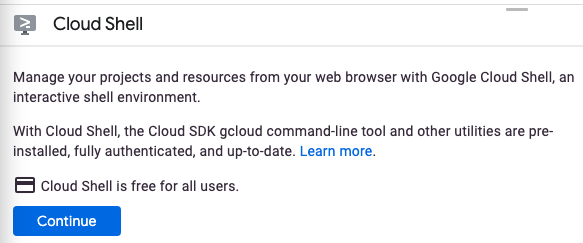
Cloud Shell'in temel hazırlığı ve bağlanması yalnızca birkaç dakikanızı alır.

Cloud Shell, bulutta barındırılan bir sanal makineye terminal erişimi sağlar. Sanal makine, ihtiyaç duyacağınız tüm geliştirme araçlarını içerir. 5 GB boyutunda kalıcı bir ana dizin bulunur ve Google Cloud'da çalışır. Bu sayede ağ performansı ve kimlik doğrulama önemli ölçüde güçlenir. Bu codelab'deki çalışmalarınızın neredeyse tamamını yalnızca bir tarayıcı kullanarak yapabilirsiniz.
Cloud Shell'e bağlandıktan sonra kimliğinizin doğrulandığını ve projenin, proje kimliğinize ayarlandığını görürsünüz.
- Kimliğinizin doğrulandığını onaylamak için Cloud Shell'de şu komutu çalıştırın:
gcloud auth list
Komut çıkışı
 Credentialed Accounts
ACTIVE  ACCOUNT
*      <my_account>@<my_domain.com>

To set the active account, run:
    $ gcloud config set account `ACCOUNT`
gcloud config list project
Komut çıkışı
[core]
project = <PROJECT_ID>
Değilse şu komutla ayarlayabilirsiniz:
gcloud config set project <PROJECT_ID>
Komut çıkışı
Updated property [core/project].
3. Document AI API'yi etkinleştirme
Document AI'ı kullanmaya başlamadan önce API'yi etkinleştirmeniz gerekir. Bu işlemi gcloud komut satırı arayüzünü veya Cloud Console'u kullanarak gerçekleştirebilirsiniz.
gcloud KSA'sını kullanma
- Cloud Shell kullanmıyorsanız
gcloudCLI'yı yerel makinenize yükleme bölümündeki adımları uygulayın. - API'ler aşağıdaki
gcloudkomutları kullanılarak etkinleştirilebilir.
gcloud services enable documentai.googleapis.com storage.googleapis.com
Aşağıdakine benzer bir tablo görürsünüz:
Operation "operations/..." finished successfully.
Cloud Console'u kullanma
Tarayıcınızda Cloud Console'u açın.
- Konsolun üst kısmındaki arama çubuğunu kullanarak "Document AI API"yi arayın, ardından Google Cloud projenizde API'yi kullanmak için Etkinleştir'i tıklayın.

- Google Cloud Storage API için önceki adımı tekrarlayın.
Artık Document AI'ı kullanabilirsiniz.
4. İşleyici oluşturma ve test etme
Öncelikle ayıklama işlemini yapacak olan Document OCR işlemcisinin bir örneğini oluşturmanız gerekir. Bu işlem Cloud Console veya Processor Management API kullanılarak tamamlanabilir.
Cloud Console
- Konsolda Document AI Platformuna Genel Bakış'a
 gidin.
 - İşlemcileri Keşfedin'i tıklayın ve Belge OCR'yi seçin

- Bu dosyaya
codelab-ocradını verin (veya hatırlayacağınız başka bir ad) ve listede en yakın bölgeyi seçin. - İşleyicinizi oluşturmak için Oluştur'u tıklayın.
- İşlemci kimliğinizi kopyalayın. Bunu daha sonra kodunuzda kullanmanız gerekir.

Bir belge yükleyerek işlemcinizi konsolda test edebilirsiniz. Test Belgesi Yükle'yi tıklayın ve ayrıştırılacak bir belge seçin.
Romanımızın ilk 3 sayfasını içeren PDF dosyasını aşağıdan indirebilirsiniz.

Çıkışınız şu şekilde görünmelidir: 
Python İstemci Kitaplığı
Python istemci kitaplığıyla Document AI işlemcilerini nasıl yöneteceğinizi öğrenmek için bu codelab'i inceleyin:
5. API isteklerinin kimliğini doğrulama
Document AI API'ye istek göndermek için hizmet hesabı kullanmanız gerekir. Hizmet hesabı, projenize aittir ve API istekleri yapmak için Python istemci kitaplığı tarafından kullanılır. Diğer tüm kullanıcı hesapları gibi, hizmet hesabı da bir e-posta adresiyle temsil edilir. Bu bölümde, hizmet hesabı oluşturmak için Cloud SDK'yı kullanacak, ardından hizmet hesabı olarak kimlik doğrulamak için gereken kimlik bilgilerini oluşturacaksınız.
Öncelikle Cloud Shell'i açın ve bu codelab boyunca kullanacağınız PROJECT_ID ile bir ortam değişkeni ayarlayın:
export GOOGLE_CLOUD_PROJECT=$(gcloud config get-value core/project)
Ardından, Document AI API'ye erişmek için yeni bir hizmet hesabı oluşturun:
gcloud iam service-accounts create my-docai-sa \
  --display-name "my-docai-service-account"
Ardından, hizmet hesabınıza projenizde Document AI ve Cloud Storage'a erişme izni verin.
gcloud projects add-iam-policy-binding ${GOOGLE_CLOUD_PROJECT} \
    --member="serviceAccount:my-docai-sa@${GOOGLE_CLOUD_PROJECT}.iam.gserviceaccount.com" \
    --role="roles/documentai.admin"

gcloud projects add-iam-policy-binding ${GOOGLE_CLOUD_PROJECT} \
    --member="serviceAccount:my-docai-sa@${GOOGLE_CLOUD_PROJECT}.iam.gserviceaccount.com" \
    --role="roles/storage.admin"

gcloud projects add-iam-policy-binding ${GOOGLE_CLOUD_PROJECT} \
    --member="serviceAccount:my-docai-sa@${GOOGLE_CLOUD_PROJECT}.iam.gserviceaccount.com" \
    --role="roles/serviceusage.serviceUsageConsumer"
Ardından, Python kodunuzun yeni hizmet hesabınız olarak giriş yapmak için kullanacağı kimlik bilgilerini oluşturun. Bu kimlik bilgilerini oluşturduktan sonra aşağıdaki komut aracılığıyla bir JSON dosyası ~/key.json olarak kaydedin:
gcloud iam service-accounts keys create ~/key.json \
  --iam-account  my-docai-sa@${GOOGLE_CLOUD_PROJECT}.iam.gserviceaccount.com
Son olarak, kitaplığın kimlik bilgilerinizi bulmak için kullandığı GOOGLE_APPLICATION_CREDENTIALS ortam değişkenini ayarlayın. Bu kimlik doğrulama biçimi hakkında daha fazla bilgi edinmek için kılavuza bakın. Ortam değişkeni, oluşturduğunuz kimlik bilgisi JSON dosyasının tam dizin yoluna göre ayarlanmalıdır. Bunun için:
export GOOGLE_APPLICATION_CREDENTIALS="/path/to/key.json"
6. İstemci kitaplığını yükleme
Document AI, Cloud Storage ve Document AI Toolbox için Python istemci kitaplıklarını yükleyin:
pip3 install --upgrade google-cloud-documentai
pip3 install --upgrade google-cloud-storage
pip3 install --upgrade google-cloud-documentai-toolbox
Aşağıdakine benzer bir tablo görürsünüz:
...
Installing collected packages: google-cloud-documentai
Successfully installed google-cloud-documentai-2.15.0
.
.
Installing collected packages: google-cloud-storage
Successfully installed google-cloud-storage-2.9.0
.
.
Installing collected packages: google-cloud-documentai-toolbox
Successfully installed google-cloud-documentai-toolbox-0.6.0a0
Artık Document AI API'yi kullanmaya hazırsınız.
7. Örnek PDF'yi indirin
Romandaki ilk 3 sayfayı içeren örnek bir dokümanımız var.
PDF'yi aşağıdaki bağlantıyı kullanarak indirebilirsiniz. Ardından cloudshell örneğine yükleyin.
Ayrıca, gsutil kullanarak herkese açık Google Cloud Storage paketimizden de indirebilirsiniz.
gsutil cp gs://cloud-samples-data/documentai/codelabs/ocr/Winnie_the_Pooh_3_Pages.pdf .
8. Online İşleme İsteğinde Bulunma
Bu adımda, romanın ilk 3 sayfasını online işleme (eşzamanlı) API'sini kullanarak işleyeceksiniz. Bu yöntem, yerel olarak depolanan küçük belgeler için en uygun yöntemdir. Her işlemci türü için maksimum sayfa sayısı ve dosya boyutu hakkında bilgi edinmek üzere işlemcilerin tam listesine göz atın.
online_processing.py adlı bir dosya oluşturmak için Cloud Shell Düzenleyici'yi veya yerel makinenizdeki bir metin düzenleyiciyi kullanın ve aşağıdaki kodu kullanın.
YOUR_PROJECT_ID, YOUR_PROJECT_LOCATION, YOUR_PROCESSOR_ID ve FILE_PATH değerlerini ortamınıza uygun değerlerle değiştirin.
online_processing.py
from google.api_core.client_options import ClientOptions
from google.cloud import documentai


PROJECT_ID = "YOUR_PROJECT_ID"
LOCATION = "YOUR_PROJECT_LOCATION"  # Format is 'us' or 'eu'
PROCESSOR_ID = "YOUR_PROCESSOR_ID"  # Create processor in Cloud Console

# The local file in your current working directory
FILE_PATH = "Winnie_the_Pooh_3_Pages.pdf"
# Refer to https://cloud.google.com/document-ai/docs/file-types
# for supported file types
MIME_TYPE = "application/pdf"

# Instantiates a client
docai_client = documentai.DocumentProcessorServiceClient(
    client_options=ClientOptions(api_endpoint=f"{LOCATION}-documentai.googleapis.com")
)

# The full resource name of the processor, e.g.:
# projects/project-id/locations/location/processor/processor-id
# You must create new processors in the Cloud Console first
RESOURCE_NAME = docai_client.processor_path(PROJECT_ID, LOCATION, PROCESSOR_ID)

# Read the file into memory
with open(FILE_PATH, "rb") as image:
    image_content = image.read()

# Load Binary Data into Document AI RawDocument Object
raw_document = documentai.RawDocument(content=image_content, mime_type=MIME_TYPE)

# Configure the process request
request = documentai.ProcessRequest(name=RESOURCE_NAME, raw_document=raw_document)

# Use the Document AI client to process the sample form
result = docai_client.process_document(request=request)

document_object = result.document
print("Document processing complete.")
print(f"Text: {document_object.text}")
Metni ayıklayıp konsola yazdıracak kodu çalıştırın.
Örnek dokümanımızı kullanıyorsanız aşağıdaki çıkışı görürsünüz:
Document processing complete.
Text: CHAPTER I
IN WHICH We Are Introduced to
Winnie-the-Pooh and Some
Bees, and the Stories Begin
Here is Edward Bear, coming
downstairs now, bump, bump, bump, on the back
of his head, behind Christopher Robin. It is, as far
as he knows, the only way of coming downstairs,
but sometimes he feels that there really is another
way, if only he could stop bumping for a moment
and think of it. And then he feels that perhaps there
isn't. Anyhow, here he is at the bottom, and ready
to be introduced to you. Winnie-the-Pooh.
When I first heard his name, I said, just as you
are going to say, "But I thought he was a boy?"
"So did I," said Christopher Robin.
"Then you can't call him Winnie?"
"I don't."
"But you said "

...

Digitized by
Google
9. Toplu işleme isteğinde bulunma
Şimdi de tüm romandaki metni okumak istediğinizi varsayalım.
- Online İşleme, gönderilebilecek sayfa sayısı ve dosya boyutu konusunda sınırlamalar içerir ve API çağrısı başına yalnızca bir doküman dosyasına izin verir.
- Toplu işleme, daha büyük/birden fazla dosyanın eşzamansız bir yöntemle işlenmesine olanak tanır.
Bu adımda, "Winnie the Pooh" romanının tamamını Document AI Toplu İşleme API'si ile işleyip metni bir Google Cloud Storage paketine aktaracağız.
Toplu işleme, istekleri eşzamansız olarak yönetmek için uzun süren işlemlerden yararlanır. Bu nedenle, isteği farklı bir şekilde yapmamız ve çıktıyı online işlemeye kıyasla farklı bir şekilde almamız gerekir. Ancak, çıkış, online veya toplu işleme kullanılıp kullanılmadığına bakılmaksızın aynı Document nesne biçiminde olur.
Bu adımda, Document AI'nın işlemesi için belirli belgelerin nasıl sağlanacağı gösterilmektedir. Daha sonraki bir adımda, belgelerden oluşan bir dizinin tamamının nasıl işleneceği gösterilecektir.
Cloud Storage'a PDF yükleme
batch_process_documents() yöntemi şu anda Google Cloud Storage'daki dosyaları kabul etmektedir. Nesne yapısı hakkında daha fazla bilgi için documentai_v1.types.BatchProcessRequest başlıklı makaleyi inceleyebilirsiniz.
Bu örnek için dosyayı doğrudan örnek paketimizden okuyabilirsiniz.
Ayrıca, gsutil kullanarak dosyayı kendi paketinize de kopyalayabilirsiniz.
gsutil cp gs://cloud-samples-data/documentai/codelabs/ocr/Winnie_the_Pooh.pdf gs://YOUR_BUCKET_NAME/
...veya aşağıdaki bağlantıdan romanın örnek dosyasını indirip kendi paketinize yükleyebilirsiniz.
API'nin çıkışını depolamak için bir GCS paketi de gerekir.
Depolama paketleri oluşturma hakkında bilgi edinmek için Cloud Storage belgelerini inceleyebilirsiniz.
batch_process_documents() yöntemini kullanma
batch_processing.py adlı bir dosya oluşturun ve aşağıdaki kodu kullanın.
YOUR_PROJECT_ID, YOUR_PROCESSOR_LOCATION, YOUR_PROCESSOR_ID, YOUR_INPUT_URI ve YOUR_OUTPUT_URI değerlerini ortamınız için uygun değerlerle değiştirin.
YOUR_INPUT_URI öğesinin doğrudan PDF dosyasına yönlendirme yaptığından emin olun. Örneğin: gs://cloud-samples-data/documentai/codelabs/ocr/Winnie_the_Pooh.pdf.
batch_processing.py
"""
Makes a Batch Processing Request to Document AI
"""

import re

from google.api_core.client_options import ClientOptions
from google.api_core.exceptions import InternalServerError
from google.api_core.exceptions import RetryError
from google.cloud import documentai
from google.cloud import storage

# TODO(developer): Fill these variables before running the sample.
project_id = "YOUR_PROJECT_ID"
location = "YOUR_PROCESSOR_LOCATION"  # Format is "us" or "eu"
processor_id = "YOUR_PROCESSOR_ID"  # Create processor before running sample
gcs_output_uri = "YOUR_OUTPUT_URI"  # Must end with a trailing slash `/`. Format: gs://bucket/directory/subdirectory/
processor_version_id = (
    "YOUR_PROCESSOR_VERSION_ID"  # Optional. Example: pretrained-ocr-v1.0-2020-09-23
)

# TODO(developer): If `gcs_input_uri` is a single file, `mime_type` must be specified.
gcs_input_uri = "YOUR_INPUT_URI"  # Format: `gs://bucket/directory/file.pdf` or `gs://bucket/directory/`
input_mime_type = "application/pdf"
field_mask = "text,entities,pages.pageNumber"  # Optional. The fields to return in the Document object.


def batch_process_documents(
    project_id: str,
    location: str,
    processor_id: str,
    gcs_input_uri: str,
    gcs_output_uri: str,
    processor_version_id: str = None,
    input_mime_type: str = None,
    field_mask: str = None,
    timeout: int = 400,
):
    # You must set the api_endpoint if you use a location other than "us".
    opts = ClientOptions(api_endpoint=f"{location}-documentai.googleapis.com")

    client = documentai.DocumentProcessorServiceClient(client_options=opts)

    if not gcs_input_uri.endswith("/") and "." in gcs_input_uri:
        # Specify specific GCS URIs to process individual documents
        gcs_document = documentai.GcsDocument(
            gcs_uri=gcs_input_uri, mime_type=input_mime_type
        )
        # Load GCS Input URI into a List of document files
        gcs_documents = documentai.GcsDocuments(documents=[gcs_document])
        input_config = documentai.BatchDocumentsInputConfig(gcs_documents=gcs_documents)
    else:
        # Specify a GCS URI Prefix to process an entire directory
        gcs_prefix = documentai.GcsPrefix(gcs_uri_prefix=gcs_input_uri)
        input_config = documentai.BatchDocumentsInputConfig(gcs_prefix=gcs_prefix)

    # Cloud Storage URI for the Output Directory
    gcs_output_config = documentai.DocumentOutputConfig.GcsOutputConfig(
        gcs_uri=gcs_output_uri, field_mask=field_mask
    )

    # Where to write results
    output_config = documentai.DocumentOutputConfig(gcs_output_config=gcs_output_config)

    if processor_version_id:
        # The full resource name of the processor version, e.g.:
        # projects/{project_id}/locations/{location}/processors/{processor_id}/processorVersions/{processor_version_id}
        name = client.processor_version_path(
            project_id, location, processor_id, processor_version_id
        )
    else:
        # The full resource name of the processor, e.g.:
        # projects/{project_id}/locations/{location}/processors/{processor_id}
        name = client.processor_path(project_id, location, processor_id)

    request = documentai.BatchProcessRequest(
        name=name,
        input_documents=input_config,
        document_output_config=output_config,
    )

    # BatchProcess returns a Long Running Operation (LRO)
    operation = client.batch_process_documents(request)

    # Continually polls the operation until it is complete.
    # This could take some time for larger files
    # Format: projects/{project_id}/locations/{location}/operations/{operation_id}
    try:
        print(f"Waiting for operation {operation.operation.name} to complete...")
        operation.result(timeout=timeout)
    # Catch exception when operation doesn"t finish before timeout
    except (RetryError, InternalServerError) as e:
        print(e.message)

    # NOTE: Can also use callbacks for asynchronous processing
    #
    # def my_callback(future):
    #   result = future.result()
    #
    # operation.add_done_callback(my_callback)

    # Once the operation is complete,
    # get output document information from operation metadata
    metadata = documentai.BatchProcessMetadata(operation.metadata)

    if metadata.state != documentai.BatchProcessMetadata.State.SUCCEEDED:
        raise ValueError(f"Batch Process Failed: {metadata.state_message}")

    storage_client = storage.Client()

    print("Output files:")
    # One process per Input Document
    for process in list(metadata.individual_process_statuses):
        # output_gcs_destination format: gs://BUCKET/PREFIX/OPERATION_NUMBER/INPUT_FILE_NUMBER/
        # The Cloud Storage API requires the bucket name and URI prefix separately
        matches = re.match(r"gs://(.*?)/(.*)", process.output_gcs_destination)
        if not matches:
            print(
                "Could not parse output GCS destination:",
                process.output_gcs_destination,
            )
            continue

        output_bucket, output_prefix = matches.groups()

        # Get List of Document Objects from the Output Bucket
        output_blobs = storage_client.list_blobs(output_bucket, prefix=output_prefix)

        # Document AI may output multiple JSON files per source file
        for blob in output_blobs:
            # Document AI should only output JSON files to GCS
            if blob.content_type != "application/json":
                print(
                    f"Skipping non-supported file: {blob.name} - Mimetype: {blob.content_type}"
                )
                continue

            # Download JSON File as bytes object and convert to Document Object
            print(f"Fetching {blob.name}")
            document = documentai.Document.from_json(
                blob.download_as_bytes(), ignore_unknown_fields=True
            )

            # For a full list of Document object attributes, please reference this page:
            # https://cloud.google.com/python/docs/reference/documentai/latest/google.cloud.documentai_v1.types.Document

            # Read the text recognition output from the processor
            print("The document contains the following text:")
            print(document.text)


if __name__ == "__main__":
    batch_process_documents(
        project_id=project_id,
        location=location,
        processor_id=processor_id,
        gcs_input_uri=gcs_input_uri,
        gcs_output_uri=gcs_output_uri,
        input_mime_type=input_mime_type,
        field_mask=field_mask,
    )
Kodu çalıştırdığınızda romanın tam metninin çıkarılıp konsolunuza yazdırıldığını görürsünüz.
Bu işlemin tamamlanması biraz zaman alabilir çünkü dosya, önceki örnekten çok daha büyüktür. (Ah, hayır...)
Ancak Toplu İşleme API'si ile, görev tamamlandıktan sonra GCS'den çıkışı almak için kullanılabilecek bir işlem kimliği alırsınız.
Çıkışınız aşağıdaki gibi görünmelidir:
Waiting for operation projects/PROJECT_NUMBER/locations/LOCATION/operations/OPERATION_NUMBER to complete...
Document processing complete.
Fetching docai-output/OPERATION_NUMBER/0/Winnie_the_Pooh-0.json
Fetching docai-output/OPERATION_NUMBER/0/Winnie_the_Pooh-1.json
Fetching docai-output/OPERATION_NUMBER/0/Winnie_the_Pooh-10.json
Fetching docai-output/OPERATION_NUMBER/0/Winnie_the_Pooh-11.json
Fetching docai-output/OPERATION_NUMBER/0/Winnie_the_Pooh-12.json
Fetching docai-output/OPERATION_NUMBER/0/Winnie_the_Pooh-13.json
Fetching docai-output/OPERATION_NUMBER/0/Winnie_the_Pooh-14.json
Fetching docai-output/OPERATION_NUMBER/0/Winnie_the_Pooh-15.json
Fetching docai-output/OPERATION_NUMBER/0/Winnie_the_Pooh-16.json
Fetching docai-output/OPERATION_NUMBER/0/Winnie_the_Pooh-17.json
Fetching docai-output/OPERATION_NUMBER/0/Winnie_the_Pooh-18.json
Fetching docai-output/OPERATION_NUMBER/0/Winnie_the_Pooh-2.json
Fetching docai-output/OPERATION_NUMBER/0/Winnie_the_Pooh-3.json
Fetching docai-output/OPERATION_NUMBER/0/Winnie_the_Pooh-4.json
Fetching docai-output/OPERATION_NUMBER/0/Winnie_the_Pooh-5.json
Fetching docai-output/OPERATION_NUMBER/0/Winnie_the_Pooh-6.json
Fetching docai-output/OPERATION_NUMBER/0/Winnie_the_Pooh-7.json
Fetching docai-output/OPERATION_NUMBER/0/Winnie_the_Pooh-8.json
Fetching docai-output/OPERATION_NUMBER/0/Winnie_the_Pooh-9.json

This is a reproduction of a library book that was digitized
by Google as part of an ongoing effort to preserve the
information in books and make it universally accessible.
TM
Google books
https://books.google.com

.....

He nodded and went
out ... and in a moment
I heard Winnie-the-Pooh
-bump, bump, bump-go-ing up the stairs behind
him.
Digitized by
Google
10. Bir dizin için toplu işleme isteğinde bulunma
Bazen, her belgeyi ayrı ayrı listelemeden bir belge dizininin tamamını işlemek isteyebilirsiniz. batch_process_documents() yöntemi, belirli dokümanların listesinin veya bir dizin yolunun girişini destekler.
Bu adımda, belge dosyalarının bulunduğu bir dizinin tamamının nasıl işleneceği gösterilmektedir. Kodun çoğu, önceki adımla aynı şekilde çalışır. Tek fark, BatchProcessRequest ile gönderilen GCS URI'sidir.
Örnek paketimizde, romanın birden çok sayfasını ayrı dosyalarda içeren bir dizin var.
gs://cloud-samples-data/documentai/codelabs/ocr/multi-document/
Dosyaları doğrudan okuyabilir veya kendi Cloud Storage paketinize kopyalayabilirsiniz.
Önceki adımdaki kodu tekrar çalıştırın ve YOUR_INPUT_URI yerine Cloud Storage'daki bir dizini kullanın.
Kodu çalıştırdığınızda Cloud Storage dizinindeki tüm belge dosyalarından çıkarılan metni görürsünüz.
Çıkışınız aşağıdaki gibi görünmelidir:
Waiting for operation projects/PROJECT_NUMBER/locations/LOCATION/operations/OPERATION_NUMBER to complete...
Document processing complete.
Fetching docai-output/OPERATION_NUMBER/0/Winnie_the_Pooh_Page_0-0.json
Fetching docai-output/OPERATION_NUMBER/1/Winnie_the_Pooh_Page_1-0.json
Fetching docai-output/OPERATION_NUMBER/2/Winnie_the_Pooh_Page_10-0.json
Fetching docai-output/OPERATION_NUMBER/3/Winnie_the_Pooh_Page_12-0.json
Fetching docai-output/OPERATION_NUMBER/4/Winnie_the_Pooh_Page_16-0.json
Fetching docai-output/OPERATION_NUMBER/5/Winnie_the_Pooh_Page_7-0.json

Introduction
(I₂
F YOU happen to have read another
book about Christopher Robin, you may remember
th
CHAPTER I
IN WHICH We Are Introduced to
Winnie-the-Pooh and Some
Bees, and the Stories Begin
HERE is
10
WINNIE-THE-POOH
"I wonder if you've got such a thing as a balloon
about you?"
"A balloon?"
"Yes,
12
WINNIE-THE-POOH
and you took your gun with you, just in case, as
you always did, and Winnie-the-P
16
WINNIE-THE-POOH
this song, and one bee sat down on the nose of the
cloud for a moment, and then g
WE ARE INTRODUCED
7
"Oh, help!" said Pooh, as he dropped ten feet on
the branch below him.
"If only
11. Document AI Araç Kutusu ile Toplu İşleme Yanıtını İşleme
Toplu işleme, Cloud Storage ile entegrasyon nedeniyle tamamlanması için birkaç adım gerektirir. Document çıktısı, giriş belgesinin boyutuna bağlı olarak birden fazla .json dosyasına da "parçalanabilir".
Document AI Toolbox Python SDK, Document AI ile ilgili yaygın görevlerin yanı sıra sonradan işlemeyi kolaylaştırmak için oluşturulmuştur. Bu kitaplık, Document AI istemci kitaplığının yerine geçmek için değil, onu desteklemek için tasarlanmıştır. Tam spesifikasyon için referans belgelerine gidin.
Bu adımda, Document AI Toolbox'ı kullanarak nasıl toplu işleme isteği oluşturulacağı ve çıkışın nasıl alınacağı gösterilmektedir.
batch_processing_toolbox.py
"""
Makes a Batch Processing Request to Document AI using Document AI Toolbox
"""

from google.api_core.client_options import ClientOptions
from google.cloud import documentai
from google.cloud import documentai_toolbox

# TODO(developer): Fill these variables before running the sample.
project_id = "YOUR_PROJECT_ID"
location = "YOUR_PROCESSOR_LOCATION"  # Format is "us" or "eu"
processor_id = "YOUR_PROCESSOR_ID"  # Create processor before running sample
gcs_output_uri = "YOUR_OUTPUT_URI"  # Must end with a trailing slash `/`. Format: gs://bucket/directory/subdirectory/
processor_version_id = (
    "YOUR_PROCESSOR_VERSION_ID"  # Optional. Example: pretrained-ocr-v1.0-2020-09-23
)

# TODO(developer): If `gcs_input_uri` is a single file, `mime_type` must be specified.
gcs_input_uri = "YOUR_INPUT_URI"  # Format: `gs://bucket/directory/file.pdf`` or `gs://bucket/directory/``
input_mime_type = "application/pdf"
field_mask = "text,entities,pages.pageNumber"  # Optional. The fields to return in the Document object.


def batch_process_toolbox(
    project_id: str,
    location: str,
    processor_id: str,
    gcs_input_uri: str,
    gcs_output_uri: str,
    processor_version_id: str = None,
    input_mime_type: str = None,
    field_mask: str = None,
):
    # You must set the api_endpoint if you use a location other than "us".
    opts = ClientOptions(api_endpoint=f"{location}-documentai.googleapis.com")

    client = documentai.DocumentProcessorServiceClient(client_options=opts)

    if not gcs_input_uri.endswith("/") and "." in gcs_input_uri:
        # Specify specific GCS URIs to process individual documents
        gcs_document = documentai.GcsDocument(
            gcs_uri=gcs_input_uri, mime_type=input_mime_type
        )
        # Load GCS Input URI into a List of document files
        gcs_documents = documentai.GcsDocuments(documents=[gcs_document])
        input_config = documentai.BatchDocumentsInputConfig(gcs_documents=gcs_documents)
    else:
        # Specify a GCS URI Prefix to process an entire directory
        gcs_prefix = documentai.GcsPrefix(gcs_uri_prefix=gcs_input_uri)
        input_config = documentai.BatchDocumentsInputConfig(gcs_prefix=gcs_prefix)

    # Cloud Storage URI for the Output Directory
    gcs_output_config = documentai.DocumentOutputConfig.GcsOutputConfig(
        gcs_uri=gcs_output_uri, field_mask=field_mask
    )

    # Where to write results
    output_config = documentai.DocumentOutputConfig(gcs_output_config=gcs_output_config)

    if processor_version_id:
        # The full resource name of the processor version, e.g.:
        # projects/{project_id}/locations/{location}/processors/{processor_id}/processorVersions/{processor_version_id}
        name = client.processor_version_path(
            project_id, location, processor_id, processor_version_id
        )
    else:
        # The full resource name of the processor, e.g.:
        # projects/{project_id}/locations/{location}/processors/{processor_id}
        name = client.processor_path(project_id, location, processor_id)

    request = documentai.BatchProcessRequest(
        name=name,
        input_documents=input_config,
        document_output_config=output_config,
    )

    # BatchProcess returns a Long Running Operation (LRO)
    operation = client.batch_process_documents(request)

    # Operation Name Format: projects/{project_id}/locations/{location}/operations/{operation_id}
    documents = documentai_toolbox.document.Document.from_batch_process_operation(
        location=location, operation_name=operation.operation.name
    )

    for document in documents:
        # Read the text recognition output from the processor
        print("The document contains the following text:")
        # Truncated at 100 characters for brevity
        print(document.text[:100])


if __name__ == "__main__":
    batch_process_toolbox(
        project_id=project_id,
        location=location,
        processor_id=processor_id,
        gcs_input_uri=gcs_input_uri,
        gcs_output_uri=gcs_output_uri,
        input_mime_type=input_mime_type,
        field_mask=field_mask,
    )
12. Tebrikler
Online İşleme, Toplu İşleme ve Document AI Araç Kutusu'nu kullanarak bir romandaki metni ayıklamak için Document AI'yı başarıyla kullandınız.
Diğer belgelerle denemeler yapmanızı ve platformda bulunan diğer işlemcileri keşfetmenizi öneririz.
Temizleme
Bu eğiticide kullanılan kaynaklar için Google Cloud hesabınızın ücretlendirilmesini istemiyorsanız:
- Cloud Console'da Kaynakları yönetin sayfasına gidin.
- Proje listesinde projenizi seçin ve Sil'i tıklayın.
- İletişim kutusunda proje kimliğini yazın ve projeyi silmek için Kapat'ı tıklayın.
Daha Fazla Bilgi
Aşağıdaki takip Codelab'leriyle Document AI hakkında bilgi edinmeye devam edin.
- Document AI ile Form Ayrıştırma (Python)
- Document AI ile Özel İşlemciler (Python)
- Python ile Document AI işlemcilerini yönetme
- Document AI: İnsan Destekli Yapay Zeka
Kaynaklar
- The Future of Documents - YouTube Playlist
- Document AI Belgeleri
- Document AI Python İstemci Kitaplığı
- Document AI Örnekleri Deposu
Lisans
Bu çalışma, Creative Commons Attribution 2.0 Genel Amaçlı Lisans ile lisans altına alınmıştır.