

۱. مقدمه
کامپوننتهای متریال (MDC) به توسعهدهندگان در پیادهسازی طراحی متریال کمک میکنند. MDC که توسط تیمی از مهندسان و طراحان UX در گوگل ایجاد شده است، دهها کامپوننت رابط کاربری زیبا و کاربردی را ارائه میدهد و برای اندروید، iOS، وب و Flutter.material.io/develop در دسترس است. |
در codelab MDC-101، شما از دو کامپوننت متریال (MDC) برای ساخت یک صفحه ورود استفاده کردید: فیلدهای متنی و دکمهها. حالا بیایید با اضافه کردن ناوبری، ساختار و دادهها، این پایه را گسترش دهیم.
آنچه خواهید ساخت
در این آزمایشگاه کد، شما یک صفحه اصلی برای برنامهای به نام Shrine ، یک برنامه تجارت الکترونیک که لباس و کالاهای خانگی میفروشد، خواهید ساخت. این برنامه شامل موارد زیر خواهد بود:
- نوار برنامه برتر
- فهرست شبکهای محصولات
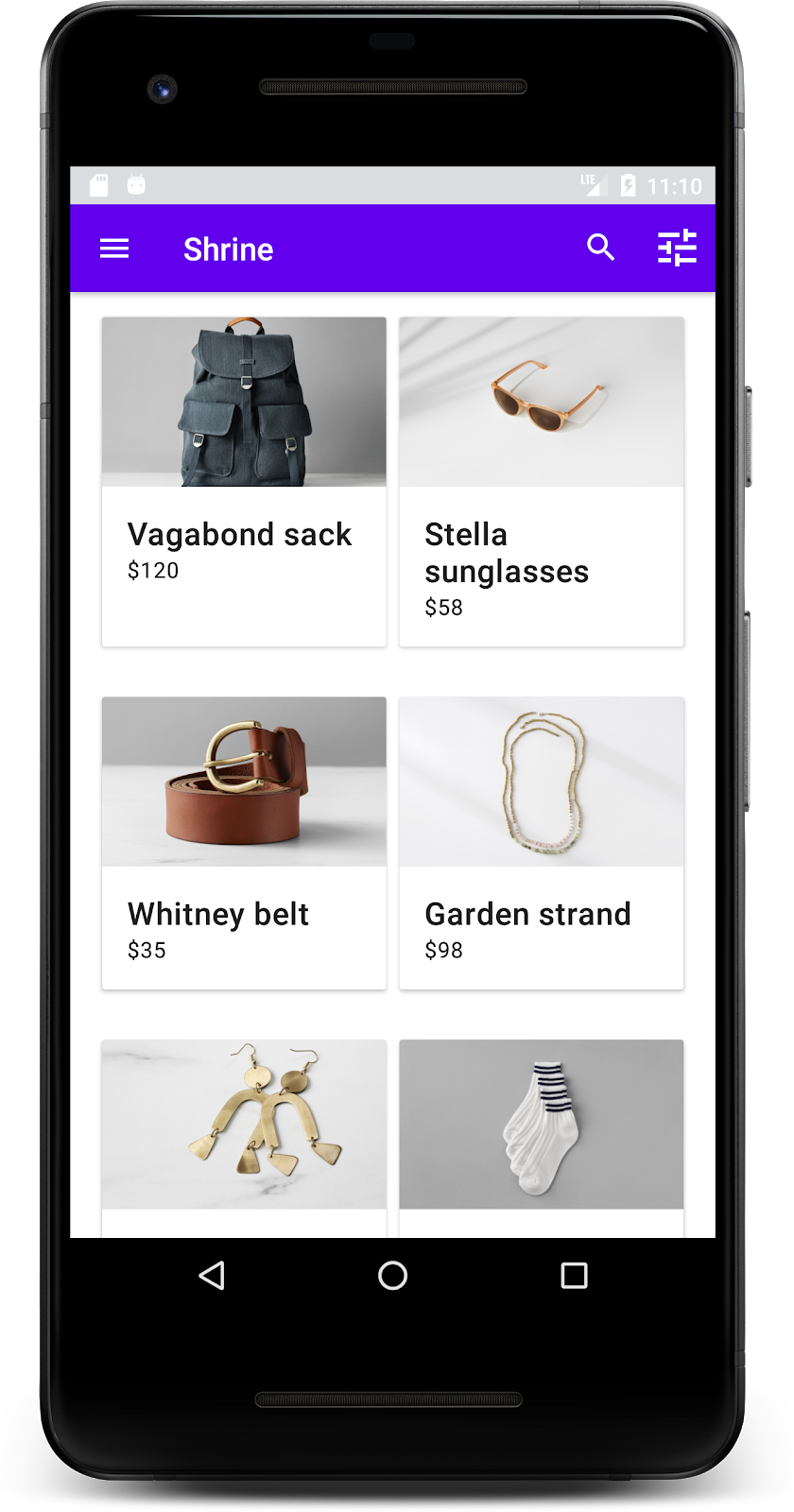
اجزای MDC-Android در این آزمایشگاه کد
- طرحبندی نوار برنامه
- نمای کارت متریال
آنچه نیاز دارید
- دانش پایه در توسعه اندروید
- اندروید استودیو (اگر ندارید، از اینجا دانلود کنید)
- یک شبیهساز یا دستگاه اندروید (از طریق اندروید استودیو قابل دسترسی است)
- کد نمونه (به مرحله بعدی مراجعه کنید)
سطح تجربه خود در ساخت برنامههای اندروید را چگونه ارزیابی میکنید؟
۲. محیط توسعه خود را تنظیم کنید
ادامه از MDC-101؟
اگر MDC-101 را تکمیل کردهاید، کد شما باید برای این آزمایشگاه کد آماده باشد. میتوانید به مرحله ۳ بروید: افزودن نوار برنامه در بالا .
از صفر شروع کردن؟
اپلیکیشن استارتر codelab را دانلود کنید
برنامهی آغازین در دایرکتوری material-components-android-codelabs-102-starter/java قرار دارد. قبل از شروع، حتماً با cd به آن دایرکتوری بروید.
... یا آن را از گیتهاب کلون کنید
برای کپی کردن این codelab از گیتهاب، دستورات زیر را اجرا کنید:
git clone https://github.com/material-components/material-components-android-codelabs
cd material-components-android-codelabs/
git checkout 102-starter
کد شروع را در اندروید استودیو بارگذاری کنید
- پس از اتمام مراحل نصب و نمایش پنجره Welcome to Android Studio ، روی Open an existing Android Studio project کلیک کنید. به پوشهای که کد نمونه را در آن نصب کردهاید بروید و java -> shrine را انتخاب کنید (یا در رایانه خود عبارت shrine را جستجو کنید) تا پروژه Shrine باز شود.
- لحظهای صبر کنید تا اندروید استودیو پروژه را بسازد و همگامسازی کند، همانطور که توسط نشانگرهای فعالیت در پایین پنجره اندروید استودیو نشان داده شده است.
- در این مرحله، ممکن است اندروید استودیو به دلیل فقدان SDK اندروید یا ابزارهای ساخت، مانند آنچه در زیر نشان داده شده است، برخی خطاهای ساخت را ایجاد کند. برای نصب/بهروزرسانی این موارد و همگامسازی پروژه خود، دستورالعملهای موجود در اندروید استودیو را دنبال کنید.

اضافه کردن وابستگیهای پروژه
این پروژه به یک وابستگی (dependency) در کتابخانه پشتیبانی اندروید MDC نیاز دارد. کد نمونهای که دانلود کردهاید باید از قبل این وابستگی را داشته باشد، اما برای اطمینان، انجام مراحل زیر توصیه میشود.
- به فایل
build.gradleماژولappبروید و مطمئن شوید که بلوکdependenciesشامل یک وابستگی به MDC Android است:
api 'com.google.android.material:material:1.1.0-alpha06'
- (اختیاری) در صورت لزوم، فایل
build.gradleرا ویرایش کنید تا وابستگیهای زیر را اضافه کرده و پروژه را همگامسازی کنید.
dependencies {
    api 'com.google.android.material:material:1.1.0-alpha06'
    implementation 'androidx.legacy:legacy-support-v4:1.0.0'
    implementation 'com.android.volley:volley:1.1.1'
    implementation 'com.google.code.gson:gson:2.8.5'
    implementation "org.jetbrains.kotlin:kotlin-stdlib-jdk7:1.3.21"
    testImplementation 'junit:junit:4.12'
    androidTestImplementation 'androidx.test:core:1.1.0'
    androidTestImplementation 'androidx.test.ext:junit:1.1.0'
    androidTestImplementation 'androidx.test:runner:1.2.0-alpha05'
    androidTestImplementation 'androidx.test.espresso:espresso-core:3.2.0-alpha05'
}
برنامه شروع کننده را اجرا کنید
|

موفقیتآمیز بود! شما باید صفحه ورود به سیستم Shrine را از آزمایشگاه کد MDC-101 ببینید.
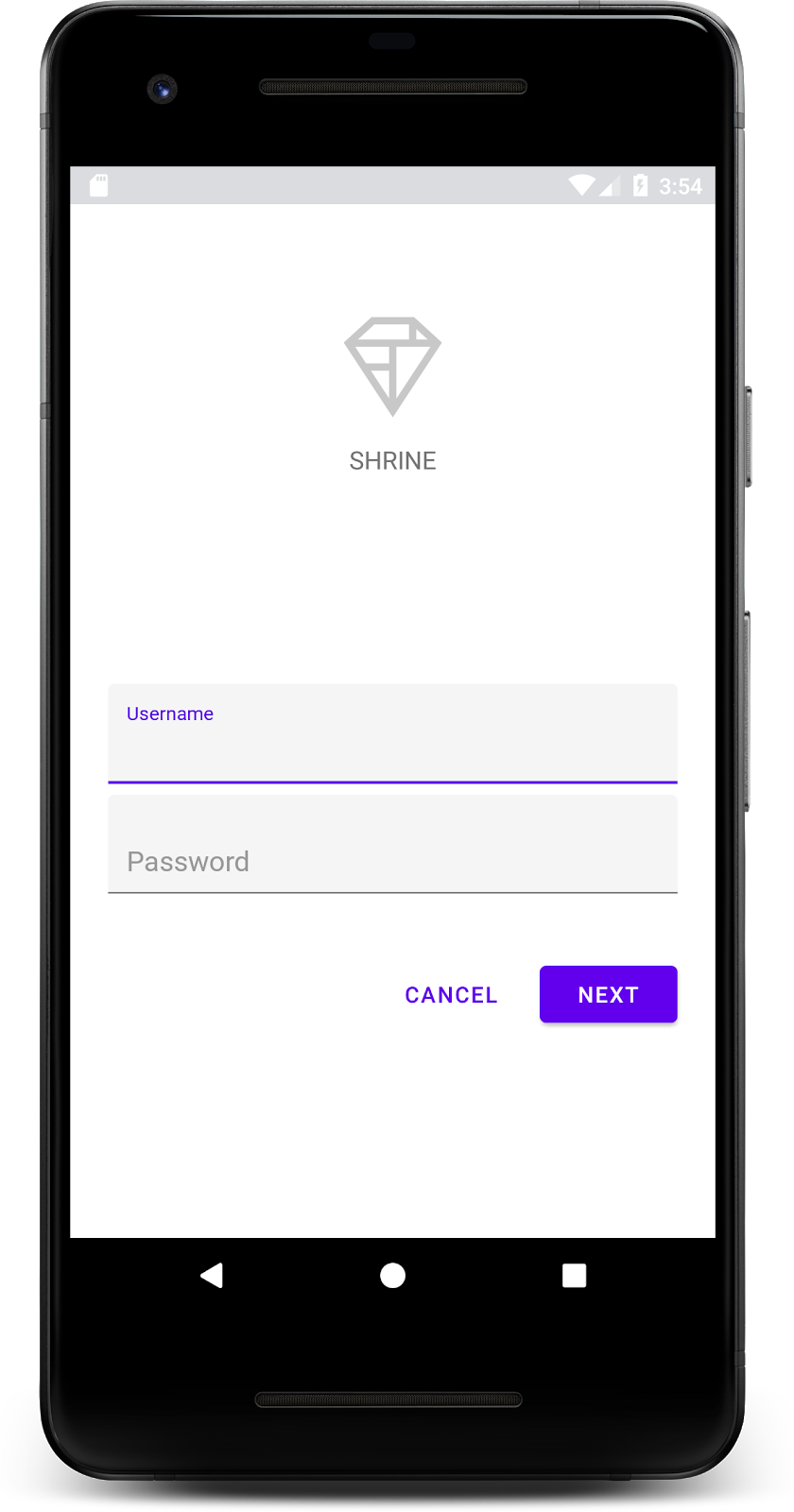
حالا که صفحه ورود به سیستم خوب به نظر میرسد، بیایید برنامه را با برخی از محصولات پر کنیم.
۳. اضافه کردن نوار برنامه در بالای صفحه
صفحه اصلی با بسته شدن صفحه ورود، با پیامی مبنی بر «شما موفق شدید!» نمایش داده میشود. این عالی است! اما اکنون کاربر ما هیچ اقدامی برای انجام دادن ندارد و هیچ درکی از محل فعلی خود در برنامه ندارد. برای کمک به این امر، بیایید ناوبری را اضافه کنیم.
طراحی متریال الگوهای ناوبری ارائه میدهد که درجه بالایی از کاربردپذیری را تضمین میکند. یکی از قابل توجهترین اجزای ناوبری، نوار بالای برنامه است.
برای فراهم کردن ناوبری و دسترسی سریع کاربران به سایر اقدامات، بیایید یک نوار برنامه در بالای صفحه اضافه کنیم.
افزودن ویجت AppBar
در shr_product_grid_fragment.xml ، تگ <LinearLayout> که شامل TextView با عبارت "You did it!" است را حذف کرده و آن را با کد زیر جایگزین کنید:
shr_product_grid_fragment.xml
<com.google.android.material.appbar.AppBarLayout
   android:layout_width="match_parent"
   android:layout_height="wrap_content">

   <androidx.appcompat.widget.Toolbar
       android:id="@+id/app_bar"
       style="@style/Widget.Shrine.Toolbar"
       android:layout_width="match_parent"
       android:layout_height="?attr/actionBarSize"
       app:title="@string/shr_app_name" />
</com.google.android.material.appbar.AppBarLayout>
shr_product_grid_fragment.xml شما باید به شکل زیر باشد:
shr_product_grid_fragment.xml
<?xml version="1.0" encoding="utf-8"?>
<FrameLayout xmlns:android="http://schemas.android.com/apk/res/android"
   xmlns:app="http://schemas.android.com/apk/res-auto"
   xmlns:tools="http://schemas.android.com/tools"
   android:layout_width="match_parent"
   android:layout_height="match_parent"
   tools:context=".ProductGridFragment">

   <com.google.android.material.appbar.AppBarLayout
       android:layout_width="match_parent"
       android:layout_height="wrap_content">

       <androidx.appcompat.widget.Toolbar
           android:id="@+id/app_bar"
           style="@style/Widget.Shrine.Toolbar"
           android:layout_width="match_parent"
           android:layout_height="?attr/actionBarSize"
           app:title="@string/shr_app_name" />
   </com.google.android.material.appbar.AppBarLayout>

</FrameLayout>
بسیاری از نوار برنامهها یک دکمه در کنار عنوان دارند. بیایید یک آیکون منو به نوار برنامههای خود اضافه کنیم.
یک آیکون ناوبری اضافه کنید
در حالی که هنوز در shr_product_grid_fragment.xml هستید، کد زیر را به کامپوننت Toolbar XML (که به طرح خود اضافه کردهاید) اضافه کنید:
shr_product_grid_fragment.xml
app:navigationIcon="@drawable/shr_menu"
shr_product_grid_fragment.xml شما باید به شکل زیر باشد:
shr_product_grid_fragment.xml
<?xml version="1.0" encoding="utf-8"?>
<FrameLayout xmlns:android="http://schemas.android.com/apk/res/android"
   xmlns:app="http://schemas.android.com/apk/res-auto"
   xmlns:tools="http://schemas.android.com/tools"
   android:layout_width="match_parent"
   android:layout_height="match_parent"
   tools:context=".ProductGridFragment">

   <com.google.android.material.appbar.AppBarLayout
       android:layout_width="match_parent"
       android:layout_height="wrap_content">

       <androidx.appcompat.widget.Toolbar
           android:id="@+id/app_bar"
           style="@style/Widget.Shrine.Toolbar"
           android:layout_width="match_parent"
           android:layout_height="?attr/actionBarSize"
           app:navigationIcon="@drawable/shr_menu"
           app:title="@string/shr_app_name" />
   </com.google.android.material.appbar.AppBarLayout>

</FrameLayout>
دکمههای عملیاتی را اضافه کنید و نوار بالای برنامه را استایل دهید
همچنین میتوانید دکمههایی را به انتهای نوار برنامه اضافه کنید. در اندروید، به این دکمهها، دکمههای عملیاتی میگویند.
ما نوار برنامه بالایی را استایلبندی میکنیم و دکمههای عملیاتی را به صورت برنامهنویسی شده به منوی آن اضافه میکنیم.
ابتدا، بیایید یک متد برای تنظیم نوار ابزار ایجاد کنیم. این متد باید با استفاده از id نوار ابزار، ارجاعی به آن دریافت کند و همچنین با استفاده از getActivity() ارجاعی به اکتیویتی دریافت کند. اگر اکتیویتی تهی (null) نباشد، با استفاده از setSupportActionBar Toolbar طوری تنظیم کنید که به عنوان یک ActionBar استفاده شود:
ProductGridFragment.java
private void setUpToolbar(View view) {
   Toolbar toolbar = view.findViewById(R.id.app_bar);
   AppCompatActivity activity = (AppCompatActivity) getActivity();
   if (activity != null) {
       activity.setSupportActionBar(toolbar);
   }
}
در مرحله بعد، مستقیماً زیر متد setUpToolbar که اضافه کردیم، بیایید onCreateOptionsMenu را بازنویسی کنیم تا محتویات shr_toolbar_menu.xml را در نوار ابزار قرار دهیم:
ProductGridFragment.java
@Override
public void onCreateOptionsMenu(Menu menu, MenuInflater menuInflater) {
   menuInflater.inflate(R.menu.shr_toolbar_menu, menu);
   super.onCreateOptionsMenu(menu, menuInflater);
}
حالا یک فراخوانی به متد setUpToolbar که به محتوای متد onCreateView() اضافه کردیم، با کد زیر اضافه کنید:
ProductGridFragment.java
@Override
public View onCreateView(
       @NonNull LayoutInflater inflater, ViewGroup container, Bundle savedInstanceState) {
   // Inflate the layout for this fragment with the ProductGrid theme
   View view = inflater.inflate(R.layout.shr_product_grid_fragment, container, false);

   // Set up the toolbar
   setUpToolbar(view);

   return view;
}
در نهایت، یک متد onCreate() به ProductGridFragment.java اضافه کنید. در بدنه متد، پارامتر setHasOptionMenu را روی true تنظیم کنید.
روش باید به این شکل باشد:
ProductGridFragment.java
@Override
public void onCreate(Bundle savedInstanceState) {
   super.onCreate(savedInstanceState);
   setHasOptionsMenu(true);
}
کد بالا نوار برنامه را از طرح XML ما به عنوان نوار اقدام برای این فعالیت تنظیم میکند. فراخوانی onCreateOptionsMenu به فعالیت میگوید که از چه چیزی به عنوان منو استفاده کند. در این حالت، آیتمهای منو را از R.menu.shr_toolbar_menu در نوار برنامه قرار میدهد.
فایل منو شامل دو آیتم است: «جستجو» و «فیلتر».
shr_toolbar_menu.xml
<?xml version="1.0" encoding="utf-8"?>
<menu xmlns:android="http://schemas.android.com/apk/res/android"
   xmlns:app="http://schemas.android.com/apk/res-auto">
   <item
       android:id="@+id/search"
       android:icon="@drawable/shr_search"
       android:title="@string/shr_search_title"
       app:showAsAction="always" />
   <item
       android:id="@+id/filter"
       android:icon="@drawable/shr_filter"
       android:title="@string/shr_filter_title"
       app:showAsAction="always" />
</menu>
پس از این تغییرات، فایل ProductGridFragment.java شما باید به شکل زیر باشد:
ProductGridFragment.java
package com.google.codelabs.mdc.java.shrine;

import android.os.Bundle;
import android.view.LayoutInflater;
import android.view.Menu;
import android.view.MenuInflater;
import android.view.View;
import android.view.ViewGroup;
import android.widget.Toolbar;
import androidx.annotation.NonNull;
import androidx.appcompat.app.AppCompatActivity;
import androidx.fragment.app.Fragment;


public class ProductGridFragment extends Fragment {

   @Override
   public void onCreate(Bundle savedInstanceState) {
       super.onCreate(savedInstanceState);
       setHasOptionsMenu(true);
   }

   @Override
   public View onCreateView(
           @NonNull LayoutInflater inflater, ViewGroup container, Bundle savedInstanceState) {
       // Inflate the layout for this fragment with the ProductGrid theme
       View view = inflater.inflate(R.layout.shr_product_grid_fragment, container, false);

       // Set up the toolbar
       setUpToolbar(view);

       return view;
   }

   private void setUpToolbar(View view) {
       Toolbar toolbar = view.findViewById(R.id.app_bar);
       AppCompatActivity activity = (AppCompatActivity) getActivity();
       if (activity != null) {
           activity.setSupportActionBar(toolbar);
       }
   }

   @Override
   public void onCreateOptionsMenu(Menu menu, MenuInflater menuInflater) {
       menuInflater.inflate(R.menu.shr_toolbar_menu, menu);
       super.onCreateOptionsMenu(menu, menuInflater);
   }

}
صفحه اصلی شما باید به این شکل باشد:
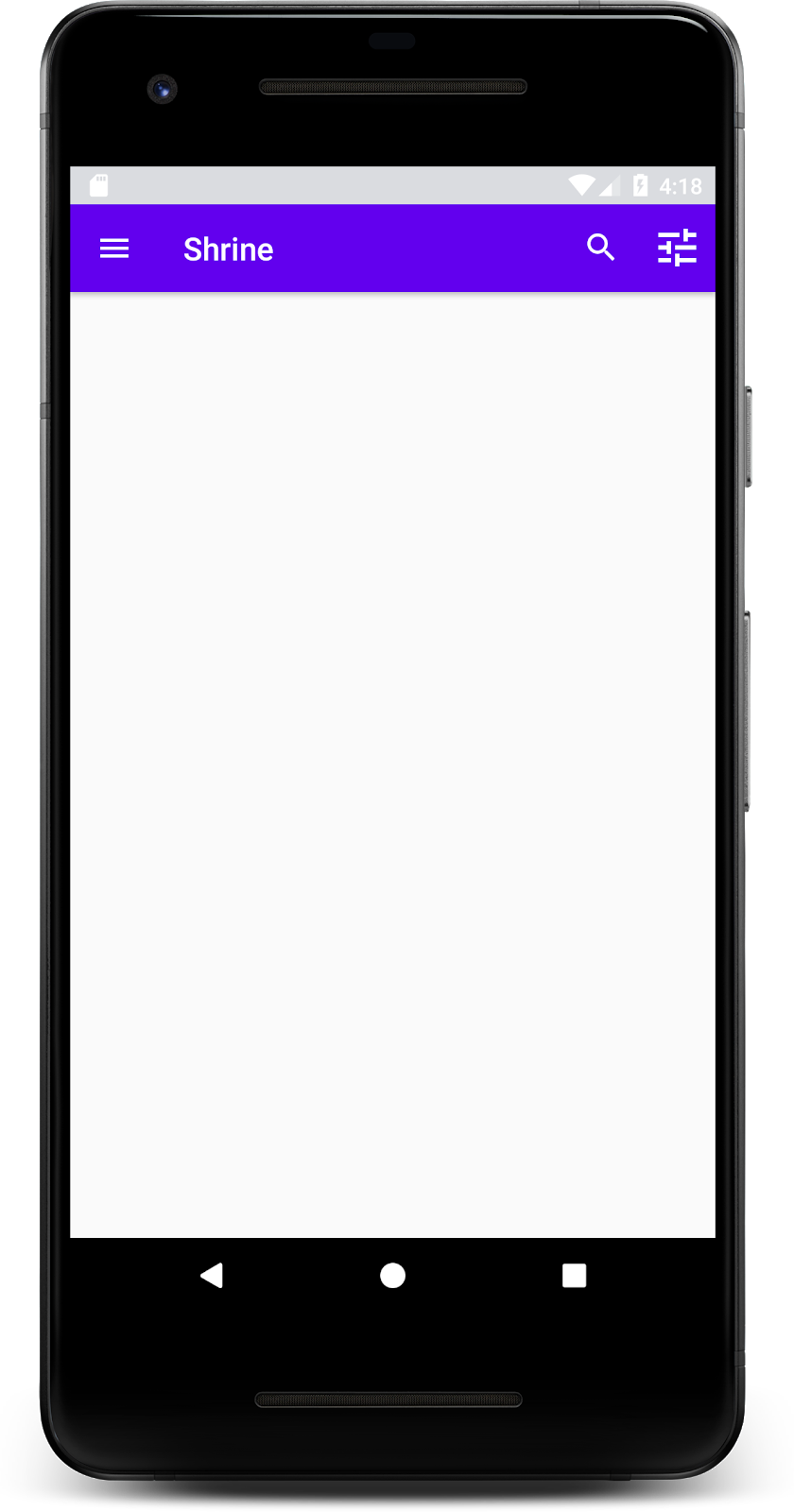
حالا نوار ابزار یک آیکون ناوبری، یک عنوان و دو آیکون عملیاتی در سمت راست دارد. این نوار ابزار همچنین ارتفاع را با استفاده از یک سایه ظریف نمایش میدهد که نشان میدهد در لایهای متفاوت از محتوا قرار دارد.
۴. یک کارت اضافه کنید
حالا که برنامه ما ساختار مشخصی دارد، بیایید محتوا را با قرار دادن در کارتها سازماندهی کنیم.
اضافه کردن کارت
بیایید با اضافه کردن یک کارت در زیر نوار بالای برنامه شروع کنیم. یک کارت باید دارای یک ناحیه برای تصویر، یک عنوان و یک برچسب برای متن ثانویه باشد.
در shr_product_grid_fragment.xml ، کد زیر را در زیر AppBarLayout اضافه کنید:
shr_product_grid_fragment.xml
<com.google.android.material.card.MaterialCardView
   android:layout_width="160dp"
   android:layout_height="180dp"
   android:layout_marginBottom="16dp"
   android:layout_marginLeft="16dp"
   android:layout_marginRight="16dp"
   android:layout_marginTop="70dp"
   app:cardBackgroundColor="?attr/colorPrimaryDark"
   app:cardCornerRadius="4dp">

   <LinearLayout
       android:layout_width="match_parent"
       android:layout_height="wrap_content"
       android:layout_gravity="bottom"
       android:background="#FFFFFF"
       android:orientation="vertical"
       android:padding="8dp">

       <TextView
           android:layout_width="match_parent"
           android:layout_height="wrap_content"
           android:padding="2dp"
           android:text="@string/shr_product_title"
           android:textAppearance="?attr/textAppearanceHeadline6" />

       <TextView
           android:layout_width="match_parent"
           android:layout_height="wrap_content"
           android:padding="2dp"
           android:text="@string/shr_product_description"
           android:textAppearance="?attr/textAppearanceBody2" />
   </LinearLayout>
</com.google.android.material.card.MaterialCardView>
ساخت و اجرا:
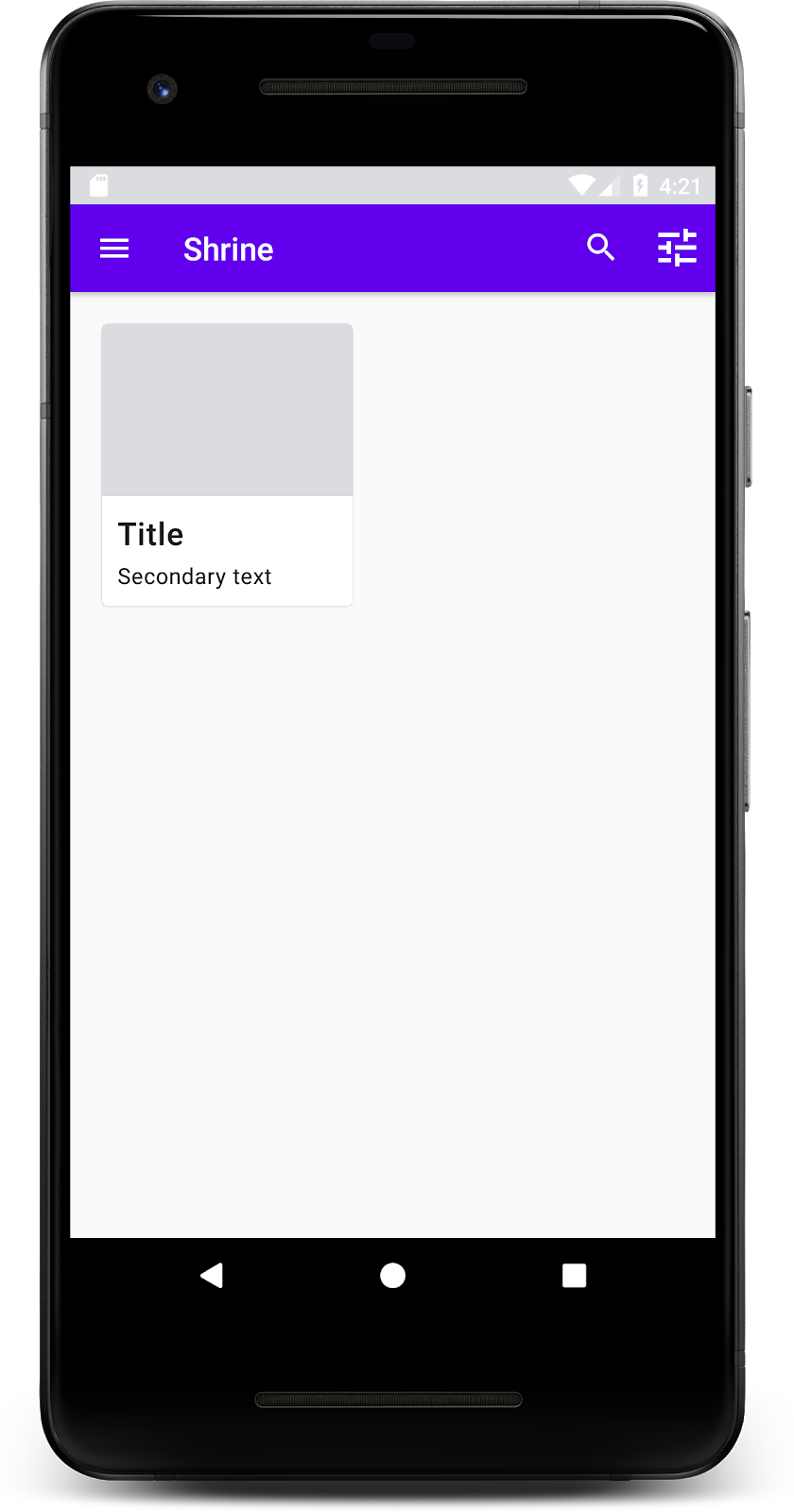
در این پیشنمایش، میتوانید ببینید که کارت از لبه سمت چپ صفحه نمایش به داخل کشیده شده است و دارای گوشههای گرد و سایه (که نشاندهنده ارتفاع کارت است) میباشد. کل این ناحیه «کانتینر» نامیده میشود. گذشته از خود کانتینر، تمام عناصر درون آن اختیاری هستند.
شما میتوانید عناصر زیر را به یک کانتینر اضافه کنید: متن سربرگ، تصویر کوچک یا آواتار، متن زیرعنوان، جداکنندهها و حتی دکمهها و آیکونها. برای مثال، کارتی که ما ایجاد کردیم، شامل دو TextView (یکی برای عنوان و دیگری برای متن ثانویه) در یک LinearLayout است که در پایین کارت تراز شدهاند.
کارتها معمولاً در یک مجموعه با کارتهای دیگر نشان داده میشوند. در بخش بعدی این آزمایشگاه کد، آنها را به صورت یک مجموعه در یک شبکه قرار خواهیم داد.
۵. یک شبکه از کارتها ایجاد کنید
وقتی چندین کارت در یک صفحه نمایش داده میشوند، در یک یا چند مجموعه گروهبندی میشوند. کارتهای موجود در یک شبکه همسطح هستند، به این معنی که ارتفاع ثابت آنها با یکدیگر یکسان است (مگر اینکه برداشته یا کشیده شوند، اما ما در این آزمایشگاه کد به آن نمیپردازیم).
شبکه کارتها را تنظیم کنید
به فایل shr_product_card.xml که برای شما فراهم کردهایم نگاهی بیندازید:
shr_product_card.xml
<?xml version="1.0" encoding="utf-8"?>
<com.google.android.material.card.MaterialCardView xmlns:android="http://schemas.android.com/apk/res/android"
   xmlns:app="http://schemas.android.com/apk/res-auto"
   android:layout_width="match_parent"
   android:layout_height="wrap_content"
   app:cardBackgroundColor="@android:color/white"
   app:cardElevation="2dp"
   app:cardPreventCornerOverlap="true">

   <LinearLayout
       android:layout_width="match_parent"
       android:layout_height="wrap_content"
       android:orientation="vertical">

       <com.android.volley.toolbox.NetworkImageView
           android:id="@+id/product_image"
           android:layout_width="match_parent"
           android:layout_height="@dimen/shr_product_card_image_height"
           android:background="?attr/colorPrimaryDark"
           android:scaleType="centerCrop" />

       <LinearLayout
           android:layout_width="match_parent"
           android:layout_height="wrap_content"
           android:orientation="vertical"
           android:padding="16dp">

           <TextView
               android:id="@+id/product_title"
               android:layout_width="match_parent"
               android:layout_height="wrap_content"
               android:text="@string/shr_product_title"
               android:textAppearance="?attr/textAppearanceHeadline6" />

           <TextView
               android:id="@+id/product_price"
               android:layout_width="match_parent"
               android:layout_height="wrap_content"
               android:text="@string/shr_product_description"
               android:textAppearance="?attr/textAppearanceBody2" />
       </LinearLayout>
   </LinearLayout>
</com.google.android.material.card.MaterialCardView>
این طرحبندی کارت شامل یک کارت با یک تصویر (در اینجا یک NetworkImageView که به ما امکان میدهد تصاویر را از یک URL وارد کنیم) و دو TextViews .
در مرحله بعد، به ProductCardRecyclerViewAdapter که برای شما فراهم کردهایم نگاهی بیندازید. این ماژول در همان پکیج ProductGridFragment قرار دارد.
فایل ProductCardRecyclerViewAdapter.java
package com.google.codelabs.mdc.java.shrine;

import android.view.LayoutInflater;
import android.view.View;
import android.view.ViewGroup;
import androidx.annotation.NonNull;
import androidx.recyclerview.widget.RecyclerView;

import com.google.codelabs.mdc.java.shrine.network.ImageRequester;
import com.google.codelabs.mdc.java.shrine.network.ProductEntry;

import java.util.List;

/**
* Adapter used to show a simple grid of products.
*/
public class ProductCardRecyclerViewAdapter extends RecyclerView.Adapter<ProductCardViewHolder> {

   private List<ProductEntry> productList;
   private ImageRequester imageRequester;

   ProductCardRecyclerViewAdapter(List<ProductEntry> productList) {
       this.productList = productList;
       imageRequester = ImageRequester.getInstance();
   }

   @NonNull
   @Override
   public ProductCardViewHolder onCreateViewHolder(@NonNull ViewGroup parent, int viewType) {
       View layoutView = LayoutInflater.from(parent.getContext()).inflate(R.layout.shr_product_card, parent, false);
       return new ProductCardViewHolder(layoutView);
   }

   @Override
   public void onBindViewHolder(@NonNull ProductCardViewHolder holder, int position) {
       // TODO: Put ViewHolder binding code here in MDC-102
   }

   @Override
   public int getItemCount() {
       return productList.size();
   }
}
کلاس آداپتور بالا محتوای شبکه ما را مدیریت میکند. برای تعیین اینکه هر نما با محتوای داده شده خود چه کاری باید انجام دهد، به زودی کد مربوط به onBindViewHolder() را خواهیم نوشت.
در همان بسته، میتوانید نگاهی به ProductCardViewHolder نیز بیندازید. این کلاس، نماهایی را که بر طرحبندی کارت ما تأثیر میگذارند، ذخیره میکند تا بتوانیم بعداً آنها را تغییر دهیم.
ProductCardViewHolder.java
package com.google.codelabs.mdc.java.shrine;

import androidx.annotation.NonNull;
import androidx.recyclerview.widget.RecyclerView;
import android.view.View;

public class ProductCardViewHolder extends RecyclerView.ViewHolder {

   public ProductCardViewHolder(@NonNull View itemView) {
       super(itemView);
       // TODO: Find and store views from itemView
   }
}
برای تنظیم شبکهبندی، ابتدا باید جاینگهدار MaterialCardView از shr_product_grid_fragment.xml حذف کنیم. در مرحله بعد، باید کامپوننتی را که نشاندهنده شبکهبندی کارتهای ما است اضافه کنید. در این حالت، یک کامپوننت RecyclerView به shr_product_grid_fragment.xml خود، زیر کامپوننت AppBarLayout XML خود اضافه کنید:
shr_product_grid_fragment.xml
<androidx.core.widget.NestedScrollView
   android:layout_width="match_parent"
   android:layout_height="match_parent"
   android:layout_marginTop="56dp"
   android:background="@color/productGridBackgroundColor"
   android:paddingStart="@dimen/shr_product_grid_spacing"
   android:paddingEnd="@dimen/shr_product_grid_spacing"
   app:layout_behavior="@string/appbar_scrolling_view_behavior">

   <androidx.recyclerview.widget.RecyclerView
       android:id="@+id/recycler_view"
       android:layout_width="match_parent"
       android:layout_height="match_parent" />

</androidx.core.widget.NestedScrollView>
shr_product_grid_fragment.xml شما باید به شکل زیر باشد:
shr_product_grid_fragment.xml
<?xml version="1.0" encoding="utf-8"?>
<FrameLayout xmlns:android="http://schemas.android.com/apk/res/android"
   xmlns:app="http://schemas.android.com/apk/res-auto"
   xmlns:tools="http://schemas.android.com/tools"
   android:layout_width="match_parent"
   android:layout_height="match_parent"
   tools:context=".ProductGridFragment">

   <com.google.android.material.appbar.AppBarLayout
       android:layout_width="match_parent"
       android:layout_height="wrap_content">

       <androidx.appcompat.widget.Toolbar
           android:id="@+id/app_bar"
           style="@style/Widget.Shrine.Toolbar"
           android:layout_width="match_parent"
           android:layout_height="?attr/actionBarSize"
           app:navigationIcon="@drawable/shr_menu"
           app:title="@string/shr_app_name" />
   </com.google.android.material.appbar.AppBarLayout>

   <androidx.core.widget.NestedScrollView
       android:layout_width="match_parent"
       android:layout_height="match_parent"
       android:layout_marginTop="56dp"
       android:background="@color/productGridBackgroundColor"
       android:paddingStart="@dimen/shr_product_grid_spacing"
       android:paddingEnd="@dimen/shr_product_grid_spacing"
       app:layout_behavior="@string/appbar_scrolling_view_behavior">

       <androidx.recyclerview.widget.RecyclerView
           android:id="@+id/recycler_view"
           android:layout_width="match_parent"
           android:layout_height="match_parent" />

   </androidx.core.widget.NestedScrollView>

</FrameLayout>
در نهایت، در onCreateView() ، کد مقداردهی اولیه RecyclerView را پس از فراخوانی setUpToolbar(view) و قبل از دستور return ، به ProductGridFragment.java اضافه کنید:
ProductGridFragment.java
@Override
public View onCreateView(
       @NonNull LayoutInflater inflater, ViewGroup container, Bundle savedInstanceState) {
   ...
   setUpToolbar(view);

   // Set up the RecyclerView
   RecyclerView recyclerView = view.findViewById(R.id.recycler_view);
   recyclerView.setHasFixedSize(true);
   recyclerView.setLayoutManager(new GridLayoutManager(getContext(), 2, GridLayoutManager.VERTICAL, false));
   ProductCardRecyclerViewAdapter adapter = new ProductCardRecyclerViewAdapter(
           ProductEntry.initProductEntryList(getResources()));
   recyclerView.setAdapter(adapter);
   int largePadding = getResources().getDimensionPixelSize(R.dimen.shr_product_grid_spacing);
   int smallPadding = getResources().getDimensionPixelSize(R.dimen.shr_product_grid_spacing_small);
   recyclerView.addItemDecoration(new ProductGridItemDecoration(largePadding, smallPadding));

   return view;
}
قطعه کد بالا شامل مراحل اولیهسازی لازم برای راهاندازی یک RecyclerView است. این شامل تنظیم مدیر طرحبندی RecyclerView ، به علاوه مقداردهی اولیه و تنظیم آداپتور RecyclerView میشود.
فایل ProductGridFragment.java شما اکنون باید به شکل زیر باشد:
ProductGridFragment.java
package com.google.codelabs.mdc.java.shrine;

import android.os.Bundle;
import androidx.recyclerview.widget.RecyclerView;
import android.view.LayoutInflater;
import android.view.Menu;
import android.view.MenuInflater;
import android.view.View;
import android.view.ViewGroup;
import android.widget.Toolbar;
import androidx.annotation.NonNull;
import androidx.appcompat.app.AppCompatActivity;
import androidx.fragment.app.Fragment;
import androidx.recyclerview.widget.GridLayoutManager;


import com.google.codelabs.mdc.java.shrine.network.ProductEntry;

public class ProductGridFragment extends Fragment {

   @Override
   public void onCreate(Bundle savedInstanceState) {
       super.onCreate(savedInstanceState);
       setHasOptionsMenu(true);
   }

   @Override
   public View onCreateView(
           @NonNull LayoutInflater inflater, ViewGroup container, Bundle savedInstanceState) {
       // Inflate the layout for this fragment with the ProductGrid theme
       View view = inflater.inflate(R.layout.shr_product_grid_fragment, container, false);

       // Set up the toolbar
       setUpToolbar(view);

       // Set up the RecyclerView
       RecyclerView recyclerView = view.findViewById(R.id.recycler_view);
       recyclerView.setHasFixedSize(true);
       recyclerView.setLayoutManager(new GridLayoutManager(getContext(), 2, GridLayoutManager.VERTICAL, false));
       ProductCardRecyclerViewAdapter adapter = new ProductCardRecyclerViewAdapter(
               ProductEntry.initProductEntryList(getResources()));
       recyclerView.setAdapter(adapter);
       int largePadding = getResources().getDimensionPixelSize(R.dimen.shr_product_grid_spacing);
       int smallPadding = getResources().getDimensionPixelSize(R.dimen.shr_product_grid_spacing_small);
       recyclerView.addItemDecoration(new ProductGridItemDecoration(largePadding, smallPadding));

       return view;
   }

   private void setUpToolbar(View view) {
       Toolbar toolbar = view.findViewById(R.id.app_bar);
       AppCompatActivity activity = (AppCompatActivity) getActivity();
       if (activity != null) {
           activity.setSupportActionBar(toolbar);
       }
   }

   @Override
   public void onCreateOptionsMenu(Menu menu, MenuInflater menuInflater) {
       menuInflater.inflate(R.menu.shr_toolbar_menu, menu);
       super.onCreateOptionsMenu(menu, menuInflater);
   }

}
بسازید و اجرا کنید.
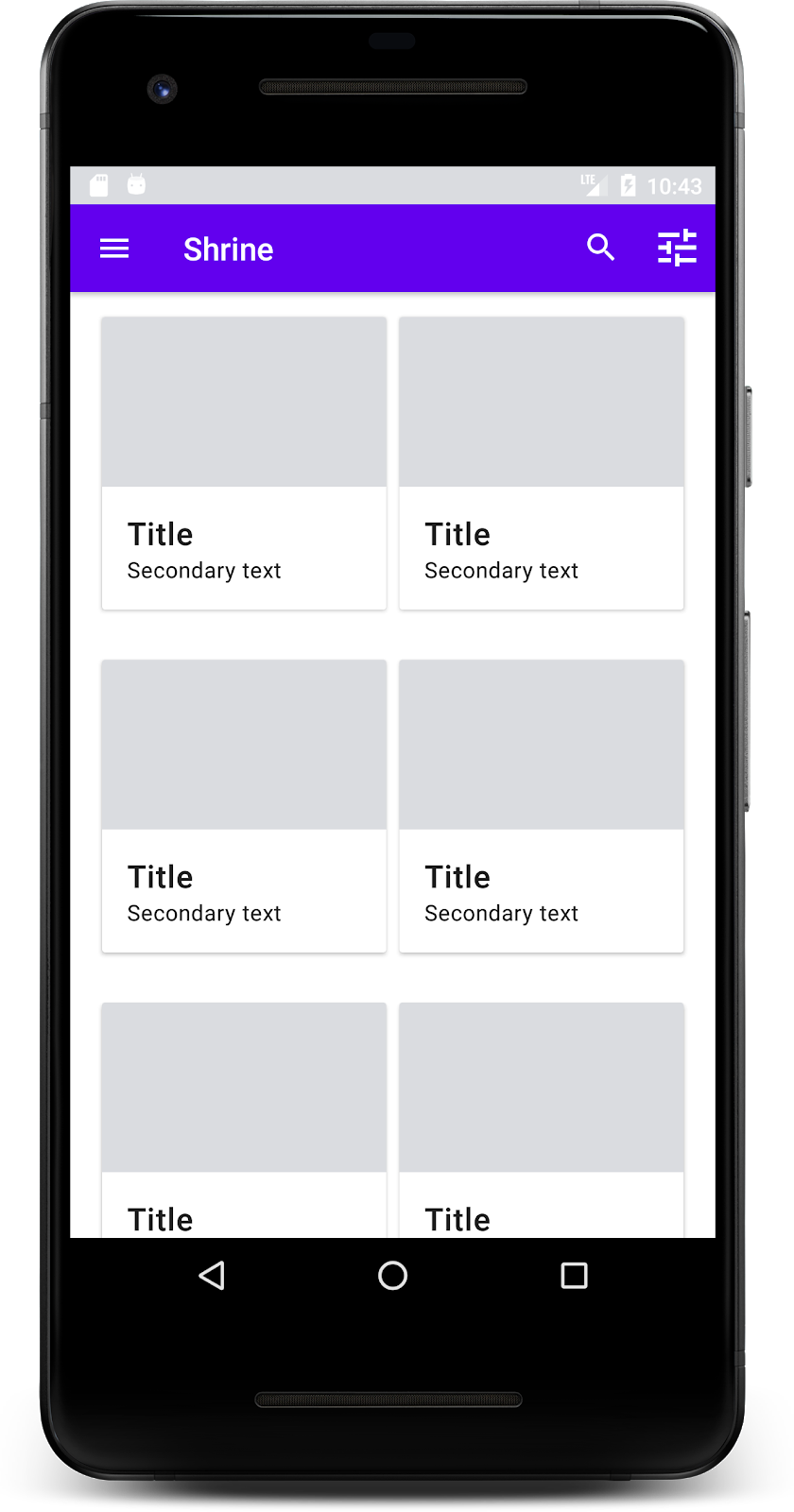
کارتها الان آماده هستند! هنوز چیزی نشان نمیدهند، پس بیایید کمی اطلاعات محصول اضافه کنیم.
تصاویر و متن را اضافه کنید
برای هر کارت، یک تصویر، نام محصول و قیمت اضافه کنید. ViewHolder ما، نماهای مربوط به هر کارت را در خود جای میدهد. در ViewHolder خود، سه نما را به شرح زیر اضافه کنید:
ProductCardViewHolder.java
package com.google.codelabs.mdc.java.shrine;

import androidx.recyclerview.widget.RecyclerView;
import android.view.View;
import android.widget.TextView;
import androidx.annotation.NonNull;

import com.android.volley.toolbox.NetworkImageView;

public class ProductCardViewHolder extends RecyclerView.ViewHolder {

   public NetworkImageView productImage;
   public TextView productTitle;
   public TextView productPrice;

   public ProductCardViewHolder(@NonNull View itemView) {
       super(itemView);
       productImage = itemView.findViewById(R.id.product_image);
       productTitle = itemView.findViewById(R.id.product_title);
       productPrice = itemView.findViewById(R.id.product_price);
   }
}
در آداپتور RecyclerView ، در ViewHolder, متد onBindViewHolder() را بهروزرسانی کنید تا اطلاعات مربوط به هر نما را تنظیم کنید:
فایل ProductCardRecyclerViewAdapter.java
@Override
public void onBindViewHolder(@NonNull ProductCardViewHolder holder, int position) {
   if (productList != null && position < productList.size()) {
       ProductEntry product = productList.get(position);
       holder.productTitle.setText(product.title);
       holder.productPrice.setText(product.price);
       imageRequester.setImageFromUrl(holder.productImage, product.url);
   }
}
کد بالا با استفاده از ViewHolder به آداپتور RecyclerView ما میگوید که با هر کارت چه کاری انجام دهد.
در اینجا، دادههای متنی را روی هر یک از TextView های ViewHolder تنظیم میکند و یک ImageRequester را برای دریافت تصویر از یک URL فراخوانی میکند. ImageRequester کلاسی است که ما برای راحتی شما ارائه کردهایم و از کتابخانه Volley استفاده میکند (این موضوع خارج از محدوده این آزمایشگاه کد است، اما میتوانید خودتان کد را بررسی کنید).
ساخت و اجرا:
محصولات ما اکنون در اپلیکیشن نمایش داده میشوند!
۶. خلاصه
برنامه ما یک جریان ساده دارد که کاربر را از صفحه ورود به سیستم به صفحه اصلی میبرد، جایی که میتوان محصولات را مشاهده کرد. تنها با چند خط کد، یک نوار برنامه در بالای صفحه با یک عنوان و سه دکمه و یک شبکه از کارتها برای ارائه محتوای برنامه اضافه کردیم. صفحه اصلی ما اکنون ساده و کاربردی است، با یک ساختار ساده و محتوای قابل اجرا.
مراحل بعدی
با نوار برنامه بالا، کارت، فیلد متنی و دکمه، اکنون از چهار کامپوننت اصلی طراحی متریال از کتابخانه MDC-Android استفاده کردهایم! میتوانید کامپوننتهای بیشتری را در کامپوننتهای کاتالوگ MDC-Android در MDC Android بررسی کنید.
اگرچه کاملاً کاربردی است، اما برنامه ما هنوز هیچ برند خاصی را بیان نمیکند. در MDC-103: قالببندی طراحی متریال با رنگ، شکل، ارتفاع و نوع ، ما سبک این اجزا را برای بیان یک برند پر جنب و جوش و مدرن سفارشی خواهیم کرد.