

1. מבוא
רכיבי Material (MDC) עוזרים למפתחים להטמיע את Material Design. MDC נוצרה על ידי צוות של מהנדסים ומעצבי UX ב-Google. היא כוללת עשרות רכיבי ממשק משתמש יפים ופונקציונליים, וזמינה ל-Android, ל-iOS, לאינטרנט ול-Flutter.material.io/develop |
ב-codelab MDC-101, השתמשתם בשני רכיבי Material (MDC) כדי ליצור דף כניסה: שדות טקסט ולחצנים. עכשיו נרחיב את הבסיס הזה על ידי הוספת ניווט, מבנה ונתונים.
מה תפַתחו
בשיעור הזה תבנו מסך הבית לאפליקציה בשם Shrine, אפליקציה למסחר אלקטרוני שמוכרת בגדים ומוצרים לבית. היא תכלול:
- סרגל אפליקציה עליון
- רשימת מוצרים בפריסה של רשת
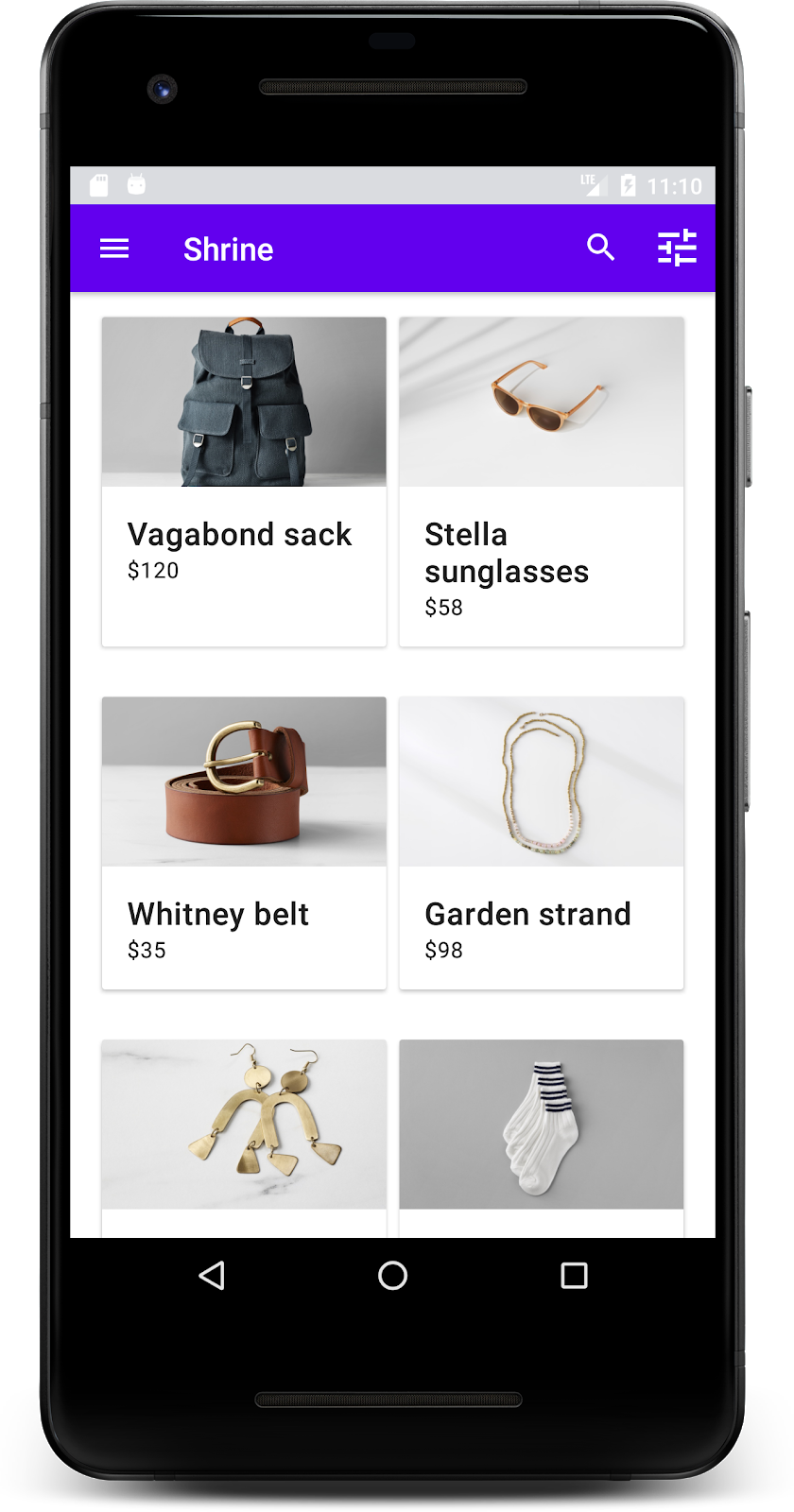
רכיבי MDC-Android ב-Codelab הזה
- AppBarLayout
- MaterialCardView
מה תצטרכו
- ידע בסיסי בפיתוח ל-Android
- Android Studio (אם עדיין לא הורדתם אותו, אפשר להוריד אותו כאן)
- מכשיר או אמולטור Android (זמינים דרך Android Studio)
- קוד לדוגמה (ראו השלב הבא)
מה רמת הניסיון שלך בפיתוח אפליקציות ל-Android?
2. הגדרת סביבת הפיתוח
המשך מ-MDC-101?
אם השלמתם את MDC-101, הקוד שלכם אמור להיות מוכן ל-codelab הזה. אפשר לדלג לשלב 3: הוספת סרגל אפליקציות עליון.
מתחילים מאפס?
הורדת האפליקציה לתחילת הדרך של Codelab
אפליקציה לתחילת הדרך נמצאת בספרייה material-components-android-codelabs-102-starter/java. חשוב לעבור לספרייה הזו באמצעות הפקודה cd לפני שמתחילים.
...או לשכפל אותו מ-GitHub
כדי לשכפל את ה-codelab הזה מ-GitHub, מריצים את הפקודות הבאות:
git clone https://github.com/material-components/material-components-android-codelabs
cd material-components-android-codelabs/
git checkout 102-starter
טעינת קוד לתחילת הדרך ב-Android Studio
- אחרי שאשף ההגדרה יסיים את הפעולה ויוצג החלון Welcome to Android Studio (ברוכים הבאים ל-Android Studio), לוחצים על Open an existing Android Studio project (פתיחת פרויקט קיים של Android Studio). עוברים אל הספרייה שבה התקנתם את קוד הדוגמה ובוחרים באפשרות java -> shrine (או מחפשים במחשב את shrine) כדי לפתוח את פרויקט Shrine.
- מחכים כמה רגעים עד ש-Android Studio יבצע build ויסנכרן את הפרויקט, כפי שמצוין על ידי אינדיקטורים של פעילות לאורך החלק התחתון של חלון Android Studio.
- בשלב הזה, יכול להיות ש-Android Studio יציג שגיאות build כי חסר לכם Android SDK או כלי build, כמו השגיאה שמוצגת למטה. פועלים לפי ההוראות ב-Android Studio כדי להתקין או לעדכן את התוספים האלה ולסנכרן את הפרויקט.

הוספת יחסי תלות בפרויקט
הפרויקט צריך להיות תלוי בספריית התמיכה של MDC ב-Android. התלות הזו כבר אמורה להופיע בקוד לדוגמה שהורדתם, אבל מומלץ לבצע את השלבים הבאים כדי לוודא זאת.
- עוברים לקובץ
build.gradleשל המודולappומוודאים שהבלוקdependenciesכולל תלות ב-MDC Android:
api 'com.google.android.material:material:1.1.0-alpha06'
- (אופציונלי) אם צריך, עורכים את הקובץ
build.gradleכדי להוסיף את התלות הבאה ומסנכרנים את הפרויקט.
dependencies {
    api 'com.google.android.material:material:1.1.0-alpha06'
    implementation 'androidx.legacy:legacy-support-v4:1.0.0'
    implementation 'com.android.volley:volley:1.1.1'
    implementation 'com.google.code.gson:gson:2.8.5'
    implementation "org.jetbrains.kotlin:kotlin-stdlib-jdk7:1.3.21"
    testImplementation 'junit:junit:4.12'
    androidTestImplementation 'androidx.test:core:1.1.0'
    androidTestImplementation 'androidx.test.ext:junit:1.1.0'
    androidTestImplementation 'androidx.test:runner:1.2.0-alpha05'
    androidTestImplementation 'androidx.test.espresso:espresso-core:3.2.0-alpha05'
}
הפעלת אפליקציה לתחילת הדרך
|

הצלחת! אמור להופיע דף הכניסה של Shrine מתוך ה-codelab MDC-101.
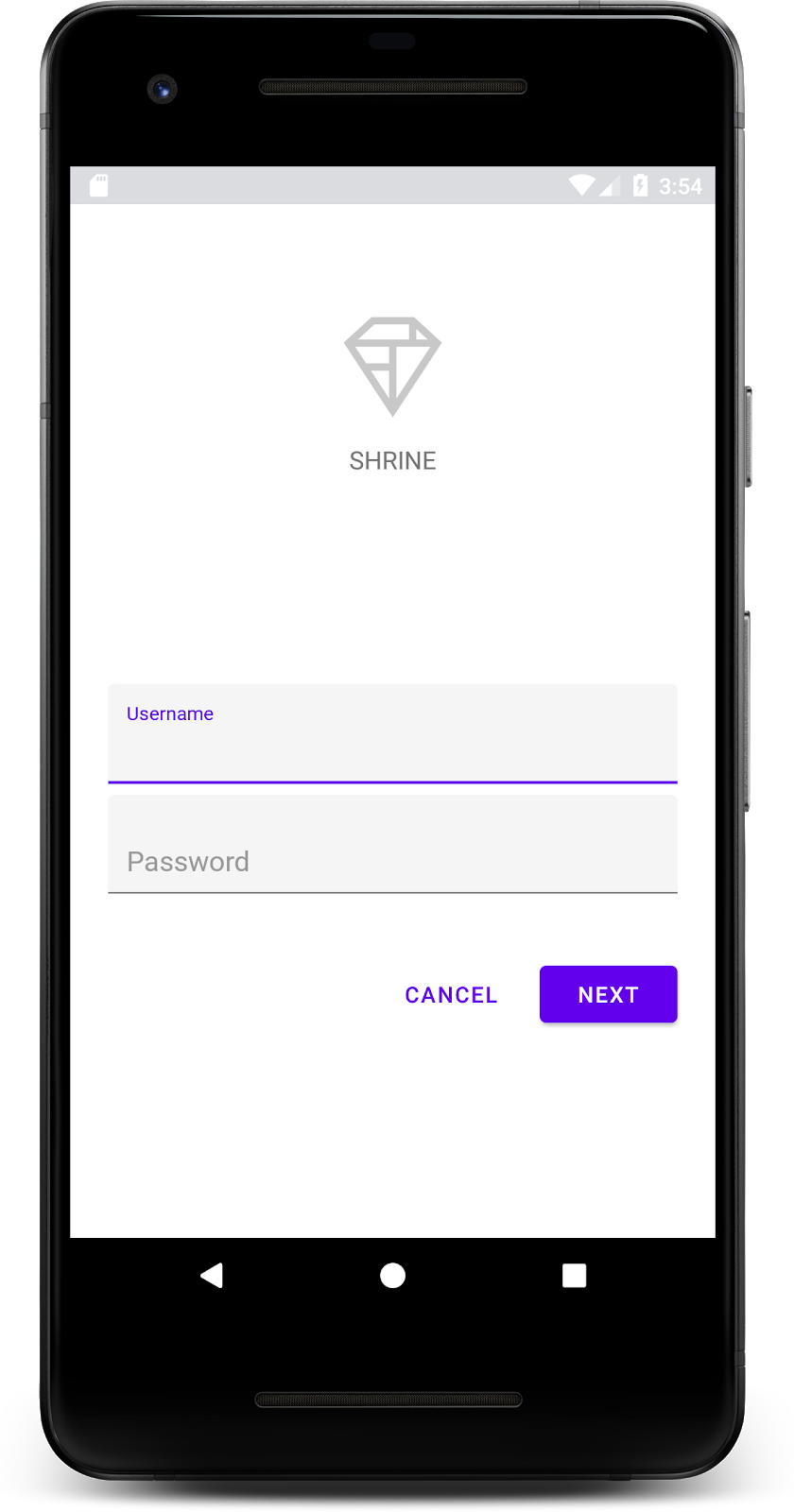
עכשיו, אחרי שמסך הכניסה נראה טוב, נמלא את האפליקציה במוצרים.
3. הוספת סרגל אפליקציות עליון
מסך הבית יופיע אחרי שסוגרים את דף הכניסה, ויוצג בו הכיתוב 'הצלחת!'. נהדר! אבל עכשיו למשתמש אין פעולות לבצע, או מושג לגבי המיקום שלו באפליקציה. כדי לפתור את הבעיה הזו, נוסיף ניווט.
ב-Material Design יש תבניות ניווט שמבטיחות רמת שימושיות גבוהה. אחד מרכיבי הניווט הבולטים הוא סרגל האפליקציה העליון.
כדי לספק ניווט ולאפשר למשתמשים גישה מהירה לפעולות אחרות, נוסיף סרגל אפליקציות עליון.
הוספת ווידג'ט של סרגל אפליקציות
ב-shr_product_grid_fragment.xml, מוחקים את התג <LinearLayout> שמכיל את הטקסט 'You did it!' TextView ומחליפים אותו בטקסט הבא:
shr_product_grid_fragment.xml
<com.google.android.material.appbar.AppBarLayout
   android:layout_width="match_parent"
   android:layout_height="wrap_content">

   <androidx.appcompat.widget.Toolbar
       android:id="@+id/app_bar"
       style="@style/Widget.Shrine.Toolbar"
       android:layout_width="match_parent"
       android:layout_height="?attr/actionBarSize"
       app:title="@string/shr_app_name" />
</com.google.android.material.appbar.AppBarLayout>
התג shr_product_grid_fragment.xml אמור להיראות כך:
shr_product_grid_fragment.xml
<?xml version="1.0" encoding="utf-8"?>
<FrameLayout xmlns:android="http://schemas.android.com/apk/res/android"
   xmlns:app="http://schemas.android.com/apk/res-auto"
   xmlns:tools="http://schemas.android.com/tools"
   android:layout_width="match_parent"
   android:layout_height="match_parent"
   tools:context=".ProductGridFragment">

   <com.google.android.material.appbar.AppBarLayout
       android:layout_width="match_parent"
       android:layout_height="wrap_content">

       <androidx.appcompat.widget.Toolbar
           android:id="@+id/app_bar"
           style="@style/Widget.Shrine.Toolbar"
           android:layout_width="match_parent"
           android:layout_height="?attr/actionBarSize"
           app:title="@string/shr_app_name" />
   </com.google.android.material.appbar.AppBarLayout>

</FrameLayout>
בסרגלי אפליקציות רבים יש לחצן ליד הכותרת. נוסיף סמל לתפריט שלנו.
הוספת סמל ניווט
בזמן שאתם עדיין ב-shr_product_grid_fragment.xml, מוסיפים את הקוד הבא לרכיב ה-XML Toolbar (שזה עתה הוספתם לפריסה):
shr_product_grid_fragment.xml
app:navigationIcon="@drawable/shr_menu"
התג shr_product_grid_fragment.xml אמור להיראות כך:
shr_product_grid_fragment.xml
<?xml version="1.0" encoding="utf-8"?>
<FrameLayout xmlns:android="http://schemas.android.com/apk/res/android"
   xmlns:app="http://schemas.android.com/apk/res-auto"
   xmlns:tools="http://schemas.android.com/tools"
   android:layout_width="match_parent"
   android:layout_height="match_parent"
   tools:context=".ProductGridFragment">

   <com.google.android.material.appbar.AppBarLayout
       android:layout_width="match_parent"
       android:layout_height="wrap_content">

       <androidx.appcompat.widget.Toolbar
           android:id="@+id/app_bar"
           style="@style/Widget.Shrine.Toolbar"
           android:layout_width="match_parent"
           android:layout_height="?attr/actionBarSize"
           app:navigationIcon="@drawable/shr_menu"
           app:title="@string/shr_app_name" />
   </com.google.android.material.appbar.AppBarLayout>

</FrameLayout>
הוספת כפתורי פעולה ועיצוב סרגל האפליקציות העליון
אפשר גם להוסיף לחצנים לצד השמאלי של סרגל האפליקציות. ב-Android, הם נקראים כפתורי פעולה.
אנחנו נגדיר את הסגנון של סרגל האפליקציות העליון ונוסיף לו לחצני פעולה לתפריט באופן פרוגרמטי.
קודם ניצור שיטה להגדרת סרגל הכלים. השיטה צריכה לקבל הפניה לסרגל הכלים באמצעות id, וגם לקבל הפניה לפעילות באמצעות getActivity(). אם הפעילות לא ריקה, מגדירים את Toolbar לשימוש כ-ActionBar באמצעות setSupportActionBar:
ProductGridFragment.java
private void setUpToolbar(View view) {
   Toolbar toolbar = view.findViewById(R.id.app_bar);
   AppCompatActivity activity = (AppCompatActivity) getActivity();
   if (activity != null) {
       activity.setSupportActionBar(toolbar);
   }
}
אחר כך, ממש מתחת לשיטה setUpToolbar שהוספנו, נבטל את ההגדרה של onCreateOptionsMenu כדי ליצור אוביקט תצוגה (inflate) של התוכן של shr_toolbar_menu.xml בסרגל הכלים:
ProductGridFragment.java
@Override
public void onCreateOptionsMenu(Menu menu, MenuInflater menuInflater) {
   menuInflater.inflate(R.menu.shr_toolbar_menu, menu);
   super.onCreateOptionsMenu(menu, menuInflater);
}
עכשיו מוסיפים קריאה לשיטה setUpToolbar שנוספה לתוכן של השיטה onCreateView() עם הפרטים הבאים:
ProductGridFragment.java
@Override
public View onCreateView(
       @NonNull LayoutInflater inflater, ViewGroup container, Bundle savedInstanceState) {
   // Inflate the layout for this fragment with the ProductGrid theme
   View view = inflater.inflate(R.layout.shr_product_grid_fragment, container, false);

   // Set up the toolbar
   setUpToolbar(view);

   return view;
}
לבסוף, מוסיפים onCreate() method ל-ProductGridFragment.java. בגוף השיטה, מגדירים את הפרמטר של setHasOptionMenu כ-true.
השיטה צריכה להיראות כך:
ProductGridFragment.java
@Override
public void onCreate(Bundle savedInstanceState) {
   super.onCreate(savedInstanceState);
   setHasOptionsMenu(true);
}
הקוד שלמעלה מגדיר את סרגל האפליקציה מפריסת ה-XML שלנו כסרגל הפעולות לפעילות הזו. הקריאה החוזרת onCreateOptionsMenu מציינת לפעילות מה צריך לשמש כתפריט שלנו. במקרה כזה, פריטי התפריט מ-R.menu.shr_toolbar_menu יופיעו בסרגל האפליקציה.
קובץ התפריט מכיל שני פריטים: 'חיפוש' ו'סינון'.
shr_toolbar_menu.xml
<?xml version="1.0" encoding="utf-8"?>
<menu xmlns:android="http://schemas.android.com/apk/res/android"
   xmlns:app="http://schemas.android.com/apk/res-auto">
   <item
       android:id="@+id/search"
       android:icon="@drawable/shr_search"
       android:title="@string/shr_search_title"
       app:showAsAction="always" />
   <item
       android:id="@+id/filter"
       android:icon="@drawable/shr_filter"
       android:title="@string/shr_filter_title"
       app:showAsAction="always" />
</menu>
אחרי השינויים האלה, קובץ ProductGridFragment.java אמור להיראות כך:
ProductGridFragment.java
package com.google.codelabs.mdc.java.shrine;

import android.os.Bundle;
import android.view.LayoutInflater;
import android.view.Menu;
import android.view.MenuInflater;
import android.view.View;
import android.view.ViewGroup;
import android.widget.Toolbar;
import androidx.annotation.NonNull;
import androidx.appcompat.app.AppCompatActivity;
import androidx.fragment.app.Fragment;


public class ProductGridFragment extends Fragment {

   @Override
   public void onCreate(Bundle savedInstanceState) {
       super.onCreate(savedInstanceState);
       setHasOptionsMenu(true);
   }

   @Override
   public View onCreateView(
           @NonNull LayoutInflater inflater, ViewGroup container, Bundle savedInstanceState) {
       // Inflate the layout for this fragment with the ProductGrid theme
       View view = inflater.inflate(R.layout.shr_product_grid_fragment, container, false);

       // Set up the toolbar
       setUpToolbar(view);

       return view;
   }

   private void setUpToolbar(View view) {
       Toolbar toolbar = view.findViewById(R.id.app_bar);
       AppCompatActivity activity = (AppCompatActivity) getActivity();
       if (activity != null) {
           activity.setSupportActionBar(toolbar);
       }
   }

   @Override
   public void onCreateOptionsMenu(Menu menu, MenuInflater menuInflater) {
       menuInflater.inflate(R.menu.shr_toolbar_menu, menu);
       super.onCreateOptionsMenu(menu, menuInflater);
   }

}
מבצעים build והרצה. מסך הבית אמור להיראות כך:

עכשיו בסרגל הכלים יש סמל ניווט, כותרת ושני סמלי פעולה בצד שמאל. סרגל הכלים מציג גם את הגובה באמצעות צל עדין, שמראה שהוא בשכבה שונה מהתוכן.
4. הוספת כרטיס
עכשיו, כשיש לאפליקציה שלנו מבנה מסוים, נארגן את התוכן ונציב אותו בכרטיסים.
הוספת כרטיס
נתחיל בהוספת כרטיס אחד מתחת לסרגל האפליקציות העליון. בכרטיס צריכים להיות אזור לתמונה, כותרת ותווית לטקסט משני.
בshr_product_grid_fragment.xml , מוסיפים את הטקסט הבא מתחת לAppBarLayout:
shr_product_grid_fragment.xml
<com.google.android.material.card.MaterialCardView
   android:layout_width="160dp"
   android:layout_height="180dp"
   android:layout_marginBottom="16dp"
   android:layout_marginLeft="16dp"
   android:layout_marginRight="16dp"
   android:layout_marginTop="70dp"
   app:cardBackgroundColor="?attr/colorPrimaryDark"
   app:cardCornerRadius="4dp">

   <LinearLayout
       android:layout_width="match_parent"
       android:layout_height="wrap_content"
       android:layout_gravity="bottom"
       android:background="#FFFFFF"
       android:orientation="vertical"
       android:padding="8dp">

       <TextView
           android:layout_width="match_parent"
           android:layout_height="wrap_content"
           android:padding="2dp"
           android:text="@string/shr_product_title"
           android:textAppearance="?attr/textAppearanceHeadline6" />

       <TextView
           android:layout_width="match_parent"
           android:layout_height="wrap_content"
           android:padding="2dp"
           android:text="@string/shr_product_description"
           android:textAppearance="?attr/textAppearanceBody2" />
   </LinearLayout>
</com.google.android.material.card.MaterialCardView>
גרסת build והפעלה:

בתצוגה המקדימה הזו אפשר לראות שהכרטיס מוזח מהקצה השמאלי של המסך, שיש לו פינות מעוגלות וצל (שמבטא את הגובה של הכרטיס). האזור כולו נקרא 'מאגר תגים'. חוץ מהקונטיינר עצמו, כל הרכיבים בתוכו הם אופציונליים.
אתם יכולים להוסיף את הרכיבים הבאים למאגר: טקסט של כותרת, תמונה ממוזערת או דמות, טקסט של כותרת משנה, קווים להפרדה ואפילו לחצנים וסמלים. לדוגמה, הכרטיס שיצרנו הרגע מכיל שני רכיבי TextView (אחד לכותרת ואחד לטקסט המשני) בתוך רכיב LinearLayout, שמוצבים בחלק התחתון של הכרטיס.
בדרך כלל הכרטיסים מוצגים באוסף עם כרטיסים אחרים. בקטע הבא של ה-codelab הזה, נציג אותם כקולקציה ברשת.
5. יצירת רשת של כרטיסים
אם יש כמה כרטיסים במסך, הם מקובצים יחד לאוסף אחד או יותר. הקלפים ברשת נמצאים באותו מישור, כלומר הם חולקים את אותו גובה מנוחה (אלא אם מרימים או גוררים אותם, אבל לא נדון בזה ב-codelab הזה).
הגדרת פריסת הכרטיסים
כדאי לעיין בקובץ shr_product_card.xml שסיפקנו לך:
shr_product_card.xml
<?xml version="1.0" encoding="utf-8"?>
<com.google.android.material.card.MaterialCardView xmlns:android="http://schemas.android.com/apk/res/android"
   xmlns:app="http://schemas.android.com/apk/res-auto"
   android:layout_width="match_parent"
   android:layout_height="wrap_content"
   app:cardBackgroundColor="@android:color/white"
   app:cardElevation="2dp"
   app:cardPreventCornerOverlap="true">

   <LinearLayout
       android:layout_width="match_parent"
       android:layout_height="wrap_content"
       android:orientation="vertical">

       <com.android.volley.toolbox.NetworkImageView
           android:id="@+id/product_image"
           android:layout_width="match_parent"
           android:layout_height="@dimen/shr_product_card_image_height"
           android:background="?attr/colorPrimaryDark"
           android:scaleType="centerCrop" />

       <LinearLayout
           android:layout_width="match_parent"
           android:layout_height="wrap_content"
           android:orientation="vertical"
           android:padding="16dp">

           <TextView
               android:id="@+id/product_title"
               android:layout_width="match_parent"
               android:layout_height="wrap_content"
               android:text="@string/shr_product_title"
               android:textAppearance="?attr/textAppearanceHeadline6" />

           <TextView
               android:id="@+id/product_price"
               android:layout_width="match_parent"
               android:layout_height="wrap_content"
               android:text="@string/shr_product_description"
               android:textAppearance="?attr/textAppearanceBody2" />
       </LinearLayout>
   </LinearLayout>
</com.google.android.material.card.MaterialCardView>
פריסת הכרטיס הזו מכילה כרטיס עם תמונה (כאן NetworkImageView, שמאפשר לנו לכלול תמונות מכתובת URL) ושני TextViews.
לאחר מכן, מעיינים בProductCardRecyclerViewAdapter שסיפקנו לכם. הוא כלול באותה חבילה כמו ProductGridFragment.
ProductCardRecyclerViewAdapter.java
package com.google.codelabs.mdc.java.shrine;

import android.view.LayoutInflater;
import android.view.View;
import android.view.ViewGroup;
import androidx.annotation.NonNull;
import androidx.recyclerview.widget.RecyclerView;

import com.google.codelabs.mdc.java.shrine.network.ImageRequester;
import com.google.codelabs.mdc.java.shrine.network.ProductEntry;

import java.util.List;

/**
* Adapter used to show a simple grid of products.
*/
public class ProductCardRecyclerViewAdapter extends RecyclerView.Adapter<ProductCardViewHolder> {

   private List<ProductEntry> productList;
   private ImageRequester imageRequester;

   ProductCardRecyclerViewAdapter(List<ProductEntry> productList) {
       this.productList = productList;
       imageRequester = ImageRequester.getInstance();
   }

   @NonNull
   @Override
   public ProductCardViewHolder onCreateViewHolder(@NonNull ViewGroup parent, int viewType) {
       View layoutView = LayoutInflater.from(parent.getContext()).inflate(R.layout.shr_product_card, parent, false);
       return new ProductCardViewHolder(layoutView);
   }

   @Override
   public void onBindViewHolder(@NonNull ProductCardViewHolder holder, int position) {
       // TODO: Put ViewHolder binding code here in MDC-102
   }

   @Override
   public int getItemCount() {
       return productList.size();
   }
}
המחלקת המתאמת שלמעלה מנהלת את התוכן של הרשת שלנו. כדי לקבוע מה כל תצוגה צריכה לעשות עם התוכן שמופיע בה, נכתוב בקרוב את הקוד בשביל onBindViewHolder().
באותו חבילה, אפשר גם לעיין ב-ProductCardViewHolder. במחלקת הנתונים הזו מאוחסנים התצוגות שמשפיעות על פריסת הכרטיס, כדי שנוכל לשנות אותן בהמשך.
ProductCardViewHolder.java
package com.google.codelabs.mdc.java.shrine;

import androidx.annotation.NonNull;
import androidx.recyclerview.widget.RecyclerView;
import android.view.View;

public class ProductCardViewHolder extends RecyclerView.ViewHolder {

   public ProductCardViewHolder(@NonNull View itemView) {
       super(itemView);
       // TODO: Find and store views from itemView
   }
}
כדי להגדיר את תצוגת המשבצות, קודם צריך להסיר את ה-placeholder MaterialCardView מ-shr_product_grid_fragment.xml. בשלב הבא, צריך להוסיף את הרכיב שמייצג את רשת הכרטיסים. במקרה כזה, מוסיפים רכיב RecyclerView אל shr_product_grid_fragment.xml מתחת לרכיב AppBarLayout XML:
shr_product_grid_fragment.xml
<androidx.core.widget.NestedScrollView
   android:layout_width="match_parent"
   android:layout_height="match_parent"
   android:layout_marginTop="56dp"
   android:background="@color/productGridBackgroundColor"
   android:paddingStart="@dimen/shr_product_grid_spacing"
   android:paddingEnd="@dimen/shr_product_grid_spacing"
   app:layout_behavior="@string/appbar_scrolling_view_behavior">

   <androidx.recyclerview.widget.RecyclerView
       android:id="@+id/recycler_view"
       android:layout_width="match_parent"
       android:layout_height="match_parent" />

</androidx.core.widget.NestedScrollView>
התג shr_product_grid_fragment.xml אמור להיראות כך:
shr_product_grid_fragment.xml
<?xml version="1.0" encoding="utf-8"?>
<FrameLayout xmlns:android="http://schemas.android.com/apk/res/android"
   xmlns:app="http://schemas.android.com/apk/res-auto"
   xmlns:tools="http://schemas.android.com/tools"
   android:layout_width="match_parent"
   android:layout_height="match_parent"
   tools:context=".ProductGridFragment">

   <com.google.android.material.appbar.AppBarLayout
       android:layout_width="match_parent"
       android:layout_height="wrap_content">

       <androidx.appcompat.widget.Toolbar
           android:id="@+id/app_bar"
           style="@style/Widget.Shrine.Toolbar"
           android:layout_width="match_parent"
           android:layout_height="?attr/actionBarSize"
           app:navigationIcon="@drawable/shr_menu"
           app:title="@string/shr_app_name" />
   </com.google.android.material.appbar.AppBarLayout>

   <androidx.core.widget.NestedScrollView
       android:layout_width="match_parent"
       android:layout_height="match_parent"
       android:layout_marginTop="56dp"
       android:background="@color/productGridBackgroundColor"
       android:paddingStart="@dimen/shr_product_grid_spacing"
       android:paddingEnd="@dimen/shr_product_grid_spacing"
       app:layout_behavior="@string/appbar_scrolling_view_behavior">

       <androidx.recyclerview.widget.RecyclerView
           android:id="@+id/recycler_view"
           android:layout_width="match_parent"
           android:layout_height="match_parent" />

   </androidx.core.widget.NestedScrollView>

</FrameLayout>
לבסוף, ב-onCreateView(), מוסיפים את קוד האתחול של RecyclerView ל-ProductGridFragment.java אחרי הקריאה ל-setUpToolbar(view) ולפני ההצהרה return:
ProductGridFragment.java
@Override
public View onCreateView(
       @NonNull LayoutInflater inflater, ViewGroup container, Bundle savedInstanceState) {
   ...
   setUpToolbar(view);

   // Set up the RecyclerView
   RecyclerView recyclerView = view.findViewById(R.id.recycler_view);
   recyclerView.setHasFixedSize(true);
   recyclerView.setLayoutManager(new GridLayoutManager(getContext(), 2, GridLayoutManager.VERTICAL, false));
   ProductCardRecyclerViewAdapter adapter = new ProductCardRecyclerViewAdapter(
           ProductEntry.initProductEntryList(getResources()));
   recyclerView.setAdapter(adapter);
   int largePadding = getResources().getDimensionPixelSize(R.dimen.shr_product_grid_spacing);
   int smallPadding = getResources().getDimensionPixelSize(R.dimen.shr_product_grid_spacing_small);
   recyclerView.addItemDecoration(new ProductGridItemDecoration(largePadding, smallPadding));

   return view;
}
קטע הקוד שלמעלה מכיל את שלבי האתחול הנדרשים להגדרת RecyclerView. הפעולות האלה כוללות הגדרה של מנהל הפריסה של RecyclerView, וגם אתחול והגדרה של המתאם של RecyclerView.
קובץ ProductGridFragment.java אמור להיראות עכשיו כך:
ProductGridFragment.java
package com.google.codelabs.mdc.java.shrine;

import android.os.Bundle;
import androidx.recyclerview.widget.RecyclerView;
import android.view.LayoutInflater;
import android.view.Menu;
import android.view.MenuInflater;
import android.view.View;
import android.view.ViewGroup;
import android.widget.Toolbar;
import androidx.annotation.NonNull;
import androidx.appcompat.app.AppCompatActivity;
import androidx.fragment.app.Fragment;
import androidx.recyclerview.widget.GridLayoutManager;


import com.google.codelabs.mdc.java.shrine.network.ProductEntry;

public class ProductGridFragment extends Fragment {

   @Override
   public void onCreate(Bundle savedInstanceState) {
       super.onCreate(savedInstanceState);
       setHasOptionsMenu(true);
   }

   @Override
   public View onCreateView(
           @NonNull LayoutInflater inflater, ViewGroup container, Bundle savedInstanceState) {
       // Inflate the layout for this fragment with the ProductGrid theme
       View view = inflater.inflate(R.layout.shr_product_grid_fragment, container, false);

       // Set up the toolbar
       setUpToolbar(view);

       // Set up the RecyclerView
       RecyclerView recyclerView = view.findViewById(R.id.recycler_view);
       recyclerView.setHasFixedSize(true);
       recyclerView.setLayoutManager(new GridLayoutManager(getContext(), 2, GridLayoutManager.VERTICAL, false));
       ProductCardRecyclerViewAdapter adapter = new ProductCardRecyclerViewAdapter(
               ProductEntry.initProductEntryList(getResources()));
       recyclerView.setAdapter(adapter);
       int largePadding = getResources().getDimensionPixelSize(R.dimen.shr_product_grid_spacing);
       int smallPadding = getResources().getDimensionPixelSize(R.dimen.shr_product_grid_spacing_small);
       recyclerView.addItemDecoration(new ProductGridItemDecoration(largePadding, smallPadding));

       return view;
   }

   private void setUpToolbar(View view) {
       Toolbar toolbar = view.findViewById(R.id.app_bar);
       AppCompatActivity activity = (AppCompatActivity) getActivity();
       if (activity != null) {
           activity.setSupportActionBar(toolbar);
       }
   }

   @Override
   public void onCreateOptionsMenu(Menu menu, MenuInflater menuInflater) {
       menuInflater.inflate(R.menu.shr_toolbar_menu, menu);
       super.onCreateOptionsMenu(menu, menuInflater);
   }

}
מבצעים build והרצה.
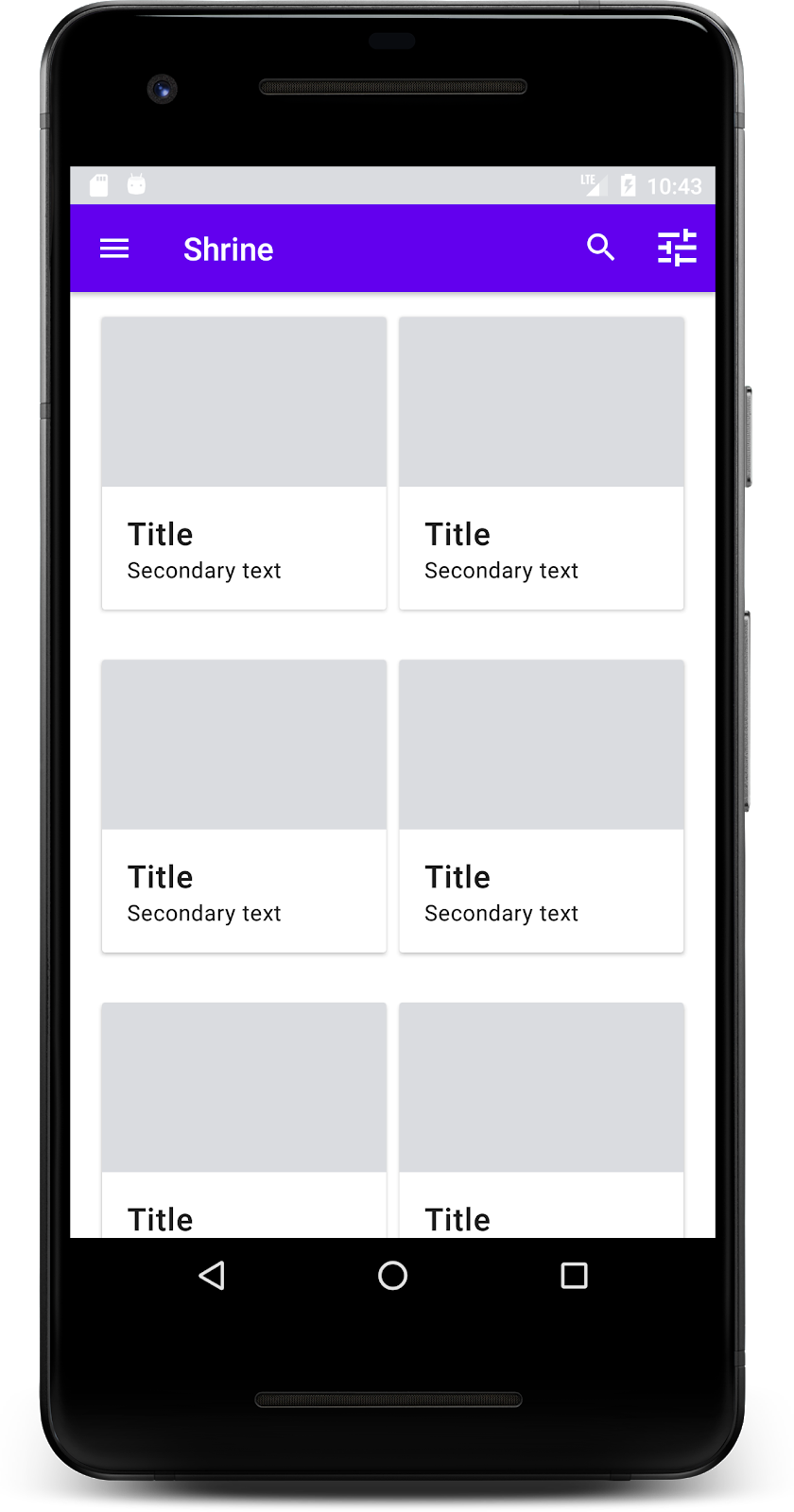
הכרטיסים מופיעים עכשיו! הן עדיין לא מציגות כלום, אז בואו נוסיף נתוני מוצרים.
הוספת תמונות וטקסט
לכל כרטיס מוסיפים תמונה, שם מוצר ומחיר. ההפשטה ViewHolder שלנו מכילה את התצוגות של כל כרטיס. ב-ViewHolder, מוסיפים את שלושת התצוגות באופן הבא:
ProductCardViewHolder.java
package com.google.codelabs.mdc.java.shrine;

import androidx.recyclerview.widget.RecyclerView;
import android.view.View;
import android.widget.TextView;
import androidx.annotation.NonNull;

import com.android.volley.toolbox.NetworkImageView;

public class ProductCardViewHolder extends RecyclerView.ViewHolder {

   public NetworkImageView productImage;
   public TextView productTitle;
   public TextView productPrice;

   public ProductCardViewHolder(@NonNull View itemView) {
       super(itemView);
       productImage = itemView.findViewById(R.id.product_image);
       productTitle = itemView.findViewById(R.id.product_title);
       productPrice = itemView.findViewById(R.id.product_price);
   }
}
במתאם של RecyclerView, ב-ViewHolder, מעדכנים את השיטה onBindViewHolder() כדי להגדיר את המידע בכל תצוגה:
ProductCardRecyclerViewAdapter.java
@Override
public void onBindViewHolder(@NonNull ProductCardViewHolder holder, int position) {
   if (productList != null && position < productList.size()) {
       ProductEntry product = productList.get(position);
       holder.productTitle.setText(product.title);
       holder.productPrice.setText(product.price);
       imageRequester.setImageFromUrl(holder.productImage, product.url);
   }
}
הקוד שלמעלה אומר למתאם של RecyclerView מה לעשות עם כל כרטיס, באמצעות ViewHolder.
בדוגמה הזו, הנתונים הטקסטואליים מוגדרים בכל אחד מה-ViewHolderים TextView, ומתבצעת קריאה ל-ImageRequester כדי לקבל תמונה מכתובת URL. ImageRequester היא מחלקה שסיפקנו לנוחיותכם, והיא משתמשת בספריית Volley (זה נושא שלא נדון במסגרת ה-codelab הזה, אבל אתם מוזמנים לעיין בקוד בעצמכם).
גרסת build והפעלה:
המוצרים שלנו מופיעים עכשיו באפליקציה.
6. Recap
האפליקציה שלנו כוללת תהליך בסיסי שמעביר את המשתמש ממסך הכניסה למסך הבית, שבו אפשר לראות את המוצרים. בכמה שורות קוד בלבד, הוספנו סרגל אפליקציות עליון עם כותרת ושלושה לחצנים, ורשת של כרטיסים להצגת התוכן של האפליקציה. מסך הבית שלנו פשוט ופונקציונלי, עם מבנה בסיסי ותוכן שניתן לפעולה.
השלבים הבאים
עם סרגל האפליקציה העליון, הכרטיס, שדה הטקסט והלחצן, השתמשנו עכשיו בארבעה רכיבי ליבה של Material Design מהספרייה MDC-Android. אפשר לעיין ברכיבים נוספים בקטלוג MDC-Android components in MDC Android.
האפליקציה שלנו פועלת באופן מלא, אבל עדיין לא משקפת מותג מסוים. ב-MDC-103: התאמת העיצוב של Google Material Design עם צבע, צורה, גובה וסוג, נתאים אישית את הסגנון של הרכיבים האלה כדי להביע מותג מודרני ותוסס.