

1. 简介
在此 Codelab 中,您将学习如何使用 Model Context Protocol (MCP) 将 Gemini Enterprise 应用连接到 Google Workspace 应用。MCP 是一种开放标准,可让 AI 模型安全地使用远程服务器提供的工具。您将设置 Gemini Enterprise 应用,以便在不编写任何代码的情况下与 Gmail、Google 云端硬盘、Google 文档、Google 表格、Google 幻灯片、Google 日历、Google Chat 和 People API 进行交互!
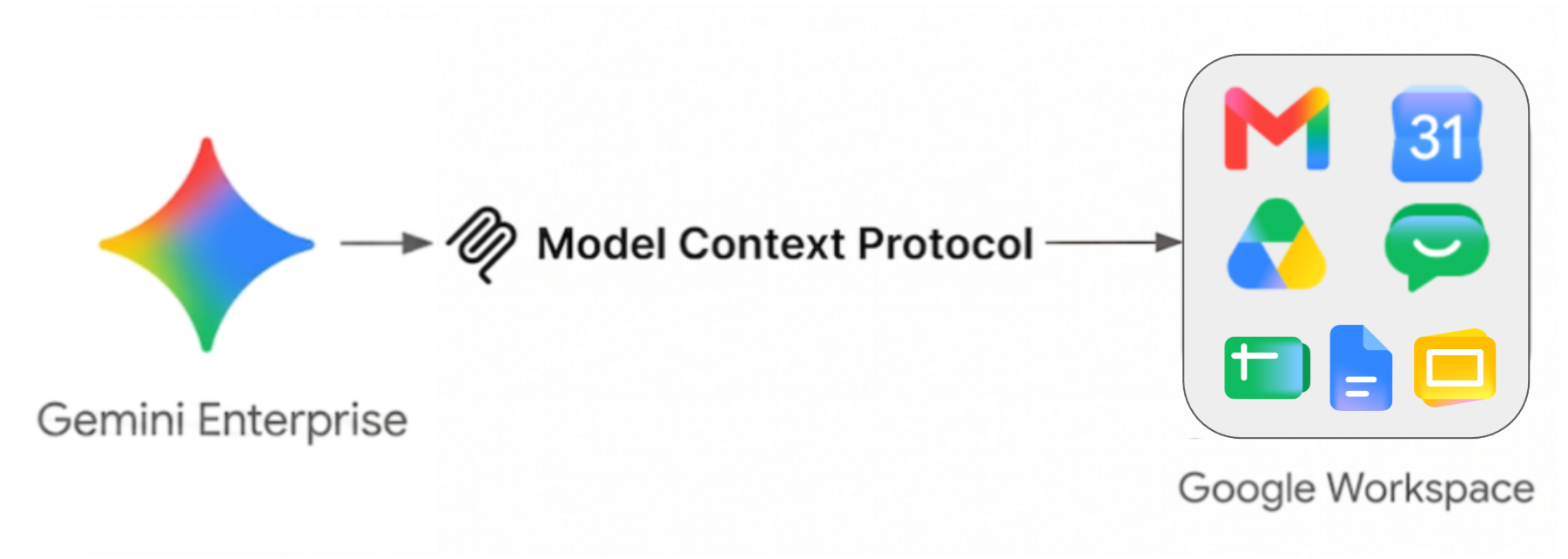
您将执行的操作
- 在 Google Cloud 项目中启用 Google Workspace MCP 服务。
- 创建并配置 Gemini Enterprise 应用,以访问这些 MCP 服务。
- 使用有趣且实用的提示测试集成,这些提示会与您的 Google Workspace 数据进行交互。
所需条件
- 网络浏览器,例如 Chrome。
- 已加入 Google Workspace 开发者预览版计划的 Google Cloud 云项目
- 具有
Organization Policy Administrator角色的 Google Cloud 账号。 - 您是所有者且已启用结算功能的 Google Cloud 项目。如需检查现有项目是否已启用结算功能,请参阅验证项目的结算状态。如需创建项目并设置结算信息,请参阅创建 Google Cloud 项目。如需更改项目所有权,请参阅管理项目成员或更改项目所有权。
- 已启用 Gemini Enterprise Standard/Plus 版。如需比较 Gemini Enterprise 的各个版本,请参阅比较 Gemini Enterprise 的各个版本。如果您没有 Gemini Enterprise 许可,则可以在下一步中选择创建试用许可。
- 拥有可访问 Google Chat 且已启用智能功能的 Google Workspace 商务版或企业版账号。
轻松访问此 Codelab
2. 准备工作
初始化 Gemini Enterprise 应用
在 Google Cloud 控制台中,按以下步骤操作:
- 选择您的项目。
- 在 Google Cloud 搜索字段中,搜索并选择 Gemini Enterprise,然后点击 + 创建应用。如果您没有 Gemini Enterprise 许可,系统会提示您激活 30 天免费试用许可。
- 将应用名称设置为
codelab。 - 将多区域设置为
global (Global)。 - 点击创建。
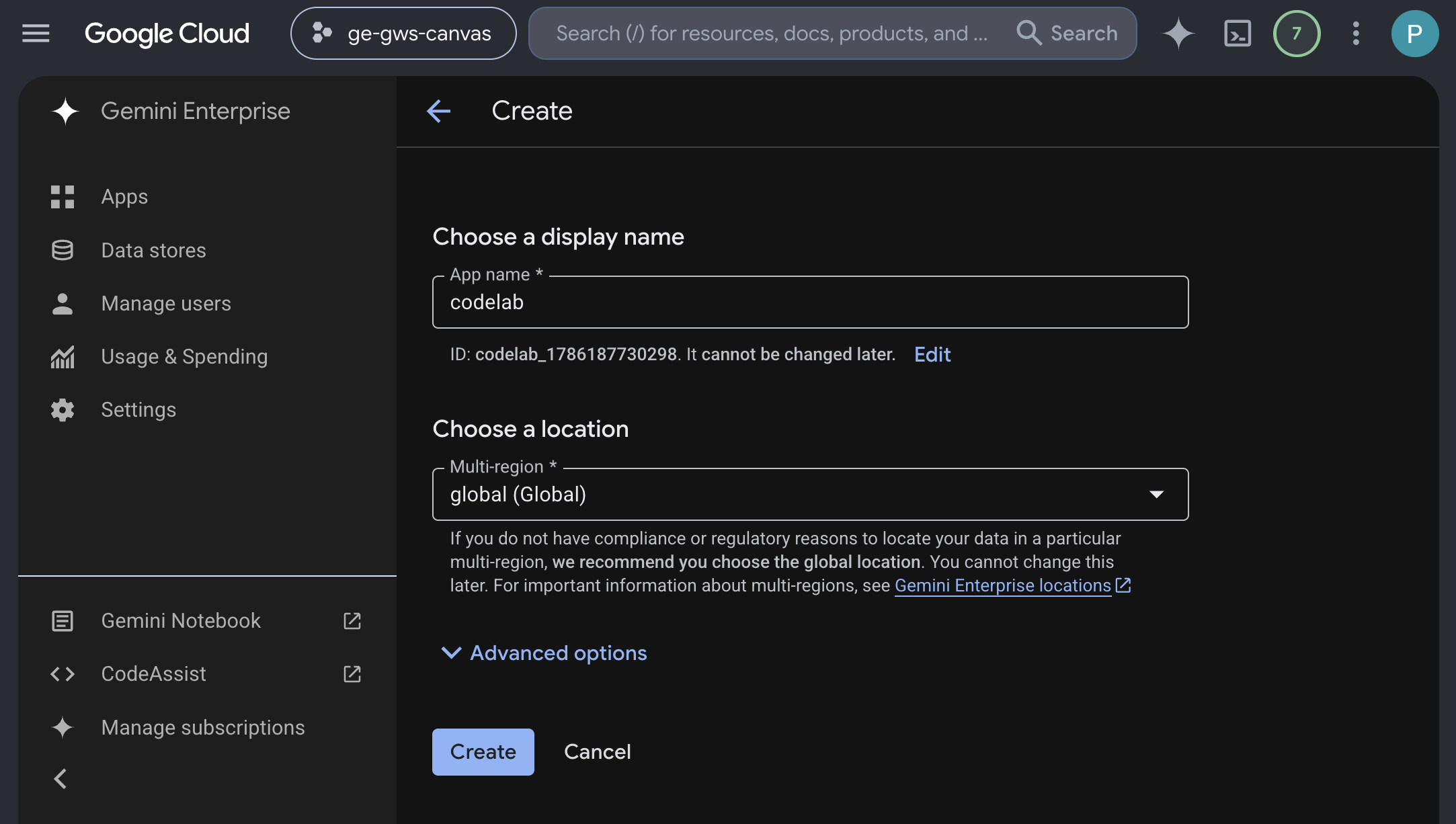
- 应用创建完毕后,系统会自动将您重定向到 Gemini Enterprise > 概览。
- 在完成设置下,点击设置身份。
- 在新界面中,选择使用 Google Identity,然后点击确认员工身份。
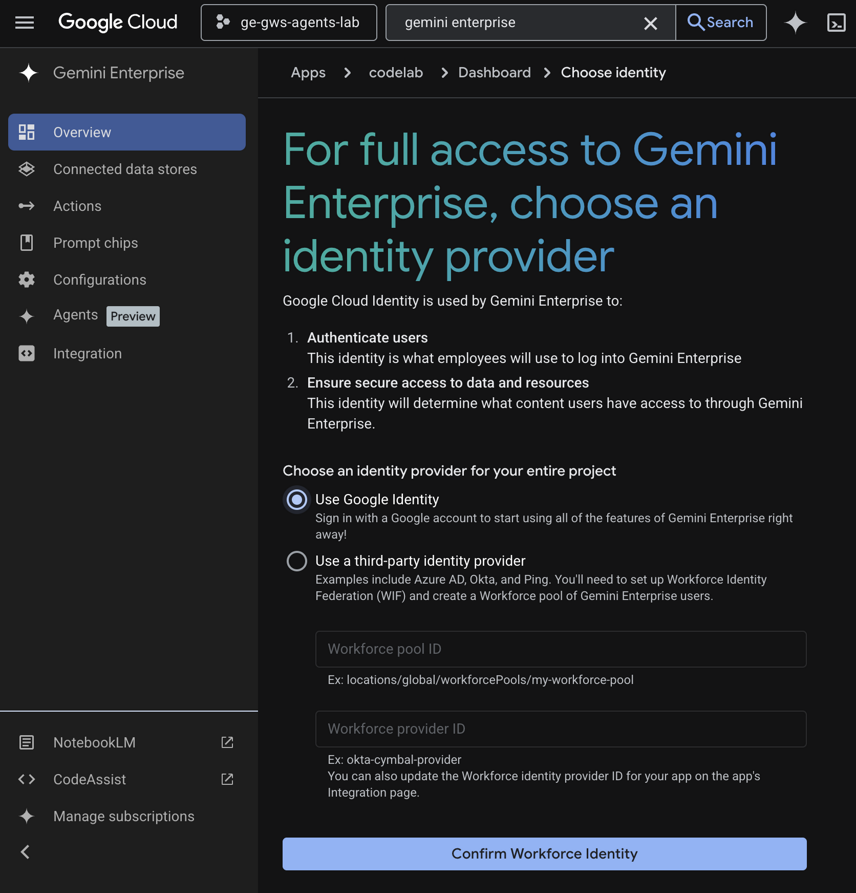
- 系统会保存配置,并自动将您重定向到 Gemini Enterprise > 概览。
停用自定义 MCP 服务器组织政策
默认情况下,Gemini Enterprise 会使用托管式组织政策限制条件阻止创建自定义 MCP 数据存储区。
如需创建自定义 MCP 服务器数据存储区,您必须覆盖现有的代管式组织政策限制条件。在 Google Cloud 控制台中,按以下步骤操作:
- 前往组织政策页面。
- 在过滤条件字段中,输入
Disable custom mcp server connector for gemini enterprise。 - 点击政策名称可前往政策详情页面。
- 点击管理政策。
- 选择覆盖父级资源的政策选项。
- 添加新规则,并将强制执行切换开关设为关闭。
- 点击设置政策。
启用 API
如需使用 Google Workspace MCP 服务器,您必须启用标准 Google Workspace API。
启用 MCP 服务
接下来,启用 Google Workspace MCP 服务。
配置 Chat 应用
如需使用 Google Chat MCP 服务器,您必须在 Google Cloud 项目中配置 Chat 应用。
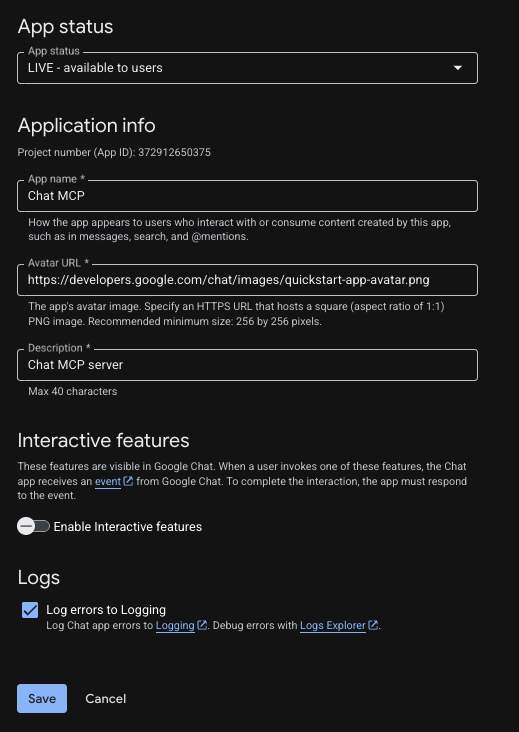
- 在 Google Cloud 控制台中,搜索 Google Chat API,然后依次点击 Google Chat API > 管理 > 配置。
- 设置 Chat 应用:
- 在应用名称字段中,输入
Chat MCP。 - 在头像网址字段中,输入
https://developers.google.com/chat/images/quickstart-app-avatar.png。 - 在说明中,输入
Chat MCP server。 - 在功能下,关闭启用互动功能。
- 在日志下,选择将错误记录到 Logging。
- 在应用名称字段中,输入
- 点击保存。
3. 配置 OAuth 权限请求和客户端
Google Workspace MCP 服务器使用 OAuth 2.0 进行安全身份验证和授权。您必须配置 OAuth 权限请求页面并创建 Web 应用客户端。
设置 OAuth 权限请求页面
您必须先配置权限请求页面。
- 在 Google Cloud 控制台中,依次前往 Google Auth Platform > 品牌信息。如果尚未配置,请点击开始使用。
- 配置应用信息:
- 应用名称:
Google Workspace MCP Servers - 用户支持邮箱:选择您的邮箱。
- 应用名称:
- 配置受众群体:选择内部(如果“内部”不可用,则选择外部)。
- 配置联系信息:输入您的邮箱。
- 查看并同意《用户数据政策》,然后点击创建。
- 如果您选择了外部,请前往目标对象,然后在测试用户下添加您的电子邮件地址。
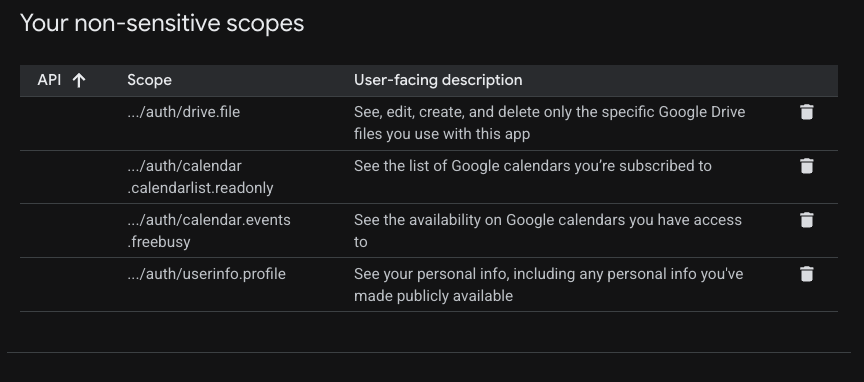
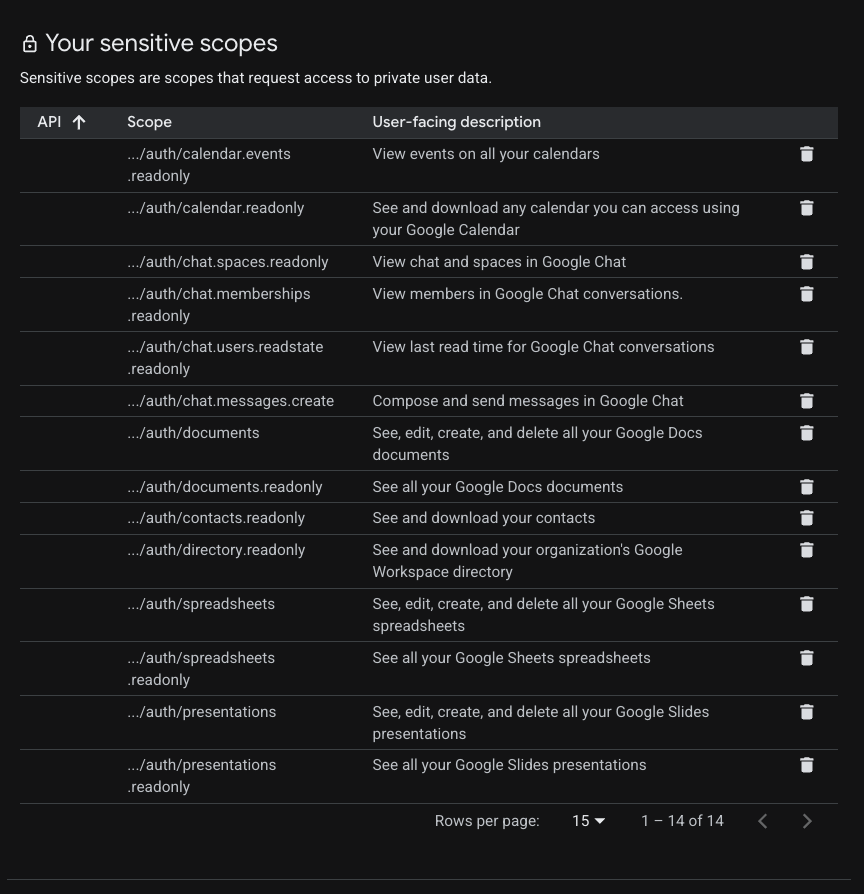
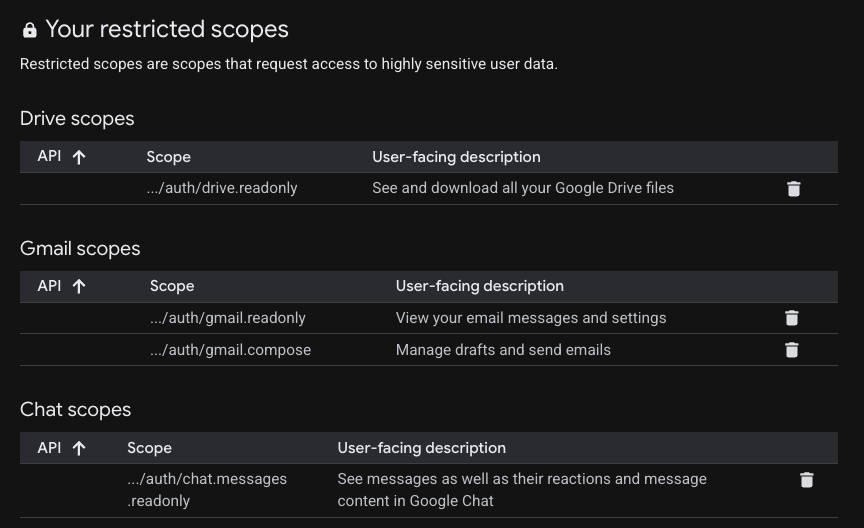
- 依次前往数据访问权限 > 添加或移除范围。在手动添加范围下,为您要使用的服务器添加以下内容:
- 通用:
https://www.googleapis.com/auth/gmail.readonly、https://www.googleapis.com/auth/drive.readonly、https://www.googleapis.com/auth/calendar.readonly、https://www.googleapis.com/auth/chat.messages.readonly - Gmail:
https://www.googleapis.com/auth/gmail.readonly、https://www.googleapis.com/auth/gmail.compose - Google 云端硬盘:
https://www.googleapis.com/auth/drive.readonly、https://www.googleapis.com/auth/drive.file - Google 文档:
https://www.googleapis.com/auth/drive.readonly、https://www.googleapis.com/auth/drive.file、https://www.googleapis.com/auth/documents.readonly、https://www.googleapis.com/auth/documents - Google 表格:
https://www.googleapis.com/auth/drive.readonly、https://www.googleapis.com/auth/drive.file、https://www.googleapis.com/auth/spreadsheets.readonly、https://www.googleapis.com/auth/spreadsheets - Google 幻灯片:
https://www.googleapis.com/auth/drive.readonly、https://www.googleapis.com/auth/drive.file、https://www.googleapis.com/auth/presentations.readonly、https://www.googleapis.com/auth/presentations - Google 日历:
https://www.googleapis.com/auth/calendar.calendarlist.readonly、https://www.googleapis.com/auth/calendar.events.freebusy、https://www.googleapis.com/auth/calendar.events.readonly - Google Chat:
https://www.googleapis.com/auth/chat.spaces.readonly、https://www.googleapis.com/auth/chat.memberships.readonly、https://www.googleapis.com/auth/chat.messages.readonly、https://www.googleapis.com/auth/chat.messages.create、https://www.googleapis.com/auth/chat.users.readstate.readonly - People API:
https://www.googleapis.com/auth/directory.readonly、https://www.googleapis.com/auth/userinfo.profile、https://www.googleapis.com/auth/contacts.readonly
- 通用:
- 依次点击添加到表格、更新和保存。
创建 OAuth 客户端 ID
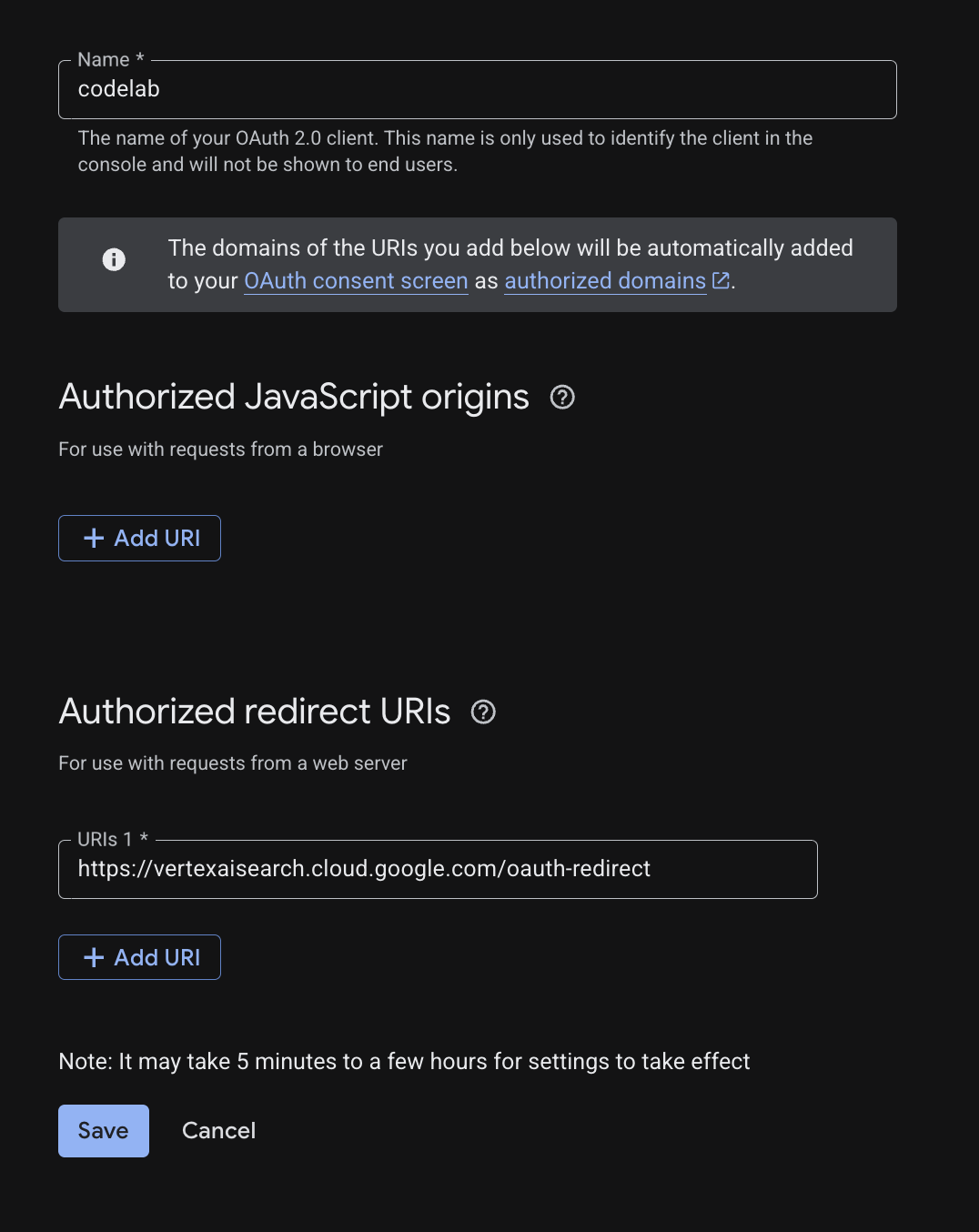
- 依次前往 Google Auth Platform > 客户端 > 创建客户端。
- 选择 Web 应用作为应用类型。
- 将该文件命名为
codelab。 - 在已获授权的重定向 URI 下,点击 + 添加 URI,然后输入
https://vertexaisearch.cloud.google.com/oauth-redirect。 - 选择将此客户端用于 AI 赋能的智能体。
- 点击创建,然后复制客户端 ID 和客户端密钥。您在下一步中需要用到这些信息。
4. 配置 Gemini Enterprise 应用
现在,我们来配置 Gemini Enterprise 应用,将这些端点用作自定义 MCP 服务器连接器。
通用
从 Cloud 控制台打开 Gemini Enterprise,然后按照以下步骤操作:
- 点击名为
codelab的应用。 - 在导航菜单中,点击关联的数据存储区。
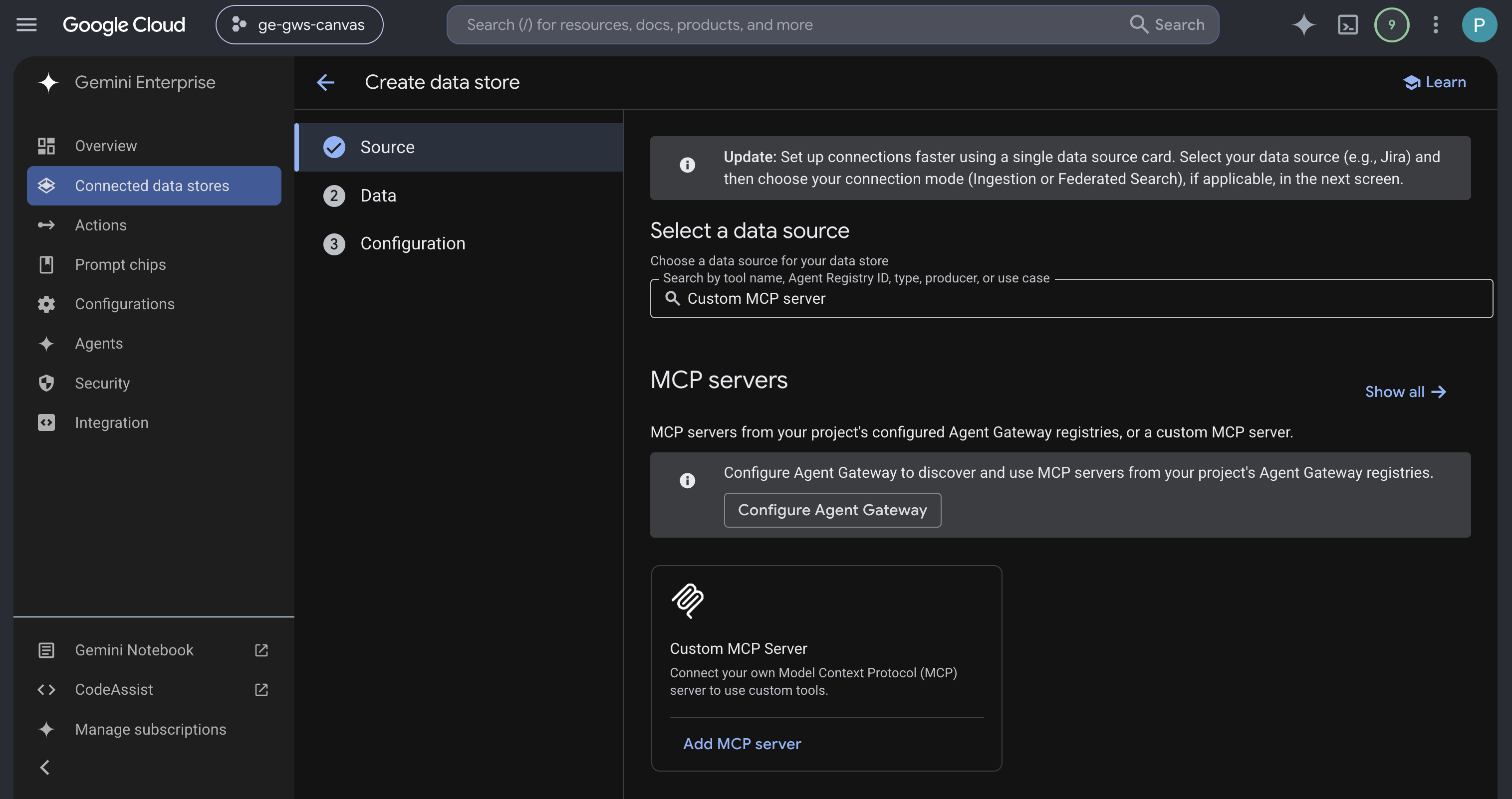
- 点击 + 新建数据存储区。
- 在来源中,搜索自定义 MCP 服务器,然后点击添加 MCP 服务器。
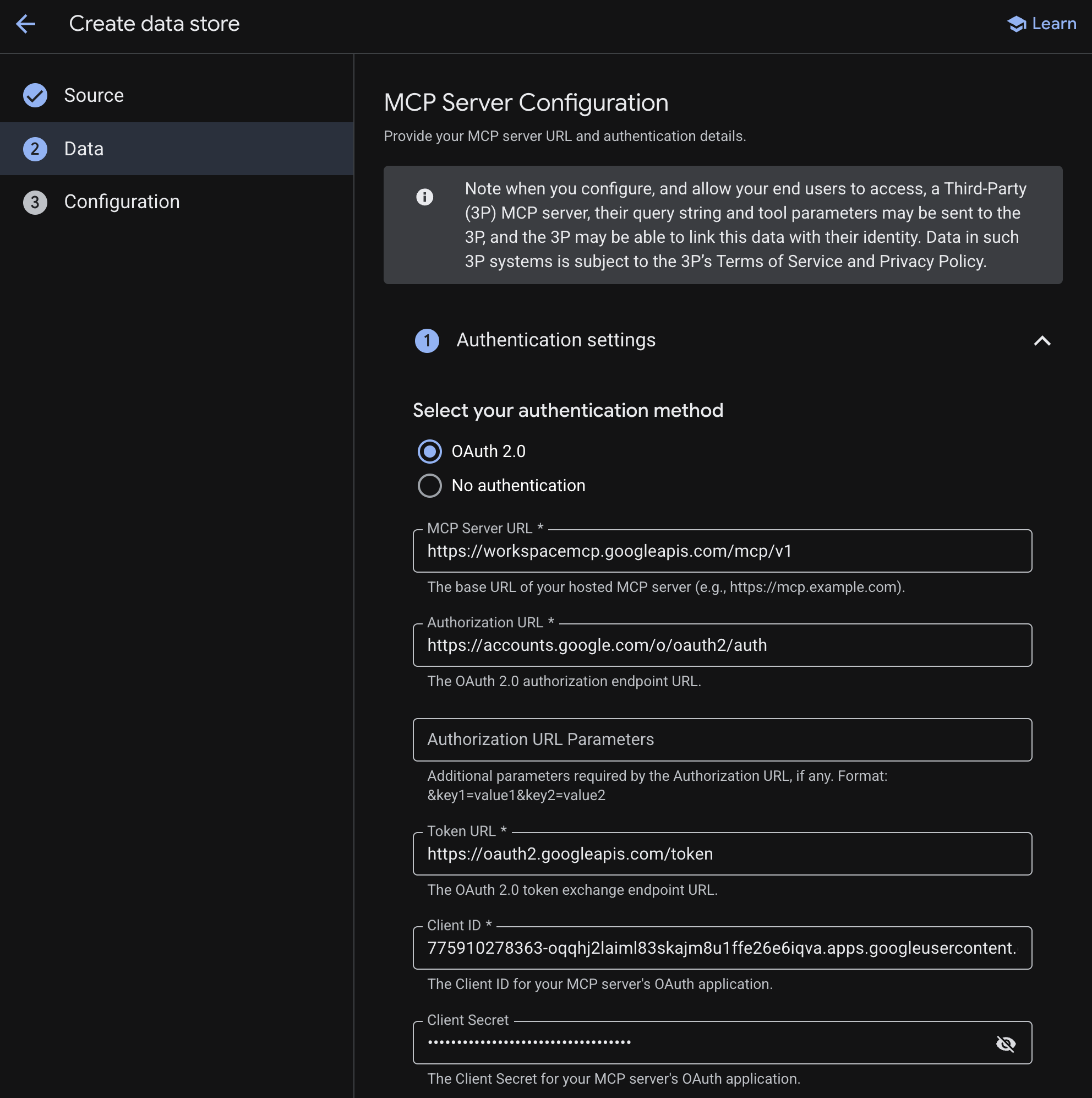
- 在数据部分中:
- 将 MCP 服务器网址设置为
https://workspacemcp.googleapis.com/mcp/v1。 - 将授权网址设置为
https://accounts.google.com/o/oauth2/auth。 - 将令牌网址设置为
https://oauth2.googleapis.com/token。 - 将客户端 ID 和客户端密钥设置为之前步骤中保存的值。
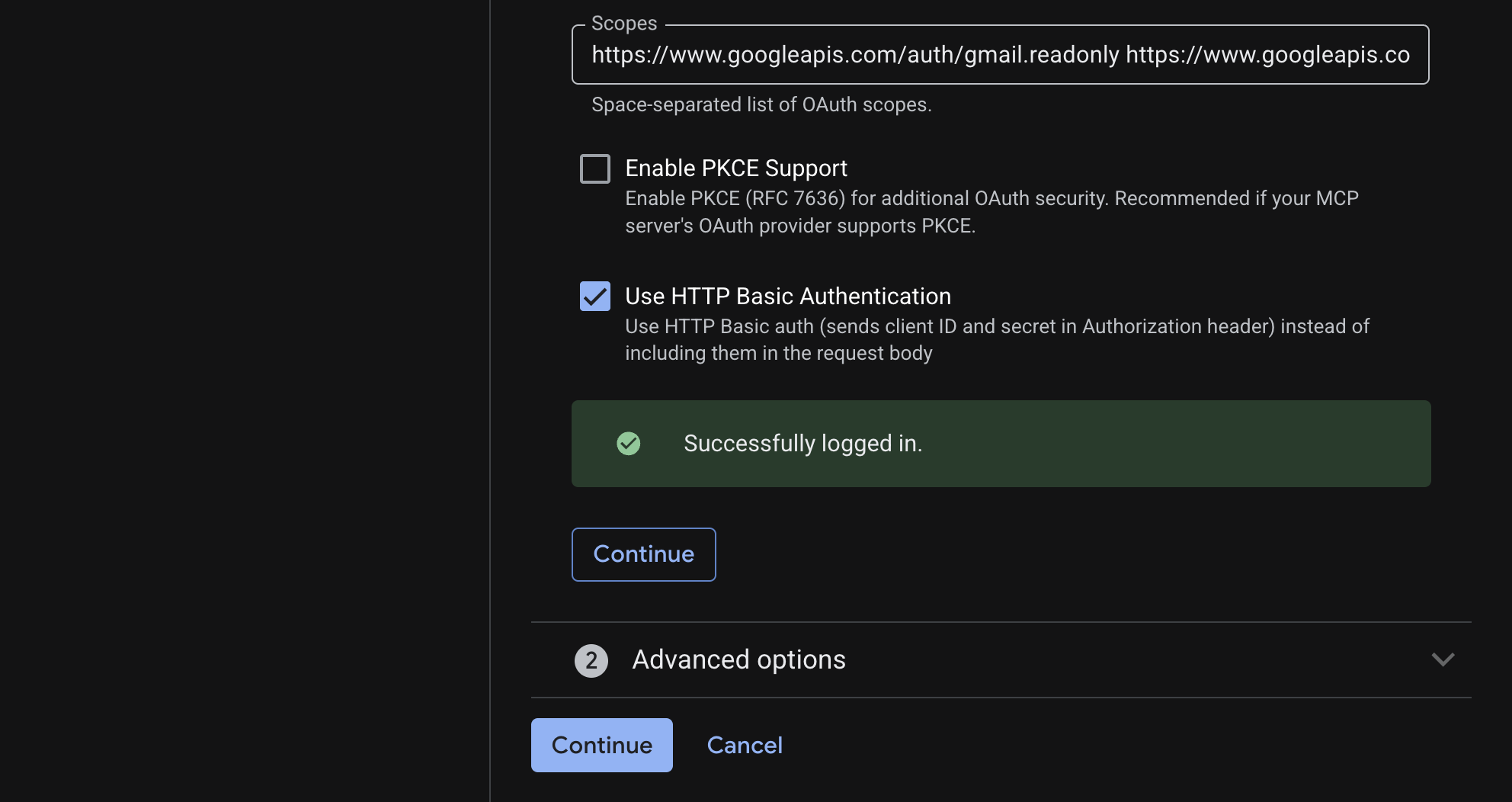
- 将范围设置为
https://www.googleapis.com/auth/gmail.readonly https://www.googleapis.com/auth/drive.readonly https://www.googleapis.com/auth/calendar.readonly https://www.googleapis.com/auth/chat.messages.readonly。 - 点击验证身份验证,然后按照步骤对 OAuth 客户端进行身份验证和授权。
- 依次点击继续和继续。
- 将 MCP 服务器网址设置为
- 在配置部分,将数据连接器名称设置为
gws-mcp-universal。 - 点击创建。
- 系统会自动将您重定向到新创建的数据存储区配置页面。
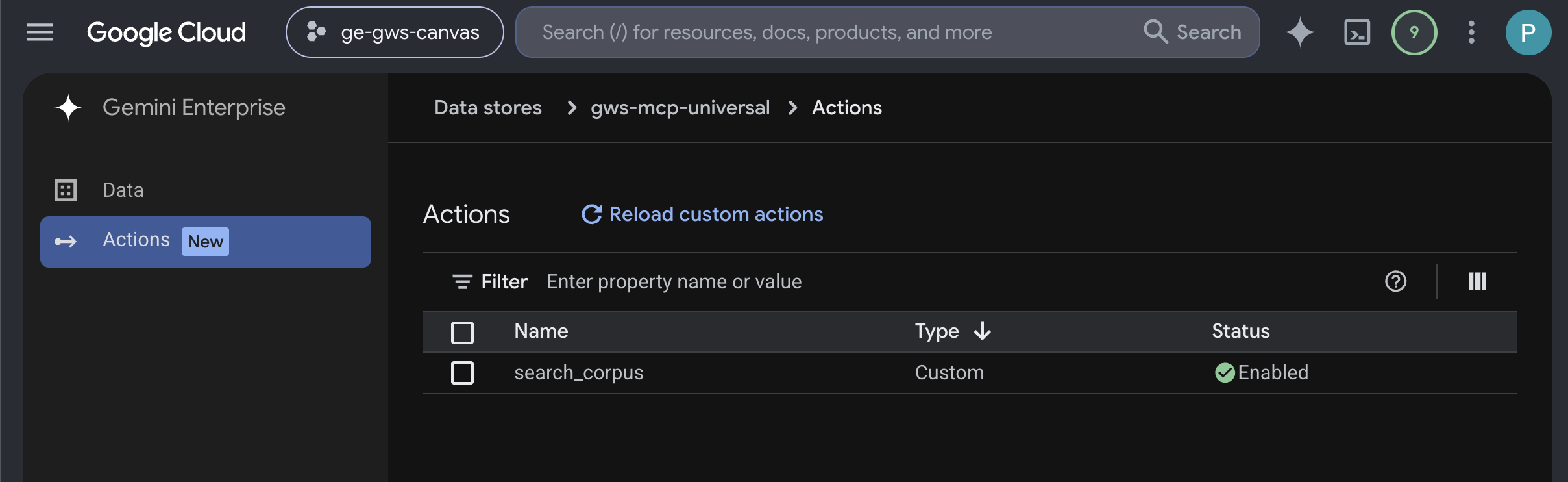
- 前往操作。
- 点击重新加载自定义操作,选择全部,然后点击启用操作。
Gmail
按照之前为 Google 日历执行的相同步骤操作,在配置部分中将数据连接器名称设置为 gws-mcp-gmail,并在数据部分中设置以下值:
- 将 MCP 服务器网址设置为
https://gmailmcp.googleapis.com/mcp/v1。 - 将范围设置为
https://www.googleapis.com/auth/gmail.readonly https://www.googleapis.com/auth/gmail.compose。
Google 云端硬盘
按照之前为 Google 日历执行的相同步骤操作,在配置部分中将数据连接器名称设置为 gws-mcp-drive,并在数据部分中设置以下值:
- 将 MCP 服务器网址设置为
https://drivemcp.googleapis.com/mcp/v1。 - 将范围设置为
https://www.googleapis.com/auth/drive.readonly https://www.googleapis.com/auth/drive.file。
Google 文档
按照之前为 Google 日历执行的相同步骤操作,在配置部分中将数据连接器名称设置为 gws-mcp-docs,并在数据部分中设置以下值:
- 将 MCP 服务器网址设置为
https://docsmcp.googleapis.com/mcp/v1。 - 将范围设置为
https://www.googleapis.com/auth/drive.readonly https://www.googleapis.com/auth/drive.file https://www.googleapis.com/auth/documents.readonly https://www.googleapis.com/auth/documents。
Google 表格
按照之前为 Google 日历执行的相同步骤操作,在配置部分中将数据连接器名称设置为 gws-mcp-sheets,并在数据部分中设置以下值:
- 将 MCP 服务器网址设置为
https://sheetsmcp.googleapis.com/mcp/v1。 - 将范围设置为
https://www.googleapis.com/auth/drive.readonly https://www.googleapis.com/auth/drive.file https://www.googleapis.com/auth/spreadsheets.readonly https://www.googleapis.com/auth/spreadsheets。
Google 幻灯片
按照之前为 Google 日历执行的相同步骤操作,在配置部分中将数据连接器名称设置为 gws-mcp-slides,并在数据部分中设置以下值:
- 将 MCP 服务器网址设置为
https://slidesmcp.googleapis.com/mcp/v1。 - 将范围设置为
https://www.googleapis.com/auth/drive.readonly https://www.googleapis.com/auth/drive.file https://www.googleapis.com/auth/presentations.readonly https://www.googleapis.com/auth/presentations。
Google 日历
按照之前为 Google 日历执行的相同步骤操作,在配置部分中将数据连接器名称设置为 gws-mcp-calendar,并在数据部分中设置以下值:
- 将 MCP 服务器网址设置为
https://calendarmcp.googleapis.com/mcp/v1。 - 将范围设置为
https://www.googleapis.com/auth/calendar.calendarlist.readonly https://www.googleapis.com/auth/calendar.events.freebusy https://www.googleapis.com/auth/calendar.events.readonly。
Google Chat
按照之前为 Google 日历执行的相同步骤操作,在配置部分中将数据连接器名称设置为 gws-mcp-chat,并在数据部分中设置以下值:
- 将 MCP 服务器网址设置为
https://chatmcp.googleapis.com/mcp/v1。 - 将范围设置为
https://www.googleapis.com/auth/chat.spaces.readonly https://www.googleapis.com/auth/chat.memberships.readonly https://www.googleapis.com/auth/chat.messages.readonly https://www.googleapis.com/auth/chat.messages.create https://www.googleapis.com/auth/chat.users.readstate.readonly。
People API
按照之前为 Google 日历执行的相同步骤操作,在配置部分中将数据连接器名称设置为 gws-mcp-people-api,并在数据部分中设置以下值:
- 将 MCP 服务器网址设置为
https://people.googleapis.com/mcp/v1。 - 将范围设置为
https://www.googleapis.com/auth/directory.readonly https://www.googleapis.com/auth/userinfo.profile https://www.googleapis.com/auth/contacts.readonly。
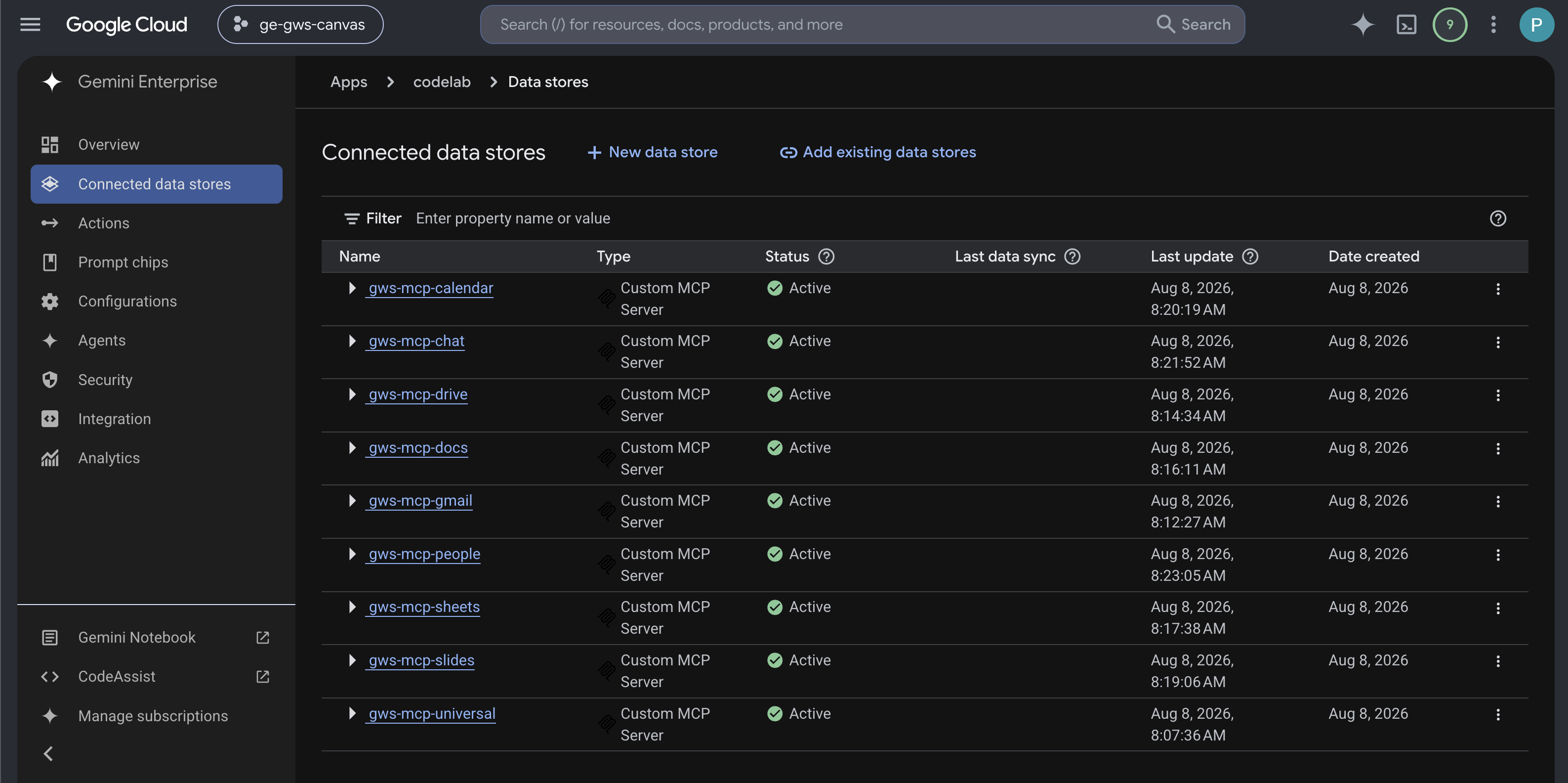
查看状态
几分钟后,连接器的状态将变为有效。如果您看到任何错误,可以点击数据源查看错误详情。
5. 测试工具
现在,您可以使用自然语言与 Google Workspace 数据进行互动。以下是每项服务的一些示例提示。
初始化 Gemini Enterprise Web 应用
在新标签页中,从 Cloud 控制台打开 Gemini Enterprise,然后按照以下步骤操作:
- 点击名为
codelab的应用。 - 点击显示的网址,在新标签页中打开 Gemini Enterprise Web 应用。
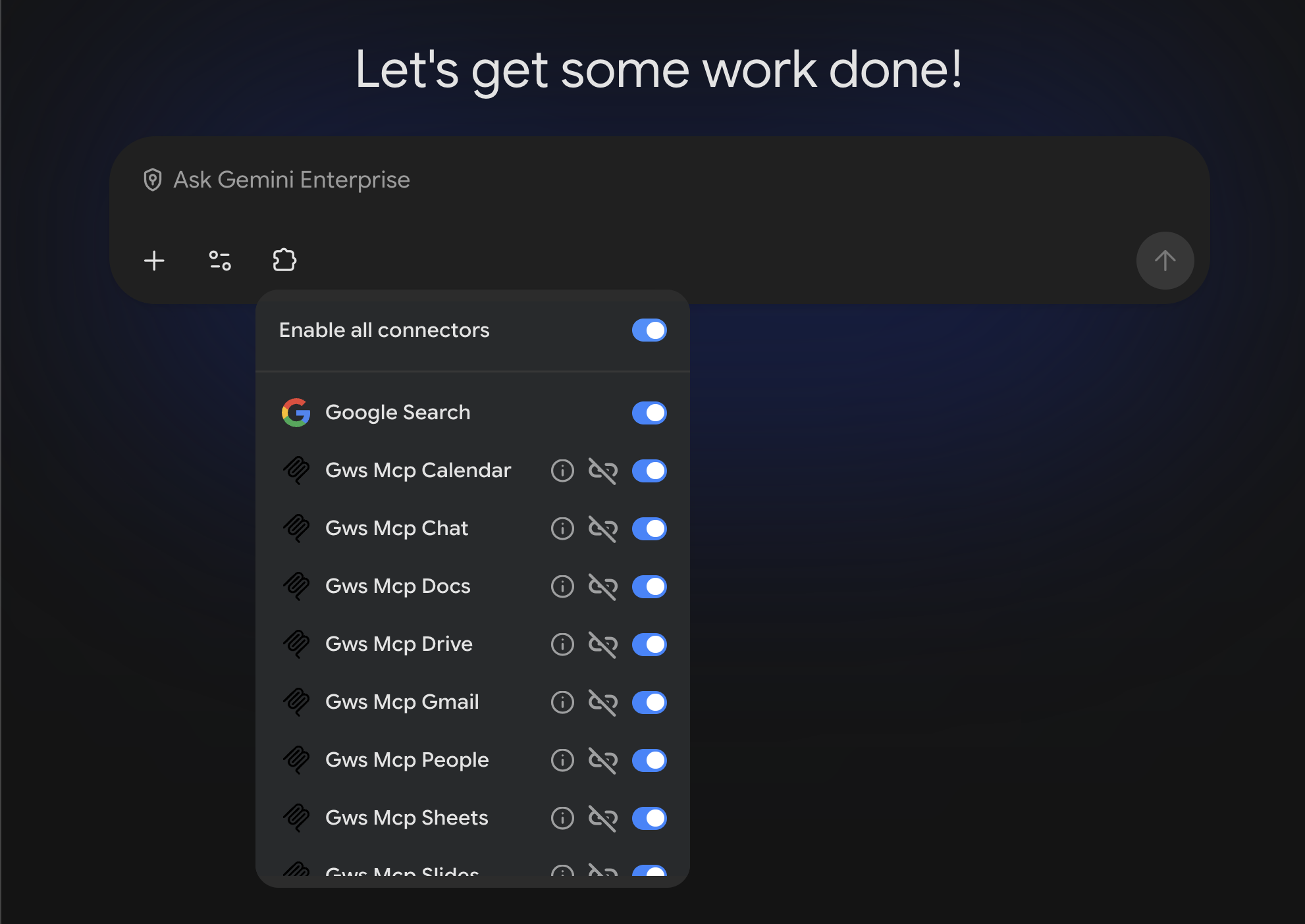
- 在新的聊天消息字段的页脚中,点击连接器图标,然后授权所有连接器。
通用
尝试在不同产品中搜索:
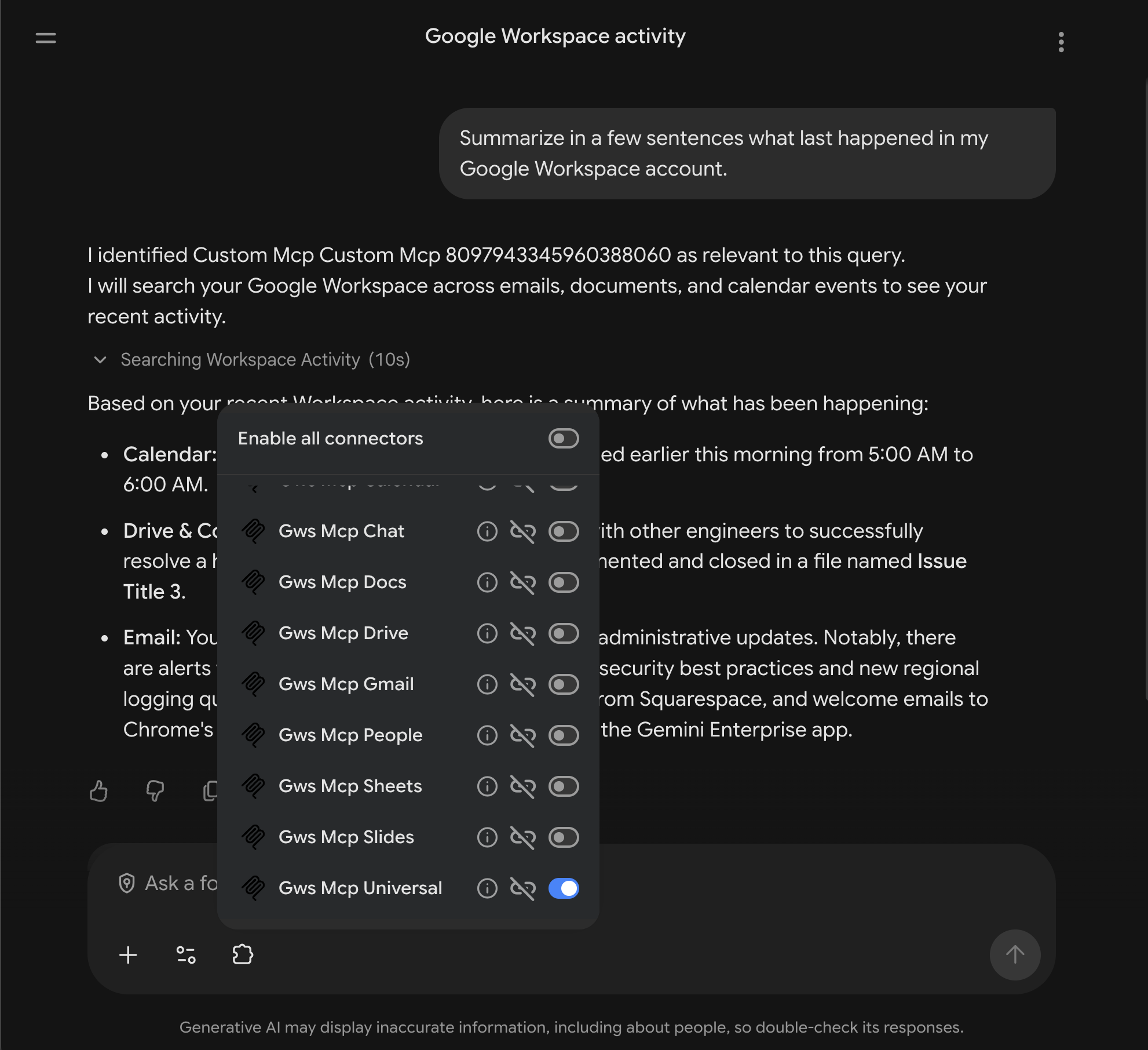
- “用几句话总结一下我的 Google Workspace 账号中最近发生的事情。”
- “在我的电子邮件、文档和聊天消息中查找与 [PROJECT_NAME] 相关的任何内容。”
- “我的下一场关于营销计划的会议是什么时候?关于该计划的最新备注和聊天消息有哪些?”
Gmail
尝试搜索或管理您的电子邮件:
- “总结我收到的最后 5 封电子邮件。”
- “起草一封邮件给‘[EMAIL_ADDRESS]’,询问‘[PROJECT_NAME]’项目的最新进展。”
Google 云端硬盘
尝试搜索或读取文件:
- “在我的 Google 云端硬盘中搜索包含‘[关键词]’的文件。”
- “列出我最近编辑过的文档。”
- “阅读我的‘[FILE_NAME]’文档的内容,并总结主要目标。”
Google 文档、表格和幻灯片
尝试搜索您的云端硬盘资源:
- “显示 Google 文档 [DOCS_TITLE] 的结构化内容。”
- “读取 Google 表格 [SHEETS_TITLE] 中的工作表 Sheet1”
- “向我展示 Google 幻灯片 [SLIDES_TITLE] 的语音化布局。”
Google 日历
尝试搜索您的日程安排:
- “我本周有哪些即将举行的会议?”
- “我明天下午有空闲时间吗?”
Google Chat
尝试搜索消息:
- “在‘[SPACE_NAME]’中查找包含‘[KEYWORD]’的消息”
People API
尝试搜索您的个人资料或联系人:
- “根据我的 Google 个人资料,我叫什么名字?”
- “查找‘[姓名]’的联系信息。”
结合使用多项服务
MCP 的真正威力在于跨多项服务编排任务。不妨试试以下提示,体验跨服务功能:
- “在云端硬盘中搜索与‘[PROJECT_NAME] 里程碑更新’相关的文件,总结其内容,找到‘[NAME]’的邮箱,然后创建一封 Gmail 草稿,将总结内容发送给对方。”
探索更多工具
以上只是几个示例。如需查看每项服务可用的完整工具列表并进行试用,请参阅官方文档的支持的产品部分。
6. 清理
删除 Google Cloud 项目
为避免系统因此 Codelab 中使用的资源向您的 Google Cloud 账号收取费用,我们建议您删除该 Google Cloud 项目。
在 Google Cloud 控制台中,按以下步骤操作:
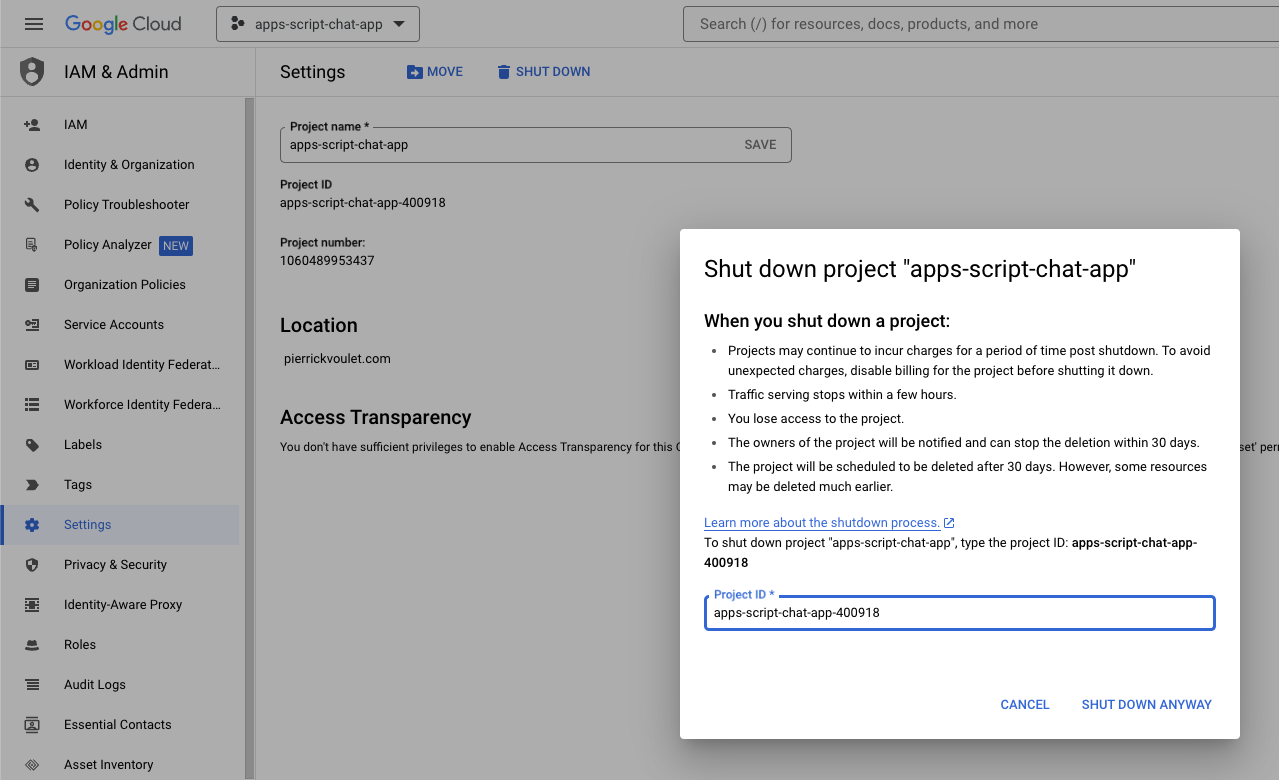
- 依次点击菜单 ☰ > IAM 和管理 > 设置。
- 点击关停。
- 输入项目 ID。
- 点击仍要关停。
7. 恭喜
恭喜!您已成功在 Gemini Enterprise 应用中配置并测试了官方 Google Workspace MCP 服务器。