

1. مقدمة
في هذا الدرس التطبيقي حول الترميز، ستنشئ تطبيق الويب gCurrenC calculator وتنشره على Google Cloud، ثم تؤمّنه من الوصول غير المصرّح به. باستخدام Google Antigravity والمكوّن الإضافي Google Cloud Developer وخادم MCP الخاص بـ Developer Knowledge (DK)، يمكنك تصميم وتنفيذ بنية أمان تتحكّم في من يمكنه الوصول إلى التطبيق وتحميه من الاستخدام غير المصرَّح به.
خلال هذا التمرين المعملي، ستربط Google Antigravity بخادم DK MCP، ما يتيح لـ Antigravity الوصول إلى مستندات Google Cloud الرسمية في الوقت الفعلي. بدلاً من الاعتماد على بيانات التدريب الثابتة أو أوزان النماذج القديمة، يستردّ Antigravity بشكل ديناميكي الأنماط المعمارية الحالية وأحدث بنية لواجهة سطر الأوامر (CLI) في gcloud ومَعلمات الأمان، ما يقلّل من الهلوسة ويستند إلى الردود في المعرفة الحديثة.
ما ستقوم بإنشائه
- وحدة عمل الحوسبة الخاصة: جهازان افتراضيان (VM) في Compute Engine يشغّلان تطبيق الويب gCurrenC calculator داخل شبكة سحابة إلكترونية خاصة افتراضية (VPC) مخصّصة بدون عناوين IP عامة.
- مسار دخول آمن: هو جهاز موازنة حمل التطبيقات الخارجي العالمي مع شبكة فرعية مخصّصة للخادم الوكيل فقط، يوجّه حركة مرور بيانات الإنترنت من خلال Google Front Ends (GFEs) إلى أجهزتك الافتراضية الخاصة بدون كشفها للإنترنت العام.
- مسار نقل البيانات الصادرة الآمن: هو بوابة Cloud Router وCloud NAT مقترنة بخدمة Cloud Next Generation Firewall (Cloud NGFW) Enterprise وCertificate Authority Service (CAS) على مستوى المشروع لإجراء فحص فوري لبروتوكول أمان طبقة النقل (TLS) وفحص خدمة منع التسلّل (IPS) على زيارات واجهة برمجة التطبيقات الصادرة لبروتوكول HTTPS لتحويل العملات.
أهداف الدورة التعليمية
- ثبِّت المكوّن الإضافي
google-cloud-developerباستخدام Antigravity CLI واضبط خادم DK MCP في Antigravity. - نشر تطبيق ويب خاص معزول واختباره على Compute Engine باستخدام ميزة "إعادة توجيه TCP" في Identity-Aware Proxy (IAP)
- استخدِم ميزة "الطلبات المتعدّدة المستندة إلى مصادر موثوقة" في Antigravity لتصميم بنية أمان لعمليات الدخول والخروج على مستوى المشروع.
- يمكنك إنشاء نص برمجي للنشر في
bashوإجراء تدقيق ذاتي له وتشغيله لموازنة الحمل للتطبيقات الخارجية على مستوى العالم وCloud NAT وCAS وCloud NGFW Enterprise.
2. قبل البدء
المتطلبات الأساسية
قبل بدء هذا الدرس التطبيقي حول الترميز، تأكَّد من توفّر ما يلي:
- حساب Google ومتصفّح Google Chrome
- مشروع Google Cloud جديد مع تفعيل الفوترة دوِّن رقم تعريف المشروع (
PROJECT_ID)، لأنّك ستستخدمه طوال هذا الدرس التطبيقي حول الترميز لتفعيل واجهات برمجة التطبيقات وإنشاء مفتاح واجهة برمجة التطبيقات ونشر موارد Google Cloud. - أذونات "إدارة الهوية وإمكانية الوصول" (IAM) في مشروعك على السحابة الإلكترونية على Google Cloud لإنشاء مفاتيح واجهة برمجة التطبيقات وموارد Compute Engine وشبكات VPC ومجموعات CAS ونفق IAP ونقاط نهاية Cloud NGFW
- المصادقة باستخدام واجهة سطر الأوامر (CLI) في
gcloud، وضبط مشروعك على السحابة الإلكترونية على Google Cloud، وتفعيل واجهات برمجة التطبيقات المطلوبة:- في الوحدة الطرفية أو Cloud Shell، تأكَّد من أنّه تمت مصادقتك:
gcloud auth listgcloud auth login - تأكَّد من ضبط واجهة سطر الأوامر في
gcloudلاستخدام مشروعك:gcloud config list projectPROJECT_IDبرقم تعريف مشروعك على Google Cloud:export PROJECT_ID=PROJECT_ID gcloud config set project PROJECT_ID - فعِّل واجهات برمجة التطبيقات المطلوبة في مشروعك على Google Cloud:
gcloud services enable \
   compute.googleapis.com \
   iap.googleapis.com \
   networksecurity.googleapis.com \
   privateca.googleapis.com \
   developerknowledge.googleapis.com \
   apikeys.googleapis.com
- في الوحدة الطرفية أو Cloud Shell، تأكَّد من أنّه تمت مصادقتك:
- ثبِّت Antigravity 2.0 على نظامك المحلي من صفحة تنزيل Google Antigravity.
تثبيت مكوّن Google Cloud Developer الإضافي باستخدام Antigravity CLI
لتثبيت المكوّن الإضافي Google Cloud Developer باستخدام Antigravity CLI، اتّبِع الخطوات التالية:
- لتثبيت Antigravity CLI على محطة العمل المحلية، اتّبِع الخطوات التالية:
- افتح الوحدة الطرفية المحلية.
- شغِّل النص البرمجي لأداة التثبيت:
curl -fsSL https://antigravity.google/cli/install.sh | bash - أغلِق جلسة Terminal وأعِد فتحها لكي يصبح الملف الثنائي
agyلـ Antigravity CLI متاحًا في نظامكPATH.
- في الوحدة الطرفية على جهازك، نفِّذ الأمر التالي لتثبيت المكوّن الإضافي
google-cloud-developer:agy plugin install https://github.com/google/skills/plugins/cloud/google-cloud-developerCloning plugin from https://github.com/google/skills.git... [ok] google-cloud-developer ✔ skills : 5 processed - agents : skipped (not found) - commands : skipped (not found) ✔ mcpServers : 1 processed - hooks : skipped (not found)
3- إعداد Antigravity وخادم DK MCP
في هذا القسم، عليك ضبط خادم DK MCP في Antigravity باستخدام مفتاح واجهة برمجة تطبيقات Google Cloud مقيّد.
- افتح Antigravity، واكتب
/goalواضغط على مفتاح Enter لتفعيل وضع الهدف، ثم الصِق الطلب التالي لإنشاء مفتاح واجهة برمجة تطبيقات مقيّد وضبط خادم DK MCP. استبدِلPROJECT_IDبرقم تعريف مشروعك على Google Cloud من قسم قبل البدء. لمزيد من المعلومات، يُرجى الاطّلاع على المكوّن الإضافي google-cloud-developer.Set up Antigravity to use the Developer Knowledge MCP server on my local machine. Run the necessary terminal commands to complete the following: 1. Create a restricted API key named 'DKP-MCP-Key' that can only target the Developer Knowledge API. Use the PROJECT_ID to create the API key. 2. Retrieve the actual key string of the newly created API key. 3. Create or safely update my ~/.gemini/config/mcp_config.json file (preserve any existing MCP servers) with the correct JSON structure to connect the developer-knowledge server using that API key in the headers. You MUST use the following JSON structure for the new server: "developer-knowledge": { "serverUrl": "https://developerknowledge.googleapis.com/mcp", "headers": { "x-goog-api-key": "<INSERT_RETRIEVED_API_KEY_HERE>" } } When you are done, confirm that the setup is complete. - للتحقّق من أنّ خادم DK MCP نشط، أدخِل الطلب التالي في نافذة محادثة Antigravity:
Which MCP servers are available?developer-knowledgeوأدواتها المتاحة (search_documentsوanswer_queryوget_documents):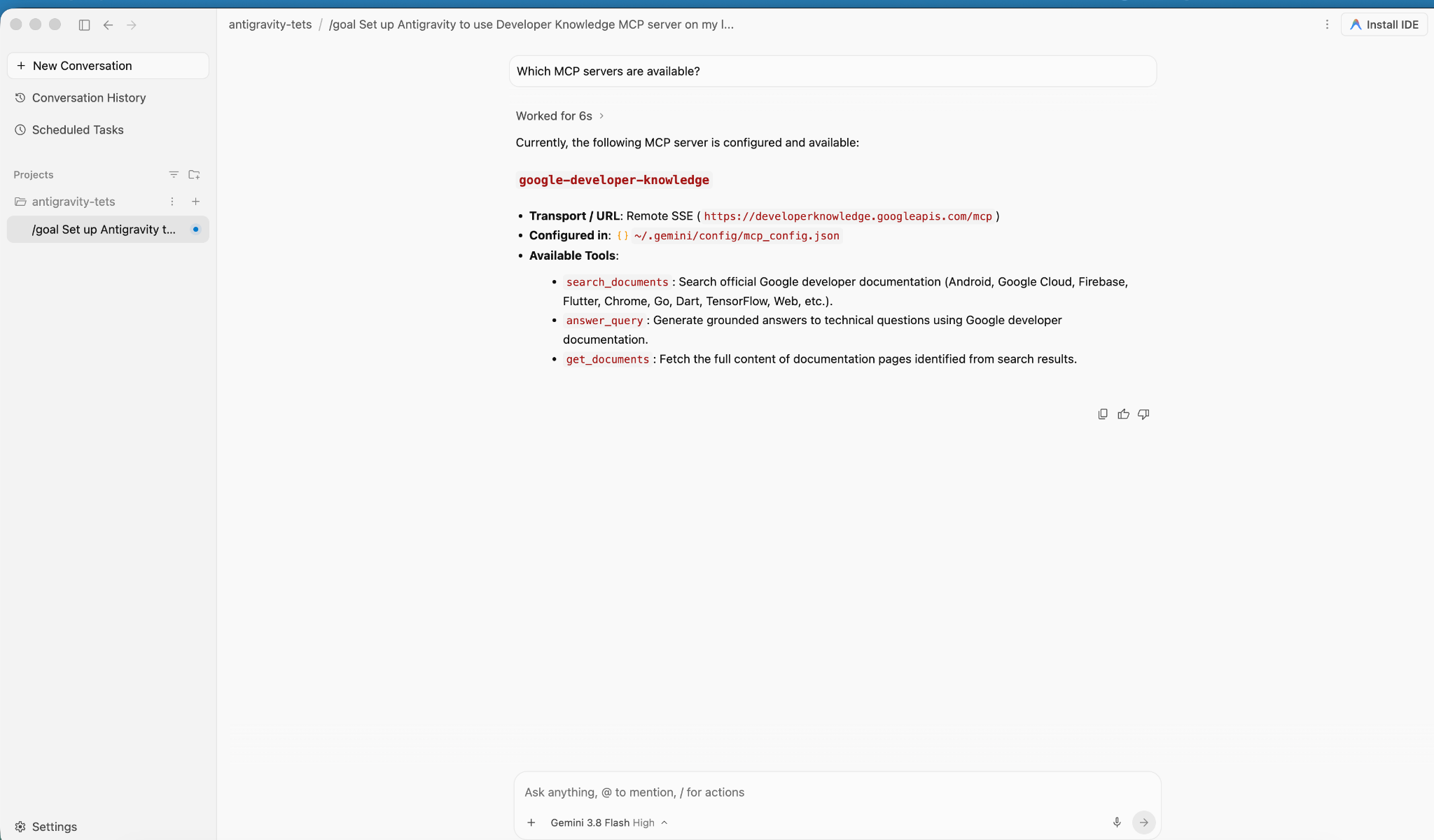
4. إنشاء التطبيق ونشره
في هذا القسم، يمكنك نشر تطبيق gCurrenC calculator على جهازَين افتراضيَّين خاصَّين في Compute Engine داخل شبكة VPC مخصّصة.
يوفّر التطبيق ما يلي:
- أداة لتحويل العملات في الوقت الفعلي تتيح استخدام
USDوEURوGBPوJPYوCADوINRوAUDباستخدام مكتبةhttp.serverالمعيارية المضمّنة في Python على المنفذ8080مع نقطة نهاية/healthzلفحص السلامة. - وحدة تحكّم للتحقّق من الأمان لتشغيل اتصالات واجهة برمجة التطبيقات الصادرة في الوقت الفعلي وعمليات فحص مشفّرة لمنع التهديدات
- قاعدة جدار حماية واردة تسمح لنطاق IAP من Google بالوصول إلى المنفذَين
22و8080لإجراء اختبارات إدارية بدون الكشف عن عناوين IP المتاحة للجميع
نشر التطبيق
- في نافذة محادثة Antigravity، أدخِل
/goalثم وجِّه الطلب التالي:You are a Cloud developer. Deploy the "gCurrenC calculator" app onto two (2) Compute Engine VMs with no external IP addresses (`--no-address`) inside a dedicated custom VPC network and private subnet. CRITICAL INSTRUCTIONS ON OUTPUT: - The VMs are strictly private with no external IP addresses and the local IAP tunnel has NOT been started yet. Any web URL is completely unreachable and will fail with a connection error. - In your final response, simply confirm that the private VMs and Managed Instance Group are deployed, and state that the user should establish the IAP tunnel. Do not output, format, or suggest any web preview link or URL (such as http://localhost:8080 or internal IP addresses) in your final response. Run this script in the terminal: ```bash #!/usr/bin/env bash set -euxo pipefail # Disable any interactive confirmation prompts so execution never hangs export CLOUDSDK_CORE_DISABLE_PROMPTS=1 # --- User Configuration --- PROJECT_ID="[PROJECT_ID]" REGION="us-central1" ZONE="us-central1-a" NETWORK="gcurrenc-vpc" SUBNET="gcurrenc-app-subnet" SUBNET_RANGE="10.10.1.0/24" # -------------------------- echo "==> [1/5] Configuring project, default region/zone, and enabling APIs..." gcloud config set project "${PROJECT_ID}" gcloud config set compute/region "${REGION}" gcloud config set compute/zone "${ZONE}" gcloud services enable compute.googleapis.com echo "==> [2/5] Creating custom VPC network and private workload subnet..." gcloud compute networks create "${NETWORK}" \ --subnet-mode=custom \ --description="Dedicated VPC for currency exchange app demo" 2>/dev/null || true gcloud compute networks subnets create "${SUBNET}" \ --network="${NETWORK}" \ --region="${REGION}" \ --range="${SUBNET_RANGE}" \ --enable-private-ip-google-access \ --description="Private subnet hosting backend compute instances" 2>/dev/null || true echo "==> [3/5] Generating standalone Python standard-library startup script..." cat << 'STARTUP_EOF' > /tmp/private_app_startup.sh #!/bin/bash set -euxo pipefail mkdir -p /opt/gcurrenc-app # Pure Python standard-library application (zero pip/apt dependencies needed at boot) cat << 'APPEOF' > /opt/gcurrenc-app/app.py import os import sys import json import socket import urllib.request import urllib.parse import ssl from http.server import BaseHTTPRequestHandler, ThreadingHTTPServer SUPPORTED_CURRENCIES = ["USD", "EUR", "GBP", "JPY", "CAD", "INR", "AUD"] class CurrencyAppHandler(BaseHTTPRequestHandler): def address_string(self): return str(self.client_address[0]) def do_GET(self): parsed = urllib.parse.urlparse(self.path) path = parsed.path params = urllib.parse.parse_qs(parsed.query) if path == "/favicon.ico": self.send_response(204) self.end_headers() return if path == "/healthz": self.send_response(200) self.send_header("Content-Type", "text/plain") self.end_headers() self.wfile.write(b"OK") return if path == "/api/security-test": mode = params.get("mode", ["safe"])[0] target = "https://secure.eicar.org/eicar.com.txt" if mode == "threat" else "https://api.frankfurter.dev/v1/latest?from=USD&to=EUR" try: req = urllib.request.Request(target, headers={"User-Agent": "SecureCurrencyApp/1.0"}) ctx = ssl.create_default_context() with urllib.request.urlopen(req, timeout=5, context=ctx) as resp: data = {"verdict": "PERMITTED", "target": target, "http_status": resp.status} code = 200 except Exception as e: data = {"verdict": "BLOCKED_OR_FAILED", "target": target, "error": str(e)} code = 502 self.send_response(code) self.send_header("Content-Type", "application/json") self.end_headers() self.wfile.write(json.dumps(data, indent=2).encode("utf-8")) return self.render_page() def do_POST(self): parsed = urllib.parse.urlparse(self.path) if parsed.path == "/generate": content_length = int(self.headers.get("Content-Length", 0)) post_body = self.rfile.read(content_length).decode("utf-8") form = urllib.parse.parse_qs(post_body) base_curr = form.get("base_curr", ["USD"])[0] target_curr = form.get("target_curr", ["EUR"])[0] try: amount = float(form.get("amount", ["2500.00"])[0]) except ValueError: amount = 2500.00 rate_str = "Unavailable" total_str = "Rate lookup pending outbound internet activation" try: if base_curr == target_curr: rate = 1.0 else: url = f"https://api.frankfurter.dev/v1/latest?from={base_curr}&to={target_curr}" req = urllib.request.Request(url, headers={"User-Agent": "SecureCurrencyApp/1.0"}) with urllib.request.urlopen(req, timeout=4) as resp: res_json = json.loads(resp.read().decode("utf-8")) rate = res_json["rates"][target_curr] rate_str = str(rate) total_str = f"{round(amount * rate, 2):,.2f} {target_curr}" except Exception as e: total_str = f"Outbound connection unavailable {str(e)}" self.render_page(base_curr, target_curr, amount, rate_str, total_str) return self.send_response(404) self.end_headers() def render_page(self, base_curr="USD", target_curr="EUR", amount=2500.00, fx_rate="1.00", total_str=""): hostname = socket.gethostname() curr_options_base = "".join([f'<option value="{c}" {"selected" if c == base_curr else ""}>{c}</option>' for c in SUPPORTED_CURRENCIES]) curr_options_target = "".join([f'<option value="{c}" {"selected" if c == target_curr else ""}>{c}</option>' for c in SUPPORTED_CURRENCIES]) result_block = "" if total_str: if fx_rate == "Unavailable": rate_line = "<p style='margin: 6px 0;'>Exchange Rate: <span style='color: #d93025; font-weight: bold;'>⚠️ Offline-Outbound internet blocked</span></p>" else: rate_line = f"<p style='margin: 6px 0; font-size: 14px; color: #137333;'>🟢 Exchange Rate: <strong>1 {base_curr} = {fx_rate} {target_curr}</strong> (Secured via Cloud NAT & Cloud NGFW)</p>" result_block = f""" <div style="margin-top: 22px; background: #e6f4ea; border: 1px solid #c6e1c6; border-left: 5px solid #34a853; padding: 18px 20px; border-radius: 8px;"> <h4 style="margin: 0 0 6px 0; text-transform: uppercase; font-size: 12px; color: #137333; letter-spacing: 0.5px;">Conversion Result</h4> <div style="font-size: 24px; font-weight: 700; color: #202124; margin-bottom: 6px;"> {amount:,.2f} {base_curr} = <span style="color: #1a73e8;">{total_str}</span> </div> {rate_line} </div> """ html = ("""<!DOCTYPE html> <html lang="en"> <head> <meta charset="UTF-8"> <meta name="viewport" content="width=device-width, initial-scale=1.0"> <title>gCurrenC calculator</title> <style> body { font-family: -apple-system, BlinkMacSystemFont, "Segoe UI", Roboto, "Helvetica Neue", Arial, sans-serif; background: #f8f9fa; margin: 30px 15px; color: #202124; display: flex; justify-content: center; } .container { width: 100%; max-width: 860px; } .card { background: white; padding: 24px 28px; border-radius: 12px; box-shadow: 0 1px 3px rgba(60,64,67,0.12), 0 4px 8px rgba(60,64,67,0.06); border: 1px solid #dadce0; margin-bottom: 20px; } .header { display: flex; justify-content: space-between; align-items: center; border-bottom: 1px solid #e8eaed; padding-bottom: 14px; margin-bottom: 20px; } .header h2 { margin: 0 0 4px 0; font-size: 20px; font-weight: 600; } .header p { margin: 0; font-size: 13px; color: #5f6368; } .badge { background: #e8f0fe; color: #1a73e8; padding: 6px 12px; border-radius: 16px; font-weight: 600; font-size: 12px; border: 1px solid #d2e3fc; display: flex; align-items: center; gap: 6px; } .badge::before { content: ""; width: 8px; height: 8px; border-radius: 50%; background-color: #34a853; } .form-row { display: flex; gap: 14px; align-items: flex-end; flex-wrap: wrap; } .form-group { display: flex; flex-direction: column; gap: 6px; } .form-group label { font-size: 12px; font-weight: 600; color: #5f6368; text-transform: uppercase; letter-spacing: 0.5px; } input, select { padding: 10px 14px; border: 1px solid #dadce0; border-radius: 6px; font-size: 14px; color: #202124; background-color: #fff; box-sizing: border-box; transition: border-color 0.15s, box-shadow 0.15s; } input:focus, select:focus { outline: none; border-color: #1a73e8; box-shadow: 0 0 0 3px rgba(26, 115, 232, 0.15); } button { padding: 11px 20px; background: #1a73e8; color: white; border: none; border-radius: 6px; font-size: 14px; font-weight: 500; cursor: pointer; transition: background 0.15s, box-shadow 0.15s; } button:hover { background: #1557b0; box-shadow: 0 1px 2px rgba(60,64,67,0.3); } .danger-btn { background: #d93025; } .danger-btn:hover { background: #b31412; } pre { background: #202124; color: #8ab4f8; padding: 14px; border-radius: 6px; overflow-x: auto; font-family: "SF Mono", "Fira Code", Consolas, monospace; font-size: 13px; line-height: 1.5; margin: 0; } /* Collapsible Security Console */ details.security-drawer { background: white; border-radius: 12px; box-shadow: 0 1px 3px rgba(60,64,67,0.12); border: 1px solid #dadce0; overflow: hidden; margin-bottom: 24px; } details.security-drawer summary { padding: 16px 20px; font-size: 14px; font-weight: 600; cursor: pointer; list-style: none; display: flex; justify-content: space-between; align-items: center; user-select: none; background: #fafafa; transition: background 0.15s; } details.security-drawer summary::-webkit-details-marker { display: none; } details.security-drawer summary:hover { background: #f1f3f4; } details.security-drawer[open] summary { border-bottom: 1px solid #dadce0; background: #ffffff; } .expand-toggle { font-size: 13px; font-weight: 500; } details.security-drawer summary .expand-toggle::before { content: "▶ Click to Expand"; color: #1a73e8; } details.security-drawer[open] summary .expand-toggle::before { content: "▼ Click to Collapse"; color: #5f6368; } .drawer-body { padding: 20px; background: #ffffff; } .drawer-body p { margin-top: 0; font-size: 13px; color: #5f6368; } .probe-buttons { display: flex; gap: 10px; margin-bottom: 14px; } </style> </head> <body> <div class="container"> <div class="card"> <div class="header"> <div> <h2>💱 gCurrenC calculator</h2> </div> <div class="badge">Serving host: {hostname}</div> </div> <form method="POST" action="/generate"> <div class="form-row"> <div class="form-group" style="flex: 1.5; min-width: 140px;"> <label>Amount</label> <input type="number" step="0.01" name="amount" value="{amount}" required> </div> <div class="form-group" style="flex: 1; min-width: 100px;"> <label>From</label> <select name="base_curr">{curr_options_base}</select> </div> <div class="form-group" style="flex: 1; min-width: 100px;"> <label>To (Target)</label> <select name="target_curr">{curr_options_target}</select> </div> <div class="form-group"> <button type="submit">Convert currency ➔</button> </div> </div> </form> {result_block} </div> <!-- Collapsible Security Verification Console --> <details class="security-drawer"> <summary> <span>🛡️ Security verification console</span> <span class="expand-toggle"></span> </summary> <div class="drawer-body"> <p>Test outbound HTTPS traffic and threat prevention capabilities in real time:</p> <div class="probe-buttons"> <button type="button" onclick="runProbe('safe')">Test Outbound API Connection</button> <button type="button" class="danger-btn" onclick="runProbe('threat')">Simulate Encrypted Threat (EICAR)</button> </div> <pre id="output">Waiting for command...</pre> </div> </details> </div> <script> function runProbe(mode) { const el = document.getElementById('output'); el.innerText = 'Executing outbound request...'; fetch('/api/security-test?mode=' + mode) .then(res => res.json()) .then(data => el.innerText = JSON.stringify(data, null, 2)) .catch(err => el.innerText = 'Connection dropped / reset by Firewall: ' + err); } </script> </body> </html>""" .replace("{hostname}", str(hostname)) .replace("{amount}", str(amount)) .replace("{curr_options_base}", curr_options_base) .replace("{curr_options_target}", curr_options_target) .replace("{result_block}", result_block) ) self.send_response(200) self.send_header("Content-Type", "text/html; charset=utf-8") self.end_headers() self.wfile.write(html.encode("utf-8")) def run(): server_address = ('0.0.0.0', 8080) httpd = ThreadingHTTPServer(server_address, CurrencyAppHandler) httpd.serve_forever() if __name__ == '__main__': run() APPEOF # Register and start systemd unit cat << 'SERVICEEOF' > /etc/systemd/system/gcurrenc-app.service [Unit] Description=Currency exchange calculator web application After=network.target [Service] Type=simple User=root WorkingDirectory=/opt/gcurrenc-app ExecStart=/usr/bin/python3 /opt/gcurrenc-app/app.py Restart=always [Install] WantedBy=multi-user.target SERVICEEOF systemctl daemon-reload systemctl enable gcurrenc-app systemctl start gcurrenc-app STARTUP_EOF echo "==> [4/5] Creating Firewall, Regional Instance Template, and 2-VM MIG..." gcloud compute firewall-rules create allow-iap-admin \ --network="${NETWORK}" \ --allow=tcp:22,tcp:8080 \ --source-ranges=35.235.240.0/20 \ --target-tags=gcurrenc-app-vm \ --description="Allow IAP SSH and port 8080 access to private VMs" \ --quiet 2>/dev/null || true # Explicitly pass both --region and --instance-template-region to avoid prompt gcloud compute instance-templates create gcurrenc-app-template \ --instance-template-region="${REGION}" \ --region="${REGION}" \ --network="${NETWORK}" \ --subnet="${SUBNET}" \ --machine-type=e2-medium \ --no-address \ --tags=gcurrenc-app-vm \ --metadata-from-file=startup-script=/tmp/private_app_startup.sh \ --quiet gcloud compute instance-groups managed create gcurrenc-app-mig \ --base-instance-name=gcurrenc-vm \ --template="projects/${PROJECT_ID}/regions/${REGION}/instanceTemplates/gcurrenc-app-template" \ --size=2 \ --zone="${ZONE}" \ --quiet gcloud compute instance-groups managed set-named-ports gcurrenc-app-mig \ --named-ports=http-port:8080 \ --zone="${ZONE}" \ --quiet echo "==> [5/5] Verifying private VM deployment and internal status..." sleep 30 gcloud compute instances list \ --filter="name ~ '^gcurrenc-vm-'" \ --zones="${ZONE}" \ --format="table(name,zone.basename():label=ZONE,networkInterfaces[0].networkIP:label=INTERNAL_IP,status)" FIRST_VM=$(gcloud compute instances list \ --filter="name ~ '^gcurrenc-vm-'" \ --zones="${ZONE}" \ --format="value(name)" \ --limit=1) echo "Testing healthz on ${FIRST_VM} via IAP tunnel..." gcloud compute ssh "${FIRST_VM}" \ --zone="${ZONE}" \ --tunnel-through-iap \ --quiet \ --command="curl -fsS http://localhost:8080/healthz" echo "" echo "==========================================================================" echo "PREREQUISITE COMPLETE: 2 private VMs deployed with no external IPs." echo "VPC: ${NETWORK} | Subnet: ${SUBNET} (${SUBNET_RANGE})" echo "Instance Group: gcurrenc-app-mig (Zone: ${ZONE}, Port: 8080)" echo "" echo "The VMs are private and the IAP tunnel is not active. Set up the background IAP tunnel first to access the deployed app." echo "" echo "==========================================================================" ```
التحقّق من إنشاء مثيل جهاز افتراضي
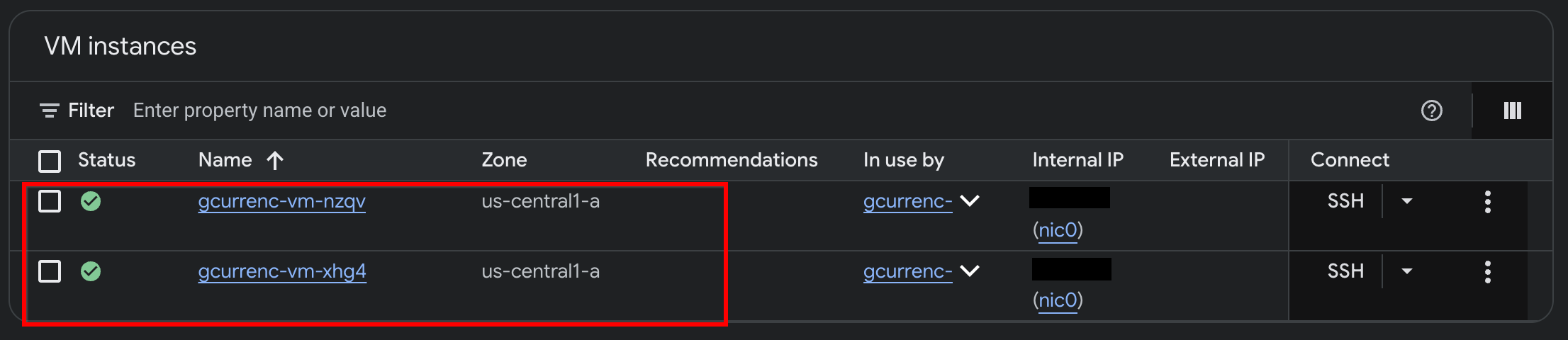
بعد أن تنتهي Antigravity من نشر التطبيق على جهازَي Compute Engine الافتراضيين الخاصَّين، تحقَّق من المثيلات في Google Cloud Console:
- في وحدة تحكّم Google Cloud، انتقِل إلى مثيلات الأجهزة الافتراضية.
- تأكَّد من أنّ مثيلَي الجهاز الافتراضي يعملان بعناوين IP داخلية وبدون عناوين IP خارجية:
5- اختبار التطبيق
بما أنّ الأجهزة الافتراضية الخاصة لا تحتوي على عناوين IP خارجية (--no-address) ولا على بوابة Cloud NAT، ليس لديها مسار إلى الإنترنت ولا يمكنها الوصول إلى واجهات برمجة التطبيقات الخارجية لأسعار صرف العملات. قبل ضبط الوصول الصادر الآمن، اختبِر التطبيق عبر نفق IAP محلي للتأكّد من عدم توفّر إمكانية الوصول إلى الإنترنت.
- في وضع "
/goal"، أدخِل الطلب التالي في نافذة محادثة Antigravity:Automate the IAP tunnel configuration and health verification for the web app, then output the live test URL. Run a terminal script that performs the following steps non-interactively: 1. Firewall Check: - Identify the active network ('gcurrenc-vpc' if it exists, otherwise 'default'). - Idempotently ensure an ingress firewall rule exists permitting 'tcp:22,tcp:8080' from the Google IAP range '35.235.240.0/20' targeting 'gcurrenc-app-vm'. 2. VM Health Verification: - Find the first running instance matching '^gcurrenc-vm-' in zone 'us-central1-a'. - Via 'gcloud compute ssh --tunnel-through-iap', verify that the 'gcurrenc-app' systemd service is active. If not active, restart it. 3. Background IAP Tunnel: - Free up local port 8080 if an old tunnel or process is lingering (e.g., using 'lsof -ti:8080 | xargs kill -9' or 'fuser -k 8080/tcp'). - Launch 'gcloud compute start-iap-tunnel <VM_NAME> 8080 --local-host-port=localhost:8080 --zone=us-central1-a' in the background using nohup, redirecting output to '/tmp/iap_tunnel.log'. - Wait up to 10 seconds for the tunnel to establish, checking with 'curl -fsS http://localhost:8080/healthz'. 4. Output Web Preview URL: - Detect whether the environment is Google Cloud Shell (check if $CLOUD_SHELL is true) or a local workstation. - If Cloud Shell, print instructions and the direct web preview link. - If local machine, provide the clickable 'http://localhost:8080' URL. - بعد بدء النفق، افتح
http://localhost:8080/في متصفّح الويب: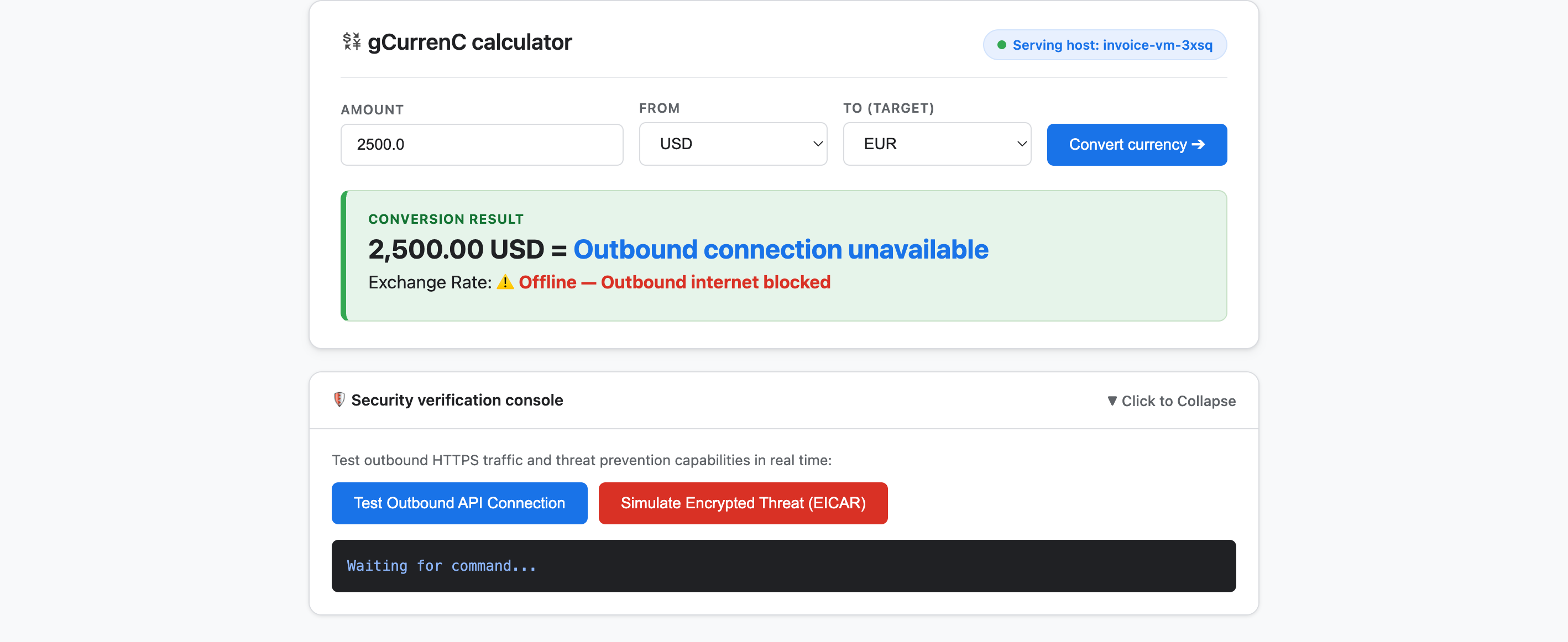
- اختبِر التطبيق:
- انقر على تحويل العملة. تعرض نتيجة التحويل
Offline - Outbound internet blockedوOutbound connection unavailable. هذه النتيجة متوقّعة لأنّ الأجهزة الافتراضية الخاصة لا يمكنها الاتصال بالإنترنت لجلب أحدث أسعار الصرف. - وسِّع وحدة تحكّم التحقّق من الأمان وانقر على اختبار اتصال واجهة برمجة التطبيقات الصادرة. يعرض الناتج
verdict: BLOCKED_OR_FAILED(https://api.frankfurter.dev/v1/latest. هذه النتيجة متوقّعة لأنّ الأجهزة الافتراضية الخاصة لا يمكنها الاتصال بالإنترنت وجلب أسعار الصرف منhttps://api.frankfurter.dev/v1/latest. - انقر على محاكاة تهديد مشفَّر (EICAR). تعرض النتيجة أيضًا
verdict: BLOCKED_OR_FAILEDلـhttps://secure.eicar.org/eicar.com.txt. هذه النتيجة متوقّعة أيضًا لأنّ الأجهزة الافتراضية الخاصة لا تتصل بالإنترنت.
- انقر على تحويل العملة. تعرض نتيجة التحويل
إيقاف نفق IAP المحلي
قبل تصميم بنية الأمان ونشرها، عليك إنهاء اتصال IAP النفقي المحلي لإخلاء المنفذ 8080:
- في وضع
/goal، أدخِل الطلب التالي:Free up local port 8080 and terminate any running Google Cloud IAP tunnels (e.g., kill processes matching 'start-iap-tunnel' or listening on port 8080).8080متاح.
6. تأمين التطبيق
في الأقسام السابقة، أنشأت أجهزة افتراضية خاصة في Compute Engine بدون عناوين IP علنية، وتحقّقت من تحدّيين أساسيين في الشبكات والأمان:
- الوصول الوارد (الدخول): لا يمكن لمستخدمي الإنترنت الوصول إلى مثيلات الأجهزة الافتراضية الخاصة مباشرةً، ويتطلّب عرض تطبيق الويب توجيه الزيارات من خلال جهاز موازنة حمل التطبيقات الخارجي العالمي وشبكة فرعية مخصّصة للوكيل فقط بدون عرض الأجهزة الافتراضية على الإنترنت العام.
- الوصول الصادر (الخروج): لا تتوفّر للأجهزة الافتراضية الخاصة أي مسارات للوصول إلى الإنترنت من أجل طلب بيانات واجهات برمجة التطبيقات المباشرة لأسعار صرف العملات عبر بروتوكول HTTPS، ويتطلّب تفعيل الوصول الصادر فحص الزيارات المشفّرة بحثًا عن البرامج الضارة وعمليات استخراج البيانات بدون كسر ثقة بروتوكول أمان طبقة النقل (TLS) أو طبقة المقابس الآمنة (SSL).
في هذا القسم، يمكنك توجيه Antigravity من خلال سير عمل مبسّط يستند إلى مستندات Google Cloud الرسمية (@retrieving-developer-knowledge) لتصميم بنية أمان الدخول والخروج على مستوى المشروع لتطبيقك وإجراء تدقيق ذاتي لها ونشرها.
تصميم بنية الأمان الموحّدة
- في وضع
/goal، نفِّذ الطلب التالي لإنشاء مخطّط بياني وشرح للبنية الشاملة يغطيان تدفقات الزيارات الواردة والصادرة:You are a Google Cloud Network and Security Architect. We need to design an end-to-end security architecture for our "gCurrenC calculator" app running on private Compute Engine VMs with no external IP addresses inside 'gcurrenc-vpc'. We are operating in a standalone Google Cloud project without an Organization resource, so all security resources must be scoped at the project level. Use the @retrieving-developer-knowledge skill to consult official Google Cloud documentation and suggest an architecture diagram and explanation covering both flows: 1. Ingress Flow: - How internet users securely reach the private VMs via a global external Application Load Balancer. - Why Envoy-based external Application Load Balancers require a dedicated proxy-only subnet, and how Google Front Ends (GFEs) proxy traffic to private backends without exposing VMs to the public internet. 2. Egress Flow: - How private VMs reach the internet via Cloud NAT to query live currency exchange APIs, such as frankfurter.dev. - How Cloud NGFW Enterprise provides Layer 7 deep packet inspection and intrusion prevention (IPS) for outbound encrypted HTTPS traffic. - How TLS inspection backed by Certificate Authority Service (CAS) decrypts outbound HTTPS sessions on the fly, and what Root CA trust configuration the private VMs require. Provide a clear diagram and explain how these components connect together.
إنشاء مخطّط الموارد المعمارية
- أدخِل الطلب التالي لتنظيم التصميم في مخطّط موارد مصنَّف على مستوى المشروع قبل إنشاء نص النشر البرمجي:
Act as a Lead Network Security Architect. Using the @retrieving-developer-knowledge skill, provide an architectural outline of all the Google Cloud resources required to secure the "gCurrenC calculator" app.

Our starting state:
- The custom VPC ('gcurrenc-vpc'), workload subnet ('gcurrenc-app-subnet'), and 2-instance MIG ('gcurrenc-app-mig', port 8080) are already deployed.
- All newly added security components must be project-level resources (no organization resources).

Structure your resource outline into three distinct categories, indicating which resources are new additions:
1. Core VPC Infrastructure: proxy-only subnet ('gcurrenc-proxy-subnet', 10.10.2.0/24), Cloud Router, and Cloud NAT gateway.
2. Inbound security (ingress): global external ALB components (forwarding rule on port 443, target HTTPS proxy, SSL certificate, URL map, backend service attached to 'gcurrenc-app-mig' on port 8080, and HTTP health check on '/healthz') and ingress firewall rules.
3. Outbound security (egress): CAS DevOps CA pool and root CA, project-level Cloud NGFW Enterprise components (Threat Prevention profile, Security Profile Group, Firewall Endpoint in zone us-central1-a, and Endpoint Association attaching the TLS policy), and global network firewall policy egress rules.

For each resource, briefly state its role in the security boundary and how it connects to adjacent components.
إنشاء نص النشر البرمجي وإجراء تدقيق ذاتي له
- في وضع "
/goal"، شغِّل الطلب التالي لإنشاء نص برمجي كامل وغير تفاعلي لنشر "bash" وإجراء تدقيق ذاتي له تلقائيًا وفقًا لمتطلبات الامتثال في الوقت نفسه:Act as a Principal Infrastructure Engineer. Using the @retrieving-developer-knowledge skill, generate a complete, non-interactive Bash script to deploy this entire security architecture for our "gCurrenC calculator" app, and self-audit the script before outputting it. Requirements: - Discover the project ID, region, and zone dynamically from the existing 'gcurrenc-app-subnet' and 'gcurrenc-app-mig'. - Keep all resources scoped strictly to the project level (no Organization resource). - Deploy the proxy-only subnet, global external Application Load Balancer, Cloud Router, and Cloud NAT. Don't use Cloud Armor. - Deploy project-level Cloud NGFW Enterprise with CAS TLS inspection ('--tls-inspect' on the firewall policy egress rule and 'gcloud beta' for the project-level firewall endpoint association) and an explicit DENY override for malware and antivirus threats. - Distribute the root CA to the private VMs over IAP SSH with connection timeouts so the guest OS trust store is updated. - Print the final Load Balancer URL ('https://${LB_IP}') at the end. Wrap the script in 'set -euxo pipefail' and output only the single executable bash script block.bashالبرمجي الكامل، وتُجري تدقيقًا ذاتيًا لكل أمر وفقًا لقيود الامتثال، وتُخرج مجموعة النصوص البرمجية القابلة للتنفيذ والمضمّنة فيset -euxo pipefail.
تشغيل نص النشر البرمجي للأمان
- في وضع "
/goal"، الصِق النص البرمجي "bash" الذي تم إنشاؤه من الطلب السابق في نافذة محادثة Antigravity بالتنسيق التالي لتشغيل عملية النشر وإخراج عنوان URL للتطبيق المنشور (https://<LB_IP>):Run this script. <PASTED-SCRIPT>
7. التحقّق من التطبيق الآمن
عند انتهاء النص البرمجي للنشر، يُخرج Antigravity عنوان URL الخارجي الذي يستخدم HTTPS لجهاز موازنة حمل التطبيق الخارجي الشامل (https://<LB_IP>).
- افتح
https://<LB_IP>في متصفّح الويب وتخطَّ تحذير الشهادة الموقَّعة ذاتيًا في المتصفّح لتحميل واجهة أداة حساب gCurrenC: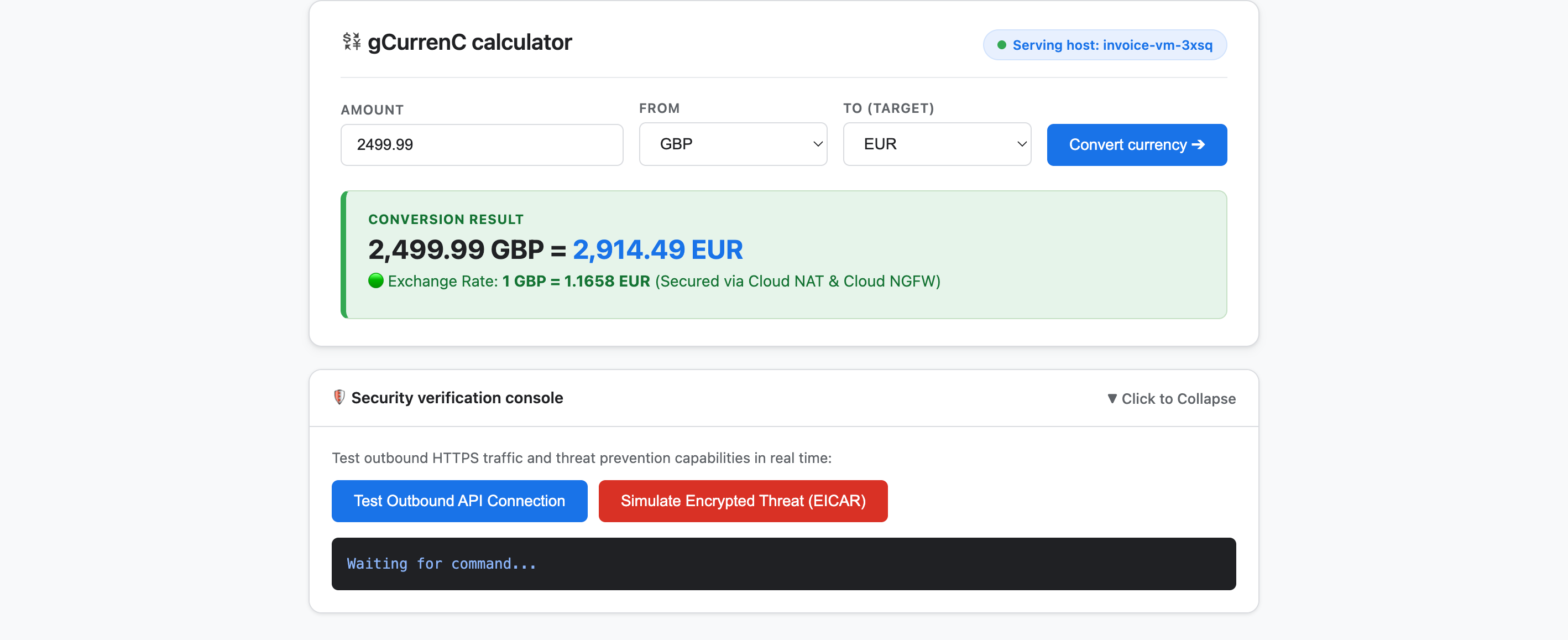
- اختبِر التطبيق للتحقّق من الاتصال الصادر ومنع التهديدات:
- انقر على تحويل العملة. يعرض التطبيق سعر الصرف المحوَّل مباشرةً على الفور. يؤكّد ذلك أنّ مسارات موازنة الحمل الواردة تمرّ بسلاسة عبر Google Front Ends (GFEs) والشبكة الفرعية للخادم الوكيل فقط، بينما تجلب Cloud NAT أسعار الصرف المباشرة من
api.frankfurter.dev. - وسِّع وحدة التحقّق من الأمان وانقر على اختبار اتصال واجهة برمجة التطبيقات الصادرة. يعرض التطبيق
verdict: PERMITTED(HTTP 200)، ما يؤكّد أنّ توجيه Cloud NAT يعمل، وأنّ نظام تشغيل الجهاز الافتراضي يثق في مرجع التصديق الجذري الخاص لخدمة CAS لجلسات HTTPS التي تم فك تشفيرها. - انقر على محاكاة تهديد مشفَّر (EICAR). يعرض التطبيق
verdict: PERMITTED. يؤكّد ذلك أنّ Cloud NGFW Enterprise يفك تشفير طلب HTTPS الصادر باستخدام فحص بروتوكول أمان طبقة النقل (TLS) المستند إلى "خدمة مصادقة الشهادات" (CAS) ويفحص توقيع اختبار EICAR باستخدام "خدمة منع التسلّل" (IPS).
- انقر على تحويل العملة. يعرض التطبيق سعر الصرف المحوَّل مباشرةً على الفور. يؤكّد ذلك أنّ مسارات موازنة الحمل الواردة تمرّ بسلاسة عبر Google Front Ends (GFEs) والشبكة الفرعية للخادم الوكيل فقط، بينما تجلب Cloud NAT أسعار الصرف المباشرة من
8. تَنظيم
لتجنُّب تحمُّل رسوم مستمرة على حسابك على Google Cloud مقابل الموارد التي تم إنشاؤها في هذا الدرس التطبيقي حول الترميز، يمكنك حذف موارد الدرس التطبيقي فقط أو حذف مشروعك على السحابة الإلكترونية.
- إذا أردت الاحتفاظ بمشروعك على Google Cloud وإزالة الموارد التي تم إنشاؤها خلال هذا الدرس التطبيقي حول الترميز فقط، نفِّذ الطلب التالي في وضع
/goalفي نافذة محادثة Antigravity:Remove all resources created in this session, including the gcurrenc app and its resources. Don't delete the project. - إذا أنشأت مشروعًا مخصّصًا على Google Cloud لهذا الدرس التطبيقي حول الترميز وأردت حذفه بالكامل، نفِّذ الطلب التالي في وضع "
/goal" في نافذة محادثة Antigravity:Clean up the demo environment by deleting the Google Cloud project. Run the following command in the terminal: gcloud projects delete "$(gcloud config get-value project 2>/dev/null)" --quiet
9. تهانينا
تهانينا! لقد نشرت تطبيق الويب gCurrenC calculator وأمّنته على Google Cloud باستخدام المكوّن الإضافي Google Cloud Developer (خادم DK MCP) في Google Antigravity.
الخطوات التالية
يمكنك الاطّلاع على مستندات Google Cloud الرسمية لمعرفة المزيد عن الخدمات المستخدَمة في هذا الدرس التطبيقي حول الترميز: