

1. מבוא
ב-Codelab הזה תפתחו ותפרסו את אפליקציית האינטרנט gCurrenC calculator ב-Google Cloud, ואז תאבטחו אותה מפני גישה לא רצויה. בעזרת Google Antigravity, התוסף Google Cloud Developer ושרת MCP של Developer Knowledge (DK), אתם מתכננים ומטמיעים ארכיטקטורת אבטחה שקובעת למי יש גישה לאפליקציה ומגינה עליה מפני שימוש לא מורשה.
במהלך שיעור ה-Lab הזה, תחברו את Google Antigravity לשרת MCP של DK, שמספק ל-Antigravity מידע מעוגן מהמסמכים הרשמיים של Google Cloud בזמן אמת. במקום להסתמך על נתוני אימון סטטיים או על משקלים מיושנים של מודלים, Antigravity מאחזר באופן דינמי דפוסי ארכיטקטורה עדכניים, תחביר עדכני של gcloud CLI ופרמטרים של אבטחה. כך הוא מפחית הזיות ומבסס את התשובות על ידע עדכני.
מה תפַתחו
- עומס עבודה של מחשוב פרטי: שתי מכונות וירטואליות (VM) של Compute Engine שמריצות את אפליקציית האינטרנט gCurrenC calculator בתוך רשת VPC בהתאמה אישית, ללא כתובות IP ציבוריות.
- צינור עיבוד נתונים מאובטח של תעבורת נתונים נכנסת (ingress): מאזן עומסים גלובלי חיצוני של אפליקציות (ALB) עם תת-רשת ייעודית של שרת proxy בלבד, שמנתב את תעבורת הנתונים דרך שרתי Google Front End (GFE) למכונות הווירטואליות הפרטיות שלכם בלי לחשוף אותן לאינטרנט הציבורי.
- צינור עיבוד נתונים מאובטח לתעבורת נתונים יוצאת: שער של Cloud Router ו-Cloud NAT בשילוב עם Cloud Next Generation Firewall (Cloud NGFW) Enterprise ברמת הפרויקט ו-Certificate Authority Service (CAS), כדי לבצע בדיקת TLS בזמן אמת וסריקה של שירות למניעת חדירות (IPS) בתעבורת הנתונים היוצאת של ה-API להמרת מטבעות ב-HTTPS.
מה תלמדו
- מתקינים את הפלאגין של
google-cloud-developerבאמצעות Antigravity CLI ומגדירים את שרת MCP של DK ב-Antigravity. - פריסה ובדיקה של אפליקציית אינטרנט פרטית מבודדת ב-Compute Engine באמצעות העברת TCP של שרת proxy לאימות זהויות (IAP).
- שימוש בהנחיות מעוגנות בנתונים רב-שלביות ב-Antigravity כדי לתכנן ארכיטקטורת אבטחה של תעבורת נתונים נכנסת ויוצאת ברמת הפרויקט.
- ליצור, לבדוק ולהריץ סקריפט פריסה של
bashלאיזון עומסים גלובלי חיצוני של אפליקציות, Cloud NAT, CAS ו-Cloud NGFW Enterprise.
2. לפני שמתחילים
דרישות מוקדמות
לפני שמתחילים את ה-Codelab הזה, חשוב לוודא שיש לכם:
- חשבון Google ודפדפן Google Chrome.
- פרויקט חדש ב-Google Cloud עם חיוב מופעל. שימו לב למזהה הפרויקט (
PROJECT_ID), כי תשתמשו בו במהלך ה-Codelab הזה כדי להפעיל ממשקי API, ליצור את מפתח ה-API ולפרוס משאבים של Google Cloud. - הרשאות ניהול זהויות והרשאות גישה (IAM) בפרויקט בענן ב-Google Cloud כדי ליצור מפתחות API, משאבי Compute Engine, רשתות VPC, מאגרי CAS, מנהרת IAP ונקודות קצה של Cloud NGFW.
- מאמתים באמצעות ה-CLI של
gcloud, מגדירים את הפרויקט הפעיל ב-Google Cloud ומפעילים את ממשקי ה-API הנדרשים:- בטרמינל או ב-Cloud Shell, בודקים שכבר אומתתם:
gcloud auth listgcloud auth login - מוודאים שה-CLI של
gcloudמוגדר לשימוש בפרויקט:gcloud config list projectPROJECT_IDבמזהה הפרויקט ב-Google Cloud:export PROJECT_ID=PROJECT_ID gcloud config set project PROJECT_ID - מפעילים את ממשקי ה-API הנדרשים בפרויקט בענן ב-Google Cloud:
gcloud services enable \
   compute.googleapis.com \
   iap.googleapis.com \
   networksecurity.googleapis.com \
   privateca.googleapis.com \
   developerknowledge.googleapis.com \
   apikeys.googleapis.com
- בטרמינל או ב-Cloud Shell, בודקים שכבר אומתתם:
- מתקינים את Antigravity 2.0 במערכת המקומית מדף ההורדה של Google Antigravity.
התקנת הפלאגין Google Cloud Developer באמצעות Antigravity CLI
כדי להתקין את הפלאגין Google Cloud Developer באמצעות Antigravity CLI:
- כדי להתקין את Antigravity CLI בתחנת העבודה המקומית:
- פותחים את הטרמינל המקומי.
- מריצים את סקריפט ההתקנה:
curl -fsSL https://antigravity.google/cli/install.sh | bash - סוגרים ופותחים מחדש את סשן הטרמינל כדי שהקובץ הבינארי
agyשל Antigravity CLI יהיה זמין במערכתPATH.
- במסוף המקומי, מריצים את הפקודה הבאה כדי להתקין את הפלאגין
google-cloud-developer:agy plugin install https://github.com/google/skills/plugins/cloud/google-cloud-developerCloning plugin from https://github.com/google/skills.git... [ok] google-cloud-developer ✔ skills : 5 processed - agents : skipped (not found) - commands : skipped (not found) ✔ mcpServers : 1 processed - hooks : skipped (not found)
3. הגדרת Antigravity ושרת ה-MCP של DK
בקטע הזה תגדירו את שרת ה-MCP של DK ב-Antigravity באמצעות מפתח API מוגבל של Google Cloud.
- פותחים את Antigravity, מקלידים
/goalולוחצים על Enter כדי להפעיל את מצב היעד, ואז מדביקים את ההנחיה הבאה כדי ליצור מפתח API מוגבל ולהגדיר את שרת ה-DK MCP. מחליפים אתPROJECT_IDבמזהה הפרויקט ב-Google Cloud מהקטע לפני שמתחילים. מידע נוסף זמין במאמר הפלאגין google-cloud-developer.Set up Antigravity to use the Developer Knowledge MCP server on my local machine. Run the necessary terminal commands to complete the following: 1. Create a restricted API key named 'DKP-MCP-Key' that can only target the Developer Knowledge API. Use the PROJECT_ID to create the API key. 2. Retrieve the actual key string of the newly created API key. 3. Create or safely update my ~/.gemini/config/mcp_config.json file (preserve any existing MCP servers) with the correct JSON structure to connect the developer-knowledge server using that API key in the headers. You MUST use the following JSON structure for the new server: "developer-knowledge": { "serverUrl": "https://developerknowledge.googleapis.com/mcp", "headers": { "x-goog-api-key": "<INSERT_RETRIEVED_API_KEY_HERE>" } } When you are done, confirm that the setup is complete. - כדי לוודא ששרת ה-MCP של DK פעיל, מזינים את ההנחיה הבאה בחלון הצ'אט של Antigravity:
Which MCP servers are available?developer-knowledgeוהכלים הזמינים (search_documents,answer_queryו-get_documents):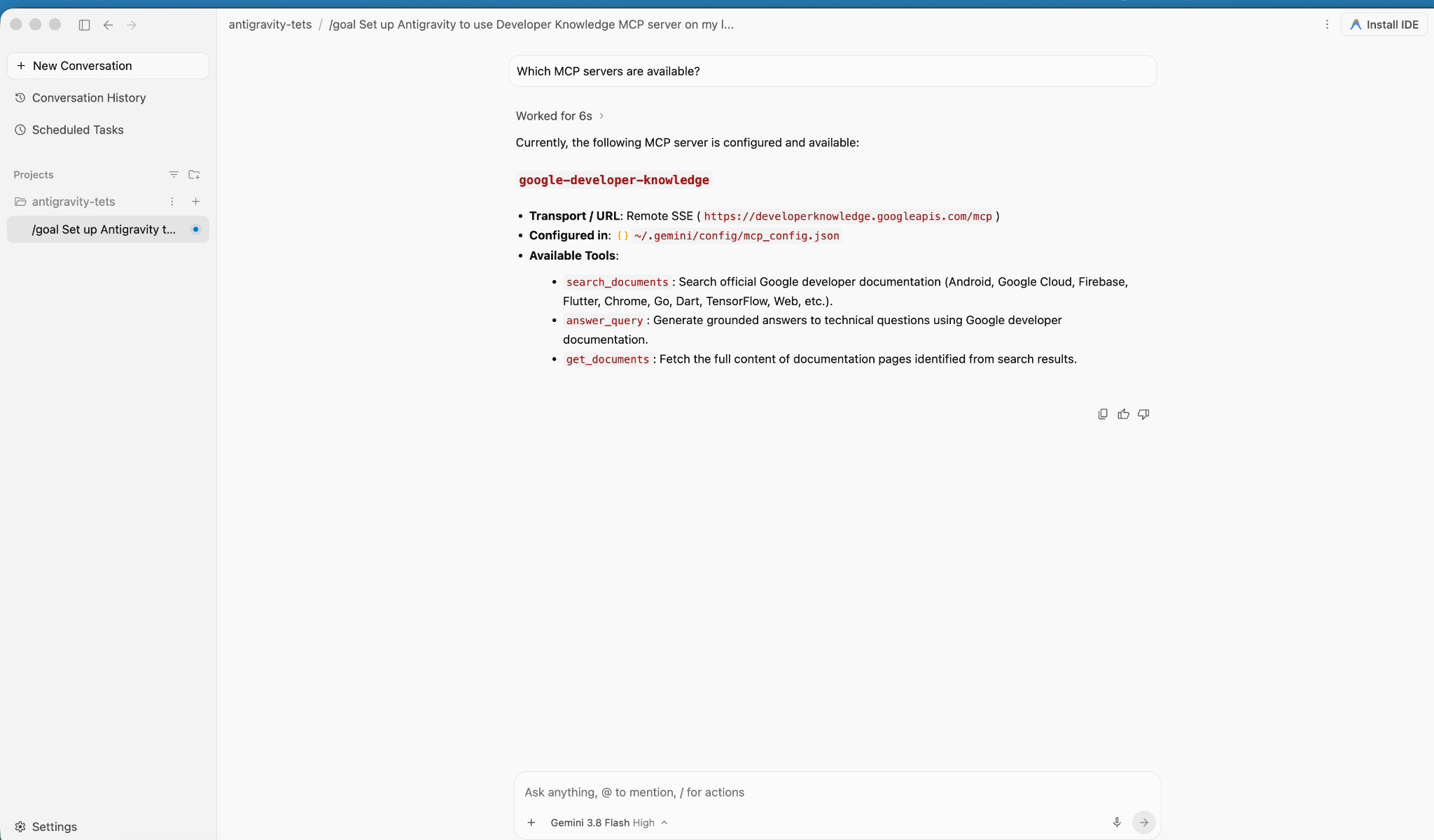
4. יצירה ופריסה של האפליקציה
בקטע הזה, פורסים את האפליקציה gCurrenC calculator בשתי מכונות וירטואליות פרטיות של Compute Engine בתוך רשת VPC בהתאמה אישית.
האפליקציה מספקת:
- ממיר מטבעות בזמן אמת שתומך ב-
USD, ב-EUR, ב-GBP, ב-JPY, ב-CAD, ב-INRוב-AUDבאמצעות הספרייה הרגילהhttp.serverהמובנית של Python ביציאה8080עם נקודת קצה (endpoint) של בדיקת תקינות/healthz. - מסוף לאימות אבטחה להפעלת בדיקות בזמן אמת של קישוריות API יוצאת ומניעת איומים מוצפנים.
- כלל חומת אש לתעבורת נתונים נכנסת שמאפשר לטווח ה-IAP של Google להגיע ליציאות
22ו-8080לצורך בדיקה אדמיניסטרטיבית, בלי לחשוף כתובות IP ציבוריות.
פריסת האפליקציה
- בחלון הצ'אט של Antigravity, מקלידים
/goalואז מריצים את ההנחיה הבאה:You are a Cloud developer. Deploy the "gCurrenC calculator" app onto two (2) Compute Engine VMs with no external IP addresses (`--no-address`) inside a dedicated custom VPC network and private subnet. CRITICAL INSTRUCTIONS ON OUTPUT: - The VMs are strictly private with no external IP addresses and the local IAP tunnel has NOT been started yet. Any web URL is completely unreachable and will fail with a connection error. - In your final response, simply confirm that the private VMs and Managed Instance Group are deployed, and state that the user should establish the IAP tunnel. Do not output, format, or suggest any web preview link or URL (such as http://localhost:8080 or internal IP addresses) in your final response. Run this script in the terminal: ```bash #!/usr/bin/env bash set -euxo pipefail # Disable any interactive confirmation prompts so execution never hangs export CLOUDSDK_CORE_DISABLE_PROMPTS=1 # --- User Configuration --- PROJECT_ID="[PROJECT_ID]" REGION="us-central1" ZONE="us-central1-a" NETWORK="gcurrenc-vpc" SUBNET="gcurrenc-app-subnet" SUBNET_RANGE="10.10.1.0/24" # -------------------------- echo "==> [1/5] Configuring project, default region/zone, and enabling APIs..." gcloud config set project "${PROJECT_ID}" gcloud config set compute/region "${REGION}" gcloud config set compute/zone "${ZONE}" gcloud services enable compute.googleapis.com echo "==> [2/5] Creating custom VPC network and private workload subnet..." gcloud compute networks create "${NETWORK}" \ --subnet-mode=custom \ --description="Dedicated VPC for currency exchange app demo" 2>/dev/null || true gcloud compute networks subnets create "${SUBNET}" \ --network="${NETWORK}" \ --region="${REGION}" \ --range="${SUBNET_RANGE}" \ --enable-private-ip-google-access \ --description="Private subnet hosting backend compute instances" 2>/dev/null || true echo "==> [3/5] Generating standalone Python standard-library startup script..." cat << 'STARTUP_EOF' > /tmp/private_app_startup.sh #!/bin/bash set -euxo pipefail mkdir -p /opt/gcurrenc-app # Pure Python standard-library application (zero pip/apt dependencies needed at boot) cat << 'APPEOF' > /opt/gcurrenc-app/app.py import os import sys import json import socket import urllib.request import urllib.parse import ssl from http.server import BaseHTTPRequestHandler, ThreadingHTTPServer SUPPORTED_CURRENCIES = ["USD", "EUR", "GBP", "JPY", "CAD", "INR", "AUD"] class CurrencyAppHandler(BaseHTTPRequestHandler): def address_string(self): return str(self.client_address[0]) def do_GET(self): parsed = urllib.parse.urlparse(self.path) path = parsed.path params = urllib.parse.parse_qs(parsed.query) if path == "/favicon.ico": self.send_response(204) self.end_headers() return if path == "/healthz": self.send_response(200) self.send_header("Content-Type", "text/plain") self.end_headers() self.wfile.write(b"OK") return if path == "/api/security-test": mode = params.get("mode", ["safe"])[0] target = "https://secure.eicar.org/eicar.com.txt" if mode == "threat" else "https://api.frankfurter.dev/v1/latest?from=USD&to=EUR" try: req = urllib.request.Request(target, headers={"User-Agent": "SecureCurrencyApp/1.0"}) ctx = ssl.create_default_context() with urllib.request.urlopen(req, timeout=5, context=ctx) as resp: data = {"verdict": "PERMITTED", "target": target, "http_status": resp.status} code = 200 except Exception as e: data = {"verdict": "BLOCKED_OR_FAILED", "target": target, "error": str(e)} code = 502 self.send_response(code) self.send_header("Content-Type", "application/json") self.end_headers() self.wfile.write(json.dumps(data, indent=2).encode("utf-8")) return self.render_page() def do_POST(self): parsed = urllib.parse.urlparse(self.path) if parsed.path == "/generate": content_length = int(self.headers.get("Content-Length", 0)) post_body = self.rfile.read(content_length).decode("utf-8") form = urllib.parse.parse_qs(post_body) base_curr = form.get("base_curr", ["USD"])[0] target_curr = form.get("target_curr", ["EUR"])[0] try: amount = float(form.get("amount", ["2500.00"])[0]) except ValueError: amount = 2500.00 rate_str = "Unavailable" total_str = "Rate lookup pending outbound internet activation" try: if base_curr == target_curr: rate = 1.0 else: url = f"https://api.frankfurter.dev/v1/latest?from={base_curr}&to={target_curr}" req = urllib.request.Request(url, headers={"User-Agent": "SecureCurrencyApp/1.0"}) with urllib.request.urlopen(req, timeout=4) as resp: res_json = json.loads(resp.read().decode("utf-8")) rate = res_json["rates"][target_curr] rate_str = str(rate) total_str = f"{round(amount * rate, 2):,.2f} {target_curr}" except Exception as e: total_str = f"Outbound connection unavailable {str(e)}" self.render_page(base_curr, target_curr, amount, rate_str, total_str) return self.send_response(404) self.end_headers() def render_page(self, base_curr="USD", target_curr="EUR", amount=2500.00, fx_rate="1.00", total_str=""): hostname = socket.gethostname() curr_options_base = "".join([f'<option value="{c}" {"selected" if c == base_curr else ""}>{c}</option>' for c in SUPPORTED_CURRENCIES]) curr_options_target = "".join([f'<option value="{c}" {"selected" if c == target_curr else ""}>{c}</option>' for c in SUPPORTED_CURRENCIES]) result_block = "" if total_str: if fx_rate == "Unavailable": rate_line = "<p style='margin: 6px 0;'>Exchange Rate: <span style='color: #d93025; font-weight: bold;'>⚠️ Offline-Outbound internet blocked</span></p>" else: rate_line = f"<p style='margin: 6px 0; font-size: 14px; color: #137333;'>🟢 Exchange Rate: <strong>1 {base_curr} = {fx_rate} {target_curr}</strong> (Secured via Cloud NAT & Cloud NGFW)</p>" result_block = f""" <div style="margin-top: 22px; background: #e6f4ea; border: 1px solid #c6e1c6; border-left: 5px solid #34a853; padding: 18px 20px; border-radius: 8px;"> <h4 style="margin: 0 0 6px 0; text-transform: uppercase; font-size: 12px; color: #137333; letter-spacing: 0.5px;">Conversion Result</h4> <div style="font-size: 24px; font-weight: 700; color: #202124; margin-bottom: 6px;"> {amount:,.2f} {base_curr} = <span style="color: #1a73e8;">{total_str}</span> </div> {rate_line} </div> """ html = ("""<!DOCTYPE html> <html lang="en"> <head> <meta charset="UTF-8"> <meta name="viewport" content="width=device-width, initial-scale=1.0"> <title>gCurrenC calculator</title> <style> body { font-family: -apple-system, BlinkMacSystemFont, "Segoe UI", Roboto, "Helvetica Neue", Arial, sans-serif; background: #f8f9fa; margin: 30px 15px; color: #202124; display: flex; justify-content: center; } .container { width: 100%; max-width: 860px; } .card { background: white; padding: 24px 28px; border-radius: 12px; box-shadow: 0 1px 3px rgba(60,64,67,0.12), 0 4px 8px rgba(60,64,67,0.06); border: 1px solid #dadce0; margin-bottom: 20px; } .header { display: flex; justify-content: space-between; align-items: center; border-bottom: 1px solid #e8eaed; padding-bottom: 14px; margin-bottom: 20px; } .header h2 { margin: 0 0 4px 0; font-size: 20px; font-weight: 600; } .header p { margin: 0; font-size: 13px; color: #5f6368; } .badge { background: #e8f0fe; color: #1a73e8; padding: 6px 12px; border-radius: 16px; font-weight: 600; font-size: 12px; border: 1px solid #d2e3fc; display: flex; align-items: center; gap: 6px; } .badge::before { content: ""; width: 8px; height: 8px; border-radius: 50%; background-color: #34a853; } .form-row { display: flex; gap: 14px; align-items: flex-end; flex-wrap: wrap; } .form-group { display: flex; flex-direction: column; gap: 6px; } .form-group label { font-size: 12px; font-weight: 600; color: #5f6368; text-transform: uppercase; letter-spacing: 0.5px; } input, select { padding: 10px 14px; border: 1px solid #dadce0; border-radius: 6px; font-size: 14px; color: #202124; background-color: #fff; box-sizing: border-box; transition: border-color 0.15s, box-shadow 0.15s; } input:focus, select:focus { outline: none; border-color: #1a73e8; box-shadow: 0 0 0 3px rgba(26, 115, 232, 0.15); } button { padding: 11px 20px; background: #1a73e8; color: white; border: none; border-radius: 6px; font-size: 14px; font-weight: 500; cursor: pointer; transition: background 0.15s, box-shadow 0.15s; } button:hover { background: #1557b0; box-shadow: 0 1px 2px rgba(60,64,67,0.3); } .danger-btn { background: #d93025; } .danger-btn:hover { background: #b31412; } pre { background: #202124; color: #8ab4f8; padding: 14px; border-radius: 6px; overflow-x: auto; font-family: "SF Mono", "Fira Code", Consolas, monospace; font-size: 13px; line-height: 1.5; margin: 0; } /* Collapsible Security Console */ details.security-drawer { background: white; border-radius: 12px; box-shadow: 0 1px 3px rgba(60,64,67,0.12); border: 1px solid #dadce0; overflow: hidden; margin-bottom: 24px; } details.security-drawer summary { padding: 16px 20px; font-size: 14px; font-weight: 600; cursor: pointer; list-style: none; display: flex; justify-content: space-between; align-items: center; user-select: none; background: #fafafa; transition: background 0.15s; } details.security-drawer summary::-webkit-details-marker { display: none; } details.security-drawer summary:hover { background: #f1f3f4; } details.security-drawer[open] summary { border-bottom: 1px solid #dadce0; background: #ffffff; } .expand-toggle { font-size: 13px; font-weight: 500; } details.security-drawer summary .expand-toggle::before { content: "▶ Click to Expand"; color: #1a73e8; } details.security-drawer[open] summary .expand-toggle::before { content: "▼ Click to Collapse"; color: #5f6368; } .drawer-body { padding: 20px; background: #ffffff; } .drawer-body p { margin-top: 0; font-size: 13px; color: #5f6368; } .probe-buttons { display: flex; gap: 10px; margin-bottom: 14px; } </style> </head> <body> <div class="container"> <div class="card"> <div class="header"> <div> <h2>💱 gCurrenC calculator</h2> </div> <div class="badge">Serving host: {hostname}</div> </div> <form method="POST" action="/generate"> <div class="form-row"> <div class="form-group" style="flex: 1.5; min-width: 140px;"> <label>Amount</label> <input type="number" step="0.01" name="amount" value="{amount}" required> </div> <div class="form-group" style="flex: 1; min-width: 100px;"> <label>From</label> <select name="base_curr">{curr_options_base}</select> </div> <div class="form-group" style="flex: 1; min-width: 100px;"> <label>To (Target)</label> <select name="target_curr">{curr_options_target}</select> </div> <div class="form-group"> <button type="submit">Convert currency ➔</button> </div> </div> </form> {result_block} </div> <!-- Collapsible Security Verification Console --> <details class="security-drawer"> <summary> <span>🛡️ Security verification console</span> <span class="expand-toggle"></span> </summary> <div class="drawer-body"> <p>Test outbound HTTPS traffic and threat prevention capabilities in real time:</p> <div class="probe-buttons"> <button type="button" onclick="runProbe('safe')">Test Outbound API Connection</button> <button type="button" class="danger-btn" onclick="runProbe('threat')">Simulate Encrypted Threat (EICAR)</button> </div> <pre id="output">Waiting for command...</pre> </div> </details> </div> <script> function runProbe(mode) { const el = document.getElementById('output'); el.innerText = 'Executing outbound request...'; fetch('/api/security-test?mode=' + mode) .then(res => res.json()) .then(data => el.innerText = JSON.stringify(data, null, 2)) .catch(err => el.innerText = 'Connection dropped / reset by Firewall: ' + err); } </script> </body> </html>""" .replace("{hostname}", str(hostname)) .replace("{amount}", str(amount)) .replace("{curr_options_base}", curr_options_base) .replace("{curr_options_target}", curr_options_target) .replace("{result_block}", result_block) ) self.send_response(200) self.send_header("Content-Type", "text/html; charset=utf-8") self.end_headers() self.wfile.write(html.encode("utf-8")) def run(): server_address = ('0.0.0.0', 8080) httpd = ThreadingHTTPServer(server_address, CurrencyAppHandler) httpd.serve_forever() if __name__ == '__main__': run() APPEOF # Register and start systemd unit cat << 'SERVICEEOF' > /etc/systemd/system/gcurrenc-app.service [Unit] Description=Currency exchange calculator web application After=network.target [Service] Type=simple User=root WorkingDirectory=/opt/gcurrenc-app ExecStart=/usr/bin/python3 /opt/gcurrenc-app/app.py Restart=always [Install] WantedBy=multi-user.target SERVICEEOF systemctl daemon-reload systemctl enable gcurrenc-app systemctl start gcurrenc-app STARTUP_EOF echo "==> [4/5] Creating Firewall, Regional Instance Template, and 2-VM MIG..." gcloud compute firewall-rules create allow-iap-admin \ --network="${NETWORK}" \ --allow=tcp:22,tcp:8080 \ --source-ranges=35.235.240.0/20 \ --target-tags=gcurrenc-app-vm \ --description="Allow IAP SSH and port 8080 access to private VMs" \ --quiet 2>/dev/null || true # Explicitly pass both --region and --instance-template-region to avoid prompt gcloud compute instance-templates create gcurrenc-app-template \ --instance-template-region="${REGION}" \ --region="${REGION}" \ --network="${NETWORK}" \ --subnet="${SUBNET}" \ --machine-type=e2-medium \ --no-address \ --tags=gcurrenc-app-vm \ --metadata-from-file=startup-script=/tmp/private_app_startup.sh \ --quiet gcloud compute instance-groups managed create gcurrenc-app-mig \ --base-instance-name=gcurrenc-vm \ --template="projects/${PROJECT_ID}/regions/${REGION}/instanceTemplates/gcurrenc-app-template" \ --size=2 \ --zone="${ZONE}" \ --quiet gcloud compute instance-groups managed set-named-ports gcurrenc-app-mig \ --named-ports=http-port:8080 \ --zone="${ZONE}" \ --quiet echo "==> [5/5] Verifying private VM deployment and internal status..." sleep 30 gcloud compute instances list \ --filter="name ~ '^gcurrenc-vm-'" \ --zones="${ZONE}" \ --format="table(name,zone.basename():label=ZONE,networkInterfaces[0].networkIP:label=INTERNAL_IP,status)" FIRST_VM=$(gcloud compute instances list \ --filter="name ~ '^gcurrenc-vm-'" \ --zones="${ZONE}" \ --format="value(name)" \ --limit=1) echo "Testing healthz on ${FIRST_VM} via IAP tunnel..." gcloud compute ssh "${FIRST_VM}" \ --zone="${ZONE}" \ --tunnel-through-iap \ --quiet \ --command="curl -fsS http://localhost:8080/healthz" echo "" echo "==========================================================================" echo "PREREQUISITE COMPLETE: 2 private VMs deployed with no external IPs." echo "VPC: ${NETWORK} | Subnet: ${SUBNET} (${SUBNET_RANGE})" echo "Instance Group: gcurrenc-app-mig (Zone: ${ZONE}, Port: 8080)" echo "" echo "The VMs are private and the IAP tunnel is not active. Set up the background IAP tunnel first to access the deployed app." echo "" echo "==========================================================================" ```
אימות היצירה של מכונת ה-VM
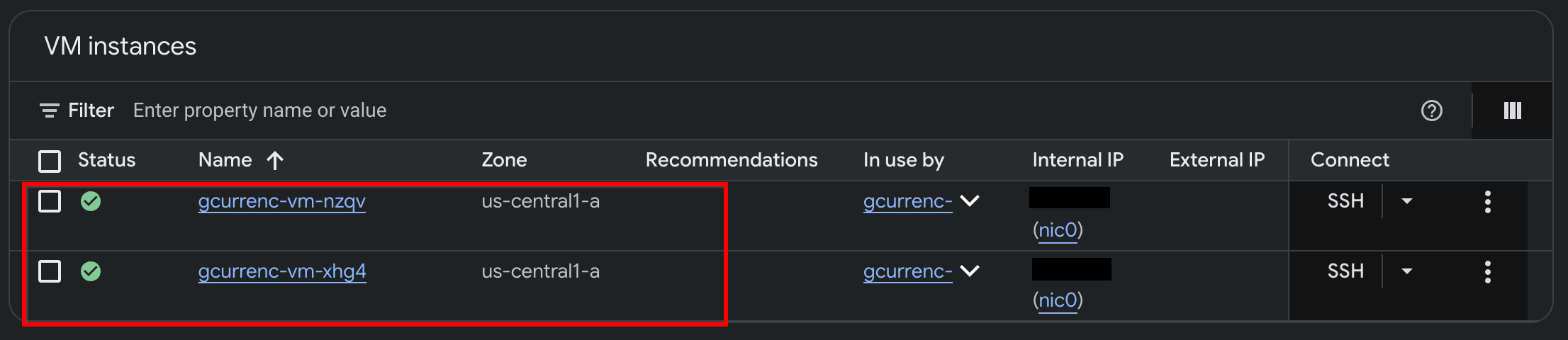
אחרי ש-Antigravity מסיימת לפרוס את האפליקציה בשתי המכונות הווירטואליות הפרטיות של Compute Engine, מאמתים את המכונות במסוף Google Cloud:
- במסוף Google Cloud, נכנסים לדף VM instances.
- מוודאים ששני המכונות הווירטואליות פועלות עם כתובות IP פנימיות וללא כתובות IP חיצוניות:
5. בדיקת האפליקציה
למכונות הווירטואליות הפרטיות אין כתובות IP חיצוניות (--no-address) ואין שער Cloud NAT, ולכן אין להן נתיב לאינטרנט והן לא יכולות להגיע לממשקי API חיצוניים של המרת מטבעות. לפני שאתם מגדירים גישה מאובטחת לתעבורה יוצאת, בדקו את האפליקציה דרך מנהרת IAP מקומית כדי לוודא שאין גישה לאינטרנט.
- במצב
/goal, מריצים את ההנחיה הבאה בחלון הצ'אט של Antigravity:Automate the IAP tunnel configuration and health verification for the web app, then output the live test URL. Run a terminal script that performs the following steps non-interactively: 1. Firewall Check: - Identify the active network ('gcurrenc-vpc' if it exists, otherwise 'default'). - Idempotently ensure an ingress firewall rule exists permitting 'tcp:22,tcp:8080' from the Google IAP range '35.235.240.0/20' targeting 'gcurrenc-app-vm'. 2. VM Health Verification: - Find the first running instance matching '^gcurrenc-vm-' in zone 'us-central1-a'. - Via 'gcloud compute ssh --tunnel-through-iap', verify that the 'gcurrenc-app' systemd service is active. If not active, restart it. 3. Background IAP Tunnel: - Free up local port 8080 if an old tunnel or process is lingering (e.g., using 'lsof -ti:8080 | xargs kill -9' or 'fuser -k 8080/tcp'). - Launch 'gcloud compute start-iap-tunnel <VM_NAME> 8080 --local-host-port=localhost:8080 --zone=us-central1-a' in the background using nohup, redirecting output to '/tmp/iap_tunnel.log'. - Wait up to 10 seconds for the tunnel to establish, checking with 'curl -fsS http://localhost:8080/healthz'. 4. Output Web Preview URL: - Detect whether the environment is Google Cloud Shell (check if $CLOUD_SHELL is true) or a local workstation. - If Cloud Shell, print instructions and the direct web preview link. - If local machine, provide the clickable 'http://localhost:8080' URL. - אחרי שהמנהרה מתחילה, פותחים את
http://localhost:8080/בדפדפן האינטרנט: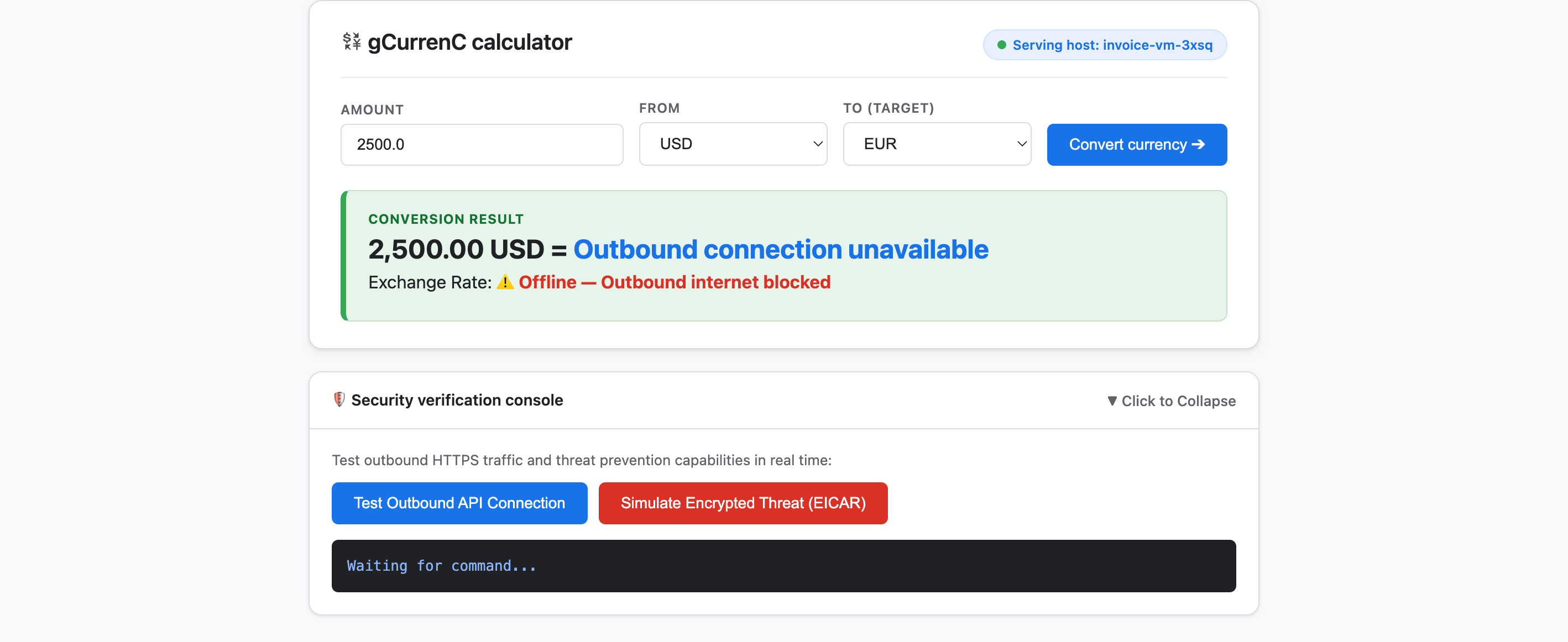
- בודקים את האפליקציה:
- לוחצים על המרת מטבע. תוצאת ההמרה מוצגת ב-
Offline - Outbound internet blockedוב-Outbound connection unavailable. התוצאה הזו צפויה כי המכונות הווירטואליות הפרטיות לא יכולות להתחבר לאינטרנט כדי לאחזר את שערי החליפין העדכניים. - מרחיבים את מסוף אימות האבטחה ולוחצים על בדיקת חיבור API יוצא. בפלט מוצג
verdict: BLOCKED_OR_FAILED(https://api.frankfurter.dev/v1/latest. התוצאה הזו צפויה כי המכונות הווירטואליות הפרטיות לא יכולות להתחבר לאינטרנט ולאחזר את שערי החליפין מ-https://api.frankfurter.dev/v1/latest. - לוחצים על הדמיה של איום מוצפן (EICAR). בפלט מוצג גם
verdict: BLOCKED_OR_FAILEDעבורhttps://secure.eicar.org/eicar.com.txt. גם התוצאה הזו צפויה כי למכונות הווירטואליות הפרטיות אין קישוריות לאינטרנט.
- לוחצים על המרת מטבע. תוצאת ההמרה מוצגת ב-
עצירת מנהרת ה-IAP המקומית
לפני שמתכננים ופורסים את ארכיטקטורת האבטחה, צריך לסגור את מנהרת ה-IAP המקומית כדי לפנות את יציאה 8080:
- במצב
/goal, מריצים את ההנחיה הבאה:Free up local port 8080 and terminate any running Google Cloud IAP tunnels (e.g., kill processes matching 'start-iap-tunnel' or listening on port 8080).8080פנויה.
6. אבטחת האפליקציה
בקטעים הקודמים יצרתם מכונות וירטואליות פרטיות של Compute Engine בלי כתובות IP ציבוריות, ואימתתם שני אתגרים מרכזיים בתחום הרשתות והאבטחה:
- גישה נכנסת (ingress): משתמשי אינטרנט לא יכולים להגיע ישירות למכונות הווירטואליות הפרטיות. כדי לחשוף את אפליקציית האינטרנט, צריך להעביר את התנועה דרך שרת proxy באמצעות מאזן עומסים של אפליקציות חיצוני גלובלי ורשת משנה ייעודית לשרת proxy בלבד, בלי לחשוף את המכונות הווירטואליות לאינטרנט הציבורי.
- גישה יוצאת (תעבורת נתונים יוצאת): למכונות הווירטואליות הפרטיות אין נתיב לאינטרנט כדי לשלוח שאילתות לממשקי API של המרת מטבעות ב-HTTPS בזמן אמת. כדי להפעיל גישה יוצאת, צריך לבדוק אם יש תוכנות זדוניות וזליגת נתונים בתנועה המוצפנת בלי לפגוע באמון ב-SSL/TLS.
בקטע הזה, תנחו את Antigravity בתהליך עבודה יעיל שמבוסס על מסמכי התיעוד הרשמיים של Google Cloud (@retrieving-developer-knowledge) כדי לתכנן, לבדוק בעצמכם ולפרוס ארכיטקטורת אבטחה של תעבורת נתונים נכנסת ויוצאת ברמת הפרויקט בשביל האפליקציה שלכם.
תכנון ארכיטקטורת האבטחה המאוחדת
- במצב
/goal, מריצים את ההנחיה הבאה כדי ליצור דיאגרמת ארכיטקטורה מקצה לקצה והסבר שמכסה את תזרימי התנועה הנכנסת והיוצאת:You are a Google Cloud Network and Security Architect. We need to design an end-to-end security architecture for our "gCurrenC calculator" app running on private Compute Engine VMs with no external IP addresses inside 'gcurrenc-vpc'. We are operating in a standalone Google Cloud project without an Organization resource, so all security resources must be scoped at the project level. Use the @retrieving-developer-knowledge skill to consult official Google Cloud documentation and suggest an architecture diagram and explanation covering both flows: 1. Ingress Flow: - How internet users securely reach the private VMs via a global external Application Load Balancer. - Why Envoy-based external Application Load Balancers require a dedicated proxy-only subnet, and how Google Front Ends (GFEs) proxy traffic to private backends without exposing VMs to the public internet. 2. Egress Flow: - How private VMs reach the internet via Cloud NAT to query live currency exchange APIs, such as frankfurter.dev. - How Cloud NGFW Enterprise provides Layer 7 deep packet inspection and intrusion prevention (IPS) for outbound encrypted HTTPS traffic. - How TLS inspection backed by Certificate Authority Service (CAS) decrypts outbound HTTPS sessions on the fly, and what Root CA trust configuration the private VMs require. Provide a clear diagram and explain how these components connect together.
יצירת ראשי הפרקים של המשאב האדריכלי
- כדי לארגן את העיצוב במתאר של משאבים ברמת הפרויקט לפי קטגוריות לפני שיוצרים את סקריפט הפריסה, מזינים את ההנחיה הבאה:
Act as a Lead Network Security Architect. Using the @retrieving-developer-knowledge skill, provide an architectural outline of all the Google Cloud resources required to secure the "gCurrenC calculator" app.

Our starting state:
- The custom VPC ('gcurrenc-vpc'), workload subnet ('gcurrenc-app-subnet'), and 2-instance MIG ('gcurrenc-app-mig', port 8080) are already deployed.
- All newly added security components must be project-level resources (no organization resources).

Structure your resource outline into three distinct categories, indicating which resources are new additions:
1. Core VPC Infrastructure: proxy-only subnet ('gcurrenc-proxy-subnet', 10.10.2.0/24), Cloud Router, and Cloud NAT gateway.
2. Inbound security (ingress): global external ALB components (forwarding rule on port 443, target HTTPS proxy, SSL certificate, URL map, backend service attached to 'gcurrenc-app-mig' on port 8080, and HTTP health check on '/healthz') and ingress firewall rules.
3. Outbound security (egress): CAS DevOps CA pool and root CA, project-level Cloud NGFW Enterprise components (Threat Prevention profile, Security Profile Group, Firewall Endpoint in zone us-central1-a, and Endpoint Association attaching the TLS policy), and global network firewall policy egress rules.

For each resource, briefly state its role in the security boundary and how it connects to adjacent components.
יצירת סקריפט הפריסה ובדיקה עצמית שלו
- במצב
/goal, מריצים את ההנחיה הבאה כדי ליצור סקריפט פריסה מלא ולא אינטראקטיבי שלbash, ולבצע בו ביקורת עצמית אוטומטית בהתאם לדרישות התאימות באותו שלב:Act as a Principal Infrastructure Engineer. Using the @retrieving-developer-knowledge skill, generate a complete, non-interactive Bash script to deploy this entire security architecture for our "gCurrenC calculator" app, and self-audit the script before outputting it. Requirements: - Discover the project ID, region, and zone dynamically from the existing 'gcurrenc-app-subnet' and 'gcurrenc-app-mig'. - Keep all resources scoped strictly to the project level (no Organization resource). - Deploy the proxy-only subnet, global external Application Load Balancer, Cloud Router, and Cloud NAT. Don't use Cloud Armor. - Deploy project-level Cloud NGFW Enterprise with CAS TLS inspection ('--tls-inspect' on the firewall policy egress rule and 'gcloud beta' for the project-level firewall endpoint association) and an explicit DENY override for malware and antivirus threats. - Distribute the root CA to the private VMs over IAP SSH with connection timeouts so the guest OS trust store is updated. - Print the final Load Balancer URL ('https://${LB_IP}') at the end. Wrap the script in 'set -euxo pipefail' and output only the single executable bash script block.bash, בודק בעצמו כל פקודה בהתאם למגבלות התאימות, ומוציא את בלוק הסקריפט היחיד שניתן להפעלה, עטוף ב-set -euxo pipefail.
מריצים את הסקריפט לפריסת האבטחה
- במצב
/goal, מדביקים את הסקריפט שלbashשנוצר מההנחיה הקודמת בחלון הצ'אט של Antigravity בפורמט הבא כדי להריץ את הפריסה ולהפיק את כתובת ה-URL של האפליקציה הפעילה (https://<LB_IP>):Run this script. <PASTED-SCRIPT>
7. אימות האפליקציה המאובטחת
בסיום הסקריפט של הפריסה, Antigravity פולט את כתובת ה-URL החיצונית מסוג HTTPS של מאזן העומסים החיצוני הגלובלי של האפליקציות (https://<LB_IP>).
- פותחים את
https://<LB_IP>בדפדפן האינטרנט ועוקפים את אזהרת האישור בחתימה עצמית של הדפדפן כדי לטעון את הממשק של מחשבון gCurrenC: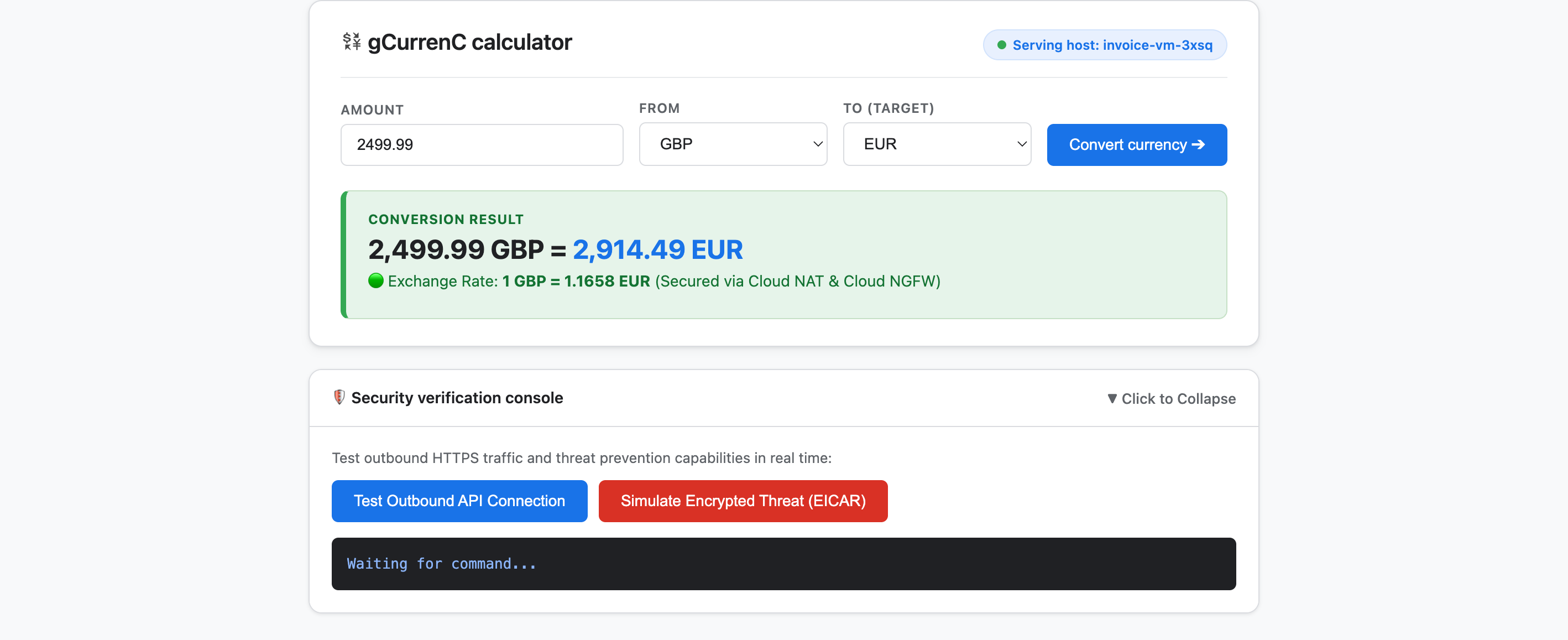
- בודקים את האפליקציה כדי לוודא שהיא מחוברת לאינטרנט ושהיא מוגנת מפני איומים:
- לוחצים על המרת מטבע. האפליקציה מציגה מיד את שער החליפין המומר בזמן אמת. כך אפשר לוודא שאיזון העומסים של תעבורת הנתונים הנכנסת מנותב בצורה חלקה דרך ממשקי הקצה של Google (GFE) ותת-הרשת של שרת ה-proxy בלבד, בזמן ש-Cloud NAT מאחזר שערי חליפין בזמן אמת מ-
api.frankfurter.dev. - מרחיבים את מסוף אימות האבטחה ולוחצים על בדיקת חיבור API יוצא. באפליקציה מוצג
verdict: PERMITTED(HTTP 200). זה מאשר שהניתוב של Cloud NAT פועל, ושהמערכת של ה-VM סומכת על ה-Root CA הפרטי של שירות ה-CAS בשביל סשנים מפוענחים של HTTPS. - לוחצים על הדמיה של איום מוצפן (EICAR). באפליקציה מופיע הכיתוב
verdict: PERMITTED. כך מוודאים ש-Cloud NGFW Enterprise מפענח את בקשת ה-HTTPS היוצאת באמצעות בדיקת TLS שמגובה על ידי CAS, ובודק את חתימת הבדיקה של EICAR באמצעות שירות מניעת החדירות (IPS).
- לוחצים על המרת מטבע. האפליקציה מציגה מיד את שער החליפין המומר בזמן אמת. כך אפשר לוודא שאיזון העומסים של תעבורת הנתונים הנכנסת מנותב בצורה חלקה דרך ממשקי הקצה של Google (GFE) ותת-הרשת של שרת ה-proxy בלבד, בזמן ש-Cloud NAT מאחזר שערי חליפין בזמן אמת מ-
8. הסרת המשאבים
כדי להימנע מחיובים שוטפים בחשבון Google Cloud על המשאבים שנוצרו ב-Codelab הזה, אתם יכולים למחוק רק את המשאבים של ה-Codelab או למחוק את הפרויקט ב-Google Cloud.
- אם אתם רוצים לשמור את הפרויקט ב-Google Cloud ולהסיר רק את המשאבים שנוצרו במהלך ה-Codelab הזה, הריצו את ההנחיה הבאה במצב
/goalבחלון הצ'אט של Antigravity:Remove all resources created in this session, including the gcurrenc app and its resources. Don't delete the project. - אם יצרתם פרויקט בענן ייעודי ב-Google Cloud בשביל ה-Codelab הזה ואתם רוצים למחוק את הפרויקט כולו, הריצו את הפרומפט הבא במצב
/goalבחלון הצ'אט של Antigravity:Clean up the demo environment by deleting the Google Cloud project. Run the following command in the terminal: gcloud projects delete "$(gcloud config get-value project 2>/dev/null)" --quiet
9. מזל טוב
מעולה! פרסתם ואבטחתם את אפליקציית האינטרנט gCurrenC calculator ב-Google Cloud באמצעות הפלאגין Google Cloud Developer (שרת MCP) ב-Google Antigravity.
המאמרים הבאים
במסמכי התיעוד הרשמיים של Google Cloud תוכלו לקרוא מידע נוסף על השירותים שבהם השתמשנו ב-Codelab הזה:
- איך מתקינים את הפלאגין Google Cloud Developer ב-Antigravity ומשתמשים בו
- התחברות לשרת MCP של Developer Knowledge
- ספריית המיומנויות של הסוכן
- הפלאגין Developer Knowledge
- סקירה כללית על מאזן עומסים של אפליקציות (ALB)
- מסמכי התיעוד של Certificate Authority Service
- סקירה כללית על Cloud Next Generation Firewall