

1. บทนำ
ใน Codelab นี้ คุณจะได้สร้างและติดตั้งใช้งานเว็บแอปพลิเคชันเครื่องคิดเลข gCurrenC ใน Google Cloud จากนั้นรักษาความปลอดภัยจากการเข้าถึงที่ไม่พึงประสงค์ คุณจะออกแบบและใช้สถาปัตยกรรมความปลอดภัยที่ควบคุมผู้ที่เข้าถึงแอปพลิเคชันและปกป้องแอปพลิเคชันจากการใช้งานที่ไม่ได้รับอนุญาตโดยใช้ Google Antigravity, ปลั๊กอิน Google Cloud Developer และเซิร์ฟเวอร์ MCP ของ Developer Knowledge (DK)
ตลอดทั้งห้องทดลองนี้ คุณจะเชื่อมต่อ Google Antigravity กับเซิร์ฟเวอร์ DK MCP ซึ่งจะช่วยให้ Antigravity อิงตามเอกสารประกอบอย่างเป็นทางการแบบเรียลไทม์ของ Google Cloud Antigravity จะดึงข้อมูลรูปแบบสถาปัตยกรรมปัจจุบัน ไวยากรณ์ gcloud CLI ล่าสุด และพารามิเตอร์ความปลอดภัยแบบไดนามิก แทนที่จะอาศัยข้อมูลฝึกฝนแบบคงที่หรือน้ำหนักโมเดลที่ล้าสมัย ซึ่งจะช่วยลดอาการหลอนของ AI และอิงคำตอบตามความรู้ที่อัปเดตล่าสุด
สิ่งที่คุณจะสร้าง
- ภาระงานการประมวลผลส่วนตัว: เครื่องเสมือน (VM) ของ Compute Engine 2 เครื่องที่เรียกใช้เว็บแอป gCurrenC calculator ภายในเครือข่าย Virtual Private Cloud (VPC) ที่กำหนดเองซึ่งไม่มีที่อยู่ IP สาธารณะ
- ไปป์ไลน์ขาเข้าที่ปลอดภัย: ตัวจัดสรรภาระงานแอปพลิเคชันภายนอกส่วนกลางที่มีซับเน็ตเฉพาะพร็อกซีโดยเฉพาะ ซึ่งจะกำหนดเส้นทางการเข้าใช้อินเทอร์เน็ตผ่าน Google Front End (GFE) ไปยัง VM ส่วนตัวโดยไม่เปิดเผยต่ออินเทอร์เน็ตสาธารณะ
- ไปป์ไลน์ขาออกที่ปลอดภัย: Cloud Router และเกตเวย์ Cloud NAT ที่จับคู่กับ Cloud Next Generation Firewall (Cloud NGFW) Enterprise ระดับโปรเจ็กต์และ Certificate Authority Service (CAS) เพื่อทำการตรวจสอบ TLS แบบเรียลไทม์และการสแกน Intrusion Prevention Service (IPS) ในการรับส่งข้อมูล API การแลกเปลี่ยนสกุลเงิน HTTPS ขาออก
สิ่งที่คุณจะได้เรียนรู้
- ติดตั้งปลั๊กอิน
google-cloud-developerโดยใช้ Antigravity CLI และกำหนดค่าเซิร์ฟเวอร์ DK MCP ใน Antigravity - ติดตั้งใช้งานและทดสอบเว็บแอปพลิเคชันส่วนตัวแบบแยกใน Compute Engine โดยใช้การส่งต่อ TCP ของ Identity-Aware Proxy (IAP)
- ใช้การสร้างพรอมต์แบบหลายรอบที่มีการอ้างอิงข้อมูลใน Antigravity เพื่อออกแบบสถาปัตยกรรมการรักษาความปลอดภัยขาเข้าและขาออกระดับโปรเจ็กต์
- สร้าง ตรวจสอบด้วยตนเอง และเรียกใช้สคริปต์การติดตั้งใช้งาน
bashสำหรับการจัดสรรภาระงานแอปพลิเคชันภายนอกทั่วโลก, Cloud NAT, CAS และ Cloud NGFW Enterprise
2. ก่อนเริ่มต้น
ข้อกำหนดเบื้องต้น
ก่อนเริ่ม Codelab นี้ โปรดตรวจสอบว่าคุณมีสิ่งต่อไปนี้
- บัญชี Google และเบราว์เซอร์ Google Chrome
- โปรเจ็กต์ Google Cloud ใหม่ที่เปิดใช้การเรียกเก็บเงิน จดรหัสโปรเจ็กต์ (
PROJECT_ID) ไว้ เนื่องจากคุณจะใช้รหัสดังกล่าวตลอด Codelab นี้เพื่อเปิดใช้ API, สร้างคีย์ API และติดตั้งใช้งานทรัพยากร Google Cloud - สิทธิ์ Identity and Access Management (IAM) ในโปรเจ็กต์ที่อยู่ในระบบคลาวด์ของ Google เพื่อสร้างคีย์ API, ทรัพยากร Compute Engine, เครือข่าย VPC, พูล CAS, อุโมงค์ IAP และปลายทาง Cloud NGFW
- ตรวจสอบสิทธิ์ด้วย
gcloudCLI, ตั้งค่าโปรเจ็กต์ Google Cloud ที่ใช้งานอยู่ และเปิดใช้ API ที่จำเป็น:- ในเทอร์มินัลหรือ Cloud Shell ให้ตรวจสอบว่าคุณได้รับการตรวจสอบสิทธิ์แล้ว โดยทำดังนี้
gcloud auth listgcloud auth login - ตรวจสอบว่าได้กำหนดค่า
gcloudCLI ให้ใช้โปรเจ็กต์ของคุณแล้ว โดยทำดังนี้gcloud config list projectPROJECT_IDด้วยรหัสโปรเจ็กต์ที่อยู่ในระบบคลาวด์ของ Google ดังนี้export PROJECT_ID=PROJECT_ID gcloud config set project PROJECT_ID - เปิดใช้ API ที่จำเป็นในโปรเจ็กต์ Google Cloud โดยทำดังนี้
gcloud services enable \
   compute.googleapis.com \
   iap.googleapis.com \
   networksecurity.googleapis.com \
   privateca.googleapis.com \
   developerknowledge.googleapis.com \
   apikeys.googleapis.com
- ในเทอร์มินัลหรือ Cloud Shell ให้ตรวจสอบว่าคุณได้รับการตรวจสอบสิทธิ์แล้ว โดยทำดังนี้
- ติดตั้ง Antigravity 2.0 ในระบบภายในเครื่องจากหน้าดาวน์โหลด Google Antigravity
ติดตั้งปลั๊กอิน Google Cloud Developer โดยใช้ Antigravity CLI
หากต้องการติดตั้งปลั๊กอิน Google Cloud Developer โดยใช้ Antigravity CLI ให้ทำดังนี้
- หากต้องการติดตั้ง Antigravity CLI ในเวิร์กสเตชันภายใน ให้ทำดังนี้
- เปิดเทอร์มินัลในเครื่อง
- เรียกใช้สคริปต์โปรแกรมติดตั้งโดยทำดังนี้
curl -fsSL https://antigravity.google/cli/install.sh | bash - ปิดและเปิดเซสชันเทอร์มินัลอีกครั้งเพื่อให้ไบนารี Antigravity CLI
agyพร้อมใช้งานในระบบPATH
- ในเทอร์มินัลในเครื่อง ให้เรียกใช้คำสั่งต่อไปนี้เพื่อติดตั้งปลั๊กอิน
google-cloud-developeragy plugin install https://github.com/google/skills/plugins/cloud/google-cloud-developerCloning plugin from https://github.com/google/skills.git... [ok] google-cloud-developer ✔ skills : 5 processed - agents : skipped (not found) - commands : skipped (not found) ✔ mcpServers : 1 processed - hooks : skipped (not found)
3. ตั้งค่า Antigravity และเซิร์ฟเวอร์ DK MCP
ในส่วนนี้ คุณจะกำหนดค่าเซิร์ฟเวอร์ DK MCP ใน Antigravity โดยใช้คีย์ Google Cloud API ที่จำกัด
- เปิด Antigravity พิมพ์
/goalแล้วกด Enter เพื่อเปิดใช้งานโหมดเป้าหมาย จากนั้นวางพรอมต์ต่อไปนี้เพื่อสร้างคีย์ API ที่ถูกจำกัดและกำหนดค่าเซิร์ฟเวอร์ DK MCP แทนที่PROJECT_IDด้วยรหัสโปรเจ็กต์ Google Cloud จากส่วนก่อนเริ่มต้น ดูข้อมูลเพิ่มเติมได้ที่ปลั๊กอิน google-cloud-developerSet up Antigravity to use the Developer Knowledge MCP server on my local machine. Run the necessary terminal commands to complete the following: 1. Create a restricted API key named 'DKP-MCP-Key' that can only target the Developer Knowledge API. Use the PROJECT_ID to create the API key. 2. Retrieve the actual key string of the newly created API key. 3. Create or safely update my ~/.gemini/config/mcp_config.json file (preserve any existing MCP servers) with the correct JSON structure to connect the developer-knowledge server using that API key in the headers. You MUST use the following JSON structure for the new server: "developer-knowledge": { "serverUrl": "https://developerknowledge.googleapis.com/mcp", "headers": { "x-goog-api-key": "<INSERT_RETRIEVED_API_KEY_HERE>" } } When you are done, confirm that the setup is complete. - หากต้องการยืนยันว่าเซิร์ฟเวอร์ DK MCP ทำงานอยู่ ให้ป้อนพรอมต์ต่อไปนี้ในหน้าต่างแชท Antigravity
Which MCP servers are available?developer-knowledgeและเครื่องมือที่พร้อมใช้งาน (search_documents,answer_queryและget_documents)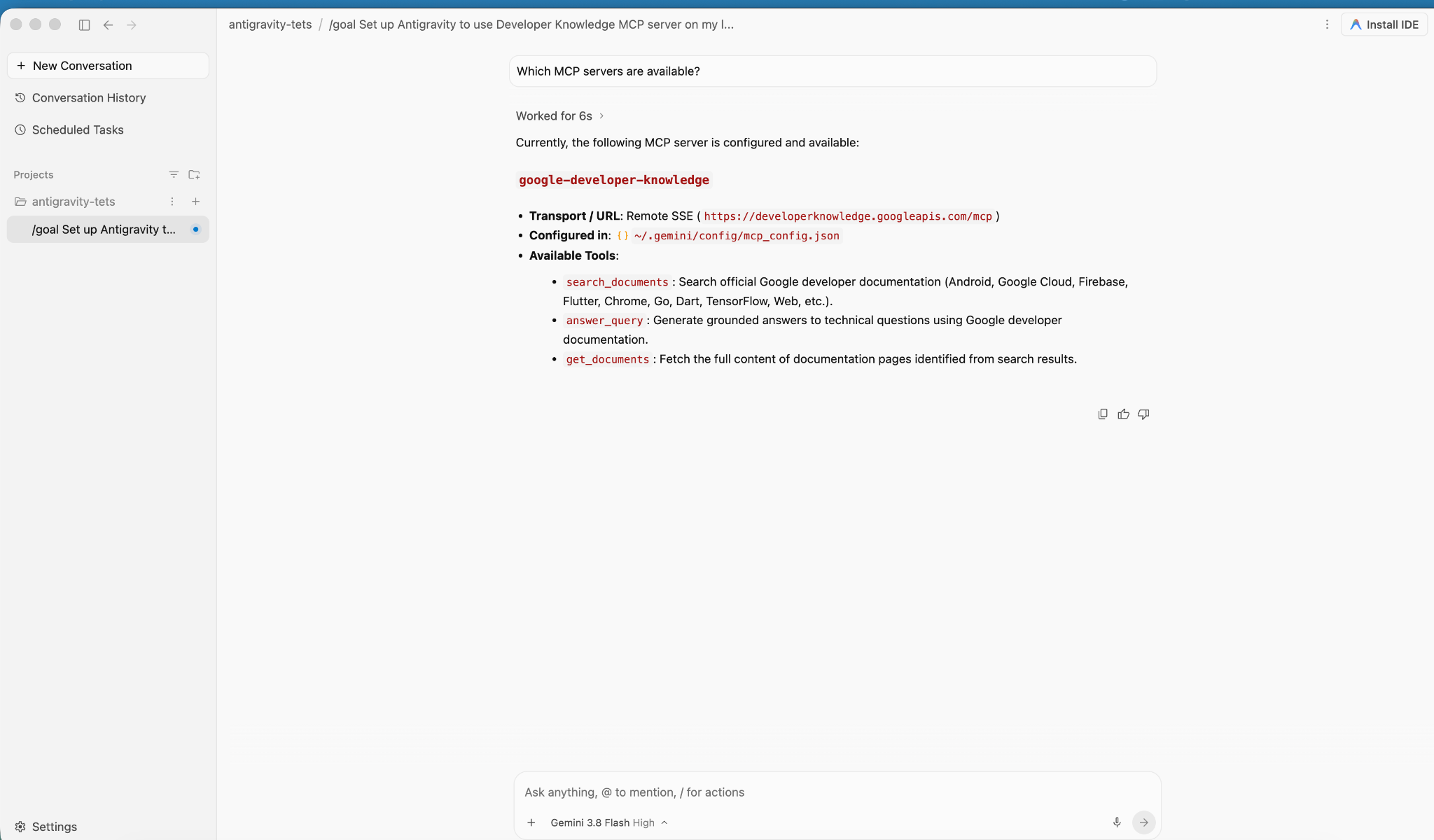
4. สร้างและติดตั้งใช้งานแอปพลิเคชัน
ในส่วนนี้ คุณจะติดตั้งใช้งานแอปพลิเคชันเครื่องคำนวณ gCurrenC ใน VM ของ Compute Engine ส่วนตัว 2 รายการภายในเครือข่าย VPC ที่กำหนดเอง
แอปพลิเคชันนี้มีฟีเจอร์ต่อไปนี้
- เครื่องมือแปลงสกุลเงินแบบเรียลไทม์ที่รองรับ
USD,EUR,GBP,JPY,CAD,INRและAUDโดยใช้ไลบรารีมาตรฐานhttp.serverในตัวของ Python บนพอร์ต8080พร้อมปลายทางการตรวจสอบประสิทธิภาพ/healthz - คอนโซลการยืนยันความปลอดภัยเพื่อเรียกใช้การเชื่อมต่อ API ขาออกแบบเรียลไทม์และการตรวจสอบการป้องกันภัยคุกคามที่เข้ารหัส
- กฎไฟร์วอลล์ขาเข้าที่อนุญาตให้ช่วง IAP ของ Google เข้าถึงพอร์ต
22และ8080เพื่อการทดสอบด้านการดูแลระบบโดยไม่ต้องเปิดเผยที่อยู่ IP สาธารณะ
ทำให้แอปพลิเคชันใช้งานได้
- ในหน้าต่างแชท Antigravity ให้ป้อน
/goalแล้วเรียกใช้พรอมต์ต่อไปนี้You are a Cloud developer. Deploy the "gCurrenC calculator" app onto two (2) Compute Engine VMs with no external IP addresses (`--no-address`) inside a dedicated custom VPC network and private subnet. CRITICAL INSTRUCTIONS ON OUTPUT: - The VMs are strictly private with no external IP addresses and the local IAP tunnel has NOT been started yet. Any web URL is completely unreachable and will fail with a connection error. - In your final response, simply confirm that the private VMs and Managed Instance Group are deployed, and state that the user should establish the IAP tunnel. Do not output, format, or suggest any web preview link or URL (such as http://localhost:8080 or internal IP addresses) in your final response. Run this script in the terminal: ```bash #!/usr/bin/env bash set -euxo pipefail # Disable any interactive confirmation prompts so execution never hangs export CLOUDSDK_CORE_DISABLE_PROMPTS=1 # --- User Configuration --- PROJECT_ID="[PROJECT_ID]" REGION="us-central1" ZONE="us-central1-a" NETWORK="gcurrenc-vpc" SUBNET="gcurrenc-app-subnet" SUBNET_RANGE="10.10.1.0/24" # -------------------------- echo "==> [1/5] Configuring project, default region/zone, and enabling APIs..." gcloud config set project "${PROJECT_ID}" gcloud config set compute/region "${REGION}" gcloud config set compute/zone "${ZONE}" gcloud services enable compute.googleapis.com echo "==> [2/5] Creating custom VPC network and private workload subnet..." gcloud compute networks create "${NETWORK}" \ --subnet-mode=custom \ --description="Dedicated VPC for currency exchange app demo" 2>/dev/null || true gcloud compute networks subnets create "${SUBNET}" \ --network="${NETWORK}" \ --region="${REGION}" \ --range="${SUBNET_RANGE}" \ --enable-private-ip-google-access \ --description="Private subnet hosting backend compute instances" 2>/dev/null || true echo "==> [3/5] Generating standalone Python standard-library startup script..." cat << 'STARTUP_EOF' > /tmp/private_app_startup.sh #!/bin/bash set -euxo pipefail mkdir -p /opt/gcurrenc-app # Pure Python standard-library application (zero pip/apt dependencies needed at boot) cat << 'APPEOF' > /opt/gcurrenc-app/app.py import os import sys import json import socket import urllib.request import urllib.parse import ssl from http.server import BaseHTTPRequestHandler, ThreadingHTTPServer SUPPORTED_CURRENCIES = ["USD", "EUR", "GBP", "JPY", "CAD", "INR", "AUD"] class CurrencyAppHandler(BaseHTTPRequestHandler): def address_string(self): return str(self.client_address[0]) def do_GET(self): parsed = urllib.parse.urlparse(self.path) path = parsed.path params = urllib.parse.parse_qs(parsed.query) if path == "/favicon.ico": self.send_response(204) self.end_headers() return if path == "/healthz": self.send_response(200) self.send_header("Content-Type", "text/plain") self.end_headers() self.wfile.write(b"OK") return if path == "/api/security-test": mode = params.get("mode", ["safe"])[0] target = "https://secure.eicar.org/eicar.com.txt" if mode == "threat" else "https://api.frankfurter.dev/v1/latest?from=USD&to=EUR" try: req = urllib.request.Request(target, headers={"User-Agent": "SecureCurrencyApp/1.0"}) ctx = ssl.create_default_context() with urllib.request.urlopen(req, timeout=5, context=ctx) as resp: data = {"verdict": "PERMITTED", "target": target, "http_status": resp.status} code = 200 except Exception as e: data = {"verdict": "BLOCKED_OR_FAILED", "target": target, "error": str(e)} code = 502 self.send_response(code) self.send_header("Content-Type", "application/json") self.end_headers() self.wfile.write(json.dumps(data, indent=2).encode("utf-8")) return self.render_page() def do_POST(self): parsed = urllib.parse.urlparse(self.path) if parsed.path == "/generate": content_length = int(self.headers.get("Content-Length", 0)) post_body = self.rfile.read(content_length).decode("utf-8") form = urllib.parse.parse_qs(post_body) base_curr = form.get("base_curr", ["USD"])[0] target_curr = form.get("target_curr", ["EUR"])[0] try: amount = float(form.get("amount", ["2500.00"])[0]) except ValueError: amount = 2500.00 rate_str = "Unavailable" total_str = "Rate lookup pending outbound internet activation" try: if base_curr == target_curr: rate = 1.0 else: url = f"https://api.frankfurter.dev/v1/latest?from={base_curr}&to={target_curr}" req = urllib.request.Request(url, headers={"User-Agent": "SecureCurrencyApp/1.0"}) with urllib.request.urlopen(req, timeout=4) as resp: res_json = json.loads(resp.read().decode("utf-8")) rate = res_json["rates"][target_curr] rate_str = str(rate) total_str = f"{round(amount * rate, 2):,.2f} {target_curr}" except Exception as e: total_str = f"Outbound connection unavailable {str(e)}" self.render_page(base_curr, target_curr, amount, rate_str, total_str) return self.send_response(404) self.end_headers() def render_page(self, base_curr="USD", target_curr="EUR", amount=2500.00, fx_rate="1.00", total_str=""): hostname = socket.gethostname() curr_options_base = "".join([f'<option value="{c}" {"selected" if c == base_curr else ""}>{c}</option>' for c in SUPPORTED_CURRENCIES]) curr_options_target = "".join([f'<option value="{c}" {"selected" if c == target_curr else ""}>{c}</option>' for c in SUPPORTED_CURRENCIES]) result_block = "" if total_str: if fx_rate == "Unavailable": rate_line = "<p style='margin: 6px 0;'>Exchange Rate: <span style='color: #d93025; font-weight: bold;'>⚠️ Offline-Outbound internet blocked</span></p>" else: rate_line = f"<p style='margin: 6px 0; font-size: 14px; color: #137333;'>🟢 Exchange Rate: <strong>1 {base_curr} = {fx_rate} {target_curr}</strong> (Secured via Cloud NAT & Cloud NGFW)</p>" result_block = f""" <div style="margin-top: 22px; background: #e6f4ea; border: 1px solid #c6e1c6; border-left: 5px solid #34a853; padding: 18px 20px; border-radius: 8px;"> <h4 style="margin: 0 0 6px 0; text-transform: uppercase; font-size: 12px; color: #137333; letter-spacing: 0.5px;">Conversion Result</h4> <div style="font-size: 24px; font-weight: 700; color: #202124; margin-bottom: 6px;"> {amount:,.2f} {base_curr} = <span style="color: #1a73e8;">{total_str}</span> </div> {rate_line} </div> """ html = ("""<!DOCTYPE html> <html lang="en"> <head> <meta charset="UTF-8"> <meta name="viewport" content="width=device-width, initial-scale=1.0"> <title>gCurrenC calculator</title> <style> body { font-family: -apple-system, BlinkMacSystemFont, "Segoe UI", Roboto, "Helvetica Neue", Arial, sans-serif; background: #f8f9fa; margin: 30px 15px; color: #202124; display: flex; justify-content: center; } .container { width: 100%; max-width: 860px; } .card { background: white; padding: 24px 28px; border-radius: 12px; box-shadow: 0 1px 3px rgba(60,64,67,0.12), 0 4px 8px rgba(60,64,67,0.06); border: 1px solid #dadce0; margin-bottom: 20px; } .header { display: flex; justify-content: space-between; align-items: center; border-bottom: 1px solid #e8eaed; padding-bottom: 14px; margin-bottom: 20px; } .header h2 { margin: 0 0 4px 0; font-size: 20px; font-weight: 600; } .header p { margin: 0; font-size: 13px; color: #5f6368; } .badge { background: #e8f0fe; color: #1a73e8; padding: 6px 12px; border-radius: 16px; font-weight: 600; font-size: 12px; border: 1px solid #d2e3fc; display: flex; align-items: center; gap: 6px; } .badge::before { content: ""; width: 8px; height: 8px; border-radius: 50%; background-color: #34a853; } .form-row { display: flex; gap: 14px; align-items: flex-end; flex-wrap: wrap; } .form-group { display: flex; flex-direction: column; gap: 6px; } .form-group label { font-size: 12px; font-weight: 600; color: #5f6368; text-transform: uppercase; letter-spacing: 0.5px; } input, select { padding: 10px 14px; border: 1px solid #dadce0; border-radius: 6px; font-size: 14px; color: #202124; background-color: #fff; box-sizing: border-box; transition: border-color 0.15s, box-shadow 0.15s; } input:focus, select:focus { outline: none; border-color: #1a73e8; box-shadow: 0 0 0 3px rgba(26, 115, 232, 0.15); } button { padding: 11px 20px; background: #1a73e8; color: white; border: none; border-radius: 6px; font-size: 14px; font-weight: 500; cursor: pointer; transition: background 0.15s, box-shadow 0.15s; } button:hover { background: #1557b0; box-shadow: 0 1px 2px rgba(60,64,67,0.3); } .danger-btn { background: #d93025; } .danger-btn:hover { background: #b31412; } pre { background: #202124; color: #8ab4f8; padding: 14px; border-radius: 6px; overflow-x: auto; font-family: "SF Mono", "Fira Code", Consolas, monospace; font-size: 13px; line-height: 1.5; margin: 0; } /* Collapsible Security Console */ details.security-drawer { background: white; border-radius: 12px; box-shadow: 0 1px 3px rgba(60,64,67,0.12); border: 1px solid #dadce0; overflow: hidden; margin-bottom: 24px; } details.security-drawer summary { padding: 16px 20px; font-size: 14px; font-weight: 600; cursor: pointer; list-style: none; display: flex; justify-content: space-between; align-items: center; user-select: none; background: #fafafa; transition: background 0.15s; } details.security-drawer summary::-webkit-details-marker { display: none; } details.security-drawer summary:hover { background: #f1f3f4; } details.security-drawer[open] summary { border-bottom: 1px solid #dadce0; background: #ffffff; } .expand-toggle { font-size: 13px; font-weight: 500; } details.security-drawer summary .expand-toggle::before { content: "▶ Click to Expand"; color: #1a73e8; } details.security-drawer[open] summary .expand-toggle::before { content: "▼ Click to Collapse"; color: #5f6368; } .drawer-body { padding: 20px; background: #ffffff; } .drawer-body p { margin-top: 0; font-size: 13px; color: #5f6368; } .probe-buttons { display: flex; gap: 10px; margin-bottom: 14px; } </style> </head> <body> <div class="container"> <div class="card"> <div class="header"> <div> <h2>💱 gCurrenC calculator</h2> </div> <div class="badge">Serving host: {hostname}</div> </div> <form method="POST" action="/generate"> <div class="form-row"> <div class="form-group" style="flex: 1.5; min-width: 140px;"> <label>Amount</label> <input type="number" step="0.01" name="amount" value="{amount}" required> </div> <div class="form-group" style="flex: 1; min-width: 100px;"> <label>From</label> <select name="base_curr">{curr_options_base}</select> </div> <div class="form-group" style="flex: 1; min-width: 100px;"> <label>To (Target)</label> <select name="target_curr">{curr_options_target}</select> </div> <div class="form-group"> <button type="submit">Convert currency ➔</button> </div> </div> </form> {result_block} </div> <!-- Collapsible Security Verification Console --> <details class="security-drawer"> <summary> <span>🛡️ Security verification console</span> <span class="expand-toggle"></span> </summary> <div class="drawer-body"> <p>Test outbound HTTPS traffic and threat prevention capabilities in real time:</p> <div class="probe-buttons"> <button type="button" onclick="runProbe('safe')">Test Outbound API Connection</button> <button type="button" class="danger-btn" onclick="runProbe('threat')">Simulate Encrypted Threat (EICAR)</button> </div> <pre id="output">Waiting for command...</pre> </div> </details> </div> <script> function runProbe(mode) { const el = document.getElementById('output'); el.innerText = 'Executing outbound request...'; fetch('/api/security-test?mode=' + mode) .then(res => res.json()) .then(data => el.innerText = JSON.stringify(data, null, 2)) .catch(err => el.innerText = 'Connection dropped / reset by Firewall: ' + err); } </script> </body> </html>""" .replace("{hostname}", str(hostname)) .replace("{amount}", str(amount)) .replace("{curr_options_base}", curr_options_base) .replace("{curr_options_target}", curr_options_target) .replace("{result_block}", result_block) ) self.send_response(200) self.send_header("Content-Type", "text/html; charset=utf-8") self.end_headers() self.wfile.write(html.encode("utf-8")) def run(): server_address = ('0.0.0.0', 8080) httpd = ThreadingHTTPServer(server_address, CurrencyAppHandler) httpd.serve_forever() if __name__ == '__main__': run() APPEOF # Register and start systemd unit cat << 'SERVICEEOF' > /etc/systemd/system/gcurrenc-app.service [Unit] Description=Currency exchange calculator web application After=network.target [Service] Type=simple User=root WorkingDirectory=/opt/gcurrenc-app ExecStart=/usr/bin/python3 /opt/gcurrenc-app/app.py Restart=always [Install] WantedBy=multi-user.target SERVICEEOF systemctl daemon-reload systemctl enable gcurrenc-app systemctl start gcurrenc-app STARTUP_EOF echo "==> [4/5] Creating Firewall, Regional Instance Template, and 2-VM MIG..." gcloud compute firewall-rules create allow-iap-admin \ --network="${NETWORK}" \ --allow=tcp:22,tcp:8080 \ --source-ranges=35.235.240.0/20 \ --target-tags=gcurrenc-app-vm \ --description="Allow IAP SSH and port 8080 access to private VMs" \ --quiet 2>/dev/null || true # Explicitly pass both --region and --instance-template-region to avoid prompt gcloud compute instance-templates create gcurrenc-app-template \ --instance-template-region="${REGION}" \ --region="${REGION}" \ --network="${NETWORK}" \ --subnet="${SUBNET}" \ --machine-type=e2-medium \ --no-address \ --tags=gcurrenc-app-vm \ --metadata-from-file=startup-script=/tmp/private_app_startup.sh \ --quiet gcloud compute instance-groups managed create gcurrenc-app-mig \ --base-instance-name=gcurrenc-vm \ --template="projects/${PROJECT_ID}/regions/${REGION}/instanceTemplates/gcurrenc-app-template" \ --size=2 \ --zone="${ZONE}" \ --quiet gcloud compute instance-groups managed set-named-ports gcurrenc-app-mig \ --named-ports=http-port:8080 \ --zone="${ZONE}" \ --quiet echo "==> [5/5] Verifying private VM deployment and internal status..." sleep 30 gcloud compute instances list \ --filter="name ~ '^gcurrenc-vm-'" \ --zones="${ZONE}" \ --format="table(name,zone.basename():label=ZONE,networkInterfaces[0].networkIP:label=INTERNAL_IP,status)" FIRST_VM=$(gcloud compute instances list \ --filter="name ~ '^gcurrenc-vm-'" \ --zones="${ZONE}" \ --format="value(name)" \ --limit=1) echo "Testing healthz on ${FIRST_VM} via IAP tunnel..." gcloud compute ssh "${FIRST_VM}" \ --zone="${ZONE}" \ --tunnel-through-iap \ --quiet \ --command="curl -fsS http://localhost:8080/healthz" echo "" echo "==========================================================================" echo "PREREQUISITE COMPLETE: 2 private VMs deployed with no external IPs." echo "VPC: ${NETWORK} | Subnet: ${SUBNET} (${SUBNET_RANGE})" echo "Instance Group: gcurrenc-app-mig (Zone: ${ZONE}, Port: 8080)" echo "" echo "The VMs are private and the IAP tunnel is not active. Set up the background IAP tunnel first to access the deployed app." echo "" echo "==========================================================================" ```
ยืนยันการสร้างอินสแตนซ์ VM
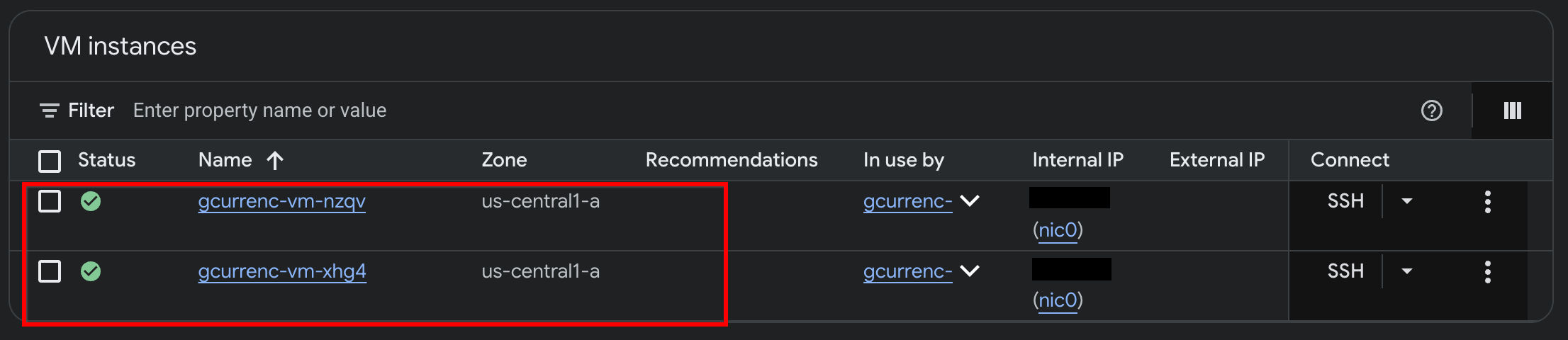
หลังจาก Antigravity ติดตั้งใช้งานแอปพลิเคชันใน VM ของ Compute Engine แบบส่วนตัว 2 รายการเสร็จแล้ว ให้ยืนยันอินสแตนซ์ในคอนโซล Google Cloud โดยทำดังนี้
- ในคอนโซล Google Cloud ให้ไปที่อินสแตนซ์ VM
- ตรวจสอบว่าอินสแตนซ์ VM ทั้ง 2 รายการทำงานด้วยที่อยู่ IP ภายในและไม่มีที่อยู่ IP ภายนอก
5. ทดสอบแอปพลิเคชัน
เนื่องจาก VM ส่วนตัวไม่มีที่อยู่ IP ภายนอก (--no-address) และไม่มีเกตเวย์ Cloud NAT จึงไม่มีเส้นทางไปยังอินเทอร์เน็ตและไม่สามารถเข้าถึง API การแลกเปลี่ยนสกุลเงินภายนอกได้ ก่อนกำหนดค่าการเข้าถึงขาออกที่ปลอดภัย ให้ทดสอบแอปพลิเคชันผ่านอุโมงค์ IAP ในเครื่องเพื่อยืนยันว่าไม่มีการเข้าถึงอินเทอร์เน็ต
- ในโหมด
/goalให้เรียกใช้พรอมต์ต่อไปนี้ในหน้าต่างแชท AntigravityAutomate the IAP tunnel configuration and health verification for the web app, then output the live test URL. Run a terminal script that performs the following steps non-interactively: 1. Firewall Check: - Identify the active network ('gcurrenc-vpc' if it exists, otherwise 'default'). - Idempotently ensure an ingress firewall rule exists permitting 'tcp:22,tcp:8080' from the Google IAP range '35.235.240.0/20' targeting 'gcurrenc-app-vm'. 2. VM Health Verification: - Find the first running instance matching '^gcurrenc-vm-' in zone 'us-central1-a'. - Via 'gcloud compute ssh --tunnel-through-iap', verify that the 'gcurrenc-app' systemd service is active. If not active, restart it. 3. Background IAP Tunnel: - Free up local port 8080 if an old tunnel or process is lingering (e.g., using 'lsof -ti:8080 | xargs kill -9' or 'fuser -k 8080/tcp'). - Launch 'gcloud compute start-iap-tunnel <VM_NAME> 8080 --local-host-port=localhost:8080 --zone=us-central1-a' in the background using nohup, redirecting output to '/tmp/iap_tunnel.log'. - Wait up to 10 seconds for the tunnel to establish, checking with 'curl -fsS http://localhost:8080/healthz'. 4. Output Web Preview URL: - Detect whether the environment is Google Cloud Shell (check if $CLOUD_SHELL is true) or a local workstation. - If Cloud Shell, print instructions and the direct web preview link. - If local machine, provide the clickable 'http://localhost:8080' URL. - หลังจากอุโมงค์เริ่มทำงาน ให้เปิด
http://localhost:8080/ในเว็บเบราว์เซอร์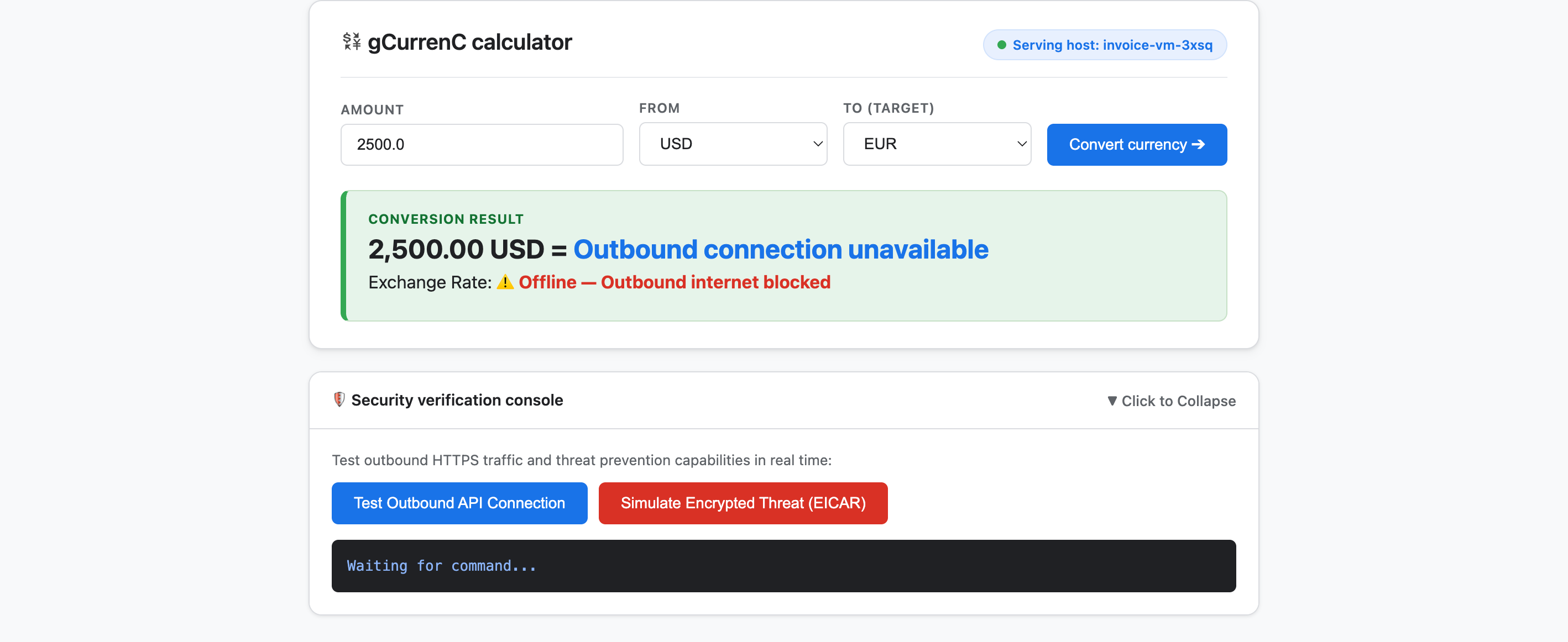
- ทดสอบแอปพลิเคชัน
- คลิกแปลงสกุลเงิน ผลลัพธ์การแปลงจะแสดง
Offline - Outbound internet blockedและOutbound connection unavailableผลลัพธ์นี้เป็นไปตามที่คาดไว้เนื่องจาก VM ส่วนตัวไม่สามารถเชื่อมต่ออินเทอร์เน็ตเพื่อดึงข้อมูลอัตราแลกเปลี่ยนล่าสุดได้ - ขยายคอนโซลการยืนยันความปลอดภัย แล้วคลิกทดสอบการเชื่อมต่อ API ขาออก เอาต์พุตจะแสดง
verdict: BLOCKED_OR_FAILED(https://api.frankfurter.dev/v1/latestผลลัพธ์นี้เป็นไปตามที่คาดไว้เนื่องจาก VM ส่วนตัวไม่สามารถเชื่อมต่ออินเทอร์เน็ตและดึงอัตราแลกเปลี่ยนจากhttps://api.frankfurter.dev/v1/latestได้ - คลิกจำลองภัยคุกคามที่เข้ารหัส (EICAR) นอกจากนี้ เอาต์พุตยังแสดง
verdict: BLOCKED_OR_FAILEDสำหรับhttps://secure.eicar.org/eicar.com.txtด้วย ผลลัพธ์นี้เป็นไปตามที่คาดไว้เนื่องจาก VM ส่วนตัวไม่มีการเชื่อมต่ออินเทอร์เน็ต
- คลิกแปลงสกุลเงิน ผลลัพธ์การแปลงจะแสดง
หยุดอุโมงค์ IAP ในเครื่อง
ก่อนออกแบบและติดตั้งใช้งานสถาปัตยกรรมความปลอดภัย ให้สิ้นสุดอุโมงค์ IAP ในเครื่องเพื่อเพิ่มพอร์ต 8080 โดยทำดังนี้
- ในโหมด
/goalให้เรียกใช้พรอมต์ต่อไปนี้Free up local port 8080 and terminate any running Google Cloud IAP tunnels (e.g., kill processes matching 'start-iap-tunnel' or listening on port 8080).8080ว่างอยู่
6. รักษาความปลอดภัยให้แอปพลิเคชัน
ในส่วนก่อนหน้านี้ คุณได้สร้าง VM ของ Compute Engine แบบส่วนตัวที่ไม่มีที่อยู่ IP สาธารณะ และยืนยันความท้าทายด้านเครือข่ายและการรักษาความปลอดภัยหลัก 2 ประการ ได้แก่
- การเข้าถึงขาเข้า (ขาเข้า): ผู้ใช้อินเทอร์เน็ตไม่สามารถเข้าถึงอินสแตนซ์ VM ส่วนตัวได้โดยตรง และการแสดงเว็บแอปพลิเคชันต้องใช้การรับส่งข้อมูลพร็อกซีผ่านตัวจัดสรรภาระงานแอปพลิเคชันภายนอกส่วนกลางและซับเน็ตเฉพาะพร็อกซีโดยเฉพาะ โดยไม่ต้องแสดง VM ต่ออินเทอร์เน็ตสาธารณะ
- การเข้าถึงขาออก (ขาออก): VM ส่วนตัวไม่มีเส้นทางไปยังอินเทอร์เน็ตเพื่อค้นหา API การแลกเปลี่ยนสกุลเงิน HTTPS แบบเรียลไทม์ และการเปิดใช้การเข้าถึงขาออกต้องมีการตรวจสอบการรับส่งข้อมูลที่เข้ารหัสเพื่อหามัลแวร์และการขโมยข้อมูลโดยไม่ทำลายความน่าเชื่อถือของ SSL/TLS
ในส่วนนี้ คุณจะแนะนำ Antigravity ผ่านเวิร์กโฟลว์ที่มีประสิทธิภาพซึ่งอิงตามเอกสารประกอบอย่างเป็นทางการของ Google Cloud (@retrieving-developer-knowledge) เพื่อออกแบบ ตรวจสอบตนเอง และติดตั้งใช้งานสถาปัตยกรรมความปลอดภัยขาเข้าและขาออกระดับโปรเจ็กต์สำหรับแอปพลิเคชันของคุณ
ออกแบบสถาปัตยกรรมความปลอดภัยแบบรวม
- ในโหมด
/goalให้เรียกใช้พรอมต์ต่อไปนี้เพื่อสร้างแผนภาพสถาปัตยกรรมแบบครบวงจรและคำอธิบายที่ครอบคลุมทั้งการไหลของการเข้าชมขาเข้าและขาออกYou are a Google Cloud Network and Security Architect. We need to design an end-to-end security architecture for our "gCurrenC calculator" app running on private Compute Engine VMs with no external IP addresses inside 'gcurrenc-vpc'. We are operating in a standalone Google Cloud project without an Organization resource, so all security resources must be scoped at the project level. Use the @retrieving-developer-knowledge skill to consult official Google Cloud documentation and suggest an architecture diagram and explanation covering both flows: 1. Ingress Flow: - How internet users securely reach the private VMs via a global external Application Load Balancer. - Why Envoy-based external Application Load Balancers require a dedicated proxy-only subnet, and how Google Front Ends (GFEs) proxy traffic to private backends without exposing VMs to the public internet. 2. Egress Flow: - How private VMs reach the internet via Cloud NAT to query live currency exchange APIs, such as frankfurter.dev. - How Cloud NGFW Enterprise provides Layer 7 deep packet inspection and intrusion prevention (IPS) for outbound encrypted HTTPS traffic. - How TLS inspection backed by Certificate Authority Service (CAS) decrypts outbound HTTPS sessions on the fly, and what Root CA trust configuration the private VMs require. Provide a clear diagram and explain how these components connect together.
สร้างโครงร่างแหล่งข้อมูลสถาปัตยกรรม
- ป้อนพรอมต์ต่อไปนี้เพื่อจัดโครงสร้างการออกแบบให้เป็นโครงร่างทรัพยากรระดับโปรเจ็กต์ที่จัดหมวดหมู่ก่อนสร้างสคริปต์การติดตั้งใช้งาน
Act as a Lead Network Security Architect. Using the @retrieving-developer-knowledge skill, provide an architectural outline of all the Google Cloud resources required to secure the "gCurrenC calculator" app.

Our starting state:
- The custom VPC ('gcurrenc-vpc'), workload subnet ('gcurrenc-app-subnet'), and 2-instance MIG ('gcurrenc-app-mig', port 8080) are already deployed.
- All newly added security components must be project-level resources (no organization resources).

Structure your resource outline into three distinct categories, indicating which resources are new additions:
1. Core VPC Infrastructure: proxy-only subnet ('gcurrenc-proxy-subnet', 10.10.2.0/24), Cloud Router, and Cloud NAT gateway.
2. Inbound security (ingress): global external ALB components (forwarding rule on port 443, target HTTPS proxy, SSL certificate, URL map, backend service attached to 'gcurrenc-app-mig' on port 8080, and HTTP health check on '/healthz') and ingress firewall rules.
3. Outbound security (egress): CAS DevOps CA pool and root CA, project-level Cloud NGFW Enterprise components (Threat Prevention profile, Security Profile Group, Firewall Endpoint in zone us-central1-a, and Endpoint Association attaching the TLS policy), and global network firewall policy egress rules.

For each resource, briefly state its role in the security boundary and how it connects to adjacent components.
สร้างและตรวจสอบสคริปต์การติดตั้งใช้งานด้วยตนเอง
- ในโหมด
/goalให้เรียกใช้พรอมต์ต่อไปนี้เพื่อสร้างสคริปต์การติดตั้งใช้งานbashแบบไม่โต้ตอบที่สมบูรณ์ และตรวจสอบตนเองโดยอัตโนมัติตามข้อกำหนดด้านการปฏิบัติตามข้อกำหนดในเทิร์นเดียวกันAct as a Principal Infrastructure Engineer. Using the @retrieving-developer-knowledge skill, generate a complete, non-interactive Bash script to deploy this entire security architecture for our "gCurrenC calculator" app, and self-audit the script before outputting it. Requirements: - Discover the project ID, region, and zone dynamically from the existing 'gcurrenc-app-subnet' and 'gcurrenc-app-mig'. - Keep all resources scoped strictly to the project level (no Organization resource). - Deploy the proxy-only subnet, global external Application Load Balancer, Cloud Router, and Cloud NAT. Don't use Cloud Armor. - Deploy project-level Cloud NGFW Enterprise with CAS TLS inspection ('--tls-inspect' on the firewall policy egress rule and 'gcloud beta' for the project-level firewall endpoint association) and an explicit DENY override for malware and antivirus threats. - Distribute the root CA to the private VMs over IAP SSH with connection timeouts so the guest OS trust store is updated. - Print the final Load Balancer URL ('https://${LB_IP}') at the end. Wrap the script in 'set -euxo pipefail' and output only the single executable bash script block.bashที่สมบูรณ์ ตรวจสอบคำสั่งทุกคำสั่งด้วยตนเองตามข้อจำกัดด้านการปฏิบัติตามข้อกำหนด และแสดงผลบล็อกสคริปต์ที่เรียกใช้ได้รายการเดียวที่รวมอยู่ในset -euxo pipefail
เรียกใช้สคริปต์การติดตั้งใช้งานด้านความปลอดภัย
- ในโหมด
/goalให้วางสคริปต์bashที่สร้างขึ้นจากพรอมต์ก่อนหน้าลงในหน้าต่างแชท Antigravity ในรูปแบบต่อไปนี้เพื่อเรียกใช้การติดตั้งใช้งานและแสดงผล URL ของแอปพลิเคชันที่ใช้งานอยู่ (https://<LB_IP>)Run this script. <PASTED-SCRIPT>
7. ยืนยันแอปพลิเคชันที่ปลอดภัย
เมื่อสคริปต์การติดตั้งใช้งานเสร็จสิ้น Antigravity จะแสดงผล HTTPS URL ภายนอกของตัวจัดสรรภาระงานแอปพลิเคชันภายนอกทั่วโลก (https://<LB_IP>)
- เปิด
https://<LB_IP>ในเว็บเบราว์เซอร์และข้ามคำเตือนใบรับรองที่รับรองด้วยตนเองของเบราว์เซอร์เพื่อโหลดอินเทอร์เฟซเครื่องคำนวณ gCurrenC: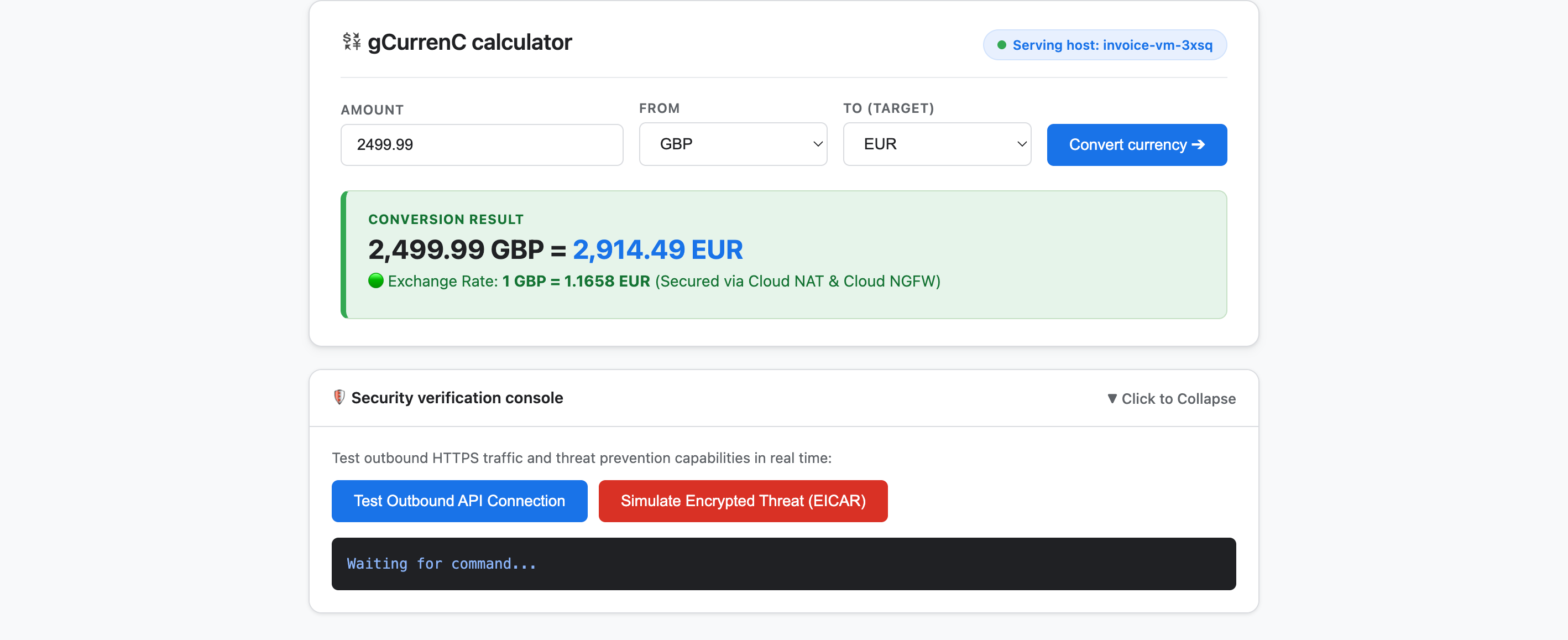
- ทดสอบแอปพลิเคชันเพื่อยืนยันทั้งการเชื่อมต่อขาออกและการป้องกันภัยคุกคาม
- คลิกแปลงสกุลเงิน แอปพลิเคชันจะแสดงอัตราแลกเปลี่ยนที่แปลงแล้วแบบเรียลไทม์ทันที ซึ่งจะช่วยยืนยันว่าการจัดสรรภาระงานขาเข้าจะกำหนดเส้นทางอย่างราบรื่นผ่าน Google Front End (GFE) และซับเน็ตเฉพาะพร็อกซี ขณะที่ Cloud NAT จะดึงข้อมูลอัตราแลกเปลี่ยนแบบเรียลไทม์จาก
api.frankfurter.dev - ขยายคอนโซลการยืนยันความปลอดภัย แล้วคลิกทดสอบการเชื่อมต่อ API ขาออก แอปพลิเคชันจะแสดง
verdict: PERMITTED(HTTP 200) ซึ่งเป็นการยืนยันว่าการกำหนดเส้นทาง Cloud NAT ทำงานได้ และระบบปฏิบัติการของ VM เชื่อถือ CA รูท CAS ส่วนตัวสำหรับเซสชัน HTTPS ที่ถอดรหัสแล้ว - คลิกจำลองภัยคุกคามที่เข้ารหัส (EICAR) แอปพลิเคชันจะแสดง
verdict: PERMITTEDซึ่งเป็นการยืนยันว่า Cloud NGFW Enterprise ถอดรหัสคำขอ HTTPS ขาออกโดยใช้การตรวจสอบ TLS ที่สนับสนุนโดย CAS และตรวจสอบลายเซ็นทดสอบ EICAR ด้วยบริการป้องกันการบุกรุก (IPS)
- คลิกแปลงสกุลเงิน แอปพลิเคชันจะแสดงอัตราแลกเปลี่ยนที่แปลงแล้วแบบเรียลไทม์ทันที ซึ่งจะช่วยยืนยันว่าการจัดสรรภาระงานขาเข้าจะกำหนดเส้นทางอย่างราบรื่นผ่าน Google Front End (GFE) และซับเน็ตเฉพาะพร็อกซี ขณะที่ Cloud NAT จะดึงข้อมูลอัตราแลกเปลี่ยนแบบเรียลไทม์จาก
8. ล้างข้อมูล
เพื่อหลีกเลี่ยงไม่ให้เกิดค่าใช้จ่ายต่อเนื่องในบัญชี Google Cloud สำหรับทรัพยากรที่สร้างใน Codelab นี้ คุณสามารถลบเฉพาะทรัพยากร Codelab หรือลบโปรเจ็กต์ที่อยู่ในระบบคลาวด์ Google Cloud ก็ได้
- หากต้องการเก็บโปรเจ็กต์ที่อยู่ในระบบคลาวด์ Google ไว้และนำเฉพาะทรัพยากรที่สร้างขึ้นระหว่าง Codelab นี้ออก ให้เรียกใช้พรอมต์ต่อไปนี้ในโหมด
/goalในหน้าต่างแชท AntigravityRemove all resources created in this session, including the gcurrenc app and its resources. Don't delete the project. - หากคุณสร้างโปรเจ็กต์ที่อยู่ในระบบคลาวด์ Google โดยเฉพาะสำหรับ Codelab นี้และต้องการลบทั้งโปรเจ็กต์ ให้เรียกใช้พรอมต์ต่อไปนี้ในโหมด
/goalในหน้าต่างแชท AntigravityClean up the demo environment by deleting the Google Cloud project. Run the following command in the terminal: gcloud projects delete "$(gcloud config get-value project 2>/dev/null)" --quiet
9. ขอแสดงความยินดี
ยินดีด้วย คุณได้ติดตั้งใช้งานและรักษาความปลอดภัยเว็บแอปพลิเคชัน gCurrenC calculator ใน Google Cloud โดยใช้ปลั๊กอิน Google Cloud Developer (เซิร์ฟเวอร์ DK MCP) ใน Google Antigravity
ขั้นตอนถัดไป
ดูเอกสารประกอบอย่างเป็นทางการของ Google Cloud เพื่อดูข้อมูลเพิ่มเติมเกี่ยวกับบริการที่ใช้ใน Codelab นี้