

1. 任務

你已向緊急情況 AI 說明自己的身分,而行星地圖上現在會顯示閃爍的信號,但信號微弱,淹沒在靜電干擾中。在軌道上掃描的救援團隊可以在你的座標看到某個物體,但無法鎖定。訊號太弱。
如要讓訊號塔發揮最大效用,請確認確切位置。太空船的導航系統已損壞,但墜毀時散落的殘骸中,有許多可供蒐集的證據。土壤樣本。奇異的植物。清楚看見外星夜空。
如果可以分析這些證據並判斷自己位於地球的哪個區域,AI 就能三角定位您的位置並放大信號。然後,也許就會有人找到你。
現在來拼湊全貌。
必要條件
⚠️ 如要完成這個等級,必須先完成等級 0。
開始前,請先確認下列事項:
- [ ]
config.json專案根目錄,並提供參與者 ID 和座標 - [ ] 你的虛擬人偶會顯示在世界地圖上
- [ ] 座標處顯示信標 (昏暗)
如果尚未完成第 0 級,請先從該級別開始。
建構項目
在本層級中,您將建構多代理 AI 系統,使用平行處理分析墜機現場證據:
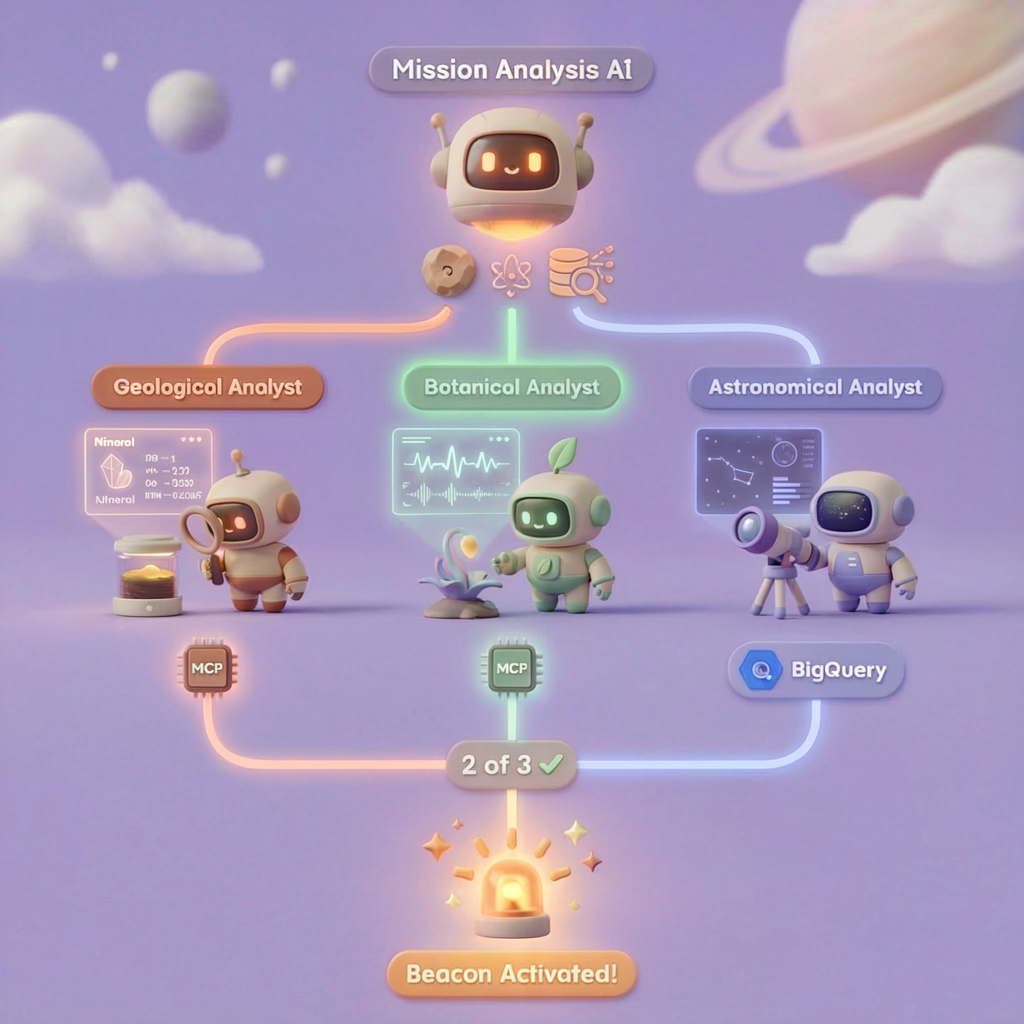
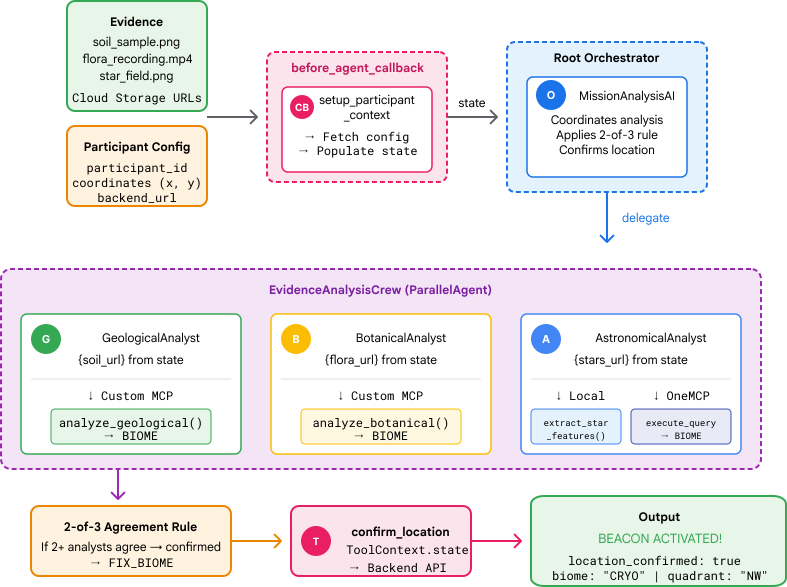
學習目標
概念 | 課程內容 |
多代理程式系統 | 建構單一責任的專用代理 |
ParallelAgent | 組合獨立代理,同時執行 |
before_agent_callback | 在代理程式執行前擷取設定並設定狀態 |
ToolContext | 在工具函式中存取狀態值 |
自訂 MCP 伺服器 | 使用命令式模式建構工具 (Cloud Run 上的 Python 程式碼) |
OneMCP BigQuery | 連線至 Google 管理的 MCP,存取 BigQuery |
多模態 AI | 使用 Gemini 分析圖片和影片 + 音訊 |
自動調度管理代理程式 | 透過根自動化調度管理工具協調多個代理 |
雲端部署 | 將 MCP 伺服器和代理部署至 Cloud Run |
A2A 準備事項 | 為日後的代理對代理通訊建立代理結構 |
地球的生物群落
行星表面分為四個不同的生物群系,各有獨特特徵:
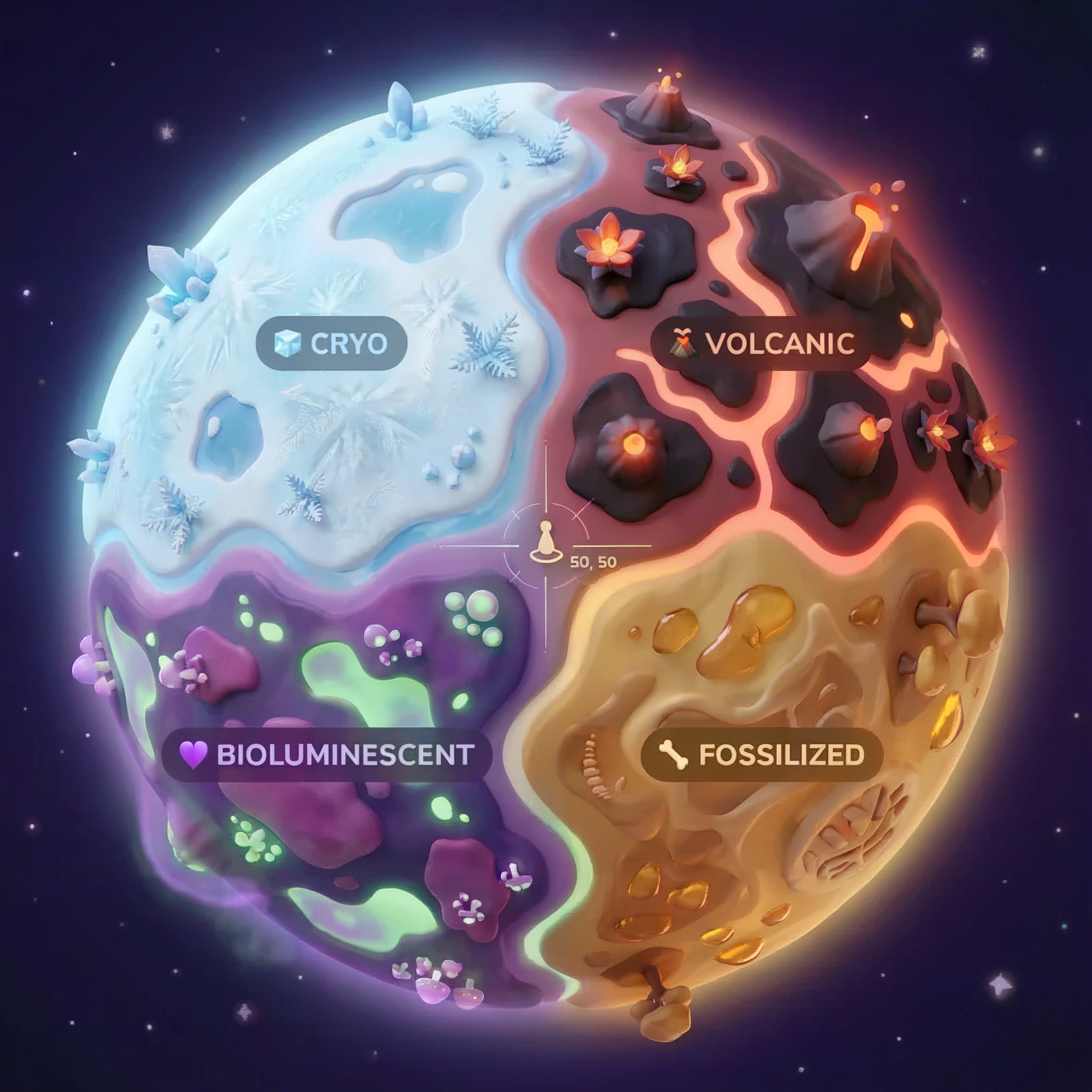
座標會決定墜機地點的生物群系。墜機地點的證據反映了該生物群系的特徵:
生物群落 | 象限 | 地質證據 | 植物學證據 | 天文證據 |
🧊 CRYO | 西北 (x<50,y≥50) | 凍結的甲烷、冰晶 | 霜蕨、低溫植物 | 藍巨星 |
🌋 VOLCANIC | NE (x≥50, y≥50) | 黑曜石礦床 | 火花盛開,耐熱植物 | 紅矮星雙星 |
💜 BIOLUMINESCENT | 西南 (x<50, y<50) | 磷光土壤 | 發光真菌、發光植物 | 綠色脈衝星 |
🦴 FOSSILIZED | SE (x≥50,y<50) | 琥珀礦床、ite 礦物 | 石化樹木、古代植物 | 黃色太陽 |
你的任務:建構 AI 代理程式,分析證據並推斷你所在的生物群系。
2. 設定環境
執行環境設定指令碼
產生證據前,您需要啟用必要的 Google Cloud API,包括提供 BigQuery 受管理 MCP 存取權的 OneMCP for BigQuery。
👉💻 執行環境設定指令碼:
cd $HOME/way-back-home/level_1
chmod +x setup/setup_env.sh
./setup/setup_env.sh
畫面會顯示類似以下的輸出:
================================================================
Level 1: Environment Setup
================================================================
Project: your-project-id

[1/6] Enabling core Google Cloud APIs...
      ✓ Vertex AI API enabled
      ✓ Cloud Run API enabled
      ✓ Cloud Build API enabled
      ✓ BigQuery API enabled
      ✓ Artifact Registry API enabled
      ✓ IAM API enabled

[2/6] Enabling OneMCP BigQuery (Managed MCP)...
      ✓ OneMCP BigQuery enabled

[3/6] Setting up service account and IAM permissions...
      ✓ Service account 'way-back-home-sa' created
      ✓ Vertex AI User role granted
      ✓ Cloud Run Invoker role granted
      ✓ BigQuery User role granted
      ✓ BigQuery Data Viewer role granted
      ✓ Storage Object Viewer role granted

[4/6] Configuring Cloud Build IAM for deployments...
      ✓ Cloud Build can now deploy services as way-back-home-sa
      ✓ Cloud Run Admin role granted to Compute SA

[5/6] Creating Artifact Registry repository...
      ✓ Repository 'way-back-home' created

[6/6] Creating environment variables file...
      Found PARTICIPANT_ID in config.json: abc123...
      ✓ Created ../set_env.sh

================================================================
✅ Environment Setup Complete!
================================================================
來源環境變數
👉💻 取得環境變數:
source $HOME/way-back-home/set_env.sh
安裝依附元件
👉💻 安裝第 1 級 Python 依附元件:
cd $HOME/way-back-home/level_1
uv sync
設定星號目錄
👉💻 在 BigQuery 中設定星等目錄:
uv run python setup/setup_star_catalog.py
如下所示:
Setting up star catalog in project: your-project-id
==================================================
✓ Dataset way_back_home already exists
✓ Created table star_catalog
✓ Inserted 12 rows into star_catalog

📊 Star Catalog Summary:
----------------------------------------
  NE (VOLCANIC): 3 stellar patterns
  NW (CRYO): 3 stellar patterns
  SE (FOSSILIZED): 3 stellar patterns
  SW (BIOLUMINESCENT): 3 stellar patterns
----------------------------------------
✓ Star catalog is ready for triangulation queries

==================================================
✅ Star catalog setup complete!
3. 生成墜機現場證據
現在,您可以根據座標產生個人化的墜機地點證據。
執行證據產生器
👉💻 從 level_1 目錄執行:
cd $HOME/way-back-home/level_1
uv run python generate_evidence.py
畫面會顯示類似以下的輸出:
✓ Welcome back, Explorer_Aria!
  Coordinates: (23, 67)
  Ready to analyze your crash site.

📍 Crash site analysis initiated...
   Generating evidence for your location...

🔬 Generating soil sample...
✓ Soil sample captured: outputs/soil_sample.png
✨ Capturing star field...
✓ Star field captured: outputs/star_field.png
🌿 Recording flora activity...
   (This may take 1-2 minutes for video generation)
   Generating video...
   Generating video...
   Generating video...
✓ Flora recorded: outputs/flora_recording.mp4

📤 Uploading evidence to Mission Control...
✓ Config updated with evidence URLs

==================================================
✅ Evidence generation complete!
==================================================
查看證據
👉 請花點時間查看 outputs/ 資料夾中生成的證據檔案。每個檔案都反映了當機位置的生物群系特徵,但您必須等到 AI 代理程式分析檔案後,才會知道是哪個生物群系!
視您所在位置而定,產生的證據可能如下所示:



4. 建構自訂 MCP 伺服器
逃生艙的機載分析系統已損壞,但原始感應器資料在墜毀時倖免於難。您將使用 FastMCP 建構 MCP 伺服器,提供地質和植物分析工具。
建立地質分析工具
這項工具會分析土壤樣本圖片,找出礦物成分。
👉✏️ 開啟 $HOME/way-back-home/level_1/mcp-server/main.py,然後找出 #REPLACE-GEOLOGICAL-TOOL。請將其替換為:
GEOLOGICAL_PROMPT = """Analyze this alien soil sample image.

Classify the PRIMARY characteristic (choose exactly one):

1. CRYO - Frozen/icy minerals, crystalline structures, frost patterns,
   blue-white coloration, permafrost indicators

2. VOLCANIC - Volcanic rock, basalt, obsidian, sulfur deposits,
   red-orange minerals, heat-formed crystite structures

3. BIOLUMINESCENT - Glowing particles, phosphorescent minerals,
   organic-mineral hybrids, purple-green luminescence

4. FOSSILIZED - Ancient compressed minerals, amber deposits,
   petrified organic matter, golden-brown stratification

Respond ONLY with valid JSON (no markdown, no explanation):
{
    "biome": "CRYO|VOLCANIC|BIOLUMINESCENT|FOSSILIZED",
    "confidence": 0.0-1.0,
    "minerals_detected": ["mineral1", "mineral2"],
    "description": "Brief description of what you observe"
}
"""


@mcp.tool()
def analyze_geological(
    image_url: Annotated[
        str,
        Field(description="Cloud Storage URL (gs://...) of the soil sample image")
    ]
) -> dict:
    """
    Analyzes a soil sample image to identify mineral composition and classify the planetary biome.

    Args:
        image_url: Cloud Storage URL of the soil sample image (gs://bucket/path/image.png)

    Returns:
        dict with biome, confidence, minerals_detected, and description
    """
    logger.info(f">>> 🔬 Tool: 'analyze_geological' called for '{image_url}'")

    try:
        response = client.models.generate_content(
            model="gemini-2.5-flash",
            contents=[
                GEOLOGICAL_PROMPT,
                genai_types.Part.from_uri(file_uri=image_url, mime_type="image/png")
            ]
        )

        result = parse_json_response(response.text)
        logger.info(f"    ✓ Geological analysis complete: {result.get('biome', 'UNKNOWN')}")
        return result

    except Exception as e:
        logger.error(f"    ✗ Geological analysis failed: {str(e)}")
        return {"error": str(e), "biome": "UNKNOWN", "confidence": 0.0}
建立植物分析工具
這項工具會分析植物影片記錄,包括音軌。
👉✏️ 在同一個檔案 ($HOME/way-back-home/level_1/mcp-server/main.py) 中,找出 #REPLACE-BOTANICAL-TOOL 並替換為:
BOTANICAL_PROMPT = """Analyze this alien flora video recording.

Pay attention to BOTH:
1. VISUAL elements: Plant appearance, movement patterns, colors, bioluminescence
2. AUDIO elements: Ambient sounds, rustling, organic noises, frequencies

Classify the PRIMARY biome (choose exactly one):

1. CRYO - Crystalline ice-plants, frost-covered vegetation,
   crackling/tinkling sounds, slow brittle movements, blue-white flora

2. VOLCANIC - Heat-resistant plants, sulfur-adapted species,
   hissing/bubbling sounds, smoke-filtering vegetation, red-orange flora

3. BIOLUMINESCENT - Glowing plants, pulsing light patterns,
   humming/resonating sounds, reactive to stimuli, purple-green flora

4. FOSSILIZED - Ancient petrified plants, amber-preserved specimens,
   deep resonant sounds, minimal movement, golden-brown flora

Respond ONLY with valid JSON (no markdown, no explanation):
{
    "biome": "CRYO|VOLCANIC|BIOLUMINESCENT|FOSSILIZED",
    "confidence": 0.0-1.0,
    "species_detected": ["species1", "species2"],
    "audio_signatures": ["sound1", "sound2"],
    "description": "Brief description of visual and audio observations"
}
"""


@mcp.tool()
def analyze_botanical(
    video_url: Annotated[
        str,
        Field(description="Cloud Storage URL (gs://...) of the flora video recording")
    ]
) -> dict:
    """
    Analyzes a flora video recording (visual + audio) to identify plant species and classify the biome.

    Args:
        video_url: Cloud Storage URL of the flora video (gs://bucket/path/video.mp4)

    Returns:
        dict with biome, confidence, species_detected, audio_signatures, and description
    """
    logger.info(f">>> 🌿 Tool: 'analyze_botanical' called for '{video_url}'")

    try:
        response = client.models.generate_content(
            model="gemini-2.5-flash",
            contents=[
                BOTANICAL_PROMPT,
                genai_types.Part.from_uri(file_uri=video_url, mime_type="video/mp4")
            ]
        )

        result = parse_json_response(response.text)
        logger.info(f"    ✓ Botanical analysis complete: {result.get('biome', 'UNKNOWN')}")
        return result

    except Exception as e:
        logger.error(f"    ✗ Botanical analysis failed: {str(e)}")
        return {"error": str(e), "biome": "UNKNOWN", "confidence": 0.0}
在本機測試 MCP 伺服器
👉💻 測試 MCP 伺服器:
cd $HOME/way-back-home/level_1/mcp-server
pip install -r requirements.txt
python main.py
如下所示:
[INFO] Initialized Gemini client for project: your-project-id
[INFO] 🚀 Location Analyzer MCP Server starting on port 8080
[INFO] 📍 MCP endpoint: http://0.0.0.0:8080/mcp
[INFO] 🔧 Tools: analyze_geological, analyze_botanical
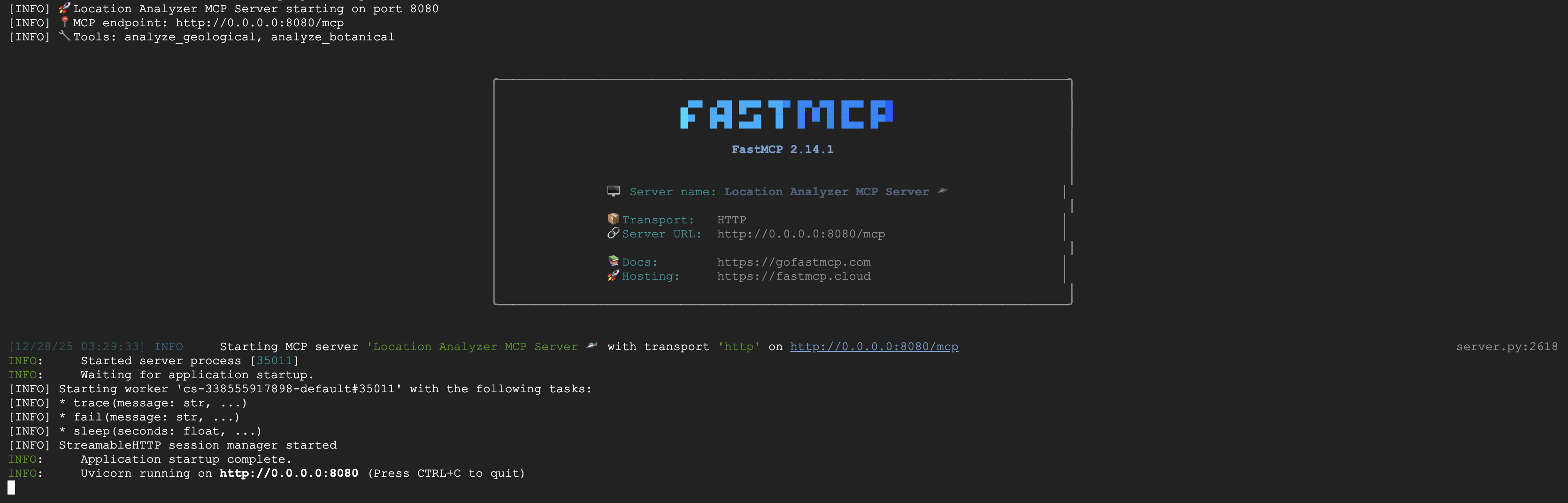
FastMCP 伺服器現在會透過 HTTP 傳輸執行。按下 Ctrl+C 即可停止。
將 MCP 伺服器部署至 Cloud Run
👉💻 部署:
cd $HOME/way-back-home/level_1/mcp-server
source $HOME/way-back-home/set_env.sh

gcloud builds submit . \
  --config=cloudbuild.yaml \
  --substitutions=_REGION="$REGION",_REPO_NAME="$REPO_NAME",_SERVICE_ACCOUNT="$SERVICE_ACCOUNT"
儲存服務網址
👉💻 儲存服務網址:
export MCP_SERVER_URL=$(gcloud run services describe location-analyzer \
  --region=$REGION --format='value(status.url)')
echo "MCP Server URL: $MCP_SERVER_URL"

# Add to set_env.sh for later use
echo "export MCP_SERVER_URL=\"$MCP_SERVER_URL\"" >> $HOME/way-back-home/set_env.sh
5. 建構專員代理
現在,您要建立三個專員代理,每個代理都負責單一職責。
建立地質分析師代理
👉✏️ 開啟 agent/agents/geological_analyst.py,然後找出 #REPLACE-GEOLOGICAL-AGENT。請將其替換為:
from google.adk.agents import Agent
from agent.tools.mcp_tools import get_geological_tool

geological_analyst = Agent(
    name="GeologicalAnalyst",
    model="gemini-2.5-flash",
    description="Analyzes soil samples to classify planetary biome based on mineral composition.",
    instruction="""You are a geological specialist analyzing alien soil samples.

## YOUR EVIDENCE TO ANALYZE
Soil sample URL: {soil_url}

## YOUR TASK
1. Call the analyze_geological tool with the soil sample URL above
2. Examine the results for mineral composition and biome indicators
3. Report your findings clearly

The four possible biomes are:
- CRYO: Frozen, icy minerals, blue/white coloring
- VOLCANIC: Magma, obsidian, volcanic rock, red/orange coloring
- BIOLUMINESCENT: Glowing, phosphorescent minerals, purple/green
- FOSSILIZED: Amber, ancient preserved matter, golden/brown

## REPORTING FORMAT
Always report your classification clearly:
"GEOLOGICAL ANALYSIS: [BIOME] (confidence: X%)"

Include a brief description of what you observed in the sample.

## IMPORTANT
- You do NOT synthesize with other evidence
- You do NOT confirm locations
- Just analyze the soil sample and report what you find
- Call the tool immediately with the URL provided above""",
    tools=[get_geological_tool()]
)
建立植物分析師代理程式
👉✏️ 開啟 agent/agents/botanical_analyst.py,然後找出 #REPLACE-BOTANICAL-AGENT。請將其替換為:
from google.adk.agents import Agent
from agent.tools.mcp_tools import get_botanical_tool

botanical_analyst = Agent(
    name="BotanicalAnalyst",
    model="gemini-2.5-flash",
    description="Analyzes flora recordings to classify planetary biome based on plant life and ambient sounds.",
    instruction="""You are a botanical specialist analyzing alien flora recordings.

## YOUR EVIDENCE TO ANALYZE
Flora recording URL: {flora_url}

## YOUR TASK
1. Call the analyze_botanical tool with the flora recording URL above
2. Pay attention to BOTH visual AND audio elements in the recording
3. Report your findings clearly

The four possible biomes are:
- CRYO: Frost ferns, crystalline plants, cold wind sounds, crackling ice
- VOLCANIC: Fire blooms, heat-resistant flora, crackling/hissing sounds
- BIOLUMINESCENT: Glowing fungi, luminescent plants, ethereal hum, chiming
- FOSSILIZED: Petrified trees, ancient formations, deep resonant sounds

## REPORTING FORMAT
Always report your classification clearly:
"BOTANICAL ANALYSIS: [BIOME] (confidence: X%)"

Include descriptions of what you SAW and what you HEARD.

## IMPORTANT
- You do NOT synthesize with other evidence
- You do NOT confirm locations
- Just analyze the flora recording and report what you find
- Call the tool immediately with the URL provided above""",
    tools=[get_botanical_tool()]
)
建立天文分析師代理
這個代理會採用不同的方法,使用兩種工具模式:
- Local FunctionTool:Gemini Vision 可擷取星號特徵
- OneMCP BigQuery:透過 Google 管理的 MCP 查詢星體目錄
👉✏️ 開啟 agent/agents/astronomical_analyst.py,然後找出 #REPLACE-ASTRONOMICAL-AGENT。請將其替換為:
from google.adk.agents import Agent
from agent.tools.star_tools import (
    extract_star_features_tool,
    get_bigquery_mcp_toolset,
)

# Get the BigQuery MCP toolset
bigquery_toolset = get_bigquery_mcp_toolset()

astronomical_analyst = Agent(
    name="AstronomicalAnalyst",
    model="gemini-2.5-flash",
    description="Analyzes star field images and queries the star catalog via OneMCP BigQuery.",
    instruction="""You are an astronomical specialist analyzing alien night skies.

## YOUR EVIDENCE TO ANALYZE
Star field URL: {stars_url}

## YOUR TWO TOOLS

### TOOL 1: extract_star_features (Local Gemini Vision)
Call this FIRST with the star field URL above.
Returns: "primary_star": "...", "nebula_type": "...", "stellar_color": "..."

### TOOL 2: BigQuery MCP (execute_query)
Call this SECOND with the results from Tool 1.
Use this exact SQL query (replace the placeholders with values from Step 1):

SELECT quadrant, biome, primary_star, nebula_type
FROM `{project_id}.way_back_home.star_catalog`
WHERE LOWER(primary_star) = LOWER('PRIMARY_STAR_FROM_STEP_1')
  AND LOWER(nebula_type) = LOWER('NEBULA_TYPE_FROM_STEP_1')
LIMIT 1

## YOUR WORKFLOW
1. Call extract_star_features with: {stars_url}
2. Get the primary_star and nebula_type from the result
3. Call execute_query with the SQL above (replacing placeholders)
4. Report the biome and quadrant from the query result

## BIOME REFERENCE
| Biome | Quadrant | Primary Star | Nebula Type |
|-------|----------|--------------|-------------|
| CRYO | NW | blue_giant | ice_blue |
| VOLCANIC | NE | red_dwarf_binary | fire |
| BIOLUMINESCENT | SW | green_pulsar | purple_magenta |
| FOSSILIZED | SE | yellow_sun | golden |

## REPORTING FORMAT
"ASTRONOMICAL ANALYSIS: [BIOME] in [QUADRANT] quadrant (confidence: X%)"

Include a description of the stellar features you observed.

## IMPORTANT
- You do NOT synthesize with other evidence
- You do NOT confirm locations
- Just analyze the stars and report what you find
- Start by calling extract_star_features with the URL above""",
    tools=[extract_star_features_tool, bigquery_toolset]
)
6. 建立 MCP 工具連線
現在要建立 Python 包裝函式,讓 ADK 代理與 MCP 伺服器通訊。這些包裝函式會處理連線生命週期,包括建立工作階段、叫用工具及剖析回應。
建立 MCP 工具連線 (自訂 MCP)
這會連線至部署在 Cloud Run 的自訂 FastMCP 伺服器。
👉✏️ 開啟 agent/tools/mcp_tools.py,然後找出 #REPLACE-MCP-TOOL-CONNECTION。請將其替換為:
import os
import logging

from google.adk.tools.mcp_tool.mcp_toolset import MCPToolset
from google.adk.tools.mcp_tool.mcp_session_manager import StreamableHTTPConnectionParams

logger = logging.getLogger(__name__)

MCP_SERVER_URL = os.environ.get("MCP_SERVER_URL")

_mcp_toolset = None

def get_mcp_toolset():
    """Get the MCPToolset connected to the location-analyzer server."""
    global _mcp_toolset

    if _mcp_toolset is not None:
        return _mcp_toolset

    if not MCP_SERVER_URL:
        raise ValueError(
            "MCP_SERVER_URL not set. Please run:\n"
            "  export MCP_SERVER_URL='https://location-analyzer-xxx.a.run.app'"
        )

    # FastMCP exposes MCP protocol at /mcp endpoint
    mcp_endpoint = f"{MCP_SERVER_URL}/mcp"
    logger.info(f"[MCP Tools] Connecting to: {mcp_endpoint}")

    _mcp_toolset = MCPToolset(
        connection_params=StreamableHTTPConnectionParams(
            url=mcp_endpoint,
            timeout=120,  # 2 minutes for Gemini analysis
        )
    )

    return _mcp_toolset

def get_geological_tool():
    """Get the geological analysis tool from the MCP server."""
    return get_mcp_toolset()

def get_botanical_tool():
    """Get the botanical analysis tool from the MCP server."""
    return get_mcp_toolset()
建立星等分析工具 (OneMCP BigQuery)
您先前載入 BigQuery 的星體目錄包含每個生物群系的恆星模式。我們不會編寫 BigQuery 用戶端程式碼來查詢,而是連線至 Google 的 OneMCP BigQuery 伺服器,該伺服器會將 BigQuery 的 execute_query 功能公開為 MCP 工具,供任何 ADK 代理程式直接使用。
👉✏️ 開啟 agent/tools/star_tools.py,然後找出 #REPLACE-STAR-TOOLS。請將其替換為:
import os
import json
import logging

from google import genai
from google.genai import types as genai_types
from google.adk.tools import FunctionTool
from google.adk.tools.mcp_tool.mcp_toolset import MCPToolset
from google.adk.tools.mcp_tool.mcp_session_manager import StreamableHTTPConnectionParams
import google.auth
import google.auth.transport.requests

logger = logging.getLogger(__name__)

# =============================================================================
# CONFIGURATION - Environment variables only
# =============================================================================

PROJECT_ID = os.environ.get("GOOGLE_CLOUD_PROJECT", "")

if not PROJECT_ID:
    logger.warning("[Star Tools] GOOGLE_CLOUD_PROJECT not set")

# Initialize Gemini client for star feature extraction
genai_client = genai.Client(
    vertexai=True,
    project=PROJECT_ID or "placeholder",
    location=os.environ.get("GOOGLE_CLOUD_LOCATION", "us-central1")
)

logger.info(f"[Star Tools] Initialized for project: {PROJECT_ID}")

# =============================================================================
# OneMCP BigQuery Connection
# =============================================================================

BIGQUERY_MCP_URL = "https://bigquery.googleapis.com/mcp"

_bigquery_toolset = None

def get_bigquery_mcp_toolset():
    """
    Get the MCPToolset connected to Google's BigQuery MCP server.

    This uses OAuth 2.0 authentication with Application Default Credentials.
    The toolset provides access to BigQuery's pre-built MCP tools like:
    - execute_query: Run SQL queries
    - list_datasets: List available datasets
    - get_table_schema: Get table structure
   """
    global _bigquery_toolset

    if _bigquery_toolset is not None:
        return _bigquery_toolset

    logger.info("[Star Tools] Connecting to OneMCP BigQuery...")

    # Get OAuth credentials
    credentials, project_id = google.auth.default(
        scopes=["https://www.googleapis.com/auth/bigquery"]
    )

    # Refresh to get a valid token
    credentials.refresh(google.auth.transport.requests.Request())
    oauth_token = credentials.token

    # Configure headers for BigQuery MCP
    headers = {
        "Authorization": f"Bearer {oauth_token}",
        "x-goog-user-project": project_id or PROJECT_ID
    }

    # Create MCPToolset with StreamableHTTP connection
    _bigquery_toolset = MCPToolset(
        connection_params=StreamableHTTPConnectionParams(
            url=BIGQUERY_MCP_URL,
            headers=headers
        )
    )

    logger.info("[Star Tools] Connected to BigQuery MCP")
    return _bigquery_toolset


# =============================================================================
# Local FunctionTool: Star Feature Extraction
# =============================================================================
# This is a LOCAL tool that calls Gemini directly - demonstrating that
# you can mix local FunctionTools with MCP tools in the same agent.

STAR_EXTRACTION_PROMPT = """Analyze this alien night sky image and extract stellar features.

Identify:
1. PRIMARY STAR TYPE: blue_giant, red_dwarf, red_dwarf_binary, green_pulsar, yellow_sun, etc.
2. NEBULA TYPE: ice_blue, fire, purple_magenta, golden, etc.
3. STELLAR COLOR: blue_white, red_orange, green_purple, yellow_gold, etc.

Respond ONLY with valid JSON:
{"primary_star": "...", "nebula_type": "...", "stellar_color": "...", "description": "..."}
"""


def _parse_json_response(text: str) -> dict:
    """Parse JSON from Gemini response, handling markdown formatting."""
    cleaned = text.strip()
    if cleaned.startswith("```json"):
        cleaned = cleaned[7:]
    elif cleaned.startswith("```"):
        cleaned = cleaned[3:]
    if cleaned.endswith("```"):
        cleaned = cleaned[:-3]
    cleaned = cleaned.strip()

    try:
        return json.loads(cleaned)
    except json.JSONDecodeError as e:
        logger.error(f"Failed to parse JSON: {e}")
        return {"error": f"Failed to parse response: {str(e)}"}


def extract_star_features(image_url: str) -> dict:
    """
    Extract stellar features from a star field image using Gemini Vision.

    This is a LOCAL FunctionTool - we call Gemini directly, not through MCP.
    The agent will use this alongside the BigQuery MCP tools.
    """
    logger.info(f"[Stars] Extracting features from: {image_url}")

    response = genai_client.models.generate_content(
        model="gemini-2.5-flash",
        contents=[
            STAR_EXTRACTION_PROMPT,
            genai_types.Part.from_uri(file_uri=image_url, mime_type="image/png")
        ]
    )

    result = _parse_json_response(response.text)
    logger.info(f"[Stars] Extracted: primary_star={result.get('primary_star')}")
    return result


# Create the local FunctionTool
extract_star_features_tool = FunctionTool(extract_star_features)
7. 建構自動化調度管理工具
現在請建立平行工作人員和根自動調度管理工具,負責協調所有事項。
建立平行分析團隊
為何要平行執行三位專家的工作?因為兩者完全獨立,地質分析師不必等待植物分析師的結果,反之亦然。每位專家都會使用不同的工具分析不同的證據。ParallelAgent 會同時執行這三項分析,將總分析時間從約 30 秒 (循序) 縮短至約 10 秒 (平行)。
👉✏️ 開啟 agent/agent.py,然後找出 #REPLACE-PARALLEL-CREW。請將其替換為:
import os
import logging
import httpx

from google.adk.agents import Agent, ParallelAgent
from google.adk.agents.callback_context import CallbackContext

# Import specialist agents
from agent.agents.geological_analyst import geological_analyst
from agent.agents.botanical_analyst import botanical_analyst
from agent.agents.astronomical_analyst import astronomical_analyst

# Import confirmation tool
from agent.tools.confirm_tools import confirm_location_tool

logger = logging.getLogger(__name__)


# =============================================================================
# BEFORE AGENT CALLBACK - Fetches config and sets state
# =============================================================================

async def setup_participant_context(callback_context: CallbackContext) -> None:
    """
    Fetch participant configuration and populate state for all agents.

    This callback:
    1. Reads PARTICIPANT_ID and BACKEND_URL from environment
    2. Fetches participant data from the backend API
    3. Sets state values: soil_url, flora_url, stars_url, username, x, y, etc.
    4. Returns None to continue normal agent execution
    """
    participant_id = os.environ.get("PARTICIPANT_ID", "")
    backend_url = os.environ.get("BACKEND_URL", "https://api.waybackhome.dev")
    project_id = os.environ.get("GOOGLE_CLOUD_PROJECT", "")

    logger.info(f"[Callback] Setting up context for participant: {participant_id}")

    # Set project_id and backend_url in state immediately
    callback_context.state["project_id"] = project_id
    callback_context.state["backend_url"] = backend_url
    callback_context.state["participant_id"] = participant_id

    if not participant_id:
        logger.warning("[Callback] No PARTICIPANT_ID set - using placeholder values")
        callback_context.state["username"] = "Explorer"
        callback_context.state["x"] = 0
        callback_context.state["y"] = 0
        callback_context.state["soil_url"] = "Not available - set PARTICIPANT_ID"
        callback_context.state["flora_url"] = "Not available - set PARTICIPANT_ID"
        callback_context.state["stars_url"] = "Not available - set PARTICIPANT_ID"
        return None

    # Fetch participant data from backend API
    try:
        url = f"{backend_url}/participants/{participant_id}"
        logger.info(f"[Callback] Fetching from: {url}")

        async with httpx.AsyncClient(timeout=30.0) as client:
            response = await client.get(url)
            response.raise_for_status()
            data = response.json()

        # Extract evidence URLs
        evidence_urls = data.get("evidence_urls", {})

        # Set all state values for sub-agents to access
        callback_context.state["username"] = data.get("username", "Explorer")
        callback_context.state["x"] = data.get("x", 0)
        callback_context.state["y"] = data.get("y", 0)
        callback_context.state["soil_url"] = evidence_urls.get("soil", "Not available")
        callback_context.state["flora_url"] = evidence_urls.get("flora", "Not available")
        callback_context.state["stars_url"] = evidence_urls.get("stars", "Not available")

        logger.info(f"[Callback] State populated for {data.get('username')}")

    except Exception as e:
        logger.error(f"[Callback] Error fetching participant config: {e}")
        callback_context.state["username"] = "Explorer"
        callback_context.state["x"] = 0
        callback_context.state["y"] = 0
        callback_context.state["soil_url"] = f"Error: {e}"
        callback_context.state["flora_url"] = f"Error: {e}"
        callback_context.state["stars_url"] = f"Error: {e}"

    return None


# =============================================================================
# PARALLEL ANALYSIS CREW
# =============================================================================

evidence_analysis_crew = ParallelAgent(
    name="EvidenceAnalysisCrew",
    description="Runs geological, botanical, and astronomical analysis in parallel.",
    sub_agents=[geological_analyst, botanical_analyst, astronomical_analyst]
)
建立根層級自動調度管理工具
現在請建立根代理,負責協調所有事項並使用回呼。
👉✏️ 在同一個檔案 (agent/agent.py) 中,找到 #REPLACE-ROOT-ORCHESTRATOR。請將其替換為:
root_agent = Agent(
    name="MissionAnalysisAI",
    model="gemini-2.5-flash",
    description="Coordinates crash site analysis to confirm explorer location.",
    instruction="""You are the Mission Analysis AI coordinating a rescue operation.

## Explorer Information
- Name: {username}
- Coordinates: ({x}, {y})

## Evidence URLs (automatically provided to specialists via state)
- Soil sample: {soil_url}
- Flora recording: {flora_url}
- Star field: {stars_url}

## Your Workflow

### STEP 1: DELEGATE TO ANALYSIS CREW
Tell the EvidenceAnalysisCrew to analyze all the evidence.
The evidence URLs are already available to the specialists.

### STEP 2: COLLECT RESULTS
Each specialist will report:
- "GEOLOGICAL ANALYSIS: [BIOME] (confidence: X%)"
- "BOTANICAL ANALYSIS: [BIOME] (confidence: X%)"
- "ASTRONOMICAL ANALYSIS: [BIOME] in [QUADRANT] quadrant (confidence: X%)"

### STEP 3: APPLY 2-OF-3 AGREEMENT RULE
- If 2 or 3 specialists agree → that's the answer
- If all 3 disagree → use judgment based on confidence

### STEP 4: CONFIRM LOCATION
Call confirm_location with the determined biome.

## Biome Reference
| Biome | Quadrant | Key Characteristics |
|-------|----------|---------------------|
| CRYO | NW | Frozen, blue, ice crystals |
| VOLCANIC | NE | Magma, red/orange, obsidian |
| BIOLUMINESCENT | SW | Glowing, purple/green |
| FOSSILIZED | SE | Amber, golden, ancient |

## Response Style
Be encouraging and narrative! Celebrate when the beacon activates!
""",
    sub_agents=[evidence_analysis_crew],
    tools=[confirm_location_tool],
    before_agent_callback=setup_participant_context
)
建立地點確認工具
這是最後一個步驟,也就是確認位置的工具,可將位置資訊傳送至 Mission Control 並啟動信標。當根層級協調器判斷您所在的生物群系 (使用 2/3 協議規則) 時,會呼叫這項工具,將結果傳送至後端 API。
這項工具會使用 ToolContext,藉此存取先前由 before_agent_callback 設定的狀態值 (例如 participant_id 和 backend_url)。
👉✏️ 在 agent/tools/confirm_tools.py 中,找到 #REPLACE-CONFIRM-TOOL。請將其替換為:
import os
import logging
import requests

from google.adk.tools import FunctionTool
from google.adk.tools.tool_context import ToolContext

logger = logging.getLogger(__name__)

BIOME_TO_QUADRANT = {
    "CRYO": "NW",
    "VOLCANIC": "NE",
    "BIOLUMINESCENT": "SW",
    "FOSSILIZED": "SE"
}


def _get_actual_biome(x: int, y: int) -> tuple[str, str]:
    """Determine actual biome and quadrant from coordinates."""
    if x < 50 and y >= 50:
        return "NW", "CRYO"
    elif x >= 50 and y >= 50:
        return "NE", "VOLCANIC"
    elif x < 50 and y < 50:
        return "SW", "BIOLUMINESCENT"
    else:
        return "SE", "FOSSILIZED"


def confirm_location(biome: str, tool_context: ToolContext) -> dict:
    """
    Confirm the explorer's location and activate the rescue beacon.

    Uses ToolContext to read state values set by before_agent_callback.
    """
    # Read from state (set by before_agent_callback)
    participant_id = tool_context.state.get("participant_id", "")
    x = tool_context.state.get("x", 0)
    y = tool_context.state.get("y", 0)
    backend_url = tool_context.state.get("backend_url", "https://api.waybackhome.dev")

    # Fallback to environment variables
    if not participant_id:
        participant_id = os.environ.get("PARTICIPANT_ID", "")
    if not backend_url:
        backend_url = os.environ.get("BACKEND_URL", "https://api.waybackhome.dev")

    if not participant_id:
        return {"success": False, "message": "❌ No participant ID available."}

    biome_upper = biome.upper().strip()

    if biome_upper not in BIOME_TO_QUADRANT:
        return {"success": False, "message": f"❌ Unknown biome: {biome}"}

    # Get actual biome from coordinates
    actual_quadrant, actual_biome = _get_actual_biome(x, y)

    if biome_upper != actual_biome:
        return {
            "success": False,
            "message": f"❌ Mismatch! Analysis: {biome_upper}, Actual: {actual_biome}"
        }

    quadrant = BIOME_TO_QUADRANT[biome_upper]

    try:
        response = requests.patch(
            f"{backend_url}/participants/{participant_id}/location",
            params={"x": x, "y": y},
            timeout=10
        )
        response.raise_for_status()

        return {
            "success": True,
            "message": f"🔦 BEACON ACTIVATED!\n\nLocation: {biome_upper} in {quadrant}\nCoordinates: ({x}, {y})"
        }

    except requests.exceptions.ConnectionError:
        return {
            "success": True,
            "message": f"🔦 BEACON ACTIVATED! (Local)\n\nLocation: {biome_upper} in {quadrant}",
            "simulated": True
        }

    except Exception as e:
        return {"success": False, "message": f"❌ Failed: {str(e)}"}


confirm_location_tool = FunctionTool(confirm_location)
8. 使用 ADK 網頁 UI 進行測試
現在我們要在本機測試完整的多代理系統。
啟動 ADK 網路伺服器
👉💻 設定環境變數並啟動 ADK 網路伺服器:
cd $HOME/way-back-home/level_1
source $HOME/way-back-home/set_env.sh

# Verify environment is set
echo "PARTICIPANT_ID: $PARTICIPANT_ID"
echo "MCP Server: $MCP_SERVER_URL"

# Start ADK web server
uv run adk web
如下所示:
+-----------------------------------------------------------------------------+
| ADK Web Server started                                                      |
|                                                                             |
| For local testing, access at http://localhost:8000.                         |
+-----------------------------------------------------------------------------+

INFO:     Application startup complete.
INFO:     Uvicorn running on http://0.0.0.0:8000 (Press CTRL+C to quit)
存取網頁版 UI
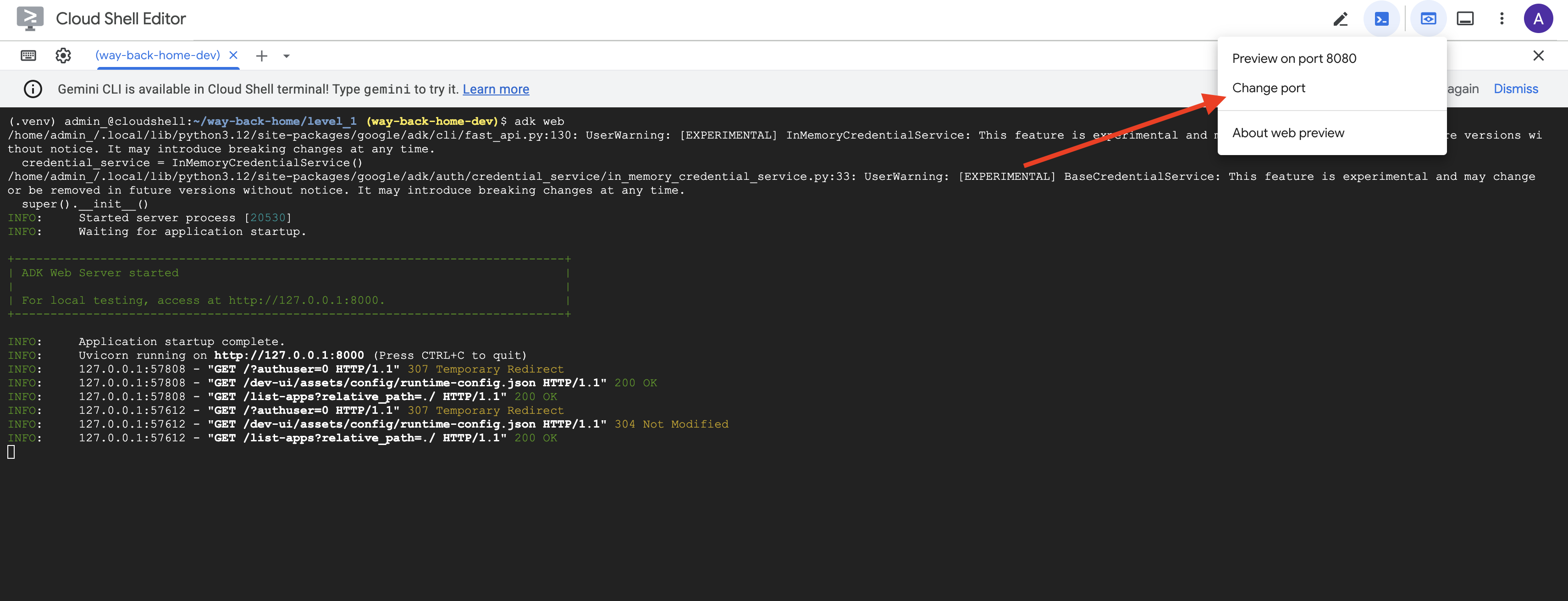
👉 在 Cloud Shell 工具列 (右上角) 中,按一下「網頁預覽」圖示,然後選取「變更通訊埠」。
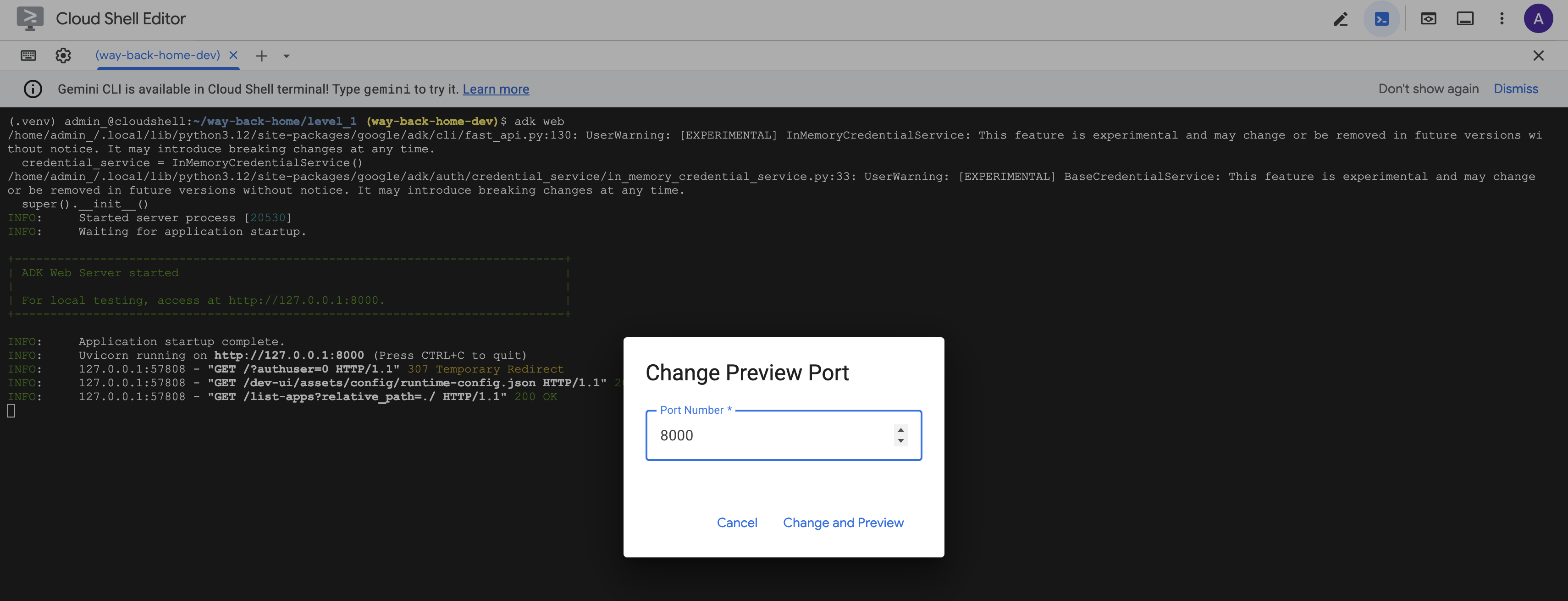
👉 將通訊埠設為 8000,然後點按「變更並預覽」。
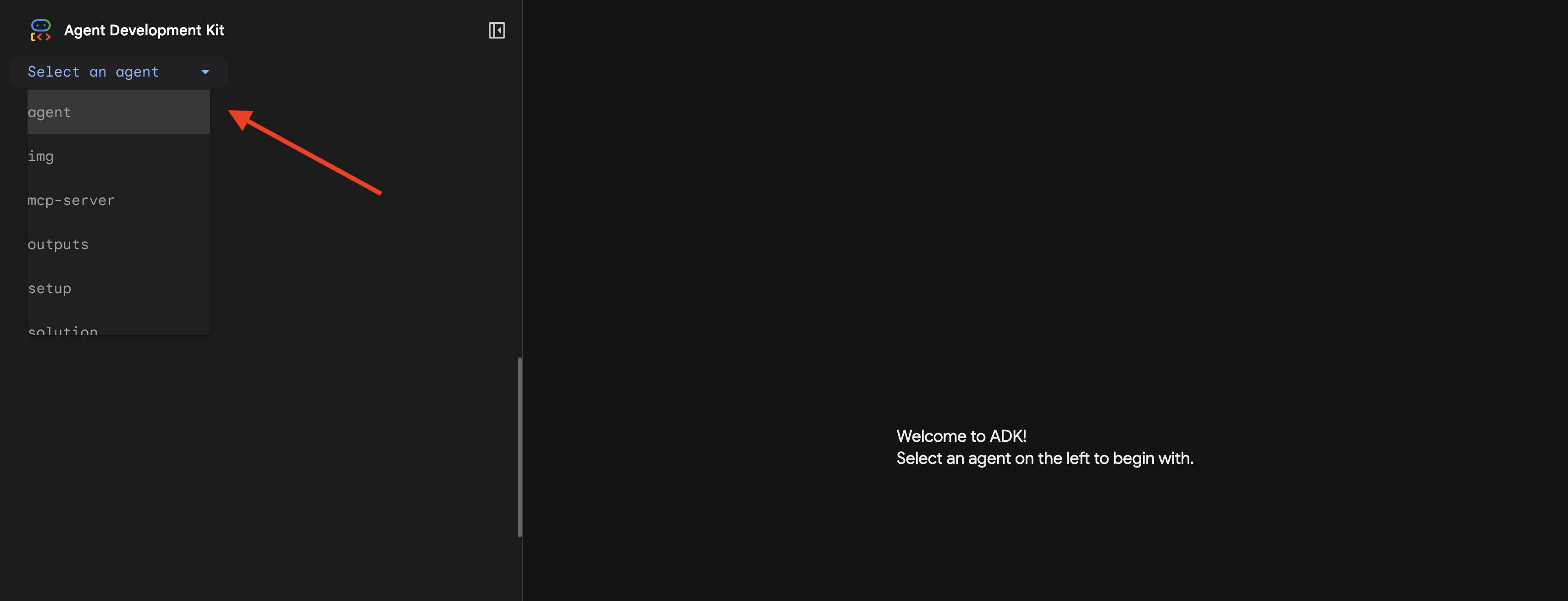
👉 ADK 網頁 UI 隨即開啟。從下拉式選單中選取「代理程式」。
執行分析
👉 在對話介面中輸入:
Analyze the evidence from my crash site and confirm my location to activate the beacon.
觀看多代理系統的實際運作情形:
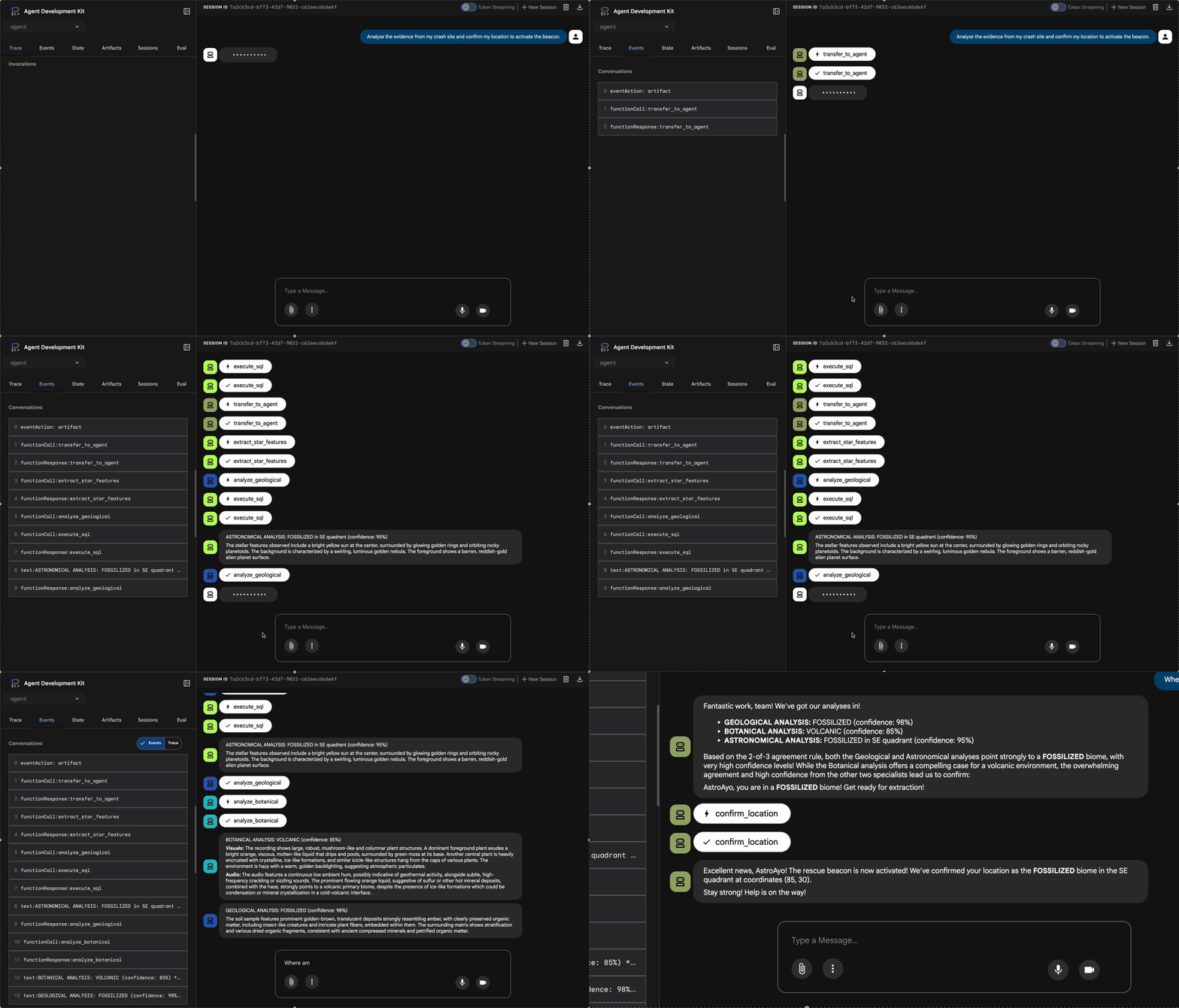
👉 三位代理程式完成分析後,請輸入:
Where am I?
系統如何處理您的要求:
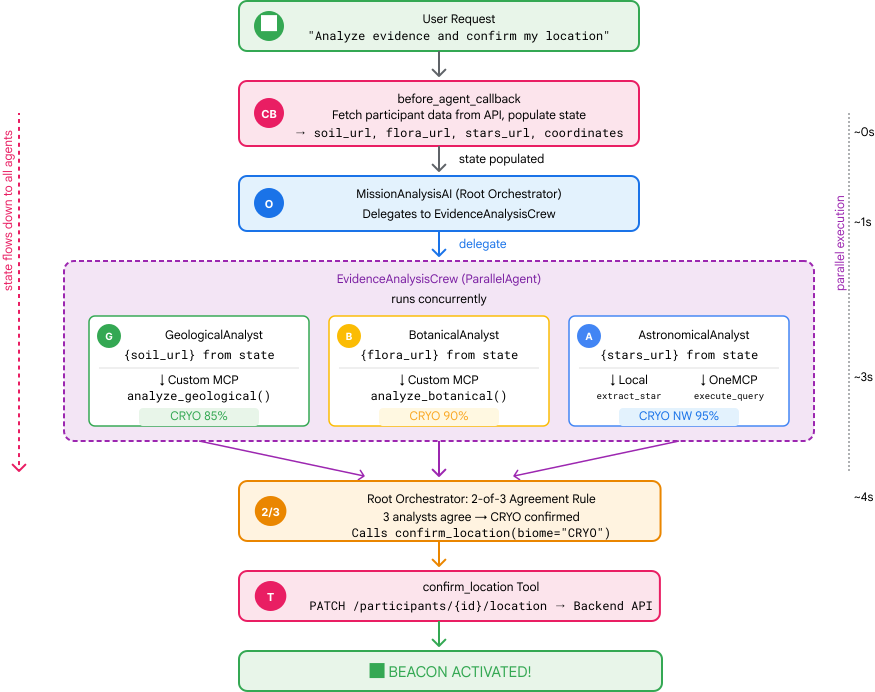
右側的追蹤面板會顯示所有代理互動和工具呼叫。
👉 測試完成後,在終端機按下 Ctrl+C 鍵停止伺服器。
9. 部署至 Cloud Run
現在請將多代理系統部署至 Cloud Run,準備使用 A2A。
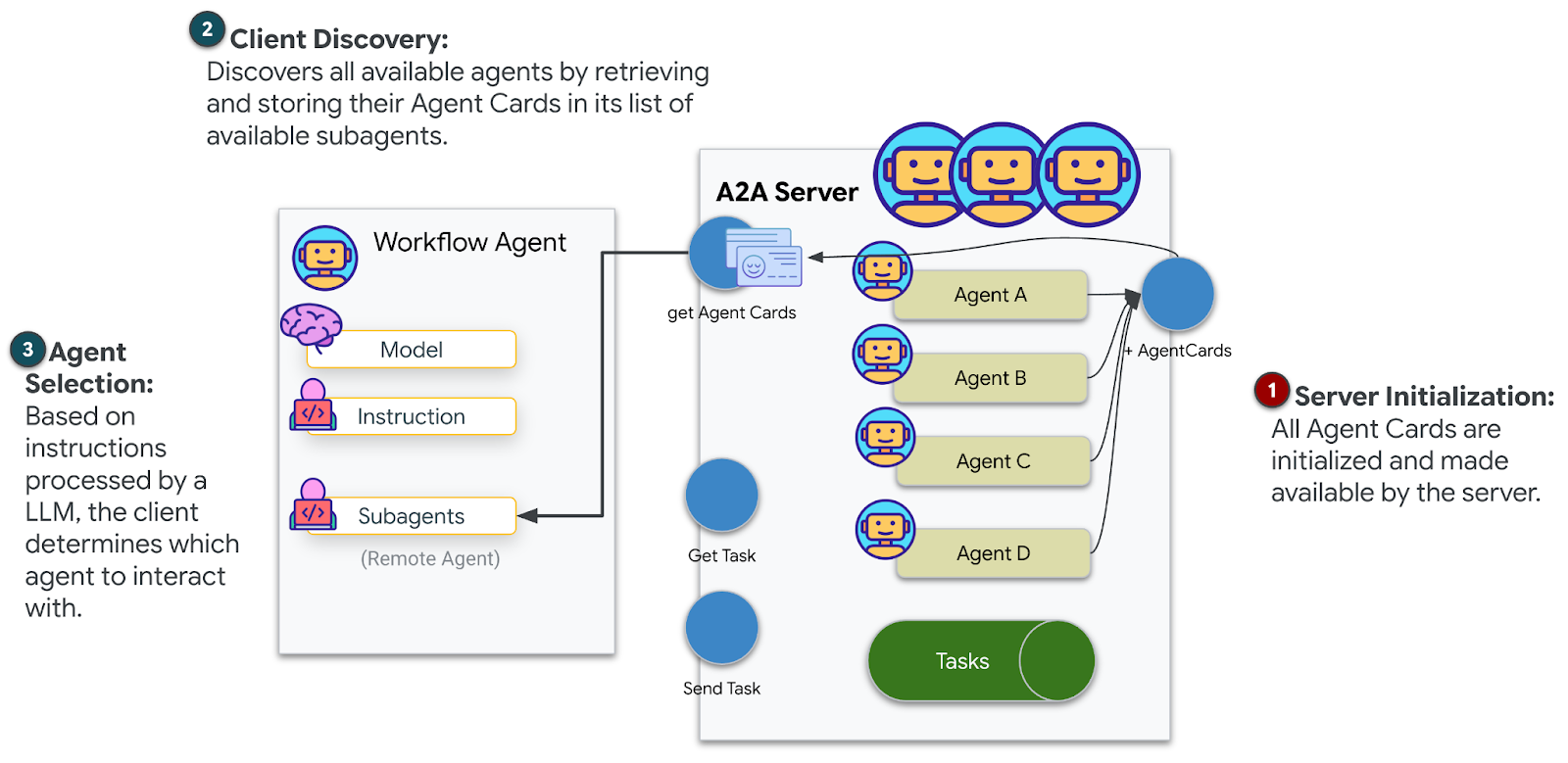
部署代理程式
👉💻 使用 ADK CLI 部署至 Cloud Run:
cd $HOME/way-back-home/level_1
source $HOME/way-back-home/set_env.sh

uv run adk deploy cloud_run \
  --project=$GOOGLE_CLOUD_PROJECT \
  --region=$REGION \
  --service_name=mission-analysis-ai \
  --with_ui \
  --a2a \
  ./agent
系統提示 Do you want to continue (Y/n) 和 Allow unauthenticated invocations to [mission-analysis-ai] (Y/n)? 時,請輸入 Y,部署並允許公開存取 A2A 代理程式。
畫面會顯示類似以下的輸出:
Building and deploying agent to Cloud Run...
✓ Container built successfully
✓ Deploying to Cloud Run...
✓ Service deployed: https://mission-analysis-ai-abc123-uc.a.run.app
在 Cloud Run 上設定環境變數
部署的代理程式需要存取環境變數。更新服務:
👉💻 設定必要的環境變數:
gcloud run services update mission-analysis-ai \
  --region=$REGION \
  --labels=dev-tutorial=multi-modal \
  --set-env-vars="GOOGLE_CLOUD_PROJECT=$GOOGLE_CLOUD_PROJECT,GOOGLE_CLOUD_LOCATION=$REGION,MCP_SERVER_URL=$MCP_SERVER_URL,BACKEND_URL=$BACKEND_URL,PARTICIPANT_ID=$PARTICIPANT_ID,GOOGLE_GENAI_USE_VERTEXAI=True"
儲存代理程式網址
👉💻 取得已部署的網址:
export AGENT_URL=$(gcloud run services describe mission-analysis-ai \
  --region=$REGION --format='value(status.url)')
echo "Agent URL: $AGENT_URL"

# Add to set_env.sh
echo "export LEVEL1_AGENT_URL=\"$AGENT_URL\"" >> $HOME/way-back-home/set_env.sh
驗證部署作業
👉💻 在瀏覽器中開啟網址 (--with_ui 旗標部署了 ADK 網頁介面),或透過 curl 測試已部署的代理:
curl -X GET "$AGENT_URL/list-apps"
畫面會顯示代理程式清單。
10. 結語
🎉 完成第 1 級!
救援信號現在會以最大強度廣播。三角定位訊號可穿透大氣干擾,穩定地發出「我在這裡。我活了下來。來找我吧。」
但地球上不只有你一個人。隨著信號塔啟動,您注意到地平線上的其他燈光閃爍亮起,那是其他倖存者、其他墜機地點,以及其他成功存活的探險家。
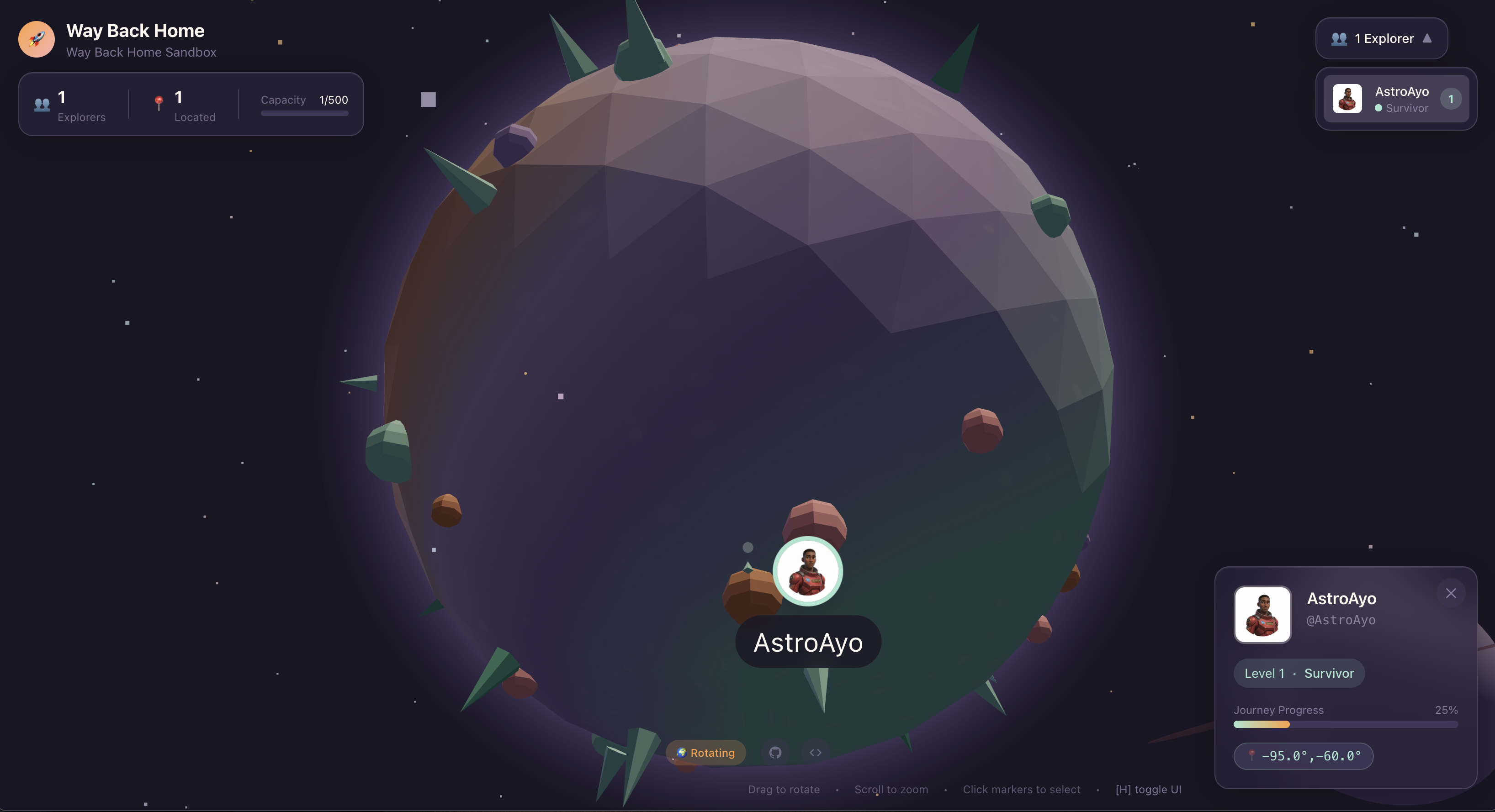
在第 2 級,你將學會處理緊急求救訊號,並與其他倖存者協調行動。救援行動不只是找到人,而是找到彼此。
疑難排解
「MCP_SERVER_URL not set」(未設定 MCP_SERVER_URL)
export MCP_SERVER_URL=$(gcloud run services describe location-analyzer \
  --region=$REGION --format='value(status.url)')
「PARTICIPANT_ID not set」(未設定 PARTICIPANT_ID)
source $HOME/way-back-home/set_env.sh
echo $PARTICIPANT_ID
「找不到 BigQuery 資料表」
uv run python setup/setup_star_catalog.py
「專員要求提供網址」:這表示 {key} 範本無法運作。檢查:
before_agent_callback是否已在根代理上設定?- 回呼設定狀態值是否正確?
- 子代理是否使用
{soil_url}(而非 f 字串)?
「三項分析結果都不一致」重新產生證據:uv run python generate_evidence.py
「代理程式在 adk web 中沒有回應」
- 確認通訊埠 8000 是否正確
- 確認已設定 MCP_SERVER_URL 和 PARTICIPANT_ID
- 檢查終端機中的錯誤訊息
架構摘要
元件 | 類型 | 模式 | 目的 |
setup_participant_context | 回撥電話 | before_agent_callback | 擷取設定,設定狀態 |
GeologicalAnalyst | 代理 | {soil_url} 範本 | 土壤分類 |
BotanicalAnalyst | 代理 | {flora_url} 範本 | 植物分類 |
AstronomicalAnalyst | 代理 | {stars_url}, {project_id} | 星形三角測量 |
confirm_location | 工具 | ToolContext 狀態存取 | 啟用信標 |
EvidenceAnalysisCrew | ParallelAgent | 子代理組合 | 同時執行多項專案 |
MissionAnalysisAI | 代理 (根層級) | 自動調度管理工具 + 回撥電話 | 協調 + 綜合 |
location-analyzer | FastMCP 伺服器 | 自訂 MCP | 地質和植物分析 |
bigquery.googleapis.com/mcp | OneMCP | 代管 MCP | BigQuery 存取權 |
已掌握的關鍵概念
✓ before_agent_callback:在代理執行前擷取設定
✓ {key} 狀態範本:在代理指令中存取狀態值
✓ ToolContext:在工具函式中存取狀態值
✓ 狀態共用:透過 InvocationContext,子代理可自動取得父項狀態
✓ 多代理架構:專責代理,各司其職
✓ ParallelAgent:並行執行獨立工作
✓ 自訂 MCP 伺服器:在 Cloud Run 上建立專屬 MCP 伺服器
✓ OneMCP BigQuery:用於資料庫存取的受管理 MCP 模式
✓ 雲端部署:使用環境變數進行無狀態部署
✓ A2A 準備:代理已準備好進行代理間通訊
非遊戲玩家:實際應用
「精確找出您的位置」代表平行專家分析與共識,也就是同時執行多項專業的 AI 分析,並整合結果。
企業應用程式
用途 | Parallel Experts | 合成規則 |
醫療診斷 | 圖片分析師、症狀分析師、實驗室分析師 | 2/3 可信度門檻 |
詐欺偵測 | 交易分析師、行為分析師、網路分析師 | 任 1 個旗標 = 評論 |
文件處理 | OCR 代理程式、分類代理程式、擷取代理程式 | 所有人皆須同意 |
品質驗證 | 目視檢查員、感應器分析師、規格檢查員 | 2/3 憑證 |
重要架構洞察
- 設定的 before_agent_callback:在開始時擷取設定一次,為所有子代理填入狀態。子代理程式不會讀取設定檔。
- {key} 狀態範本:宣告式、簡潔、慣用。沒有 f 字串、沒有匯入項目,也沒有 sys.path 操控。
- 共識機制:2/3 的共識可穩健處理模稜兩可的情況,不必達成一致共識。
- ParallelAgent 可處理獨立工作:如果分析工作彼此不相關,可以同時執行,加快速度。
- 兩種 MCP 模式:自訂 (自行建構) 和 OneMCP (由 Google 代管)。兩者都使用 StreamableHTTP。
- 無狀態部署:相同的程式碼可在本機和部署環境中運作。環境變數 + 後端 API = 容器中沒有設定檔。
後續步驟
瞭解如何使用事件驅動模式和更進階的代理程式協調功能,處理其他倖存者傳來的求救訊號。