

1. 總覽
什麼是 Document AI?
Document AI 是文件解讀解決方案,可擷取並處理文件、電子郵件、帳單和表單等非結構化資料,方便您解讀、分析和使用。Document AI API 會透過內容分類、實體擷取、進階搜尋等功能,將文件轉換成結構化資料。
在本實驗室中,您將瞭解如何使用 Python 搭配 Document AI API 來執行光學字元辨識。
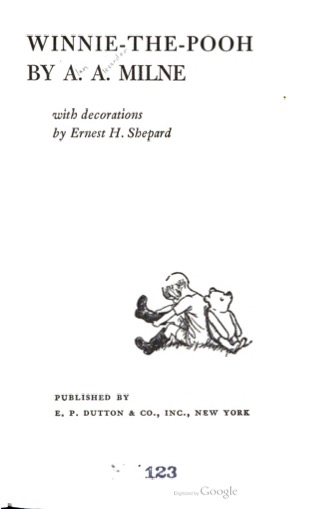
我們將使用艾倫.亞歷山大.米恩的經典小說《小熊維尼》的 PDF 檔,這本書最近成為美國公有領域資源。Google 圖書已掃描這個檔案並數位化。
課程內容
- 如何啟用 Document AI API
- 如何驗證 API 要求
- 如何安裝 Python 用戶端程式庫
- 如何使用線上和批次處理 API
- 如何剖析 PDF 檔中的文字
軟硬體需求
問卷調查
您會如何使用本教學課程?
你對 Python 的使用體驗如何?
您對使用 Google Cloud 服務的體驗滿意嗎?
2. 設定和需求
自修實驗室環境設定


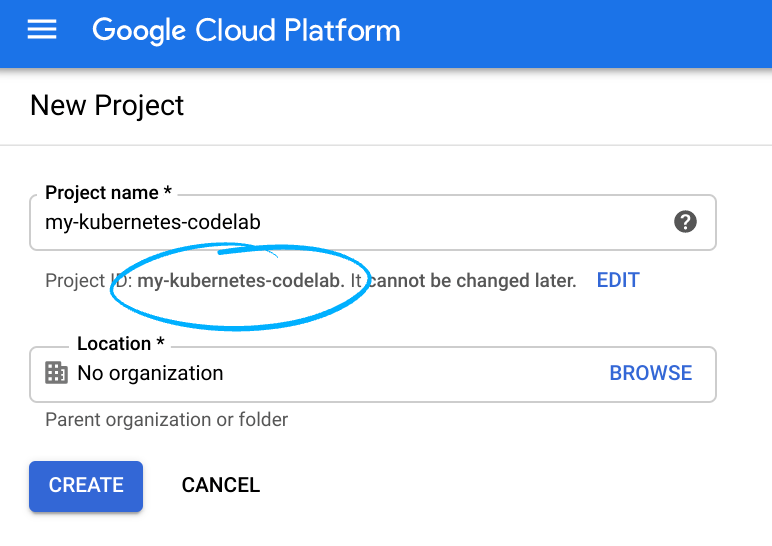
記住專案 ID,這是所有 Google Cloud 專案的專屬名稱。(上述專案 ID 已遭占用,無法使用,抱歉!)。您稍後必須提供此 ID 做為 PROJECT_ID。
- 接著,您必須在 Cloud 控制台中啟用帳單,才能使用 Google Cloud 資源。
完成活動後,請務必按照「清除」部分的指示操作,當中會說明如何停用資源,避免在本教學課程結束後繼續產生帳單費用。Google Cloud 新使用者可參加價值$300 美元的免費試用計畫。
啟動 Cloud Shell
您可以在 Google Cloud 中透過筆電遠端操作 Google Cloud,但本程式碼研究室會使用 Google Cloud Shell,這是可在雲端執行的指令列環境。
啟用 Cloud Shell
- 在 Cloud 控制台,點選「啟用 Cloud Shell」 圖示
。

如果您是首次啟動 Cloud Shell,系統會顯示中繼畫面 (位於摺疊式選單下方),說明這個指令列環境。點選「繼續」後,這則訊息日後就不會再出現。以下是這個初次畫面的樣子:
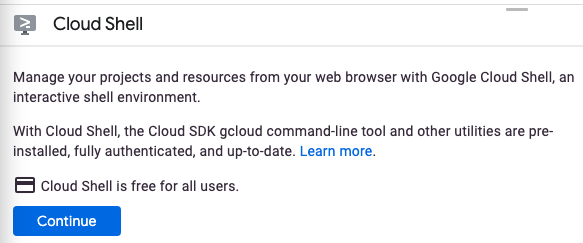
佈建並連至 Cloud Shell 預計只需要幾分鐘。

Cloud Shell 可讓您透過終端機存取雲端的虛擬機器。這部虛擬機器含有您需要的所有開發工具,並提供永久的 5GB 主目錄,而且可在 Google Cloud 運作,大幅提升網路效能並強化驗證功能。本程式碼研究室幾乎所有工作都可在瀏覽器上完成。
連至 Cloud Shell 後,您應該會看到驗證已完成,專案也已設為獲派的專案 ID。
- 在 Cloud Shell 中執行下列指令,確認您已通過驗證:
gcloud auth list
指令輸出
 Credentialed Accounts
ACTIVE  ACCOUNT
*      <my_account>@<my_domain.com>

To set the active account, run:
    $ gcloud config set account `ACCOUNT`
gcloud config list project
指令輸出
[core]
project = <PROJECT_ID>
如未設定,請輸入下列指令手動設定專案:
gcloud config set project <PROJECT_ID>
指令輸出
Updated property [core/project].
3. 啟用 Document AI API
您必須先啟用 API,才能使用 Document AI。您可以使用 gcloud 指令列介面或 Cloud 控制台完成這項操作。
使用 gcloud CLI
- 如果未使用 Cloud Shell,請按照「在本機安裝
gcloudCLI」中的步驟操作。 - 您可以使用下列
gcloud指令啟用 API。
gcloud services enable documentai.googleapis.com storage.googleapis.com
畫面應如下所示:
Operation "operations/..." finished successfully.
使用 Cloud Console
在瀏覽器中開啟 Cloud Console。
- 使用控制台頂端的搜尋列搜尋「Document AI API」,然後點按「啟用」,即可在 Google Cloud 專案中使用這個 API
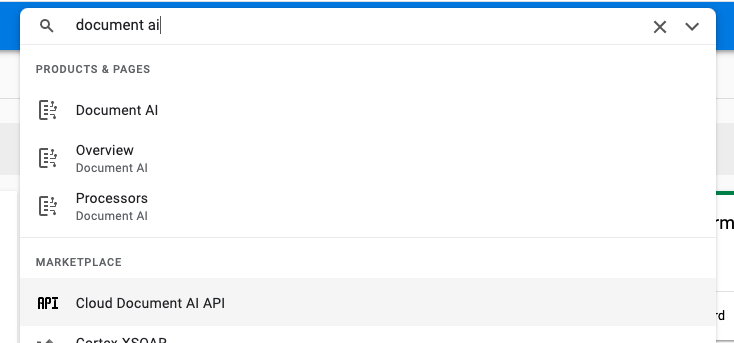
- 針對 Google Cloud Storage API 重複執行上一個步驟。
您現在可以使用 Document AI 了!
4. 建立及測試處理器
您必須先建立文件 OCR 處理器執行個體,才能執行擷取作業。您可以使用 Cloud 控制台或 Processor Management API 完成這項操作。
Cloud Console
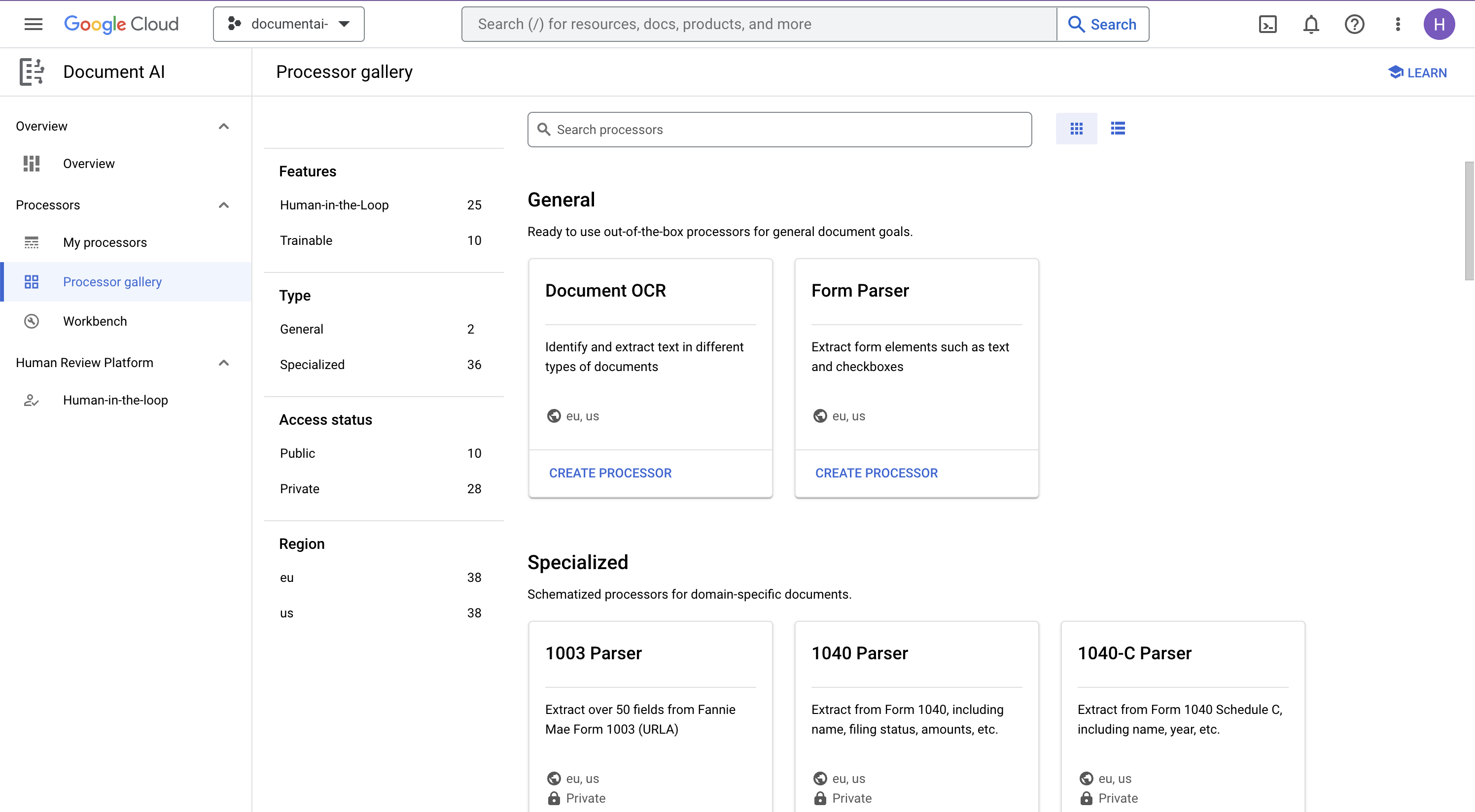
- 前往控制台的「Document AI Platform Overview」
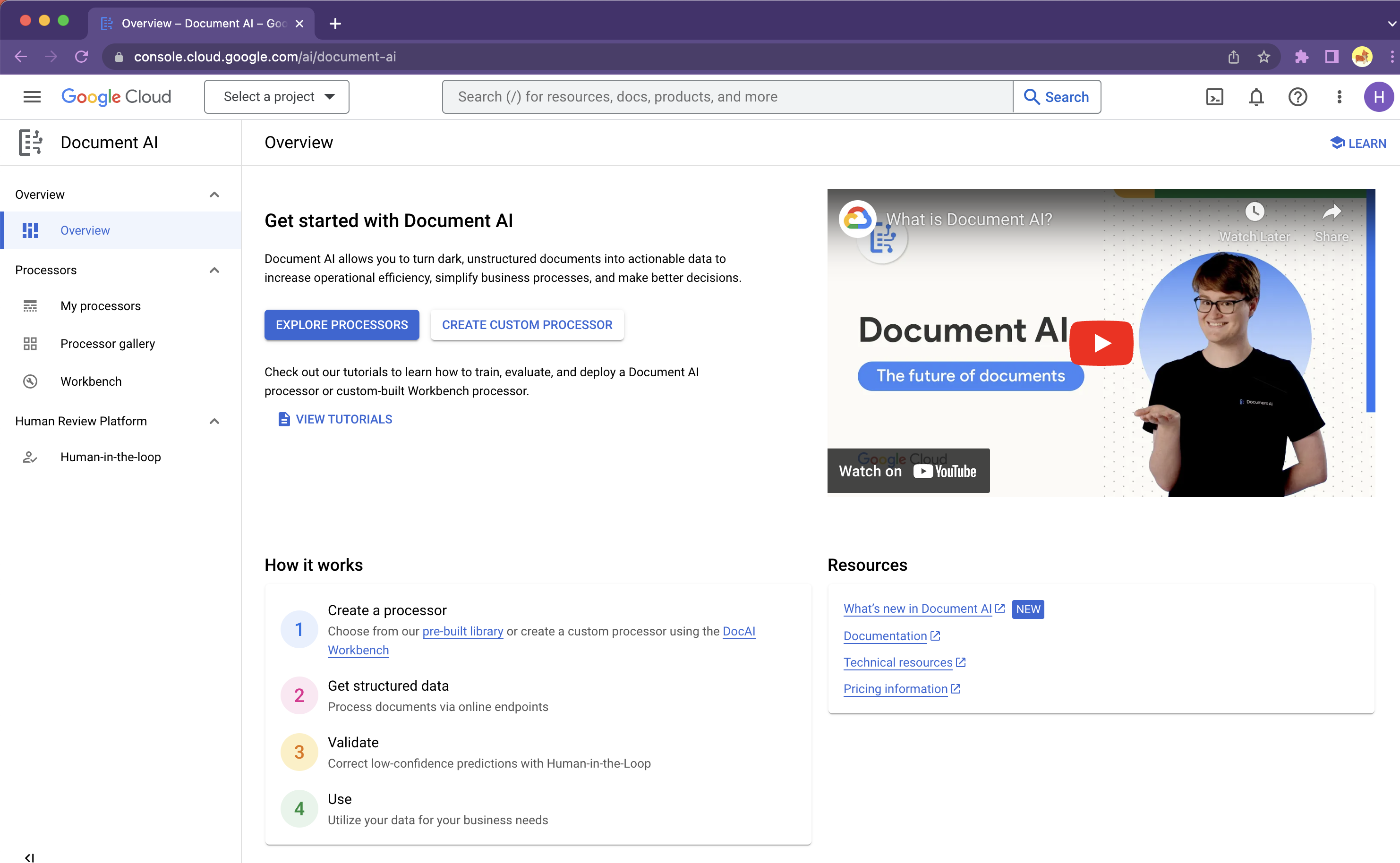
- 依序點按「探索處理器」>「Document OCR」
- 將名稱設為
codelab-ocr(或是您可以記住的其他名稱),然後從清單中選取最接近的區域。 - 點按「建立」即可建立處理器
- 複製處理器 ID。您稍後必須在程式碼中使用此 ID。
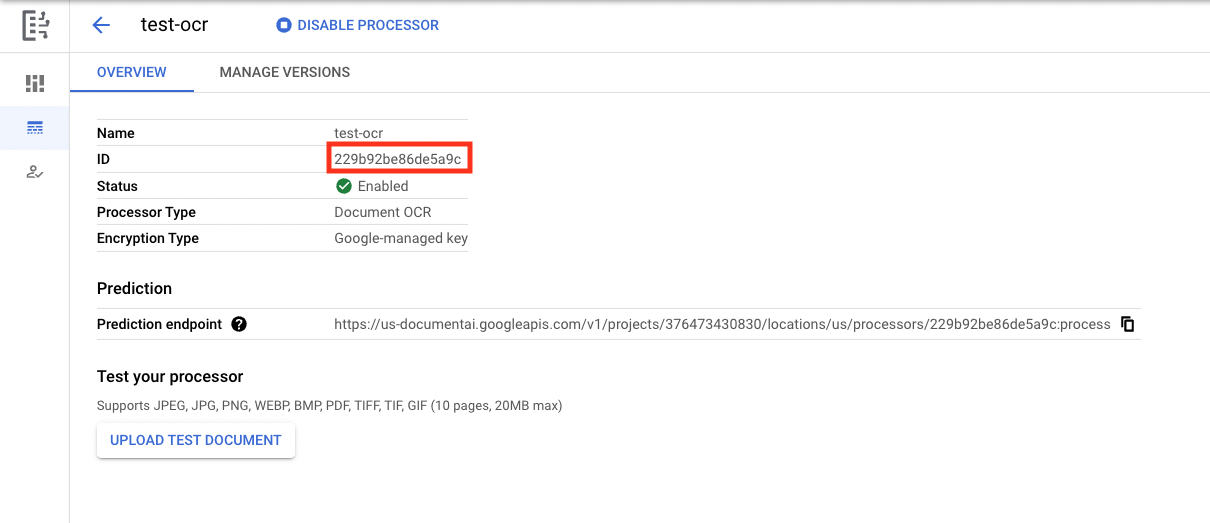
上傳文件即可在控制台測試處理器。按一下「Upload Test Document」(上傳測試文件),然後選取要剖析的文件。
下載下方的 PDF 檔,內含我們的小說前 3 頁。
輸出內容應如下所示: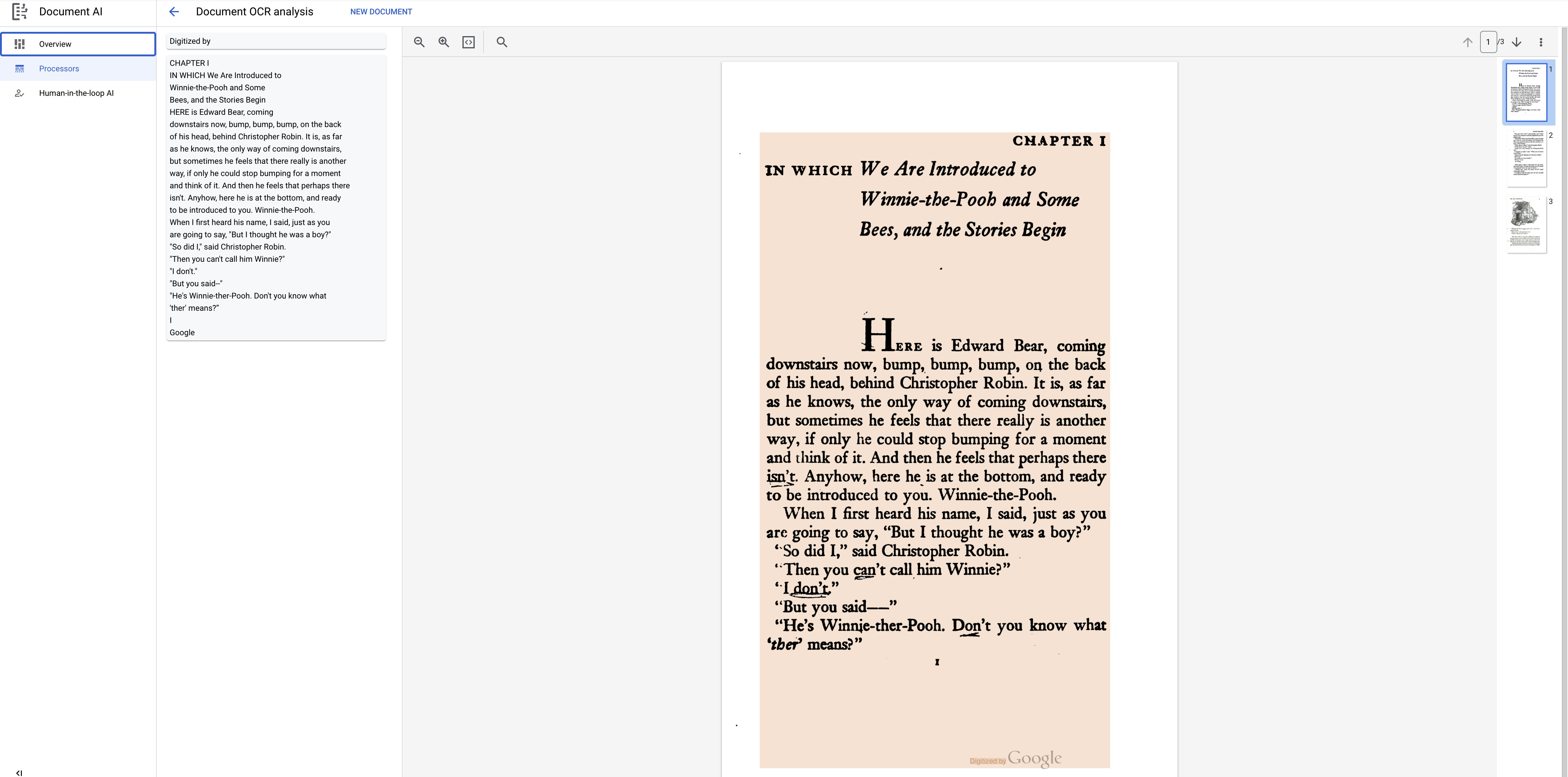
Python 用戶端程式庫
請按照本程式碼研究室的說明,瞭解如何使用 Python 用戶端程式庫管理 Document AI 處理器:
5. 驗證 API 要求
如要向 Document AI API 提出要求,必須使用「服務帳戶」。「服務帳戶」屬於您的專案,Python 用戶端程式庫會使用此帳戶提出 API 要求。服務帳戶與其他使用者帳戶一樣,都是以電子郵件地址表示。在本節中,您將使用「Cloud SDK」建立服務帳戶,然後建立以服務帳戶身分進行驗證所需的憑證。
首先,開啟 Cloud Shell 並使用 PROJECT_ID 設定環境變數,本程式碼研究室全程都會使用這個環境變數:
export GOOGLE_CLOUD_PROJECT=$(gcloud config get-value core/project)
接著,請使用下列方式建立新的服務帳戶,用以存取 Document AI API:
gcloud iam service-accounts create my-docai-sa \
  --display-name "my-docai-service-account"
接著,授予服務帳戶存取專案中 Document AI 和 Cloud Storage 的權限。
gcloud projects add-iam-policy-binding ${GOOGLE_CLOUD_PROJECT} \
    --member="serviceAccount:my-docai-sa@${GOOGLE_CLOUD_PROJECT}.iam.gserviceaccount.com" \
    --role="roles/documentai.admin"

gcloud projects add-iam-policy-binding ${GOOGLE_CLOUD_PROJECT} \
    --member="serviceAccount:my-docai-sa@${GOOGLE_CLOUD_PROJECT}.iam.gserviceaccount.com" \
    --role="roles/storage.admin"

gcloud projects add-iam-policy-binding ${GOOGLE_CLOUD_PROJECT} \
    --member="serviceAccount:my-docai-sa@${GOOGLE_CLOUD_PROJECT}.iam.gserviceaccount.com" \
    --role="roles/serviceusage.serviceUsageConsumer"
接著,建立 Python 程式碼使用的憑證,用以登入新的服務帳戶。輸入下列指令,建立憑證並儲存為 JSON 檔案 ~/key.json:
gcloud iam service-accounts keys create ~/key.json \
  --iam-account  my-docai-sa@${GOOGLE_CLOUD_PROJECT}.iam.gserviceaccount.com
最後,設定 GOOGLE_APPLICATION_CREDENTIALS 環境變數,程式庫會使用這個變數尋找憑證。如要進一步瞭解這種驗證方式,請參閱指南。環境變數應設為您所建立 JSON 憑證檔案的完整路徑,方法如下:
export GOOGLE_APPLICATION_CREDENTIALS="/path/to/key.json"
6. 安裝用戶端程式庫
安裝 Document AI、Cloud Storage 和 Document AI Toolbox 的 Python 用戶端程式庫:
pip3 install --upgrade google-cloud-documentai
pip3 install --upgrade google-cloud-storage
pip3 install --upgrade google-cloud-documentai-toolbox
畫面應如下所示:
...
Installing collected packages: google-cloud-documentai
Successfully installed google-cloud-documentai-2.15.0
.
.
Installing collected packages: google-cloud-storage
Successfully installed google-cloud-storage-2.9.0
.
.
Installing collected packages: google-cloud-documentai-toolbox
Successfully installed google-cloud-documentai-toolbox-0.6.0a0
現在,您可以開始使用 Document AI API 了!
7. 下載範例 PDF
我們提供一份內含小說前 3 頁的範例文件。
你可以透過下列連結下載 PDF。然後上傳至 Cloud Shell 執行個體。
您也可以使用 gsutil 從公開的 Google Cloud Storage Bucket 下載。
gsutil cp gs://cloud-samples-data/documentai/codelabs/ocr/Winnie_the_Pooh_3_Pages.pdf .
8. 發出線上處理要求
在這個步驟中,您將使用線上處理 (同步) API 處理小說的前 3 頁。這種方法最適合用於儲存在本機的小型文件。如要瞭解各處理器類型的頁數和檔案大小上限,請參閱完整處理器清單。
使用 Cloud Shell 編輯器或本機電腦上的文字編輯器建立名為 online_processing.py 的檔案,並使用下列程式碼。
將 YOUR_PROJECT_ID、YOUR_PROJECT_LOCATION、YOUR_PROCESSOR_ID 和 FILE_PATH 替換為您環境的適當值。
online_processing.py
from google.api_core.client_options import ClientOptions
from google.cloud import documentai


PROJECT_ID = "YOUR_PROJECT_ID"
LOCATION = "YOUR_PROJECT_LOCATION"  # Format is 'us' or 'eu'
PROCESSOR_ID = "YOUR_PROCESSOR_ID"  # Create processor in Cloud Console

# The local file in your current working directory
FILE_PATH = "Winnie_the_Pooh_3_Pages.pdf"
# Refer to https://cloud.google.com/document-ai/docs/file-types
# for supported file types
MIME_TYPE = "application/pdf"

# Instantiates a client
docai_client = documentai.DocumentProcessorServiceClient(
    client_options=ClientOptions(api_endpoint=f"{LOCATION}-documentai.googleapis.com")
)

# The full resource name of the processor, e.g.:
# projects/project-id/locations/location/processor/processor-id
# You must create new processors in the Cloud Console first
RESOURCE_NAME = docai_client.processor_path(PROJECT_ID, LOCATION, PROCESSOR_ID)

# Read the file into memory
with open(FILE_PATH, "rb") as image:
    image_content = image.read()

# Load Binary Data into Document AI RawDocument Object
raw_document = documentai.RawDocument(content=image_content, mime_type=MIME_TYPE)

# Configure the process request
request = documentai.ProcessRequest(name=RESOURCE_NAME, raw_document=raw_document)

# Use the Document AI client to process the sample form
result = docai_client.process_document(request=request)

document_object = result.document
print("Document processing complete.")
print(f"Text: {document_object.text}")
執行程式碼,系統會擷取文字並顯示於控制台。
如果您使用我們的範例文件,應該會看到下列輸出內容:
Document processing complete.
Text: CHAPTER I
IN WHICH We Are Introduced to
Winnie-the-Pooh and Some
Bees, and the Stories Begin
Here is Edward Bear, coming
downstairs now, bump, bump, bump, on the back
of his head, behind Christopher Robin. It is, as far
as he knows, the only way of coming downstairs,
but sometimes he feels that there really is another
way, if only he could stop bumping for a moment
and think of it. And then he feels that perhaps there
isn't. Anyhow, here he is at the bottom, and ready
to be introduced to you. Winnie-the-Pooh.
When I first heard his name, I said, just as you
are going to say, "But I thought he was a boy?"
"So did I," said Christopher Robin.
"Then you can't call him Winnie?"
"I don't."
"But you said "

...

Digitized by
Google
9. 發出批次處理要求
現在,假設您想閱讀整本小說的內容。
- 線上處理功能對可傳送的頁數和檔案大小設有限制,且每次 API 呼叫只能處理一個文件檔案。
- 批次處理功能可透過非同步方法處理較大或多個檔案。
在這個步驟中,我們將使用 Document AI 批次處理 API 處理整本《小熊維尼》小說,並將文字輸出至 Google Cloud Storage Bucket。
批次處理會使用長時間執行的作業,以非同步方式管理要求,因此我們必須以不同於線上處理的方式,提出要求並擷取輸出內容。不過,無論使用線上或批次處理,輸出內容都會採用相同的 Document 物件格式。
這個步驟說明如何提供特定文件,供 Document AI 處理。後續步驟會說明如何處理整個文件目錄。
將 PDF 上傳至 Cloud Storage
batch_process_documents() 方法目前接受 Google Cloud Storage 中的檔案。如要進一步瞭解物件結構,請參閱 documentai_v1.types.BatchProcessRequest。
在本範例中,您可以直接從我們的範例 bucket 讀取檔案。
您也可以使用 gsutil... 將檔案複製到自己的 bucket。
gsutil cp gs://cloud-samples-data/documentai/codelabs/ocr/Winnie_the_Pooh.pdf gs://YOUR_BUCKET_NAME/
或者,您也可以從下方連結下載小說的範例檔案,然後上傳至自己的值區。
您也需要 GCS Bucket 來儲存 API 的輸出內容。
您可以參閱 Cloud Storage 說明文件,瞭解如何建立儲存空間 bucket。
使用 batch_process_documents() 方法
建立名為 batch_processing.py 的檔案,並使用下列程式碼。
將 YOUR_PROJECT_ID、YOUR_PROCESSOR_LOCATION、YOUR_PROCESSOR_ID、YOUR_INPUT_URI 和 YOUR_OUTPUT_URI 替換為您環境的適當值。
請確認 YOUR_INPUT_URI 直接指向 PDF 檔案,例如:gs://cloud-samples-data/documentai/codelabs/ocr/Winnie_the_Pooh.pdf。
batch_processing.py
"""
Makes a Batch Processing Request to Document AI
"""

import re

from google.api_core.client_options import ClientOptions
from google.api_core.exceptions import InternalServerError
from google.api_core.exceptions import RetryError
from google.cloud import documentai
from google.cloud import storage

# TODO(developer): Fill these variables before running the sample.
project_id = "YOUR_PROJECT_ID"
location = "YOUR_PROCESSOR_LOCATION"  # Format is "us" or "eu"
processor_id = "YOUR_PROCESSOR_ID"  # Create processor before running sample
gcs_output_uri = "YOUR_OUTPUT_URI"  # Must end with a trailing slash `/`. Format: gs://bucket/directory/subdirectory/
processor_version_id = (
    "YOUR_PROCESSOR_VERSION_ID"  # Optional. Example: pretrained-ocr-v1.0-2020-09-23
)

# TODO(developer): If `gcs_input_uri` is a single file, `mime_type` must be specified.
gcs_input_uri = "YOUR_INPUT_URI"  # Format: `gs://bucket/directory/file.pdf` or `gs://bucket/directory/`
input_mime_type = "application/pdf"
field_mask = "text,entities,pages.pageNumber"  # Optional. The fields to return in the Document object.


def batch_process_documents(
    project_id: str,
    location: str,
    processor_id: str,
    gcs_input_uri: str,
    gcs_output_uri: str,
    processor_version_id: str = None,
    input_mime_type: str = None,
    field_mask: str = None,
    timeout: int = 400,
):
    # You must set the api_endpoint if you use a location other than "us".
    opts = ClientOptions(api_endpoint=f"{location}-documentai.googleapis.com")

    client = documentai.DocumentProcessorServiceClient(client_options=opts)

    if not gcs_input_uri.endswith("/") and "." in gcs_input_uri:
        # Specify specific GCS URIs to process individual documents
        gcs_document = documentai.GcsDocument(
            gcs_uri=gcs_input_uri, mime_type=input_mime_type
        )
        # Load GCS Input URI into a List of document files
        gcs_documents = documentai.GcsDocuments(documents=[gcs_document])
        input_config = documentai.BatchDocumentsInputConfig(gcs_documents=gcs_documents)
    else:
        # Specify a GCS URI Prefix to process an entire directory
        gcs_prefix = documentai.GcsPrefix(gcs_uri_prefix=gcs_input_uri)
        input_config = documentai.BatchDocumentsInputConfig(gcs_prefix=gcs_prefix)

    # Cloud Storage URI for the Output Directory
    gcs_output_config = documentai.DocumentOutputConfig.GcsOutputConfig(
        gcs_uri=gcs_output_uri, field_mask=field_mask
    )

    # Where to write results
    output_config = documentai.DocumentOutputConfig(gcs_output_config=gcs_output_config)

    if processor_version_id:
        # The full resource name of the processor version, e.g.:
        # projects/{project_id}/locations/{location}/processors/{processor_id}/processorVersions/{processor_version_id}
        name = client.processor_version_path(
            project_id, location, processor_id, processor_version_id
        )
    else:
        # The full resource name of the processor, e.g.:
        # projects/{project_id}/locations/{location}/processors/{processor_id}
        name = client.processor_path(project_id, location, processor_id)

    request = documentai.BatchProcessRequest(
        name=name,
        input_documents=input_config,
        document_output_config=output_config,
    )

    # BatchProcess returns a Long Running Operation (LRO)
    operation = client.batch_process_documents(request)

    # Continually polls the operation until it is complete.
    # This could take some time for larger files
    # Format: projects/{project_id}/locations/{location}/operations/{operation_id}
    try:
        print(f"Waiting for operation {operation.operation.name} to complete...")
        operation.result(timeout=timeout)
    # Catch exception when operation doesn"t finish before timeout
    except (RetryError, InternalServerError) as e:
        print(e.message)

    # NOTE: Can also use callbacks for asynchronous processing
    #
    # def my_callback(future):
    #   result = future.result()
    #
    # operation.add_done_callback(my_callback)

    # Once the operation is complete,
    # get output document information from operation metadata
    metadata = documentai.BatchProcessMetadata(operation.metadata)

    if metadata.state != documentai.BatchProcessMetadata.State.SUCCEEDED:
        raise ValueError(f"Batch Process Failed: {metadata.state_message}")

    storage_client = storage.Client()

    print("Output files:")
    # One process per Input Document
    for process in list(metadata.individual_process_statuses):
        # output_gcs_destination format: gs://BUCKET/PREFIX/OPERATION_NUMBER/INPUT_FILE_NUMBER/
        # The Cloud Storage API requires the bucket name and URI prefix separately
        matches = re.match(r"gs://(.*?)/(.*)", process.output_gcs_destination)
        if not matches:
            print(
                "Could not parse output GCS destination:",
                process.output_gcs_destination,
            )
            continue

        output_bucket, output_prefix = matches.groups()

        # Get List of Document Objects from the Output Bucket
        output_blobs = storage_client.list_blobs(output_bucket, prefix=output_prefix)

        # Document AI may output multiple JSON files per source file
        for blob in output_blobs:
            # Document AI should only output JSON files to GCS
            if blob.content_type != "application/json":
                print(
                    f"Skipping non-supported file: {blob.name} - Mimetype: {blob.content_type}"
                )
                continue

            # Download JSON File as bytes object and convert to Document Object
            print(f"Fetching {blob.name}")
            document = documentai.Document.from_json(
                blob.download_as_bytes(), ignore_unknown_fields=True
            )

            # For a full list of Document object attributes, please reference this page:
            # https://cloud.google.com/python/docs/reference/documentai/latest/google.cloud.documentai_v1.types.Document

            # Read the text recognition output from the processor
            print("The document contains the following text:")
            print(document.text)


if __name__ == "__main__":
    batch_process_documents(
        project_id=project_id,
        location=location,
        processor_id=processor_id,
        gcs_input_uri=gcs_input_uri,
        gcs_output_uri=gcs_output_uri,
        input_mime_type=input_mime_type,
        field_mask=field_mask,
    )
執行程式碼,您應會看到完整的小說文字已擷取並顯示於控制台。
檔案比先前的範例大得多,因此可能需要一段時間才能完成。(唉,真麻煩...)
不過,使用 Batch Processing API 時,您會收到作業 ID,可用於在工作完成後從 GCS 取得輸出內容。
輸出內容大致如下:
Waiting for operation projects/PROJECT_NUMBER/locations/LOCATION/operations/OPERATION_NUMBER to complete...
Document processing complete.
Fetching docai-output/OPERATION_NUMBER/0/Winnie_the_Pooh-0.json
Fetching docai-output/OPERATION_NUMBER/0/Winnie_the_Pooh-1.json
Fetching docai-output/OPERATION_NUMBER/0/Winnie_the_Pooh-10.json
Fetching docai-output/OPERATION_NUMBER/0/Winnie_the_Pooh-11.json
Fetching docai-output/OPERATION_NUMBER/0/Winnie_the_Pooh-12.json
Fetching docai-output/OPERATION_NUMBER/0/Winnie_the_Pooh-13.json
Fetching docai-output/OPERATION_NUMBER/0/Winnie_the_Pooh-14.json
Fetching docai-output/OPERATION_NUMBER/0/Winnie_the_Pooh-15.json
Fetching docai-output/OPERATION_NUMBER/0/Winnie_the_Pooh-16.json
Fetching docai-output/OPERATION_NUMBER/0/Winnie_the_Pooh-17.json
Fetching docai-output/OPERATION_NUMBER/0/Winnie_the_Pooh-18.json
Fetching docai-output/OPERATION_NUMBER/0/Winnie_the_Pooh-2.json
Fetching docai-output/OPERATION_NUMBER/0/Winnie_the_Pooh-3.json
Fetching docai-output/OPERATION_NUMBER/0/Winnie_the_Pooh-4.json
Fetching docai-output/OPERATION_NUMBER/0/Winnie_the_Pooh-5.json
Fetching docai-output/OPERATION_NUMBER/0/Winnie_the_Pooh-6.json
Fetching docai-output/OPERATION_NUMBER/0/Winnie_the_Pooh-7.json
Fetching docai-output/OPERATION_NUMBER/0/Winnie_the_Pooh-8.json
Fetching docai-output/OPERATION_NUMBER/0/Winnie_the_Pooh-9.json

This is a reproduction of a library book that was digitized
by Google as part of an ongoing effort to preserve the
information in books and make it universally accessible.
TM
Google books
https://books.google.com

.....

He nodded and went
out ... and in a moment
I heard Winnie-the-Pooh
-bump, bump, bump-go-ing up the stairs behind
him.
Digitized by
Google
10. 對目錄發出批次處理要求
有時您可能會想要處理整個文件目錄,而不需要個別列出每份文件。batch_process_documents() 方法支援輸入特定文件清單或目錄路徑。
這個步驟會說明如何處理完整的文件檔案目錄。大部分的程式碼與上一個步驟相同,唯一的差異是透過 BatchProcessRequest 傳送的 GCS URI。
在範例 bucket 中,我們有一個目錄,內含小說的多個頁面,分別位於不同檔案中。
gs://cloud-samples-data/documentai/codelabs/ocr/multi-document/
您可以直接讀取檔案,或將檔案複製到自己的 Cloud Storage bucket。
重新執行上一個步驟的程式碼,並將 YOUR_INPUT_URI 替換為 Cloud Storage 中的目錄。
執行程式碼,您應該會看到從 Cloud Storage 目錄中所有文件檔案擷取到的文字。
輸出內容大致如下:
Waiting for operation projects/PROJECT_NUMBER/locations/LOCATION/operations/OPERATION_NUMBER to complete...
Document processing complete.
Fetching docai-output/OPERATION_NUMBER/0/Winnie_the_Pooh_Page_0-0.json
Fetching docai-output/OPERATION_NUMBER/1/Winnie_the_Pooh_Page_1-0.json
Fetching docai-output/OPERATION_NUMBER/2/Winnie_the_Pooh_Page_10-0.json
Fetching docai-output/OPERATION_NUMBER/3/Winnie_the_Pooh_Page_12-0.json
Fetching docai-output/OPERATION_NUMBER/4/Winnie_the_Pooh_Page_16-0.json
Fetching docai-output/OPERATION_NUMBER/5/Winnie_the_Pooh_Page_7-0.json

Introduction
(I₂
F YOU happen to have read another
book about Christopher Robin, you may remember
th
CHAPTER I
IN WHICH We Are Introduced to
Winnie-the-Pooh and Some
Bees, and the Stories Begin
HERE is
10
WINNIE-THE-POOH
"I wonder if you've got such a thing as a balloon
about you?"
"A balloon?"
"Yes,
12
WINNIE-THE-POOH
and you took your gun with you, just in case, as
you always did, and Winnie-the-P
16
WINNIE-THE-POOH
this song, and one bee sat down on the nose of the
cloud for a moment, and then g
WE ARE INTRODUCED
7
"Oh, help!" said Pooh, as he dropped ten feet on
the branch below him.
"If only
11. 使用 Document AI 工具箱處理批次處理回應
由於與 Cloud Storage 整合,批次處理需要相當多的步驟才能完成。視輸入文件的大小而定,Document 輸出內容也可能會「分片」成多個 .json 檔案。
Document AI Toolbox Python SDK 的用途是簡化後續處理作業,以及使用 Document AI 執行的其他常見工作。這個程式庫是 Document AI 用戶端程式庫的補充,而非替代方案。如需完整規格,請參閱參考文件。
這個步驟說明如何使用 Document AI 工具箱發出批次處理要求,並擷取輸出內容。
batch_processing_toolbox.py
"""
Makes a Batch Processing Request to Document AI using Document AI Toolbox
"""

from google.api_core.client_options import ClientOptions
from google.cloud import documentai
from google.cloud import documentai_toolbox

# TODO(developer): Fill these variables before running the sample.
project_id = "YOUR_PROJECT_ID"
location = "YOUR_PROCESSOR_LOCATION"  # Format is "us" or "eu"
processor_id = "YOUR_PROCESSOR_ID"  # Create processor before running sample
gcs_output_uri = "YOUR_OUTPUT_URI"  # Must end with a trailing slash `/`. Format: gs://bucket/directory/subdirectory/
processor_version_id = (
    "YOUR_PROCESSOR_VERSION_ID"  # Optional. Example: pretrained-ocr-v1.0-2020-09-23
)

# TODO(developer): If `gcs_input_uri` is a single file, `mime_type` must be specified.
gcs_input_uri = "YOUR_INPUT_URI"  # Format: `gs://bucket/directory/file.pdf`` or `gs://bucket/directory/``
input_mime_type = "application/pdf"
field_mask = "text,entities,pages.pageNumber"  # Optional. The fields to return in the Document object.


def batch_process_toolbox(
    project_id: str,
    location: str,
    processor_id: str,
    gcs_input_uri: str,
    gcs_output_uri: str,
    processor_version_id: str = None,
    input_mime_type: str = None,
    field_mask: str = None,
):
    # You must set the api_endpoint if you use a location other than "us".
    opts = ClientOptions(api_endpoint=f"{location}-documentai.googleapis.com")

    client = documentai.DocumentProcessorServiceClient(client_options=opts)

    if not gcs_input_uri.endswith("/") and "." in gcs_input_uri:
        # Specify specific GCS URIs to process individual documents
        gcs_document = documentai.GcsDocument(
            gcs_uri=gcs_input_uri, mime_type=input_mime_type
        )
        # Load GCS Input URI into a List of document files
        gcs_documents = documentai.GcsDocuments(documents=[gcs_document])
        input_config = documentai.BatchDocumentsInputConfig(gcs_documents=gcs_documents)
    else:
        # Specify a GCS URI Prefix to process an entire directory
        gcs_prefix = documentai.GcsPrefix(gcs_uri_prefix=gcs_input_uri)
        input_config = documentai.BatchDocumentsInputConfig(gcs_prefix=gcs_prefix)

    # Cloud Storage URI for the Output Directory
    gcs_output_config = documentai.DocumentOutputConfig.GcsOutputConfig(
        gcs_uri=gcs_output_uri, field_mask=field_mask
    )

    # Where to write results
    output_config = documentai.DocumentOutputConfig(gcs_output_config=gcs_output_config)

    if processor_version_id:
        # The full resource name of the processor version, e.g.:
        # projects/{project_id}/locations/{location}/processors/{processor_id}/processorVersions/{processor_version_id}
        name = client.processor_version_path(
            project_id, location, processor_id, processor_version_id
        )
    else:
        # The full resource name of the processor, e.g.:
        # projects/{project_id}/locations/{location}/processors/{processor_id}
        name = client.processor_path(project_id, location, processor_id)

    request = documentai.BatchProcessRequest(
        name=name,
        input_documents=input_config,
        document_output_config=output_config,
    )

    # BatchProcess returns a Long Running Operation (LRO)
    operation = client.batch_process_documents(request)

    # Operation Name Format: projects/{project_id}/locations/{location}/operations/{operation_id}
    documents = documentai_toolbox.document.Document.from_batch_process_operation(
        location=location, operation_name=operation.operation.name
    )

    for document in documents:
        # Read the text recognition output from the processor
        print("The document contains the following text:")
        # Truncated at 100 characters for brevity
        print(document.text[:100])


if __name__ == "__main__":
    batch_process_toolbox(
        project_id=project_id,
        location=location,
        processor_id=processor_id,
        gcs_input_uri=gcs_input_uri,
        gcs_output_uri=gcs_output_uri,
        input_mime_type=input_mime_type,
        field_mask=field_mask,
    )
12. 恭喜
您已成功使用 Document AI,透過線上處理、批次處理和 Document AI 工具箱,從小說中擷取文字。
建議您嘗試使用其他文件,並探索平台上的其他處理器。
清除
如要避免系統向您的 Google Cloud 帳戶收取您在本教學課程中所用資源的相關費用:
瞭解詳情
歡迎透過下列後續程式碼研究室,進一步瞭解 Document AI。
- 使用 Document AI 剖析表單 (Python)
- 使用 Document AI 的專用處理器 (Python)
- 使用 Python 管理 Document AI 處理器
- Document AI:迴圈中的人
資源
授權
這項內容採用的授權為 Creative Commons 姓名標示 2.0 通用授權。