

1. סקירה כללית

Video Intelligence API מאפשר לכם להשתמש בטכנולוגיית ניתוח הווידאו של Google כחלק מהאפליקציות שלכם.
בשיעור ה-Lab הזה תתמקדו בשימוש ב-Video Intelligence API עם Python.
מה תלמדו
- איך מגדירים את הסביבה
- איך מגדירים Python
- איך לזהות שינויים בצילום
- איך לזהות תוויות
- איך מזהים תוכן בוטה
- איך מתמללים דיבור
- איך לזהות ולעקוב אחרי טקסט
- איך לזהות ולעקוב אחרי אובייקטים
- איך לזהות ולעקוב אחרי לוגו
מה תצטרכו
סקר
איך תשתמשו במדריך הזה?
איך היית מדרג את חוויית השימוש שלך ב-Python?
איזה דירוג מתאים לדעתך לחוויית השימוש שלך בשירותי Google Cloud?
2. הגדרה ודרישות
הגדרת סביבה בקצב אישי
- נכנסים ל-מסוף Google Cloud ויוצרים פרויקט חדש או משתמשים בפרויקט קיים. אם עדיין אין לכם חשבון Gmail או Google Workspace, אתם צריכים ליצור חשבון.


- שם הפרויקט הוא השם המוצג למשתתפים בפרויקט. זו מחרוזת תווים שלא נמצאת בשימוש ב-Google APIs. תמיד אפשר לעדכן את המיקום.
- מזהה הפרויקט הוא ייחודי לכל הפרויקטים ב-Google Cloud ואי אפשר לשנות אותו אחרי שהוא מוגדר. מסוף Cloud יוצר באופן אוטומטי מחרוזת ייחודית, ובדרך כלל לא צריך לדעת מה היא. ברוב ה-Codelabs, תצטרכו להפנות למזהה הפרויקט (בדרך כלל מסומן כ-
PROJECT_ID). אם אתם לא אוהבים את המזהה שנוצר, אתם יכולים ליצור מזהה אקראי אחר. אפשר גם לנסות שם משתמש משלכם ולבדוק אם הוא זמין. אי אפשר לשנות את ההגדרה הזו אחרי השלב הזה, והיא נשארת לאורך הפרויקט. - לידיעתכם, יש ערך שלישי, מספר פרויקט, שחלק מממשקי ה-API משתמשים בו. מידע נוסף על שלושת הערכים האלה מופיע במאמרי העזרה.
- בשלב הבא, תצטרכו להפעיל את החיוב במסוף Cloud כדי להשתמש במשאבי Cloud או בממשקי API של Cloud. השלמת ה-codelab הזה לא תעלה לכם הרבה, אם בכלל. כדי להשבית את המשאבים ולמנוע חיובים נוספים אחרי שתסיימו את המדריך הזה, תוכלו למחוק את המשאבים שיצרתם או למחוק את הפרויקט. משתמשים חדשים ב-Google Cloud זכאים לתוכנית תקופת ניסיון בחינם בשווי 300$.
מפעילים את Cloud Shell
אפשר להפעיל את Google Cloud מרחוק מהמחשב הנייד, אבל ב-Codelab הזה נשתמש ב-Cloud Shell, סביבת שורת פקודה שפועלת בענן.
הפעלת Cloud Shell
- ב-Cloud Console, לוחצים על Activate Cloud Shell
 .
.

אם זו הפעם הראשונה שאתם מפעילים את Cloud Shell, יוצג לכם מסך ביניים עם תיאור של השירות. אם מוצג לכם מסך ביניים, לוחצים על המשך.

יחלפו כמה רגעים עד שההקצאה והחיבור ל-Cloud Shell יושלמו.

המכונה הווירטואלית הזו כוללת את כל הכלים הדרושים למפתחים. יש בה ספריית בית בנפח מתמיד של 5GB והיא פועלת ב-Google Cloud, מה שמשפר מאוד את הביצועים והאימות של הרשת. אפשר לבצע את רוב העבודה ב-codelab הזה, אם לא את כולה, באמצעות דפדפן.
אחרי שמתחברים ל-Cloud Shell, אמור להופיע אימות ושהפרויקט מוגדר לפי מזהה הפרויקט.
- מריצים את הפקודה הבאה ב-Cloud Shell כדי לוודא שאתם מאומתים:
gcloud auth list
פלט הפקודה
 Credentialed Accounts
ACTIVE  ACCOUNT
*       <my_account>@<my_domain.com>

To set the active account, run:
    $ gcloud config set account `ACCOUNT`
- מריצים את הפקודה הבאה ב-Cloud Shell כדי לוודא שפקודת gcloud מכירה את הפרויקט:
gcloud config list project
פלט הפקודה
[core]
project = <PROJECT_ID>
אם לא, אפשר להגדיר אותו באמצעות הפקודה הזו:
gcloud config set project <PROJECT_ID>
פלט הפקודה
Updated property [core/project].
3. הגדרת הסביבה
כדי להפעיל את Video Intelligence API, מריצים את הפקודה הבאה ב-Cloud Shell:
gcloud services enable videointelligence.googleapis.com
אתם אמורים לראות משהו כזה:
Operation "operations/..." finished successfully.
עכשיו אפשר להשתמש ב-Video Intelligence API.
מנווטים לספריית הבית:
cd ~
יוצרים סביבה וירטואלית של Python כדי לבודד את התלות:
virtualenv venv-videointel
מפעילים את הסביבה הווירטואלית:
source venv-videointel/bin/activate
מתקינים את IPython ואת ספריית הלקוח של Video Intelligence API:
pip install ipython google-cloud-videointelligence
אתם אמורים לראות משהו כזה:
...
Installing collected packages: ..., ipython, google-cloud-videointelligence
Successfully installed ... google-cloud-videointelligence-2.11.0 ...
עכשיו אפשר להשתמש בספריית הלקוח של Video Intelligence API.
בשלבים הבאים תשתמשו במפרש Python אינטראקטיבי שנקרא IPython, שהתקנתם בשלב הקודם. כדי להתחיל סשן, מריצים את הפקודה ipython ב-Cloud Shell:
ipython
אתם אמורים לראות משהו כזה:
Python 3.9.2 (default, Feb 28 2021, 17:03:44)
Type 'copyright', 'credits' or 'license' for more information
IPython 8.12.0 -- An enhanced Interactive Python. Type '?' for help.

In [1]:
4. סרטון לאימון המודל
אתם יכולים להשתמש ב-Video Intelligence API כדי להוסיף הערות לסרטונים שמאוחסנים ב-Cloud Storage או מסופקים כבייט נתונים.
בשלבים הבאים תשתמשו בסרטון לאימון המודל שמאוחסן ב-Cloud Storage. אפשר לצפות בסרטון בדפדפן.

למקומות, היכון, צא!
5. זיהוי שינויים בצילום
אתם יכולים להשתמש ב-Video Intelligence API כדי לזהות שינויים בצילום בסרטון. שוט הוא קטע מהסרטון, סדרה של פריימים עם רצף חזותי.
מעתיקים את הקוד הבא להפעלה של IPython:
from typing import cast

from google.cloud import videointelligence_v1 as vi


def detect_shot_changes(video_uri: str) -> vi.VideoAnnotationResults:
    video_client = vi.VideoIntelligenceServiceClient()
    features = [vi.Feature.SHOT_CHANGE_DETECTION]
    request = vi.AnnotateVideoRequest(input_uri=video_uri, features=features)

    print(f'Processing video: "{video_uri}"...')
    operation = video_client.annotate_video(request)

    # Wait for operation to complete
    response = cast(vi.AnnotateVideoResponse, operation.result())
    # A single video is processed
    results = response.annotation_results[0]

    return results
כדאי להקדיש רגע ללימוד הקוד ולראות איך נעשה שימוש בשיטה annotate_video של ספריית הלקוח עם הפרמטר SHOT_CHANGE_DETECTION כדי לנתח סרטון ולזהות שינויים בצילום.
מפעילים את הפונקציה כדי לנתח את הסרטון:
video_uri = "gs://cloud-samples-data/video/JaneGoodall.mp4"

results = detect_shot_changes(video_uri)
ממתינים לעיבוד הסרטון:
Processing video: "gs://cloud-samples-data/video/JaneGoodall.mp4"...
מוסיפים את הפונקציה הזו כדי להדפיס את הצילומים של הסרטון:
def print_video_shots(results: vi.VideoAnnotationResults):
    shots = results.shot_annotations
    print(f" Video shots: {len(shots)} ".center(40, "-"))
    for i, shot in enumerate(shots):
        t1 = shot.start_time_offset.total_seconds()
        t2 = shot.end_time_offset.total_seconds()
        print(f"{i+1:>3} | {t1:7.3f} | {t2:7.3f}")
מפעילים את הפונקציה:
print_video_shots(results)
אתם אמורים לראות משהו כזה:
----------- Video shots: 34 ------------
  1 |   0.000 |  12.880
  2 |  12.920 |  21.680
  3 |  21.720 |  27.880
...
 32 | 135.160 | 138.320
 33 | 138.360 | 146.200
 34 | 146.240 | 162.520
אם תחלצו את הפריים האמצעי של כל צילום ותסדרו אותם בקיר של פריים, תוכלו ליצור סיכום ויזואלי של הסרטון:

סיכום
בשלב הזה, הצלחתם לבצע זיהוי של שינוי סצנה בסרטון באמצעות Video Intelligence API. מידע נוסף על זיהוי שינויים בצילום
6. זיהוי תוויות
אתם יכולים להשתמש ב-Video Intelligence API כדי לזהות תוויות בסרטון. התוויות מתארות את הסרטון על סמך התוכן החזותי שלו.
מעתיקים את הקוד הבא להפעלה של IPython:
from datetime import timedelta
from typing import Optional, Sequence, cast

from google.cloud import videointelligence_v1 as vi


def detect_labels(
    video_uri: str,
    mode: vi.LabelDetectionMode,
    segments: Optional[Sequence[vi.VideoSegment]] = None,
) -> vi.VideoAnnotationResults:
    video_client = vi.VideoIntelligenceServiceClient()
    features = [vi.Feature.LABEL_DETECTION]
    config = vi.LabelDetectionConfig(label_detection_mode=mode)
    context = vi.VideoContext(segments=segments, label_detection_config=config)
    request = vi.AnnotateVideoRequest(
        input_uri=video_uri,
        features=features,
        video_context=context,
    )

    print(f'Processing video "{video_uri}"...')
    operation = video_client.annotate_video(request)

    # Wait for operation to complete
    response = cast(vi.AnnotateVideoResponse, operation.result())
    # A single video is processed
    results = response.annotation_results[0]

    return results
כדאי לעיין בקוד ולראות איך נעשה שימוש בשיטה annotate_video של ספריית הלקוח עם הפרמטר LABEL_DETECTION כדי לנתח סרטון ולזהות תוויות.
קוראים לפונקציה כדי לנתח את 37 השניות הראשונות של הסרטון:
video_uri = "gs://cloud-samples-data/video/JaneGoodall.mp4"
mode = vi.LabelDetectionMode.SHOT_MODE
segment = vi.VideoSegment(
    start_time_offset=timedelta(seconds=0),
    end_time_offset=timedelta(seconds=37),
)

results = detect_labels(video_uri, mode, [segment])
ממתינים לעיבוד הסרטון:
Processing video: "gs://cloud-samples-data/video/JaneGoodall.mp4"...
מוסיפים את הפונקציה הזו כדי להדפיס את התוויות ברמת הסרטון:
def print_video_labels(results: vi.VideoAnnotationResults):
    labels = sorted_by_first_segment_confidence(results.segment_label_annotations)

    print(f" Video labels: {len(labels)} ".center(80, "-"))
    for label in labels:
        categories = category_entities_to_str(label.category_entities)
        for segment in label.segments:
            confidence = segment.confidence
            t1 = segment.segment.start_time_offset.total_seconds()
            t2 = segment.segment.end_time_offset.total_seconds()
            print(
                f"{confidence:4.0%}",
                f"{t1:7.3f}",
                f"{t2:7.3f}",
                f"{label.entity.description}{categories}",
                sep=" | ",
            )


def sorted_by_first_segment_confidence(
    labels: Sequence[vi.LabelAnnotation],
) -> Sequence[vi.LabelAnnotation]:
    def first_segment_confidence(label: vi.LabelAnnotation) -> float:
        return label.segments[0].confidence

    return sorted(labels, key=first_segment_confidence, reverse=True)


def category_entities_to_str(category_entities: Sequence[vi.Entity]) -> str:
    if not category_entities:
        return ""
    entities = ", ".join([e.description for e in category_entities])
    return f" ({entities})"
מפעילים את הפונקציה:
print_video_labels(results)
אתם אמורים לראות משהו כזה:
------------------------------- Video labels: 10 -------------------------------
 96% |   0.000 |  36.960 | nature
 74% |   0.000 |  36.960 | vegetation
 59% |   0.000 |  36.960 | tree (plant)
 56% |   0.000 |  36.960 | forest (geographical feature)
 49% |   0.000 |  36.960 | leaf (plant)
 43% |   0.000 |  36.960 | flora (plant)
 38% |   0.000 |  36.960 | nature reserve (geographical feature)
 38% |   0.000 |  36.960 | woodland (forest)
 35% |   0.000 |  36.960 | water resources (water)
 32% |   0.000 |  36.960 | sunlight (light)
התוויות האלה ברמת הסרטון מאפשרות לכם להבין שחלקו הראשון של הסרטון עוסק בעיקר בטבע ובצמחייה.
כדי להדפיס את התוויות ברמת הצילום, מוסיפים את הפונקציה הבאה:
def print_shot_labels(results: vi.VideoAnnotationResults):
    labels = sorted_by_first_segment_start_and_confidence(
        results.shot_label_annotations
    )

    print(f" Shot labels: {len(labels)} ".center(80, "-"))
    for label in labels:
        categories = category_entities_to_str(label.category_entities)
        print(f"{label.entity.description}{categories}")
        for segment in label.segments:
            confidence = segment.confidence
            t1 = segment.segment.start_time_offset.total_seconds()
            t2 = segment.segment.end_time_offset.total_seconds()
            print(f"{confidence:4.0%} | {t1:7.3f} | {t2:7.3f}")


def sorted_by_first_segment_start_and_confidence(
    labels: Sequence[vi.LabelAnnotation],
) -> Sequence[vi.LabelAnnotation]:
    def first_segment_start_and_confidence(label: vi.LabelAnnotation):
        first_segment = label.segments[0]
        ms = first_segment.segment.start_time_offset.total_seconds()
        return (ms, -first_segment.confidence)

    return sorted(labels, key=first_segment_start_and_confidence)
מפעילים את הפונקציה:
print_shot_labels(results)
אתם אמורים לראות משהו כזה:
------------------------------- Shot labels: 29 --------------------------------
planet (astronomical object)
 83% |   0.000 |  12.880
earth (planet)
 53% |   0.000 |  12.880
water resources (water)
 43% |   0.000 |  12.880
aerial photography (photography)
 43% |   0.000 |  12.880
vegetation
 32% |   0.000 |  12.880
 92% |  12.920 |  21.680
 83% |  21.720 |  27.880
 77% |  27.920 |  31.800
 76% |  31.840 |  34.720
...
butterfly (insect, animal)
 84% |  34.760 |  36.960
...
הודות לתוויות האלה ברמת הצילום, אפשר להבין שהסרטון מתחיל בצילום של כוכב (כנראה כדור הארץ), שיש פרפר בצילום 34.760-36.960s...
סיכום
בשלב הזה, הצלחתם לבצע זיהוי תוויות בסרטון באמצעות Video Intelligence API. מידע נוסף על זיהוי תוויות
7. זיהוי תוכן בוטה
אפשר להשתמש ב-Video Intelligence API כדי לזהות תוכן בוטה בסרטון. תוכן בוטה הוא תוכן למבוגרים בלבד, שבדרך כלל לא מתאים לצופים מתחת לגיל 18. הוא כולל, בין היתר, עירום, פעילויות מיניות ופורנוגרפיה. הזיהוי מתבצע על סמך אותות חזותיים לכל פריים בלבד (לא נעשה שימוש באודיו). התשובה כוללת ערכי סבירות בטווח שבין VERY_UNLIKELY לבין VERY_LIKELY.
מעתיקים את הקוד הבא להפעלה של IPython:
from datetime import timedelta
from typing import Optional, Sequence, cast

from google.cloud import videointelligence_v1 as vi


def detect_explicit_content(
    video_uri: str,
    segments: Optional[Sequence[vi.VideoSegment]] = None,
) -> vi.VideoAnnotationResults:
    video_client = vi.VideoIntelligenceServiceClient()
    features = [vi.Feature.EXPLICIT_CONTENT_DETECTION]
    context = vi.VideoContext(segments=segments)
    request = vi.AnnotateVideoRequest(
        input_uri=video_uri,
        features=features,
        video_context=context,
    )

    print(f'Processing video "{video_uri}"...')
    operation = video_client.annotate_video(request)

    # Wait for operation to complete
    response = cast(vi.AnnotateVideoResponse, operation.result())
    # A single video is processed
    results = response.annotation_results[0]

    return results
כדאי לעיין בקוד ולראות איך משתמשים בשיטה של ספריית הלקוח annotate_video עם הפרמטר EXPLICIT_CONTENT_DETECTION כדי לנתח סרטון ולזהות תוכן בוטה.
קוראים לפונקציה כדי לנתח את 10 השניות הראשונות של הסרטון:
video_uri = "gs://cloud-samples-data/video/JaneGoodall.mp4"
segment = vi.VideoSegment(
    start_time_offset=timedelta(seconds=0),
    end_time_offset=timedelta(seconds=10),
)

results = detect_explicit_content(video_uri, [segment])
ממתינים לעיבוד הסרטון:
Processing video: "gs://cloud-samples-data/video/JaneGoodall.mp4"...
מוסיפים את הפונקציה הזו כדי להדפיס את ספירות הסבירות השונות:
def print_explicit_content(results: vi.VideoAnnotationResults):
    from collections import Counter

    frames = results.explicit_annotation.frames
    likelihood_counts = Counter([f.pornography_likelihood for f in frames])

    print(f" Explicit content frames: {len(frames)} ".center(40, "-"))
    for likelihood in vi.Likelihood:
        print(f"{likelihood.name:<22}: {likelihood_counts[likelihood]:>3}")
מפעילים את הפונקציה:
print_explicit_content(results)
אתם אמורים לראות משהו כזה:
----- Explicit content frames: 10 ------
LIKELIHOOD_UNSPECIFIED:   0
VERY_UNLIKELY         :  10
UNLIKELY              :   0
POSSIBLE              :   0
LIKELY                :   0
VERY_LIKELY           :   0
מוסיפים את הפונקציה הזו כדי להדפיס את פרטי המסגרת:
def print_frames(results: vi.VideoAnnotationResults, likelihood: vi.Likelihood):
    frames = results.explicit_annotation.frames
    frames = [f for f in frames if f.pornography_likelihood == likelihood]

    print(f" {likelihood.name} frames: {len(frames)} ".center(40, "-"))
    for frame in frames:
        print(frame.time_offset)
מפעילים את הפונקציה:
print_frames(results, vi.Likelihood.VERY_UNLIKELY)
אתם אמורים לראות משהו כזה:
------- VERY_UNLIKELY frames: 10 -------
0:00:00.365992
0:00:01.279206
0:00:02.268336
0:00:03.289253
0:00:04.400163
0:00:05.291547
0:00:06.449558
0:00:07.452751
0:00:08.577405
0:00:09.554514
סיכום
בשלב הזה, הצלחתם לבצע זיהוי של תוכן בוטה בסרטון באמצעות Video Intelligence API. מידע נוסף על זיהוי תוכן בוטה
8. תמלול הדיבור
אתם יכולים להשתמש ב-Video Intelligence API כדי לתמלל את הדיבור בסרטון לטקסט.
מעתיקים את הקוד הבא להפעלה של IPython:
from datetime import timedelta
from typing import Optional, Sequence, cast

from google.cloud import videointelligence_v1 as vi


def transcribe_speech(
    video_uri: str,
    language_code: str,
    segments: Optional[Sequence[vi.VideoSegment]] = None,
) -> vi.VideoAnnotationResults:
    video_client = vi.VideoIntelligenceServiceClient()
    features = [vi.Feature.SPEECH_TRANSCRIPTION]
    config = vi.SpeechTranscriptionConfig(
        language_code=language_code,
        enable_automatic_punctuation=True,
    )
    context = vi.VideoContext(
        segments=segments,
        speech_transcription_config=config,
    )
    request = vi.AnnotateVideoRequest(
        input_uri=video_uri,
        features=features,
        video_context=context,
    )

    print(f'Processing video "{video_uri}"...')
    operation = video_client.annotate_video(request)

    # Wait for operation to complete
    response = cast(vi.AnnotateVideoResponse, operation.result())
    # A single video is processed
    results = response.annotation_results[0]

    return results
כדאי לעיין בקוד ולראות איך נעשה שימוש בשיטה של ספריית הלקוח annotate_video עם הפרמטר SPEECH_TRANSCRIPTION כדי לנתח סרטון ולתמלל את הדיבור.
קוראים לפונקציה כדי לנתח את הסרטון משנייה 55 עד שנייה 80:
video_uri = "gs://cloud-samples-data/video/JaneGoodall.mp4"
language_code = "en-GB"
segment = vi.VideoSegment(
    start_time_offset=timedelta(seconds=55),
    end_time_offset=timedelta(seconds=80),
)

results = transcribe_speech(video_uri, language_code, [segment])
ממתינים לעיבוד הסרטון:
Processing video: "gs://cloud-samples-data/video/JaneGoodall.mp4"...
כדי להדפיס את הדיבור המתומלל, מוסיפים את הפונקציה הבאה:
def print_video_speech(results: vi.VideoAnnotationResults, min_confidence: float = 0.8):
    def keep_transcription(transcription: vi.SpeechTranscription) -> bool:
        return min_confidence <= transcription.alternatives[0].confidence

    transcriptions = results.speech_transcriptions
    transcriptions = [t for t in transcriptions if keep_transcription(t)]

    print(f" Speech transcriptions: {len(transcriptions)} ".center(80, "-"))
    for transcription in transcriptions:
        first_alternative = transcription.alternatives[0]
        confidence = first_alternative.confidence
        transcript = first_alternative.transcript
        print(f" {confidence:4.0%} | {transcript.strip()}")
מפעילים את הפונקציה:
print_video_speech(results)
אתם אמורים לראות משהו כזה:
--------------------------- Speech transcriptions: 2 ---------------------------
  91% | I was keenly aware of secret movements in the trees.
  92% | I looked into his large and lustrous eyes. They seem somehow to express his entire personality.
מוסיפים את הפונקציה הזו כדי להדפיס את רשימת המילים שזוהו ואת חותמות הזמן שלהן:
def print_word_timestamps(
    results: vi.VideoAnnotationResults,
    min_confidence: float = 0.8,
):
    def keep_transcription(transcription: vi.SpeechTranscription) -> bool:
        return min_confidence <= transcription.alternatives[0].confidence

    transcriptions = results.speech_transcriptions
    transcriptions = [t for t in transcriptions if keep_transcription(t)]

    print(" Word timestamps ".center(80, "-"))
    for transcription in transcriptions:
        first_alternative = transcription.alternatives[0]
        confidence = first_alternative.confidence
        for word in first_alternative.words:
            t1 = word.start_time.total_seconds()
            t2 = word.end_time.total_seconds()
            word = word.word
            print(f"{confidence:4.0%} | {t1:7.3f} | {t2:7.3f} | {word}")
מפעילים את הפונקציה:
print_word_timestamps(results)
אתם אמורים לראות משהו כזה:
------------------------------- Word timestamps --------------------------------
 93% |  55.000 |  55.700 | I
 93% |  55.700 |  55.900 | was
 93% |  55.900 |  56.300 | keenly
 93% |  56.300 |  56.700 | aware
 93% |  56.700 |  56.900 | of
...
 94% |  76.900 |  77.400 | express
 94% |  77.400 |  77.600 | his
 94% |  77.600 |  78.200 | entire
 94% |  78.200 |  78.500 | personality.
סיכום
בשלב הזה, הצלחתם לבצע תמלול של דיבור בסרטון באמצעות Video Intelligence API. מידע נוסף על תמלול אודיו
9. זיהוי ומעקב אחרי טקסט
אתם יכולים להשתמש ב-Video Intelligence API כדי לזהות ולעקוב אחרי טקסט בסרטון.
מעתיקים את הקוד הבא להפעלה של IPython:
from datetime import timedelta
from typing import Optional, Sequence, cast

from google.cloud import videointelligence_v1 as vi


def detect_text(
    video_uri: str,
    language_hints: Optional[Sequence[str]] = None,
    segments: Optional[Sequence[vi.VideoSegment]] = None,
) -> vi.VideoAnnotationResults:
    video_client = vi.VideoIntelligenceServiceClient()
    features = [vi.Feature.TEXT_DETECTION]
    config = vi.TextDetectionConfig(
        language_hints=language_hints,
    )
    context = vi.VideoContext(
        segments=segments,
        text_detection_config=config,
    )
    request = vi.AnnotateVideoRequest(
        input_uri=video_uri,
        features=features,
        video_context=context,
    )

    print(f'Processing video "{video_uri}"...')
    operation = video_client.annotate_video(request)

    # Wait for operation to complete
    response = cast(vi.AnnotateVideoResponse, operation.result())
    # A single video is processed
    results = response.annotation_results[0]

    return results
כדאי לעיין בקוד ולראות איך משתמשים בשיטה של ספריית הלקוח annotate_video עם הפרמטר TEXT_DETECTION כדי לנתח סרטון ולזהות טקסט.
קוראים לפונקציה כדי לנתח את הסרטון משנייה 13 עד שנייה 27:
video_uri = "gs://cloud-samples-data/video/JaneGoodall.mp4"
segment = vi.VideoSegment(
    start_time_offset=timedelta(seconds=13),
    end_time_offset=timedelta(seconds=27),
)

results = detect_text(video_uri, segments=[segment])
ממתינים לעיבוד הסרטון:
Processing video: "gs://cloud-samples-data/video/JaneGoodall.mp4"...
מוסיפים את הפונקציה הזו כדי להדפיס את הטקסט שזוהה:
def print_video_text(results: vi.VideoAnnotationResults, min_frames: int = 15):
    annotations = sorted_by_first_segment_end(results.text_annotations)

    print(" Detected text ".center(80, "-"))
    for annotation in annotations:
        for text_segment in annotation.segments:
            frames = len(text_segment.frames)
            if frames < min_frames:
                continue
            text = annotation.text
            confidence = text_segment.confidence
            start = text_segment.segment.start_time_offset
            seconds = segment_seconds(text_segment.segment)
            print(text)
            print(f"  {confidence:4.0%} | {start} + {seconds:.1f}s | {frames} fr.")


def sorted_by_first_segment_end(
    annotations: Sequence[vi.TextAnnotation],
) -> Sequence[vi.TextAnnotation]:
    def first_segment_end(annotation: vi.TextAnnotation) -> int:
        return annotation.segments[0].segment.end_time_offset.total_seconds()

    return sorted(annotations, key=first_segment_end)


def segment_seconds(segment: vi.VideoSegment) -> float:
    t1 = segment.start_time_offset.total_seconds()
    t2 = segment.end_time_offset.total_seconds()
    return t2 - t1
מפעילים את הפונקציה:
print_video_text(results)
אתם אמורים לראות משהו כזה:
-------------------------------- Detected text ---------------------------------
GOMBE NATIONAL PARK
   99% | 0:00:15.760000 + 1.7s | 15 fr.
TANZANIA
  100% | 0:00:15.760000 + 4.8s | 39 fr.
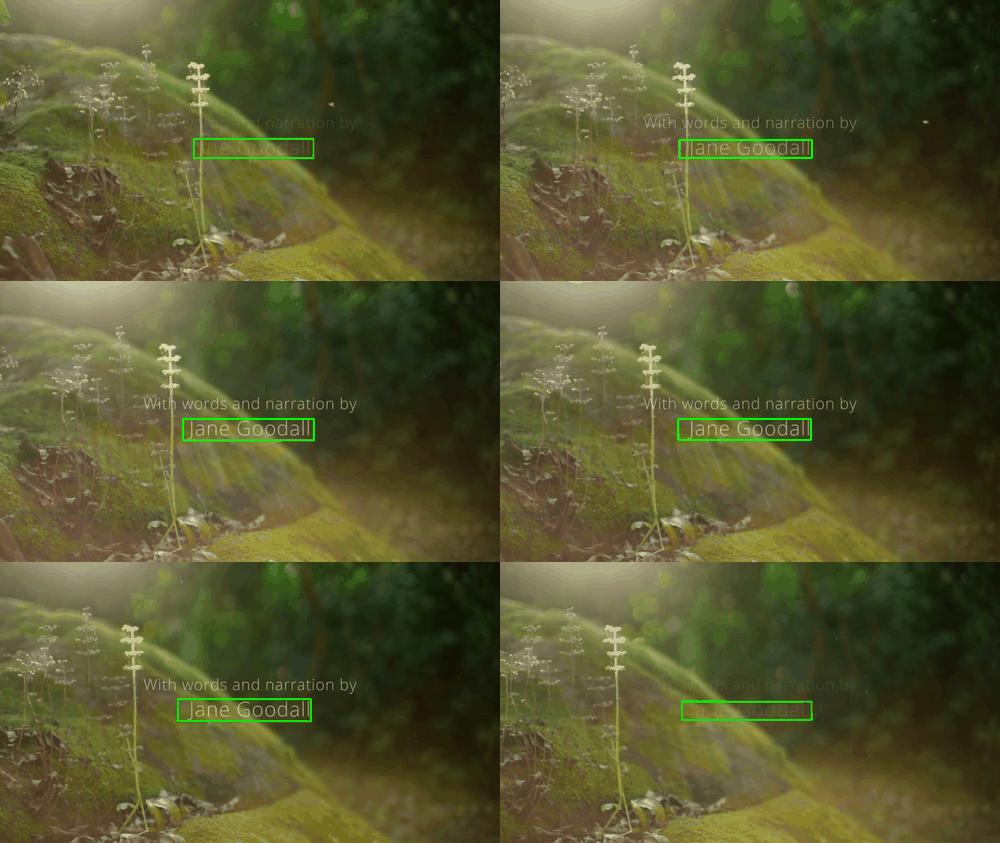
With words and narration by
  100% | 0:00:23.200000 + 3.6s | 31 fr.
Jane Goodall
   99% | 0:00:23.080000 + 3.8s | 33 fr.
מוסיפים את הפונקציה הזו כדי להדפיס את רשימת מסגרות הטקסט וקופסאות התוחמות שזוהו:
def print_text_frames(results: vi.VideoAnnotationResults, contained_text: str):
    # Vertex order: top-left, top-right, bottom-right, bottom-left
    def box_top_left(box: vi.NormalizedBoundingPoly) -> str:
        tl = box.vertices[0]
        return f"({tl.x:.5f}, {tl.y:.5f})"

    def box_bottom_right(box: vi.NormalizedBoundingPoly) -> str:
        br = box.vertices[2]
        return f"({br.x:.5f}, {br.y:.5f})"

    annotations = results.text_annotations
    annotations = [a for a in annotations if contained_text in a.text]
    for annotation in annotations:
        print(f" {annotation.text} ".center(80, "-"))
        for text_segment in annotation.segments:
            for frame in text_segment.frames:
                frame_ms = frame.time_offset.total_seconds()
                box = frame.rotated_bounding_box
                print(
                    f"{frame_ms:>7.3f}",
                    box_top_left(box),
                    box_bottom_right(box),
                    sep=" | ",
                )
קוראים לפונקציה כדי לבדוק באילו פריימים מופיע השם של הקריין:
contained_text = "Goodall"
print_text_frames(results, contained_text)
אתם אמורים לראות משהו כזה:
--------------------------------- Jane Goodall ---------------------------------
 23.080 | (0.39922, 0.49861) | (0.62752, 0.55888)
 23.200 | (0.38750, 0.49028) | (0.62692, 0.56306)
...
 26.800 | (0.36016, 0.49583) | (0.61094, 0.56048)
 26.920 | (0.45859, 0.49583) | (0.60365, 0.56174)
אם מציירים את תיבות התוחמות מעל המסגרות המתאימות, מקבלים את התוצאה הבאה:
סיכום
בשלב הזה, הצלחתם לבצע זיהוי ומעקב של טקסט בסרטון באמצעות Video Intelligence API. מידע נוסף על זיהוי ומעקב של טקסט
10. זיהוי ומעקב אחרי אובייקטים
אפשר להשתמש ב-Video Intelligence API כדי לזהות ולעקוב אחרי אובייקטים בסרטון.
מעתיקים את הקוד הבא להפעלה של IPython:
from datetime import timedelta
from typing import Optional, Sequence, cast

from google.cloud import videointelligence_v1 as vi


def track_objects(
    video_uri: str, segments: Optional[Sequence[vi.VideoSegment]] = None
) -> vi.VideoAnnotationResults:
    video_client = vi.VideoIntelligenceServiceClient()
    features = [vi.Feature.OBJECT_TRACKING]
    context = vi.VideoContext(segments=segments)
    request = vi.AnnotateVideoRequest(
        input_uri=video_uri,
        features=features,
        video_context=context,
    )

    print(f'Processing video "{video_uri}"...')
    operation = video_client.annotate_video(request)

    # Wait for operation to complete
    response = cast(vi.AnnotateVideoResponse, operation.result())
    # A single video is processed
    results = response.annotation_results[0]

    return results
כדאי לעיין בקוד ולראות איך משתמשים בשיטה annotate_video של ספריית הלקוח עם הפרמטר OBJECT_TRACKING כדי לנתח סרטון ולזהות אובייקטים.
קוראים לפונקציה כדי לנתח את הסרטון משנייה 98 עד שנייה 112:
video_uri = "gs://cloud-samples-data/video/JaneGoodall.mp4"
segment = vi.VideoSegment(
    start_time_offset=timedelta(seconds=98),
    end_time_offset=timedelta(seconds=112),
)

results = track_objects(video_uri, [segment])
ממתינים לעיבוד הסרטון:
Processing video: "gs://cloud-samples-data/video/JaneGoodall.mp4"...
מוסיפים את הפונקציה הזו כדי להדפיס את רשימת האובייקטים שזוהו:
def print_detected_objects(
    results: vi.VideoAnnotationResults,
    min_confidence: float = 0.7,
):
    annotations = results.object_annotations
    annotations = [a for a in annotations if min_confidence <= a.confidence]

    print(
        f" Detected objects: {len(annotations)}"
        f" ({min_confidence:.0%} <= confidence) ".center(80, "-")
    )
    for annotation in annotations:
        entity = annotation.entity
        description = entity.description
        entity_id = entity.entity_id
        confidence = annotation.confidence
        t1 = annotation.segment.start_time_offset.total_seconds()
        t2 = annotation.segment.end_time_offset.total_seconds()
        frames = len(annotation.frames)
        print(
            f"{description:<22}",
            f"{entity_id:<10}",
            f"{confidence:4.0%}",
            f"{t1:>7.3f}",
            f"{t2:>7.3f}",
            f"{frames:>2} fr.",
            sep=" | ",
        )
מפעילים את הפונקציה:
print_detected_objects(results)
אתם אמורים לראות משהו כזה:
------------------- Detected objects: 3 (70% <= confidence) --------------------
insect                 | /m/03vt0   |  87% |  98.840 | 101.720 | 25 fr.
insect                 | /m/03vt0   |  71% | 108.440 | 111.080 | 23 fr.
butterfly              | /m/0cyf8   |  91% | 111.200 | 111.920 |  7 fr.
מוסיפים את הפונקציה הזו כדי להדפיס את רשימת המסגרות של האובייקטים שזוהו ואת התיבות התוחמות:
def print_object_frames(
    results: vi.VideoAnnotationResults,
    entity_id: str,
    min_confidence: float = 0.7,
):
    def keep_annotation(annotation: vi.ObjectTrackingAnnotation) -> bool:
        return (
            annotation.entity.entity_id == entity_id
            and min_confidence <= annotation.confidence
        )

    annotations = results.object_annotations
    annotations = [a for a in annotations if keep_annotation(a)]
    for annotation in annotations:
        description = annotation.entity.description
        confidence = annotation.confidence
        print(
            f" {description},"
            f" confidence: {confidence:.0%},"
            f" frames: {len(annotation.frames)} ".center(80, "-")
        )
        for frame in annotation.frames:
            t = frame.time_offset.total_seconds()
            box = frame.normalized_bounding_box
            print(
                f"{t:>7.3f}",
                f"({box.left:.5f}, {box.top:.5f})",
                f"({box.right:.5f}, {box.bottom:.5f})",
                sep=" | ",
            )
מפעילים את הפונקציה עם מזהה הישות של חרקים:
insect_entity_id = "/m/03vt0"
print_object_frames(results, insect_entity_id)
אתם אמורים לראות משהו כזה:
--------------------- insect, confidence: 87%, frames: 25 ----------------------
 98.840 | (0.49327, 0.19617) | (0.69905, 0.69633)
 98.960 | (0.49559, 0.19308) | (0.70631, 0.69671)
...
101.600 | (0.46668, 0.19776) | (0.76619, 0.69371)
101.720 | (0.46805, 0.20053) | (0.76447, 0.68703)
--------------------- insect, confidence: 71%, frames: 23 ----------------------
108.440 | (0.47343, 0.10694) | (0.63821, 0.98332)
108.560 | (0.46960, 0.10206) | (0.63033, 0.98285)
...
110.960 | (0.49466, 0.05102) | (0.65941, 0.99357)
111.080 | (0.49572, 0.04728) | (0.65762, 0.99868)
אם מציירים את תיבות התוחמות מעל המסגרות המתאימות, מקבלים את התוצאה הבאה:


סיכום
בשלב הזה, הצלחתם לבצע זיהוי אובייקטים ומעקב בסרטון באמצעות Video Intelligence API. מידע נוסף על זיהוי ומעקב אחרי אובייקטים
11. זיהוי ומעקב של לוגו
אתם יכולים להשתמש ב-Video Intelligence API כדי לזהות ולעקוב אחרי סמלי לוגו בסרטון. המערכת יכולה לזהות יותר מ-100,000 מותגים ולוגואים.
מעתיקים את הקוד הבא להפעלה של IPython:
from datetime import timedelta
from typing import Optional, Sequence, cast

from google.cloud import videointelligence_v1 as vi


def detect_logos(
    video_uri: str, segments: Optional[Sequence[vi.VideoSegment]] = None
) -> vi.VideoAnnotationResults:
    video_client = vi.VideoIntelligenceServiceClient()
    features = [vi.Feature.LOGO_RECOGNITION]
    context = vi.VideoContext(segments=segments)
    request = vi.AnnotateVideoRequest(
        input_uri=video_uri,
        features=features,
        video_context=context,
    )

    print(f'Processing video "{video_uri}"...')
    operation = video_client.annotate_video(request)

    # Wait for operation to complete
    response = cast(vi.AnnotateVideoResponse, operation.result())
    # A single video is processed
    results = response.annotation_results[0]

    return results
כדאי להקדיש רגע ללימוד הקוד ולראות איך הוא משתמש בשיטה annotate_video של ספריית הלקוח עם הפרמטר LOGO_RECOGNITION כדי לנתח סרטון ולזהות לוגו.
מפעילים את הפונקציה כדי לנתח את הרצף הלפני אחרון של הסרטון:
video_uri = "gs://cloud-samples-data/video/JaneGoodall.mp4"
segment = vi.VideoSegment(
    start_time_offset=timedelta(seconds=146),
    end_time_offset=timedelta(seconds=156),
)

results = detect_logos(video_uri, [segment])
ממתינים לעיבוד הסרטון:
Processing video: "gs://cloud-samples-data/video/JaneGoodall.mp4"...
מוסיפים את הפונקציה הזו כדי להדפיס את רשימת הלוגו שזוהו:
def print_detected_logos(results: vi.VideoAnnotationResults):
    annotations = results.logo_recognition_annotations

    print(f" Detected logos: {len(annotations)} ".center(80, "-"))
    for annotation in annotations:
        entity = annotation.entity
        entity_id = entity.entity_id
        description = entity.description
        for track in annotation.tracks:
            confidence = track.confidence
            t1 = track.segment.start_time_offset.total_seconds()
            t2 = track.segment.end_time_offset.total_seconds()
            logo_frames = len(track.timestamped_objects)
            print(
                f"{confidence:4.0%}",
                f"{t1:>7.3f}",
                f"{t2:>7.3f}",
                f"{logo_frames:>3} fr.",
                f"{entity_id:<15}",
                f"{description}",
                sep=" | ",
            )
מפעילים את הפונקציה:
print_detected_logos(results)
אתם אמורים לראות משהו כזה:
------------------------------ Detected logos: 1 -------------------------------
 92% | 150.680 | 155.720 |  43 fr. | /m/055t58       | Google Maps
מוסיפים את הפונקציה הזו כדי להדפיס את רשימת המסגרות של הלוגו שזוהו ואת תיבות התוחמות:
def print_logo_frames(results: vi.VideoAnnotationResults, entity_id: str):
    def keep_annotation(annotation: vi.LogoRecognitionAnnotation) -> bool:
        return annotation.entity.entity_id == entity_id

    annotations = results.logo_recognition_annotations
    annotations = [a for a in annotations if keep_annotation(a)]
    for annotation in annotations:
        description = annotation.entity.description
        for track in annotation.tracks:
            confidence = track.confidence
            print(
                f" {description},"
                f" confidence: {confidence:.0%},"
                f" frames: {len(track.timestamped_objects)} ".center(80, "-")
            )
            for timestamped_object in track.timestamped_objects:
                t = timestamped_object.time_offset.total_seconds()
                box = timestamped_object.normalized_bounding_box
                print(
                    f"{t:>7.3f}",
                    f"({box.left:.5f}, {box.top:.5f})",
                    f"({box.right:.5f}, {box.bottom:.5f})",
                    sep=" | ",
                )
קוראים לפונקציה עם מזהה הישות של הלוגו של מפות Google:
maps_entity_id = "/m/055t58"
print_logo_frames(results, maps_entity_id)
אתם אמורים לראות משהו כזה:
------------------- Google Maps, confidence: 92%, frames: 43 -------------------
150.680 | (0.42024, 0.28633) | (0.58192, 0.64220)
150.800 | (0.41713, 0.27822) | (0.58318, 0.63556)
...
155.600 | (0.41775, 0.27701) | (0.58372, 0.63986)
155.720 | (0.41688, 0.28005) | (0.58335, 0.63954)
אם מציירים את תיבות התוחמות מעל המסגרות המתאימות, מקבלים את התוצאה הבאה:

סיכום
בשלב הזה, הצלחתם לבצע זיהוי ומעקב של לוגו בסרטון באמצעות Video Intelligence API. מידע נוסף על זיהוי ומעקב של סמלי לוגו
12. זיהוי של כמה תכונות
זו דוגמה לבקשה שאפשר לשלוח כדי לקבל את כל התובנות בבת אחת:
from google.cloud import videointelligence_v1 as vi

video_client = vi.VideoIntelligenceServiceClient()
video_uri = "gs://..."
features = [
    vi.Feature.SHOT_CHANGE_DETECTION,
    vi.Feature.LABEL_DETECTION,
    vi.Feature.EXPLICIT_CONTENT_DETECTION,
    vi.Feature.SPEECH_TRANSCRIPTION,
    vi.Feature.TEXT_DETECTION,
    vi.Feature.OBJECT_TRACKING,
    vi.Feature.LOGO_RECOGNITION,
    vi.Feature.FACE_DETECTION,  # NEW
    vi.Feature.PERSON_DETECTION,  # NEW
]
context = vi.VideoContext(
    segments=...,
    shot_change_detection_config=...,
    label_detection_config=...,
    explicit_content_detection_config=...,
    speech_transcription_config=...,
    text_detection_config=...,
    object_tracking_config=...,
    face_detection_config=...,  # NEW
    person_detection_config=...,  # NEW
)
request = vi.AnnotateVideoRequest(
    input_uri=video_uri,
    features=features,
    video_context=context,
)

# video_client.annotate_video(request)
13. מעולה!
למדתם איך להשתמש ב-Video Intelligence API באמצעות Python.
הסרת המשאבים
כדי לנקות את סביבת הפיתוח, מ-Cloud Shell:
- אם אתם עדיין בהפעלה של IPython, חוזרים אל המעטפת:
exit - מפסיקים להשתמש בסביבה הווירטואלית של Python:
deactivate - מוחקים את תיקיית הסביבה הווירטואלית:
cd ~ ; rm -rf ./venv-videointel
כדי למחוק את הפרויקט בענן ב-Google Cloud, מ-Cloud Shell:
- אחזור מזהה הפרויקט הנוכחי:
PROJECT_ID=$(gcloud config get-value core/project) - חשוב לוודא שזה הפרויקט שרוצים למחוק:
echo $PROJECT_ID - מחיקת הפרויקט:
gcloud projects delete $PROJECT_ID
מידע נוסף
- בודקים את ההדגמה בדפדפן: https://zackakil.github.io/video-intelligence-api-visualiser
- מסמכי התיעוד של Video Intelligence: https://cloud.google.com/video-intelligence/docs
- תכונות בטא: https://cloud.google.com/video-intelligence/docs/beta
- Python ב-Google Cloud: https://cloud.google.com/python
- ספריות לקוח של Cloud ל-Python: https://github.com/googleapis/google-cloud-python
רישיון
העבודה הזו בשימוש במסגרת רישיון Creative Commons שמותנה בייחוס כללי מגרסה 2.0.