

1. 简介
Material Components (MDC) 有助于开发者实现 Material Design。MDC 是由一组 Google 工程师和用户体验设计人员倾心打造的,提供数十种精美实用的界面组件,可用于 Android、iOS、Web 和 Flutter。如需了解详情,请访问 material.io/develop |
Android Material Components (MDC Android) 并非需要您在应用中进行范式转变的新系统或框架。MDC Android 基于您在 Android 中已知的相同类和 API 构建,例如 AppCompat 按钮和文本字段。您可以根据需要使用 MDC Android 提供的组件,并立即改进现有应用的设计。
构建内容
在此 Codelab 中,您将使用 MDC 提供的组件替换表单中的一些现有组件。
本 Codelab 中用到的 MDC-Android 组件
- 文本字段
- 按钮
- 菜单
所需条件
- 已掌握 Android 开发方面的基础知识
- Android Studio(如果尚未安装,请在此处下载)
- Android 模拟器或设备(可通过 Android Studio 获取)
- 示例代码(参见下一步)
您如何评价自己在构建 Android 应用方面的经验水平?
2. 设置您的开发环境
下载起始 Codelab 应用
起始应用位于 material-components-android-codelabs-111-starter/kotlin 目录中。请务必先通过 cd 命令转到该目录,然后再开始操作。
…或从 GitHub 克隆
如需从 GitHub 克隆此 Codelab,请运行以下命令:
git clone https://github.com/material-components/material-components-android-codelabs
cd material-components-android-codelabs/
git checkout 111-starter
在 Android Studio 中加载起始代码
- 在设置向导已完成且系统显示 Welcome to Android Studio 窗口后,点击 Open an existing Android Studio project 。找到您安装了示例代码的目录,然后依次选择 kotlin -> shipping (或在计算机上搜索 shipping ),以打开 Shipping 项目。
- 等待 Android Studio 构建和同步项目,如 Android Studio 窗口底部的 activity 指示器所示。
- 此时,由于缺少 Android SDK 或构建工具,因此 Android Studio 可能会显示一些构建错误(如下所示)。按照 Android Studio 中的说明安装/更新这些内容,并同步 您的项目。

运行起始应用
|
|

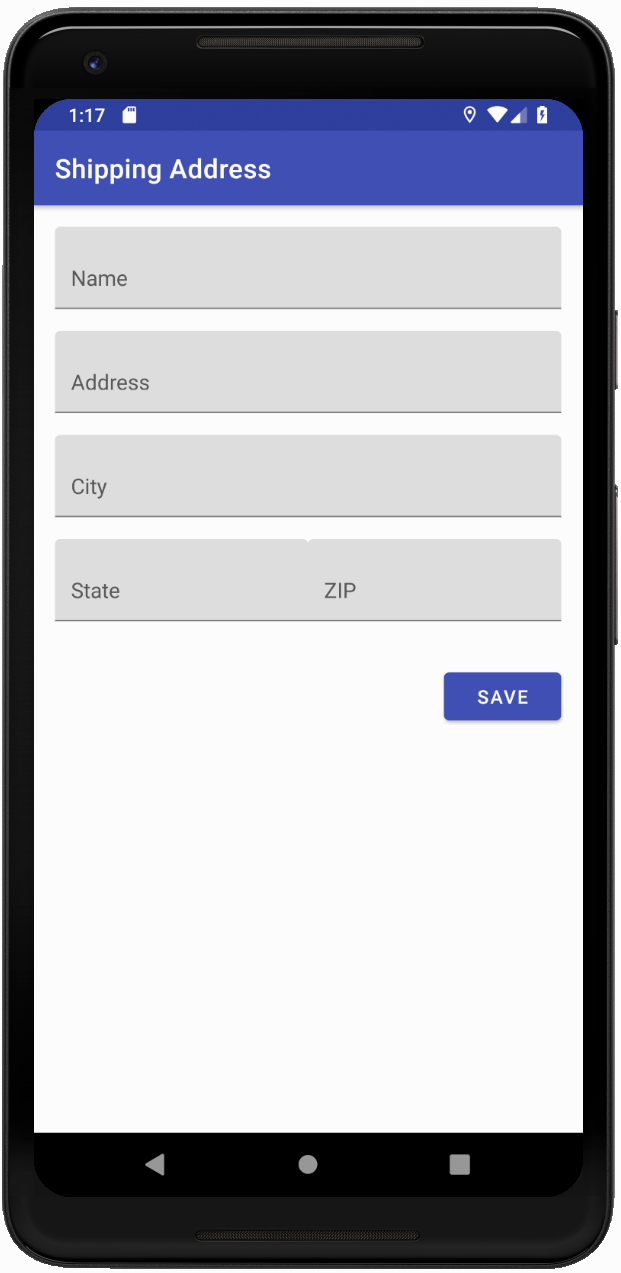
大功告成!您应该会看到该应用及其表单。
3. 更新文本字段
与纯文本字段相比,Material Design 文本字段在易用性方面有很大提升。通过使用轮廓或背景填充定义命中区域,用户更有可能与您的表单互动,或在更复杂的内容中识别文本字段。
导入 MDC-Android
导航到 app 模块的 build.gradle 文件,并确保 dependencies 组成块包含 MDC Android 的依赖项:
api 'com.google.android.material:material:1.1.0-alpha05'
替换文本字段样式
在 shipping_info_activity.xml 中,将以下样式添加到所有 TextInputLayout XML 组件:
shipping_info_activity.xml
style="@style/Widget.MaterialComponents.TextInputLayout.OutlinedBox"
每个 TextInputLayout 应如下所示:
shipping_info_activity.xml
<com.google.android.material.textfield.TextInputLayout
   android:id="@+id/name_text_input"
   style="@style/Widget.MaterialComponents.TextInputLayout.OutlinedBox"
   android:layout_width="match_parent"
   android:layout_height="wrap_content"
   app:errorEnabled="true">

   <com.google.android.material.textfield.TextInputEditText
       android:id="@+id/name_edit_text"
       android:layout_width="match_parent"
       android:layout_height="wrap_content"
       android:hint="@string/label_name" />
</com.google.android.material.textfield.TextInputLayout>
构建并运行:
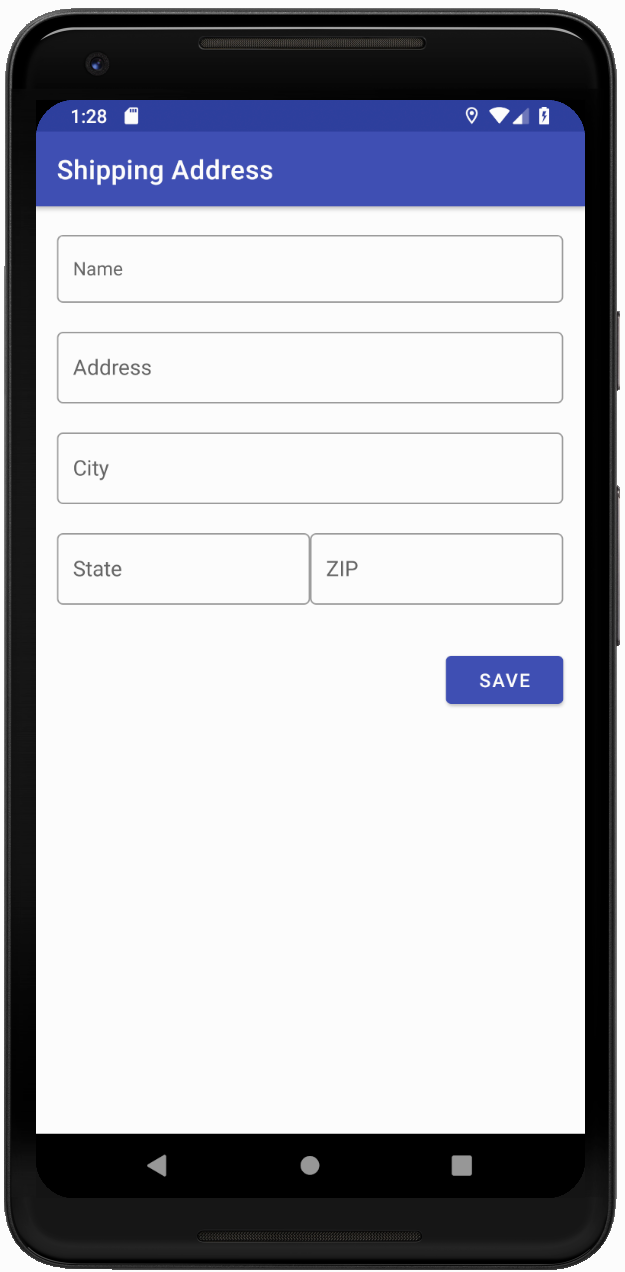
所有文本字段都已更新为使用 MDC 中的较新设计。
添加错误
MDC 文本字段具有内置的错误呈现功能。MDC 会在文本字段下方添加红色文本,并将装饰更新为红色。
在 ShippingInfoActivity.kt 中,更新 onCreate() 以检查文本输入并根据需要设置错误。它应如下所示:
ShippingInfoActivity.kt
override fun onCreate(savedInstanceState: Bundle?) {
   super.onCreate(savedInstanceState)
   setContentView(R.layout.shipping_info_activity)

   val rootView = findViewById<View>(android.R.id.content)

   val textInputLayouts = Utils.findViewsWithType(
           rootView, TextInputLayout::class.java)

   save_button.setOnClickListener {
       var noErrors = true
       for (textInputLayout in textInputLayouts) {
           val editTextString = textInputLayout.editText!!.text.toString()
           if (editTextString.isEmpty()) {
               textInputLayout.error = resources.getString(R.string.error_string)
               noErrors = false
           } else {
               textInputLayout.error = null
           }
       }

       if (noErrors) {
           // All fields are valid!
       }
   }
}
构建并运行。按 SAVE,但至少保留一个文本字段为空:
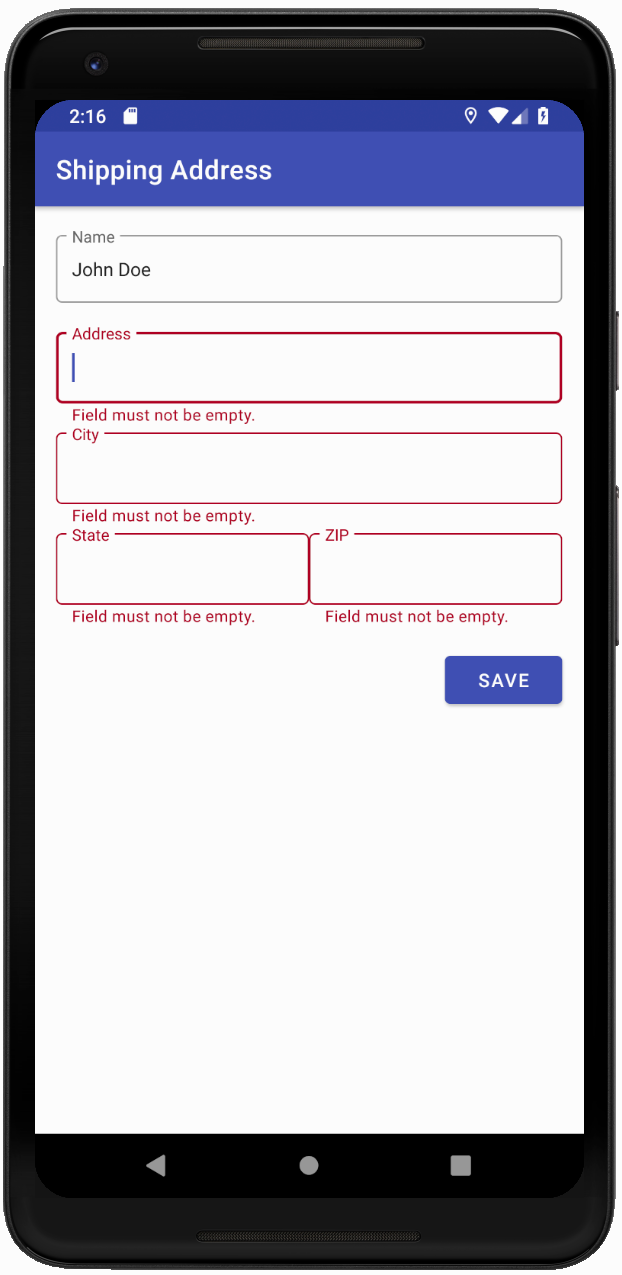
空文本字段为红色,且下方有错误文本。
4. 更新按钮
MDC 按钮具有以下特点:
- 墨水涟漪
- 圆角
- 主题设置支持
- 像素级精确的布局和排版
- 基于 AppCompatButton(标准 Android 按钮类)构建,因此您知道如何在代码中使用它们。
(可选)替换按钮类
默认情况下,Material 库会自动将常规按钮膨胀为 MDC 按钮。不过,您可以选择将对 Button 的所有引用替换为 MaterialButton,以便访问仅在 MaterialButton 中提供的其他方法,例如更改圆角半径。MDC 按钮是一种简单的即插即用型组件。您只需将 XML 组件名称 Button 替换为 MaterialButton,并将默认的 MaterialButton 样式应用于 MaterialButton。
在 shipping_info_activity.xml 中,将按钮从以下内容更改为:
shipping_info_activity.xml
<Button
   android:id="@+id/save_button"
   android:layout_width="wrap_content"
   android:layout_height="wrap_content"
   android:layout_gravity="end"
   android:layout_marginTop="16dp"
   android:text="@string/label_save" />
更改为:
shipping_info_activity.xml
<com.google.android.material.button.MaterialButton
   android:id="@+id/save_button"
   style="@style/Widget.MaterialComponents.Button"
   android:layout_width="wrap_content"
   android:layout_height="wrap_content"
   android:layout_gravity="end"
   android:layout_marginTop="16dp"
   android:text="@string/label_save" />
构建并运行:
5. 添加卡片
MaterialCardView 是基于 CardView 构建的组件,具有以下特点:
- 正确的海拔高度和样式
- 描边宽度和颜色属性
将内容封装在卡片中
使用 MaterialCardView 组件封装 shipping_info_activity.xml 中包含内容的 LinearLayout,如下所示:
shipping_info_activity.xml
<com.google.android.material.card.MaterialCardView
   android:layout_width="match_parent"
   android:layout_height="wrap_content"
   android:layout_margin="16dp"
   app:contentPadding="16dp">


   <!-- LinearLayout goes here -->


</com.google.android.material.card.MaterialCardView>
构建并运行。整个表单应封装在卡片中:

Material Card View 组件是一种熟悉但新颖的方式,可让您轻松地将内容封装在卡片中。
6. 总结
您已替换了一些常用组件以显示即时价值:文本字段、按钮、卡片,并且无需对应用进行全面重新设计。其他组件也可以带来很大的不同,例如顶部应用栏和 TabLayout。
后续步骤
您可以访问 Android widget 目录,探索 MDC-Android 中的更多组件。