

1. סקירה כללית
מה זה Document AI?
Document AI הוא פתרון להבנת מסמכים שמקבל נתונים לא מובְנים (למשל מסמכים, אימיילים, חשבוניות, טפסים וכו') והופך את הנתונים לקלים יותר להבנה, לניתוח ולשימוש. ממשק ה-API מספק מבנה באמצעות סיווג תוכן, חילוץ ישויות, חיפוש מתקדם ועוד.
בשיעור ה-Lab הזה תלמדו איך לבצע זיהוי תווים אופטי (OCR) באמצעות Document AI API עם Python.
נשתמש בקובץ PDF של הרומן הקלאסי "פו הדוב" מאת א.א. מילן, שהפך לאחרונה לחלק מנחלת הכלל בארצות הברית. הקובץ הזה נסרק ועבר דיגיטציה על ידי Google Books.
מה תלמדו
- איך מפעילים את Document AI API
- איך מאמתים בקשות API
- איך מתקינים את ספריית הלקוח ל-Python
- איך משתמשים בממשקי ה-API לעיבוד אונליין ולעיבוד של פעולות מקובצות
- איך מנתחים טקסט מקובץ PDF
מה תצטרכו
סקר
איך תשתמשו במדריך הזה?
איך היית מדרג את חוויית השימוש שלך ב-Python?
איזה דירוג מתאים לדעתך לחוויית השימוש שלך בשירותי Google Cloud?
2. הגדרה ודרישות
הגדרת סביבה בקצב אישי
- נכנסים אל Cloud Console ויוצרים פרויקט חדש או משתמשים בפרויקט קיים. (אם עדיין אין לכם חשבון Gmail או Google Workspace, אתם צריכים ליצור חשבון).


חשוב לזכור את מזהה הפרויקט, שהוא שם ייחודי בכל הפרויקטים ב-Google Cloud. (מזהה הפרויקט שמופיע למעלה כבר נמצא בשימוש ולא יפעל בשבילכם, מצטערים!). בהמשך תצטרכו לספק את המזהה הזה כ-PROJECT_ID.
- לאחר מכן, כדי להשתמש במשאבים של Google Cloud, צריך להפעיל את החיוב במסוף Cloud.
חשוב לפעול לפי ההוראות שבקטע 'ניקוי'. בקטע הזה מוסבר איך להשבית משאבים כדי שלא תחויבו אחרי שתסיימו את המדריך הזה. משתמשים חדשים ב-Google Cloud זכאים לתוכנית תקופת ניסיון בחינם בשווי 300$.
מפעילים את Cloud Shell
אפשר להפעיל את Google Cloud מרחוק מהמחשב הנייד, אבל ב-Codelab הזה משתמשים ב-Google Cloud Shell, סביבת שורת פקודה שפועלת בענן.
הפעלת Cloud Shell
- ב-Cloud Console, לוחצים על Activate Cloud Shell
.

אם זו הפעם הראשונה שאתם מפעילים את Cloud Shell, יוצג לכם מסך ביניים (מתחת לקו הקיפול) עם תיאור של הכלי. במקרה כזה, לוחצים על המשך (והמסך הזה לא יוצג לכם יותר). כך נראה המסך החד-פעמי:
יחלפו כמה רגעים עד שההקצאה והחיבור ל-Cloud Shell יושלמו.

Cloud Shell מספקת לכם גישה לטרמינל של מכונה וירטואלית שמארחת בענן. המכונה הווירטואלית כוללת את כל הכלים הדרושים למפתחים. יש בה ספריית בית בנפח מתמיד של 5GB והיא פועלת ב-Google Cloud, מה שמשפר מאוד את הביצועים והאימות ברשת. אפשר לבצע את רוב העבודה ב-codelab הזה, אם לא את כולה, באמצעות דפדפן בלבד.
אחרי שמתחברים ל-Cloud Shell, אמור להופיע אימות שכבר בוצע ושהפרויקט כבר הוגדר לפי מזהה הפרויקט.
- מריצים את הפקודה הבאה ב-Cloud Shell כדי לוודא שעברתם אימות:
gcloud auth list
פלט הפקודה
 Credentialed Accounts
ACTIVE  ACCOUNT
*      <my_account>@<my_domain.com>

To set the active account, run:
    $ gcloud config set account `ACCOUNT`
gcloud config list project
פלט הפקודה
[core]
project = <PROJECT_ID>
אם לא, אפשר להגדיר אותו באמצעות הפקודה הבאה:
gcloud config set project <PROJECT_ID>
פלט הפקודה
Updated property [core/project].
3. הפעלת Document AI API
כדי להתחיל להשתמש ב-Document AI, צריך להפעיל את ה-API. אפשר לעשות את זה באמצעות gcloud ממשק שורת הפקודה או Cloud Console.
שימוש ב-gcloud CLI
- אם אתם לא משתמשים ב-Cloud Shell, אתם צריכים לבצע את השלבים במאמר התקנת
gcloudCLI במחשב המקומי. - אפשר להפעיל את ממשקי ה-API באמצעות הפקודות הבאות של
gcloud.
gcloud services enable documentai.googleapis.com storage.googleapis.com
אתם אמורים לראות משהו כזה:
Operation "operations/..." finished successfully.
שימוש ב-Cloud Console
פותחים את מסוף Cloud בדפדפן.
- בסרגל החיפוש בחלק העליון של המסוף, מחפשים את Document AI API ולוחצים על Enable כדי להשתמש ב-API בפרויקט בענן של Google.

- חוזרים על השלב הקודם בשביל Google Cloud Storage API.
עכשיו אפשר להשתמש ב-Document AI.
4. יצירה ובדיקה של מעבד
קודם צריך ליצור מופע של מעבד OCR של מסמכים שיבצע את החילוץ. אפשר לבצע את הפעולה הזו באמצעות מסוף Cloud או Processor Management API.
Cloud Console
- במסוף, עוברים אל Document AI Platform Overview

- לוחצים על Explore Processors (עיון במעבדים) ובוחרים באפשרות Document OCR (זיהוי תווים אופטי במסמך)

- נותנים לו את השם
codelab-ocr(או שם אחר שתזכרו) ובוחרים את האזור הכי קרוב ברשימה. - לוחצים על יצירה כדי ליצור את המעבד.
- מעתיקים את מזהה המעבד. תצטרכו להשתמש בערך הזה בקוד בהמשך.

כדי לבדוק את המעבד במסוף, אפשר להעלות מסמך. לוחצים על העלאת מסמך לבדיקה ובוחרים מסמך לניתוח.
אפשר להוריד את קובץ ה-PDF שבהמשך, שכולל את 3 העמודים הראשונים של הרומן שלנו.
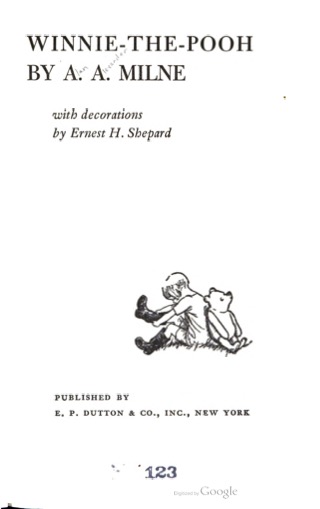
הפלט שלכם אמור להיראות כך: 
ספריית לקוח Python
ב-codelab הזה תלמדו איך לנהל מעבדים של Document AI באמצעות ספריית הלקוח של Python:
5. אימות בקשות API
כדי לשלוח בקשות ל-Document AI API, צריך להשתמש בחשבון שירות. חשבון שירות שייך לפרויקט שלכם, וספריית הלקוח של Python משתמשת בו כדי לשלוח בקשות API. בדומה לכל חשבון משתמש אחר, חשבון שירות מיוצג על ידי כתובת אימייל. בקטע הזה נשתמש ב-Cloud SDK כדי ליצור חשבון שירות, ואז ניצור את פרטי הכניסה שנדרשים לאימות כחשבון השירות.
קודם פותחים את Cloud Shell ומגדירים משתנה סביבה עם PROJECT_ID, שבו תשתמשו לאורך כל ה-codelab הזה:
export GOOGLE_CLOUD_PROJECT=$(gcloud config get-value core/project)
בשלב הבא, יוצרים חשבון שירות חדש כדי לגשת אל Document AI API באמצעות:
gcloud iam service-accounts create my-docai-sa \
  --display-name "my-docai-service-account"
בשלב הבא, נותנים לחשבון השירות הרשאות גישה ל-Document AI ול-Cloud Storage בפרויקט.
gcloud projects add-iam-policy-binding ${GOOGLE_CLOUD_PROJECT} \
    --member="serviceAccount:my-docai-sa@${GOOGLE_CLOUD_PROJECT}.iam.gserviceaccount.com" \
    --role="roles/documentai.admin"

gcloud projects add-iam-policy-binding ${GOOGLE_CLOUD_PROJECT} \
    --member="serviceAccount:my-docai-sa@${GOOGLE_CLOUD_PROJECT}.iam.gserviceaccount.com" \
    --role="roles/storage.admin"

gcloud projects add-iam-policy-binding ${GOOGLE_CLOUD_PROJECT} \
    --member="serviceAccount:my-docai-sa@${GOOGLE_CLOUD_PROJECT}.iam.gserviceaccount.com" \
    --role="roles/serviceusage.serviceUsageConsumer"
בשלב הבא, יוצרים פרטי כניסה שקוד ה-Python משתמש בהם כדי להיכנס בתור חשבון השירות החדש. יוצרים את פרטי הכניסה ושומרים אותם כקובץ JSON ~/key.json באמצעות הפקודה הבאה:
gcloud iam service-accounts keys create ~/key.json \
  --iam-account  my-docai-sa@${GOOGLE_CLOUD_PROJECT}.iam.gserviceaccount.com
לבסוף, מגדירים את משתנה הסביבה GOOGLE_APPLICATION_CREDENTIALS, שהספרייה משתמשת בו כדי למצוא את פרטי הכניסה שלכם. מידע נוסף על סוג האימות הזה זמין במדריך. צריך להגדיר את משתנה הסביבה לנתיב המלא של קובץ ה-JSON עם פרטי הכניסה שיצרתם, באמצעות הפקודה:
export GOOGLE_APPLICATION_CREDENTIALS="/path/to/key.json"
6. התקנת ספריית הלקוח
מתקינים את ספריות הלקוח של Python ל-Document AI, ל-Cloud Storage ול-Document AI Toolbox:
pip3 install --upgrade google-cloud-documentai
pip3 install --upgrade google-cloud-storage
pip3 install --upgrade google-cloud-documentai-toolbox
אתם אמורים לראות משהו כזה:
...
Installing collected packages: google-cloud-documentai
Successfully installed google-cloud-documentai-2.15.0
.
.
Installing collected packages: google-cloud-storage
Successfully installed google-cloud-storage-2.9.0
.
.
Installing collected packages: google-cloud-documentai-toolbox
Successfully installed google-cloud-documentai-toolbox-0.6.0a0
עכשיו אפשר להשתמש ב-Document AI API.
7. הורדת קובץ PDF לדוגמה
יש לנו מסמך לדוגמה שמכיל את 3 העמודים הראשונים של הרומן.
אפשר להוריד את קובץ ה-PDF באמצעות הקישור הבא. לאחר מכן מעלים אותו למופע Cloud Shell.
אפשר גם להוריד אותו מהקטגוריה הציבורית שלנו ב-Google Cloud Storage באמצעות gsutil.
gsutil cp gs://cloud-samples-data/documentai/codelabs/ocr/Winnie_the_Pooh_3_Pages.pdf .
8. שליחת בקשה לעיבוד אונליין
בשלב הזה, תעבדו את 3 הדפים הראשונים של הרומן באמצעות ה-API לעיבוד אונליין (סינכרוני). השיטה הזו מתאימה במיוחד למסמכים קטנים יותר שמאוחסנים באופן מקומי. ברשימת המעבדים המלאה אפשר לראות את מספר העמודים המקסימלי ואת גודל הקובץ המקסימלי לכל סוג מעבד.
משתמשים בכלי העריכה של Cloud Shell או בכלי לעריכת טקסט במחשב המקומי כדי ליצור קובץ בשם online_processing.py, ומשתמשים בקוד שלמטה.
מחליפים את YOUR_PROJECT_ID, YOUR_PROJECT_LOCATION, YOUR_PROCESSOR_ID ואת FILE_PATH בערכים המתאימים לסביבה שלכם.
online_processing.py
from google.api_core.client_options import ClientOptions
from google.cloud import documentai


PROJECT_ID = "YOUR_PROJECT_ID"
LOCATION = "YOUR_PROJECT_LOCATION"  # Format is 'us' or 'eu'
PROCESSOR_ID = "YOUR_PROCESSOR_ID"  # Create processor in Cloud Console

# The local file in your current working directory
FILE_PATH = "Winnie_the_Pooh_3_Pages.pdf"
# Refer to https://cloud.google.com/document-ai/docs/file-types
# for supported file types
MIME_TYPE = "application/pdf"

# Instantiates a client
docai_client = documentai.DocumentProcessorServiceClient(
    client_options=ClientOptions(api_endpoint=f"{LOCATION}-documentai.googleapis.com")
)

# The full resource name of the processor, e.g.:
# projects/project-id/locations/location/processor/processor-id
# You must create new processors in the Cloud Console first
RESOURCE_NAME = docai_client.processor_path(PROJECT_ID, LOCATION, PROCESSOR_ID)

# Read the file into memory
with open(FILE_PATH, "rb") as image:
    image_content = image.read()

# Load Binary Data into Document AI RawDocument Object
raw_document = documentai.RawDocument(content=image_content, mime_type=MIME_TYPE)

# Configure the process request
request = documentai.ProcessRequest(name=RESOURCE_NAME, raw_document=raw_document)

# Use the Document AI client to process the sample form
result = docai_client.process_document(request=request)

document_object = result.document
print("Document processing complete.")
print(f"Text: {document_object.text}")
מריצים את הקוד, שיחלץ את הטקסט וידפיס אותו במסוף.
אם משתמשים במסמך לדוגמה שלנו, הפלט אמור להיראות כך:
Document processing complete.
Text: CHAPTER I
IN WHICH We Are Introduced to
Winnie-the-Pooh and Some
Bees, and the Stories Begin
Here is Edward Bear, coming
downstairs now, bump, bump, bump, on the back
of his head, behind Christopher Robin. It is, as far
as he knows, the only way of coming downstairs,
but sometimes he feels that there really is another
way, if only he could stop bumping for a moment
and think of it. And then he feels that perhaps there
isn't. Anyhow, here he is at the bottom, and ready
to be introduced to you. Winnie-the-Pooh.
When I first heard his name, I said, just as you
are going to say, "But I thought he was a boy?"
"So did I," said Christopher Robin.
"Then you can't call him Winnie?"
"I don't."
"But you said "

...

Digitized by
Google
9. שליחת בקשה לעיבוד באצווה
עכשיו נניח שאתם רוצים לקרוא את הטקסט מתוך הרומן כולו.
- לעיבוד אונליין יש מגבלות על מספר הדפים וגודל הקובץ שאפשר לשלוח, והוא מאפשר רק קובץ מסמך אחד לכל קריאה ל-API.
- עיבוד באצווה מאפשר לעבד קבצים גדולים יותר או כמה קבצים בשיטה אסינכרונית.
בשלב הזה, נעבד את הרומן 'פו הדוב' כולו באמצעות Document AI Batch Processing API (ממשק API לעיבוד באצווה של Document AI) ונוציא את הטקסט לקטגוריה של Cloud Storage.
עיבוד באצווה משתמש בפעולות ארוכות טווח כדי לנהל בקשות באופן אסינכרוני, ולכן אנחנו צריכים לשלוח את הבקשה ולאחזר את הפלט באופן שונה מעיבוד אונליין. עם זאת, הפלט יהיה בפורמט האובייקט Document, בין אם משתמשים בעיבוד אונליין או בעיבוד באצווה.
בשלב הזה מוסבר איך לספק מסמכים ספציפיים ל-Document AI לעיבוד. בשלב מאוחר יותר נסביר איך לעבד ספרייה שלמה של מסמכים.
העלאת קובץ PDF ל-Cloud Storage
בשיטה batch_process_documents() אפשר כרגע לקבל קבצים מ-Google Cloud Storage. מידע נוסף על מבנה האובייקט זמין במאמר documentai_v1.types.BatchProcessRequest.
בדוגמה הזו, אפשר לקרוא את הקובץ ישירות מהקטגוריה לדוגמה שלנו.
אפשר גם להעתיק את הקובץ לקטגוריה משלכם באמצעות gsutil...
gsutil cp gs://cloud-samples-data/documentai/codelabs/ocr/Winnie_the_Pooh.pdf gs://YOUR_BUCKET_NAME/
...או שאתם יכולים להוריד את קובץ הדוגמה של הרומן מהקישור שלמטה ולהעלות אותו לדלי שלכם.
תצטרכו גם GCS Bucket כדי לאחסן את הפלט של ה-API.
במסמכי העזרה של Cloud Storage מוסבר איך ליצור קטגוריות אחסון.
שימוש בשיטה batch_process_documents()
יוצרים קובץ בשם batch_processing.py ומשתמשים בקוד שבהמשך.
מחליפים את YOUR_PROJECT_ID, YOUR_PROCESSOR_LOCATION, YOUR_PROCESSOR_ID, YOUR_INPUT_URI ו-YOUR_OUTPUT_URI בערכים המתאימים לסביבה שלכם.
מוודאים שכתובת ה-URL YOUR_INPUT_URI מפנה ישירות לקובץ ה-PDF, לדוגמה: gs://cloud-samples-data/documentai/codelabs/ocr/Winnie_the_Pooh.pdf.
batch_processing.py
"""
Makes a Batch Processing Request to Document AI
"""

import re

from google.api_core.client_options import ClientOptions
from google.api_core.exceptions import InternalServerError
from google.api_core.exceptions import RetryError
from google.cloud import documentai
from google.cloud import storage

# TODO(developer): Fill these variables before running the sample.
project_id = "YOUR_PROJECT_ID"
location = "YOUR_PROCESSOR_LOCATION"  # Format is "us" or "eu"
processor_id = "YOUR_PROCESSOR_ID"  # Create processor before running sample
gcs_output_uri = "YOUR_OUTPUT_URI"  # Must end with a trailing slash `/`. Format: gs://bucket/directory/subdirectory/
processor_version_id = (
    "YOUR_PROCESSOR_VERSION_ID"  # Optional. Example: pretrained-ocr-v1.0-2020-09-23
)

# TODO(developer): If `gcs_input_uri` is a single file, `mime_type` must be specified.
gcs_input_uri = "YOUR_INPUT_URI"  # Format: `gs://bucket/directory/file.pdf` or `gs://bucket/directory/`
input_mime_type = "application/pdf"
field_mask = "text,entities,pages.pageNumber"  # Optional. The fields to return in the Document object.


def batch_process_documents(
    project_id: str,
    location: str,
    processor_id: str,
    gcs_input_uri: str,
    gcs_output_uri: str,
    processor_version_id: str = None,
    input_mime_type: str = None,
    field_mask: str = None,
    timeout: int = 400,
):
    # You must set the api_endpoint if you use a location other than "us".
    opts = ClientOptions(api_endpoint=f"{location}-documentai.googleapis.com")

    client = documentai.DocumentProcessorServiceClient(client_options=opts)

    if not gcs_input_uri.endswith("/") and "." in gcs_input_uri:
        # Specify specific GCS URIs to process individual documents
        gcs_document = documentai.GcsDocument(
            gcs_uri=gcs_input_uri, mime_type=input_mime_type
        )
        # Load GCS Input URI into a List of document files
        gcs_documents = documentai.GcsDocuments(documents=[gcs_document])
        input_config = documentai.BatchDocumentsInputConfig(gcs_documents=gcs_documents)
    else:
        # Specify a GCS URI Prefix to process an entire directory
        gcs_prefix = documentai.GcsPrefix(gcs_uri_prefix=gcs_input_uri)
        input_config = documentai.BatchDocumentsInputConfig(gcs_prefix=gcs_prefix)

    # Cloud Storage URI for the Output Directory
    gcs_output_config = documentai.DocumentOutputConfig.GcsOutputConfig(
        gcs_uri=gcs_output_uri, field_mask=field_mask
    )

    # Where to write results
    output_config = documentai.DocumentOutputConfig(gcs_output_config=gcs_output_config)

    if processor_version_id:
        # The full resource name of the processor version, e.g.:
        # projects/{project_id}/locations/{location}/processors/{processor_id}/processorVersions/{processor_version_id}
        name = client.processor_version_path(
            project_id, location, processor_id, processor_version_id
        )
    else:
        # The full resource name of the processor, e.g.:
        # projects/{project_id}/locations/{location}/processors/{processor_id}
        name = client.processor_path(project_id, location, processor_id)

    request = documentai.BatchProcessRequest(
        name=name,
        input_documents=input_config,
        document_output_config=output_config,
    )

    # BatchProcess returns a Long Running Operation (LRO)
    operation = client.batch_process_documents(request)

    # Continually polls the operation until it is complete.
    # This could take some time for larger files
    # Format: projects/{project_id}/locations/{location}/operations/{operation_id}
    try:
        print(f"Waiting for operation {operation.operation.name} to complete...")
        operation.result(timeout=timeout)
    # Catch exception when operation doesn"t finish before timeout
    except (RetryError, InternalServerError) as e:
        print(e.message)

    # NOTE: Can also use callbacks for asynchronous processing
    #
    # def my_callback(future):
    #   result = future.result()
    #
    # operation.add_done_callback(my_callback)

    # Once the operation is complete,
    # get output document information from operation metadata
    metadata = documentai.BatchProcessMetadata(operation.metadata)

    if metadata.state != documentai.BatchProcessMetadata.State.SUCCEEDED:
        raise ValueError(f"Batch Process Failed: {metadata.state_message}")

    storage_client = storage.Client()

    print("Output files:")
    # One process per Input Document
    for process in list(metadata.individual_process_statuses):
        # output_gcs_destination format: gs://BUCKET/PREFIX/OPERATION_NUMBER/INPUT_FILE_NUMBER/
        # The Cloud Storage API requires the bucket name and URI prefix separately
        matches = re.match(r"gs://(.*?)/(.*)", process.output_gcs_destination)
        if not matches:
            print(
                "Could not parse output GCS destination:",
                process.output_gcs_destination,
            )
            continue

        output_bucket, output_prefix = matches.groups()

        # Get List of Document Objects from the Output Bucket
        output_blobs = storage_client.list_blobs(output_bucket, prefix=output_prefix)

        # Document AI may output multiple JSON files per source file
        for blob in output_blobs:
            # Document AI should only output JSON files to GCS
            if blob.content_type != "application/json":
                print(
                    f"Skipping non-supported file: {blob.name} - Mimetype: {blob.content_type}"
                )
                continue

            # Download JSON File as bytes object and convert to Document Object
            print(f"Fetching {blob.name}")
            document = documentai.Document.from_json(
                blob.download_as_bytes(), ignore_unknown_fields=True
            )

            # For a full list of Document object attributes, please reference this page:
            # https://cloud.google.com/python/docs/reference/documentai/latest/google.cloud.documentai_v1.types.Document

            # Read the text recognition output from the processor
            print("The document contains the following text:")
            print(document.text)


if __name__ == "__main__":
    batch_process_documents(
        project_id=project_id,
        location=location,
        processor_id=processor_id,
        gcs_input_uri=gcs_input_uri,
        gcs_output_uri=gcs_output_uri,
        input_mime_type=input_mime_type,
        field_mask=field_mask,
    )
מריצים את הקוד, וטקסט הרומן המלא אמור להיות מחולץ ומוצג במסוף.
הפעולה עשויה להימשך זמן מה כי הקובץ גדול בהרבה מהדוגמה הקודמת. (אוי, זה מעצבן...)
עם זאת, באמצעות Batch Processing API, תקבלו מזהה פעולה שאפשר להשתמש בו כדי לקבל את הפלט מ-GCS אחרי שהמשימה תושלם.
הפלט אמור להיראות כך:
Waiting for operation projects/PROJECT_NUMBER/locations/LOCATION/operations/OPERATION_NUMBER to complete...
Document processing complete.
Fetching docai-output/OPERATION_NUMBER/0/Winnie_the_Pooh-0.json
Fetching docai-output/OPERATION_NUMBER/0/Winnie_the_Pooh-1.json
Fetching docai-output/OPERATION_NUMBER/0/Winnie_the_Pooh-10.json
Fetching docai-output/OPERATION_NUMBER/0/Winnie_the_Pooh-11.json
Fetching docai-output/OPERATION_NUMBER/0/Winnie_the_Pooh-12.json
Fetching docai-output/OPERATION_NUMBER/0/Winnie_the_Pooh-13.json
Fetching docai-output/OPERATION_NUMBER/0/Winnie_the_Pooh-14.json
Fetching docai-output/OPERATION_NUMBER/0/Winnie_the_Pooh-15.json
Fetching docai-output/OPERATION_NUMBER/0/Winnie_the_Pooh-16.json
Fetching docai-output/OPERATION_NUMBER/0/Winnie_the_Pooh-17.json
Fetching docai-output/OPERATION_NUMBER/0/Winnie_the_Pooh-18.json
Fetching docai-output/OPERATION_NUMBER/0/Winnie_the_Pooh-2.json
Fetching docai-output/OPERATION_NUMBER/0/Winnie_the_Pooh-3.json
Fetching docai-output/OPERATION_NUMBER/0/Winnie_the_Pooh-4.json
Fetching docai-output/OPERATION_NUMBER/0/Winnie_the_Pooh-5.json
Fetching docai-output/OPERATION_NUMBER/0/Winnie_the_Pooh-6.json
Fetching docai-output/OPERATION_NUMBER/0/Winnie_the_Pooh-7.json
Fetching docai-output/OPERATION_NUMBER/0/Winnie_the_Pooh-8.json
Fetching docai-output/OPERATION_NUMBER/0/Winnie_the_Pooh-9.json

This is a reproduction of a library book that was digitized
by Google as part of an ongoing effort to preserve the
information in books and make it universally accessible.
TM
Google books
https://books.google.com

.....

He nodded and went
out ... and in a moment
I heard Winnie-the-Pooh
-bump, bump, bump-go-ing up the stairs behind
him.
Digitized by
Google
10. שליחת בקשה לעיבוד באצווה של ספרייה
לפעמים רוצים לעבד ספרייה שלמה של מסמכים, בלי לפרט כל מסמך בנפרד. השיטה batch_process_documents() תומכת בהזנת רשימה של מסמכים ספציפיים או נתיב של ספרייה.
בשלב הזה נסביר איך לעבד ספרייה מלאה של קובצי מסמכים. רוב הקוד פועל כמו בשלב הקודם, ההבדל היחיד הוא ה-URI של GCS שנשלח עם BatchProcessRequest.
יש לנו ספרייה בדלי לדוגמה שמכילה כמה דפים של הרומן בקבצים נפרדים.
gs://cloud-samples-data/documentai/codelabs/ocr/multi-document/
אפשר לקרוא את הקבצים ישירות או להעתיק אותם לקטגוריה שלכם ב-Cloud Storage.
מריצים מחדש את הקוד מהשלב הקודם, ומחליפים את YOUR_INPUT_URI בספרייה ב-Cloud Storage.
מריצים את הקוד, וצריך לראות את הטקסט שחולץ מכל קובצי המסמכים בספרייה של Cloud Storage.
הפלט אמור להיראות כך:
Waiting for operation projects/PROJECT_NUMBER/locations/LOCATION/operations/OPERATION_NUMBER to complete...
Document processing complete.
Fetching docai-output/OPERATION_NUMBER/0/Winnie_the_Pooh_Page_0-0.json
Fetching docai-output/OPERATION_NUMBER/1/Winnie_the_Pooh_Page_1-0.json
Fetching docai-output/OPERATION_NUMBER/2/Winnie_the_Pooh_Page_10-0.json
Fetching docai-output/OPERATION_NUMBER/3/Winnie_the_Pooh_Page_12-0.json
Fetching docai-output/OPERATION_NUMBER/4/Winnie_the_Pooh_Page_16-0.json
Fetching docai-output/OPERATION_NUMBER/5/Winnie_the_Pooh_Page_7-0.json

Introduction
(I₂
F YOU happen to have read another
book about Christopher Robin, you may remember
th
CHAPTER I
IN WHICH We Are Introduced to
Winnie-the-Pooh and Some
Bees, and the Stories Begin
HERE is
10
WINNIE-THE-POOH
"I wonder if you've got such a thing as a balloon
about you?"
"A balloon?"
"Yes,
12
WINNIE-THE-POOH
and you took your gun with you, just in case, as
you always did, and Winnie-the-P
16
WINNIE-THE-POOH
this song, and one bee sat down on the nose of the
cloud for a moment, and then g
WE ARE INTRODUCED
7
"Oh, help!" said Pooh, as he dropped ten feet on
the branch below him.
"If only
11. טיפול בתשובה של עיבוד באצווה באמצעות Document AI Toolbox
כדי לבצע עיבוד באצווה, צריך לבצע כמה שלבים בגלל השילוב עם Cloud Storage. יכול להיות שהפלט של Document יפוצל לכמה קבצים של .json, בהתאם לגודל של מסמך הקלט.
Document AI Toolbox Python SDK נוצר כדי לפשט את הפוסט-פרוססינג ומשימות נפוצות אחרות ב-Document AI. הספרייה הזו נועדה להשלים את ספריית הלקוח של Document AI, ולא להחליף אותה. המפרט המלא זמין במאמרי העזרה.
בשלב הזה מוסבר איך לשלוח בקשה לעיבוד באצווה ולאחזר את הפלט באמצעות Document AI Toolbox.
batch_processing_toolbox.py
"""
Makes a Batch Processing Request to Document AI using Document AI Toolbox
"""

from google.api_core.client_options import ClientOptions
from google.cloud import documentai
from google.cloud import documentai_toolbox

# TODO(developer): Fill these variables before running the sample.
project_id = "YOUR_PROJECT_ID"
location = "YOUR_PROCESSOR_LOCATION"  # Format is "us" or "eu"
processor_id = "YOUR_PROCESSOR_ID"  # Create processor before running sample
gcs_output_uri = "YOUR_OUTPUT_URI"  # Must end with a trailing slash `/`. Format: gs://bucket/directory/subdirectory/
processor_version_id = (
    "YOUR_PROCESSOR_VERSION_ID"  # Optional. Example: pretrained-ocr-v1.0-2020-09-23
)

# TODO(developer): If `gcs_input_uri` is a single file, `mime_type` must be specified.
gcs_input_uri = "YOUR_INPUT_URI"  # Format: `gs://bucket/directory/file.pdf`` or `gs://bucket/directory/``
input_mime_type = "application/pdf"
field_mask = "text,entities,pages.pageNumber"  # Optional. The fields to return in the Document object.


def batch_process_toolbox(
    project_id: str,
    location: str,
    processor_id: str,
    gcs_input_uri: str,
    gcs_output_uri: str,
    processor_version_id: str = None,
    input_mime_type: str = None,
    field_mask: str = None,
):
    # You must set the api_endpoint if you use a location other than "us".
    opts = ClientOptions(api_endpoint=f"{location}-documentai.googleapis.com")

    client = documentai.DocumentProcessorServiceClient(client_options=opts)

    if not gcs_input_uri.endswith("/") and "." in gcs_input_uri:
        # Specify specific GCS URIs to process individual documents
        gcs_document = documentai.GcsDocument(
            gcs_uri=gcs_input_uri, mime_type=input_mime_type
        )
        # Load GCS Input URI into a List of document files
        gcs_documents = documentai.GcsDocuments(documents=[gcs_document])
        input_config = documentai.BatchDocumentsInputConfig(gcs_documents=gcs_documents)
    else:
        # Specify a GCS URI Prefix to process an entire directory
        gcs_prefix = documentai.GcsPrefix(gcs_uri_prefix=gcs_input_uri)
        input_config = documentai.BatchDocumentsInputConfig(gcs_prefix=gcs_prefix)

    # Cloud Storage URI for the Output Directory
    gcs_output_config = documentai.DocumentOutputConfig.GcsOutputConfig(
        gcs_uri=gcs_output_uri, field_mask=field_mask
    )

    # Where to write results
    output_config = documentai.DocumentOutputConfig(gcs_output_config=gcs_output_config)

    if processor_version_id:
        # The full resource name of the processor version, e.g.:
        # projects/{project_id}/locations/{location}/processors/{processor_id}/processorVersions/{processor_version_id}
        name = client.processor_version_path(
            project_id, location, processor_id, processor_version_id
        )
    else:
        # The full resource name of the processor, e.g.:
        # projects/{project_id}/locations/{location}/processors/{processor_id}
        name = client.processor_path(project_id, location, processor_id)

    request = documentai.BatchProcessRequest(
        name=name,
        input_documents=input_config,
        document_output_config=output_config,
    )

    # BatchProcess returns a Long Running Operation (LRO)
    operation = client.batch_process_documents(request)

    # Operation Name Format: projects/{project_id}/locations/{location}/operations/{operation_id}
    documents = documentai_toolbox.document.Document.from_batch_process_operation(
        location=location, operation_name=operation.operation.name
    )

    for document in documents:
        # Read the text recognition output from the processor
        print("The document contains the following text:")
        # Truncated at 100 characters for brevity
        print(document.text[:100])


if __name__ == "__main__":
    batch_process_toolbox(
        project_id=project_id,
        location=location,
        processor_id=processor_id,
        gcs_input_uri=gcs_input_uri,
        gcs_output_uri=gcs_output_uri,
        input_mime_type=input_mime_type,
        field_mask=field_mask,
    )
12. מזל טוב
השתמשת בהצלחה ב-Document AI כדי לחלץ טקסט מרומן באמצעות עיבוד אונליין, עיבוד באצווה וערכת הכלים של Document AI.
מומלץ להתנסות במסמכים אחרים ולבדוק את מעבדי המסמכים האחרים שזמינים בפלטפורמה.
ניקוי
כדי להימנע מחיובים בחשבון Google Cloud בגלל השימוש במשאבים שנעשה במסגרת המדריך הזה:
- במסוף Cloud, נכנסים לדף Manage resources.
- ברשימת הפרויקטים, בוחרים את הפרויקט ולוחצים על Delete (מחיקה).
- כדי למחוק את הפרויקט, כותבים את מזהה הפרויקט בתיבת הדו-שיח ולוחצים על Shut down.
מידע נוסף
כדי להמשיך ללמוד על Document AI, אפשר לעבור לשיעורי ה-Codelab הבאים.
- ניתוח טפסים באמצעות Document AI (Python)
- מעבדים ייעודיים עם Document AI (Python)
- ניהול מעבדים של Document AI באמצעות Python
- Document AI: האדם שבתהליך
מקורות מידע
- העתיד של מסמכים – פלייליסט ב-YouTube
- מסמכי תיעוד בנושא Document AI
- ספריית לקוח Python של Document AI
- מאגר הדוגמאות של Document AI
רישיון
עבודה זו מורשית תחת רישיון Creative Commons שמותנה בייחוס 2.0 כללי.