

1. 概览
BigQuery 是 Google 推出的全托管式 PB 级低费用分析型数据仓库。BigQuery 无需运维:没有需要管理的基础架构,也无需指派数据库管理员。因此,您可以专注于分析数据,使用熟悉的 SQL 发掘有意义的分析洞见,并利用我们的随用随付模式。
在此 Codelab 中,您将使用 Google Cloud BigQuery 客户端库通过 Node.js 查询 BigQuery 公共数据集。
学习内容
- 如何使用 Cloud Shell
- 如何启用 BigQuery API
- 如何对 API 请求进行身份验证
- 如何安装 Node.js 版 BigQuery 客户端库
- 如何查询莎士比亚的作品
- 如何查询 GitHub 数据集
- 如何调整缓存和显示统计信息
所需条件
调查问卷
您将如何使用本教程?
您如何评价自己在 Node.js 方面的经验水平?
您如何评价自己在使用 Google Cloud Platform 服务方面的经验水平?
2. 设置和要求
自定进度的环境设置


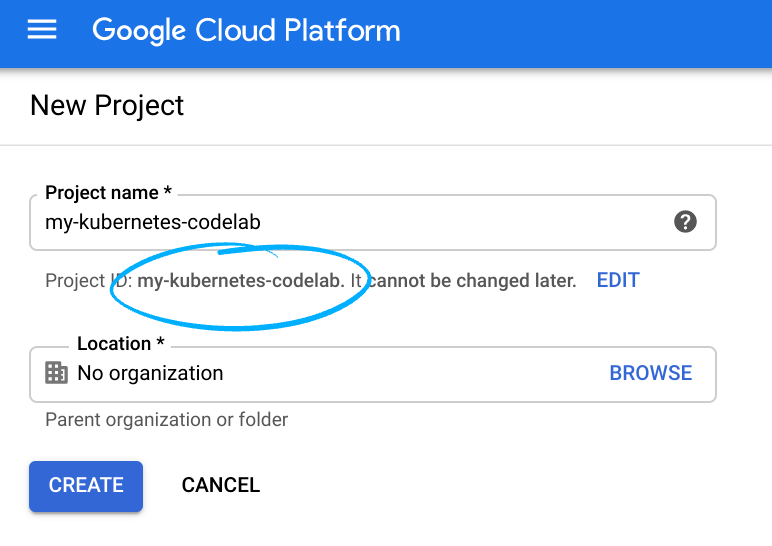
请记住项目 ID,它在所有 Google Cloud 项目中都是唯一的名称(上述名称已被占用,您无法使用,抱歉!)。它稍后将在此 Codelab 中被称为 PROJECT_ID。
- 接下来,您需要在 Cloud 控制台中启用结算功能,才能使用 Google Cloud 资源。
运行此 Codelab 应该不会产生太多的费用(如果有费用的话)。请务必按照“清理”部分中的所有说明操作,该部分介绍了如何关停资源,以免产生超出本教程范围的结算费用。Google Cloud 的新用户符合参与 $300 USD 免费试用计划的条件。
启动 Cloud Shell
虽然可以通过笔记本电脑对 Cloud SDK 命令行工具进行远程操作,但在此 Codelab 中,您将使用 Google Cloud Shell,这是一个在云端运行的命令行环境。
激活 Cloud Shell
- 在 Cloud Console 中,点击激活 Cloud Shell
。

如果您以前从未启动过 Cloud Shell,将看到一个中间屏幕(在折叠下面),描述它是什么。如果是这种情况,请点击继续(您将永远不会再看到它)。一次性屏幕如下所示:

预配和连接到 Cloud Shell 只需花几分钟时间。

这个虚拟机已加载了您需要的所有开发工具。它提供了一个持久的 5GB 主目录,并且在 Google Cloud 中运行,大大增强了网络性能和身份验证。只需使用一个浏览器或 Google Chromebook 即可完成本 Codelab 中的大部分(甚至全部)工作。
在连接到 Cloud Shell 后,您应该会看到自己已通过身份验证,并且相关项目已设置为您的项目 ID:
- 在 Cloud Shell 中运行以下命令以确认您已通过身份验证:
gcloud auth list
命令输出
 Credentialed Accounts
ACTIVE  ACCOUNT
*       <my_account>@<my_domain.com>

To set the active account, run:
    $ gcloud config set account `ACCOUNT`
gcloud config list project
命令输出
[core]
project = <PROJECT_ID>
如果不是上述结果,您可以使用以下命令进行设置:
gcloud config set project <PROJECT_ID>
命令输出
Updated property [core/project].
3. 启用 BigQuery API
默认情况下,所有 Google Cloud 项目都应启用 BigQuery API。您可以在 Cloud Shell 中使用以下命令检查是否属实:
gcloud services list
您应该会看到 BigQuery 列出:
NAME                              TITLE
bigquery-json.googleapis.com      BigQuery API
...
如果未启用 BigQuery API,您可以在 Cloud Shell 中使用以下命令来启用它:
gcloud services enable bigquery-json.googleapis.com
4. 对 API 请求进行身份验证
如需向 BigQuery API 发出请求,您需要使用服务账号。服务账号属于您的项目,Google BigQuery Node.js 客户端库会使用它来发出 BigQuery API 请求。与其他用户账号一样,服务账号也通过邮箱表示。在本部分中,您将使用 Cloud SDK 创建服务账号,然后创建该服务账号进行身份验证所需的凭证。
首先,您需要使用 PROJECT_ID 设置一个环境变量,以在此 Codelab 中全程使用:
export GOOGLE_CLOUD_PROJECT=$(gcloud config get-value core/project)
接下来,使用以下命令创建一个新的服务账号来访问 BigQuery API:
gcloud iam service-accounts create my-bigquery-sa --display-name "my bigquery codelab service account"
接下来,创建 Node.js 代码以新服务账号身份登录所用的凭据。请使用以下命令创建这类凭证并将其保存为 JSON 文件“~/key.json”:
gcloud iam service-accounts keys create ~/key.json --iam-account my-bigquery-sa@${GOOGLE_CLOUD_PROJECT}.iam.gserviceaccount.com
最后,设置 GOOGLE_APPLICATION_CREDENTIALSGOOGLE_APPLICATION_CREDENTIALS 环境变量,供 BigQuery API C# 库(将在下一步中介绍)用来查找您的凭据。该环境变量应设为您创建的凭据 JSON 文件的完整路径。使用以下命令设置环境变量:
export GOOGLE_APPLICATION_CREDENTIALS="/home/${USER}/key.json"
您可以详细了解如何对 BigQuery API 进行身份验证。
5. 设置访问权限控制
BigQuery 使用 Identity and Access Management (IAM) 来管理对资源的访问权限。BigQuery 具有许多预定义角色(用户、dataOwner、dataViewer 等),您可以将这些角色分配给您在上一步中创建的服务账号。如需详细了解,请参阅 BigQuery 文档中的访问权限控制。
在查询公共数据集之前,您需要确保服务账号至少具有 bigquery.user 角色。在 Cloud Shell 中,运行以下命令,向服务账号分配 bigquery.user 角色:
gcloud projects add-iam-policy-binding ${GOOGLE_CLOUD_PROJECT} --member "serviceAccount:my-bigquery-sa@${GOOGLE_CLOUD_PROJECT}.iam.gserviceaccount.com" --role "roles/bigquery.user"
您可以运行以下命令来验证服务账号是否已分配用户角色:
gcloud projects get-iam-policy $GOOGLE_CLOUD_PROJECT
6. 安装 Node.js 版 BigQuery 客户端库
首先,创建 BigQueryDemo 文件夹并前往该文件夹:
mkdir BigQueryDemo
cd BigQueryDemo
接下来,创建一个 Node.js 项目,用于运行 BigQuery 客户端库示例:
npm init -y
您应该会看到已创建的 Node.js 项目:
{
  "name": "BigQueryDemo",
  "version": "1.0.0",
  "description": "",
  "main": "index.js",
  "scripts": {
    "test": "echo \"Error: no test specified\" && exit 1"
  },
  "keywords": [],
  "author": "",
  "license": "ISC"
}
安装 BigQuery 客户端库:
npm install --save @google-cloud/bigquery
npm notice created a lockfile as package-lock.json. You should commit this file.
npm WARN BigQueryDemo@1.0.0 No description
npm WARN BigQueryDemo@1.0.0 No repository field.
+ @google-cloud/bigquery@2.1.0
added 69 packages from 105 contributors and audited 147 packages in 4.679s
found 0 vulnerabilities
现在,您可以使用 BigQuery Node.js 客户端库了!
7. 查询莎士比亚的作品
公共数据集是指存储在 BigQuery 中且提供给公众使用的任何数据集。另外还有很多公开数据集可供查询,其中一些也由 Google 托管,但更多则是由第三方托管。如需了解详情,请参阅公共数据集页面。
除公共数据集之外,BigQuery 还提供了有限数量的示例表供您查询。这些表包含在 bigquery-public-data:samples dataset 中。其中一个表名为 shakespeare.,包含莎士比亚作品的字词索引,并提供了每个字词在各文集中出现的次数。
在此步骤中,您将查询 shakespeare 表。
首先,从 Cloud Shell 的右上角打开代码编辑器:
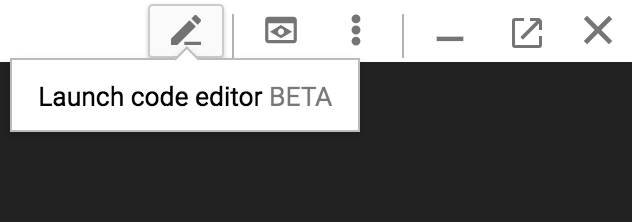
在 BigQueryDemo 文件夹中创建 queryShakespeare.js 文件:
touch queryShakespeare.js
前往 queryShakespeare.js 文件,然后插入以下代码:
'use strict';

function main() {

    // Import the Google Cloud client library
    const {BigQuery} = require('@google-cloud/bigquery');

    async function queryShakespeare() {
    // Queries a public Shakespeare dataset.

        // Create a client
        const bigqueryClient = new BigQuery();

        // The SQL query to run
        const sqlQuery = `SELECT word, word_count
            FROM \`bigquery-public-data.samples.shakespeare\`
            WHERE corpus = @corpus
            AND word_count >= @min_word_count
            ORDER BY word_count DESC`;

        const options = {
        query: sqlQuery,
        // Location must match that of the dataset(s) referenced in the query.
        location: 'US',
        params: {corpus: 'romeoandjuliet', min_word_count: 250},
        };

        // Run the query
        const [rows] = await bigqueryClient.query(options);

        console.log('Rows:');
        rows.forEach(row => console.log(row));
    }

    queryShakespeare();
  }

main();
花一两分钟时间研究一下代码,看看如何查询表。
返回 Cloud Shell,运行应用:
node queryShakespeare.js
您应该会看到一个字词及其出现次数的列表:
Rows:
{ word: 'the', word_count: 614 }
{ word: 'I', word_count: 577 }
{ word: 'and', word_count: 490 }
{ word: 'to', word_count: 486 }
{ word: 'a', word_count: 407 }
{ word: 'of', word_count: 367 }
{ word: 'my', word_count: 314 }
{ word: 'is', word_count: 307 }
...
8. 查询 GitHub 数据集
为了更熟悉 BigQuery,您现在将针对 GitHub 公共数据集发出查询。您可以在 GitHub 上找到最常见的提交消息。您还将使用 BigQuery 的网页界面来预览和运行临时查询。
如需查看数据,请在 BigQuery 网页界面中打开 GitHub 数据集:
https://console.cloud.google.com/bigquery?p=bigquery-public-data&d=github_repos&t=commits&page=table
如需快速预览数据外观,请点击“预览”标签页:
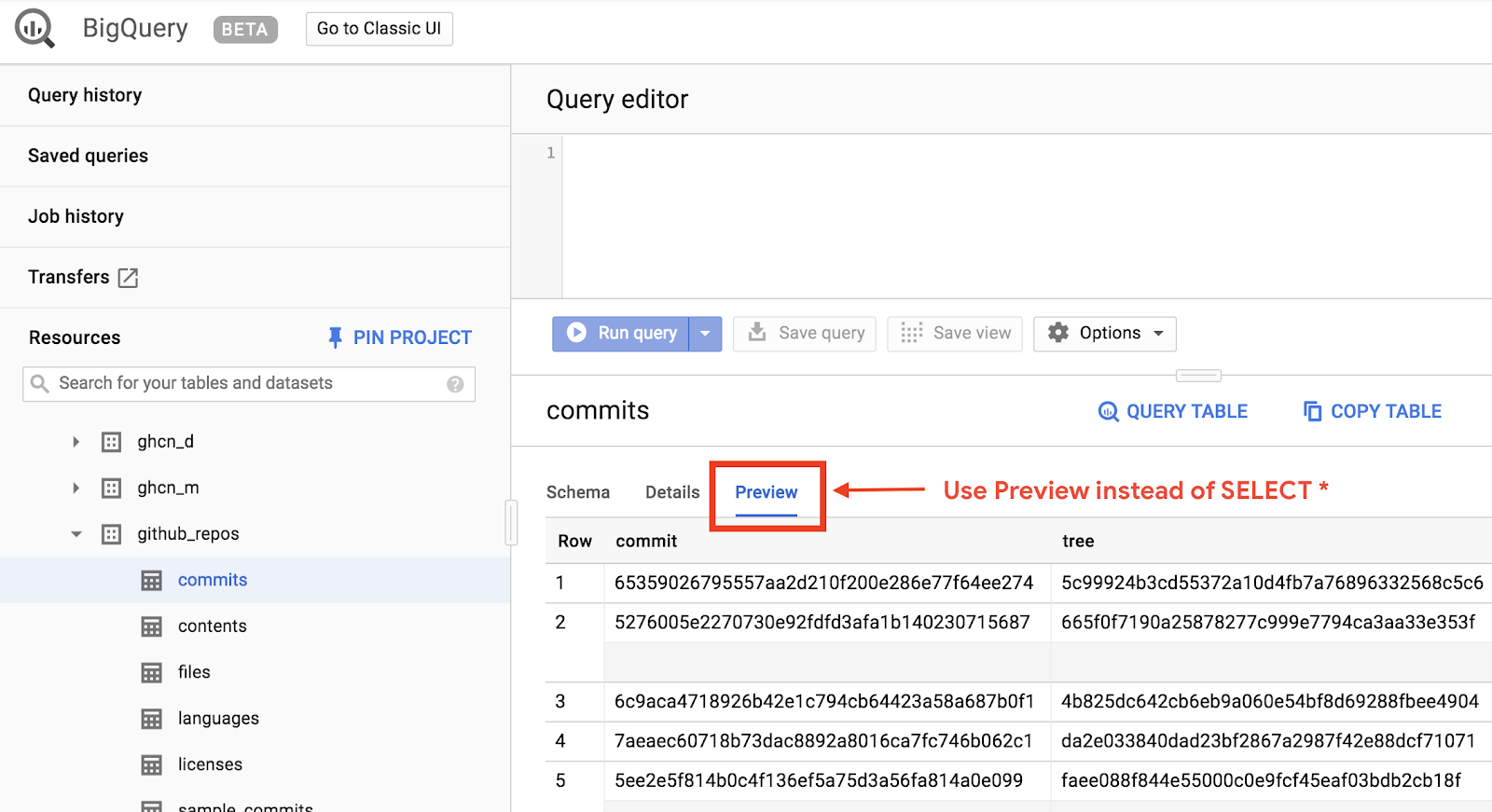
在 BigQueryDemo 文件夹中创建 queryGitHub.js 文件:
touch queryGitHub.js
前往 queryGitHub.js 文件,然后插入以下代码:
'use strict';

function main() {

    // Import the Google Cloud client library
    const {BigQuery} = require('@google-cloud/bigquery');


    async function queryGitHub() {
        // Queries a public GitHub dataset.

        // Create a client
        const bigqueryClient = new BigQuery();

        // The SQL query to run
        const sqlQuery = `SELECT subject AS subject, COUNT(*) AS num_duplicates
        FROM \`bigquery-public-data.github_repos.commits\`
        GROUP BY subject
        ORDER BY num_duplicates
        DESC LIMIT 10`;

        const options = {
        query: sqlQuery,
        // Location must match that of the dataset(s) referenced in the query.
        location: 'US',
        };

        // Run the query
        const [rows] = await bigqueryClient.query(options);

        console.log('Rows:');
        rows.forEach(row => console.log(`${row.subject}: ${row.num_duplicates}`));
    }

    queryGitHub();
}

main();
花一两分钟时间研究一下代码,看看如何查询表格以获取最常见的提交消息。
返回 Cloud Shell,运行应用:
node queryGitHub.js
您应该会看到提交消息及其出现次数的列表:
Rows:
Update README.md: 2572220
: 1985733
Initial commit: 1940228
Mirroring from Micro.blog.: 646772
update: 592520
Update data.json: 548730
Update data.js: 548354
...
9. 缓存和统计信息
当您运行查询时,BigQuery 会缓存结果。因此,后续的相同查询所需的时间会大大减少。您可以使用查询选项停用缓存。BigQuery 还会跟踪有关查询的一些统计信息,例如创建时间、结束时间和处理的总字节数。
在此步骤中,您将停用缓存并显示有关查询的一些统计信息。
前往 BigQueryDemo 文件夹内的 queryShakespeare.js 文件,然后将代码替换为以下内容:
'use strict';

function main() {

    // Import the Google Cloud client library
    const {BigQuery} = require('@google-cloud/bigquery');

    async function queryShakespeareDisableCache() {
        // Queries the Shakespeare dataset with the cache disabled.

        // Create a client
        const bigqueryClient = new BigQuery();

        const sqlQuery = `SELECT word, word_count
            FROM \`bigquery-public-data.samples.shakespeare\`
            WHERE corpus = @corpus
            AND word_count >= @min_word_count
            ORDER BY word_count DESC`;

        const options = {
            query: sqlQuery,
            // Location must match that of the dataset(s) referenced in the query.
            location: 'US',
            params: {corpus: 'romeoandjuliet', min_word_count: 250},
            useQueryCache: false,
        };

        // Run the query as a job
        const [job] = await bigqueryClient.createQueryJob(options);
        console.log(`Job ${job.id} started.`);

        // Wait for the query to finish
        const [rows] = await job.getQueryResults();

        // Print the results
        console.log('Rows:');
        rows.forEach(row => console.log(row));

        // Print job statistics
        console.log('JOB STATISTICS:')
        console.log(`Status: ${job.metadata.status.state}`);
        console.log(`Creation time: ${job.metadata.statistics.creationTime}`);
        console.log(`Start time: ${job.metadata.statistics.startTime}`);
        console.log(`Statement type: ${job.metadata.statistics.query.statementType}`);
    }
    queryShakespeareDisableCache();
}

main();
关于此代码,有几点需要注意。首先,通过在 options 对象内将 UseQueryCache 设置为 false 来停用缓存。其次,您从作业对象中获取了有关查询的统计信息。
返回 Cloud Shell,运行应用:
node queryShakespeare.js
您应该会看到提交消息及其出现次数的列表。此外,您还应看到一些有关查询的统计信息:
Rows:
{ word: 'the', word_count: 614 }
{ word: 'I', word_count: 577 }
{ word: 'and', word_count: 490 }
{ word: 'to', word_count: 486 }
{ word: 'a', word_count: 407 }
{ word: 'of', word_count: 367 }
{ word: 'my', word_count: 314 }
{ word: 'is', word_count: 307 }
{ word: 'in', word_count: 291 }
{ word: 'you', word_count: 271 }
{ word: 'that', word_count: 270 }
{ word: 'me', word_count: 263 }
JOB STATISTICS:
Status: RUNNING
Creation time: 1554309220660
Start time: 1554309220793
Statement type: SELECT
10. 将数据加载到 BigQuery 中
如果您想查询自己的数据,需要先将数据加载到 BigQuery 中。BigQuery 支持从多种来源(例如 Google Cloud Storage、其他 Google 服务或本地可读来源)加载数据。您甚至可以流式传输数据。您可以前往将数据加载到 BigQuery 中页面详细了解相关信息。
在此步骤中,您将把存储在 Google Cloud Storage 中的 JSON 文件加载到 BigQuery 表中。JSON 文件位于:gs://cloud-samples-data/bigquery/us-states/us-states.json
如果您想了解 JSON 文件的内容,可以使用 gsutil 命令行工具在 Cloud Shell 中下载该文件:
gsutil cp gs://cloud-samples-data/bigquery/us-states/us-states.json .
Copying gs://cloud-samples-data/bigquery/us-states/us-states.json...
/ [1 files][  2.0 KiB/  2.0 KiB]
Operation completed over 1 objects/2.0 KiB.
您可以看到,它包含美国各州的列表,每个州都是单独一行的 JSON 对象:
less us-states.json
{"name": "Alabama", "post_abbr": "AL"}
{"name": "Alaska", "post_abbr":  "AK"}
...
如需将此 JSON 文件加载到 BigQuery 中,请在 BigQueryDemo 文件夹中创建 createDataset.js 文件和 loadBigQueryJSON.js 文件:
touch createDataset.js
touch loadBigQueryJSON.js
安装 Google Cloud Storage Node.js 客户端库:
npm install --save @google-cloud/storage
前往 createDataset.js 文件并插入以下代码:
'use strict';

function main() {
    // Import the Google Cloud client libraries
    const {BigQuery} = require('@google-cloud/bigquery');

    async function createDataset() {
        const datasetId = "my_states_dataset3";

        const bigqueryClient = new BigQuery();

        // Specify the geographic location where the dataset should reside
        const options = {
        location: 'US',
        };

        // Create a new dataset
        const [dataset] = await bigqueryClient.createDataset(datasetId, options);
        console.log(`Dataset ${dataset.id} created.`);
    }

    createDataset();
}

main();
然后,找到 loadBigQueryJSON.js 文件并插入以下代码:
'use strict';

function main() {
    // Import the Google Cloud client libraries
    const {BigQuery} = require('@google-cloud/bigquery');
    const {Storage} = require('@google-cloud/storage');

    const datasetId = "my_states_dataset3";
    const tableId = "my_states_table";


    async function createTable(datasetId, tableId) {
        // Creates a new table

        // Create a client
        const bigqueryClient = new BigQuery();

        const options = {
            location: 'US',
            };

        // Create a new table in the dataset
        const [table] = await bigqueryClient
        .dataset(datasetId)
        .createTable(tableId, options);

        console.log(`Table ${table.id} created.`);
    }

    async function loadJSONFromGCS(datasetId, tableId) {
        // Import a GCS file into a table with manually defined schema.

        // Instantiate clients
        const bigqueryClient = new BigQuery();
        const storageClient = new Storage();

        const bucketName = 'cloud-samples-data';
        const filename = 'bigquery/us-states/us-states.json';

        // Configure the load job.
        const metadata = {
        sourceFormat: 'NEWLINE_DELIMITED_JSON',
        schema: {
            fields: [
            {name: 'name', type: 'STRING'},
            {name: 'post_abbr', type: 'STRING'},
            ],
        },
        location: 'US',
        };

        // Load data from a Google Cloud Storage file into the table
        const [job] = await bigqueryClient
        .dataset(datasetId)
        .table(tableId)
        .load(storageClient.bucket(bucketName).file(filename), metadata);

        // load() waits for the job to finish
        console.log(`Job ${job.id} completed.`);

        // Check the job's status for errors
        const errors = job.status.errors;
        if (errors && errors.length > 0) {
        throw errors;
        }
    }

    // createDataset(datasetId);
    createTable(datasetId, tableId);
    loadJSONFromGCS(datasetId, tableId);
}

main();
花一两分钟时间研究一下代码如何加载 JSON 文件并在数据集中创建表(包含架构)。
返回 Cloud Shell,运行应用:
node createDataset.js
node loadBigQueryJSON.js
在 BigQuery 中创建数据集和表:
Table my_states_table created.
Job [JOB ID] completed.
如需验证数据集是否已创建,您可以前往 BigQuery 网页界面。您应该会看到一个新数据集和一个表。如果您切换到表的“预览”标签页,则可以看到实际数据:
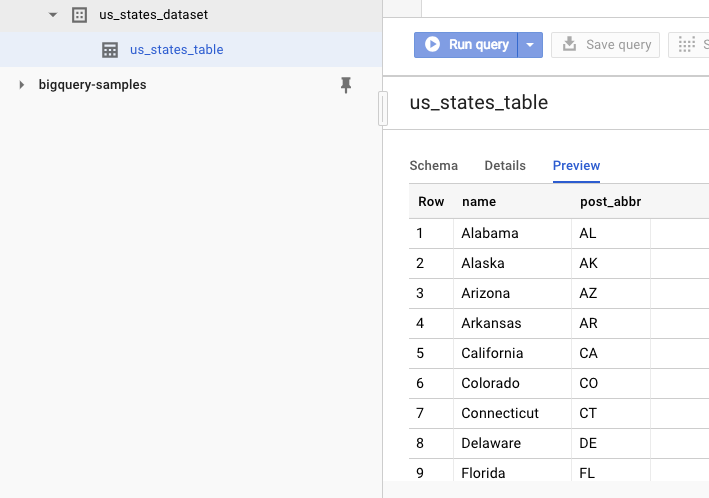
11. 恭喜!
您已了解如何使用 Node.js 来使用 BigQuery!
清理
为避免系统因本快速入门中使用的资源向您的 Google Cloud Platform 账号收取费用,请执行以下操作:
- 前往 Cloud Platform 控制台。
- 选择要关停的项目,然后点击顶部的“删除”:系统会安排删除该项目。
了解详情
- Google BigQuery:https://cloud.google.com/bigquery/docs/
- Google Cloud Platform 上的 Node.js:https://cloud.google.com/nodejs/
- Google BigQuery Node.js 客户端库:https://github.com/googleapis/nodejs-bigquery
许可
此作品已获得 Creative Commons Attribution 2.0 通用许可授权。